
Times New Roman, Arial, Comic Sans — the fonts you use in your online forms create the impression you give to your users. Whether it’s all business or a more casual, fun vibe, the font can make all the difference in how your forms are received.
If you use one of the most popular online form builders, you may be wondering how to change fonts in Microsoft Forms for this very reason. Luckily, it’s simple.
Follow along as we break down the step-by-step instructions for adjusting fonts yourself — as well as insights on how you can elevate your fonts even further with Jotform.
Why you may need to change fonts in your forms
Deciding which fonts to use may seem like a minor consideration, but they do play a role in the effectiveness of your online forms. Fonts create consistency in your brand aesthetic and contribute to your form’s overall appeal.
Fonts also play a role in your form’s accessibility. The font you choose determines how easily your users can read and interact with your online materials.
If your form’s default font doesn’t fit your vision, it’s important to know how to change it.
How to change fonts in Microsoft Forms
Microsoft Forms offers some customization options for your form fonts, but they’re relatively limited overall. Unlike Microsoft Word, Microsoft Forms doesn’t provide access to different typeface options. Instead, Microsoft Forms allows you to adjust the appearance of its default font for all forms.
Here’s how to get started:
- Open Microsoft Forms and click on an existing form or click New Form to start a new one.
- Highlight the text you want to change. A small design menu should appear by your text, offering options to bold, italicize, and underline. You can also adjust the size and color of your font, as well as create numerical or bulleted lists.
- Click on the options you wish to use for your selected text. This can be done for full sections of text, individual words, and more. You can then repeat this process for whatever text you wish to adjust.
- If your form has a theme, you can also adjust it to automatically update the font.
Microsoft Forms lets you change some design elements, including fonts, but it doesn’t offer the full font catalog you might expect. If you’re looking for a Microsoft Forms alternative with advanced font customization, consider Jotform.

Migrate existing forms instantly
There’s no need to rebuild your online forms from scratch. Instead, migrate existing forms and submission data into your Jotform account in one click — so you can collect data without skipping a beat.
Your form can not be migrated.
Please ensure that your form URL is correct and that your form is set to “public” before attempting to migrate it again.
How to customize your form fonts in Jotform
In search of custom form fonts? Jotform makes it easy to update your fonts to match your style. It only takes a few minutes to learn how to change form fonts in Jotform, and it can be done in a few key ways, depending on your needs and technical expertise.
1. Form Designer
The most straightforward option Jotform offers for customizing your fonts is to update your form with built-in fonts.
- Open the Jotform Form Builder and click on the blue paint roller icon on the right to open the Form Designer menu.

- Click on the Styles tab and click on the Font dropdown menu.
- Find your preferred font and click on it to apply your changes automatically.

2. Advanced Designer
You can also use the Advanced Designer in the Jotform form builder to update your fonts in just a few extra steps.
- Open the Jotform Form Builder and click on the blue paint roller icon on the right to open the Form Designer menu.
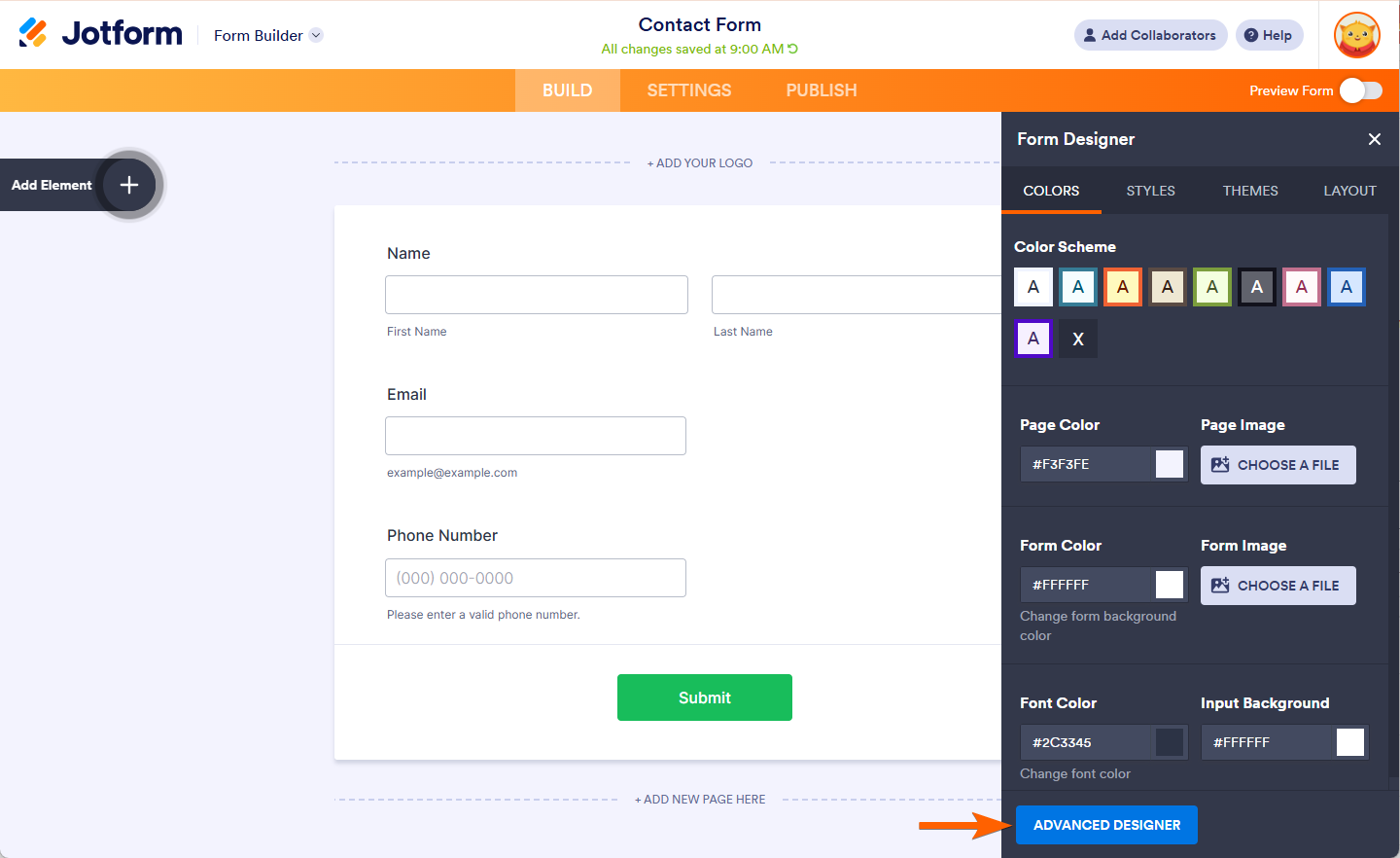
- Scroll to the bottom of the Form Designer menu and click on Advanced Designer.
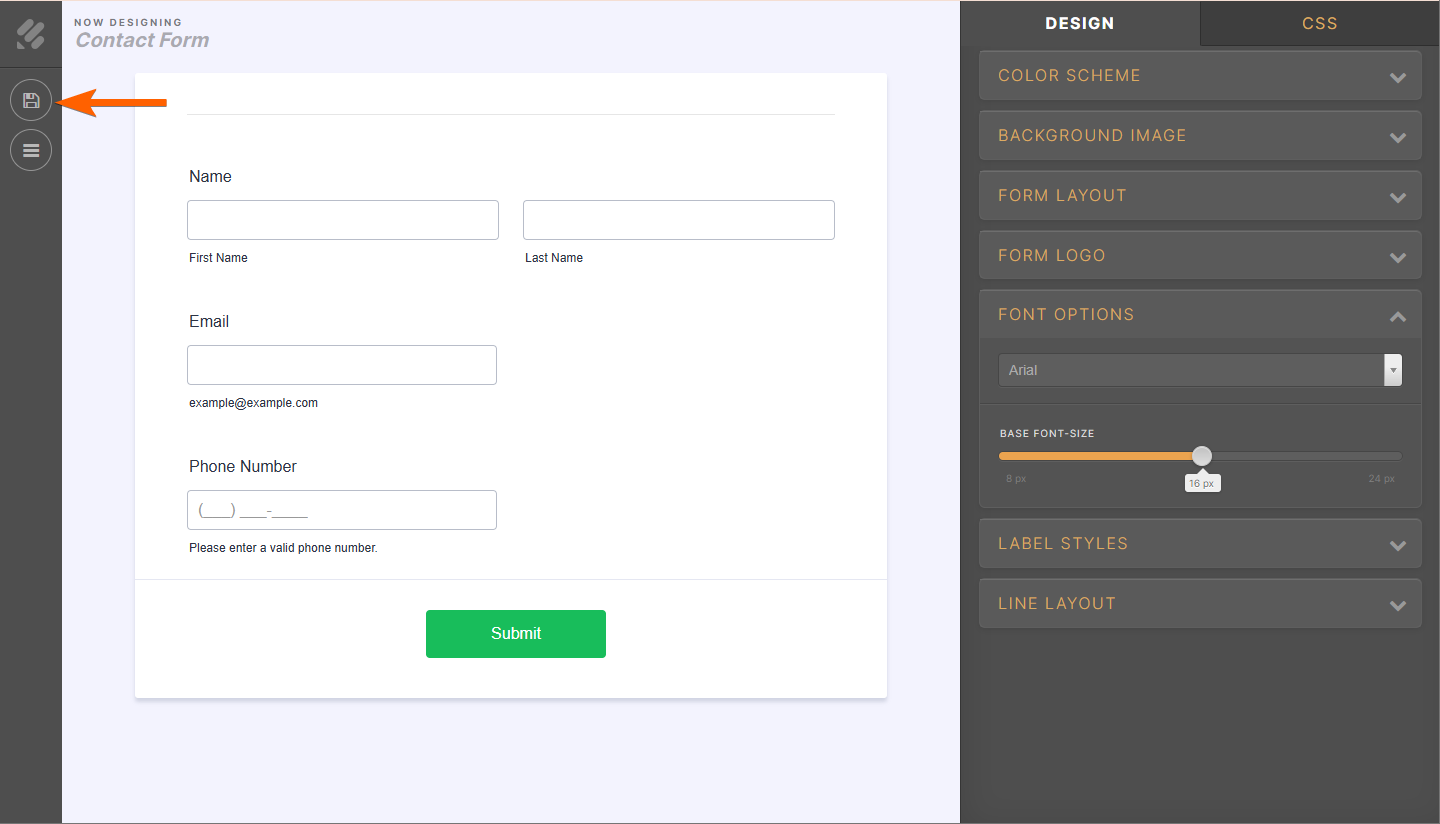
- Your form will open in the Advanced Designer page. In the design tab on the right, click on the Font Options dropdown to expand it and choose your preferred font.

- Click the Save button on the top-left side of the Advanced Designer page to finalize your changes.
3. Google Fonts
Have a custom font in Google Fonts you want to use in your forms? In addition to built-in font options, Jotform lets you use Google Fonts and custom fonts in your form by importing them. This works in two stages: getting the import code and importing it to your account.
Getting your import code
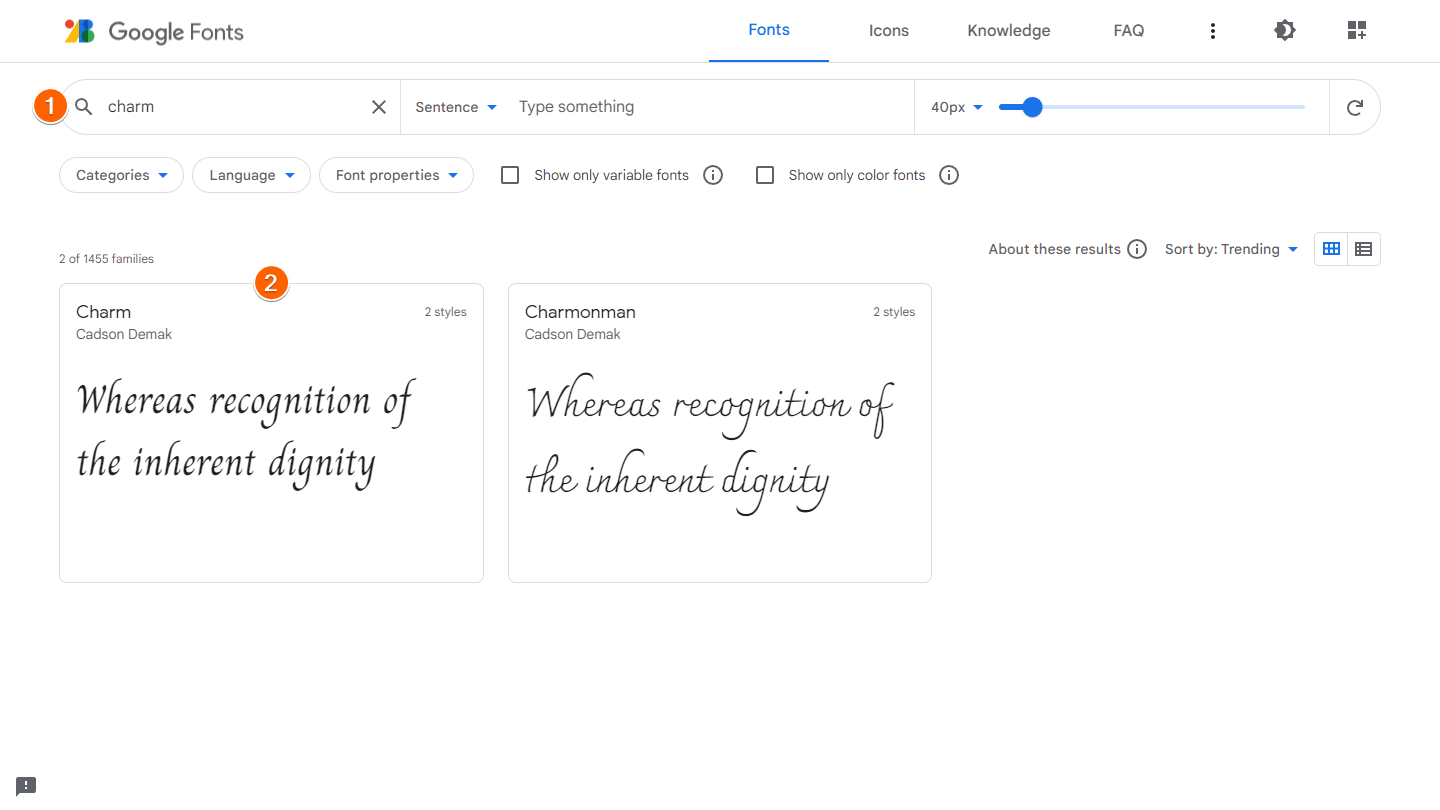
- Open the Google Fonts website and search for your preferred font.
- Select your font from the provided results.
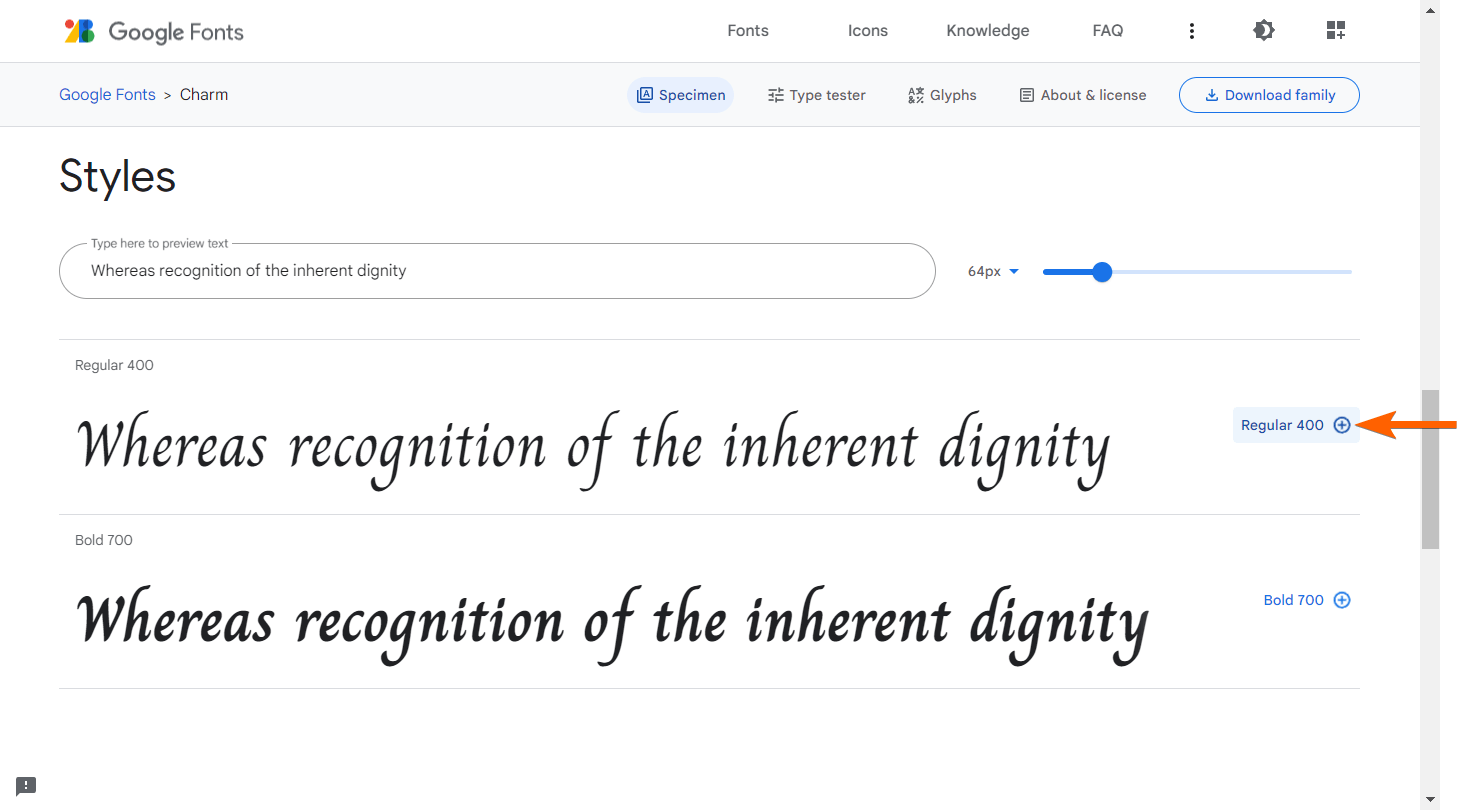
- Scroll down to Styles and choose your preferred font by clicking the plus icon.
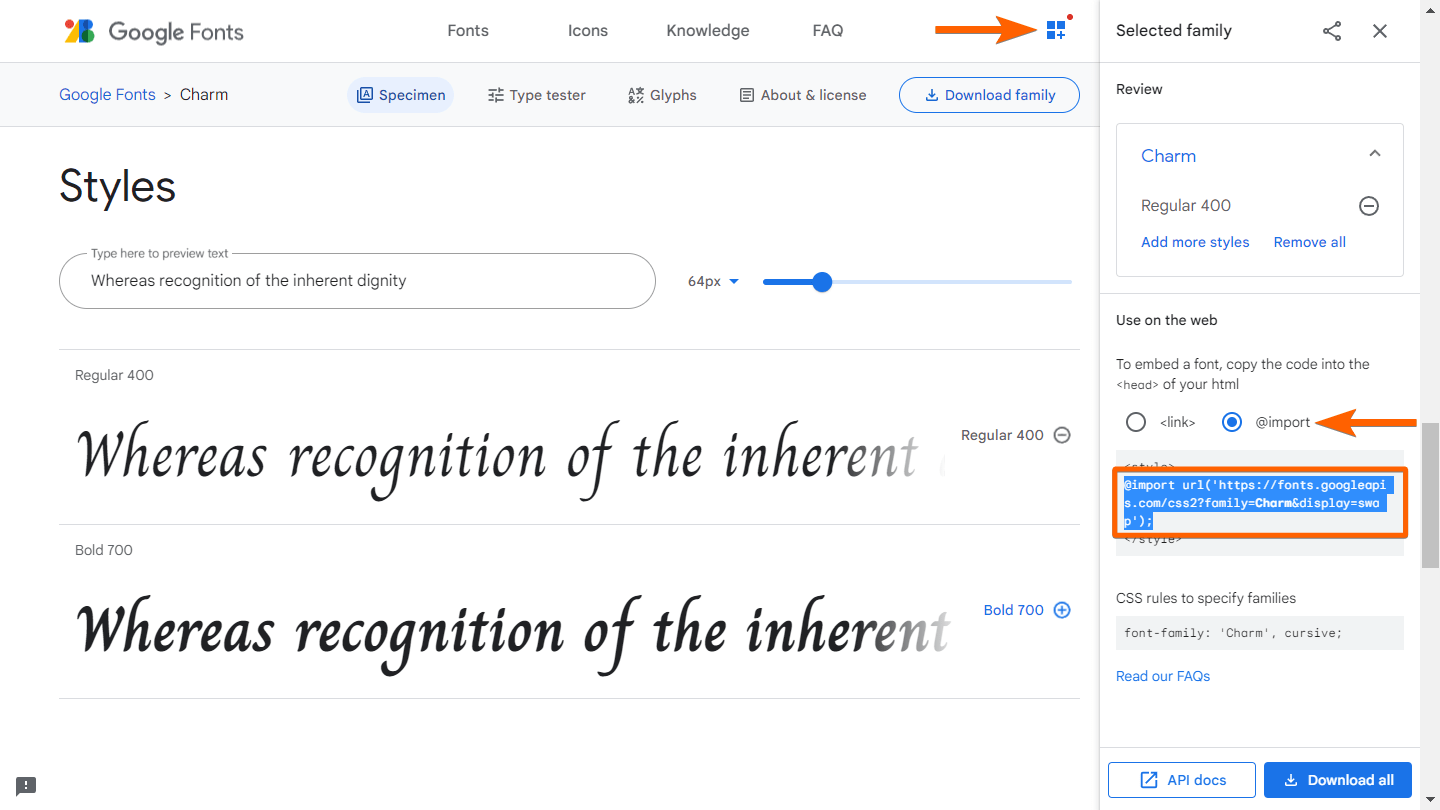
- Click on the grid icon in the upper-right corner to open the Selected family side menu.
- In the Selected family menu, select @import under Use on the web.
- Copy the code inside the style tag section.
Importing your Google Fonts to Jotform
- Open the Jotform Form Builder and click on the blue paint roller icon on the right to open the Form Designer menu.
- Click on the Styles tab of the Form Designer menu.
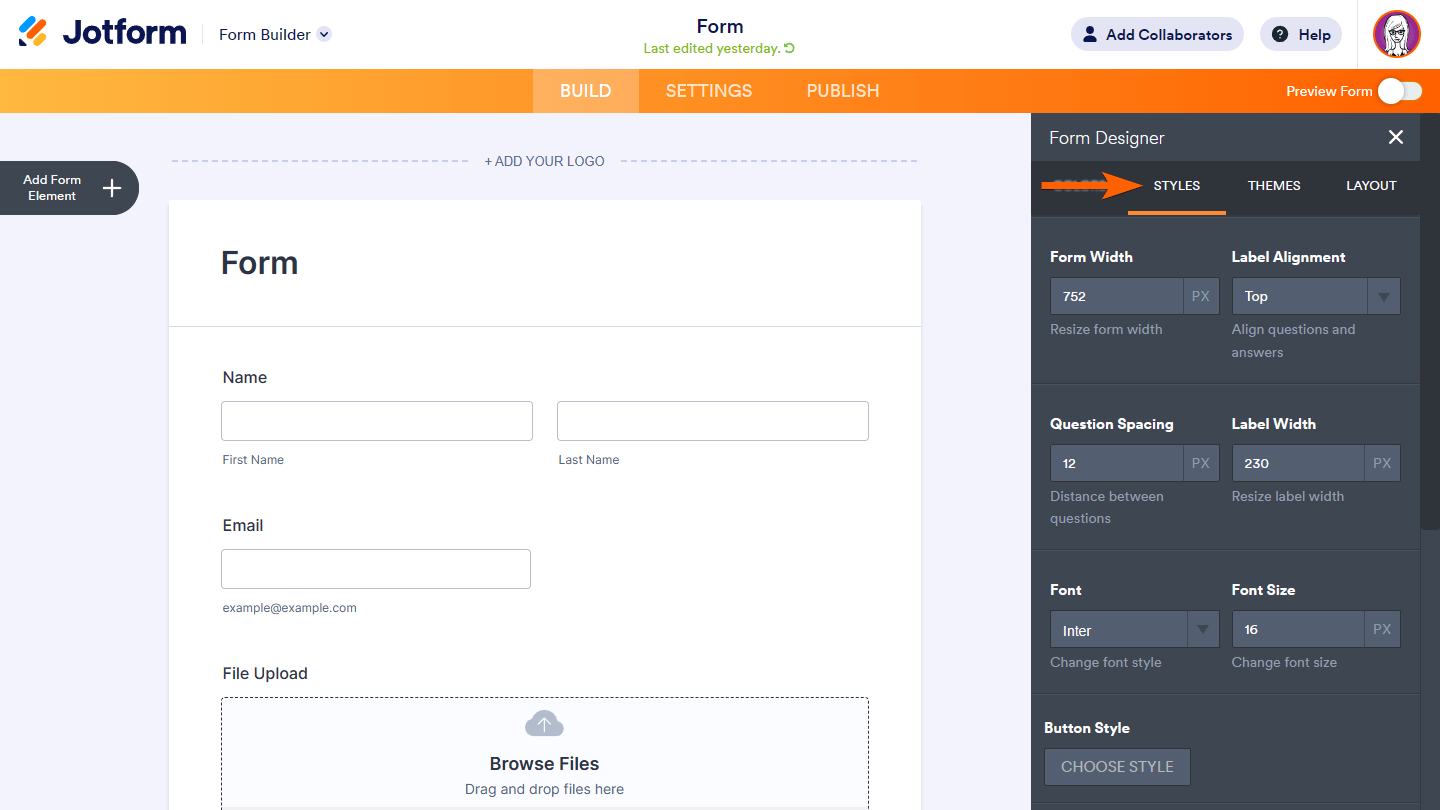
- Scroll down to the Inject Custom CSS section and add your Google Fonts import code to Line 1. It’s important to place this code before any other CSS code in this section.
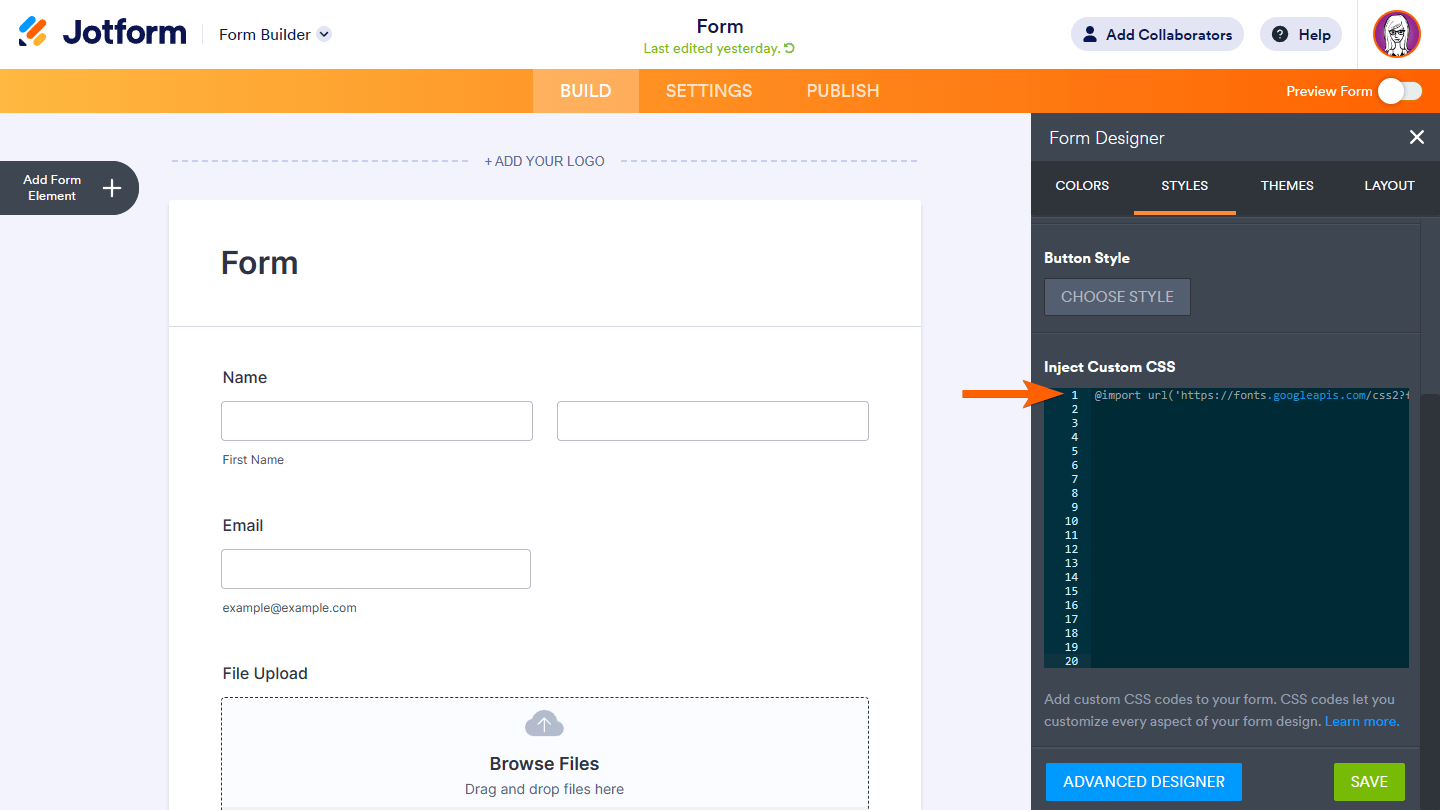
- Paste this code immediately after your import code:
* {
font-family: 'MyWebFont', sans-serif;
}- In the code section you just added, replace the content between “font-family” and the last curly bracket with the CSS rules to specify the families provided in your Google Fonts Selected family menu.
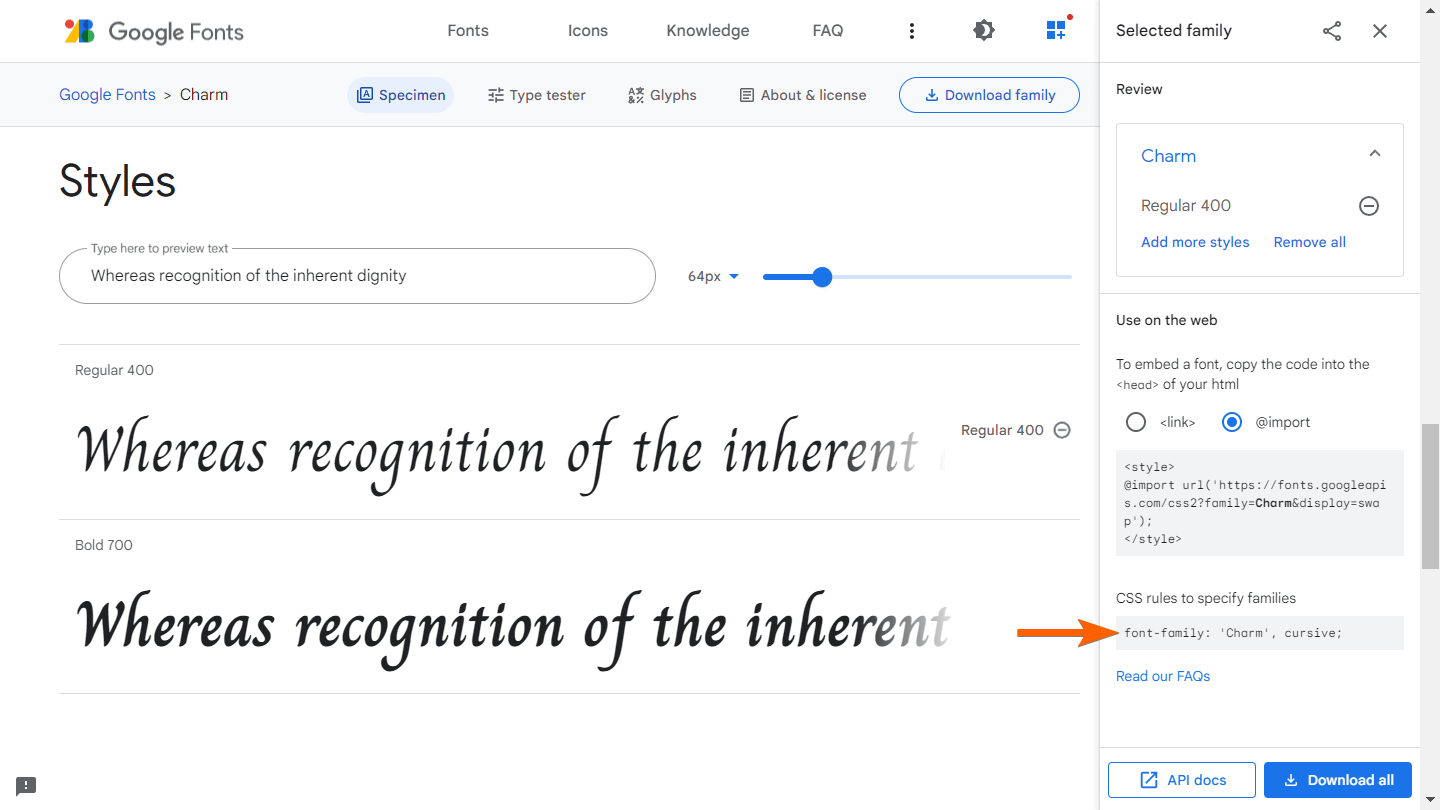
Your final product may look something like this:
@import url('https://fonts.googleapis.com/css2?family=Charm&display=swap');
* {
font-family: 'Charm', cursive;
}- To check your changes, review your form in either Preview or Live mode.
You can customize your form to fit your visual style or even tailor it so that the fonts align with your users’ preferences. Jotform offers a Font Picker form widget that lets users customize their experience by choosing their own font.
Update your fonts with ease in Jotform
If you prefer the Microsoft ecosystem, changing fonts in Microsoft Forms is simple. But you’ll be limited in your overall design flexibility with this option. While Microsoft Forms offers some basic tools, you can easily customize your fonts in Jotform to appear however you’d like — or even put your users in control of creating their preferred experience.
Give Jotform a try for free today and unlock a range of fonts to suit your particular style.




































































Send Comment: