
Key takeaways
- Google Forms can be embedded in Canvas with an iFrame code.
- The form responses still live in Google Forms or Sheets, not Canvas.
- Embedded Google Forms can add friction during grading or when users access your page on a mobile device.
- Jotform can connect directly with Canvas to create students and enroll users from form submissions.
- If the form supports course registration or enrollment, Jotform is the better option.
Whether you want to grade Google Forms, provide a tool for collecting feedback, or support scheduling, embedding your forms into Canvas LMS can offer your students a more cohesive experience. You can embed Google Forms in Canvas by pasting their code into a page, assignment, discussion, or quiz that uses the Rich Content Editor.
Our guide unpacks how to add a Google Form to Canvas, as well as potential problems you may encounter along the way. For example, embedding only changes how the form looks on the page. It doesn’t create Canvas user accounts, enroll students, or sync responses back to Canvas.
In this walkthrough, you’ll also learn about the Jotform-Canvas integration and its role as a viable alternative.


How to add a Google Form to Canvas LMS
You can add a Google Form to Canvas courses by embedding the code. Here’s a step-by-step breakdown.
Step 1: Open the Google Form you want to add to Canvas
Before you embed a form in Canvas, you need to access Google Forms. Sign into your Google Forms account and select or create the form that you need. If you’re relatively new to Google Forms, spend some time experimenting with the different tools — while the platform is intuitive, it’ll take a little practice to become proficient with it.
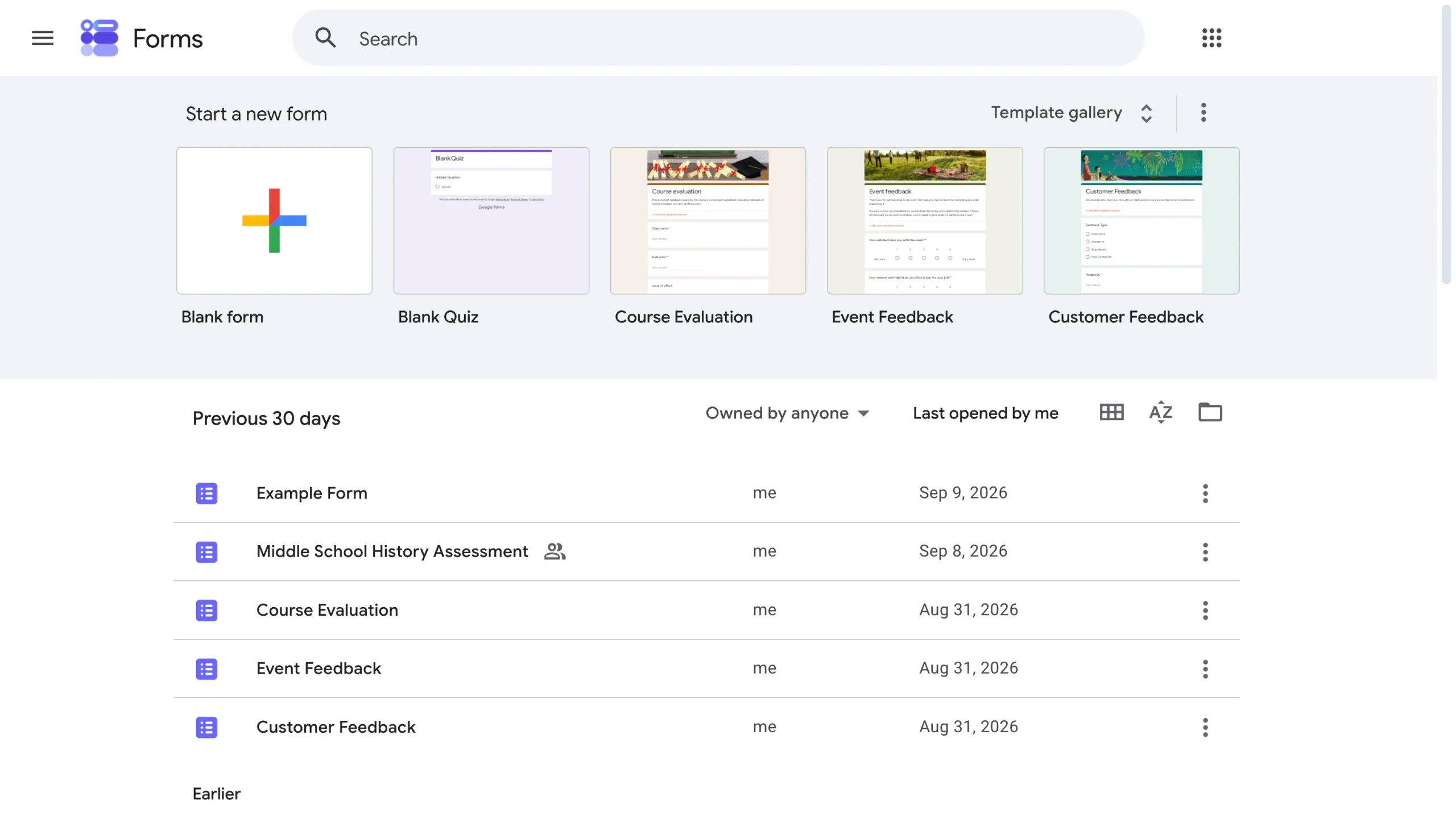
Set a Google Form time limit if you want the document to expire or want to limit how long students have to reply. Adjust any other settings as needed.
Step 2: Publish the form and check who can respond
You’ll need to publish your Google Form before respondents can access it. Review the form’s responder settings and make sure your students have permission to open and submit it.
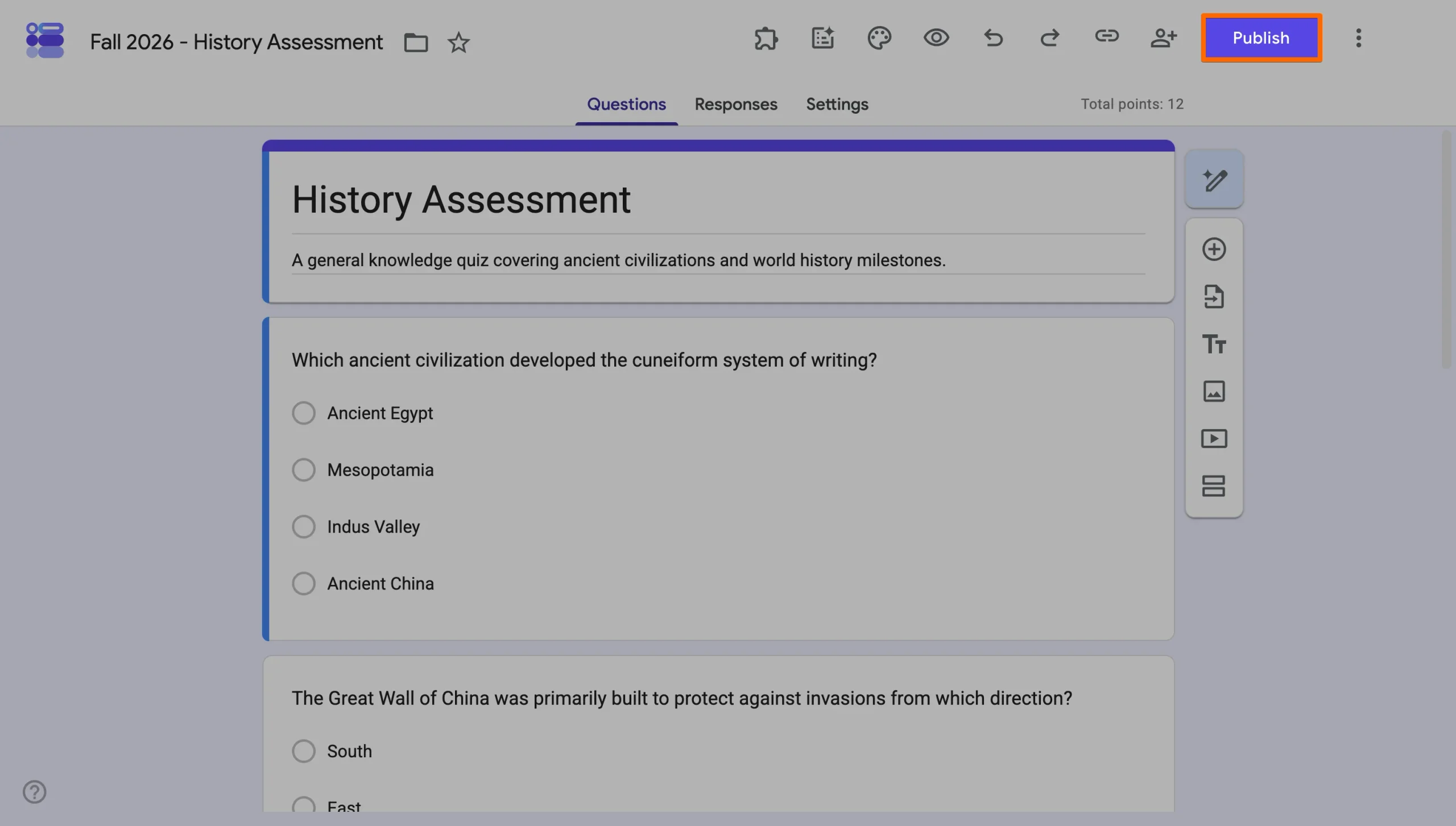
Pay particular attention to Google account restrictions. If you limit responses to users in a specific organization or require your students to sign in before completing the form, it could create accessibility problems. And bear in mind that just because a student can access your Canvas course, that doesn’t mean they’ll also be able to view the Google Form.
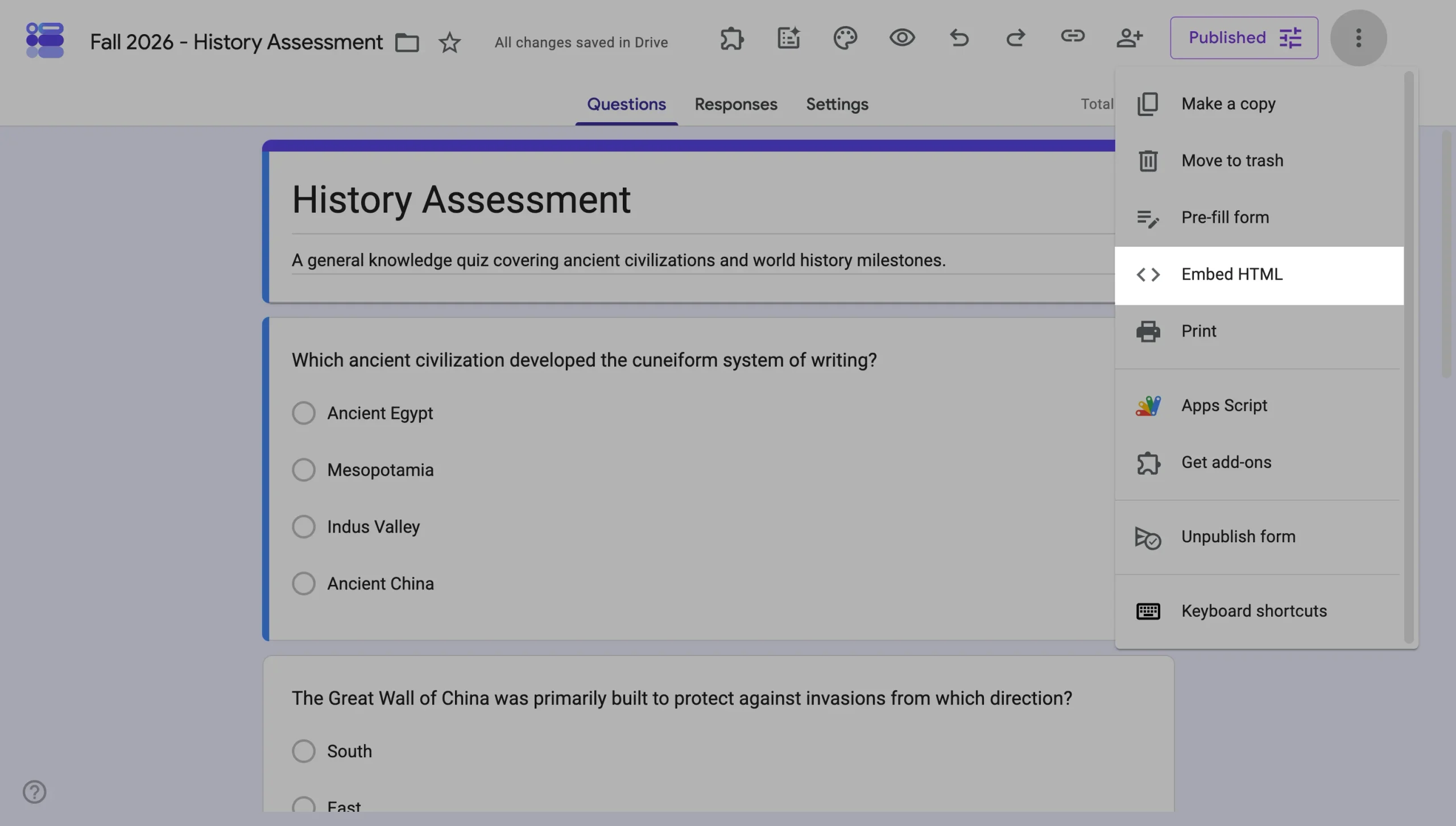
Step 3: Get the embed code
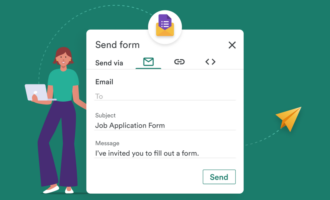
Next, click the three dots in the upper-right corner of the Google Form page. Select Embed HTML from the list of options. When you do, the Embed HTML box will appear in the center of your screen, as shown in the screenshot above. Copy the HTML.
Step 4: Log into Canvas
Sign into Canvas and open the course where students will complete the form. Decide where you want the form to appear, such as on a page, assignment, or module item tab.

Step 5: Embed the Google Form
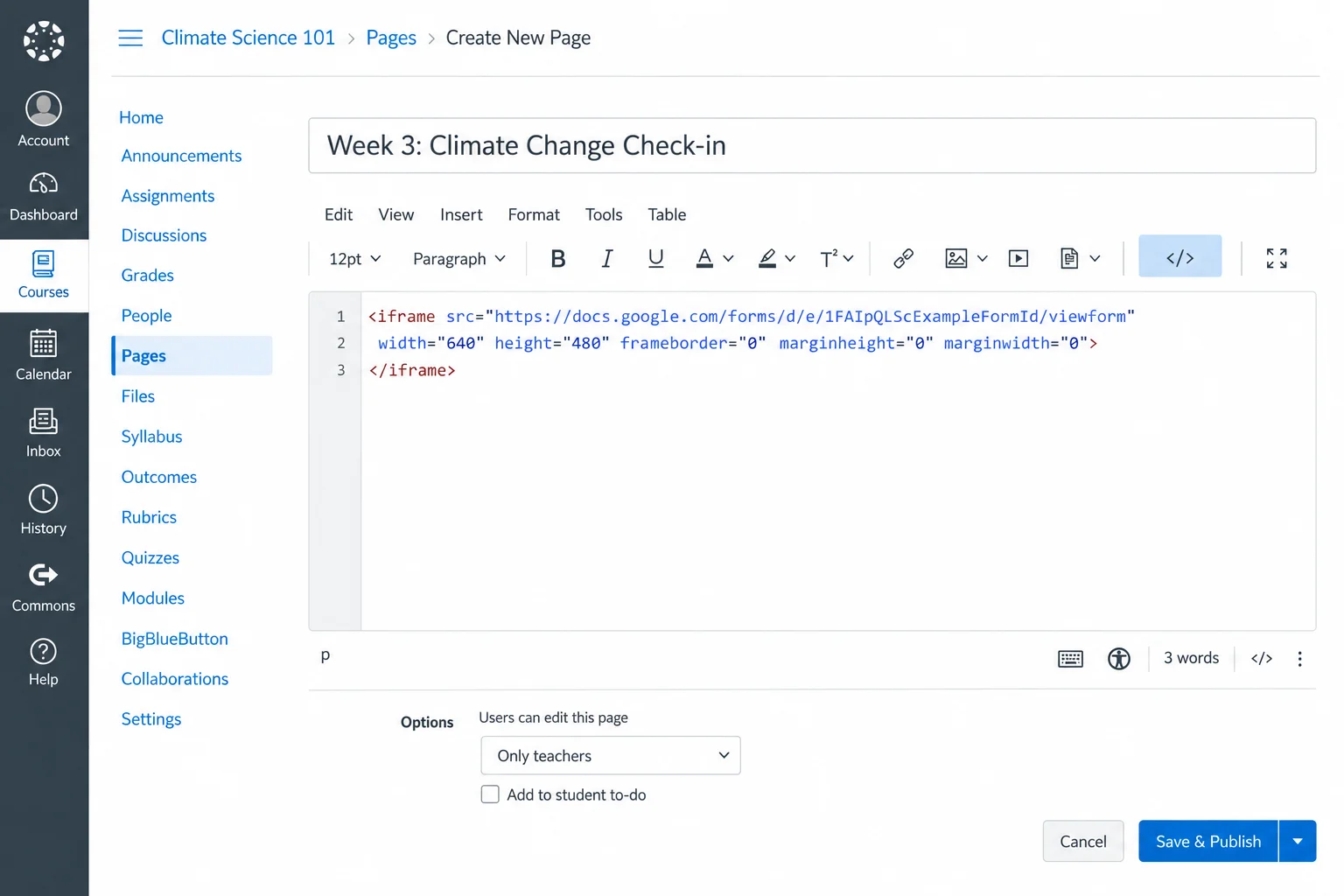
You can embed Google Forms Canvas assignments on any tab or page that uses the Rich Content Editor. Create a new course item or open an existing one.
Paste the embed HTML into the HTML view of the Rich Content Editor on the appropriate Canvas content item. Your Google Form Canvas page should function seamlessly once it has been embedded.
Step 6: Preview and test your form
Use Canvas Student View to open the page or assignment and make sure it actually loads. Complete a test submission and then check Google Forms to verify that the response appears.
Be sure to open the page on a phone or tablet, too, because some embedded forms render poorly on smaller screens. It’s worth confirming that the form displays and works correctly on mobile before you assign it to students.
It’s also vital to test any special functions you include in your form when you use a Canvas-Google Forms integration workaround like this. For example, setting calculated fields in Google Forms is a common strategy used in education, and it’s worth trying out this function specifically.
Pro Tip
Learn more about how to use Google Forms so that you can take advantage of the user-friendly nature and versatility of this platform.
Where can you embed a Google Form in Canvas?
Canvas uses the Rich Content Editor in several course areas, giving you multiple ways to place a Google Form inside a course. There are also multiple types of forms and functions that you can include, which makes it easy to present information to your students.
A Google Forms quiz is one of the most common tools used in conjunction with Canvas. Scheduling with Google Forms is another popular use case.
Once you’ve built a form, choosing where to present it is the next step. Here are the primary options available:
- Pages: Add a Google Form to a page when you want to provide instructions or other information alongside the form.
- Assignments: Place your form on an assignment tab when you want students to complete it as part of that activity.
- Discussions: Embed a form alongside discussion instructions when you want students to provide feedback privately or complete a survey.
- Modules: Place a page or assignment containing the form inside a module to incorporate it into a larger sequence of lessons.
- Other Rich Content Editor areas: You can embed a Google Form in any area of Canvas that features a Rich Content Editor.
Choose a location that is logical and matches the purpose of the form. For example, a feedback survey could fit naturally on a page. If you’re embedding a registration form, it may be best suited to a module before an onboarding activity.
If you plan to use Google Forms responses for assignment tracking, SpeedGrader, or official records, be aware that extra work is required to move responses back into Canvas.
The problem with using Google Forms in Canvas
Google Forms is free and user-friendly. However, embedding a form into your Canvas LMS is a workaround, not a fully integrated solution. That doesn’t make Google Forms bad, but it is something to consider when building out your course on Canvas. For example, you have to add file upload Google Forms functionality via extra steps.
Other common challenges associated with using Google Forms in Canvas include the following:
- No real Canvas integration: An embedded Google Form does not automatically do anything within your LMS.
- Responses live outside the LMS: Google Forms collects and stores student responses separately from Canvas, which can create silos.
- Grading friction: Google Forms supports quizzes and other activities that include scoring, but it doesn’t become a Canvas submission.
- Access issues: Depending on your access and sharing settings in Google Forms, your students could have trouble viewing certain documents.
- Weak branding: Google Forms offers customization, but it doesn’t provide a cohesive, fully integrated experience in Canvas.
- Limited workflow power: An embedded Google Form pushes a lot of manual work back onto you.
If you need to occasionally collect a few answers from your class, embedding Google Forms is a viable option. However, if you need your form to handle registration, enrollment, payment, or student data, it’s time to stop patching Canvas with Google Forms and use Jotform instead.
Why use Jotform instead of Google Forms in Canvas?
Jotform education solutions offer a more complete option and a 50 percent discount for educational institutions. Instead of simply embedding a form in Canvas, you can use Jotform to build a workflow around the information students submit. That lets your organization connect the form with processes that happen before or after a student enters a Canvas course.
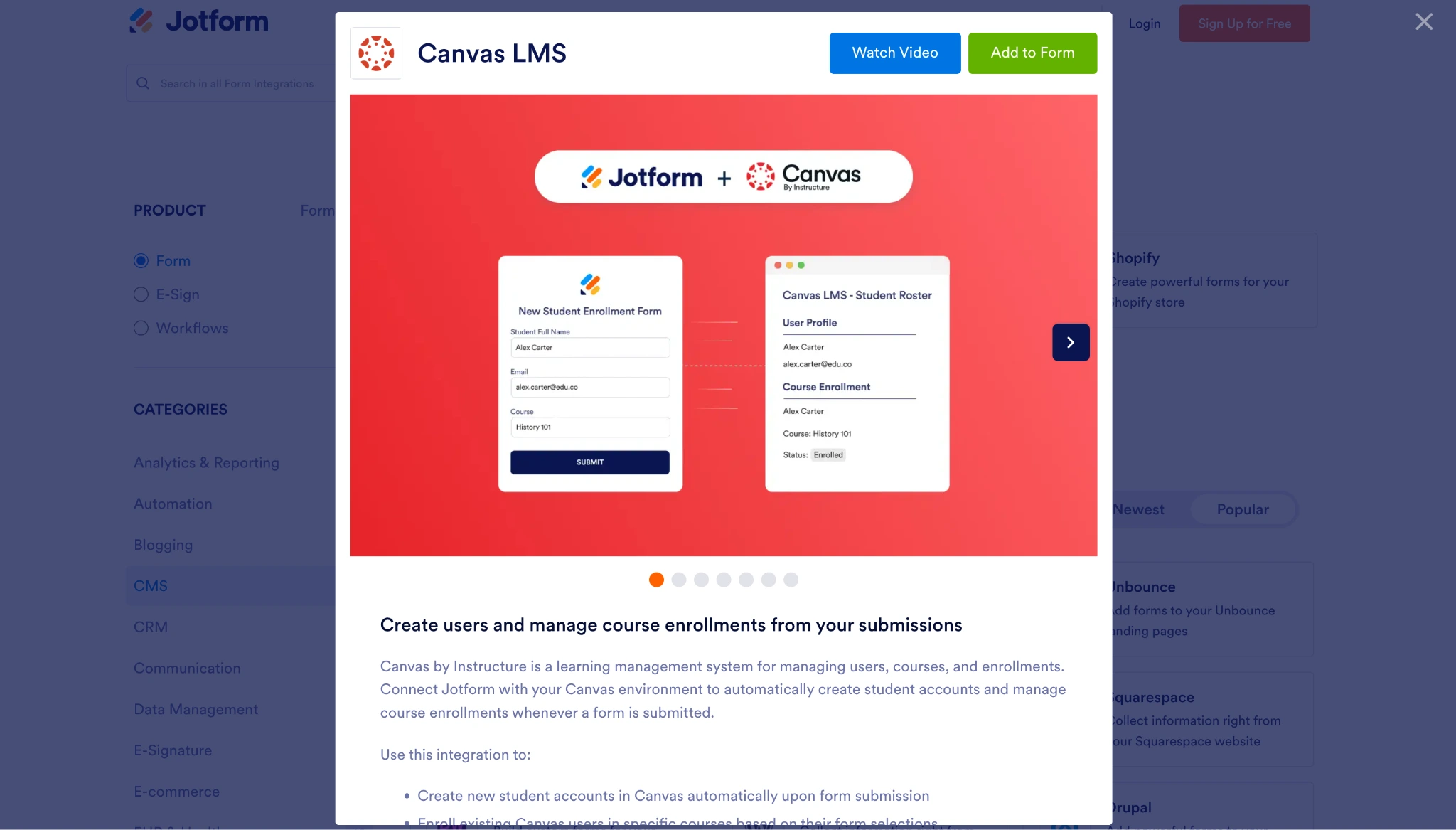
The Jotform-Canvas integration can help your school and educational team
- Build branded, mobile-friendly forms that support flexible interactions.
- Collect files, signatures, payments, approvals, and student details.
- Route submissions to the right department.
- Store and organize responses in Jotform Tables.
- Automate emails and follow-ups.
- Connect forms to Canvas by Instructure.
With Jotform, you can tap into education forms, tools, resources, and integrations that make your life simpler. Our solutions also support your students’ learning journey by removing friction and promoting a more engaging Canvas LMS experience.
Learn how to integrate Jotform with Canvas using our simple guide. Setup requires a Canvas LMS domain and the appropriate Canvas credentials. A Canvas administrator handles the necessary developer-key setup, then connects the Canvas account to Jotform.
Migrate your Google Forms to Jotform in two minutes
Tapping into the power of Jotform’s educational technology is easier than ever, thanks to our user-friendly platform and integrations. Even moving over all of your existing Google Forms isn’t an obstacle — migrate your Google Forms to Jotform with a single click and start exploring how our educational technology tools can help your school or university.
FAQs
Yes. Your students can complete a form once you’ve embedded it in your Canvas LMS. Google Forms may require students to sign in separately, depending on how the document is configured. Make sure you test the form before assigning it.
No, not automatically. An embedded Google Form collects the response through Google Forms rather than Canvas’ native assignment-submission system. If you need Canvas to track submissions, grading, or another activity, you need to account for that lack of information-sharing between the two systems.
There are several reasons why your Google Form may not be showing up in Canvas, even if you embedded it properly. Check the form’s access settings and verify that you pasted the complete code into your LMS. You should also test the content through Canvas Student View.
Yes. Jotform provides ways to use forms within Canvas and offers a dedicated Canvas LMS integration. The integration doesn’t simply display the form — Jotform can connect submissions with Canvas workflows, which can make it easier to track activity and submissions natively within Canvas.
Yes. Jotform’s Canvas LMS integration can enroll existing Canvas users into selected courses or course sections based on information from a form submission. With the appropriate Canvas setup and credentials, Jotform can also create new student accounts as part of the workflow.
This article is for teachers, instructional designers, Canvas admins, and training teams who want to collect information inside a Canvas course and are considering Google Forms, but need a better workflow for registration, enrollment, payments, approvals, and student data.































































































Send Comment: