
There’s a reason Canvas LMS is one of the best software tools for teachers. The tool provides schools and higher education institutions with a single platform for course creation, grading, communication, and reporting. The platform also includes a growing number of AI-supported tools, which are accelerating workflows and saving time.
This article breaks down the most important Canvas LMS features by who uses them. For teams evaluating Canvas, this guide also covers what’s included at each tier, so you can see if Canvas LMS fits your needs.
First, here’s a table with key features:
| Feature category | What it includes |
|---|---|
|
Course creation |
Modules with prerequisites and requirements, course templates, and Blueprint courses for standardizing content across sections |
|
Assignments and assessments |
Assignments, quizzes, and surveys with multiple question types, file uploads, rubrics, and New Quizzes for a modernized quiz-building and student experience |
|
Grading and feedback |
SpeedGrader for side-by-side grading with annotations and audio and video feedback, plus a Gradebook with posting policies and late or missing submission rules |
|
Communication tools |
Announcements, Inbox messaging, threaded Discussions with @mentions, and Conferences for live video sessions |
|
Student collaboration |
Groups with private discussion boards and file storage, and Collaborations for real-time co-editing of shared documents |
|
Mobile learning |
Canvas Student, Teacher, and Parent apps for submitting work, grading, and tracking progress from a phone or tablet |
|
Analytics and reporting |
Course Analytics for tracking grades and weekly activity, plus standalone reports for missing, late, and excused assignments |
|
Accessibility tools |
Published accessibility standards and a built-in Accessibility Checker in the content editor |
|
Integrations and APIs |
LTI tools, a full REST API, student information system (SIS) connections, and the Canvas App Center, including third-party integrations like Jotform |
|
AI-supported tools |
IgniteAI features spanning accessibility remediation, quiz authoring, discussion summaries, and translation in Core tier, with more advanced tools in Plus and Next |
6 key Canvas LMS features for teaching and learning
This section covers the main Canvas course features that users in education rely on every day.
1. Course creation and content management
Canvas LMS organizes a course into modules, including units that group pages, files, assignments, quizzes, and discussions in the order you want students to work through them.
Within a module, course instructors can use requirements to manage how students complete a course, such as “must view this page” or “must score at least 80 percent on this quiz.” These prerequisites lock a later module until an earlier one is completed.
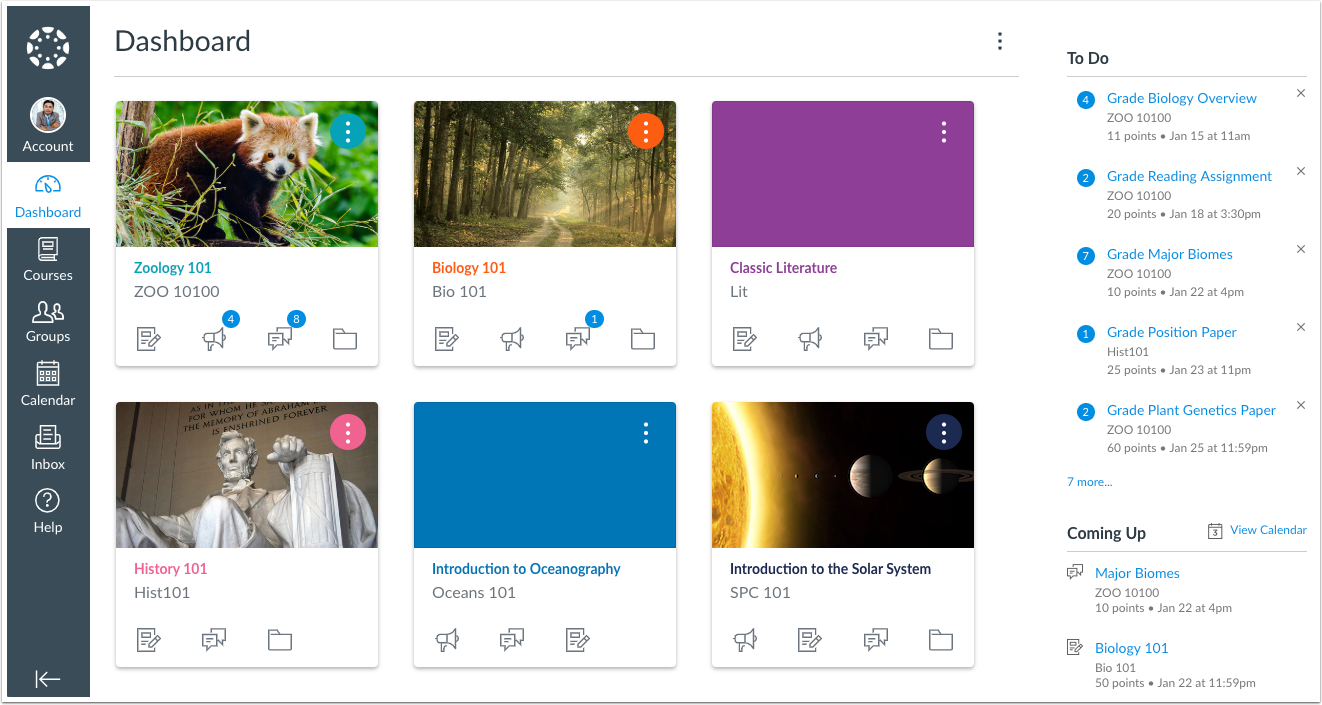
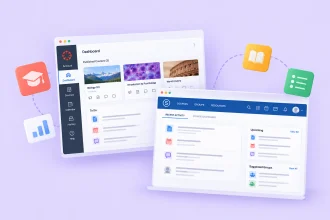
Administrators get a dashboard where they can view published and unpublished courses, and it looks like this:
Blueprint course is a solid Canvas LMS feature because it helps organize course content. You build a master version of a course, then lock specific content or settings to the master.
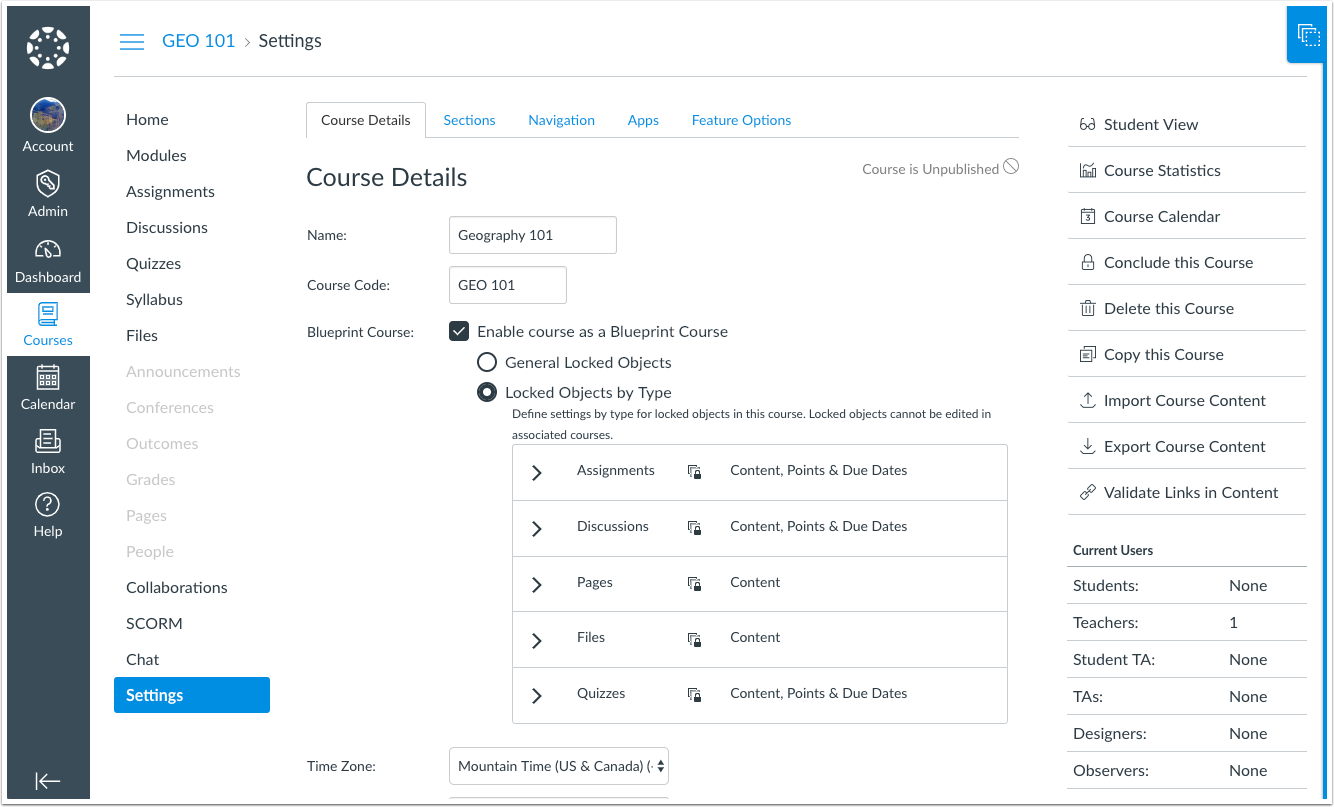
Use case: If you need to change a single policy link across courses, the change needs to be made only once within the Blueprint, and then all associated courses will update automatically. You can’t edit the links through individual courses, which maintains consistency.
2. Assignments, quizzes, and assessments
Canvas LMS covers three main assessment types:
- Assignments: This can accept file uploads, text entries, media recordings, or external tool submissions. Teachers can grade in various ways, including on a points scale or with a percentage, pass/fail marker, or custom rubric.
- Quizzes: This supports a range of question types, such as multiple choice, true or false, short answer, essay, matching, and more, and they can be timed, randomized, or restricted to a single attempt.
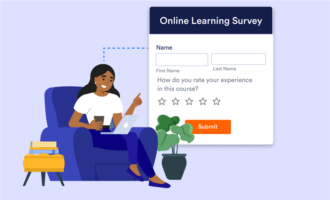
- Surveys: This uses the same question-building tools as quizzes but can be run anonymously, which makes them useful for course feedback separate from graded work.
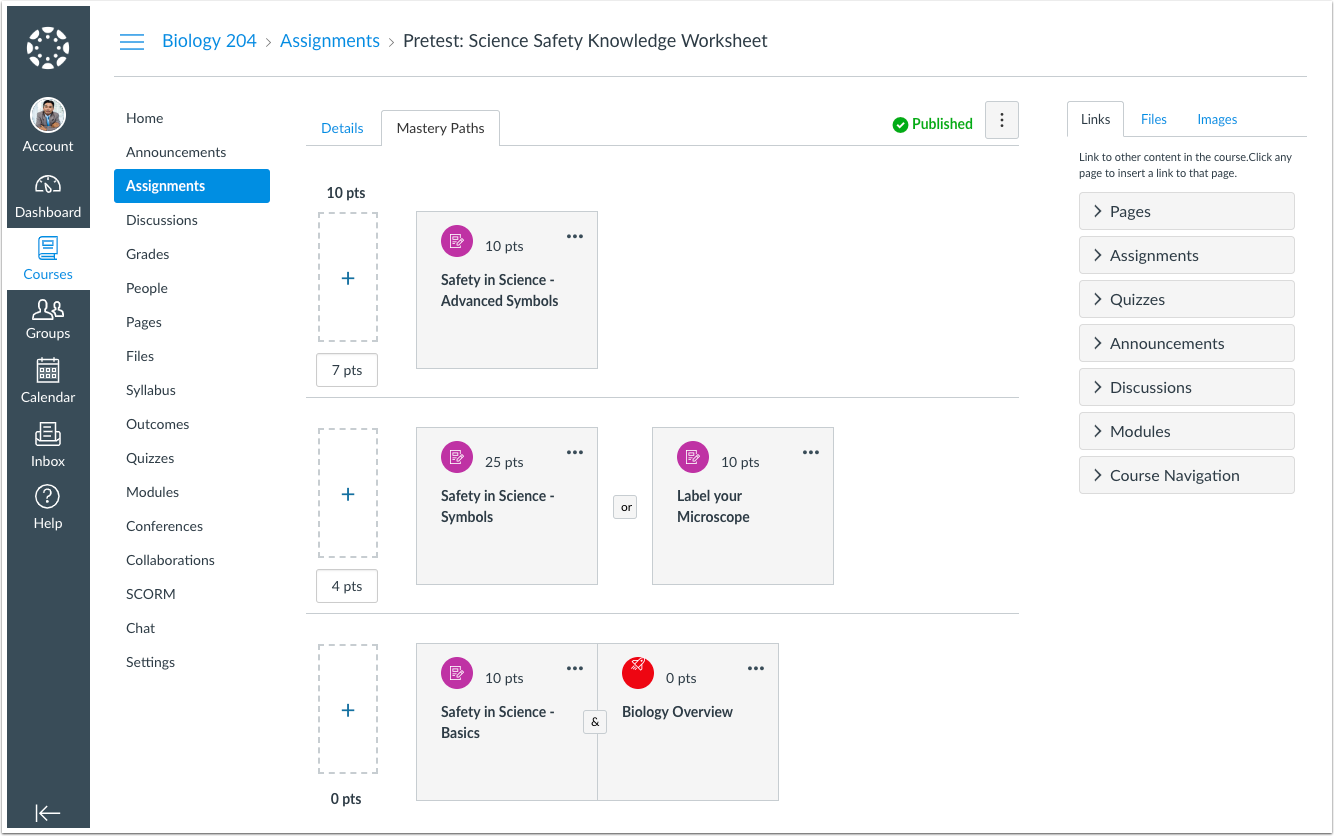
Assessment building uses the Canvas content editor. Teachers can upload media; record audio or video directly in a question; add third-party links such as YouTube; or use the equation editor, all without leaving the quiz-building screen.
Use case: For lower-stakes checks, teachers can mark a quiz as a practice quiz and exclude it from the gradebook entirely, which keeps ungraded work from cluttering grade calculations.
💡 Did you know?
If you need feedback or information from people who are not enrolled in your Canvas account (prospective students, parents, or community members), you can share Jotform’s education forms as a link or embedded on a public page so anyone can fill them out without logging in to Canvas LMS.
3. SpeedGrader and Gradebook
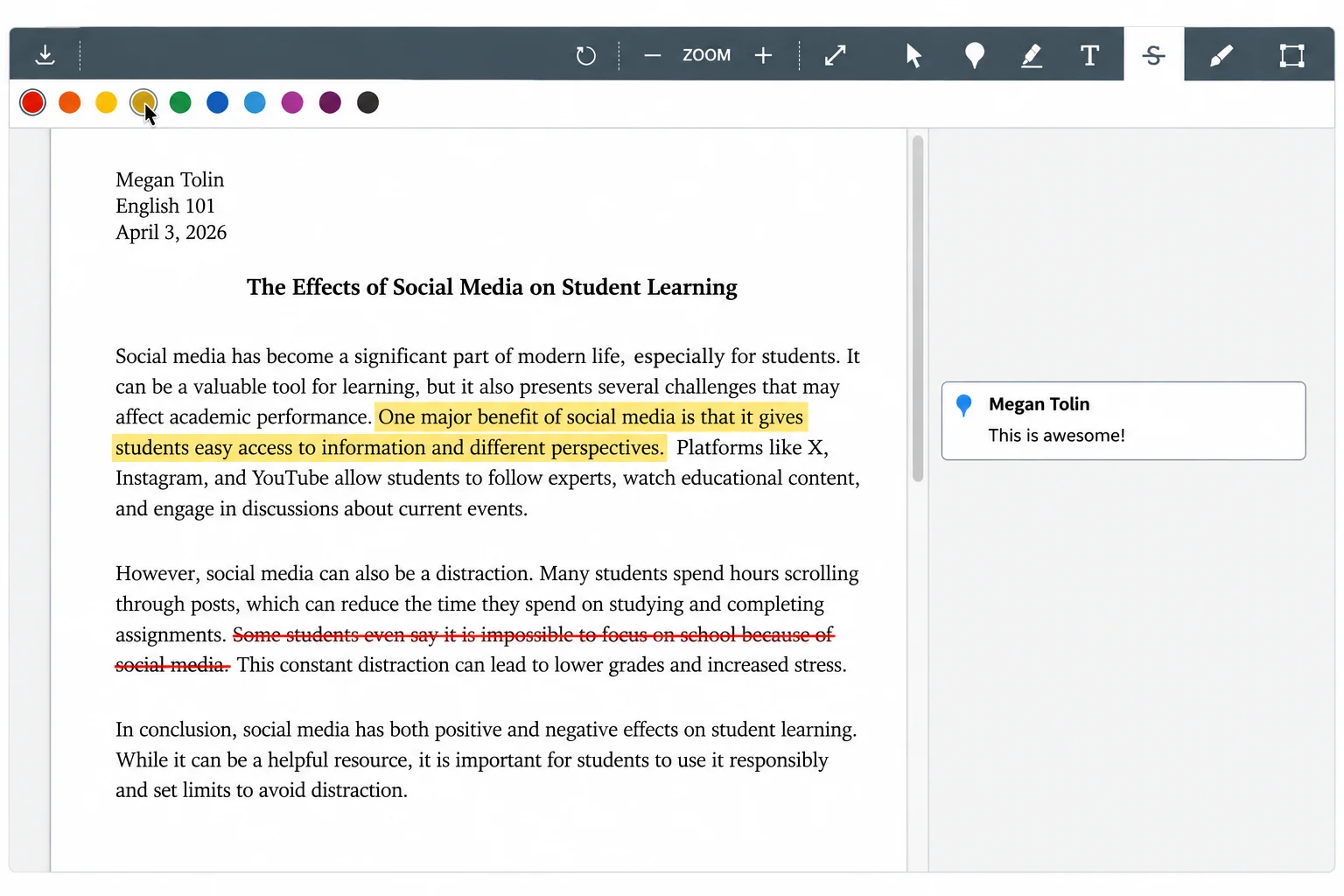
Canvas SpeedGrader puts student submissions and grading tools side by side, so instructors don’t have to toggle between tabs or download or print files to review work. It supports direct annotation on PDFs, Word documents, and slide decks.
Teachers can:
- Highlight sections.
- Add comments.
- Use strikethrough to suggest edits.
Here’s what the editor looks like:
For students with accessibility needs, SpeedGrader also includes screen reader support and auto-generated captions on video feedback.
The Gradebook handles the administrative side of grading. Instructors can set grades to go live the moment they’re entered or publish them manually, so nothing releases until an instructor is ready. A color-coded view flags who has submitted, who is graded, and whose work is missing, and the “message students who” tool lets instructors email a filtered group (for example, everyone with a missing assignment) directly from the Gradebook.
For institutions syncing grades to an SIS, Canvas LMS can push final grades to it automatically. However, in that sync, blank cells are typically treated as zero, so instructors need to grade or excuse every submission first.
Use case: A teacher uses SpeedGrader to mark up a submission the same way they would on paper. A teacher can also color-code errors, such as using a yellow highlight for a grammatical error. There’s also a comment library for reusing frequent feedback, including audio or video feedback for a more personal touch.
4. Communication and collaboration tools
Canvas LMS gives instructors several ways to communicate:
- Announcements: Teachers can post one-way updates to the whole class.
- Inbox: This is an internal messaging tool that handles one-to-one or small-group conversations without exposing personal email addresses.
- Discussions: This allows for threaded, asynchronous conversation, with the interface allowing @mentions to tag specific students, split-screen viewing for replying while reading, and filters for unread replies.
Students and instructors can also post text, video, audio, or image replies, and translation tools can auto-translate inbox messages and discussion posts for multilingual classes (where enabled by the institution).
For live sessions, Conferences (powered by BigBlueButton, Adobe, or whatever video software your institution uses) lets teachers run lectures, office hours, or group meetings without leaving Canvas LMS. Teachers can create conferences within a course and set the number of people who can enter, time limits, and more.
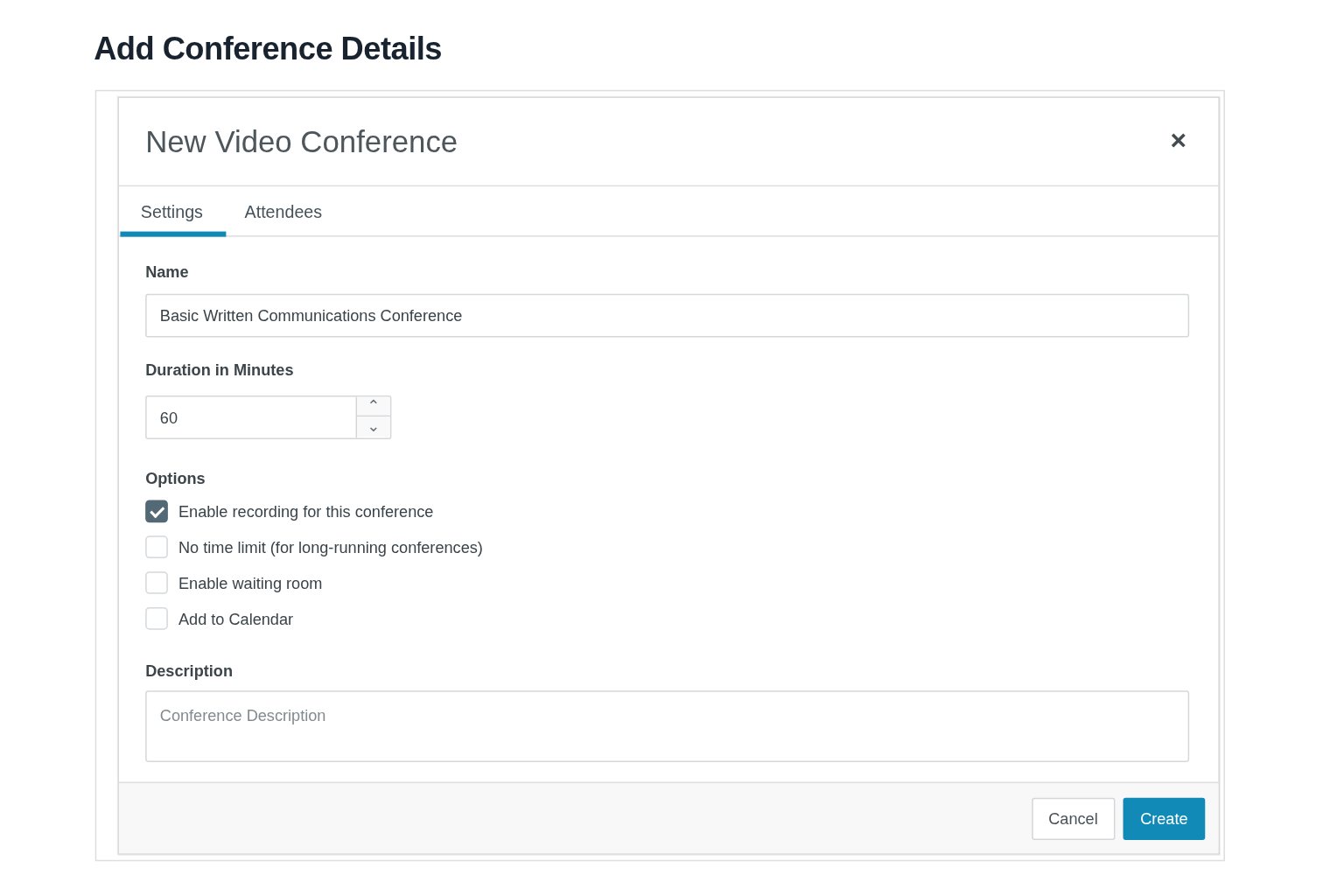
For collaborative work, Groups gives a set of students their own private workspace with a dedicated discussion board and file storage. Collaborations lets students co-edit a shared Google Doc or Microsoft Office file directly from the course, with changes appearing in real time for everyone working on it.
Use case: A middle-school teacher is running a group research project and wants each team to have a private space to plan and co-write their report. The teacher also wants a way to check in with teams that are struggling without emailing parents directly.
5. Student mobile access
The Canvas mobile app (also called the Canvas Student app) gives students access to Canvas LMS. Their courses and groups are accessible from a phone or tablet, with the same navigation students would see in a browser.
Here’s what it looks like:
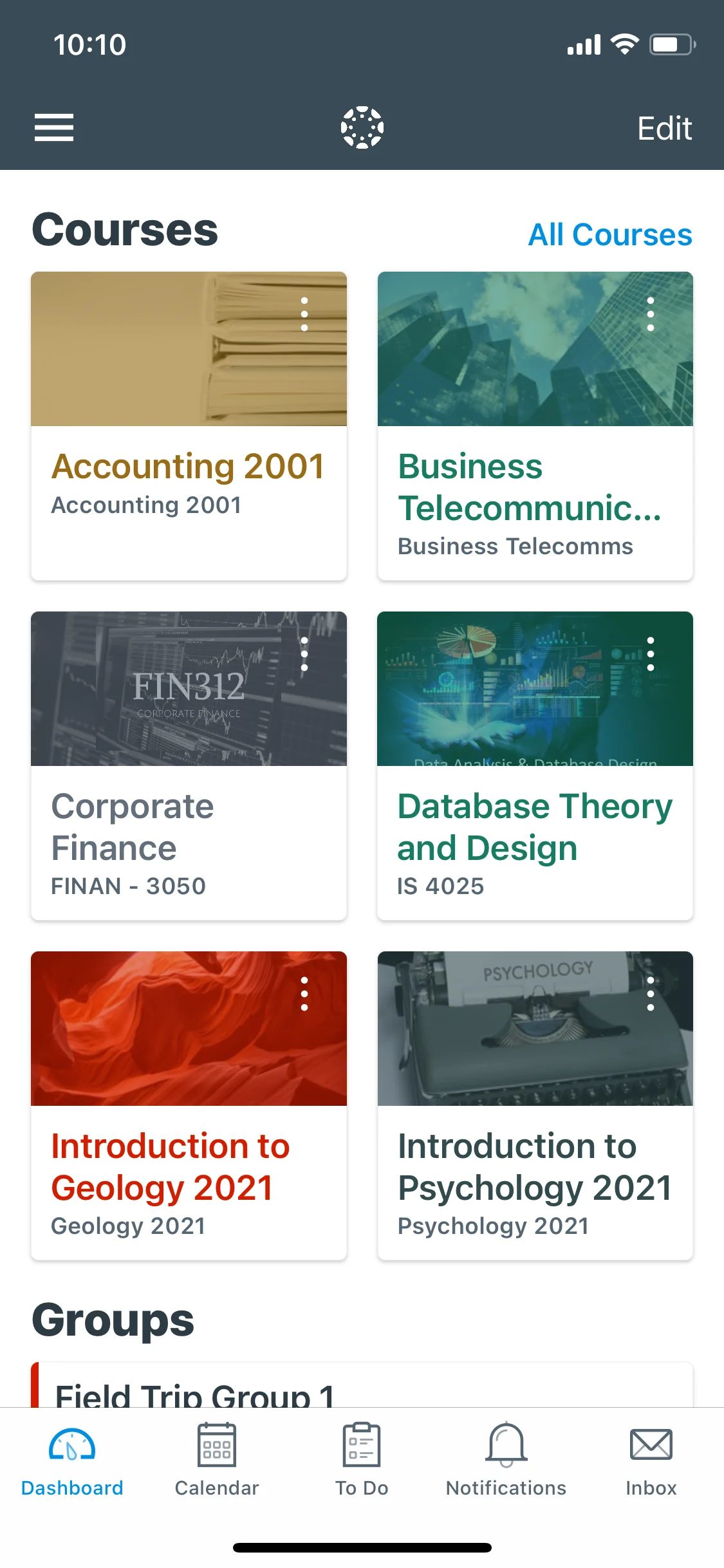
From the app, students can:
- View and submit assignments.
- Participate in discussions.
- Take quizzes.
- Check grades.
- View course calendars.
- Manage a to-do list, notifications, and their Inbox.
Not every Canvas LMS desktop feature is fully supported in the mobile app. For example, students working on something complex, such as building a collaborative document, may still need a browser for certain tasks.
The app is available for both iOS and Android, and it requires a Canvas LMS account tied to the institution.
Canvas LMS also offers separate apps for other roles:
- Canvas Teacher app: This opens up Canvas LMS for teachers on the go. Teachers who save time with tech tools can stay reachable outside the classroom or grade papers on the commute home.
- Canvas Parent app: This app lets parents or guardians (set up as Observers) see a student’s grades and assignments.
Use case: A high school student without reliable home internet access needs to check tonight’s homework and submit a photo of a completed worksheet before the deadline. Using the Canvas Student app on their phone, they can pull up the assignment details, take a photo, and submit it through the app rather than waiting for computer lab access the next morning.
6. Analytics and reporting
Canvas LMS analytics give teachers a course-level view of how students are engaging, not just their final grades.
Course Analytics tracks three main areas:
- Course grade: This shows the class’s overall average and how individual assignments, discussions, and quizzes compare to it.
- Weekly online activity: This includes page views.
- Participation actions: Examples are posting in a discussion, submitting an assignment, or joining a Conference, plus communication.
Here’s the course analytics report showing the average course grade:
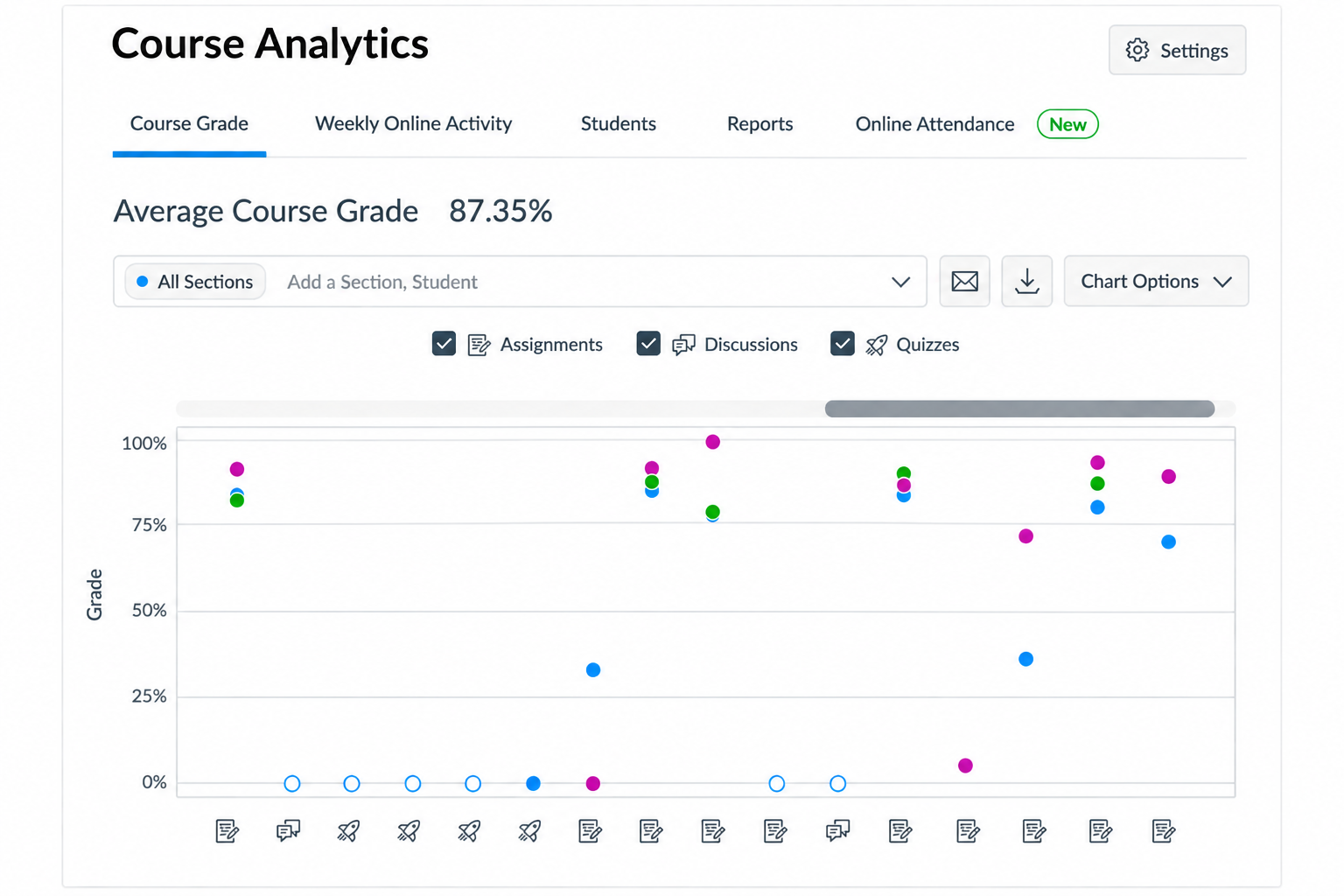
Canvas LMS also generates standalone reports for things such as missing, late, or excused assignments, and a class roster with student contact details.
Use case: Teachers can message an automatically filtered group of students directly from the analytics view, such as everyone who hasn’t submitted a specific assignment. This saves teachers from manually writing emails and compiling group emails.
Canvas LMS features for administrators and institutions
Beyond individual courses, Canvas’s school management software allows administrators to manage the platform at scale. It’s ideal for multiple departments, campuses, or an entire district.
- Account hierarchy and subaccounts: Institutions can structure Canvas into a parent account with nested subaccounts, such as one per college, school, or department, so permissions and settings cascade down the hierarchy.
- Custom roles and permissions: Admins can create account-level roles (for IT staff, instructional designers, or department chairs, for example) with a specific set of permissions, and they can lock certain settings to prevent overrides by subaccounts.
- SIS imports and sync: Course, enrollment, and user data can sync automatically from an SIS, keeping Canvas rosters up-to-date without manual entry.
- Institution-wide reporting: Course Analytics data feeds into Canvas Data 2 (the platform’s Data Access Platform), letting institutions pull reporting across every course and account rather than checking one course at a time.
- Blueprint courses at scale: The same Blueprint tools that standardize a single course can be used institution-wide, letting administrators lock shared content and policies for any section of a course, department, or program.
- Accessibility standards: Canvas maintains published accessibility standards and an Accessibility Checker built into the content editor, helping institutions meet compliance requirements across all courses.
Canvas LMS integrations and workflow automation
Canvas’s feature set becomes more powerful once an institution connects it to the rest of its education workflow.
Canvas LMS integrations work through several channels:
- LTI (Learning Tools Interoperability) standards: These connect third-party tools directly to a course.
- A full REST API: This allows for custom development.
- SIS connections: These sync enrollment and roster data.
- The Canvas App Center: Institutions and instructors can browse and add approved external tools here without help from a developer.
As part of the platform’s integration capabilities, users can integrate Jotform with Canvas. Keep a few Jotform templates, part of Jotform Education, on hand before setting up that kind of automation:
- Student Enrollment Forms: These collect new-student information and can feed directly into an automated Canvas account creation workflow.
- School Registration Forms: These are built for capturing registration details ahead of a term or program start.
- Course Registration Forms: Students can sign up for courses or programs, which maps neatly onto Canvas course enrollment.
Canvas LMS becomes even more powerful when connected to Jotform. The Jotform Canvas LMS integration lets institutions automate administrative tasks, such as the paperwork that eats up staff time at the start of a term.


Once connected, a form submission can:
- Create new Canvas LMS student accounts: This happens directly from Jotform submissions, so a registration form turns into an active Canvas account with no manual data entry.
- Enroll existing Canvas LMS users into selected courses or course sections: Form fields such as course ID or student email match with the right enrollment automatically.
Setup is straightforward. All you need is the institution’s Canvas domain, client ID, and client secret generated from a Canvas developer key. Once authenticated, matching a student’s email to the Canvas login ID takes just a few clicks.
For the exact steps that integrate Jotform with Canvas, read “How to Integrate Your Form with Canvas LMS.”
Pro Tip
For education forms, including registration, enrollment, consent, feedback, and much more, Jotform offers a 50 percent discount for educational institutions, which is worth checking out before building out a term’s worth of automation.
Canvas Core, Plus, and Next: What’s included in each tier
Canvas now organizes its capabilities into three tiers: Core, Plus, and Next. Canvas LMS pricing isn’t tiered; contact sales and set up a demo to get a quote.
Full details are listed on the website, but here’s an idea of what’s included in each tier:
- Canvas Core: The LMS foundation includes course creation and delivery; assessment and feedback; essential analytics; communication tools; and a baseline set of IgniteAI tools covering accessibility remediation, quiz question authoring, course search, discussion summaries, and translation.
- Canvas Plus: Everything in Core, plus interactive video through Studio; in-app messaging and engagement tools through Impact; advanced analytics for earlier intervention; and expanded IgniteAI tools for rubric generation, SpeedGrader grading assistance, and discussion insights.
- Canvas Next: Everything in Plus, plus the most advanced AI layer: an IgniteAI Agent that can complete tasks across Canvas’s API for admins and instructors; natural-language data querying for admins; and AI-generated study tools for students.
Exact availability may vary by contract and institution, so confirm tier details directly with Instructure.
Is Canvas LMS right for your institution?
The fit comes down to scale and need.
Canvas LMS is a strong fit if
- You’re supporting multiple courses, sections, or campuses that need centralized administration, subaccounts, and consistent SIS syncing.
- Instructors and students both need robust day-to-day tools. Canvas LMS for teachers includes a Gradebook, SpeedGrader, and course-building toolkit, while Canvas LMS for students offers mobile access, clear communication tools, and a consistent experience across every course.
- Your institution wants room to grow into more advanced analytics, AI tools, or integrations over time, since the Core, Plus, and Next tiers let you scale up without switching platforms.
Canvas LMS may be more than you need if
- You’re running a single course, a small tutoring operation, or an informal training program. A lighter, purpose-built tool would be faster to implement.
- Your team doesn’t need institution-wide reporting, account hierarchies, or SIS integration.
- Your budget is tight and you mainly need basic content delivery and grading.
Canvas earns its reputation as a comprehensive, well-supported learning management system, but “comprehensive” isn’t always what a team needs. If you’re still weighing options, it’s worth comparing Canvas against other platforms before committing; our Canvas LMS alternatives article breaks down how competing tools stack up.
FAQs about Canvas LMS features
Core features include course creation with modules, assignments and quizzes, the Gradebook, SpeedGrader, communication tools including Discussions and Inbox, a mobile app, and analytics and reporting. As part of the broader educational technology landscape, Canvas LMS also supports LTI integrations, APIs, and, at higher tiers, built-in AI tools.
Yes, Canvas Gradebook lets instructors set grade posting policies, apply late or missing submission rules, and sync final grades to an SIS.
SpeedGrader is the platform’s grading tool, putting student submissions and grading controls side by side so instructors can annotate work, leave audio or video feedback, and move through a class faster.
Yes, the Canvas LMS Student app lets students submit assignments, check grades, and message instructors from a phone; there are separate apps for teachers and parents.
Yes, Canvas LMS supports LTI tools, a full REST API, SIS connections, and the Canvas App Center, making it one of the more flexible educational technology tools for institutions building out a connected tech stack rather than relying on Canvas LMS alone.
Yes, Canvas LMS includes AI features through IgniteAI. Accessibility remediation, quiz authoring assistance, and discussion summaries are included in the Core tier; more advanced tools, including an AI agent and natural-language data queries, are in the Next tier.
Yes, Jotform’s Canvas integration can create new Canvas LMS student accounts and enroll users into courses or sections directly from form submissions, turning it into enrollment management software for automating the administrative work before a term starts.
This article is for higher education administrators, K-12 technology leaders, instructional designers, faculty committees, teachers, and training teams evaluating Canvas LMS features before adopting, renewing, or comparing LMS platforms.



























































































Send Comment: