
Microsoft Forms simplifies event signups by enabling you to build an intuitive form where you can gather attendee details and track incoming responses in real time. The forms are easy to distribute to attendees via link, QR code, and email. Plus, Microsoft Forms integrates with Microsoft Excel and Microsoft Teams for streamlined event coordination.
In this article, learn how to use Microsoft Forms for event registration and get helpful setup tips to manage any event form. You’ll also discover how Jotform can elevate your event registration process with advanced features and a superior user experience.

Step-by-step guide: How to create an event registration form in Microsoft Forms
Online event signup forms don’t have to be complicated. With the right tools and form setup guide, you can create an event registration form in minutes. Here’s how to use Microsoft Forms to create an event registration form from scratch:
1. Open Microsoft Forms. Click on Registration.

2. Add your event title and description at the top of the form.

3. Click Quick start with to add questions. Add more fields to gather details about the attendees, like their
- Name
- Phone
- Attendance status
Microsoft Forms offers several different question types. For most questions, you’ll need to use Text. For Attendance status, choose Choice.
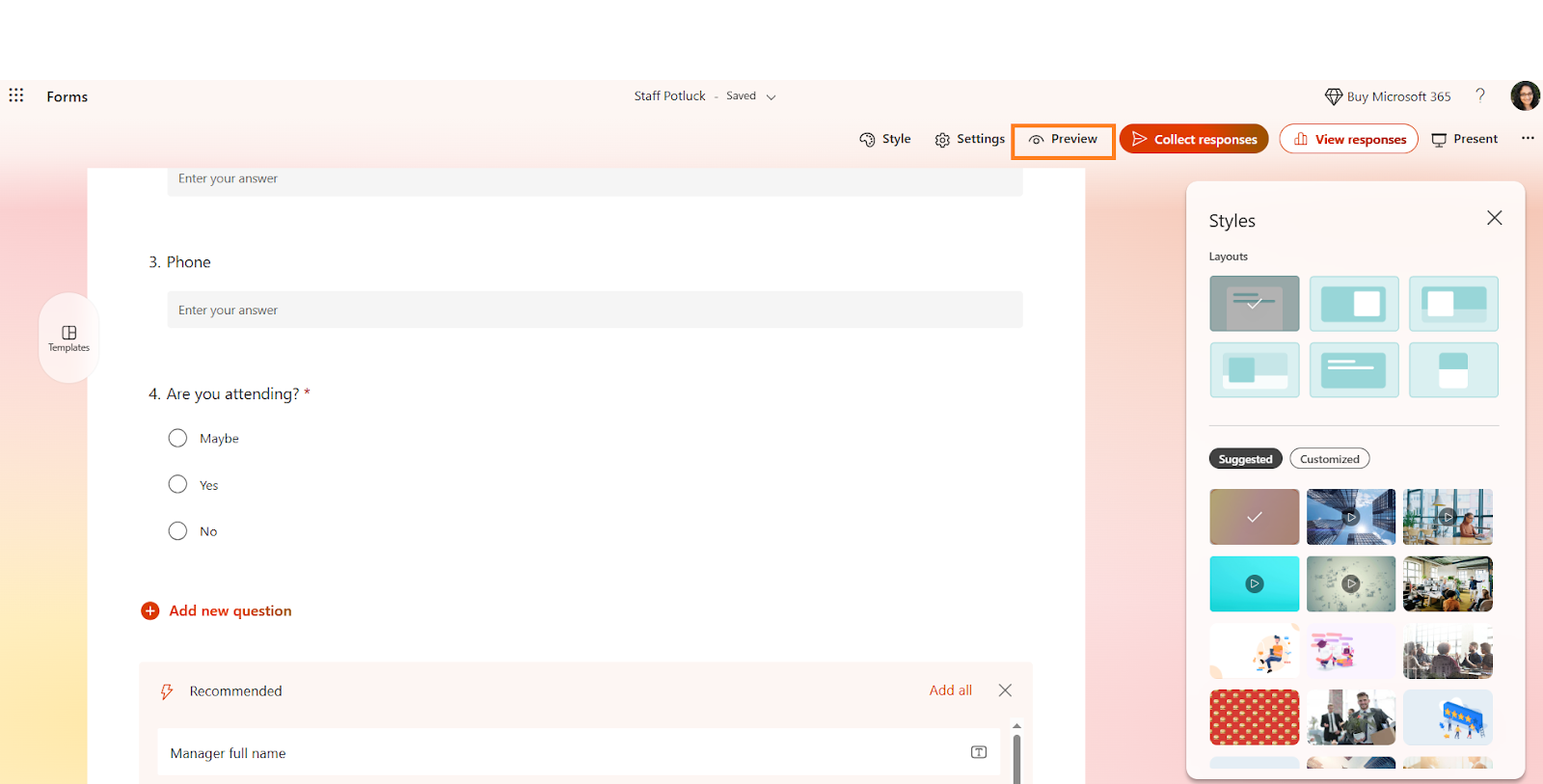
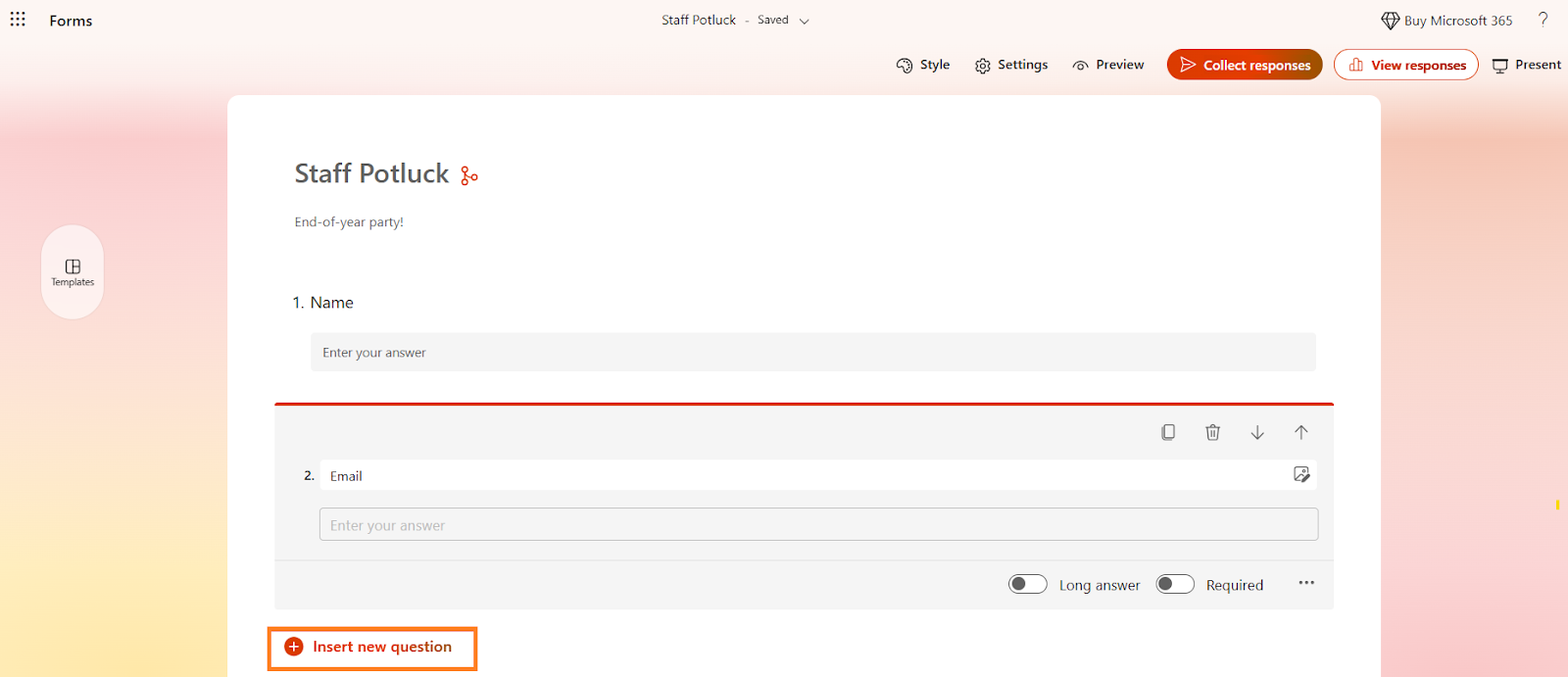
To add a question to the form, simply click Insert new question and select the question type you’d like to add.
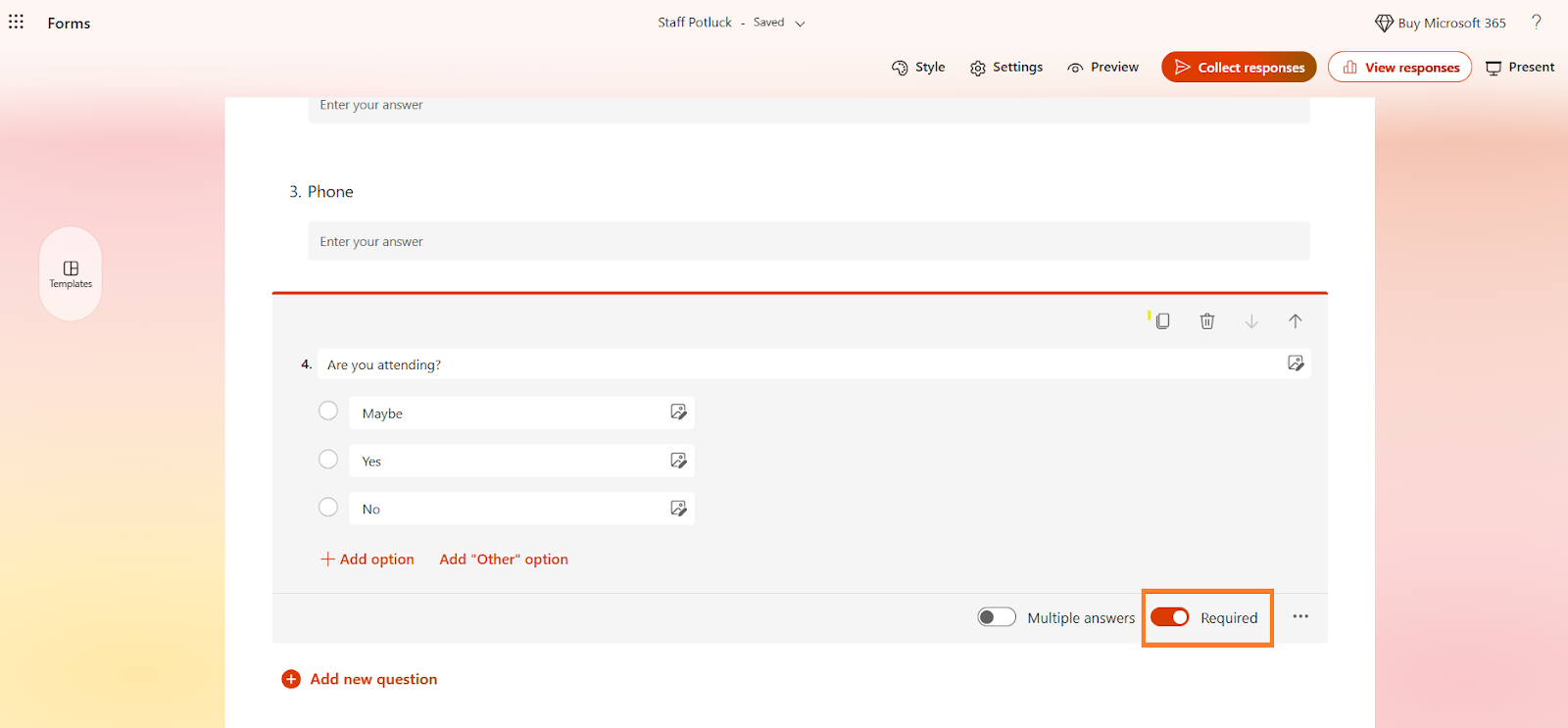
If you’d like to make certain fields required, toggle the Required option at the bottom of the question.
4. If your form questions require conditional logic, you can set branching options in Microsoft Forms. Click the three-dot menu (More settings for question). You’ll see Add branching as an option, where you can add branching logic. Determine the next steps for the respondent based on the answer they provide.
5. Customize the design and branding of the form based on your needs. Click the paint palette icon (Styles), which will open up the Styles sidebar. Select the layout and background image you want.
6. Preview the form to ensure it meets your requirements. Click the eye icon (Preview) in the top menu bar.
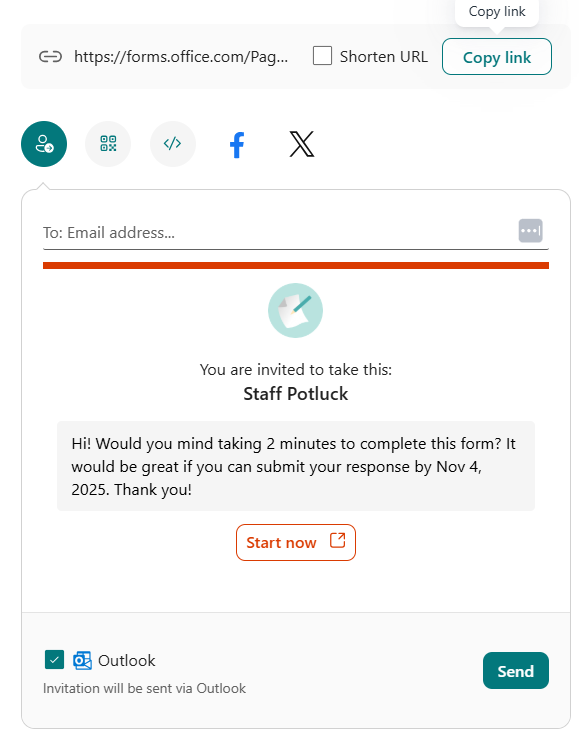
7. Click Collect responses once your event registration form is complete and you’re ready to share it with your respondents. Select options for sharing the form.
Templates and examples of event management forms
The above Microsoft Forms tutorial explained how to create an event management form from scratch. Among the standout Microsoft Forms features are its templates, and you can also use those to create your registration form.
When you open Microsoft Forms, you can expand the template gallery on the left-hand side to see the options available.
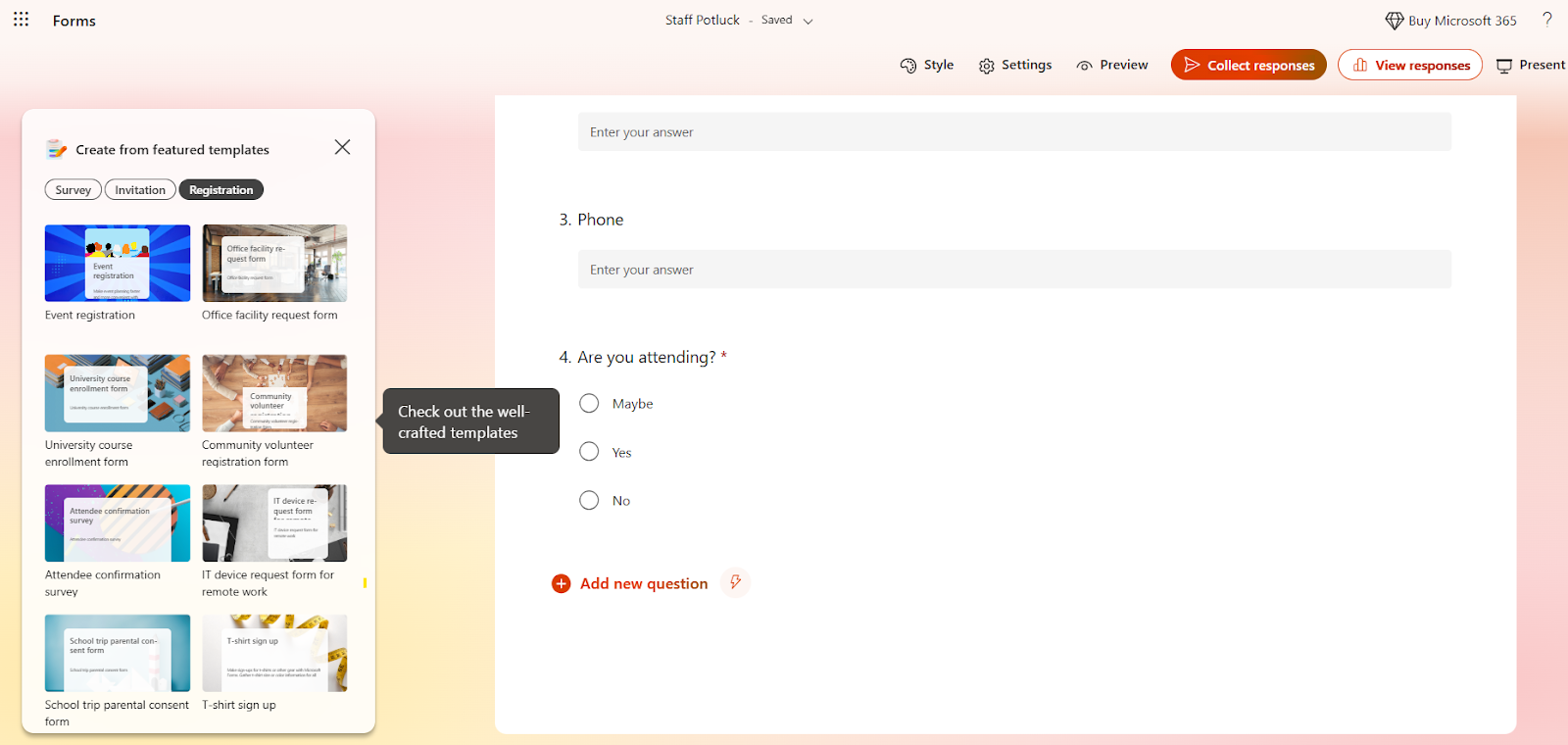
You’ll find a customizable event registration form example which you can use for conferences, webinars, workshops, and meetups. Microsoft Forms templates for events are categorized by Survey, Invitation, and Registration. There are how-to tutorials for specific purposes, including how to create a booking form in Microsoft Forms.
To use a template in Microsoft Forms, simply click on it, click Apply, and begin editing the fields. You can also duplicate and modify an existing form by clicking the three horizontal dots icon (More form settings) and selecting Collaborate or Duplicate.
Limitations of Microsoft Forms for event management
While it’s easy to create a Microsoft Forms event registration form, you may notice some shortcomings depending on your use case:
- Lack of payment collection: Microsoft Forms doesn’t have a built-in payment processing feature. If you want to collect payments via the form, you must create an integration with a payment processing platform using Microsoft Power Automate.
- Limited design customization: Aside from changing the layout and background image of the form, you can’t fully customize the design.
- No built-in Microsoft Forms RSVP cap or waitlist management: Microsoft Forms lacks the advanced features to cap RSVPs at a certain number or create an event waitlist.
- No automatic calendar invites or reminders: There’s no built-in functionality to send automated calendar invites or reminders to attendees. You have to build these processes using Microsoft Power Automate.
Jotform: A great Microsoft Forms alternative for event registration
Jotform is a Microsoft Forms alternative that makes creating highly impressive event registration forms a breeze.

Here’s why event managers choose Jotform:
- It has hundreds of event registration templates: Choose from an array of templates to create your event registration form. Each template is easy to customize based on your needs. Plus, you always have the option to create your form from scratch.
- It has advanced form features and widgets: From conditional logic and integrations to form automation and design, Jotform has sophisticated tools you can make use of to enhance your event form.
- It offers easy response tracking: Manage and track all incoming event responses in Jotform Tables, a powerful workspace that’s more than just a spreadsheet.
Whether you’re managing signups, gathering RSVPs, or sending post-event feedback surveys, Jotform is here to streamline your event registration and management process. Give Jotform a try for free today.
FAQs: Using Microsoft Forms for event registration
Include the information you need to gather about attendees, such as name, email, phone, organization, and attendance status, as well as any specific information you want to gather in relation to their attendance (e.g., food allergies, preferred time slots, etc.).
Yes, you can add branching logic within Microsoft Forms, allowing respondents to skip to another section within the form based on their answers.
The main limitations of using Microsoft Forms for event registration include its lack of payment collection features, limited design customization options, no built-in RSVP or waitlist management tools, and no automatic calendar invites or reminders.
This article is designed for event organizers, administrative staff, educators, and business professionals who want a simple, reliable way to collect event signups using Microsoft Forms. It’s also ideal for anyone looking to streamline their registration process, understand step-by-step form setup, and explore more advanced alternatives like Jotform for enhanced event management and user experience.































































Send Comment: