
There’s no universal button that turns a Google Doc into a Google Form. If you’ve drafted your questions in a Google Doc and searched for a “convert to form” option, you weren’t missing it; it doesn’t exist.
Most people end up manually copying each question from their document into a new form, which isn’t really importing the file. Gemini, Google’s AI, can generate a form from a Drive file (although the feature is still rolling out and availability depends on your plan). Another option is the Jotform AI Form Builder, a free Google Forms add-on that scans your document and creates the form for you, with no paid subscription required.
If you’re a teacher, an HR lead, a small business, or anyone who needs a way to import questions into Google Forms from Docs, this guide covers your options for automating the process: the Gemini method, with its caveats, and the Jotform add-on that works for everyone.


Option 1: Create a Google Form from a Google Doc with Gemini (requires paid plan)
If you know how to use Google Forms, you may have come across Google Forms AI. Gemini can generate a form from a file in your Drive using the “Help me create a form” feature, making this the fastest option if you have access.
However, Google’s documentation says the feature is rolling out gradually and may not be available to all users yet. It also says the AI works only on desktop, is currently English-only, and requires an eligible Google Workspace or Google AI plan. If an administrator manages your account, they may need to enable smart features before you can use the form creation option.
To turn a Google Doc into a Google Form with Gemini, follow these steps:
- Open a new form: Go to Google Forms on your computer and start a blank form. If you have access, the Help Me Create a Form prompt card opens by default, or you can click Help Me Create a Form in the toolbar.
- Reference your document: Click the prompt box, type the @ symbol, then search for your Google Doc and select it from the list.
- Add your instructions: Describe what you want to do with the file, such as turning it into a five-question multiple-choice quiz. The more specific you are about question types and relevant sections, the closer the draft will be to what you need.
- Generate and review: Click Create to see a draft. If it isn’t right, click Retry for a different result, or edit your prompt and submit it again.
- Insert the form: When the draft looks right, insert it into your form. If your form already has content, Google warns you that inserting will replace it.
Even for those with access, Gemini has two limitations: It can’t create forms with multiple sections, and it can’t add to a form you’ve already made. If your form needs sections or you’re improving one you’ve already built, you’ll need to add questions and sections manually or use the following method.
Option 2: Use Jotform AI Form Builder to convert a Google Doc to Google Forms (free and easy)
If Gemini isn’t available on your account, or you want more control over which questions end up in your form, another option is an add-on like Jotform’s AI Form Builder. It’s free to use and will scan your document, detect the question patterns, and convert them into form fields. You can also pull questions from Sheets, Slides, or other Drive files with the same add-on.
To convert a document to Google Forms using the Jotform add-on, follow these steps:
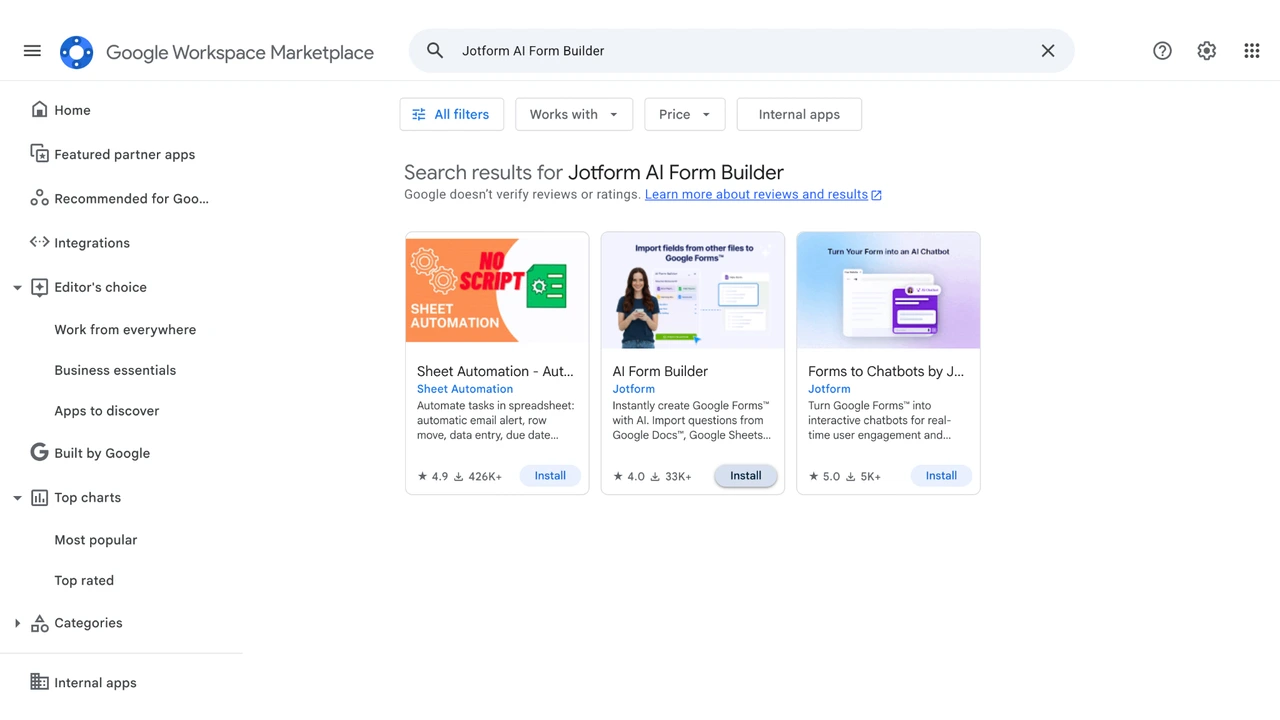
- Install the add-on: Go to the Google Workspace Marketplace, search for Jotform AI Form Builder, and click Install. Sign in with your Google account, authorize access, and click Continue.
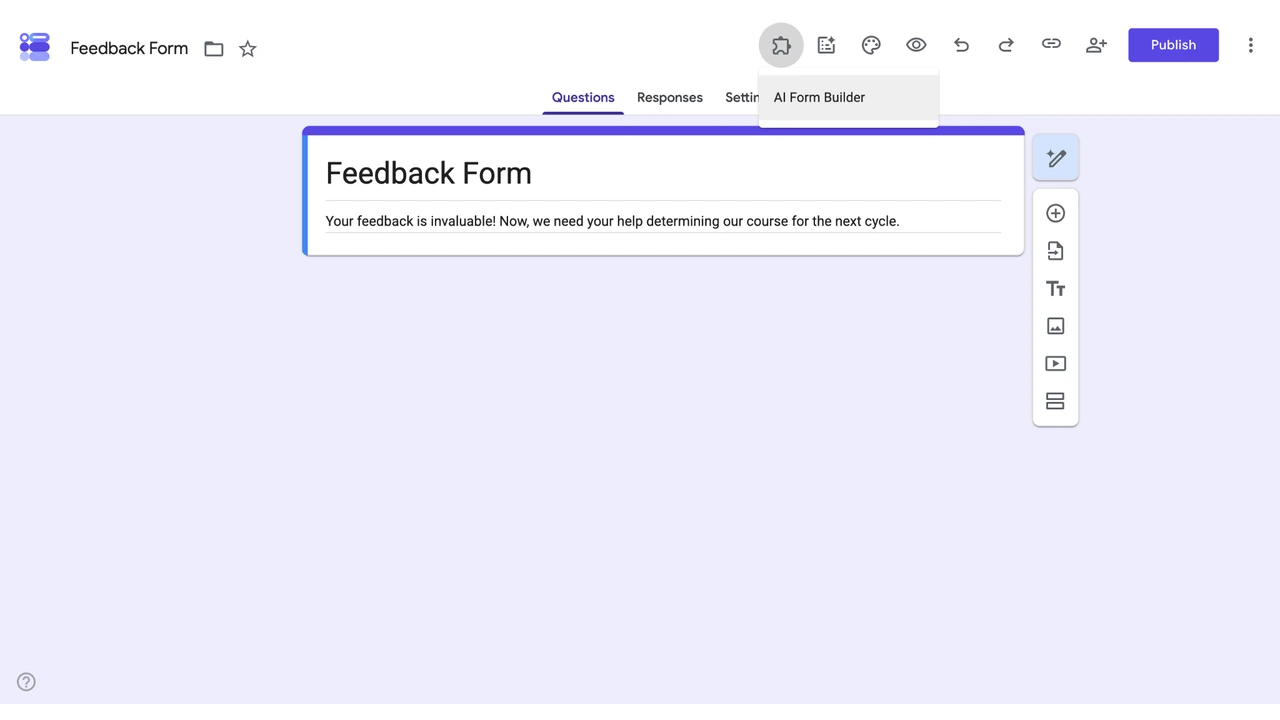
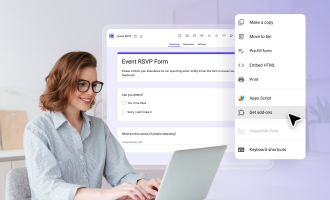
- Open the add-on in your form: Create or open a Google Form, click Add-ons (the puzzle icon at the top), and select AI Form Builder. In the pop-up, click Open Builder to open the menu sidebar.
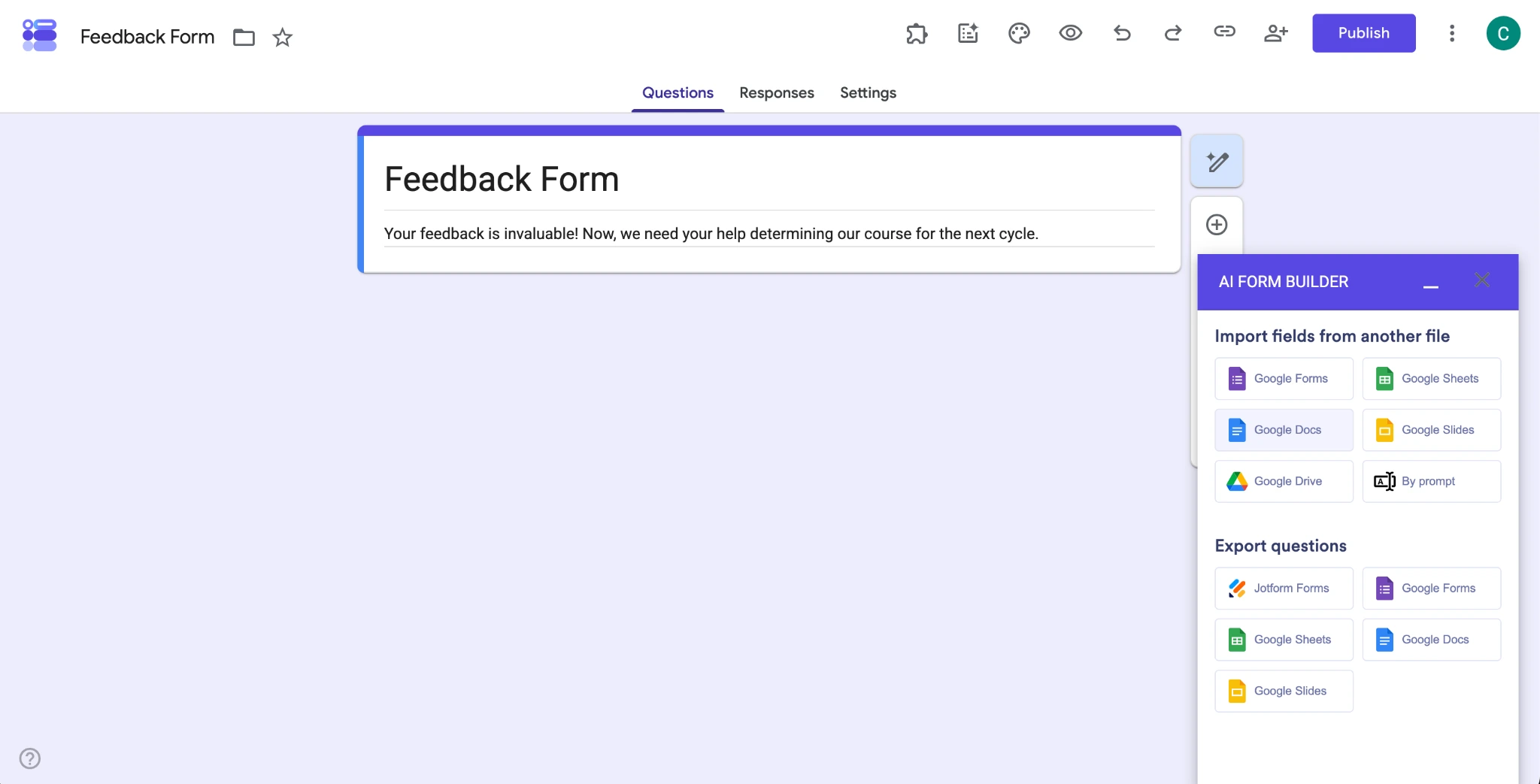
- Choose your source: Under Import Fields from Another File, click Google Docs. In the Select a File window, find and click the document with your questions, then click Select.
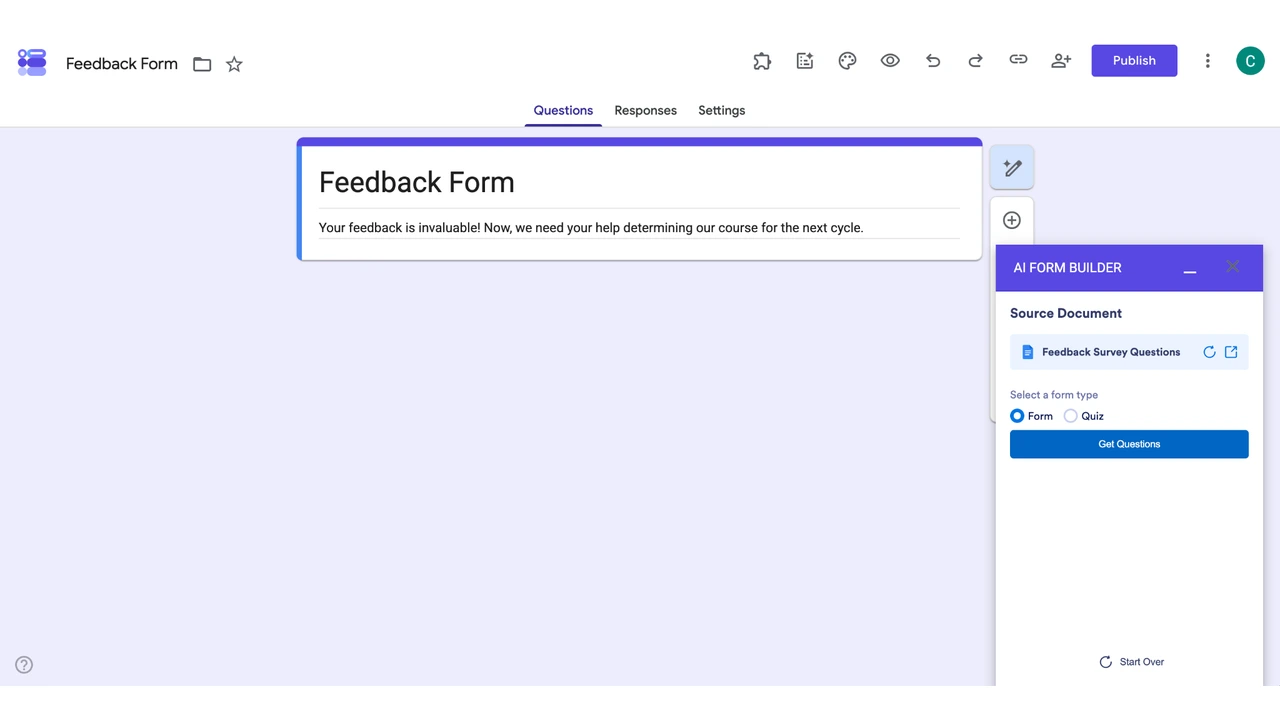
- Pick a form type: In the Source Document window, choose Form for surveys, feedback, or contact forms, or Quiz if you need points and grading. Then click Get Questions.
- Review before importing: See Questions shows everything the AI detected, so you can check the wording and remove any unwanted items. Preview Form shows how they’ll look in Google Forms. Importing Settings lets you choose where the questions appear, filter by question type, shuffle the order, or make all questions required. Click Save after changing any settings, or they won’t apply.
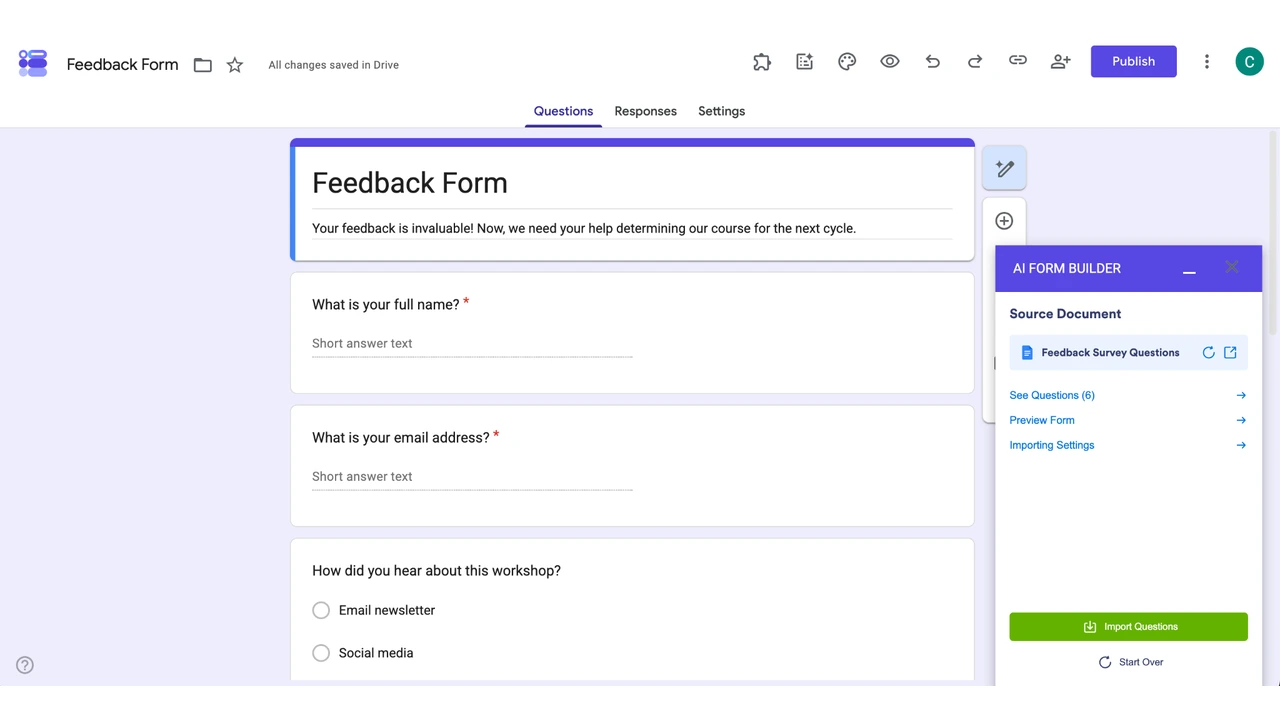
- Import: Click Import Questions to add them to your form.
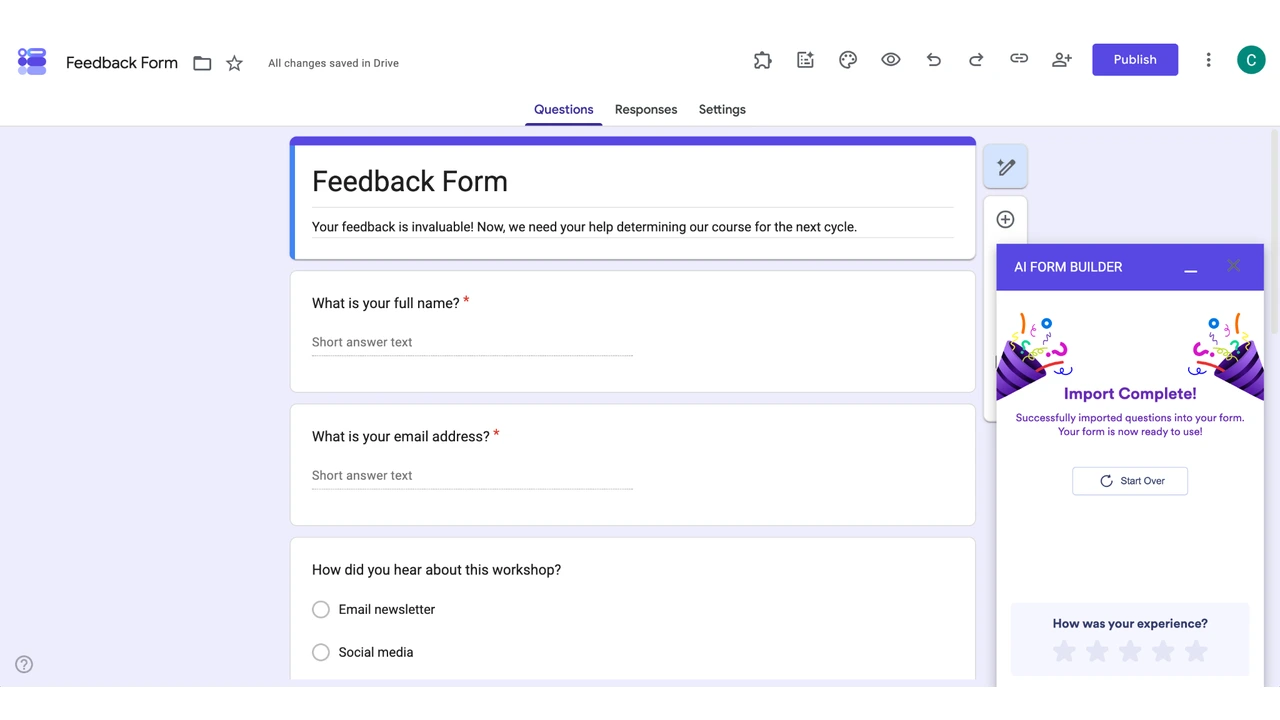
Unlike with Gemini, you can use this method to add questions to a form you’ve already started.
Try Jotform for seamless data conversion and better forms
Google Forms is a free form builder with basic features, and it doesn’t support useful features like payment, signatures, or approval workflows, Jotform includes all of these in its form builder.
A Jotform vs Google Forms comparison covers the full picture, though here’s what stands out most for anyone looking at Jotform as a Google Forms alternative:
- No login required: Collect responses even if your respondents don’t have a Google account.
- Jotform AI: Create and refine forms by describing what you want rather than manually adding fields.
- More than 150 integrations, including Google: Connect Google Workspace, Drive, and Sheets so your responses end up on the platform where your team works.
- 20,000-plus free form templates and over 1,000 themes: Start from something close to what you need instead of a blank form.
- Payment collection: Accept one-time or recurring payments within the form via Stripe, PayPal, and other payment providers.
- E-signatures: Collect signatures on waivers, contracts, and petitions.
- Workflow automation: Route approvals, notifications, and follow-ups automatically based on the submission.
- Mobile-ready forms and fillable PDFs: Create a fillable form in Google Docs that adapts to any screen, and existing PDFs convert into fillable web forms without extra setup.
If you’ve already built forms in Google Forms, you don’t have to start over. If you’re wondering how to import Google Forms into Jotform, you can migrate Google Forms to Jotform and import them in just a few clicks, so you can start using these features.
This article is for teachers, trainers, HR teams, admins, marketers, nonprofit teams, researchers, and small business owners who draft questions in Google Docs and need to turn them into an online form, quiz, survey, registration form, intake form, or application form.
































































































Send Comment: