
If you work in a global organization or interact with customers from different cultures, you know the importance of multilingualism. When it comes to effective data collection, speaking to people in their native language helps them feel more at ease and encourages them to share their thoughts more freely.
That’s why multilingual forms are essential. With multilingual forms, you can reach beyond language barriers, collect meaningful data, improve form accessibility, and ultimately enhance the quality of responses.
Creating an online form is simple, but creating an online form in multiple languages requires a bit more skill and effort. Challenges include accurately translating the content and figuring out which versions of your chosen software can handle different languages.
In this article, we’ll show you how to create multilingual forms with Microsoft Forms and manage the issues that might arise when making these forms. Plus, we’ll introduce you to another form builder that offers excellent translation features: Jotform.
Pro Tip
For faster multilingual launches, use Jotform’s native form translation capabilities to generate multilingual forms automatically and fine-tune translations in one place without juggling external translator tools or extra form links.
What Microsoft Forms can and cannot do in terms of language support
One of the most useful Microsoft Forms features is multilingualism, which enables you to create a Microsoft Form in different languages. Respondents can then pick their preferred language when filling out the form.
It’s important to note that, to use this feature, you must provide the translated text. Microsoft Forms does not complete the translation for you; it simply supports the multilingual experience by switching the language for users.
Microsoft Forms supports dozens of languages and dialects, so you have the flexibility to communicate with a global audience. However, a single Microsoft Form can support up to 11 languages, including the primary language. This limitation could interfere with your data collection if you need more language options for any specific form.
While Microsoft Forms does support native multilingual forms, it’s important to know that not all versions of the software have the multilingual feature. Most paid business or education Microsoft 365 subscriptions include a Microsoft Forms multilingual version. However, availability may depend on whether this configuration is enabled in the administrative settings.
Free personal plans do not include the built-in multilingual forms capability.
Step-by-step guide: How to create a multilingual form in Microsoft Forms
Want to put the Microsoft Forms language settings to use? Here’s how to use Microsoft Forms to create multilingual forms, generate automated translations, organize your multilingual responses, and share links by region or language.
How to create multilingual forms
Follow these steps to use Microsoft Forms multilingual tools and provide your own translation for the form.
1. Open the Microsoft Form you wish to translate.
2. Select the More form settings/More options button.
3. Select Multilingual.
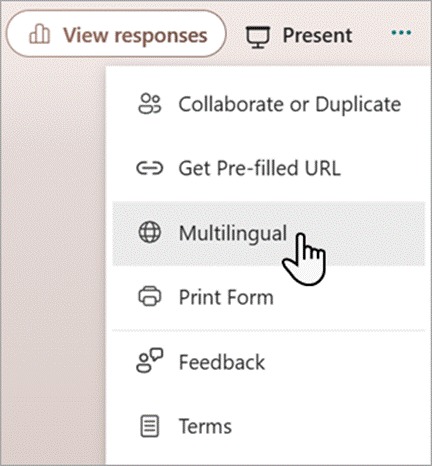
4. Under Additional language, click + Add additional language.
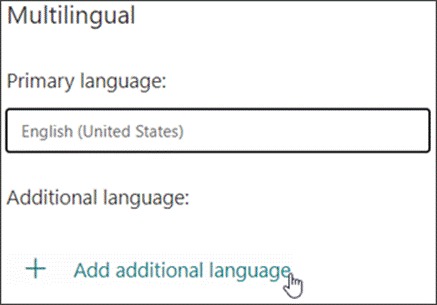
5. Search for the language you want, or scroll through the options and select your choice.
6. Hover over the language you selected and click the Edit language pencil icon.
7. Select each field of the form and provide the translation below.
8. Click Back when you’re finished translating each field.
When you send the form, respondents will have a dropdown to select their preferred language or will see the form in their preferred language (if they have already selected it).
How to use Microsoft Translator or browser-based tools
If you do not speak the language you want to translate the form to, you have other options for localization in Microsoft Forms.
Option 1: Use a translator tool like Microsoft Translator to translate the form content from your primary language into a different language. You can then copy and paste the translated text into Microsoft Forms following the steps above.
Option 2: Use a browser-based translator tool like Google Translate to generate the alternate text. Then, copy and paste it into the Microsoft Forms following the steps above.
How to organize responses from different language versions
When you provide a survey in multiple languages, you will receive responses in multiple languages.
To view the responses in all the available languages, select the More Details link under each question in the Responses tab.
From here, you’ll see a language column, which will let you view how each language group responded to that question. If you have exported your responses in Microsoft Excel, you will have a language column in your workbook.
You can then determine how to organize your responses, such as by language group or response type.
How to share links by region or language
When you create multilingual forms in Microsoft Forms, you can share the form with respondents and localization will take place on their end. If the respondent has selected a default language and you’ve created a form in that language, they will see the form in that default language.
If not, the respondent will be able to select the language from the language dropdown in the upper right-hand corner.
You do not need to send separate links by region or language.
Simplifying multilingual forms with Jotform
While Microsoft Forms does offer features to create multilingual forms, there is no built-in ability to translate Microsoft Forms into different languages.
If you’re looking for a native multilingual form builder that offers true multilingual support, a translation interface, automatic language detection, and more, it’s time to look into Jotform.

Migrate existing forms instantly
There’s no need to rebuild your online forms from scratch. Instead, migrate existing forms and submission data into your Jotform account in one click — so you can collect data without skipping a beat.
Your form can not be migrated.
Please ensure that your form URL is correct and that your form is set to “public” before attempting to migrate it again.
Jotform is a leading form builder and a sophisticated alternative to Microsoft Forms. With tens of thousands of free form templates — far more than Microsoft Forms — Jotform enhances the process of form creation, letting you customize the font, style, structure, and colors of the form. You can even use advanced form features like conditional logic to create a form that meets your needs exactly. Plus, there’s no coding experience required.
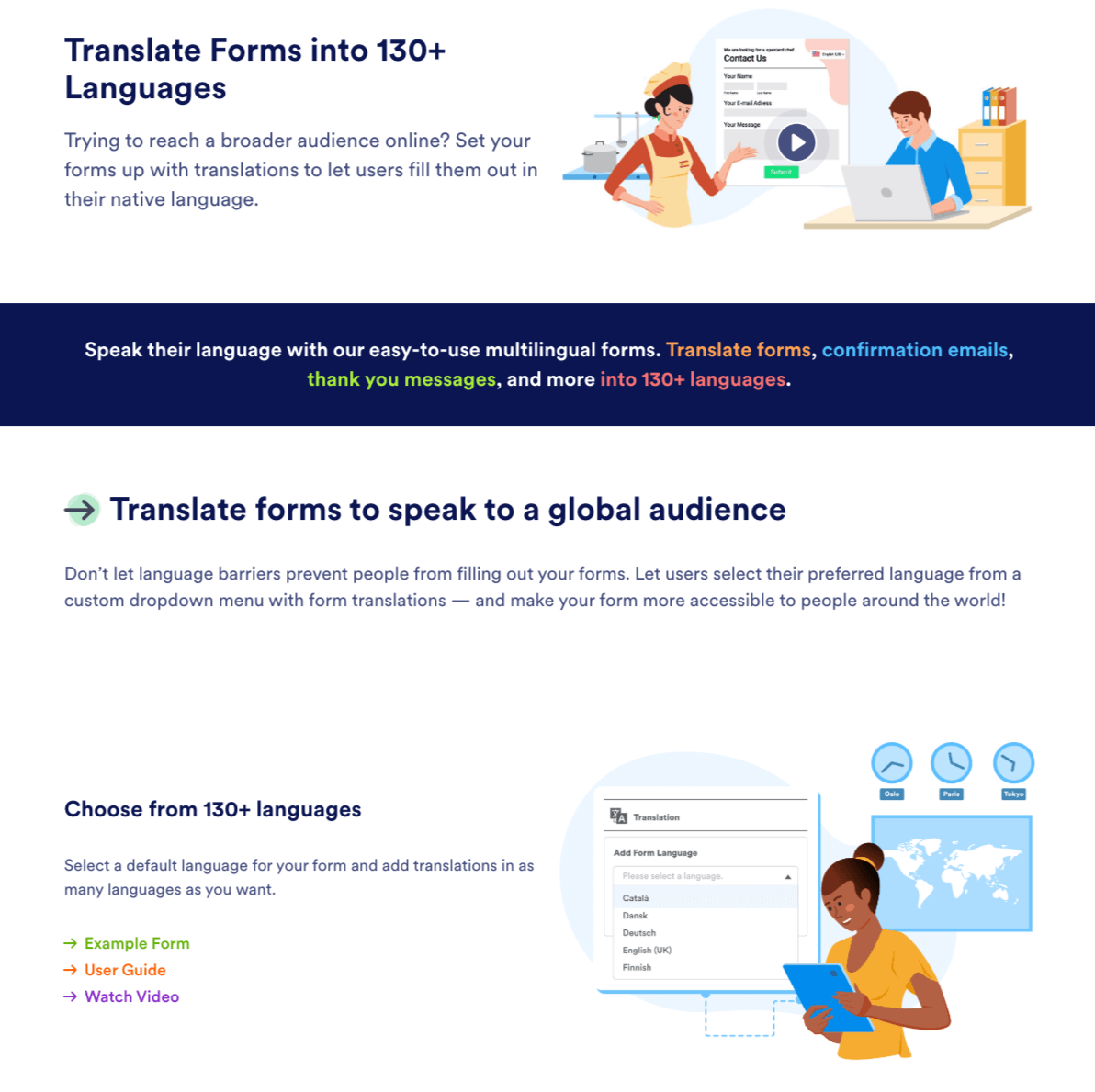
Jotform takes customization to another level with its multilingual capabilities and form translation tools:
- It has native multilingual form capabilities: Simply select your form’s default language and add additional languages to the form. To set up your form’s language options, follow these steps:
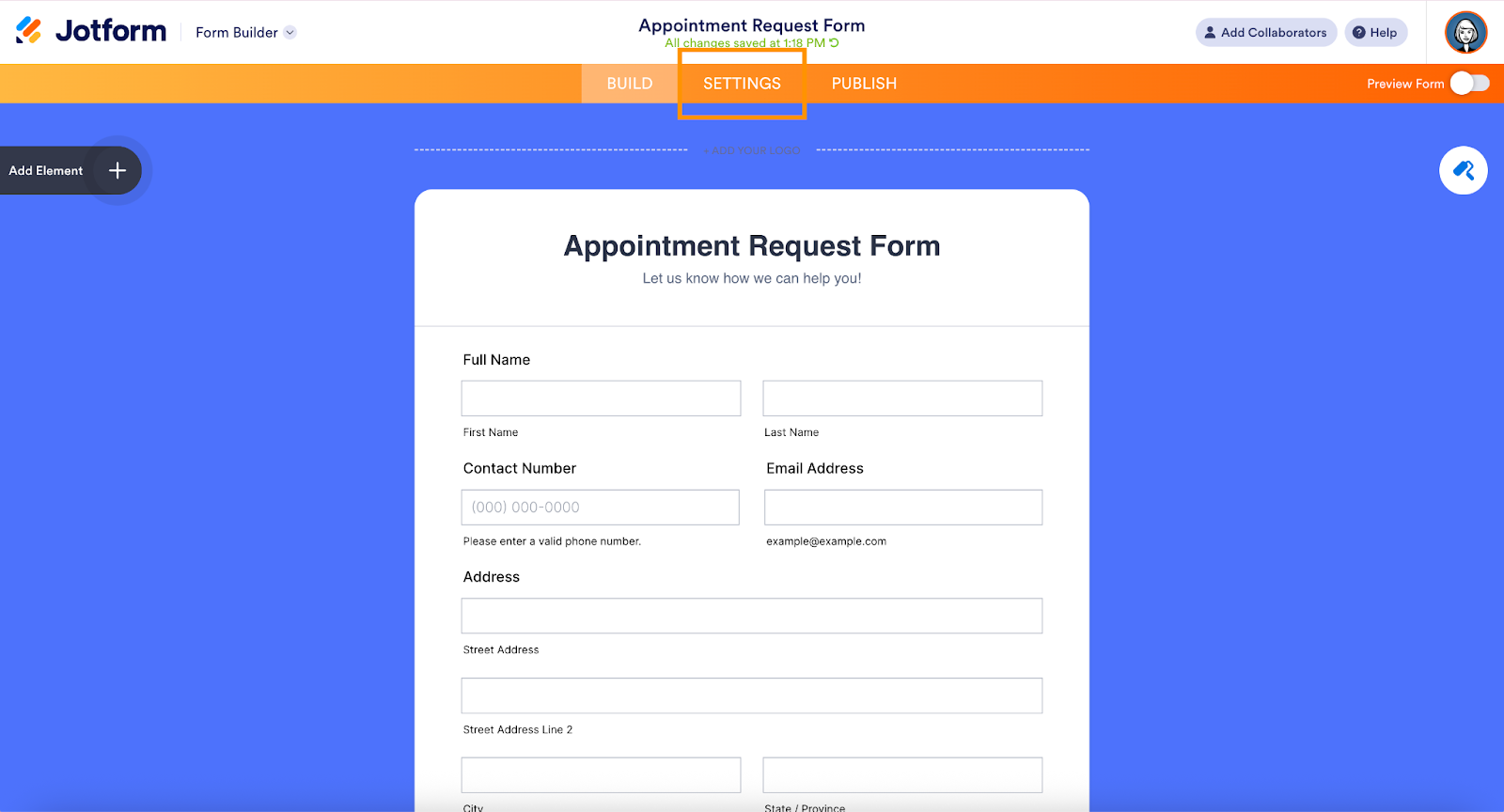
1. In Form Builder, go to Settings at the top.
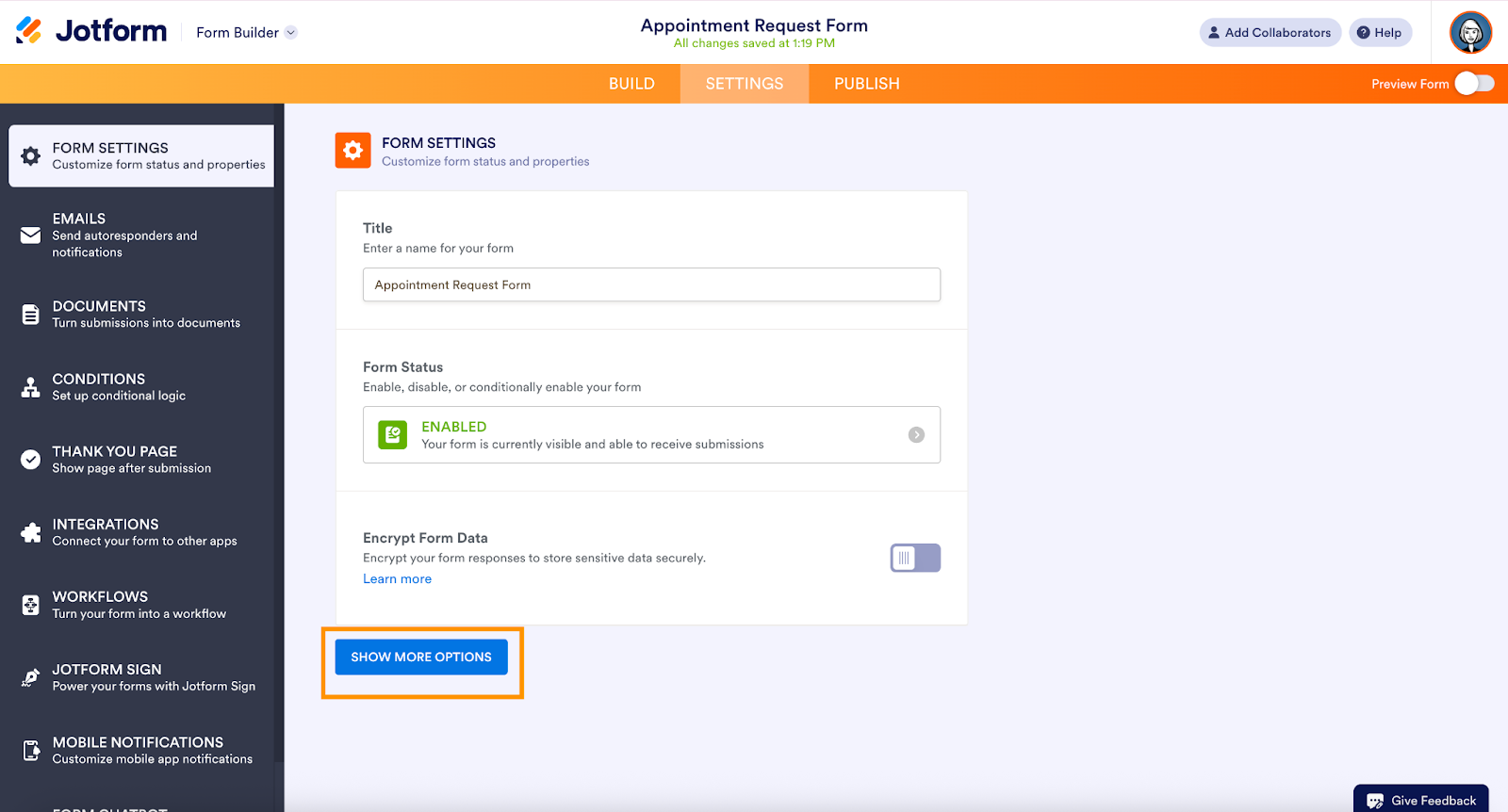
2. Then, select Show More Options at the bottom.
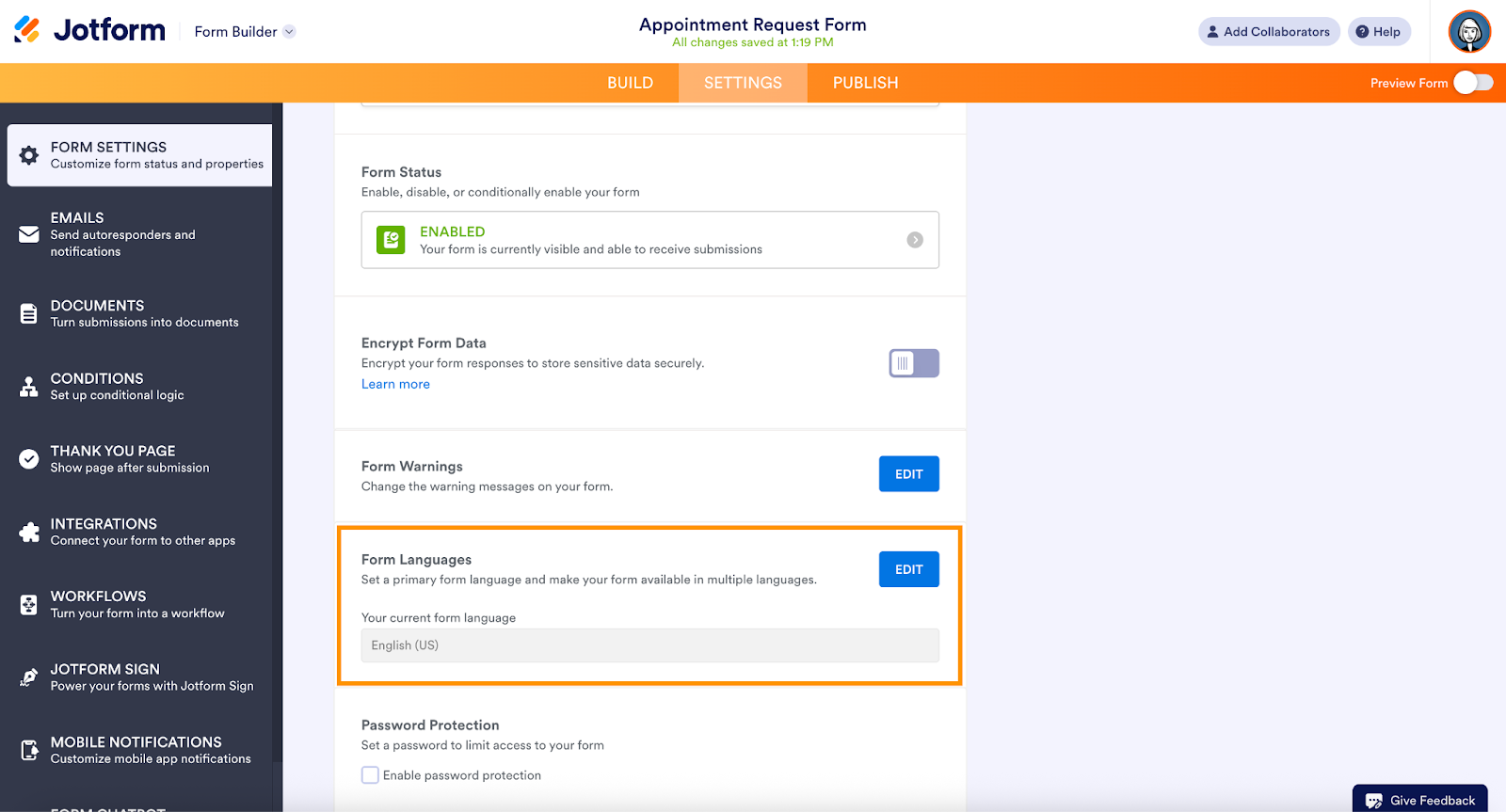
3. Select Edit next to Form Languages.
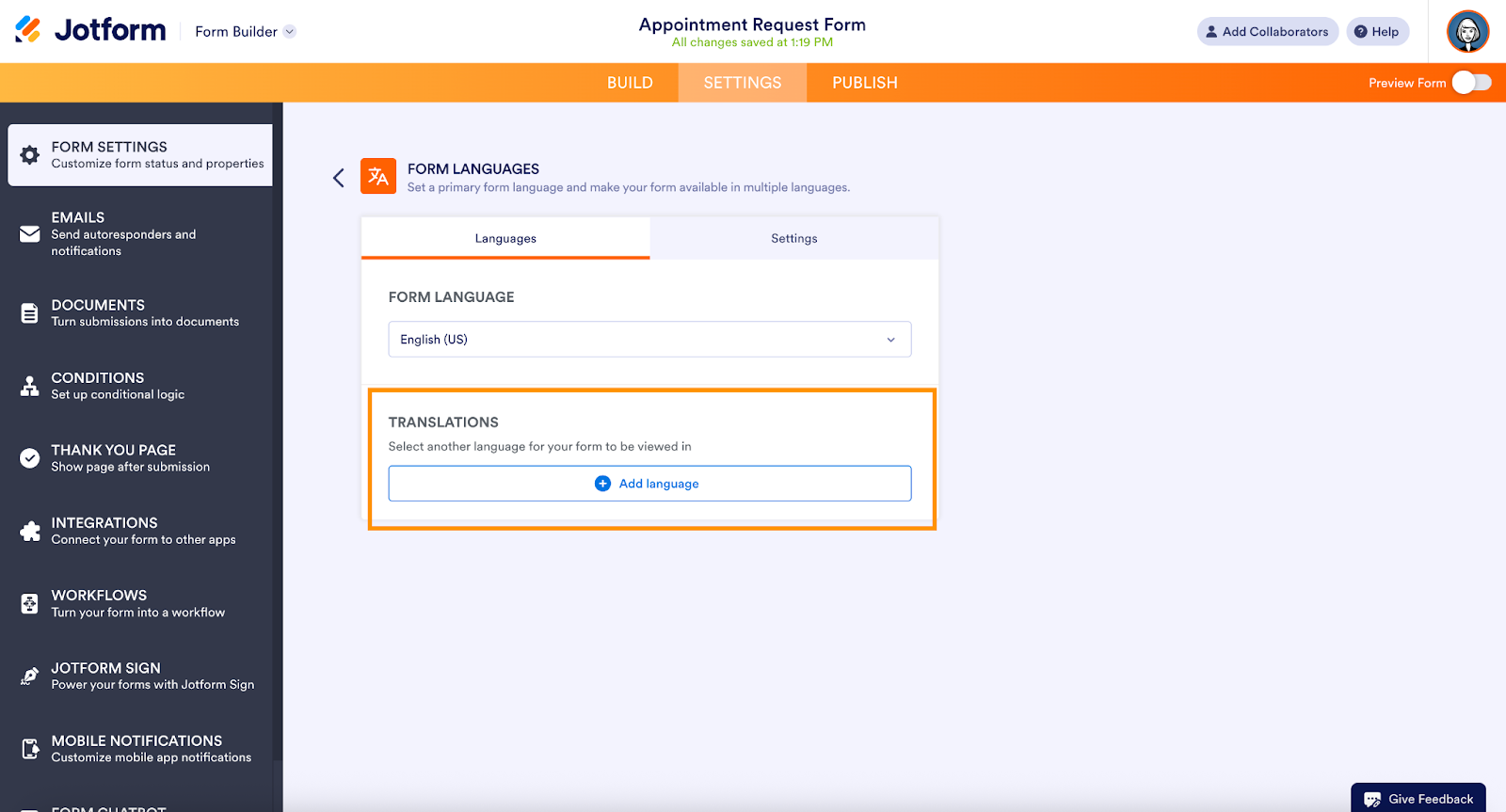
4. Select Add language to add a different language.
5. Add your translations in the fields.
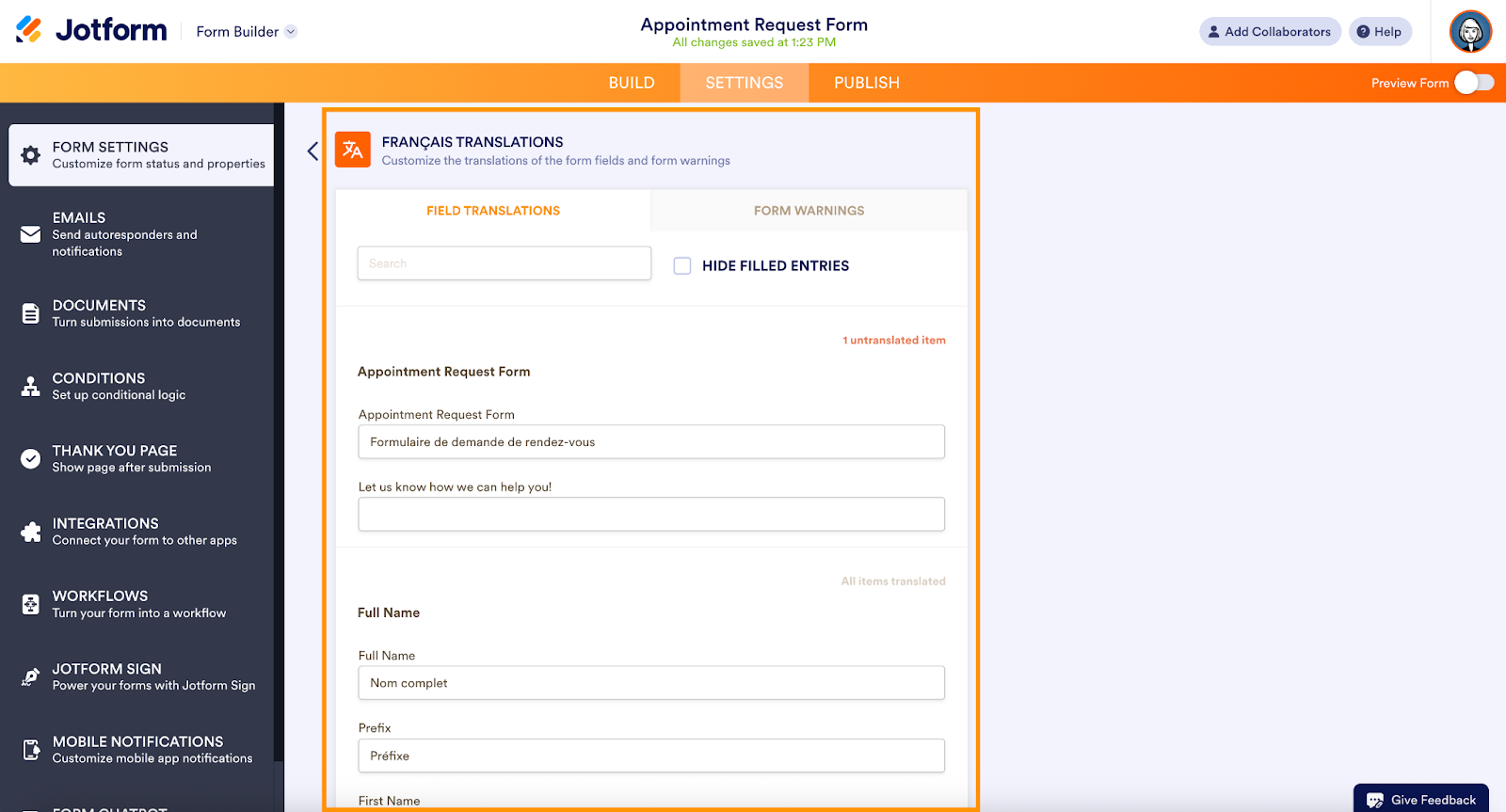
All changes you perform are saved automatically.
- It automatically translates text: Unlike Microsoft Forms, Jotform translates your form automatically when you select another language for the form. There’s no need to provide the translation yourself. Jotform supports 130-plus languages.
- It has no language version limits: You can create as many versions as you like for each form.
- It enables simple language selection: Let respondents select the form language they prefer with a simple dropdown menu.
- It has advanced form customization features: You can translate the form warnings, thank you page, and auto responder email automatically.
- It includes automatic language detection: If the respondent has selected a default language, you can send them the form in that language by configuring a few simple settings.

Making global communication easier with multilingual forms
Language localization in Microsoft Forms is certainly possible, but the software cannot automatically translate form content for you. If you provide the translation, you can create multilingual forms in Microsoft Forms — but that adds an extra layer of complexity for form creators.
If you’re trying to reach a global audience, it’s time to streamline multilingual data collection with a better form translation tool. Jotform enables you to create multilingual forms in over 130 languages. Plus, it automatically translates text so you can preserve the original meaning of your questions, enhancing your ability to communicate with people around the world.
For international teams and those that want to appeal to a global audience, Jotform offers true built-in multilingual form support. Explore Jotform today and see how easy it is to translate your forms into multiple languages.
FAQs: Creating multilingual forms in Microsoft Forms
Microsoft Forms does not have built-in functionality to automatically translate form text. You have to use an external translation tool or browser extension to translate the form content.
You can create a multilingual form in Microsoft Forms by going to the More form settings/More options button and selecting Multilingual. Then, select the language and provide your translation.
This article is for teams and organizations that collect data from multilingual audiences and need clear guidance on creating forms in multiple languages using Microsoft Forms. It’s also ideal for users seeking easier translation workflows and exploring more powerful multilingual form-building alternatives like Jotform.

































































Send Comment: