
I really hated my university’s learning management system (LMS) when I was a student. It was confusing, slow, awkward, and overall more work than printing assignments on paper and marking them up with a pen and highlighter. But that was 20 years ago. After comparing and evaluating two of the most popular LMS platforms in 2026, I can see how much they’ve improved.
The interfaces of today’s LMS platforms are cleaner and snappier, integrations make it easier to upload and edit attachments from third-party productivity tools, and instructors can quickly build out interactive course materials and quizzes with drag-and-drop builders or generative AI. Building and attending a digital classroom for a course is easier than ever thanks to educational technology; it’s choosing the right builder that’s gotten harder.
G2 lists more than 70 LMS platforms with at least four out of five stars, with Blackboard and Canvas ranking near the top of the list. Both options have been around for more than a decade, can handle everything from managing K–12 curricula to building compliance courses across government agencies, and target institutions with 5,000 to 15,000 students. There are a few key differences between Canvas and Blackboard, though. I compared their features, integrations, mobile apps, pricing, interfaces, and a dozen other variables to help you choose the better fit for your students and teachers.
 Blackboard |  Canvas | |
|---|---|---|
| Best for | Maintaining strict compliance and legacy integrations | Mobile-optimized courses |
| Ideal school profile | Established institutions with large, onsite IT departments | Higher-education institutions with lots of distance learning |
| Unique features | Generative AI for course design and role-playing with students | Free, open-source deployment and 1,000+ integrations |
| Free trial | No | No |
| Pricing | Contract negotiation | Contract negotiation |
Blackboard
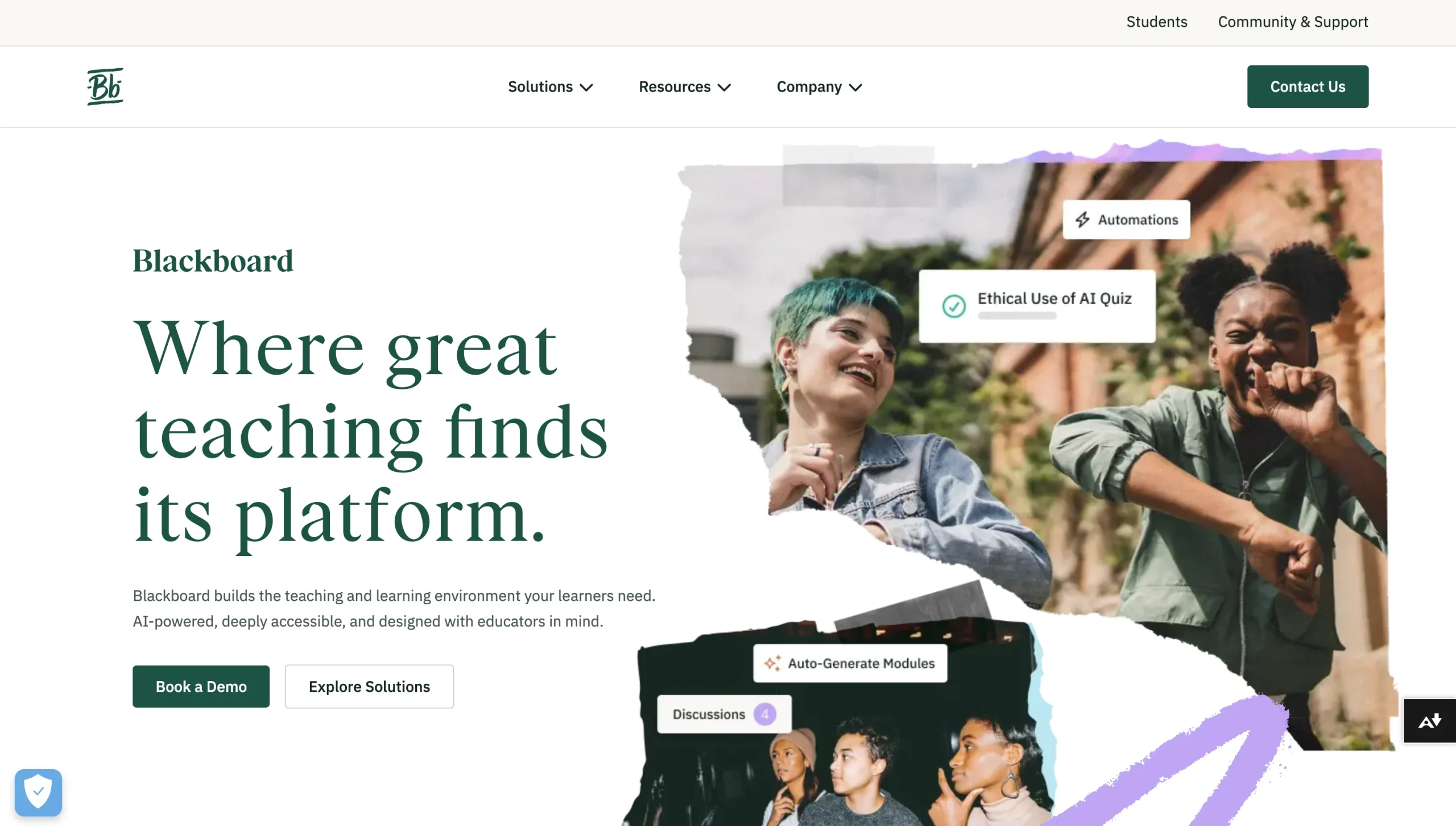
One of the earliest commercial LMS software platforms, Blackboard launched in January 1997. Its company history page says that in the mid-2000s, around three-quarters of all US colleges and universities used Blackboard for managing coursework and grades. And that same page admits that it “lost the thread” in the years that followed, giving up a gigantic slice of its market share.
So in 2016, Blackboard released a massive, cloud-first update called Blackboard Ultra. With a steady stream of updates and investor capital, the OG LMS has consistently added new features such as engagement-based analytics, platform-wide plagiarism detectors, audit trails for compliance reporting, virtual classrooms, and more generative AI than any other LMS of comparable scope.
Of course, Blackboard couldn’t sunset features that legacy institutions have relied on for almost 30 years. For better and for worse, Blackboard is an LMS packed with almost countless features, new and old.
What makes Blackboard unique?
With its longtime focus on public schools, universities, and government agencies, Blackboard is especially good at maintaining legacy integrations and offering enough customization to meet complex and evolving compliance requirements. You can, for example, create incredibly specific custom user roles and connect older Schools Interoperability Framework (SIF) and Learning Information Services (LIS) data sources. The trade-off is that Blackboard is much harder to learn and master overall.
More recently, Blackboard has established itself as a viable Canvas LMS alternative by releasing a slew of new AI features. Instructors can use LLM-driven chatbot conversations to see how students perform in role-playing scenarios; they can also generate course outlines, rubrics, test questions, and lesson images. Students can ask an AI Virtual Assistant (AVA) plain-language questions about assignment requirements, class schedules, and reading. From what I can see, Blackboard’s AI adoption is fairly polarizing, with other platforms taking a much slower approach.
Canvas
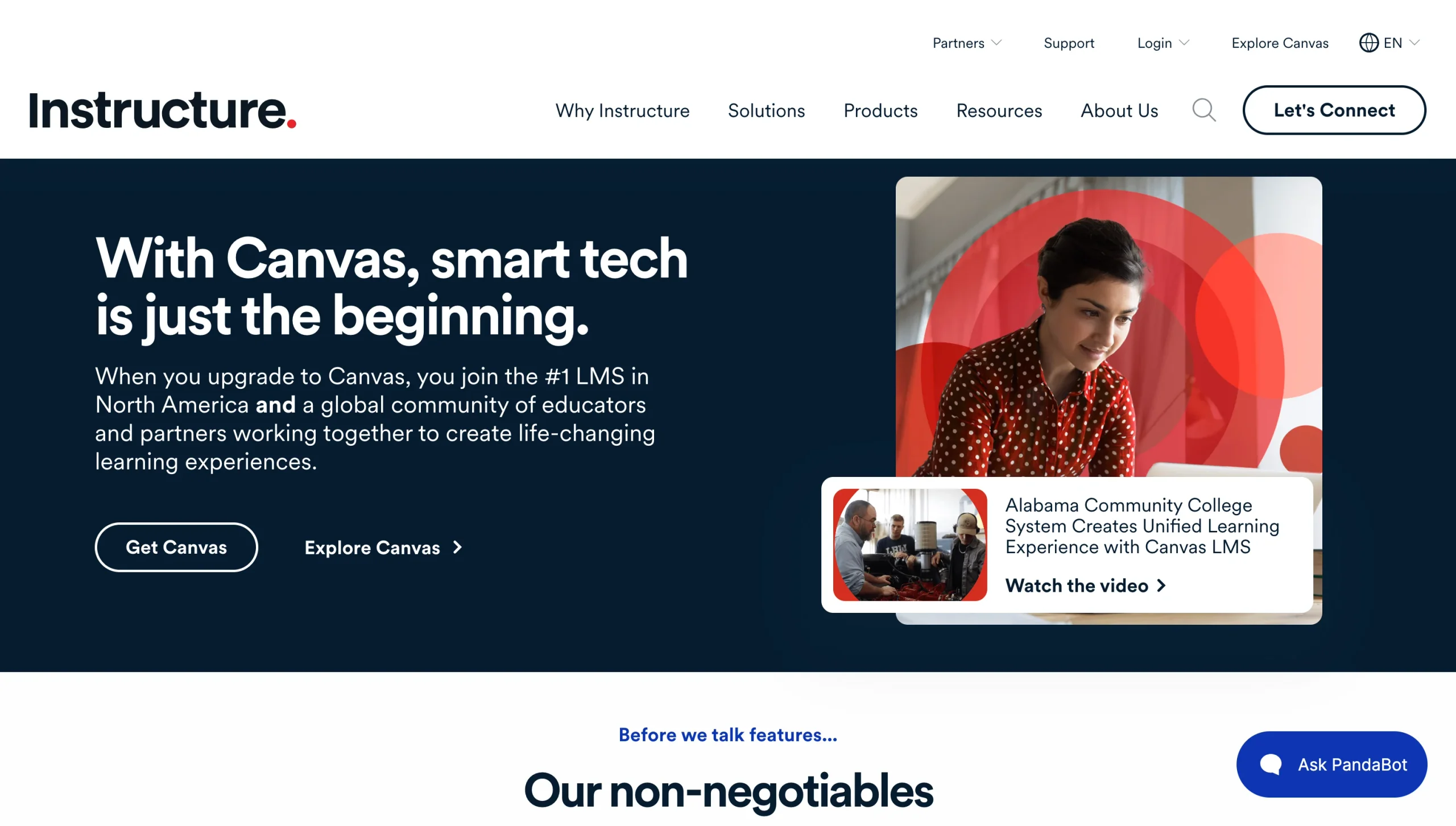
Launched in 2011, Canvas was created by graduate students with a focus on monetizing the hosting and management side of things rather than the software itself. There is an AGPL open-source licensed version of Canvas, and you can use most of the platform’s tools and features for free simply by hosting it on your own hardware.
While it’s hard to measure LMS market share precisely, multiple surveys have found that Canvas is currently the most popular choice for universities and colleges in the United States. And that’s mostly due to how much easier it is to use compared with other platforms that have the same depth of features.
What makes Canvas unique?
Standout mobile apps are one of Canvas’s selling points. Rather than a single, all-in-one download for iOS and Android, parent company Instructure has three: Student, Teacher, and Parent. Each one is consistently well reviewed and maintained, which is notable compared with Blackboard, whose apps have garnered an uncomfortable number of bad reviews and complaints.
Canvas also claims one of the longest integration lists from an LMS. There is no public directory, but Instructure’s website boasts of more than 1,000 compatible third-party tools, including the ability to integrate Canvas with Jotform, Workday, Gradescope, and hundreds of other business and collaboration tools. Integrations are one of the most important aspects of any LMS; they keep you from being limited to built-in features and plan allowances.

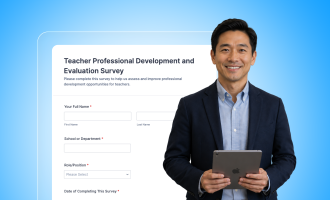
While some of Instructure’s other apps include form builders, Canvas has only a tool for quizzes and surveys, which feels limited. The Jotform Canvas integration sidesteps this issue entirely by letting you use form submissions to create student records or enroll students in a Canvas course. You may not even need to create your forms from scratch, because Jotform has more than 5,000 education form templates, including
- College admission forms
- Course registration forms
- Course evaluation forms
- Student surveys
Although you will need to create a developer key from a Canvas admin account and configure one or two other security settings, it’s a far cry from Blackboard’s more walled-off approach to integrations.
Blackboard vs Canvas in 2026: A head-to-head comparison
Learning management systems, especially Blackboard and Canvas, are incredibly complex and customizable pieces of software. It would be impossible to compare every feature, user flow, use case, and settings menu. Instead, I’m focusing on a few core experiences to give you a high-level assessment of how using Canvas and Blackboard feel day-to-day for teachers and students.
Ease of use and learning curve
Canvas and Blackboard look fairly similar at first glance. Both condense most platform navigation into a left-hand sidebar with tabs including Courses, Calendar, and Messages/Inbox. For students, the overall experience on the two platforms isn’t that different. The same cannot be said for system administrators and teachers.
Canvas’s admin settings, for example, are divided into around 15 subpages based on categories such as Authentication and Permissions. If you want to create a custom role, click Permissions, then Add Role, name it, tweak what’s allowed, and click Save. That’s it. In Blackboard, you have to first set up an “Institutional Hierarchy,” with nodes for different institutions, courses, and organizations. Then you go back to the admin panel and pick Institution or Course/Organization roles to edit or assign them, backtracking to hop between different hierarchies as necessary.
Similarly, creating a student assignment in Canvas is as easy as clicking the Assignments sidebar, then + Assignment before entering the instructions and upload settings. In Blackboard, assignments are within the Assessment submenu and require several more clicks before anything can be published.
Some of Blackboard’s added complexity is by design, so I don’t want to imply that it’s unequivocally bad design. If you’re willing to hunt for buried settings and confusing menus in exchange for more customization, Canvas might feel too dumbed down. But that’s not what most people want.
Winner: Canvas
Course management, assignments, and grading
As is the case with almost every comparison of these two platforms, everything comes down to the choice between simplicity and flexibility. Course creation and management in Canvas is mostly on rails, making it hard to stray too far afield, while Blackboard gives you way more bells and whistles to play with (and the possibility of accidentally breaking course structures).
In Canvas, go to your Dashboard or your Courses sidebar. There’s a templated and unpublished course at the bottom that you can start from, or you can click Start a New Course in the right-hand sidebar. From there, you can add modules, create announcements, set up assignments, update grades, connect third-party tools, and enroll students. It’s organized well and feels like something a new teacher could pick up without much training.
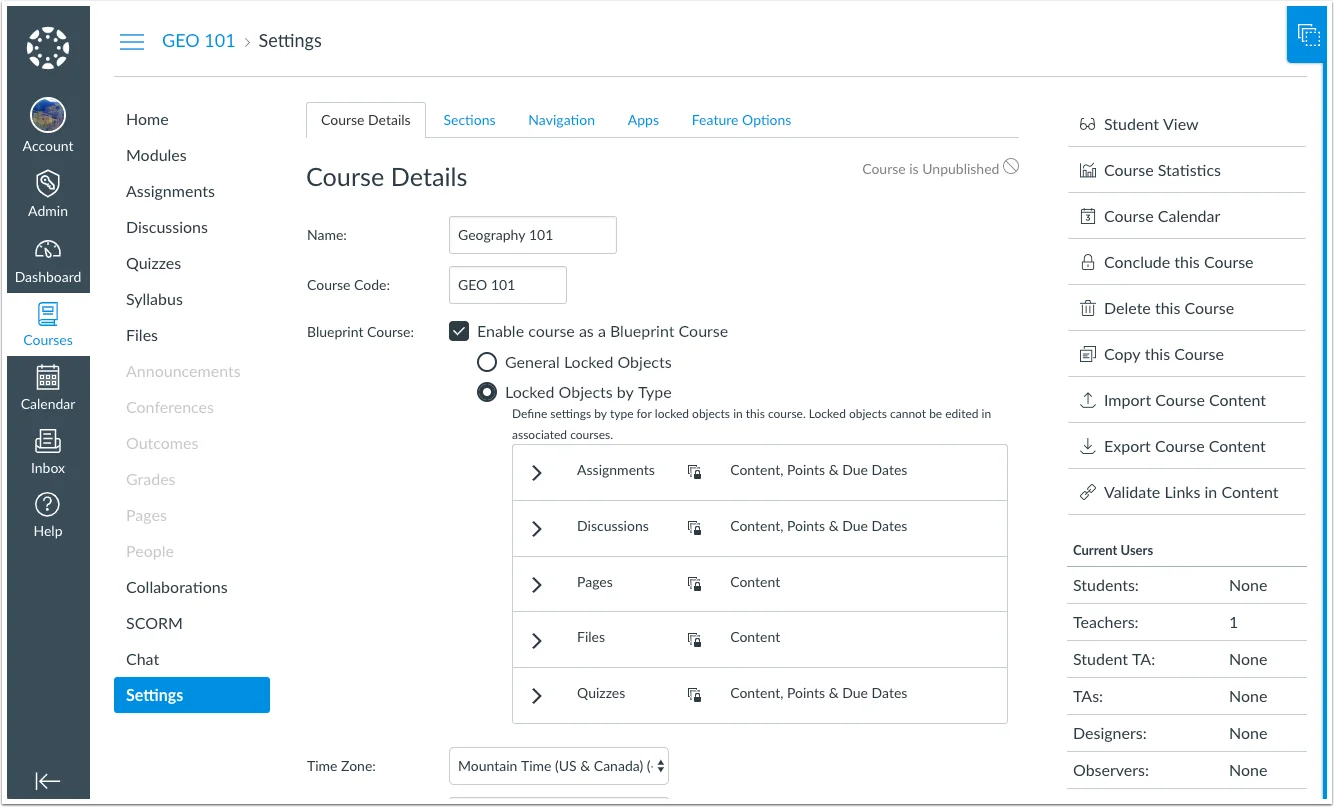
The initial workflow in Blackboard is nearly identical (go to the Courses tab and edit the prepopulated course template). Again, you’ll add modules to your course, with documents, assignments, tests, and discussions under each module. The core flow is similar to Canvas’s, but the interface is more crowded and difficult to navigate. Even if you simply ignore things such as measuring institution-wide goals, creating “content markets,” managing learning object repositories, and navigating AI-generated modules, it takes some getting used to.
Blackboard’s more free-form philosophy feels especially important in grading. Its Gradebook lets you manually adjust automatically generated scores and add accommodations on a per-student basis, so you don’t have to hold everyone to the same grading and due date standards.
Winner: Blackboard
Integrations, APIs, and institutional systems
Both platforms have a REST API and full support for Learning Tools Interoperability (LTI) Advantage 1.3. Canvas says it works with more than 1,000 integrations; I couldn’t find a comparable claim on Blackboard’s website. Both platforms primarily sync data from external tools via API keys and the LTI Advantage standard, which means that with a little help from your IT department, their integration lists may not be as different as they seem.
There are a few integrations in both platforms that don’t require much extra setup from an administrator. Canvas allows teachers and students to connect Google Drive accounts, while Blackboard has built-in support for Google Drive and Meet, Microsoft OneDrive and Teams, and Turnitin. More often than not, however, you’ll have to add an integration manually.
Let’s say you want to connect Canvas to Jotform. Go to your admin panel and select the Developer Keys menu. From there, select + Developer Key and + API Key. Update the Redirect URI field, save, and paste your API secret back into Jotform. Connecting your existing tools is more complicated in Blackboard (you have to register as a developer), but several users say they have more success connecting Blackboard to older integrations than they do with Canvas. That, combined with its Microsoft and Turnitin integrations, gives Blackboard a slight edge.
Winner: Blackboard
Mobile experience and student access
There’s not a lot of ambiguity about which platform has the better mobile app. Users consistently rate Canvas’s apps (Student, Teacher, and Parent) as more capable and easier to navigate than Blackboard’s app.
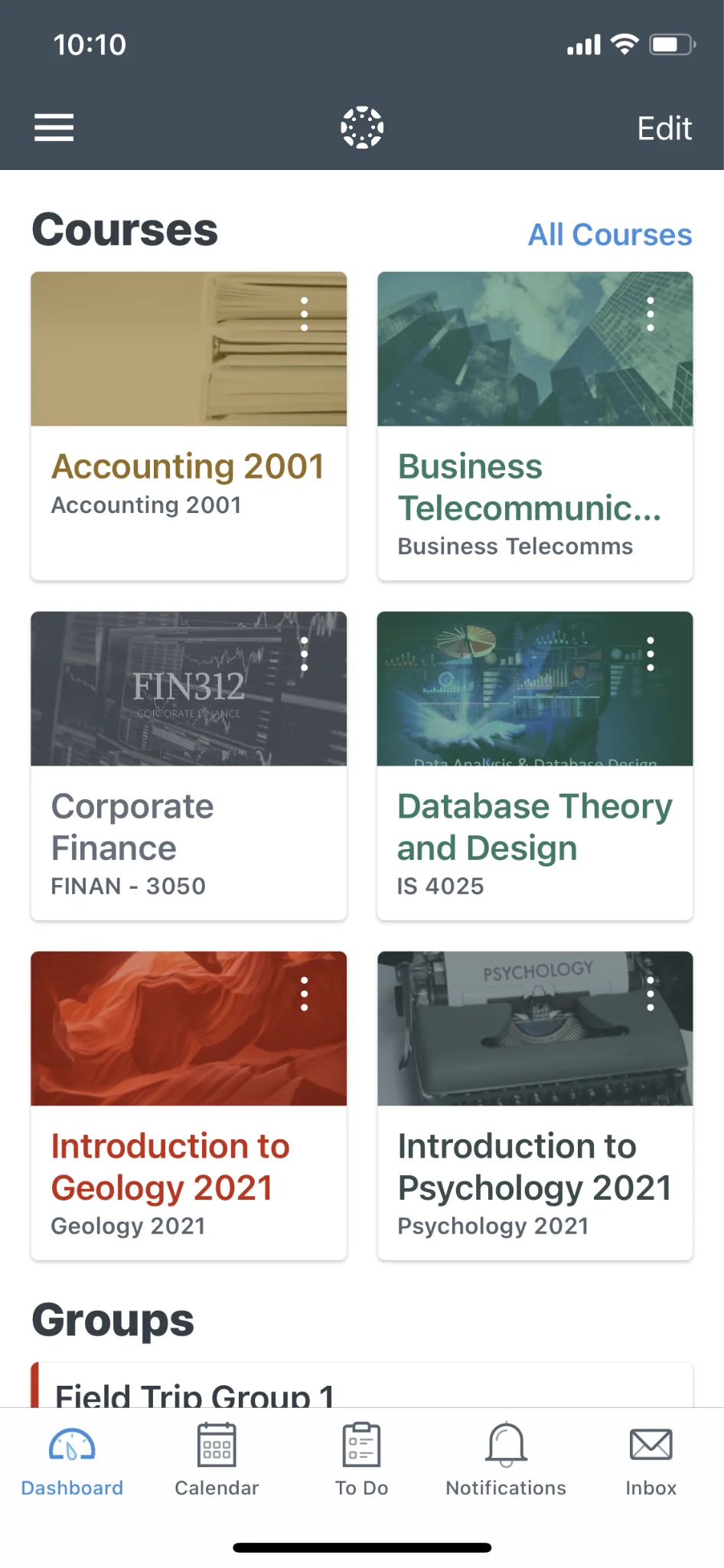
Both platforms’ apps share most of the same visual language from their desktop counterparts, which make them both easy to pick up. Canvas’s apps just have much better feature parity with their desktop counterparts. Other than some limitations on assignment comments and group/peer reviews, there’s very little you can’t do in the mobile app. And because there are three role-based variants, each one is better optimized for its specific use case. Student defaults to a current assignments view, Teacher shows a grading queue on the first page, and Parent prioritizes announcements.
With Blackboard, on the other hand, some menus and windows feel bare and half-empty, despite trying to cover more ground in a single app. Blackboard’s mobile claim to fame was automatically downloading course materials for offline viewing, but Canvas’s apps recently added that too. Also, the Blackboard app tends to struggle with loading embedded media, LTI integrations, and documents or posts with a lot of formatting.
While I can’t imagine an educational institution picking its LMS based primarily on the mobile experience, it’s definitely a top-five consideration. And Canvas wins there handily.
Winner: Canvas
Data exports and data portability
You’ll likely research LMS platforms for more than a year, eventually picking one you’d like to stick with for many years. If things don’t go as planned, however, there is arguably no more important feature in an LMS than the ability to take your accumulated course, student, and grading data elsewhere.
Thankfully, Blackboard and Canvas are pretty close in terms of import and export capabilities. Instructure has a dedicated “migrate from Blackboard” path, as does Blackboard, which has gone one step further by publishing a step-by-step guide with screenshots and videos. Both platforms support exports in the Common Cartridge and Question and Test Interoperability standards. Obviously, any data that exists outside of industry standards (i.e., platform-specific features) won’t be transferable, but just about anything subject to compliance should be relatively easy to exfiltrate.
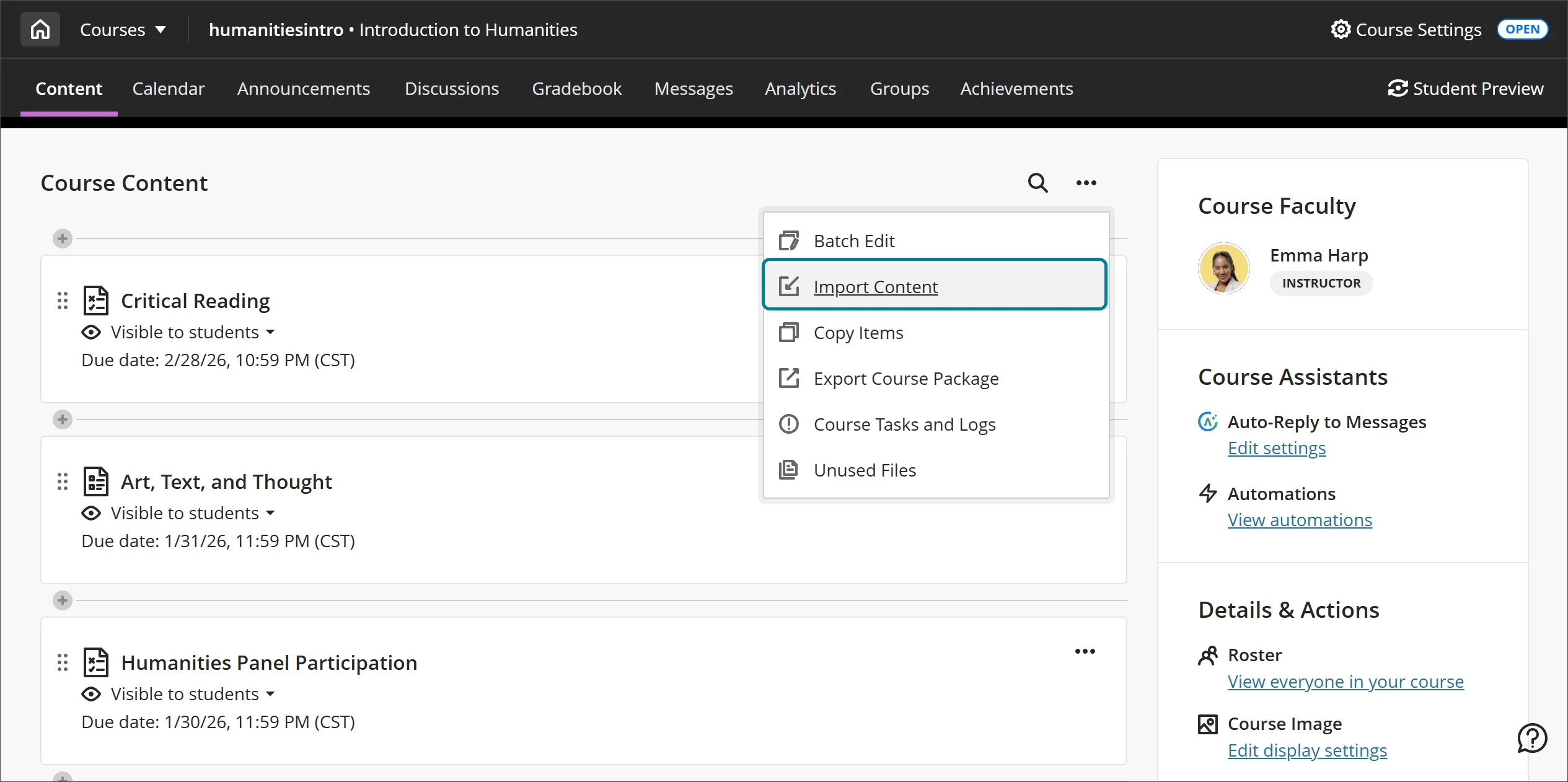
Platform integrations can introduce a whole new dimension to data exports and portability. Still, Canvas and Blackboard are mostly limited to LTI integrations, so all that data should be standardized and exportable. With more traditional SaaS integrations, like a Jotform education connection, you at least have built-in redundancy (with records stored in two places). But it’s still worth double-checking that data would be included in any export or migration related to your school and enrollment management software.
Based on the documentation I could find, Canvas supports more export file types (JSON, CSV, TSV, and Parquet) but takes as much as four hours longer than Blackboard’s direct database connection. The only difference is that with Canvas, you have the option to host and secure your own data via the open-source package. But since most institutions seem to be using Instructure’s cloud for Canvas, and Blackboard offers just about the same data portability, I’m calling this one a tie.
Winner: Tie
Blackboard vs Canvas: Pricing and plans
Blackboard | Canvas | |
|---|---|---|
| Pricing factor | ||
| Pricing model | Based on deployment complexity | Based on enrollment |
| Onboarding fee | ||
| Training costs | ||
| Add-ons or premium features | ||
| Best-fit budget profile | Large institutions negotiating multiyear contracts | Large institutions deploying their first large-scale LMS |
Like most platforms of this size and scope, neither Canvas nor Blackboard offers even an estimate of how much they cost. Canvas does have plan tiers (Core, Plus, and Next), but these seem to mostly be pre-bundled add-on packages that you could custom assemble during contract negotiations. You might need the Studio and Impact add-ons, included with Plus and Next, for a suite of interactive remote learning and personalized messaging tools, while forgoing the IgniteAI and Credentials to bring the price down.
Blackboard seems to focus much more on flexible contract negotiations. There are no plan tiers listed on its website, and it offers much clearer definition and delineation of its various add-ons. There are more than a dozen modules, ranging from AVA for students to its accessibility-focused Ally upgrade.
Unfortunately, Canvas and Blackboard are big enough and complex enough to justify deployment and training line items that reportedly reach into five-figure sums. That’s unavoidable when installing software that will be used by hundreds of employees and thousands of students, and potentially scrutinized by compliance auditors.
Every institution’s LMS contract is so unique and specific to time and place that even broad-range comparisons can be apples-to-oranges comparisons. I found claims of Blackboard contracts priced at $10,000 per year for deployments with 1,000 full-time students, all the way up to $500,000 for 20,000 full-time students. For Canvas, the numbers weren’t all that different: $50,000 per year for 5,000 full-time students and up to $350,000 per year for 15,000 full-time students.
Again, without more details, the final price of another institution’s contract is only half the story. Longer, multiyear contracts are cheaper per student; support line items can vary widely based on how big a school’s IT department is; and even the definition of a full-time student can differ. The best you can do is start negotiations at least a year in advance, get quotes from multiple platforms, wait until the end of a quarter (when salespeople are more desperate to close), and cut down the need for add-ons by integrating cheaper third-party tools. If Jotform can justify removing a line item from the contract, for example, you can save even more with the 50 percent discount for education institutions.
Winner: Unclear
Blackboard or Canvas: Which one should you choose?
Canvas wins on user-friendliness and mobile experiences, while Blackboard wins on integrations and course management. On those four dimensions, it’s a tie. I preferred the Canvas interfaces and design during testing, but that’s purely a personal preference. There’s no way to make everyone happy with a single LMS. Every teacher, admin, and student will have their own reasons for which platform they like better, so it comes down to some big-picture considerations.
Choose Blackboard if
- You’re running a large or legacy institution with complex compliance needs, custom user roles, or older SIF/LIS data sources to maintain.
- You want more course design features and more malleable gradebook design.
- You prefer picking and choosing from a long list of add-on modules rather than a more templated, tier-based contract.
Choose Canvas if
- You want new teachers and admins to get up to speed with minimal training.
- Mobile access is a priority for students, teachers, or parents.
- You want the largest possible pool of third-party integrations, or the option to self-host using the open-source AGPL license.
These two educational technology tools are light-years ahead of where they were a decade ago, both in terms of feature lists and interface design. Blackboard is among the best software for teachers, thanks to its support for legacy tools and integrations while still adding AI and other modern features, even if that makes everything harder to learn and master. Canvas bets that most teachers and students just want something that works without a manual, and it’s willing to trade some customization for that simplicity. Neither approach is wrong; it just depends on whether your institution’s biggest need is depth of customization or speed of adoption.
This article is for higher education administrators, K-12 technology leaders, instructional designers, faculty committees, and training teams comparing Blackboard and Canvas before choosing, renewing, or migrating LMS platforms.
























































































Send Comment: