
You’ve built a thriving Facebook page for your local business. Hundreds of customers have left five-star reviews, and you want to show them off on your WordPress website. But there’s no native tool that lets you embed Facebook reviews on WordPress. So, what are your options?
The easiest way to add Facebook reviews to WordPress when making a website is to use a third-party widget. Alternative options include manually adding the reviews as testimonials or linking to them. In this guide, we give you step-by-step instructions on how to set them up.
Option 1: Use a WordPress plug-in to embed Facebook reviews
A search through the WordPress library will reveal dozens of Facebook review plug-ins. They’re easy to install and don’t require any coding expertise.
While WordPress Facebook review widgets are the most common way to display Facebook reviews on WordPress, there are a few drawbacks to be aware of. First, plug-ins slow your website’s loading speed, which can frustrate visitors. Most also require a fee to use, especially if you want to customize the layout, add automations, or remove the plug-in branding.
If those drawbacks give you pause, there is a better option — using a plug-in-free widget (which is our second alternative). But if you’re set on using a plug-in, here’s how to add one to your page.
1. Log into your WordPress site
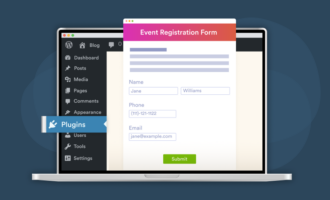
Using the administrator account, log into your site. In the dashboard, click Plugins. Type “Facebook reviews plug-in” in the search bar.
2. Evaluate your options
Sift through the available plug-ins to find one you like. Good options will have solid reviews, recent updates, and a decent number of users.
3. Install the plug-in
Once you find a plug-in you like, click Install and activate. If you’re using a premium plug-in, click Purchase and activate. After providing your payment information, the plug-in is automatically added to your website.
4. Follow plug-in guidance to transfer your Facebook reviews
Use the instructions given by the plug-in’s developer to perform a Facebook reviews WordPress integration. This usually involves authenticating your Facebook page and setting up any customizations you need.
Why this works
- It’s a no-fuss method to show Facebook page reviews on WordPress.
- You don’t need any coding know-how to use it.
- There are many plug-in options to choose from.
Option 2: Use a Facebook Reviews Widget for WordPress (recommended free method)
Plug-ins are easy, but what if you’re concerned about page bloat? Or you’re not ready to commit to a hefty annual plug-in fee? Jotform is the solution you’re looking for.
The Jotform’s Facebook Reviews Widget is almost as easy as installing a plug-in. It won’t slow down your website and, best of all, it’s free. The widget is a snippet of code that you embed in your page. It pulls Facebook reviews in real time directly to your WordPress website.
Here’s how to set it up.
Connect your Facebook page
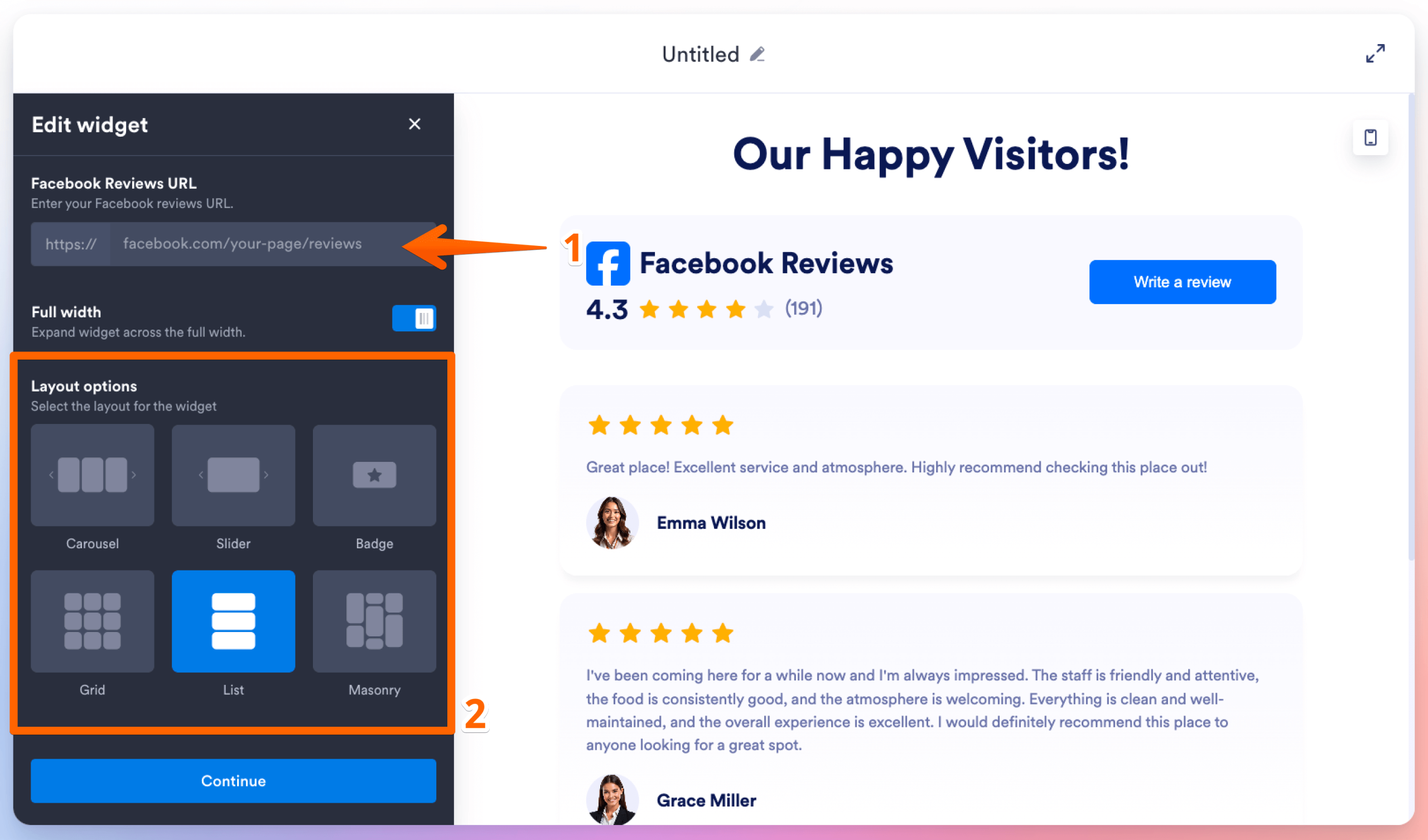
- Navigate to the Jotform’s Facebook Reviews Widget. Near the top, you’ll see an untitled block where you can create your widget. Start by pasting the URL of your Facebook page into the editing box.
- Decide on the width of the reviews and select a layout. Options include Carousel, Slider, Badge, Grid, List, and Masonry. Click Continue.
Customize the view settings
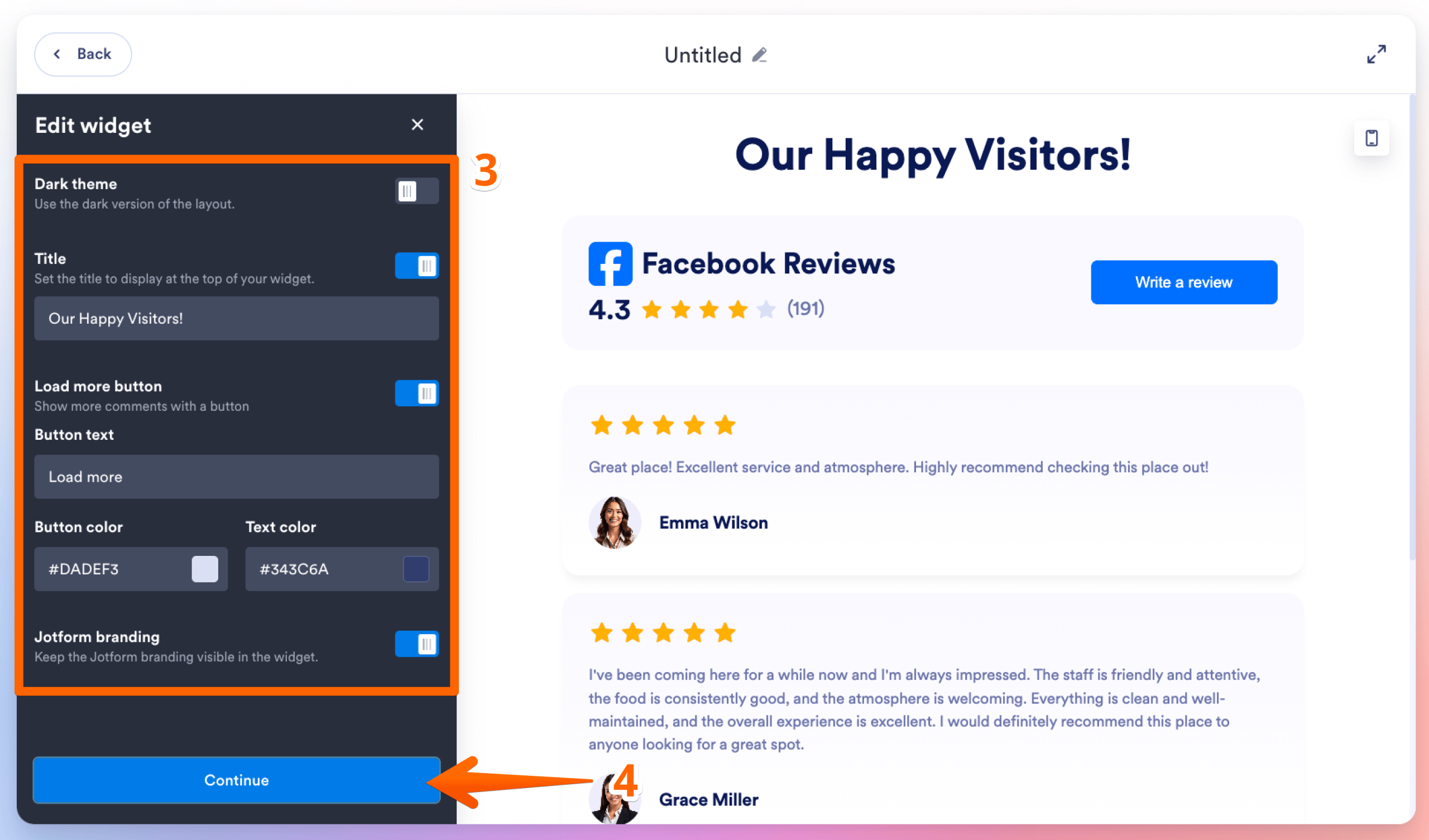
- Work through each setting to personalize your widget. Options include
- Theme: Choose between light and dark mode.
- Title: Add a title that displays above the Facebook reviews.
- Navigation/Pagination: Give users options to scroll through reviews.
- Jotform branding: Enable or disable the Jotform logo on your widget.
- Click Continue to go to the next page.
Adjust widget appearance
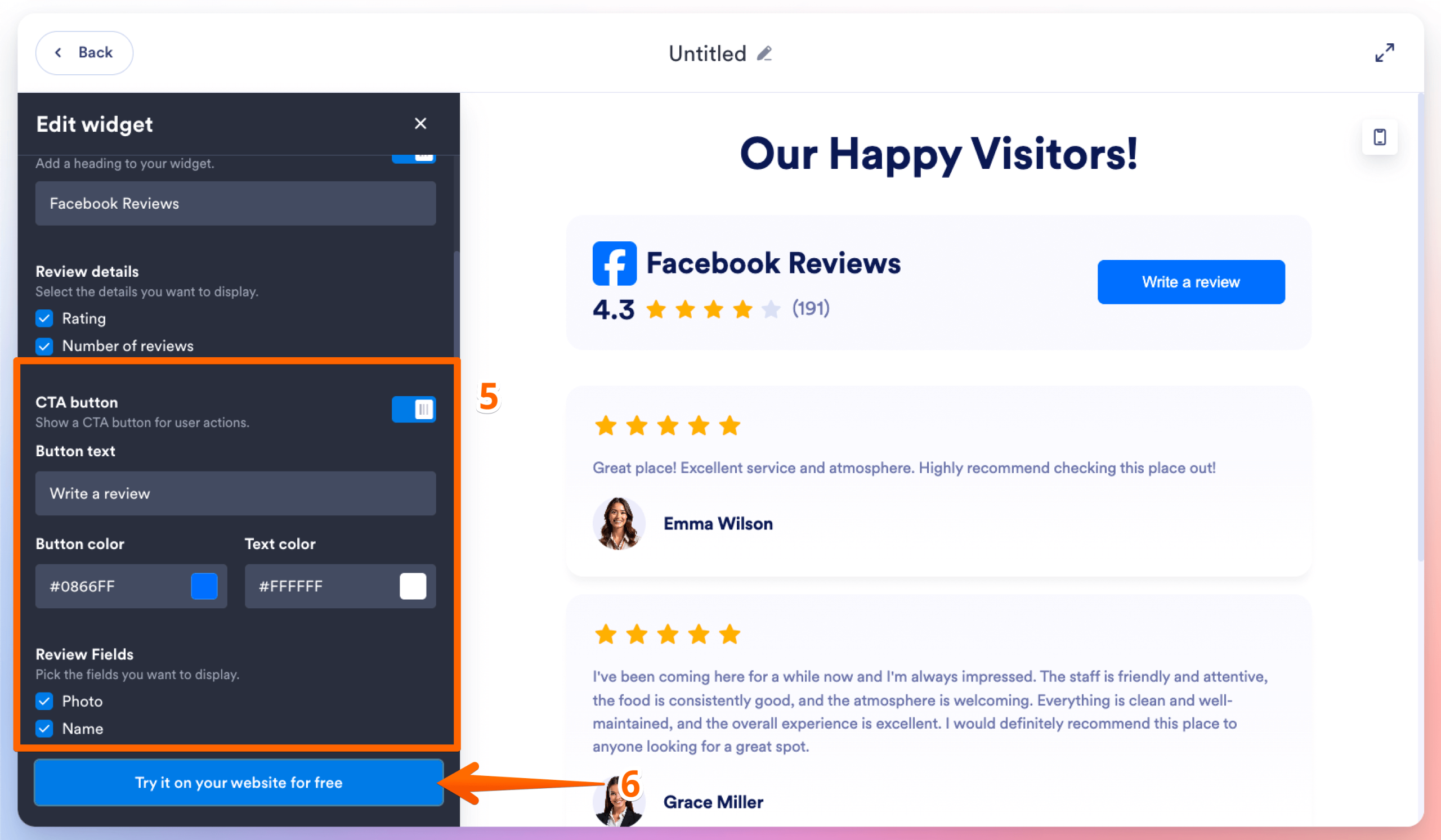
- On this page, you can add a widget header and a call-to-action (CTA) button. You can also specify what review details you want to appear, such as the rating and reviewer name or photo.
- When you’re done, click Try it on your website for free.
Create a Jotform account
- You’ll need a Jotform account to manage your widget. Follow the prompts to set up your account.
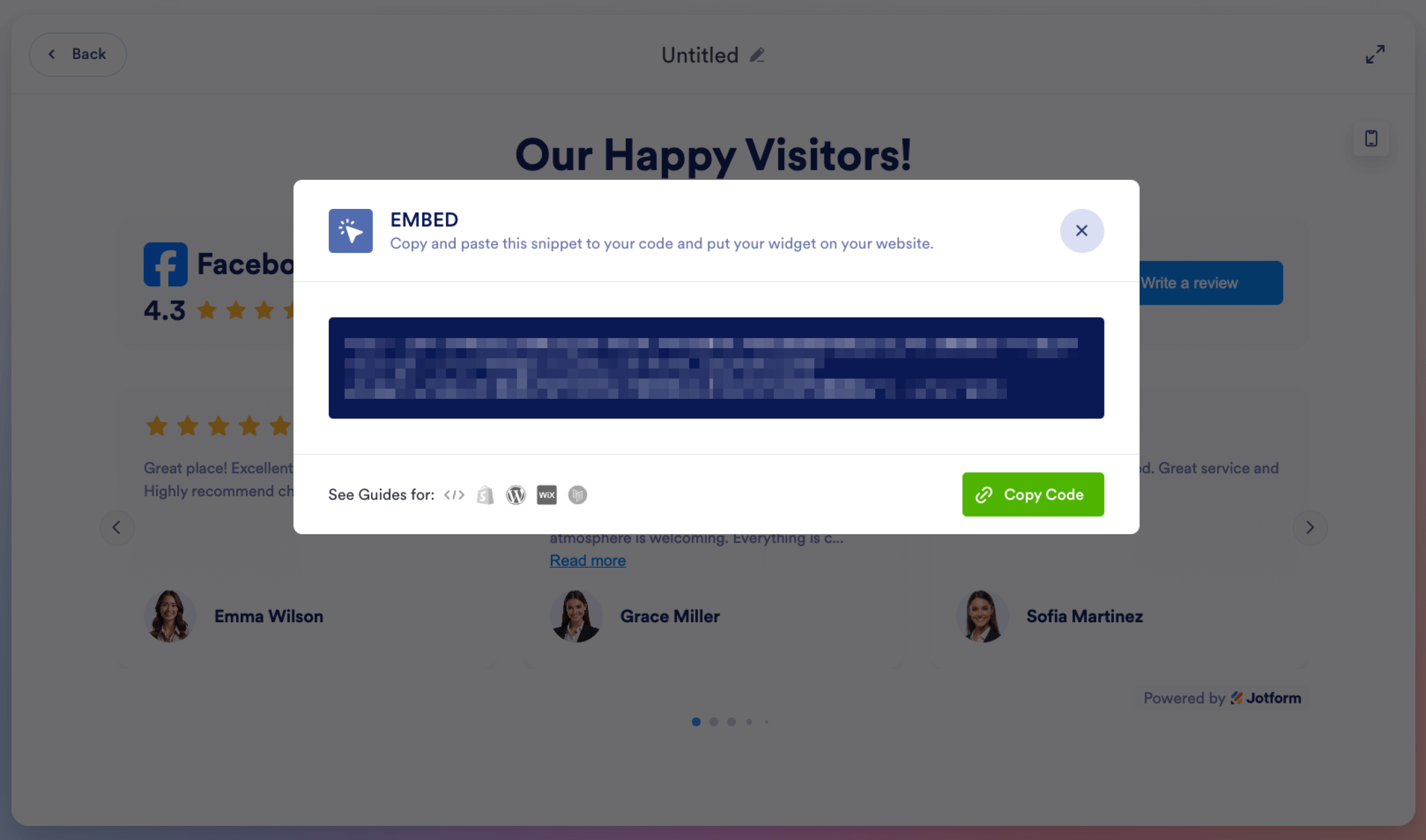
- Once done, the code to embed Facebook reviews on your WordPress website will be visible. Copy it for the next step.
Copy the widget code to your website
- Log into your WordPress website. Locate the page where you want to display your reviews. Click on the Plus icon.
- Type “Custom HTML” into the Search field and click on it. Paste the code from Jotform and click Save to publish your changes.
Why this works
- The Jotform Facebook Reviews Widget is customizable, so you can tailor it to blend with your site.
- The widget pulls only the strongest reviews.
- Reviews update dynamically, so your site is always current.
Option 3: Manually add Facebook reviews to your WordPress website
If you prefer more control over reviews, you can create a testimonials page. Essentially, you’ll copy and paste the reviews you want into WordPress. It’s a bit tedious, but it does the job.
Just know that content is static, so you’ll need to add new reviews as they come in to keep your site up to date.
1. Determine which WordPress theme you have
Log into your WordPress site. Click Appearance. If Editor is available, you have a block theme. If it’s not there, you have a classic theme.
2. Activate the testimonial option
Enable testimonials by following the instructions for your website theme.
For block themes:
- Go to the site dashboard. Click Posts > Categories.
- Beneath Add New Category, give the category a name (like Testimonials).
- Click Add New Category.
For classic themes:
- Go to the site dashboard. Click Settings > Writing.
- Locate Content types.
- Check the box for Enable Testimonials for this site.
3. Add a Facebook review
Enter your first Facebook review based on your WordPress theme type. Repeat this process for each review you want to add.
For block themes:
- Go to the site dashboard. Click Posts > Add new post.
- Give the testimonial a title and paste the Facebook review.
- Open the post settings sidebar.
- Locate Categories. Check the box for the category you created.
- Click Publish.
For classic themes:
- Go to the dashboard. Click Testimonials > Add new testimonial.
- Enter your customer’s name in the title. Paste the Facebook review.
- Click Publish.
Why this works
- This approach lets you pick which reviews appear on your site.
- You can combine reviews from multiple sources, like Google, Facebook, and Yelp.
- It doesn’t require any third-party plug-ins or code, which is useful when you’re learning how to use WordPress.
Option 4: Link to your Facebook Page reviews
Don’t have time to update your site with Facebook reviews? You can link to them instead. This approach is fast, easy, and still builds trust with your customers.
1. Decide where to place your link
Determine where you want to include a link to your Facebook reviews. Some options include blog post CTAs, the homepage, and service or product pages.
2. Insert the link
Highlight the text where you want the link to appear. Click the Link icon in the toolbar, and paste the URL for your Facebook review page. Click the Submit icon.
3. Save your changes
Click Save in the upper-right corner to save your changes. The text you highlighted should now include the link.
Why this works
- Linking is a no-frills method that doesn’t require major site updates.
- Customers can view all your Facebook reviews — not just the best ones.
- You won’t have to worry about compatibility issues from third-party plug-ins.
Get more from WordPress without adding another plug-in

Hands down, the fastest way to add social proof to WordPress is with the Jotform’s Facebook Reviews Widget. It fits neatly into your site without impacting page speed or requiring hefty payments. Plus, Jotform widgets are fully compatible with all WordPress themes and builders.
Jotform has other tools to enhance your website. Our AI Chatbot Widget provides 24-7 customer support. Clients can get answers to their frequently asked questions, book appointments, and inquire about your products.
Another option is our Form Widgets. These embed within your website, so you can collect feedback, gather contact information, and capture leads.
Get started with Jotform’s Free Website Widgets, and learn how you can use our tools to build trust and engage your site visitors.
This article is for small business owners, freelancers, creators, local service businesses, restaurants, and marketers using WordPress who want to build trust, improve conversions, and showcase Facebook Page reviews on their website without using plugins or code-heavy solutions.



























































































Send Comment: