
Your business has a solid, well-performing app that’s garnered lots of stellar reviews on Google Play. Now you’re making a website on WordPress to drum up interest in your app. You want to embed those great Google Play reviews on WordPress to bolster customer interest, but unfortunately, a native integration option isn’t available. So what are your options?
The easiest way to display Google Play reviews on WordPress is by using a widget, which transfers your top reviews onto your site with a snippet of autogenerated code. Alternative methods include linking to your Google Play page and manually adding the reviews.
In this guide, we’ll cover each method with step-by-step instructions, so you can pick the one that best fits your product and site.
Option 1: Use a Google Play Reviews widget for WordPress (easy & free)
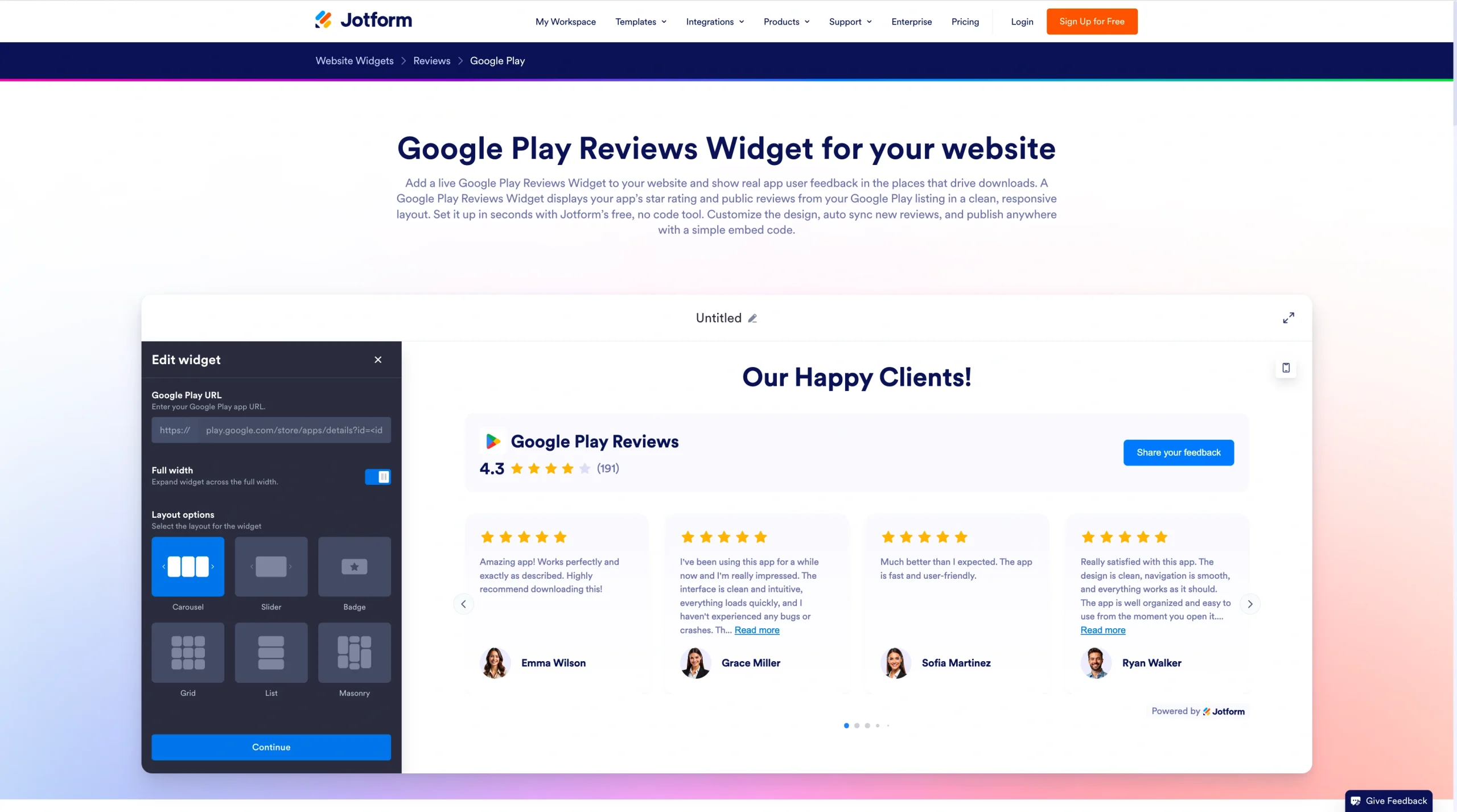
Jotform’s Google Play Reviews Widget is the most user-friendly and reliable way to add customer testimonials to your site. It updates reviews in real time, capturing your best customer feedback and displaying it to viewers.
The Jotform widget is completely free and customizable. You can adjust its appearance so it blends with your website, it doesn’t require any coding expertise, and it won’t slow down your website as other plug-ins might.
Here’s how to use the Jotform widget to show Google Play reviews on WordPress.
1. Connect the widget to your Google Play page
Navigate to Jotform’s Google Play Reviews Widget. Locate the Edit Widget box and insert the URL for your Google Play page.
Decide on a width for your reviews and choose a layout. Options include carousel, slider, badge, grid, list, and masonry. Click Continue.
2. Adjust the review display
Review the settings and adjust them to fit your preferences. Choices available include
- Theme: Set the review backdrop to light or dark mode.
- Title: Insert a title above the reviews.
- Navigation arrows: Allow visitors to move between review pages.
- Pagination: Let visitors click on pages to see reviews.
- Branding: Enable or disable the Jotform branding.
Once you’re satisfied with your settings, click Continue.
3. Customize review appearance
Evaluate each setting to finalize how Google Play reviews appear on your website. Options include
- Widget header: Displays above your Google Play reviews
- Header title: Appears in the widget header
- Review details: Shows the number of reviews and average rating for your app
- Call-to-action (CTA) button: Encourages customers to leave a review on your Google Play page
- Button color/text color: Lets you customize the CTA button appearance
- Reviewer details: Allows you to show a reviewer’s photo and/or name
You can preview the different settings to see how the reviews will appear on your site. Click Try It on Your Website for Free when you’re finished.
4. Insert the widget into your WordPress website
Jotform will prompt you to create an account if you don’t already have one. There is no cost to set one up. Just enter your email address and a password to get started.
After setting up your account, you can access the widget code for your Google Play reviews. Copy the code and log in to your WordPress website.
Navigate to the page where you want reviews to display. Click the + Block Inserter and search for “HTML.” Select Custom HTML and paste the embed code from Jotform. Click Save Draft > Preview to view and verify your changes. Then click Publish to update your site.
Why this works
- It’s a no-fuss way to add dynamic reviews to your WordPress site.
- Displaying your most recent reviews sends a signal to customers and search engines that your product is trustworthy, improving SEO.
- The widget is fully responsive for desktop and mobile devices.
Option 2: Manually add Google Play reviews to your WordPress
If you want full control over which reviews appear on your website, you can manually add them as testimonials. Essentially, you’ll pick the reviews you want to display and insert them into your site. Keep in mind that this approach is static, so you’ll need to continually update your site to post newer reviews.
1. Determine your WordPress theme type
The process for adding testimonials depends on whether you’re using a Block or Classic WordPress theme.
If you’re not sure which theme you have, log in to WordPress and navigate to Appearance. If the Editor is available, you have a Block theme. If it’s not, you’re working with a Classic theme.
2. Enable testimonials on your site
Follow these steps based on your theme type:
Block theme
- Navigate to your WordPress site dashboard. Click Posts > Categories.
- Under Add New Category, insert a name like “Testimonials.”
- Click Add New Category.
Classic theme
- Navigate to your WordPress site dashboard. Click Settings > Writing.
- Locate Content Types. Check Enable Testimonials for This Site.
- Click Save Changes.
3. Add your first testimonial
Select a review from your Google Play page. Then follow these steps to insert it into your website. Repeat the process for every review you want to add.
Block theme
- From your WordPress dashboard, click Posts.
- Click Add New Post. Insert a title, then add the customer’s review in the editor.
- Open Settings. Locate Categories and check the name of the category you created in Step 2.
- Click Publish.
Classic theme
- From your WordPress dashboard, click Testimonials > Add New Testimonial.
- Enter the customer’s name and their testimonial in the editor.
- Click Publish.
Why this works
- This approach doesn’t require any third-party plug-ins or widgets.
- You can combine reviews from multiple sources, such as Google Play and the Apple App Store.
- You can pick reviews that add the most value for potential customers.
Option 3: Link to your Google Play reviews
If you don’t want to embed Google Play reviews on your WordPress website, there is a simple alternative: link to them. Add a hyperlink directing visitors to your Google Play page in a key area, such as the CTA of a blog post. This method allows visitors to view reviews while avoiding significant changes to your website.
To add Google Play reviews to WordPress using a hyperlink, follow these steps.
1. Decide where to insert the link
You can place a hyperlink to your Google Play page from any text on your website. Areas where linking makes sense include
- A preexisting testimonial page
- Blog post content
- About Us pages
- Landing pages
- Product pages
2. Insert the link on your WordPress page
Highlight the text where you want to place the link. Make sure to choose a spot where the link’s context is clear. For example, text such as “View our Google Play reviews” tells visitors what they’ll see if they click.
In the toolbar that appears, click the Link icon. Paste the URL to your Google Play page and click Submit. Click Save to update your page.
3. Test the link
Navigate to your site and visit the page where you inserted the link. Click the linked text to verify that it sends you to your Google Play page.
Why this works
- You can insert links to your Google Play page anywhere on your website.
- Visitors can view all your reviews, which builds trust with your audience.
- Linking doesn’t increase page bloat, since no plug-ins are required.
Get more from WordPress without adding unnecessary plug-ins
Learning how to use WordPress can feel like an uphill battle. Jotform streamlines the process with website widgets that add functionality to your site.
Jotform’s widget is the fastest way to add Google Play reviews to your website. It seamlessly connects your reviews, displaying the most recent positive feedback on your site.
Our AI Chatbot Widget can handle customer inquiries using natural language. And with Jotform’s Form Widget, you can collect customer contact details and feedback. These tools won’t weigh down your site like plug-ins do, and they’re compatible across all WordPress themes and builders.
Explore Jotform’s library of Free Website Widgets to learn how they can improve trust, engagement, and conversions on your website.
This article is for app founders, SaaS teams, mobile app marketers, developers, and product managers using WordPress who want to build trust and increase app installs by showcasing Google Play Store reviews on their website.





















































































Send Comment: