
Want to add keywords to your WordPress site? Great idea, as long as you’re adding search engine optimization (SEO) keywords and not meta keywords.
Because the two are not the same.
If you plan to optimize your WordPress posts with meta keywords, here’s the quick truth: Google and most major search engines no longer use WordPress meta keywords for rankings (and haven’t for years). That said, if you need meta keywords for a tool or niche platform, you can simply add them with the help of a plug-in.
However, to increase your WordPress website’s search visibility, focus on SEO keyword placement instead.
In this article, we’ll show you step-by-step where and how to add SEO keywords on your WordPress website and introduce you to a few leading SEO plug-ins that can help streamline complex SEO processes.
Step-by-step: How to add SEO keywords on your WordPress website
SEO is key to getting more eyes on your WordPress posts. Six elements deliver the most SEO value, and we detail each one in the following sections. Keep in mind that you can add all of the following keywords with or without a plug-in.
1. Page/post title
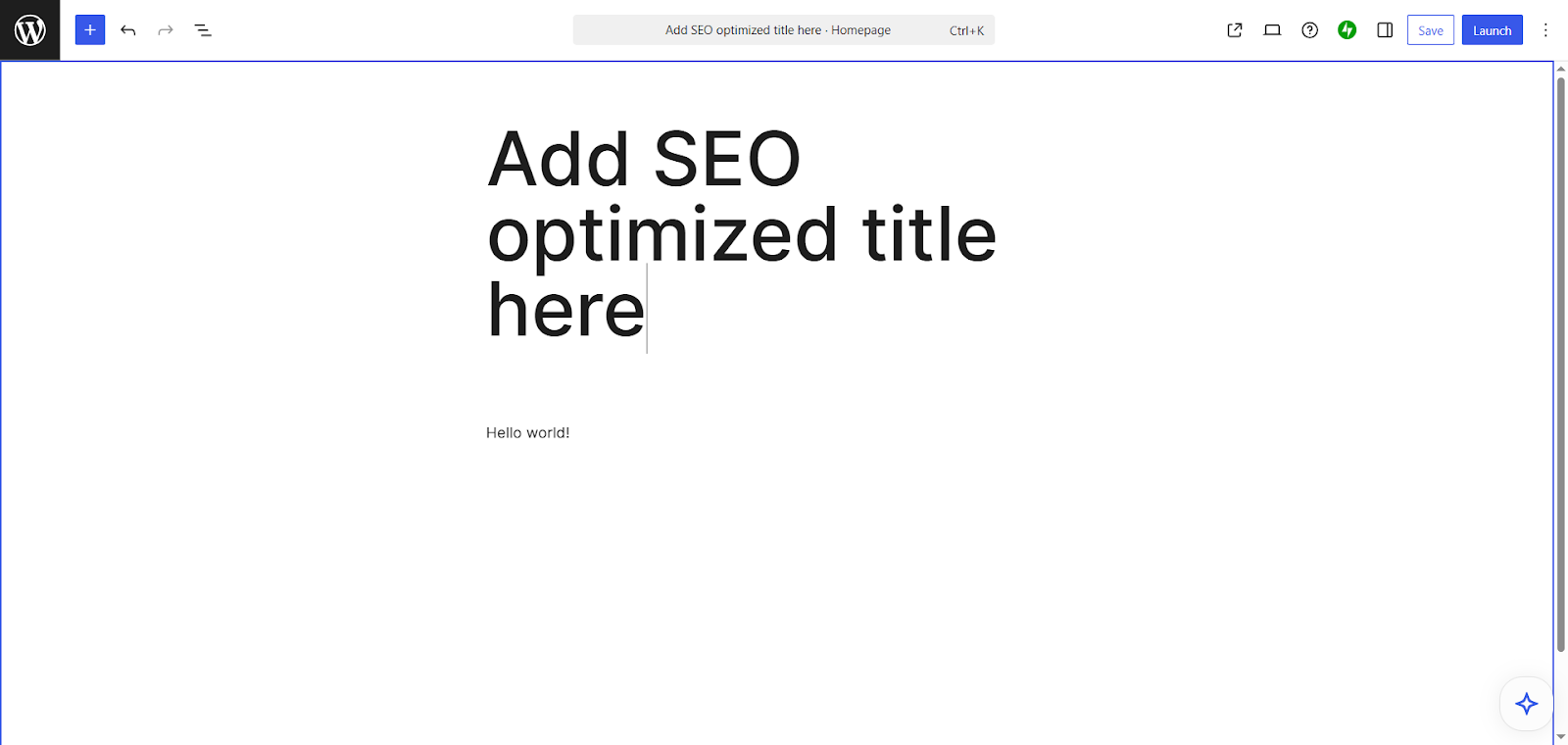
The title of your page or post is one of the best places for SEO keywords. Be sure to add the keyword as close to the beginning of the title as possible. Try to keep the title between 50 and 60 characters for the best results.
Whether you’re using the classic WordPress editor or the new Gutenberg Block Editor, you can edit the page or post title in largely the same way:
- Go to the WordPress page or post you want to edit.
- Click Title.
- Type in your SEO-optimized title.
Once you publish the page, WordPress will automatically insert the title into the HTML.
2. URL slug
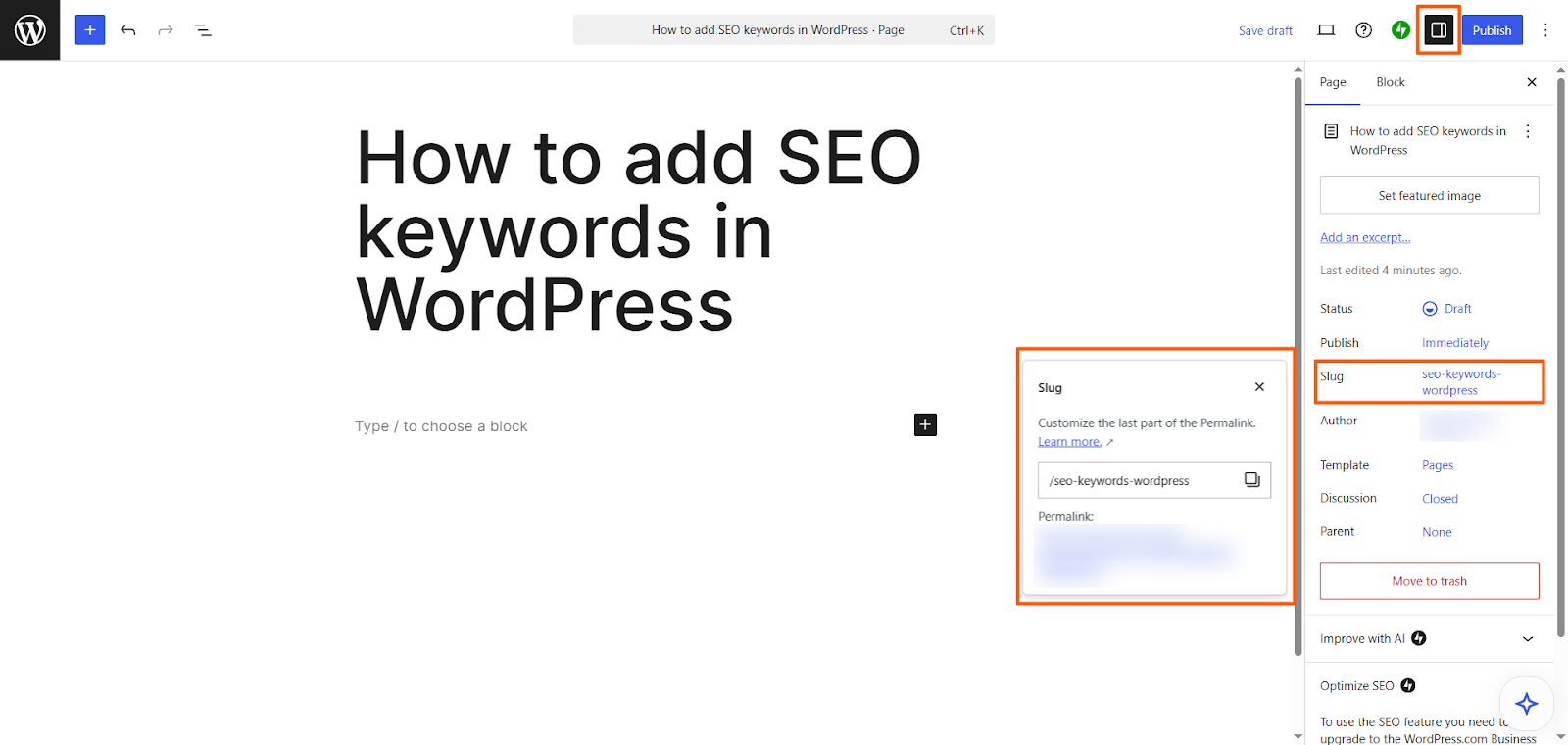
The slug, which is the last part of the URL address, is another prime area to add keywords in WordPress. It’s important to keep the slug short and use hyphens instead of underscores to separate words. Avoid using “stop words” in slugs (such as “to,” “and,” “for,” and “of”).
Here’s how to edit the URL slug:
- Go to the WordPress page or post you want to edit.
- Click Settings (the gear or table icon).
- Under Slug or Permalink, click the URL.
- Edit the URL.
3. Meta description
Although they are not a direct ranking factor (and Google often rewrites them), meta descriptions are your digital sales pitch and could boost your click-through rate. It’s best to keep your meta description under 160 characters (130 for mobile) and to use action-focused language that engages the reader.
WordPress doesn’t offer a native meta description field, but plug-ins such as Yoast SEO and Rank Math make it easy (more on those later). If you don’t have a plug-in, you will need to add the meta description in your theme manually, which you cannot do on a free WordPress plan.
Here’s how to add a meta description manually on a paid plan:
- Go to the WordPress page or post you want to edit.
- Navigate to Appearance. Click Theme File Editor.
- Open header.php.
- Find the <head> section, and add the meta description tag.
4. Headings (H2s, H3s, and more)
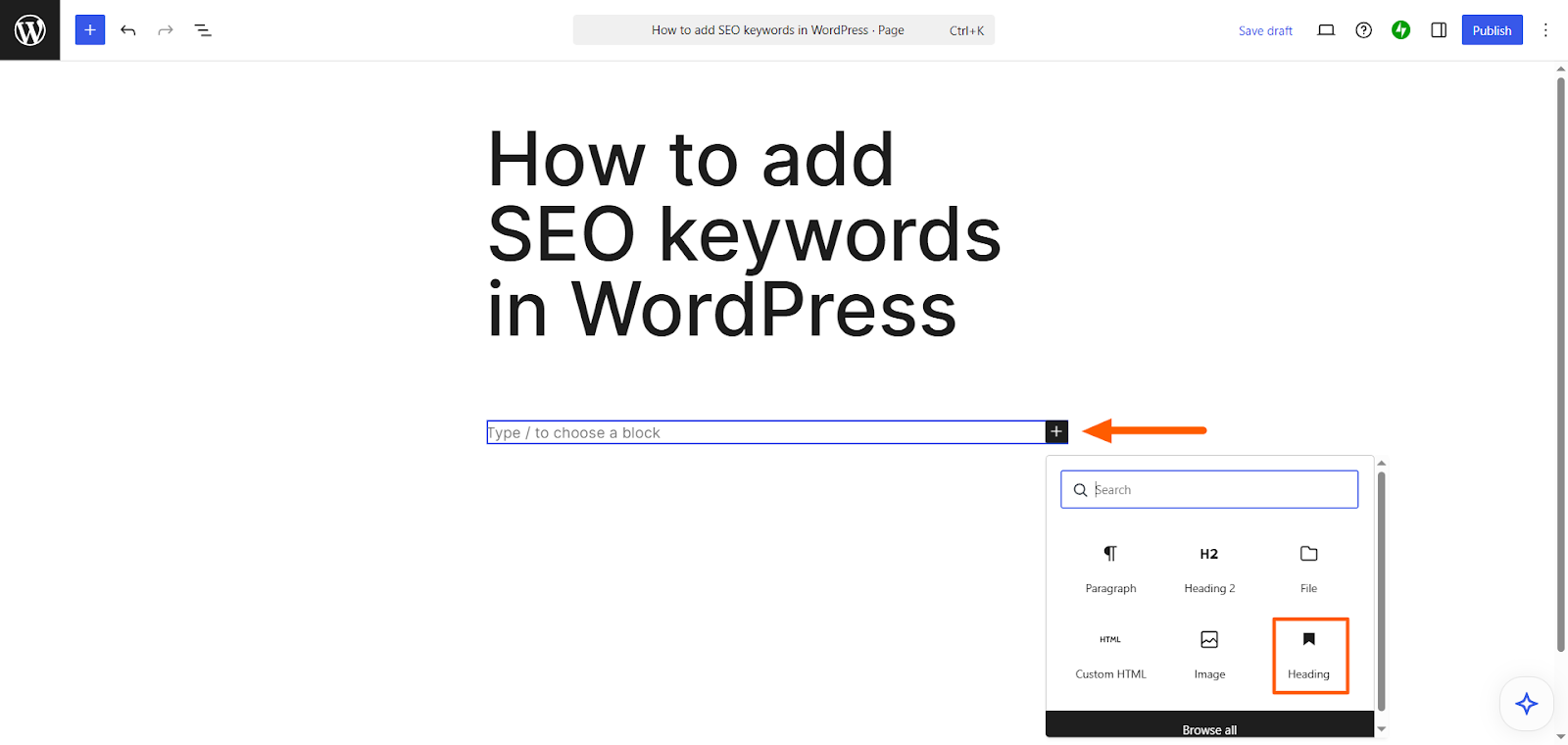
Headings are another excellent way to structure post content and make it easy for readers to understand. They often serve as naturally good spots for keywords and phrases. Rather than repeating a keyword over and over, use variations of it to make the text sound more natural.
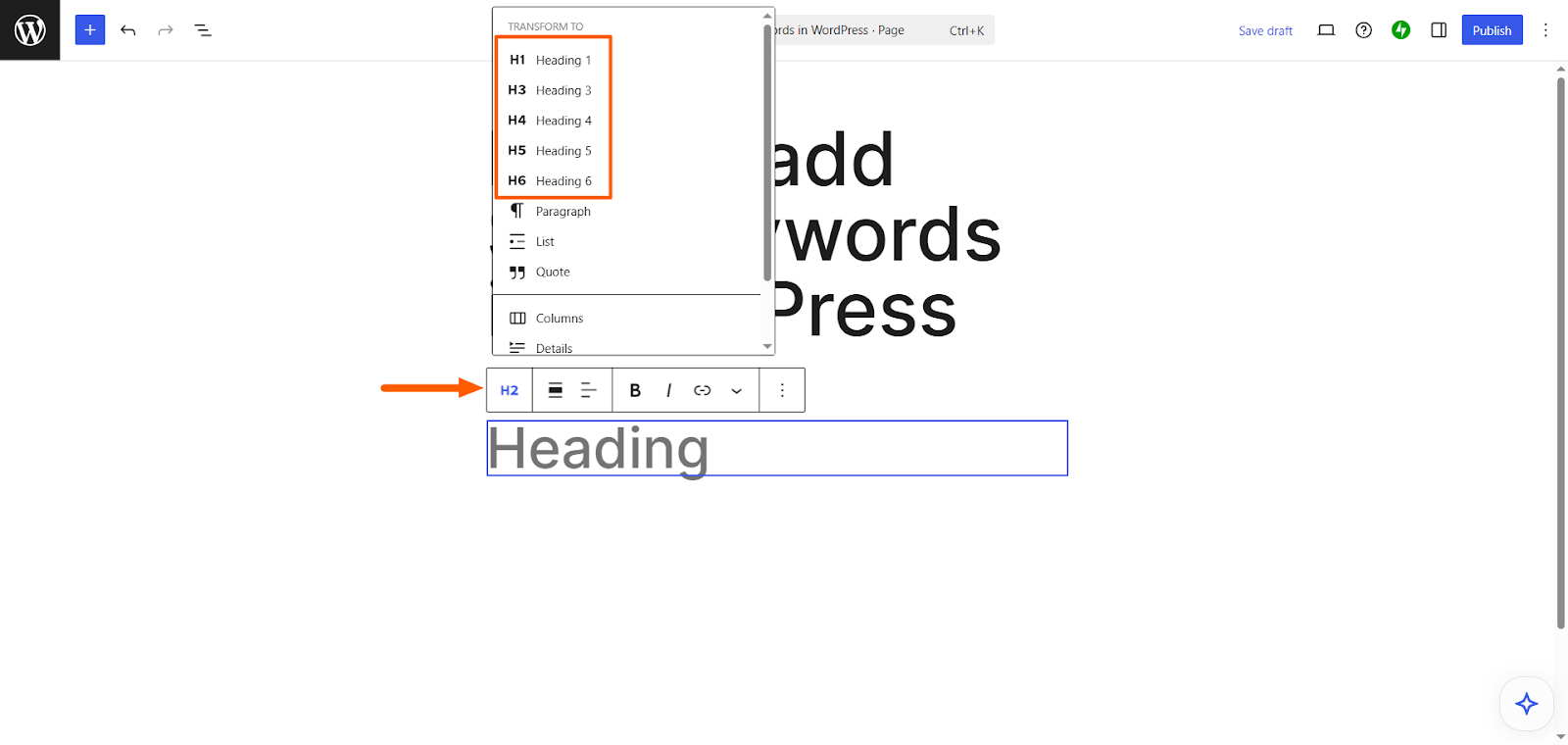
Here’s how to add SEO keywords to headings in WordPress:
- Go to the WordPress page or post you want to edit.
- Click + (Add Block).
- Click Heading.
- Choose the heading level you want to add.
- Type in the heading.
5. Alt text for images
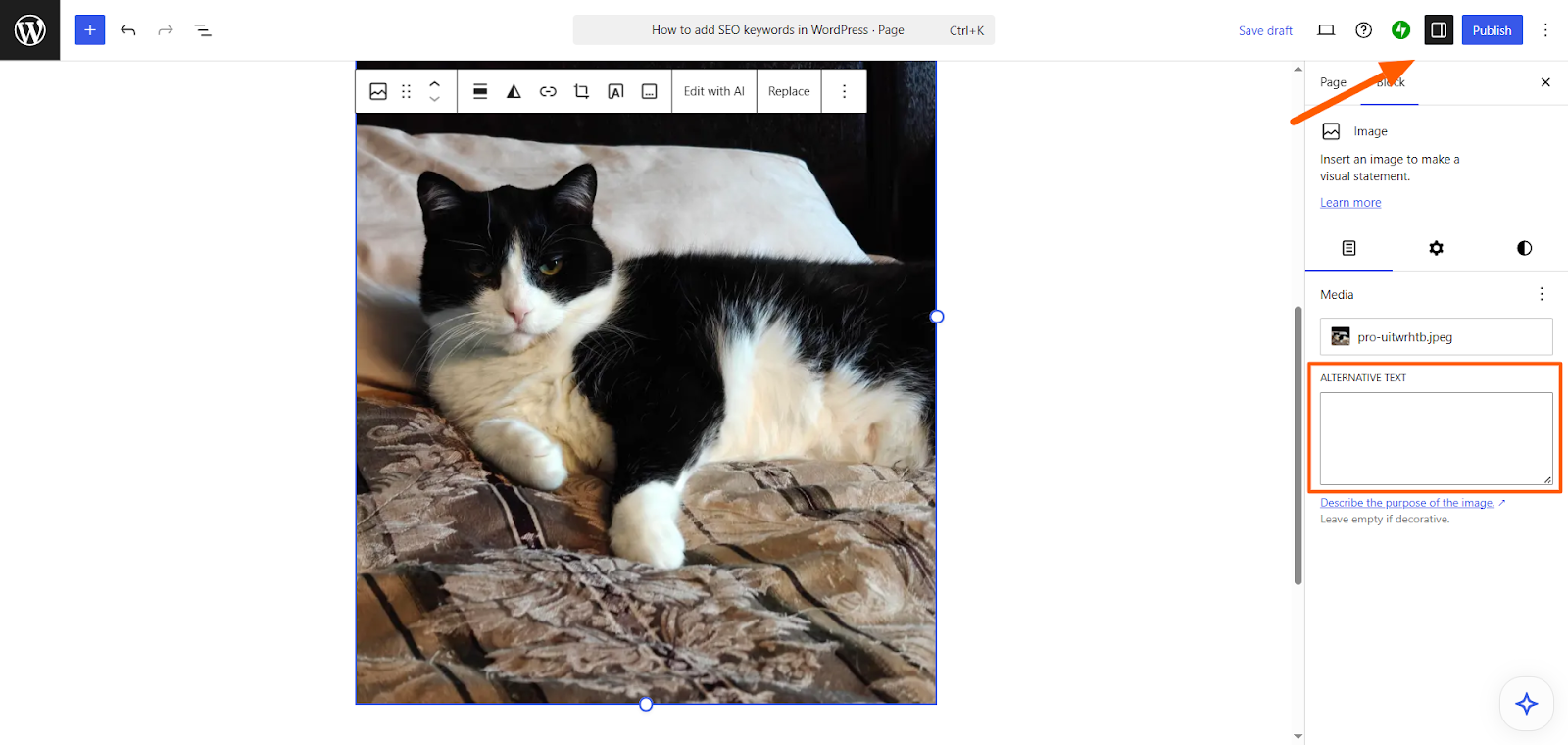
You can use the alt text for images to add SEO keywords and offer wider accessibility. Keep in mind that alt text should never be used as a place to stuff keywords. However, if it’s possible to include a keyword variation naturally, alt text can serve two purposes. Be sure to keep the description under 125 characters.
Here’s how to add SEO keywords to image alt text:
- Go to the WordPress page or post you want to edit.
- Click the image for which you want to edit the alt text.
- Click Settings (the gear or table icon).
- Type in your description under Alternative Text.
6. Body copy
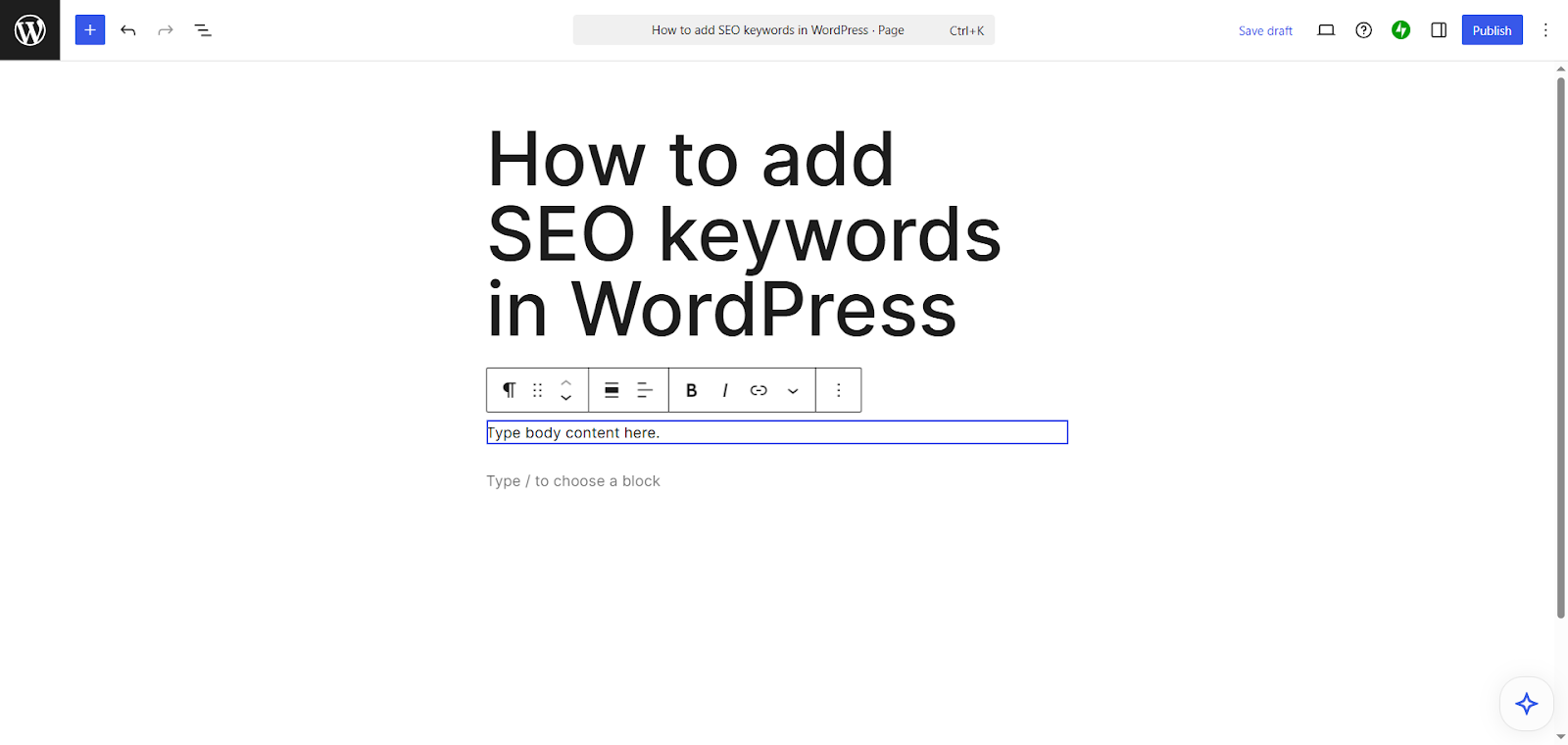
When integrating primary or related keywords in the body of your post or page, be careful not to stuff keywords there unnaturally. Best practices advise including one keyword every 200 words or so.
Note
When choosing keywords, keep the TF-IDF principles (term frequency and inverse document frequency) in mind. For best results, your keyword should appear frequently on your page but not often on others’ pages.
You can type body copy anywhere on the WordPress page.
3 best WordPress plug-ins for SEO keywords
If you’re serious about improving SEO on your WordPress website, explore plug-ins that can help streamline SEO-related tasks.
Plug-ins offer optimization prompts, bulk editing capabilities, and easier meta keyword management (if you decide to use WordPress meta keywords).
Here are a few of the best WordPress plug-ins for SEO:
Yoast SEO

Yoast SEO, a leading SEO plug-in, offers clear advice on optimizing your website. Ideal for users without deep technical knowledge, Yoast works well for small teams and individual bloggers.
One of its top features is the Focus Keyphrase field, which you can use to enter your primary search term. The plug-in then suggests how to optimize the page for that keyword.
Yoast SEO also offers live feedback on titles, meta descriptions, and headers. It checks whether the focus keyword is included in the right places and at the right frequency. Its traffic light system (with green being the goal) makes implementing its feedback easier.
All in One SEO

All in One SEO, a top SEO plug-in for WordPress, works best if you’re managing SEO across multiple pages and want a centralized tool. It offers full control for editing SEO titles, meta descriptions, and other metadata within the WordPress editor, in addition to keyword analysis and SEO keyword configuration.
Users love the granular control over site-wide SEO settings such as bulk meta editing. With All in One SEO, users can edit metadata across taxonomies, posts, pages, and more, which makes this plug-in ideal for optimizing SEO at scale. All in One SEO also now has AI tools to help you quickly generate content elements such as SEO titles and meta descriptions.
Rank Math SEO
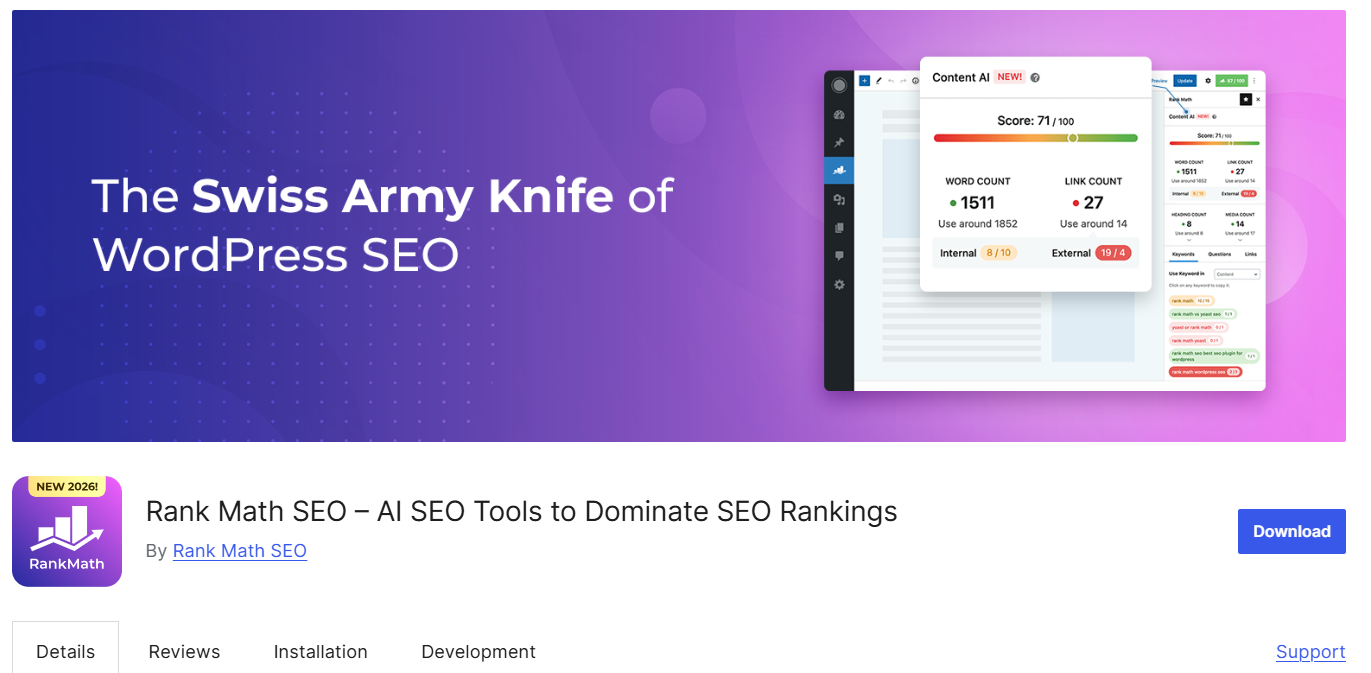
The free WordPress SEO plug-in Rank Math SEO offers advanced functionality, a clean user interface, and direct integration with WordPress’s Gutenberg Block Editor. It’s easy to set up and use, streamlining your work in WordPress.
Rank Math SEO evaluates keyword usage, generates structured data (that is, schema markup), and suggests opportunities for internal linking. These are all excellent strategies to improve search results. The free tool also gives you access to many advanced features, such as AI content generation tools, making it a favorite among users keeping a close eye on their bottom line.
Pro Tip
To take your website capabilities to the next level with plug-ins, consider Jotform’s AI Chatbot for WordPress. It automates support, answers FAQs, drives sales, generates leads, boosts engagement, and so much more. And you don’t need coding knowledge to use it.

And if you use forms on your WordPress site (such as order forms, contact forms, or lead generation forms), try the Jotform Online Embed Forms plug-in. It’s the easiest way to create and embed custom, secure, and polished forms on your website.
Advanced tips for keyword placement
Want to go deeper with SEO optimization? Try these suggestions:
- Incorporate modifiers and strong nouns in slugs: Use descriptive and vivid words (such as “best,” “guide,” and “checklist”) in the URL. This helps search engines associate your page with a specific search intent.
- Match intent in your calls to action: Call-to-action text should match your users’ intent. Are they looking for information, or are they ready to buy? For example, “Buy now” is transactional, while “Learn more” is informational.
- Avoid duplicating keywords across pages: If multiple pages use the same keyword, those pages will compete against each other in the search results. Assign one primary keyword per page. You can use related versions on supporting pages.
- Use internal links with anchor text aligned to the keyword: Internal links help search engines understand how pages on your website are related. Anchor text should provide clear information about the context of the linked page. For example, “Click here to learn more” isn’t as clear as “Learn more about adding SEO keywords in WordPress.”
- Rewrite older pages continuously to target new keywords: To keep your pages active and fresh from the perspective of search engines, and to improve your rankings, update older pages with new keywords occasionally. This strategy can sometimes produce faster SEO results than publishing new pages.
TL;DR: Where to add keywords in WordPress
Focus on these six key areas for the best search results:
- Page/post title
- URL slug
- Meta description
- Headings
- Alt text for images
- Body copy
SEO plug-ins are a great way to streamline your SEO processes and manage SEO at scale, but remember: The placement of SEO keywords is what really affects your ranking.
This article is for WordPress site owners, bloggers, content managers, and marketing teams who want to add keywords to the right places in their WordPress website so their pages are better optimized for search.







































































































Send Comment: