
Matching quizzes offer students, trainees, and survey respondents an engaging visual option with which to test their knowledge. While these forms are typically easy to create online, Microsoft Forms does not offer a dedicated matching quiz question type.
That doesn’t mean you’re completely out of luck; you can use some Microsoft Forms workarounds to simulate a matching-style quiz. Likert-grid and multiple-choice question options allow you to create a substitute for the traditional matching quiz question that Microsoft Forms is missing.
In this guide, we’ve compiled step-by-step instructions on how to create a quiz in Microsoft Forms using these workarounds. We also discuss the limitations of these methods and take a look at how Jotform’s Match Items widget can provide a better visual experience for a matching-style quiz.
Can you create a matching quiz in Microsoft Forms?
No, you can’t create a matching quiz in Microsoft Forms — at least not in a traditional sense. Microsoft Forms supports a variety of quiz and question types, including
- Multiple choice
- Text
- Rating
- Date
- Ranking
- Likert scale
- File uploads
- Net Promoter Score
However, the Microsoft Forms platform does not currently offer matching-style questions. As a solution, some Microsoft Forms users have found that a Likert grid and multiple-choice questions can simulate the educational effectiveness of a matching quiz, even if they don’t provide a one-to-one visual experience.
How to create a matching-style quiz in Microsoft Forms
To build an online assessment in Microsoft Forms that tests knowledge in the same way a matching-style quiz would, there are two key workarounds: Likert grids and multiple-choice questions. The Likert grid creates a pseudo-matching visual setup, placing items such as vocabulary terms on one axis and definitions on the other.
Here’s how to perform this workaround:
- Create a new quiz in Microsoft Forms, adding a title and instructions at the beginning of the quiz.
- In your form, click the Add new button, then click the dropdown menu arrow and select Likert.
- Enter your question and instructions in the text boxes preceding your Likert grid.
- In the Likert grid, add your matching items to the text box areas. For example, in a vocabulary quiz, terms could go on the Option axis while definitions appear on the Statement axis. Respondents choose the dot that corresponds to where the two items cross to select their answer.
- Add your point value in the bottom left corner.
- Toggle the Required switch on.
You can repeat this process for each of your matching sections until your quiz is complete, then share it and collect responses.
While the Likert workaround offers a visual experience similar to a true matching quiz, it has grading limitations. That’s why some users prefer to morph their matching-style questions into a multiple-choice format instead.
Here’s how to do it:
- Create a new quiz in Microsoft Forms, adding a title and instructions at the beginning of the quiz.
- In your form, click the Add new button, then select Choice.
- Enter one of your matching terms in the text box preceding your question.
- In the multiple-choice sections, add the corresponding answer as well as other incorrect options for respondents to choose from.
- Add your point value in the lower corner.
- Toggle the Required switch on.
This solution is further from a classic matching quiz, but it offers a similar learning experience by testing your respondents’ ability to pick a match from several options.
So which of these Microsoft Forms matching-style quiz options is better for your needs? The answer may come down to how you prefer to grade.
What to know about grading matching quizzes in Microsoft Forms
You can use Microsoft Forms to create something like a matching-style quiz. However, there are some key differences in the grading process compared with the real deal, depending on which workaround you choose.
The Likert scale workaround format is not compatible with a popular Microsoft Forms quiz feature: auto-grading. Because Likert scales are typically used to garner audience ratings and opinions of items and experiences, you can’t set any of the response options as “correct” in Microsoft Forms. This means you will have to grade your quizzes manually.
Multiple-choice quizzes do offer auto-grading; you can indicate a definitively correct response for each question. The issue with this workaround is that it sacrifices the visual style of a matching quiz and makes each form considerably longer.
Are these the only options for educators looking to create matching quizzes with grading capabilities? If you’re looking for a more straightforward solution, try a free Microsoft Forms alternative like Jotform instead.
A more visual way to build matching quizzes with Jotform
Jotform’s free online quiz maker allows you to create a visual matching quiz in minutes with its drag-and-drop Match Items widget. This advanced form widget creates two side-by-side columns in your quiz form, allowing respondents to connect matching items in a visual matrix instead of using a workaround grid or spreading them across multiple-choice questions.
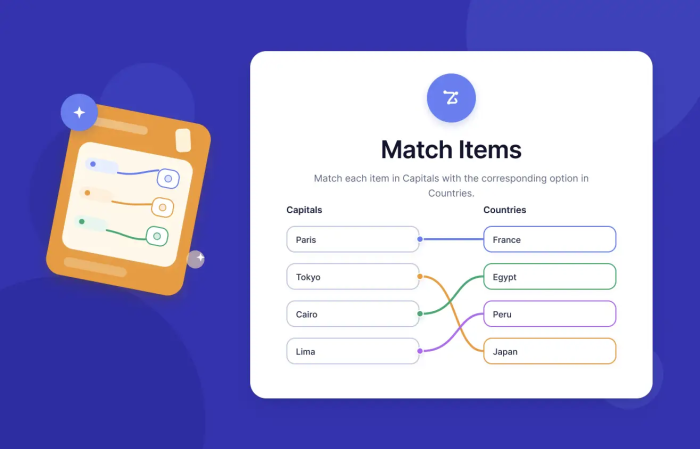
This widget can be used to create matching quizzes that cover a variety of popular use cases, including
- Vocabulary terms and definitions
- Roles and responsibilities
- Categories and subcategories
- Countries and capitals
- Training concepts and their content
With the Match Items widget, you can control your colors, titles, helper text, and even whether respondents can choose one or more matches for a single item. As respondents fill out your quiz, your widget will automatically determine whether they have the correct matches, saving you the hassle of grading by hand.
When to use Jotform instead
But why should a loyal Microsoft Forms user make the switch? Jotform is a user-friendly alternative that can save you significant time as you create your quizzes. Rather than building every matching quiz from scratch, you can customize a prebuilt Matching Quiz Response Form template to better suit your needs, or you can use a Jotform AI Agent to build a matching quiz from a simple prompt.
Jotform also offers a wide range of visual capabilities, including
- A true visual matching experience
- Custom branding
- Flexible form design
Matching quizzes in Jotform can be shared through a wide variety of methods. You can send Jotform quizzes to recipients as standalone forms using email, social media, or shareable links; embed your quizzes on a web page to improve accessibility; or incorporate them into larger pieces of content.
Workarounds for creating a Microsoft Forms matching quiz don’t offer a true matching experience. Jotform offers a cleaner, more effective way to build a matching quiz without forcing your questions into a Likert-scale or multiple-choice format. Try building your matching quiz with Jotform today to discover why this drag-and-drop quiz builder can take your online assessments to the next level.
Educators, trainers, HR teams, and course creators who want to make a matching-style quiz in Microsoft Forms and need to know whether Forms supports it natively, what workaround to use, and when a more visual quiz tool is a better fit.




































































Send Comment: