Are your time-off requests outdated? If you’ve been asking employees to email them to you, leave them on your desk, or shout them out across the office, the answer is yes. Online forms are more efficient for record-keeping and easier for employees to submit.
If your organization already uses Microsoft 365, Microsoft Forms is a natural place to start modernizing your processes. This guide covers how to create a leave request form in Microsoft Forms from scratch and using a customizable template. We’ll also walk through how to do the same thing in Jotform, in case Microsoft Forms is too basic for what you need.
A quick intro to Microsoft Forms
Microsoft Forms is a lightweight survey and form-building tool bundled with most Microsoft 365 plans. It’s designed for quick polls, quizzes, registrations, and basic data collection like leave requests. To dive deeper into the platform, check out our guide on how to use Microsoft Forms.
How to create a leave request form in Microsoft Forms from scratch
Building a leave request form from scratch only takes a few minutes.
- Go to forms.office.com and sign in with your Microsoft 365 account.
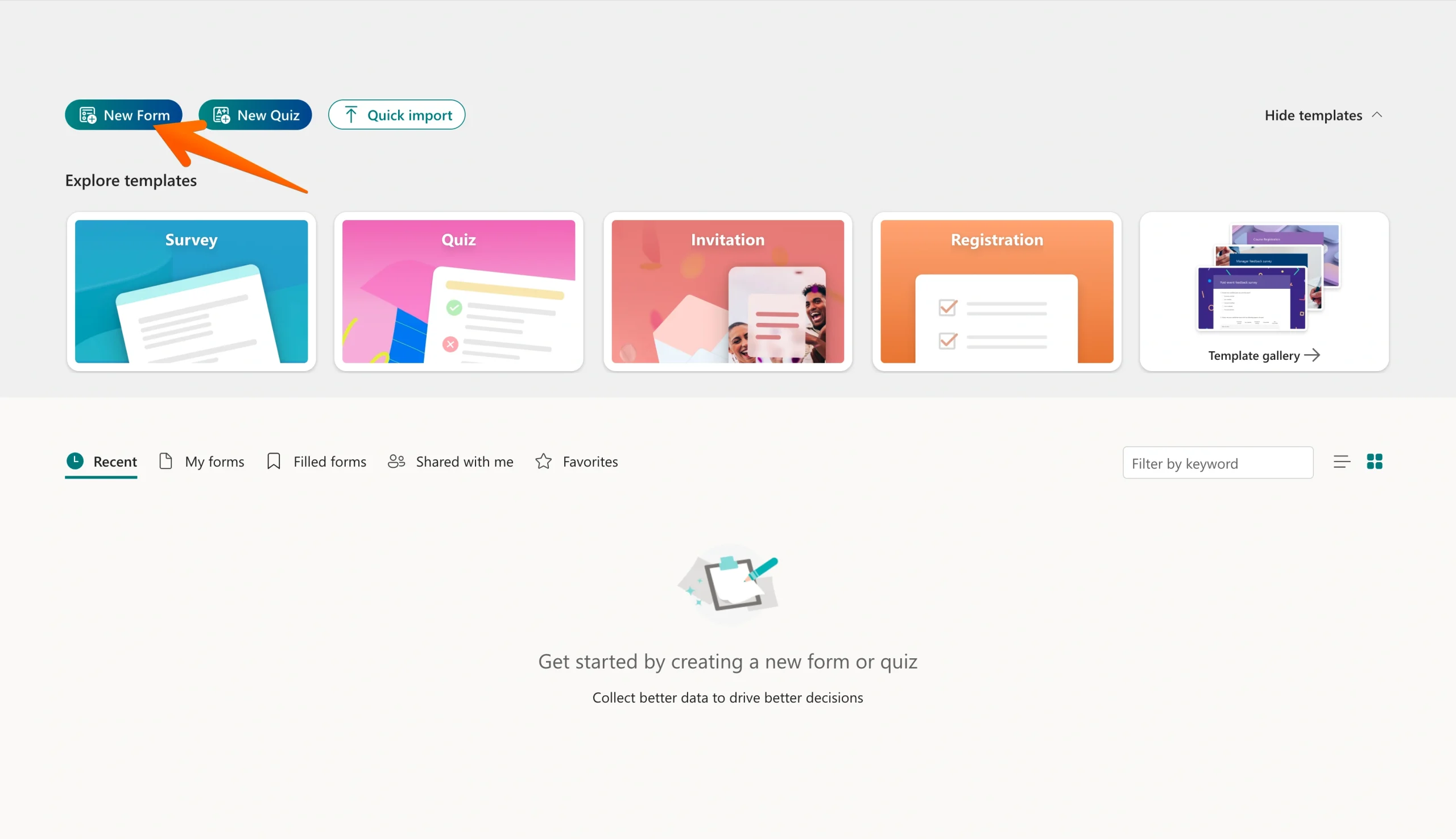
- On the homepage, click New Form.
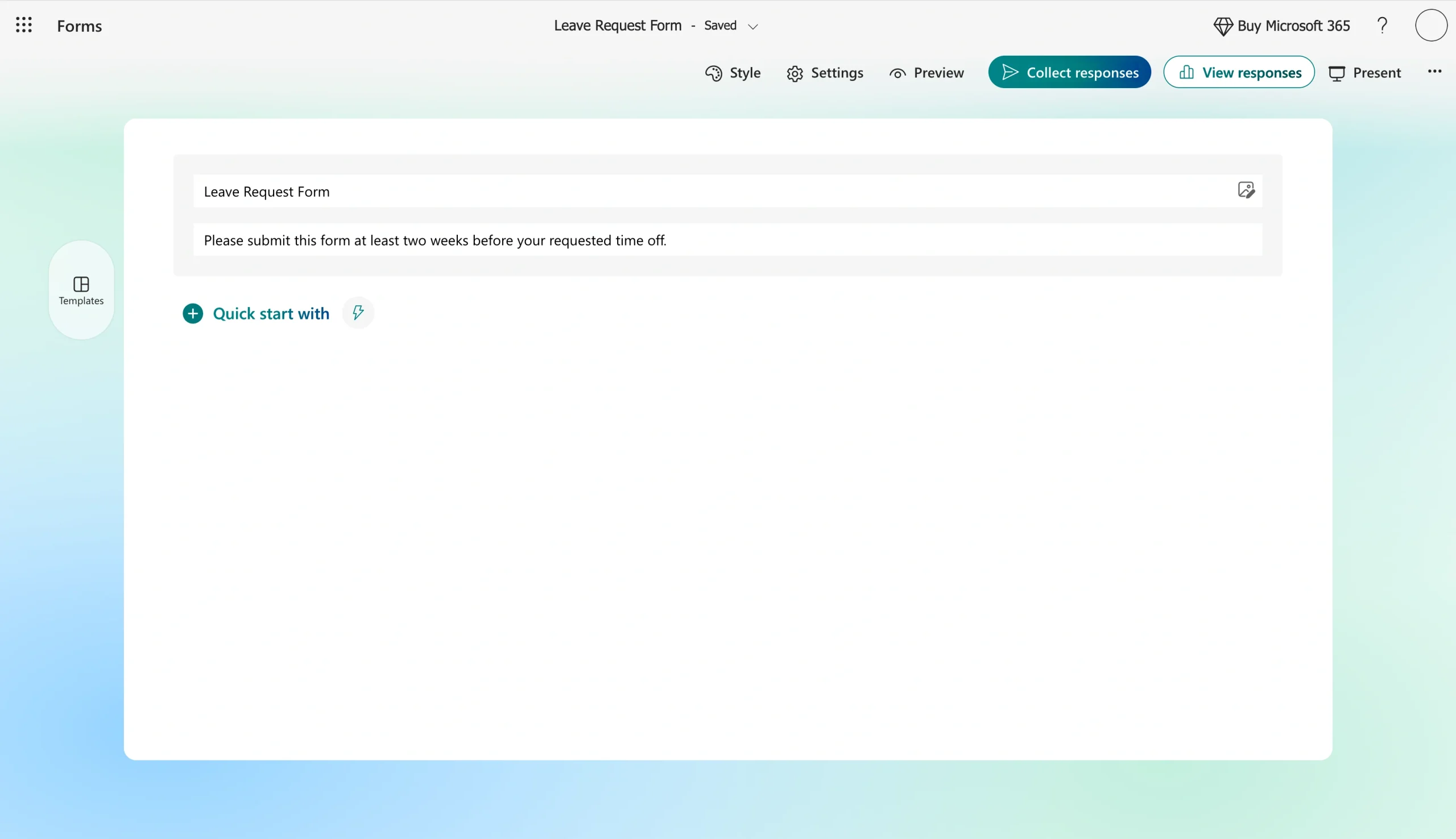
- Click on Untitled form at the top of the page and replace it with a title like “Leave Request Form” Add a short description underneath, explaining what the form is for (e.g., “Please submit this form at least two weeks before your requested time off.”).
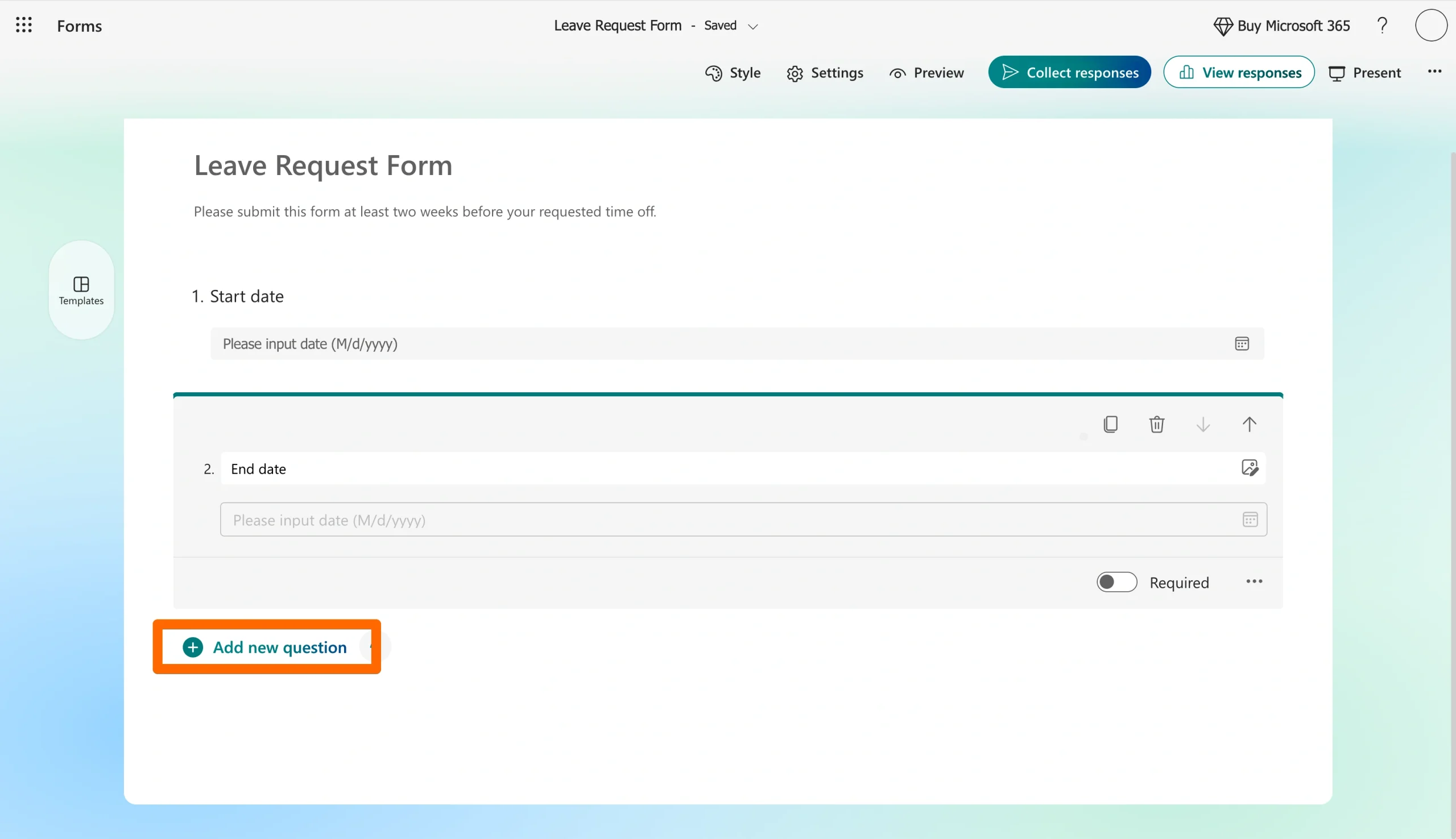
- Click Add new to start adding questions to the form. Microsoft Forms lets you choose from eight question types: Choice, Text, Rating, Date, Ranking, Likert, File upload, and Net Promoter Score. For a leave request form, you’ll probably want the following fields:
- Employee name (Text)
- Employee ID or email (Text)
- Department (Choice)
- Type of leave — vacation, sick, personal, etc. (Choice)
- Start date (Date)
- End date (Date)
- Reason for leave (Text — long answer)
- Manager’s name (Text)
- Additional notes (Text — long answer)
- Toggle the Required switch on for any fields that absolutely must be filled out, such as dates and the type of leave.
- Click Preview in the top-right corner to see how your form looks on desktop and mobile.
- When everything looks right, click Collect responses and copy the link to share it with your team. You can also send it through email or drop it into SharePoint or Teams.
That’s the full process for designing a basic Microsoft Forms leave request form. At this point, your form is live and ready to collect requests. But it might not be exactly what you need, and other options offer additional benefits.
How to create a leave request using a Microsoft Forms template
If starting from a blank page isn’t your thing, Microsoft Forms has a template gallery you can browse. The big catch is that there isn’t a wide selection of leave request templates to pick from.
The closest match is a template called Vacation and Sick Leave Form. It’s not perfect for every use case, but it’s a solid starting point. Here’s how to use it:
- Visit the Microsoft Forms template gallery.
- Scroll through the available templates until you find it.
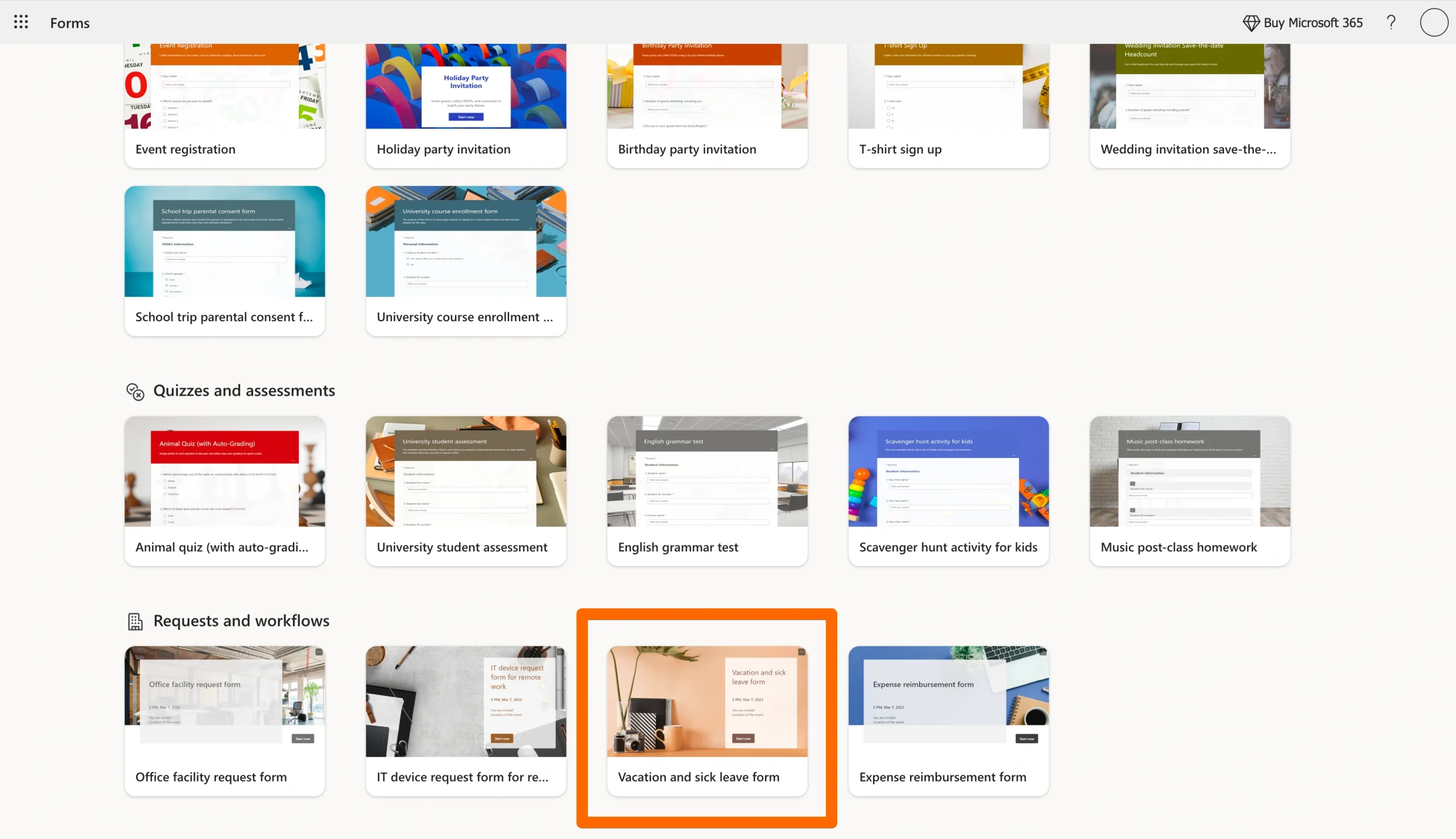
- Click on the template, then click Use template to open it in the editor.
- Customize the title, questions, and answer options to match your organization’s policies.
- Once you’re happy with the form, click Collect responses and share the link.
Jotform: A more powerful option for building your leave request form
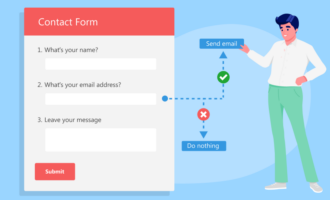
Microsoft Forms is missing many of the features that companies use to customize their forms. For example, you won’t find a drag-and-drop design, flexibility, conditional logic, payment fields, or deeper integrations with HR tools.
If you need any of these or just want more control over your forms, Jotform is a Microsoft Forms alternative worth a look. Jotform offers a free plan and a no-code form builder with more than 20,000 ready-made templates. It also works without a Microsoft 365 subscription, which helps if your team uses a mix of tools.
Migrate existing forms instantly
There’s no need to rebuild your online forms from scratch. Instead, migrate existing forms and submission data into your Jotform account in one click — so you can collect data without skipping a beat.
Your form can not be migrated.
Please ensure that your form URL is correct and that your form is set to “public” before attempting to migrate it again.
How to create a leave request form with Jotform
There are two ways to create a leave request form with Jotform. You can either use a template or create a form from scratch.
Design from scratch by navigating to your My Workspace tab and clicking the Create + button. You’ll be sent to a screen where you can tell the AI what you’d like, upload examples, and add additional elements as needed.
Here’s how to design from a pre-existing template:
- Sign up for a free Jotform account at jotform.com, or log in if you already have one.
- Hover over Templates to show the dropdown menu at the top of the screen.
- Choose Form Templates.
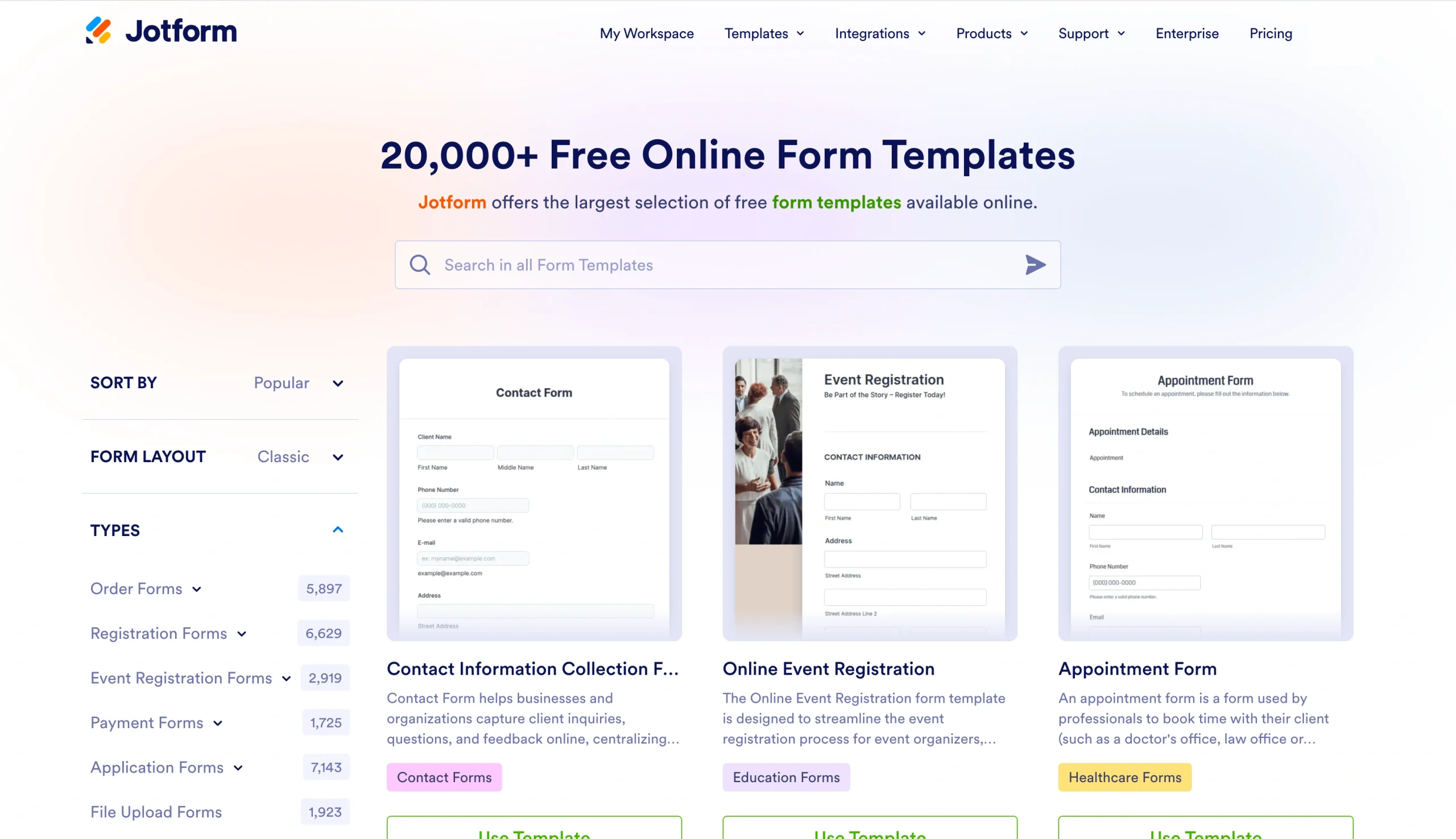
- Search for a “Leave Request Form” and choose your preferred template.
- Click any field to edit its label, mark it as required, or add validation rules.
- Use the Form Designer (the paint roller icon) to change colors, fonts, and layout to match your company’s branding.
- Add your logo to the top of the form by clicking above the first heading.
- Click Publish at the top of the screen and copy the form link, embed code, or QR code to share it with your team.
Collecting leave requests is only half the battle. Keeping track of them is also critical. That’s why every form submission you receive in Jotform automatically lands in Jotform Tables, a spreadsheet-database hybrid. You can use it to easily sort, filter, color-code, and add notes to each request. You can also create calendar views to find scheduling conflicts before they become staffing problems.
Skip the build with Jotform’s leave request templates
If even drag-and-drop feels like too much work, Jotform offers a shortcut. You can choose from over 200 leave-of-absence templates that are ready to clone and customize in just a few clicks. A couple of favorites include the
- Request for Leave template: This is a straightforward form for submitting time-off requests with start and end dates, leave type, and manager approval fields.
- Time Off Request Form template: This is a slightly more detailed option with sections for emergency contacts and handover notes.
Pick whichever one is closest to what you need, swap out the questions, add your logo, and you’re good to go.
Design your next form with Jotform
A leave request form is one of those everyday workflows that quietly impacts how smoothly your team operates. Get it right, and time-off management becomes a nearly invisible process that simply runs in the background.
Microsoft Forms is a solid starting point, but the quality of your forms directly impacts the quality of your data. It’s worth using the best option available, which can mean different things as your needs evolve.
That’s why Jotform’s free templates make it easy to design custom forms that always collect the information you need. Get started today by visiting our form template database.
This article is for HR teams, operations managers, business owners, Microsoft 365 users, and anyone who wants to modernize leave request workflows with simple online forms and more flexible alternatives like Jotform.
































































Send Comment: