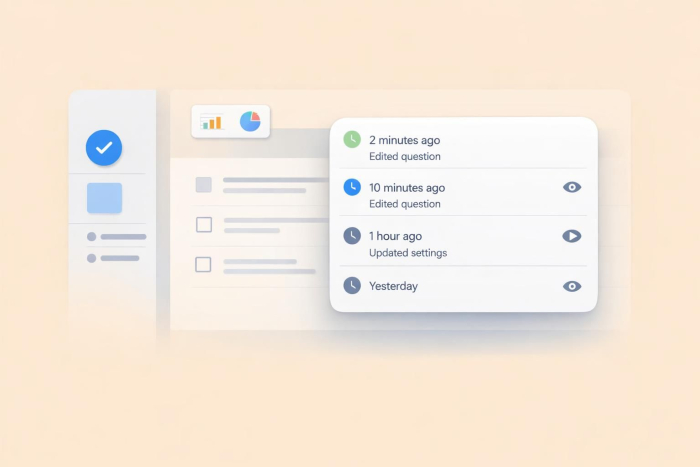
Microsoft Forms is a platform for creating surveys and polls. Anyone can use it to collect feedback without installing software on their devices. You can also view real-time responses individually or as percentages based on the options in your form.
However, as you edit and refine your form in the platform, you may find yourself wanting more control over those changes, especially if an important element is updated or deleted and you need to go back to an earlier version.
That raises the question: How do you check Microsoft Forms version history, and is it possible to revert to a previous version?
Can you check Microsoft Forms version history?
Using Microsoft Forms has one key limitation. It doesn’t offer a built-in feature to track changes in a form. If you make edits, it’s impossible to go back and restore an earlier version without rebuilding the form manually. This limitation is huge for several reasons:
- No safety net for mistakes: If you accidentally delete questions or answer options, there’s no way to roll things back. You must rebuild the lost form elements from scratch, which is tiresome and time-consuming.
- Hard to collaborate with teams: When editing as a team in Microsoft Forms, you can’t see who changed what and when. Without that visibility, it’s difficult to hold team members accountable.
- Risk of inconsistent data: If you edit questions or choices in an active form, earlier Microsoft Forms results may no longer align with the updated version. And you won’t have a clear record of what changed and when.
The good news is Microsoft Forms isn’t the only enterprise tool for creating and running surveys. A reliable alternative, such as Jotform, lets you overcome the limitations of Microsoft Forms.
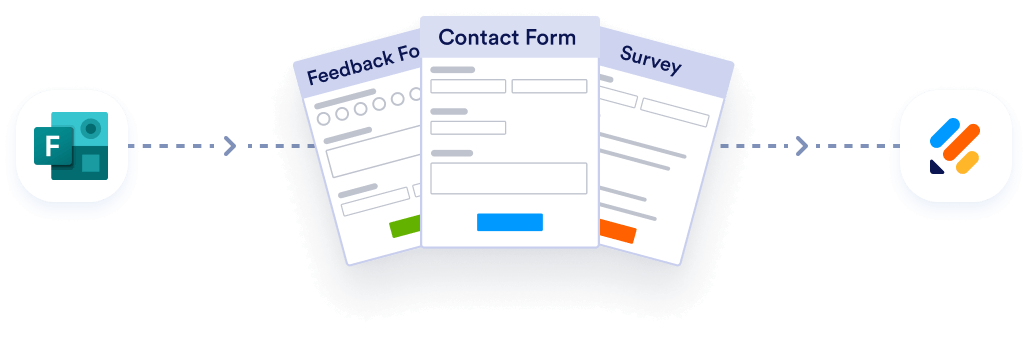
Migrate existing forms instantly
There’s no need to rebuild your online forms from scratch. Instead, migrate existing forms and submission data into your Jotform account in one click — so you can collect data without skipping a beat.
Your form can not be migrated.
Please ensure that your form URL is correct and that your form is set to “public” before attempting to migrate it again.
A Microsoft Forms alternative that comes with revision history: Jotform Form Builder
If version history is important for your form workflow, Jotform is a suitable Microsoft Forms alternative.
Jotform’s Form Builder offers more than 20,000 free form templates you can customize with your own colors, layouts, logos, and fonts on a drag-and-drop platform. You can also change the fields and add elements, such as password protection.
Most importantly, Jotform’s online, no-code Form Builder includes a revision history so you can track changes. It shows you who made particular edits and the exact time they did it. When necessary, you can easily revert to a previous form version, giving you full control over edits. The benefits of this feature include
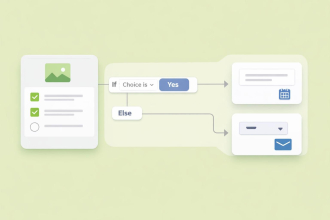
- Making it easy to recover from mistakes: If you accidentally break your form layout or end up with conflicting conditional logic, Jotform revision history instantly takes you back to a version that works best for you without rebuilding anything from scratch.
- Improving collaboration: When you collaborate on a form, revision history shows the changes and the person who made them. A clear record of edits maintains accountability among collaborators. Team leaders can easily undo edits if a member makes unwanted changes.
How to check revision history in Jotform
With revision history, you can review every change in your form, compare versions, and restore the one that meets your needs. Follow the steps below to check your form revision history in Jotform.
Step 1: Create your forms on Jotform
You can build your forms on Jotform from scratch or let AI do it for you via a text prompt, PDF, image, or document. After creating your form, you’ll need to sign in to your Jotform account to publish and share it. Sign up for free if you don’t have an account yet.
Step 2: Select the form you want to review
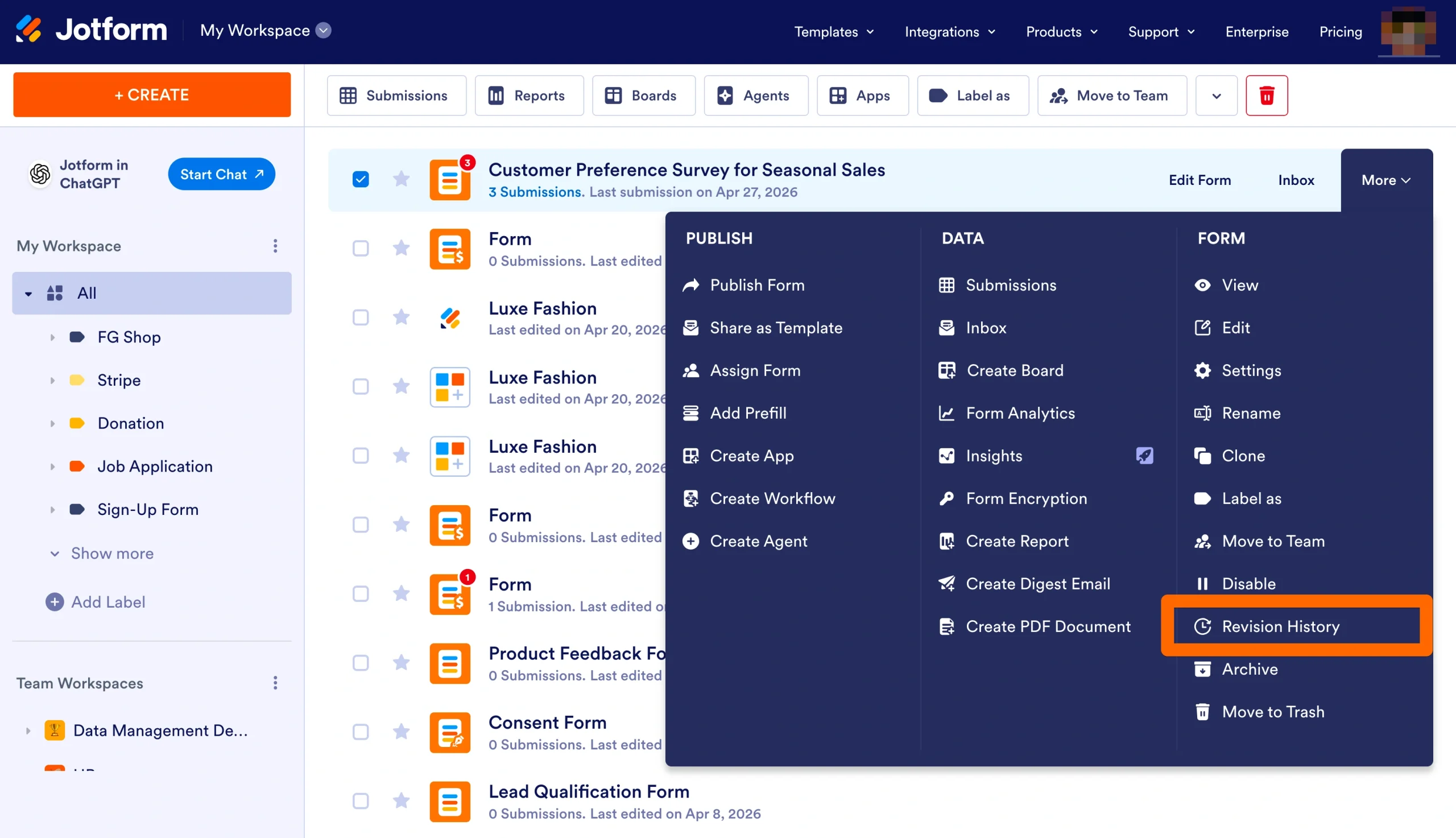
In the My Workspace page, click the form you want to check (or hover over it) and click More at the right end of the form. Next, select Revision History in the drop-down menu.
Step 3: Choose a form version
On the right side of the page, you’ll see a list of form versions. Each version shows all changes to the form, the people who made them, and the time they updated the form. Click Revert to restore the version you want.
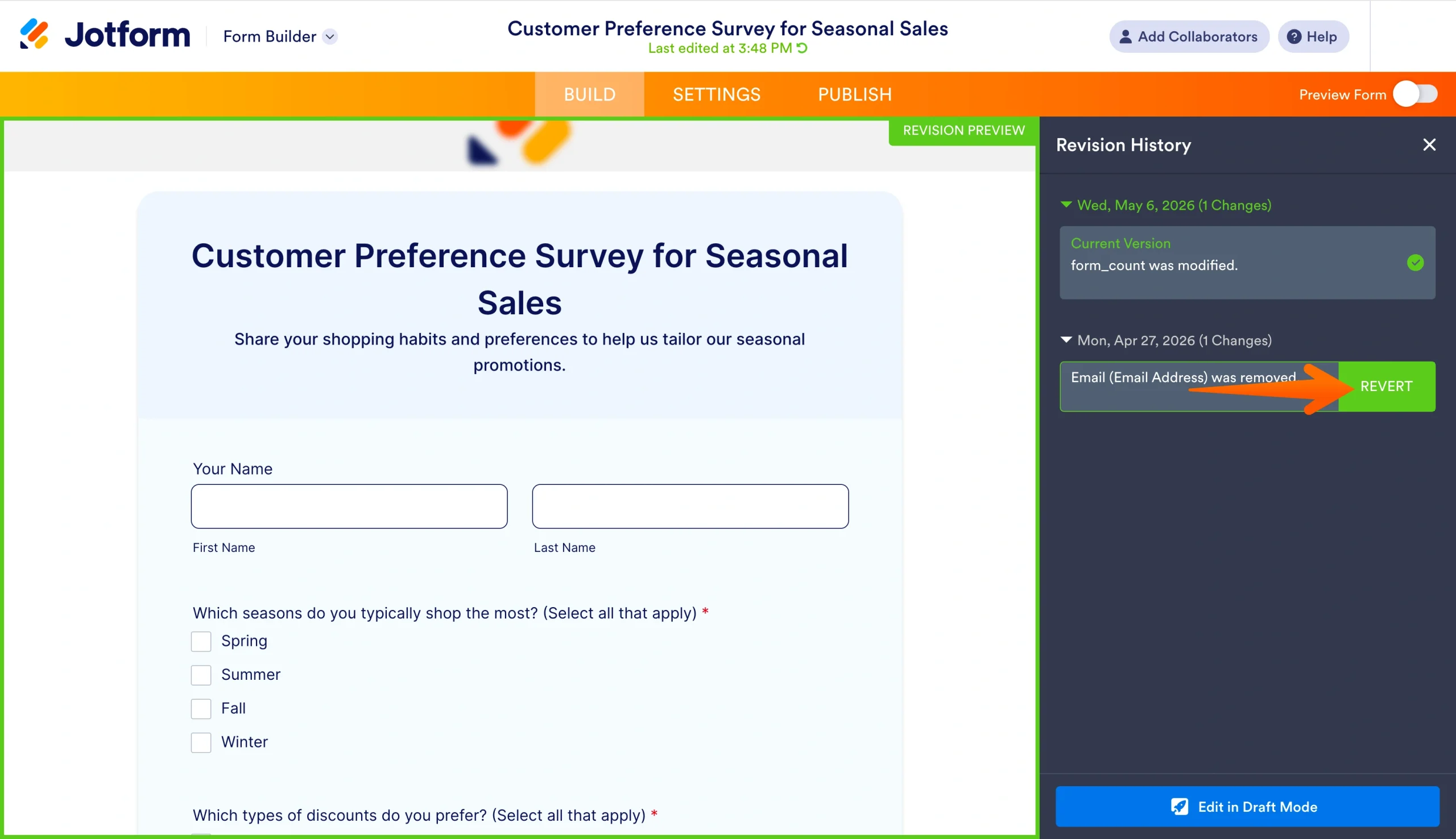
When creating or editing your form, you can access revision history without leaving the Form Builder. You just click the circular arrow icon at the top-middle of the screen, immediately under your form’s title.
Note: In the Jotform Form Builder, only the form owner can view revision history and restore past versions. Collaborators, even with editing access, can’t review changes or revert the form.
See form changes and easily revert to a previous version
Although Microsoft Forms is a popular data collection tool, you can’t track revision history with it. If tracking changes and restoring previous versions are important, switching to a platform like Jotform gives you access to version history.
After the switch, you don’t have to rebuild your existing Microsoft Forms assets. You can migrate them in three simple steps — copy your Microsoft Forms link for a particular asset, paste it into the Jotform migration tool, and click Migrate your forms to Jotform.
Try Jotform for free to use revision history and other features that aren’t available in Microsoft Forms.
This article is for Microsoft Forms users, business teams, educators, researchers, form administrators, and anyone who wants to track form changes, restore previous versions, and manage collaborative form editing more reliably.

































































Send Comment: