
If you regularly use forms to collect feedback from customers or employees, you’ve probably heard of (or used) Microsoft Forms. It’s an app included with Microsoft 365 subscriptions that allows you to design and share your own forms. Microsoft Forms includes templates to get you started, or you can create your own forms from scratch.
But there may be times when you need to translate a form into another language. Maybe you have local customers who speak Spanish, or employees in Germany. Whatever the reason, there’s an easy fix: learning how to translate Microsoft Forms into other languages.It’s a process you can do in just a few steps.
In this guide, we’ll show you how to get started. Plus, we’ll explore Jotform, an alternative that offers enhanced translation features.
How to translate a Microsoft Form into another language
The Microsoft Forms translation feature is available only if you’re using the app with Microsoft 365 work or school accounts. It doesn’t work with Microsoft 365 personal accounts. To get around this, Microsoft suggests using your internet browser to translate forms created through a Microsoft 365 personal account.
If you’re on a Microsoft 365 work or school account, take the following steps to translate your form.
1. Select the form you want to translate
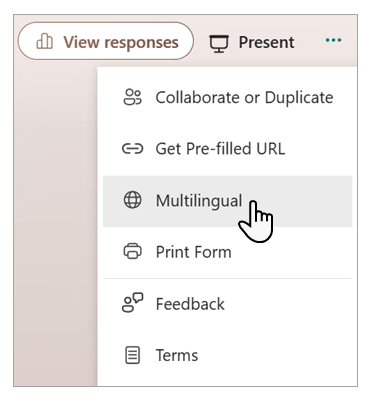
Open the form from your Saved Forms. Click the three-dot menu for More form settings, then select Multilingual.
2. Choose a language from the list
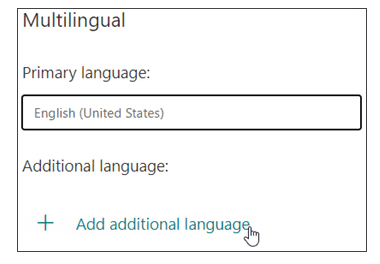
Click + Add additional language to view and add a language. You can add up to 10 more languages.
3. Start the editing process
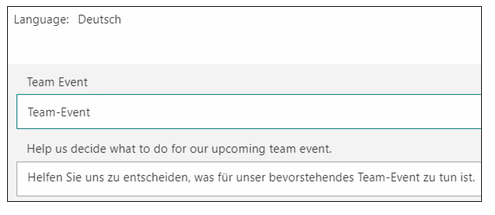
Click the Edit language pencil icon next to the language you added. Then select the title to start translating. When a text box appears underneath the title, select it to begin the autotranslation. Repeat this step for each question on your form.
Autotranslate may not work for every form field. You can use your browser’s language translation tools for any missing language fields.
When you’re done with the translation, click Back to save your changes.
After the translation
Once you translate the form, anyone you send it to can read it in their primary language if you’ve chosen that language as a translation option. Responses are sent to you in your primary language. You can click the More Details option in the form to see how different language groups responded.
Jotform: An alternative to Microsoft Forms
Microsoft Forms works well for basic form capture, especially if you plan to distribute the form to a small group of people. However, Jotform is a handy alternative for organizations that have a global audience (or want to build one).
Jotform offers over 20,000 form templates to support events, sales, surveys, contact collection, registration, and more. Each form is fully customizable, allowing you to tailor it to your needs. Jotform also integrates with over 150 platforms, including WordPress, Shopify, Google Sheets, and Constant Contact.
With Jotform, you can easily translate forms into over 130 languages. There is no language limit for the forms you create, unlike Microsoft, which sets a cap of 10 translations per form.
The Jotform platform supports up to five forms on our free plan. Plus, you get access to other useful Jotform products, such as Jotform Tables to manage form response data and Jotform’s AI Agents.
How to translate a form with Jotform
Curious to see how easy it is to make a multilingual form with Jotform? Take these steps to get started.
1. Open your form
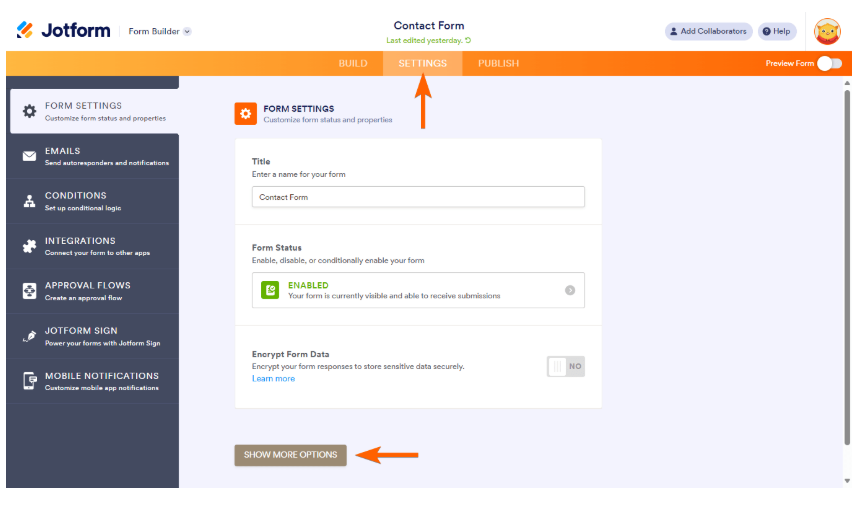
Select the form you want to translate from your Jotform workspace. Click Settings, then Show More Options.
2. Choose your languages
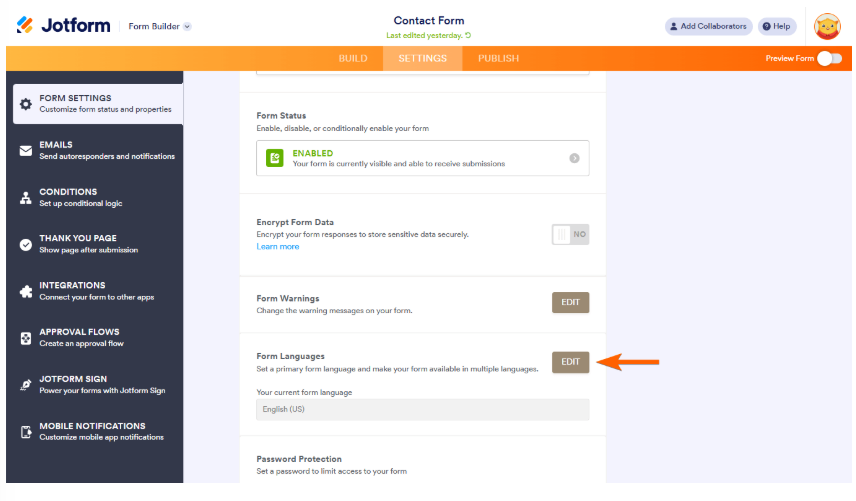
Locate Form Languages and click Edit.
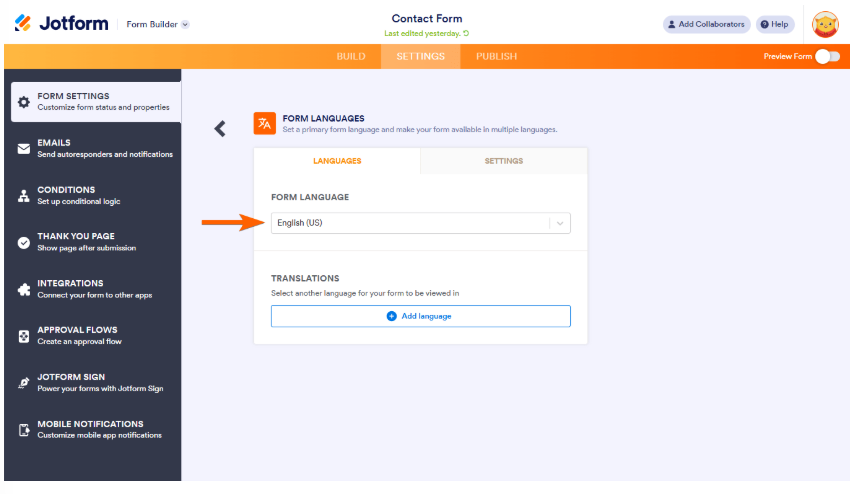
Verify that the primary language is set to your preferred language.
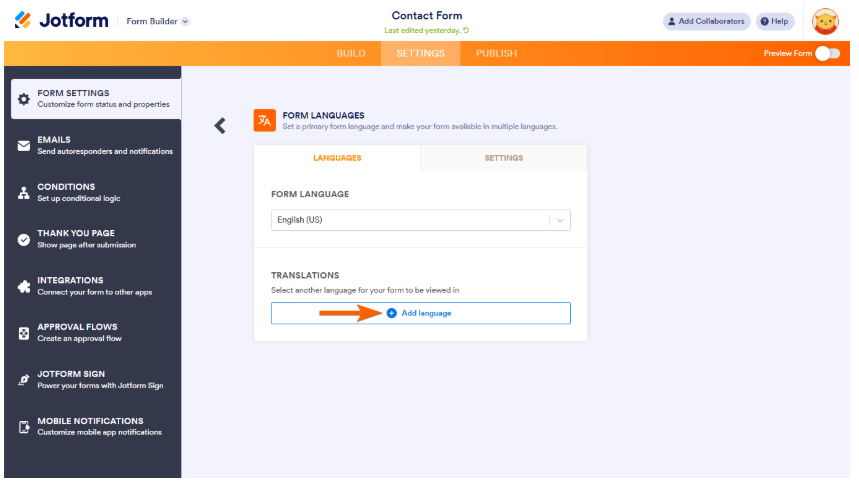
Click Add language under Translations to add a new language for your forms.
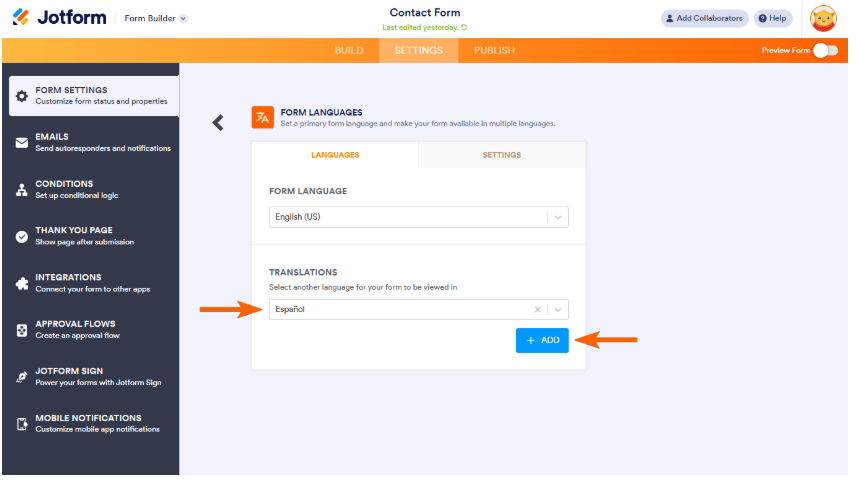
You can choose from over 130 languages. After selecting a language, click Add.
3. Enter your translations
Jotform automatically enters a translation for each of your form fields. However, you may need to manually type a translation if autotranslate isn’t available for some fields. Jotform automatically saves each change, so you don’t have to worry about manually saving.
4. Preview your form
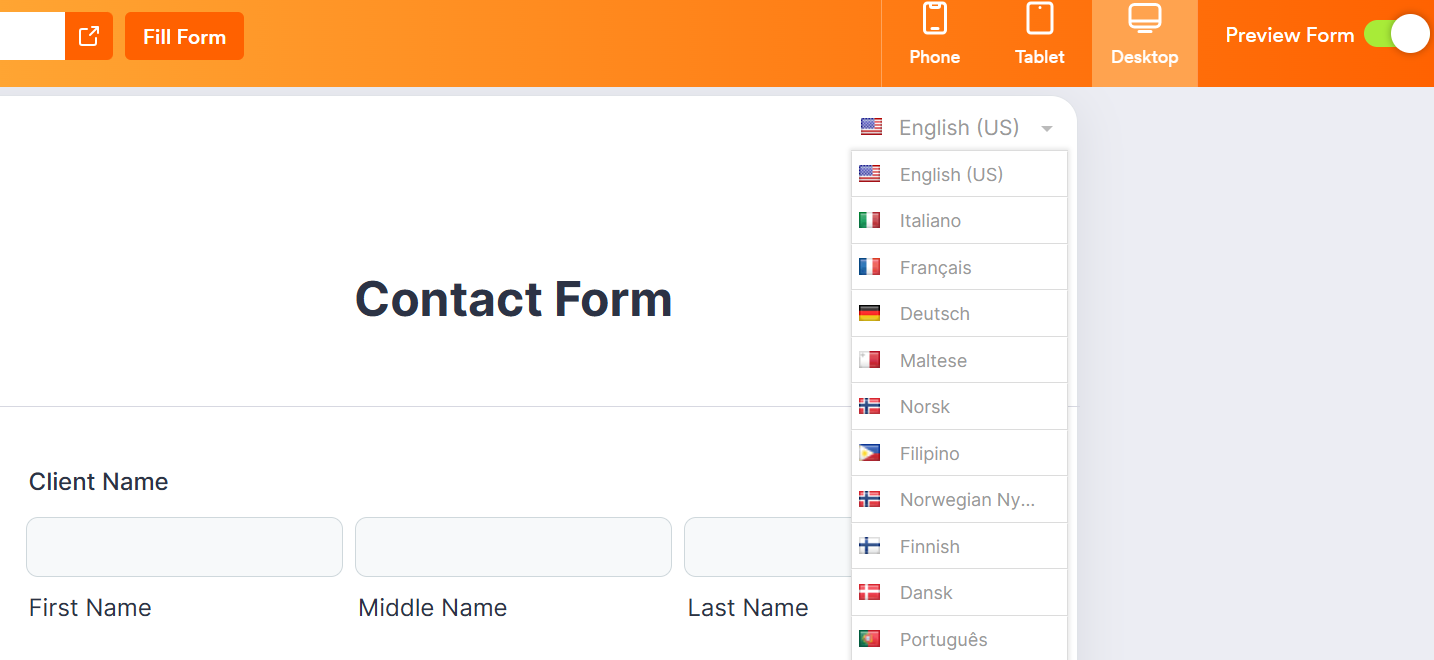
Click Preview Form toggle to see your finished form. You can select the language dropdown box to view the forms in different languages.
Try Jotform and translate forms with ease
Jotform is a market leader in form creation and data collection tools. The Jotform Form Builder is suitable for organizations of all sizes. We offer thousands of premade, customizable form templates, plus integrations with software solutions you already use, such as Dropbox, Google Drive, and HubSpot.
Jotform’s product line includes Jotform Tables, which allows you to organize and manage data from a single, collaborative workspace. Our forms integrate easily into websites, including WordPress, Shopify, and Wix.Jotform’s Starter plan is free and includes up to five customizable forms. Upgrading to one of our paid plans removes Jotform branding, gives you access to more forms, and boosts your storage space. To see how easy it is to use Jotform, give it a try today.
This article is for teams that rely on forms for feedback and internal requests, and now need to support multiple languages without rebuilding everything from scratch, especially organizations with international employees, multilingual customers, or distributed offices.



































































Send Comment: