If you’re reading this article, you probably already know how to create a Microsoft form. Maybe you built the perfect customer feedback survey, team quiz, or event registration form. But before you share it, you want to gate it. After all, not every form should be open to everyone, especially if you want to protect sensitive information or limit access to a specific group. Setting a password is like putting a lock on your digital door. It keeps your data safe, giving you peace of mind.
However, Microsoft Forms doesn’t offer password protection. Luckily, platforms such as Jotform make it easy to password-protect your forms. Keep reading to explore the limitations of Microsoft Forms and learn about alternatives.


How to password-protect your Microsoft forms
Microsoft Forms doesn’t currently offer password protection. So when you create a form, there’s no way to control who can fill it out.
The software does provide a few ways to limit access. You could choose to collect responses only from your organization or a select group of people, granting them owner or coeditor permissions.
These options give you some control over who can see and respond to your forms, but they come with trade-offs. For example, imagine you need to send a form to more than 100 people. Instead of sharing one simple password, you’ll have to add each person manually or manage permissions for a long list of email addresses. It’s doable but time-consuming, especially when you’re working on a tight schedule or your form needs to go out fast. This process is also more vulnerable to human error.
While Microsoft Forms does a great job of simplifying form-building, this option requires more effort to make sure your form lands in the right hands.
If you need a tool that lets you protect your form with a password in a few quick clicks, you can use a Microsoft Forms alternative such as Jotform.
How to password-protect a form in Jotform
Jotform gives you a built‑in password option. Instead of managing permissions or long email lists, you set one password and share it with the right people.
Here is how to create a password-protected form in Jotform:
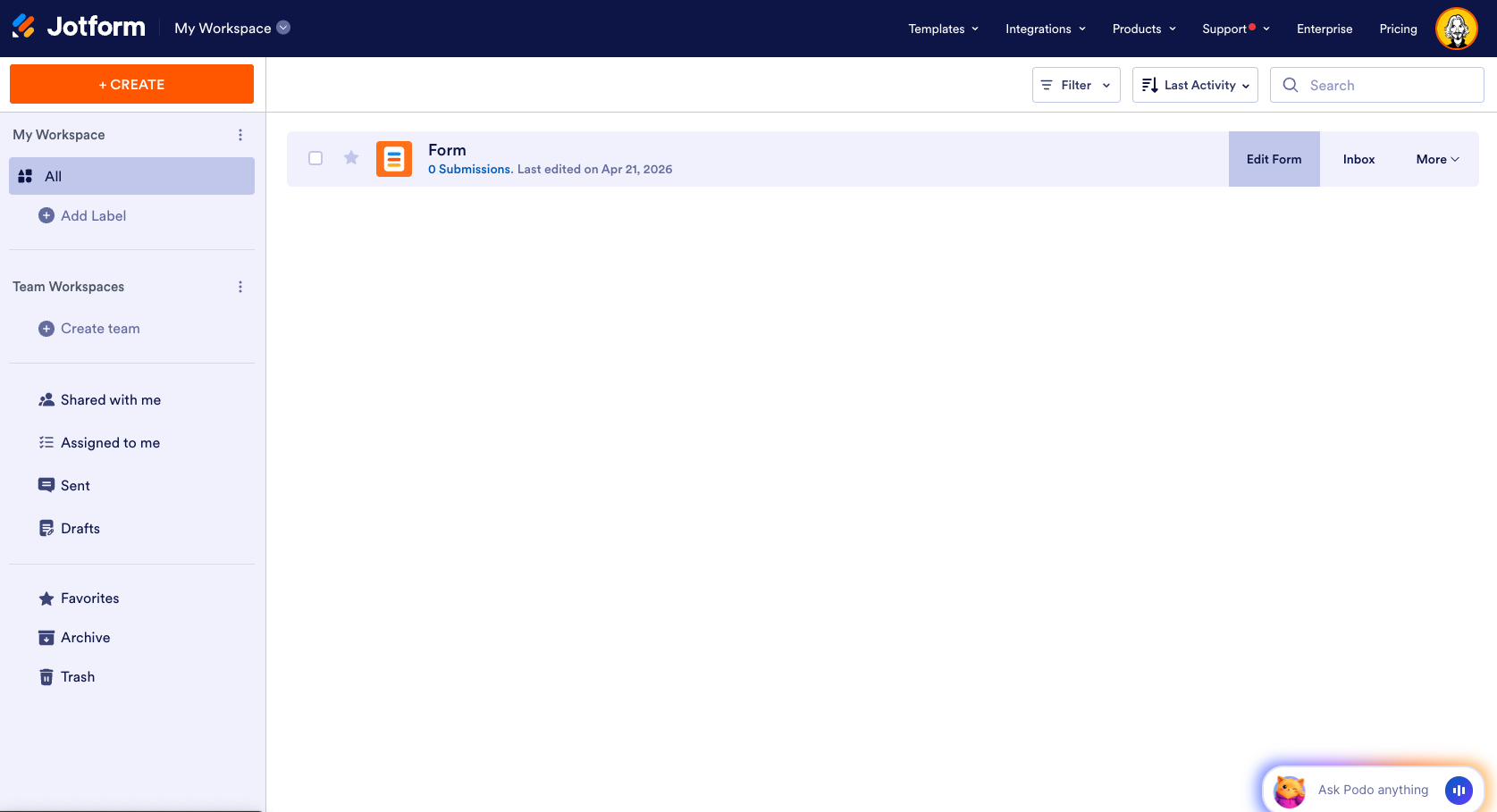
- After logging in to your Jotform account, on your My Workspace page, hover over the form you want to password-protect, and click Edit Form on the right side of the page.
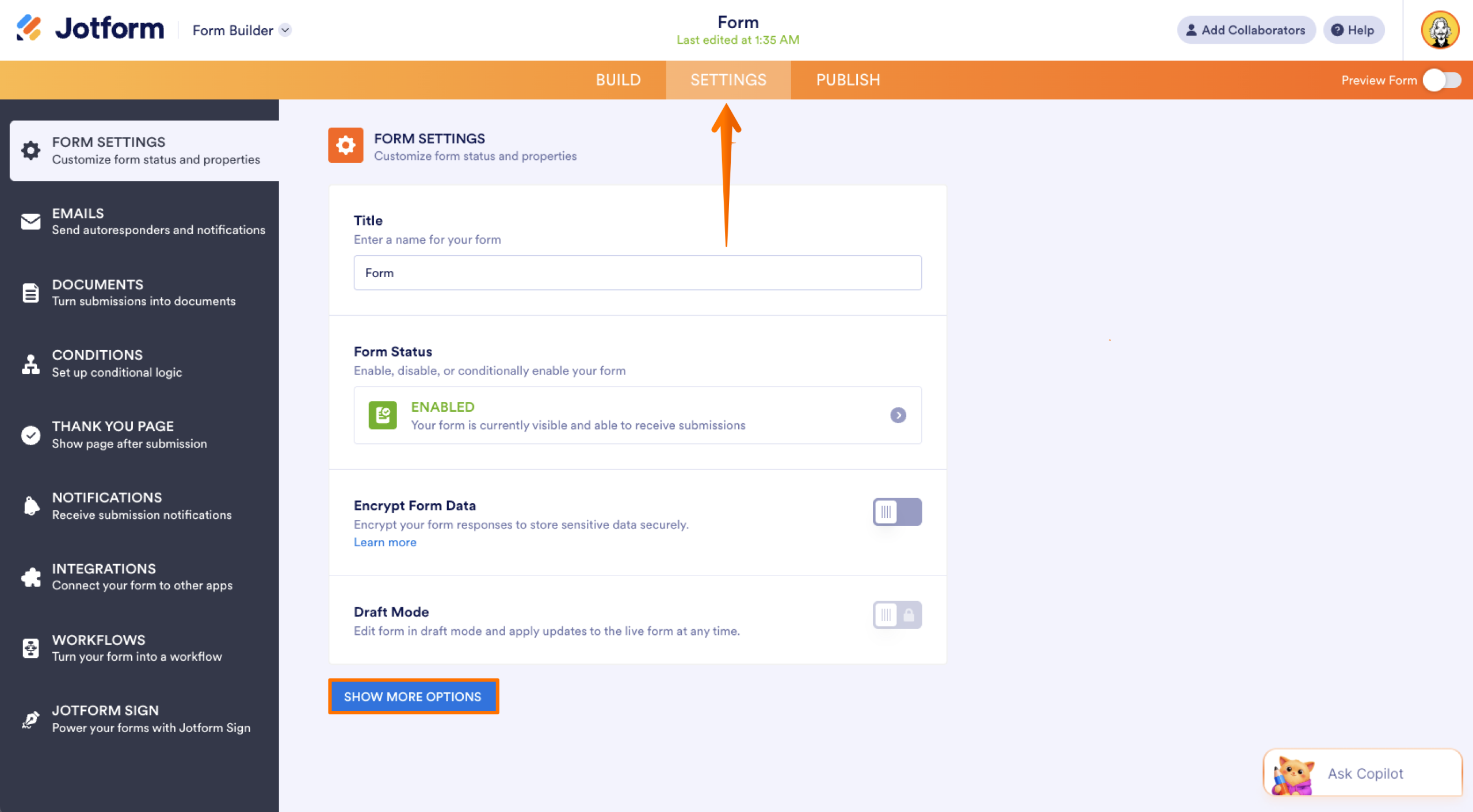
- In the Form Builder, click Settings in the orange navigation bar at the top of the page.
- Under Form Settings, click Show More Options at the bottom.
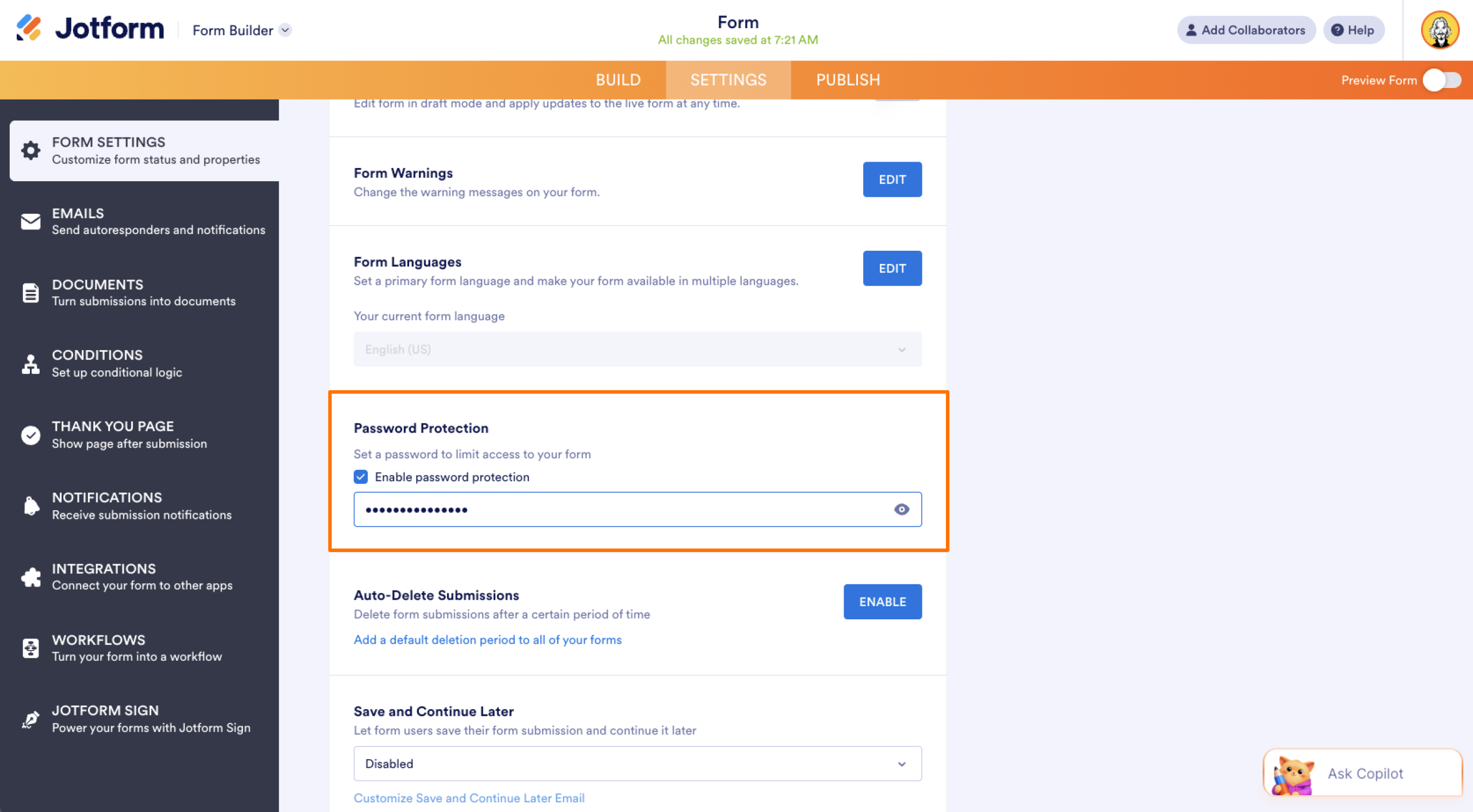
- Scroll down to the Password Protection section, and tick the box next to Enable Password Protection.
- Enter the password you want to use in the input box, and click anywhere outside the box to save it. A message confirming that the password has been set for your form will appear right below the box.
- Copy your form link, and share it and the password with the people who should have access.
Once you’ve completed these steps, anyone who tries to open the form must enter the password to view or complete it.
If someone tries to access the form without the correct password, they’ll see an error message indicating that the entered password was incorrect. If you need to change the password or turn off password protection, you can do so at any time.
This setup ensures that the data you collect aligns with your goals.
Jotform as a Microsoft Forms password-protection alternative
When you’re collecting responses to your forms (whether the responses are from customers, colleagues, or event attendees), you want to be able to trust that they’re coming from the right people. Microsoft Forms makes it easy to build and share forms quickly, but because it doesn’t offer built-in password protection, you can’t be sure that your forms have been properly received without doing an extra layer of work.
Work-arounds can control who has access to your files in Microsoft Forms, but it’s much simpler to lock your forms with Jotform. Jotform gives you a straightforward way to add password protection in just a few steps. With it, you can protect sensitive responses, share access confidently, and spend less time managing links and more time acting on your data.
This article is designed for professionals, educators, and teams who use online forms to collect sensitive or restricted information and need more control over who can access them.


































































Send Comment: