
Can you import questions into Microsoft Forms?
Yes — with some limitations. Microsoft Forms allows importing questions from certain existing files, including other Microsoft Forms documents, Word documents, and PDFs. However, you may still need to manually format imported questions.
You may need to import questions into Microsoft Forms from time to time. This involves moving questions and answers from a document over to Microsoft Forms, and you can do it in a few ways:
- Microsoft Forms has a Quick Import feature that allows you to import questions from Word or PDF documents, but the tool has limitations.
- If you have questions in another Microsoft Forms file you want to import, you can do so by creating a duplicate form.
- If you’re looking to import questions from an Excel file, you’ll likely need to fiddle with some workarounds.
In this article, we’ll show you the different methods in detail for how to import questions into Microsoft Forms, and we’ll cover the limitations you may encounter with each. Plus, we’ll introduce you to a Microsoft Forms alternative that makes creating forms and importing questions a breeze: Jotform.
How to import questions into Microsoft Forms
Below are three methods you can use to import questions into Microsoft’s form builder. (New to Microsoft Forms? Get the basics from these articles: How to use Microsoft Forms, How to create a Microsoft Form, and How to export form responses in Microsoft Forms).
Method 1: Use the Quick Import feature to import questions from Word or PDF documents
Microsoft Forms has a Quick Import feature that imports questions from Microsoft Word or PDF documents. This is a fast option that removes most manual work; however, you may end up with some formatting issues you will need to fix manually later.
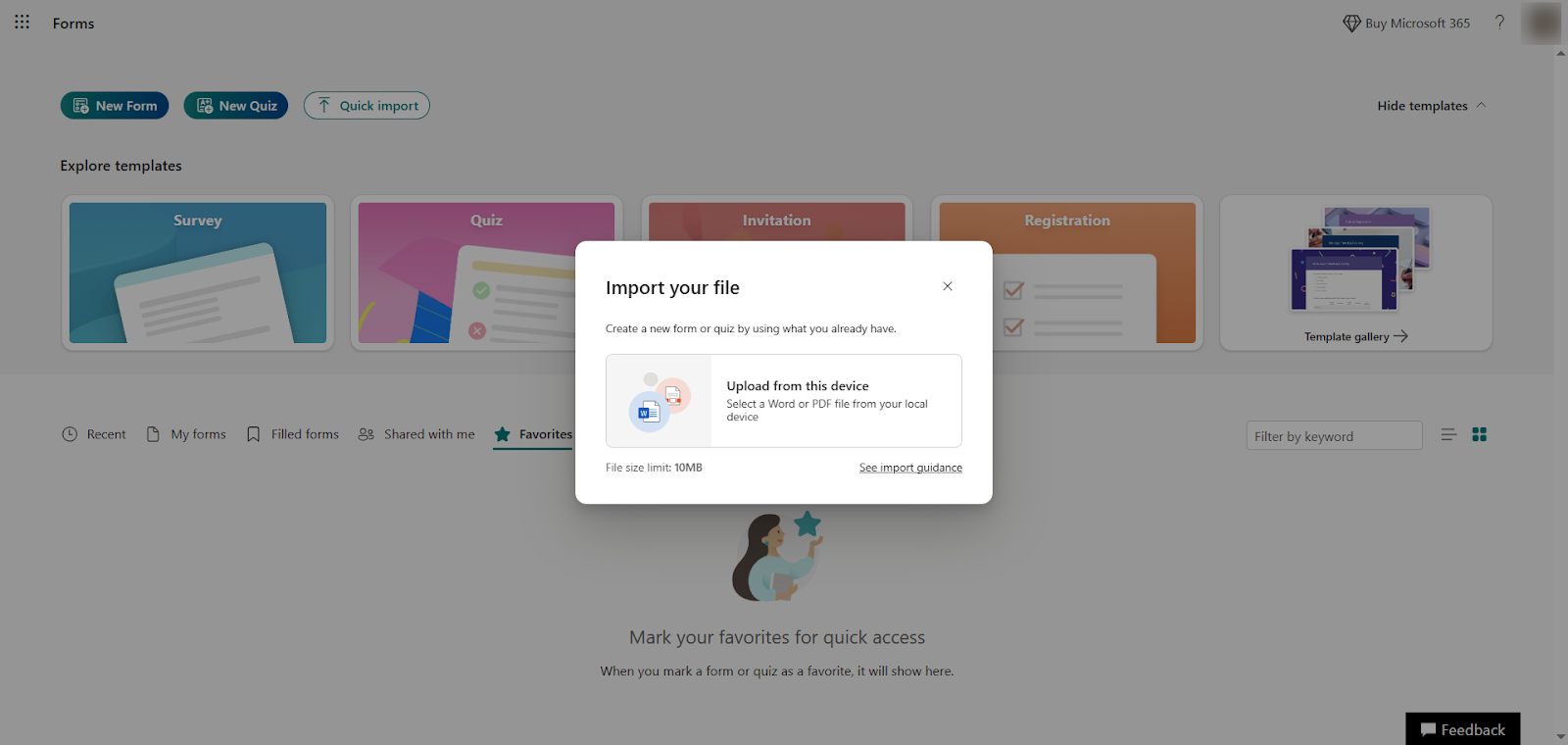
Additionally, while the feature works well for simple question types like open text and multiple choice, it can sometimes have issues with more complicated question types like Likert. Note that there is a file size limit of 10MB.
Here’s how to use the Quick Import feature:
- Go to Microsoft Forms.
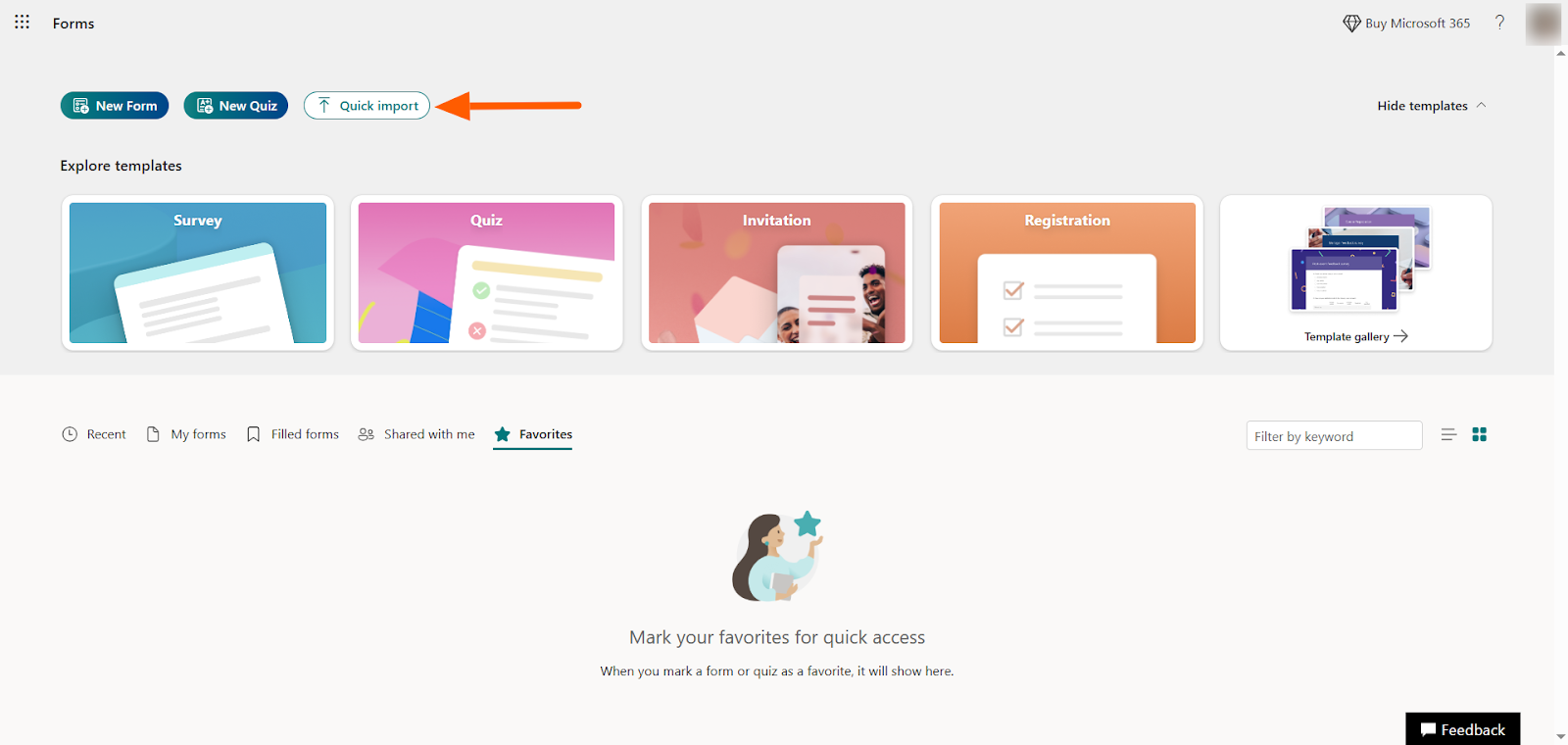
- Click on the Quick Import button at the top.
- Select the file you want to import questions from.
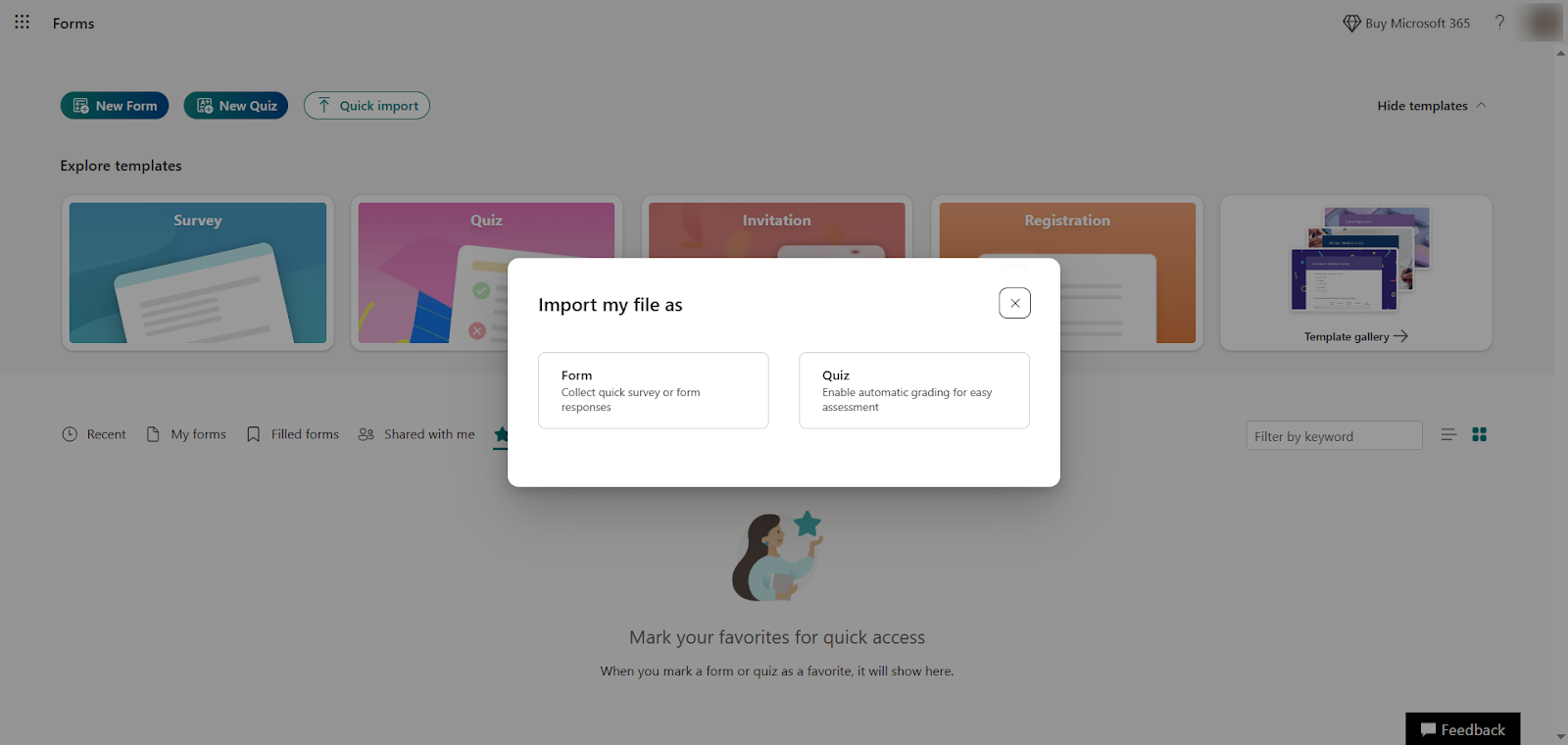
- Select whether you want to create a form or a quiz based on the questions you want to import.
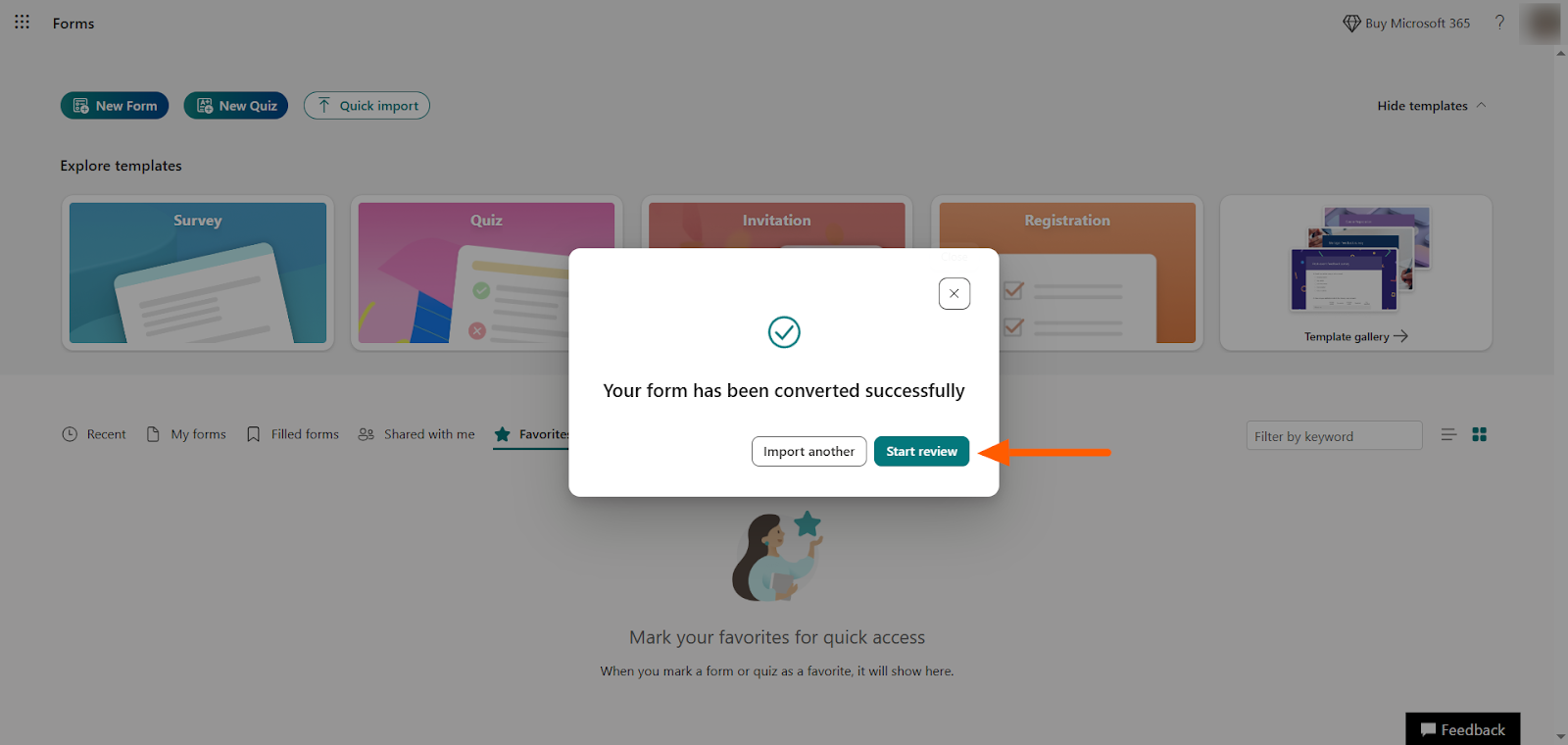
- Microsoft Forms will import your questions. Click Start review to see the form.
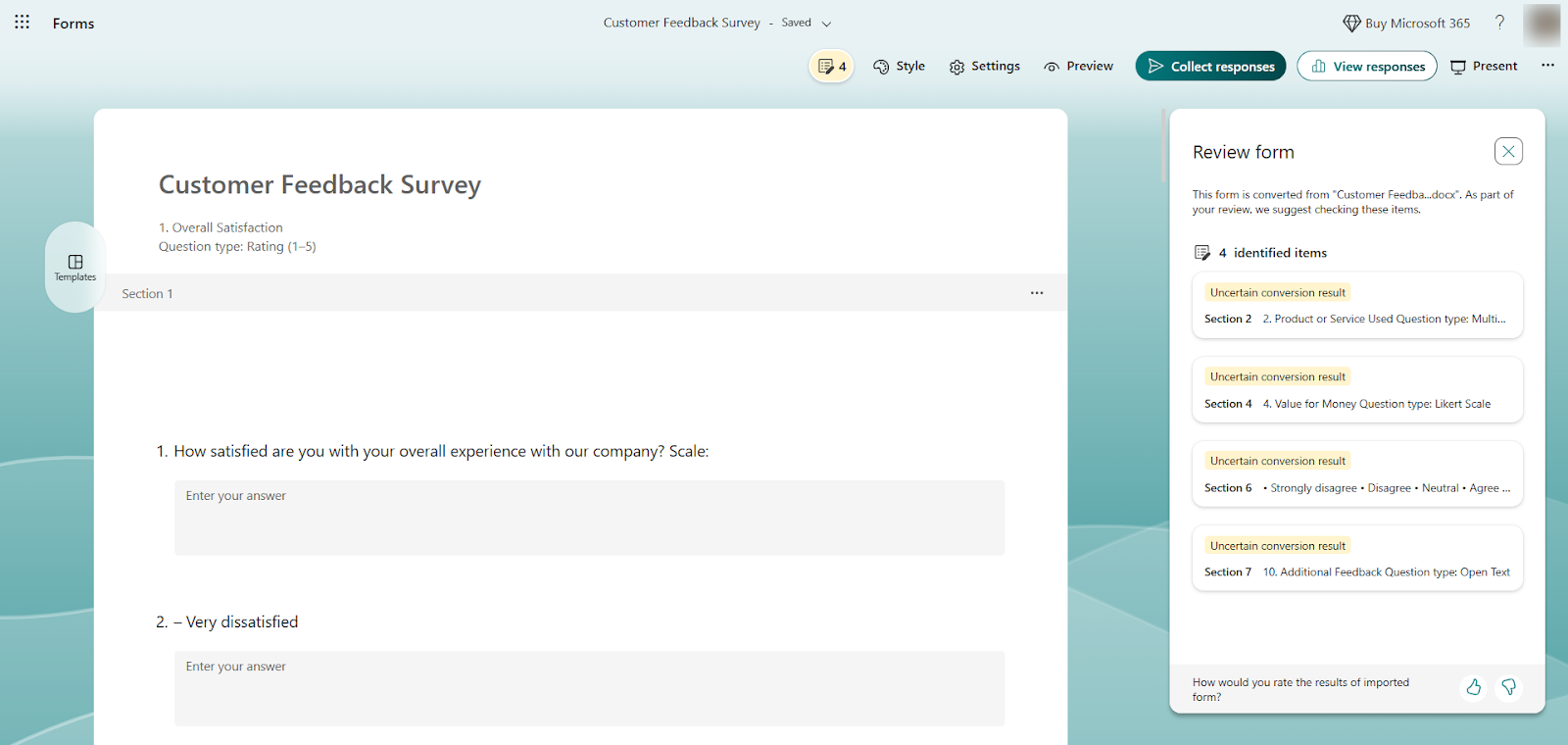
- Review the form and edit the formatting and content as needed. Microsoft Forms will also highlight specific questions it recommends you check. In this example, you can see that there are formatting issues that need manual correction.
Method 2: Import from an existing Microsoft Form
If you want to create a new form using most of the questions from an existing Microsoft Form, another option is to duplicate the original form.
In this process, you are turning the original form into a template. That’s not necessarily a bad thing, but there is one caveat to consider: Anyone who has the link to that “template” can use it for their own purposes, which raises security concerns in some cases.
Here’s how to do it:
- Open the Microsoft Form you want to import questions from.
- Click the More form settings (…) icon at the top right.
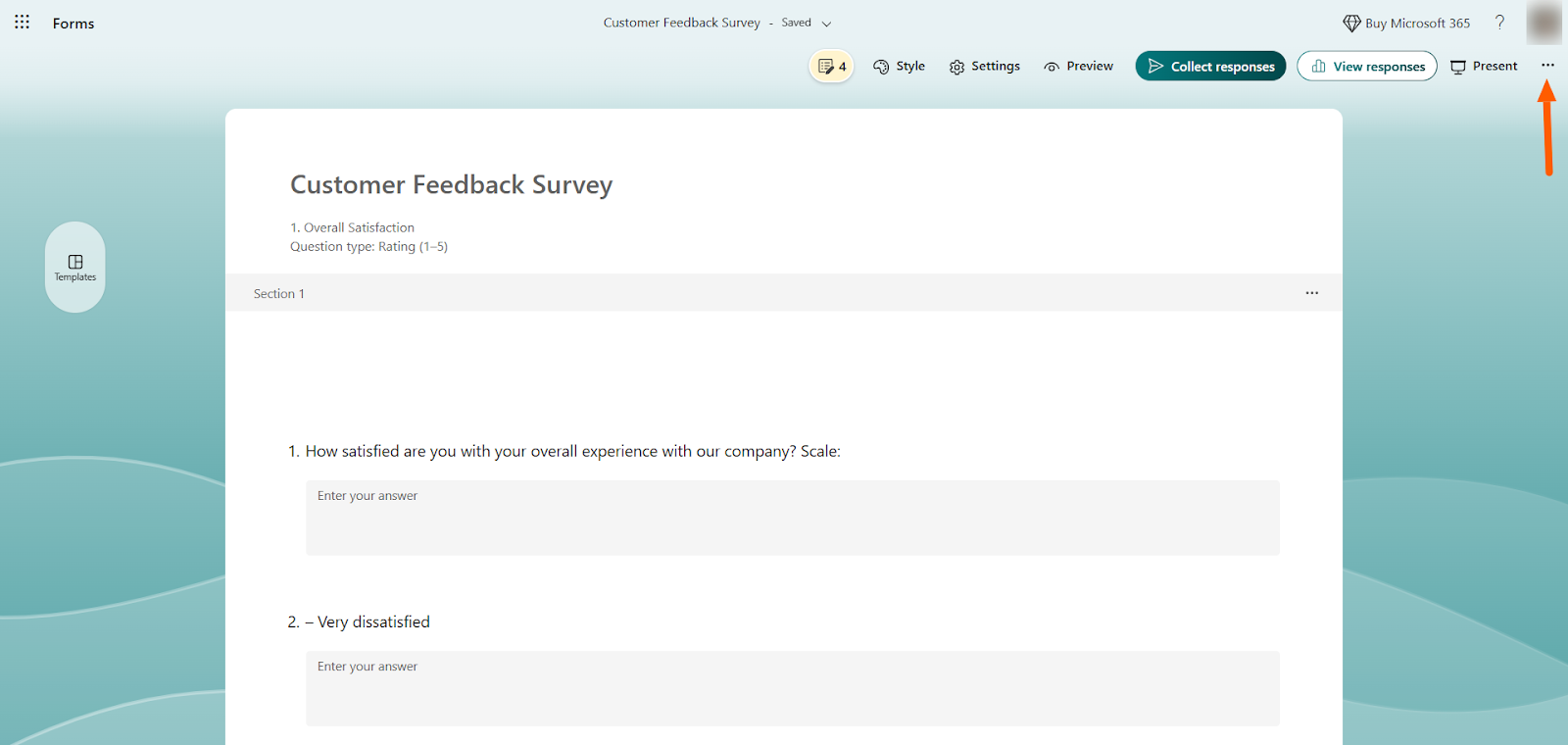
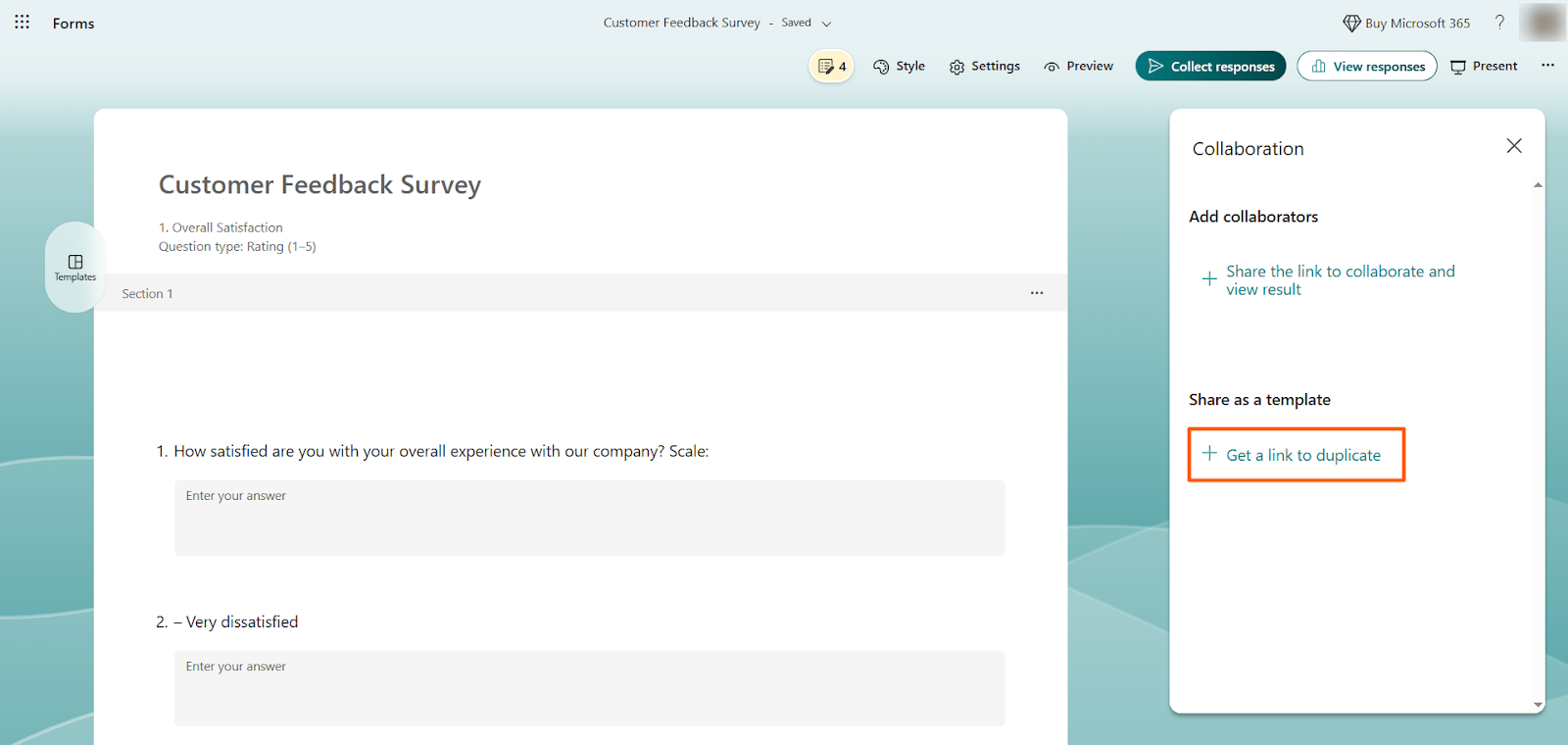
- Select Collaborate or Duplicate.

- Click + Get a link to duplicate.
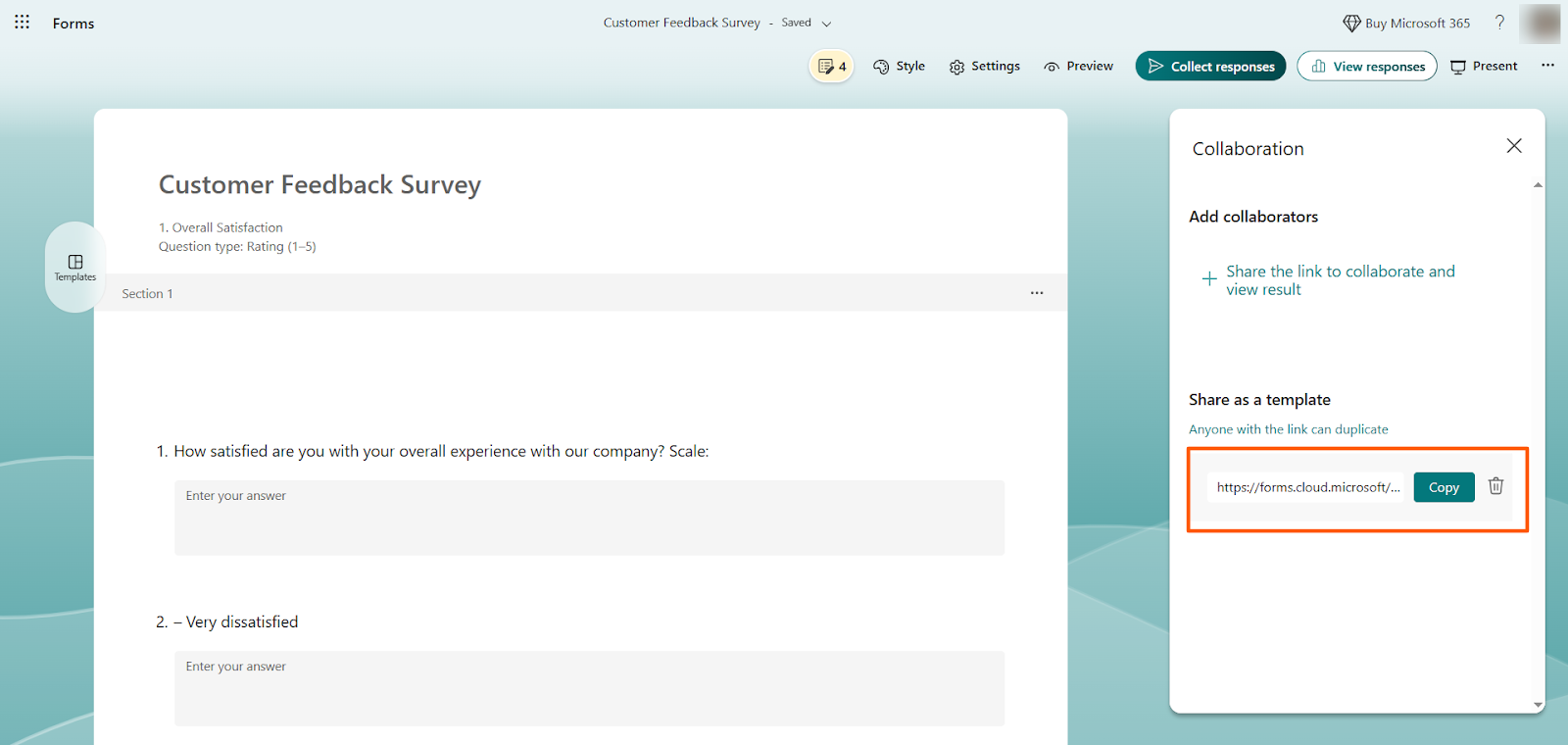
- Microsoft Forms will provide a URL to the form, which you can use to duplicate it. Copy and paste the URL to duplicate the form.
Method 3: Import questions from Microsoft Excel to Microsoft Forms
Importing questions from an Excel file into Microsoft Forms is complicated and doesn’t come with an easy or automated solution. Some workarounds you can try include
- Copying and pasting the content from Excel into a Microsoft Word file and then using the Quick Import feature (Method 1 above).
- Using Microsoft Power Automate to create flow automations to populate the Microsoft Form from the Excel sheet.
- Manually copying and pasting content from Excel into Microsoft Forms.
These options require a considerable amount of manual work, which takes a lot of time and can introduce unnecessary errors.
What you cannot easily import
Microsoft lets you import Word or PDF files using the Quick Import feature and duplicate another Microsoft Form. However, as with Excel files, there is also no easy way to
- Import Google Forms directly into Microsoft Forms
- Import CSV files into Microsoft Forms
Limitations of Microsoft Forms imports
Microsoft Forms is an easy-to-use form builder, but it does have limitations that can frustrate users who want to import questions. Keep these examples of drawbacks in mind before attempting an import:
- The Quick Import feature often results in formatting issues, which require manual intervention to correct.
- There is no AI-based import feature for any file type.
- Question logic may not transfer when importing questions from other forms or file types.
- There is limited import automation aside from the Quick Import feature.
Jotform: An easier way to import questions automatically
If Microsoft Forms leaves you wanting something more sophisticated, there are other options. Jotform is a leading form builder and Microsoft Forms alternative making it easy to import questions for forms and quizzes.

Migrate existing forms instantly
There’s no need to rebuild your online forms from scratch. Instead, migrate existing forms and submission data into your Jotform account in one click — so you can collect data without skipping a beat.
Your form can not be migrated.
Please ensure that your form URL is correct and that your form is set to “public” before attempting to migrate it again.
Here are some ways you can import questions into Jotform:
- Migrate Microsoft Forms into Jotform: If you’ve already created a form in Microsoft Forms, use Jotform’s migration tool to bring your work into Jotform. All it takes is a few clicks with no manual work.
- Import forms from a website: See a form on a website you want to emulate? Simply use the URL to clone the form into Jotform and tweak it as needed.
- Import a PDF form: Turn your PDF into a smart online PDF form so users can easily fill it out. You can turn it back to a PDF to lock answers in.
- Import forms from another form builder: Do you use Google Forms, Typeform, or another form builder? Our migration tools make moving forms over a breeze.
Once you’ve moved over your form or imported questions into Jotform, use the intuitive drag-and-drop form builder to customize it — no finicky formatting issues!
Here are a few reasons users choose to import questions and migrate forms into Jotform:
- Free online survey maker: Jotform has a free plan with advanced features like conditional logic. You can even work on forms offline.
- Thousands of templates: Unlike other form builders, Jotform offers more than 15,000 survey templates.
- AI form building tools: Jotform’s AI Form Generator does all the hard work for you. Simply use a prompt to tell it what kind of form you want to create.
- Easy share and embed options: When your form is complete, you can share it with users via email, SMS, link, or social media, or embed it into your website.
- Data management tools like Jotform Tables: Manage, organize, and analyze the data you gather from your forms without hassle.
- Hundreds of integrations: Connect Jotform with your business tools like Canva or Slack, and add payment processor integrations to collect payments.
Not only does Jotform make importing questions simple, but also it offers the advanced features you need to make form building and management easier.
Where will you import questions to?
While you can import questions from different file formats into Microsoft Forms, the process isn’t always accurate and often requires manual corrections. A better solution that offers more importing options with highly accurate results is Jotform.
Jotform can import questions from the web, other form builders, and various file types like PDFs. Plus, its drag-and-drop form builder comes with advanced features like conditional logic and AI tools to elevate your form.
Explore Jotform today and see why it’s the leading choice for so many users!
FAQs about Microsoft Forms imports
There is no direct way to import questions from Excel to Microsoft Forms. You need to use a workaround, such as copying and pasting the content from Excel into Word and then using the Quick Import feature.
This article is for Microsoft 365 users, educators, HR teams, and operations staff who build surveys, quizzes, or internal forms in Microsoft Forms and want a faster way to reuse questions from existing documents instead of rebuilding everything by hand.



































































Send Comment: