
Scheduling meetings can be a pain. Trying to work around individual schedules and preferences just to put 30 minutes on the calendar is time-consuming. Sending a scheduling poll simplifies the process by allowing attendees to share their availability quickly, remotely, and in an easily accessible way.
Many organizations rely on SurveyMonkey for data collection, both internally and externally. This software is designed to help teams easily build and send surveys for everything from scheduling polls to post-meeting feedback.
Creating a SurveyMonkey scheduling poll is easy, with the right guidance. Follow along as we break down this process step-by-step and highlight why an alternative such as Jotform can enhance your polling process with advanced features.
How to create a SurveyMonkey scheduling poll
Before building a scheduling poll with SurveyMonkey, decide how your survey will be created: from scratch, with AI, or using a template. Starting with generative AI or a template can save you time up front, but building your form from scratch gives you total control over the design. In this guide, we’ll walk you through how to build your form from scratch and also using a template.
Here’s how to create a SurveyMonkey scheduling poll from scratch:
- Open and log in to SurveyMonkey.
- Click the Create Survey button, and select Start from scratch.
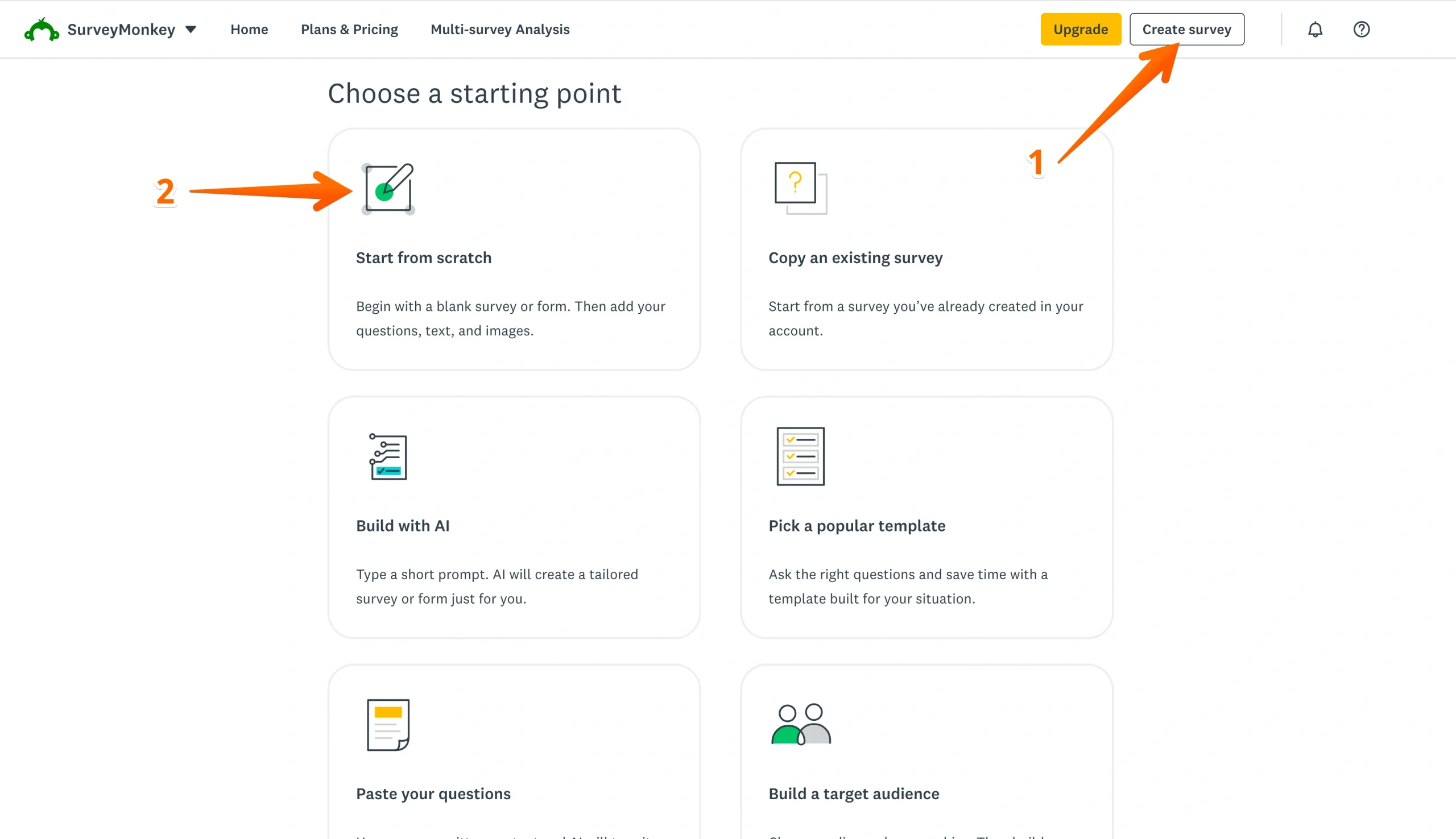
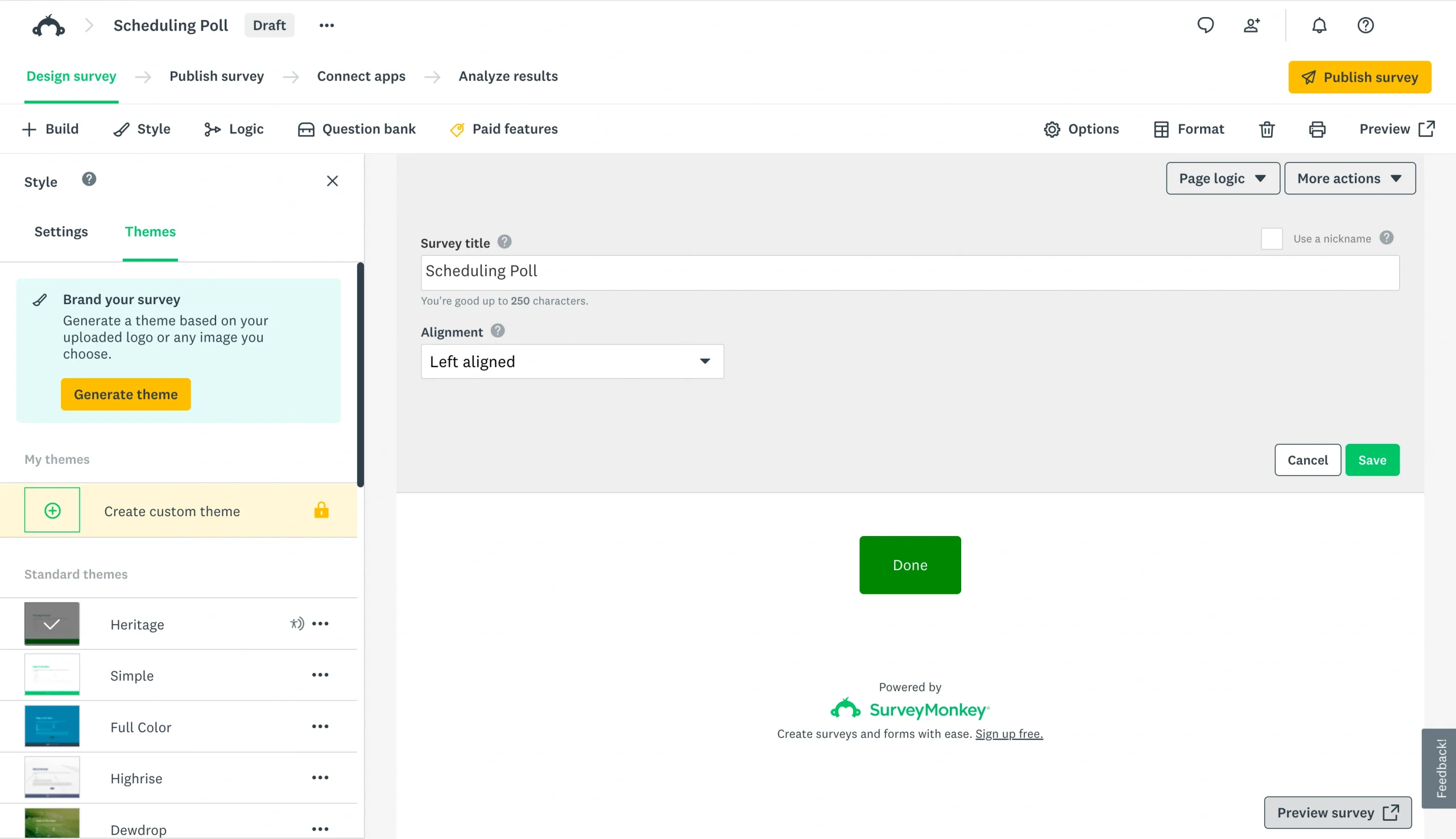
- Add a title to your survey in the title text box.
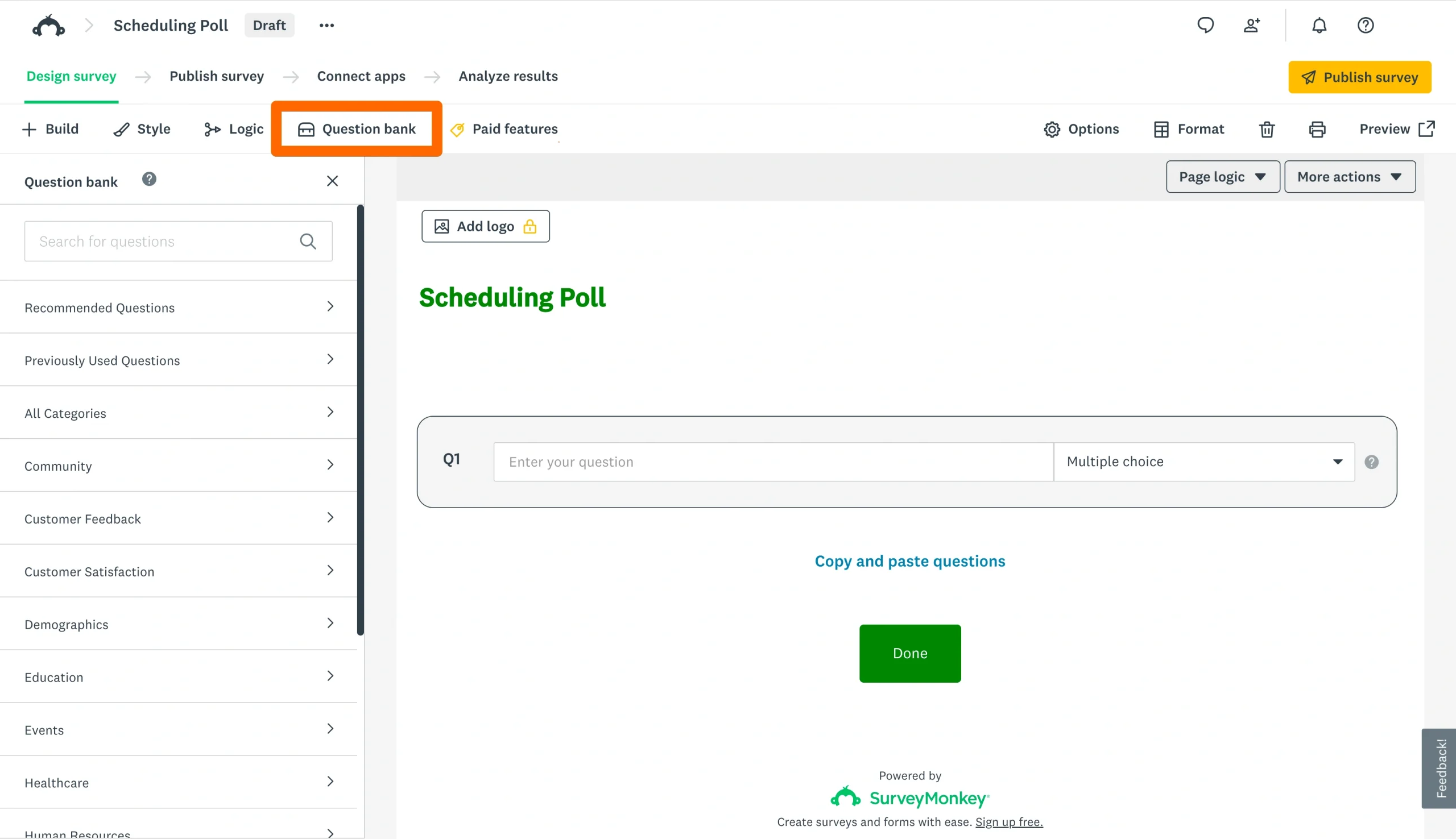
- Add your questions by clicking the Question Bank tab at the top and selecting from the panel on the left.
- Click Save after you add each question to save your updates.
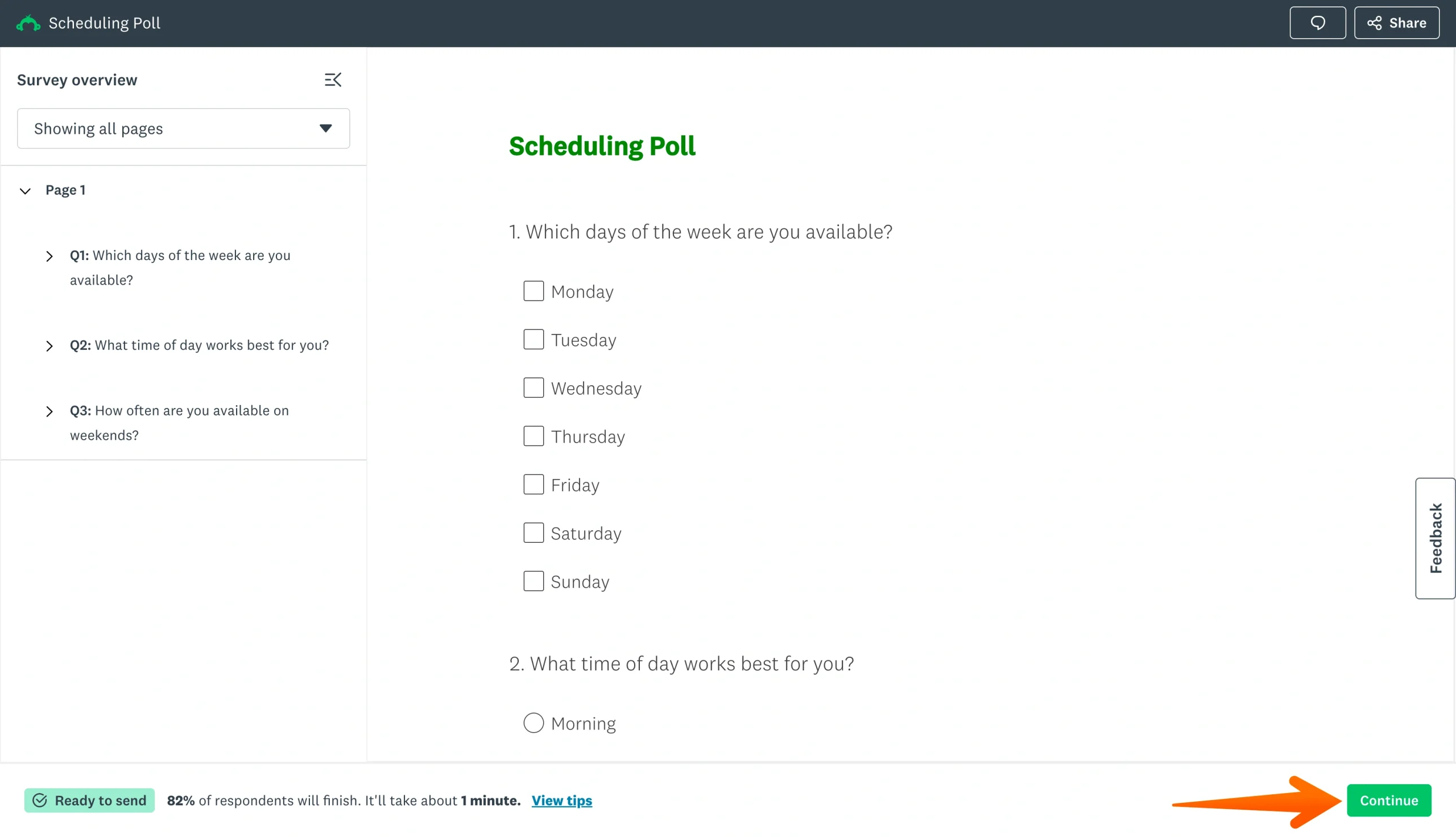
- After your questions have been added, click Preview Survey to review your form.
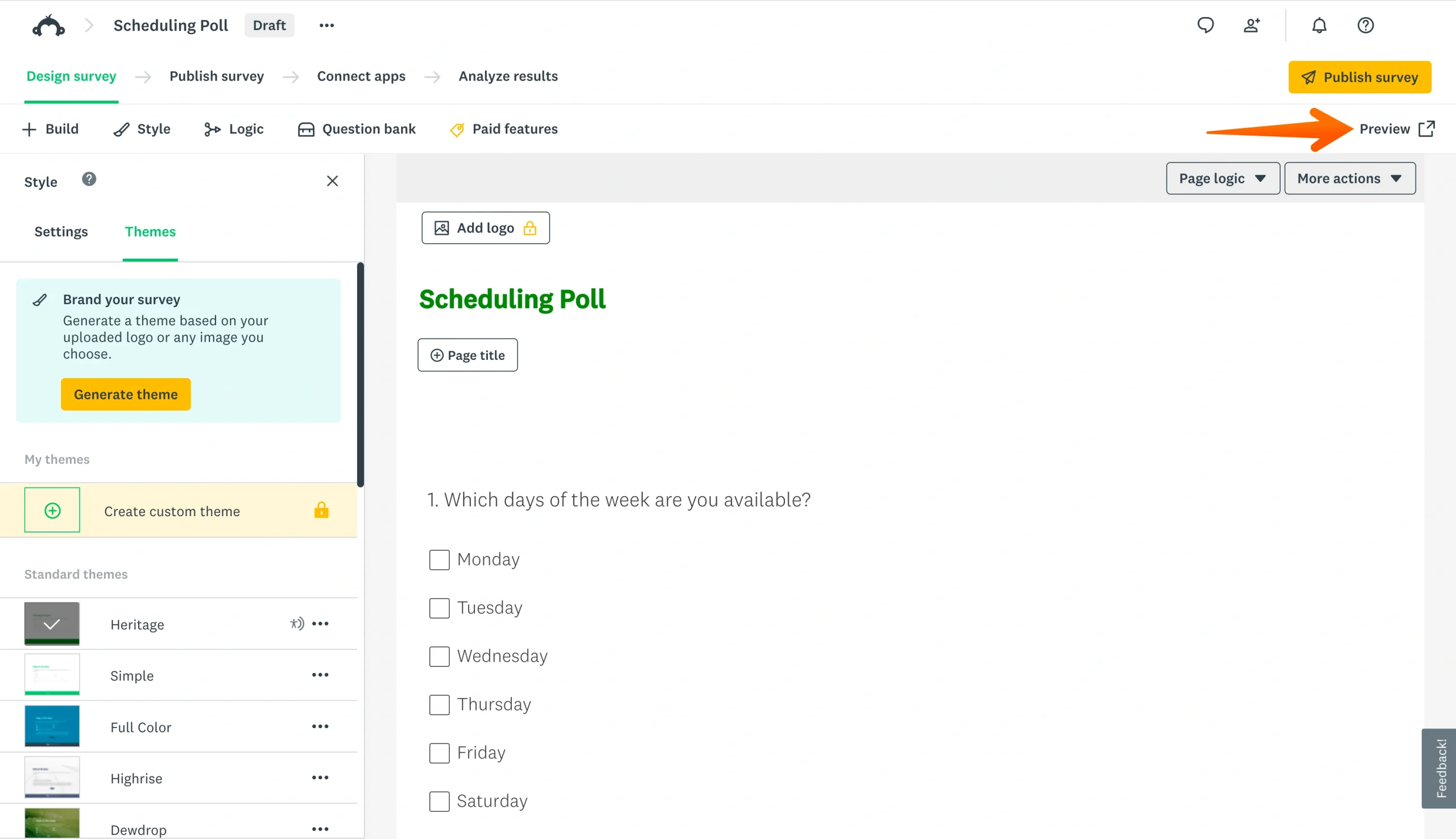
- Click Continue at the bottom of the screen once you’re satisfied with the survey.
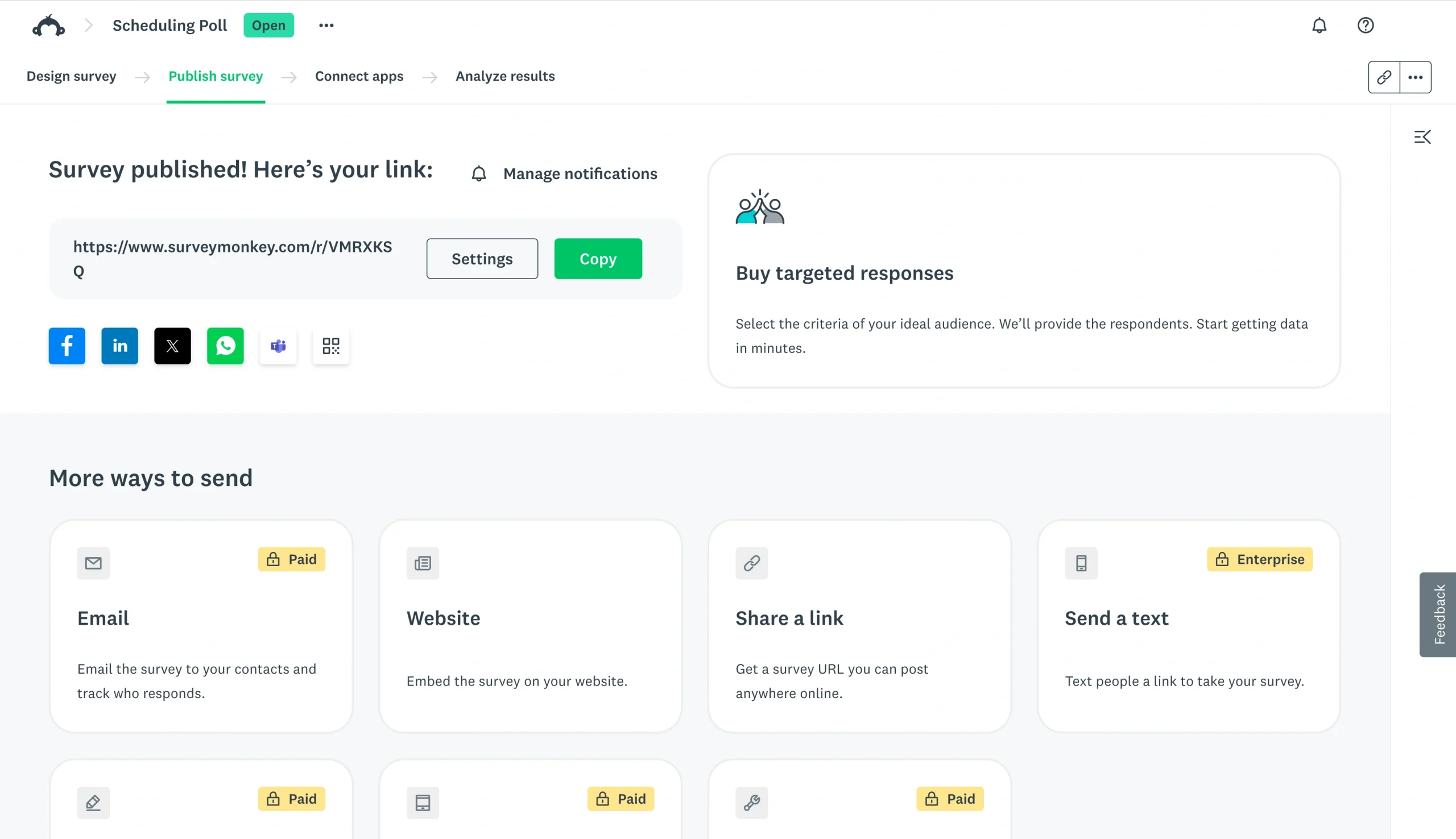
- Copy the link and share it with your attendees.
Prefer to skip right to editing? Here’s how to use a template instead:
- Open and log in to SurveyMonkey.
- Click the Create Survey button.
- Click Start from Template.
- Choose a template category, then preview templates by clicking on them.
- Once you’ve found your preferred template, click Use This Template.
- Edit your template to fit your needs.
- After your template is ready, click Preview Survey to review your form.
- Click Continue at the bottom of the screen once you’re finished.
- Share with your attendees.
After your scheduling poll has been completed and shared, just wait for responses to roll in and determine which time slot works best for the group.
But what if you prefer an alternative to SurveyMonkey, one that offers a robust free plan and user-friendly customization features? Jotform has all your scheduling poll needs covered.
How to create a scheduling poll with Jotform
Jotform makes it easy to create scheduling polls in minutes with its drag-and-drop form builder and more than 20,000 free online form templates. Let’s look at how you can use each of these methods to create the ideal poll in just a few clicks.
Here’s how to build a scheduling poll with Jotform from scratch:
- Open and log in to Jotform.
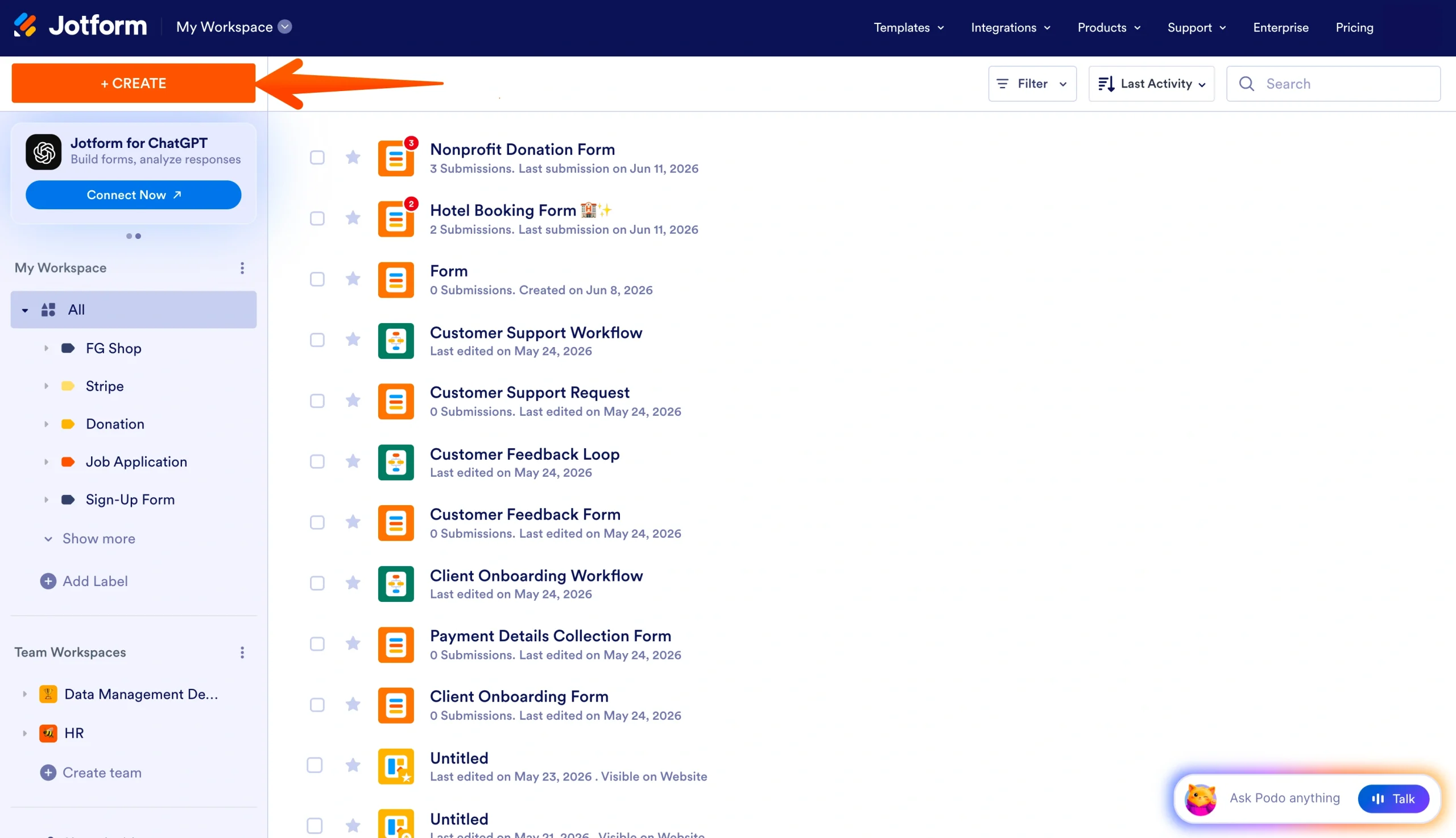
- Click the Create button in the top-left corner of your workspace.
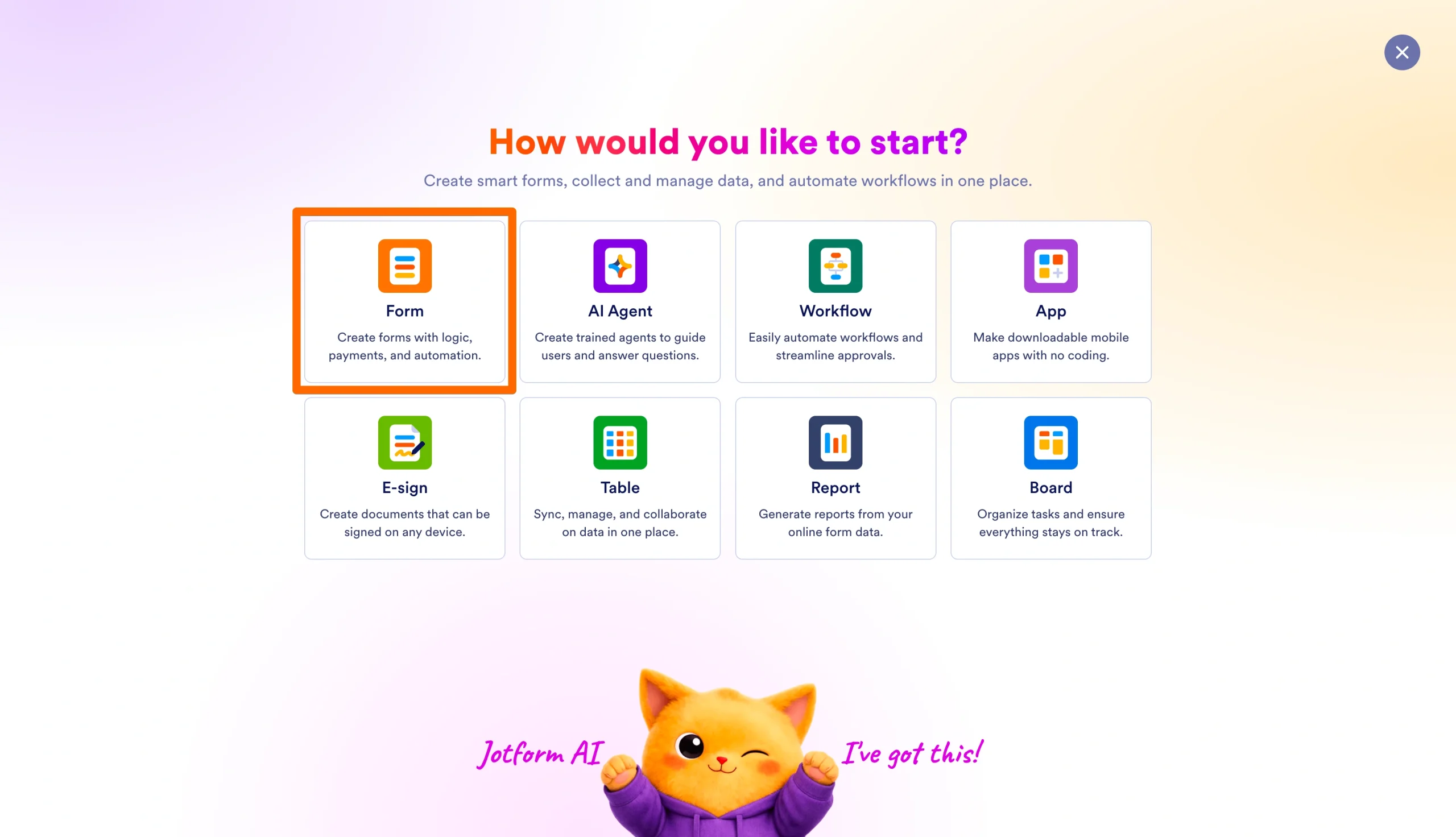
- Click the Form option.
- Click Start from Scratch.
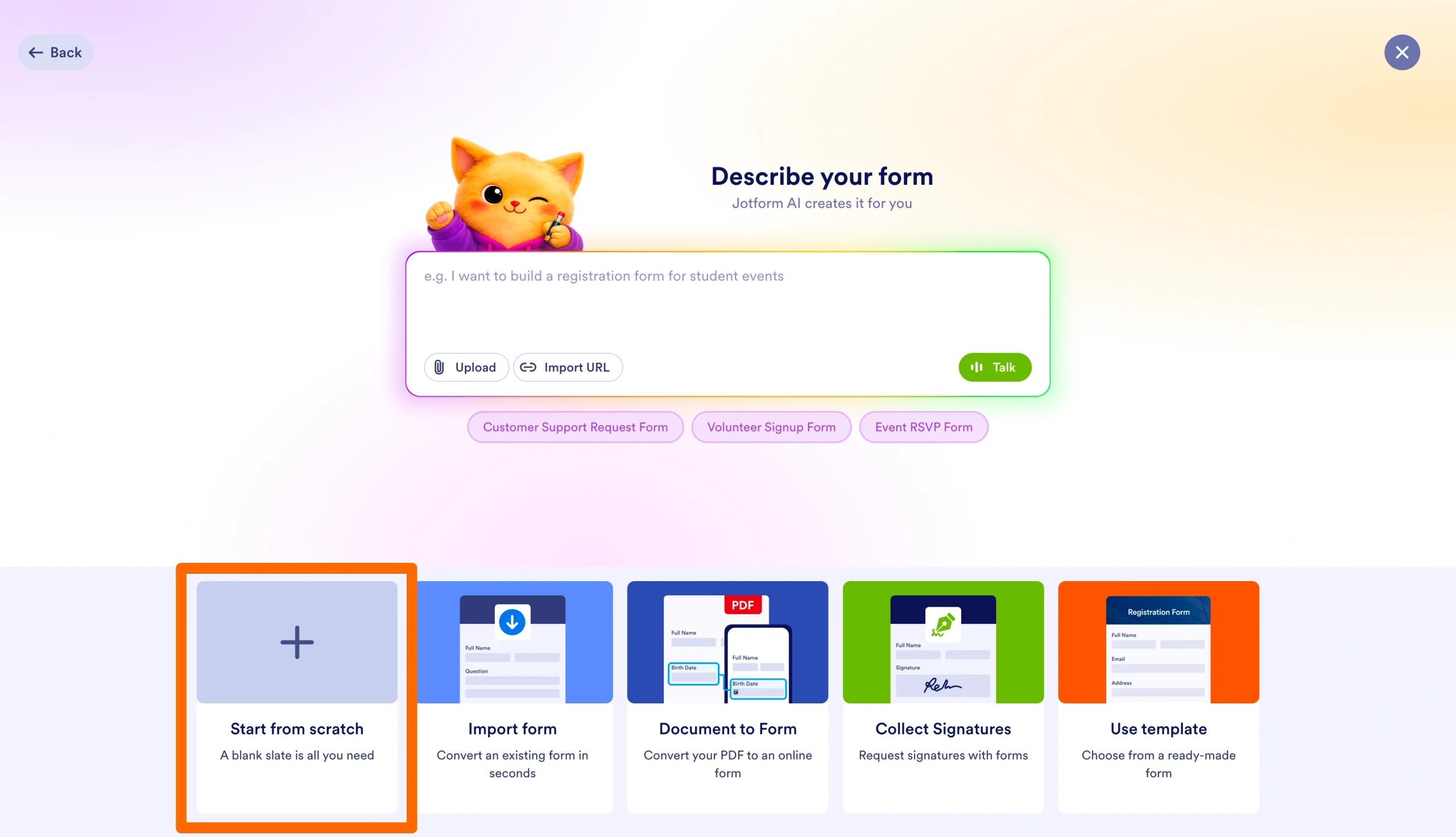
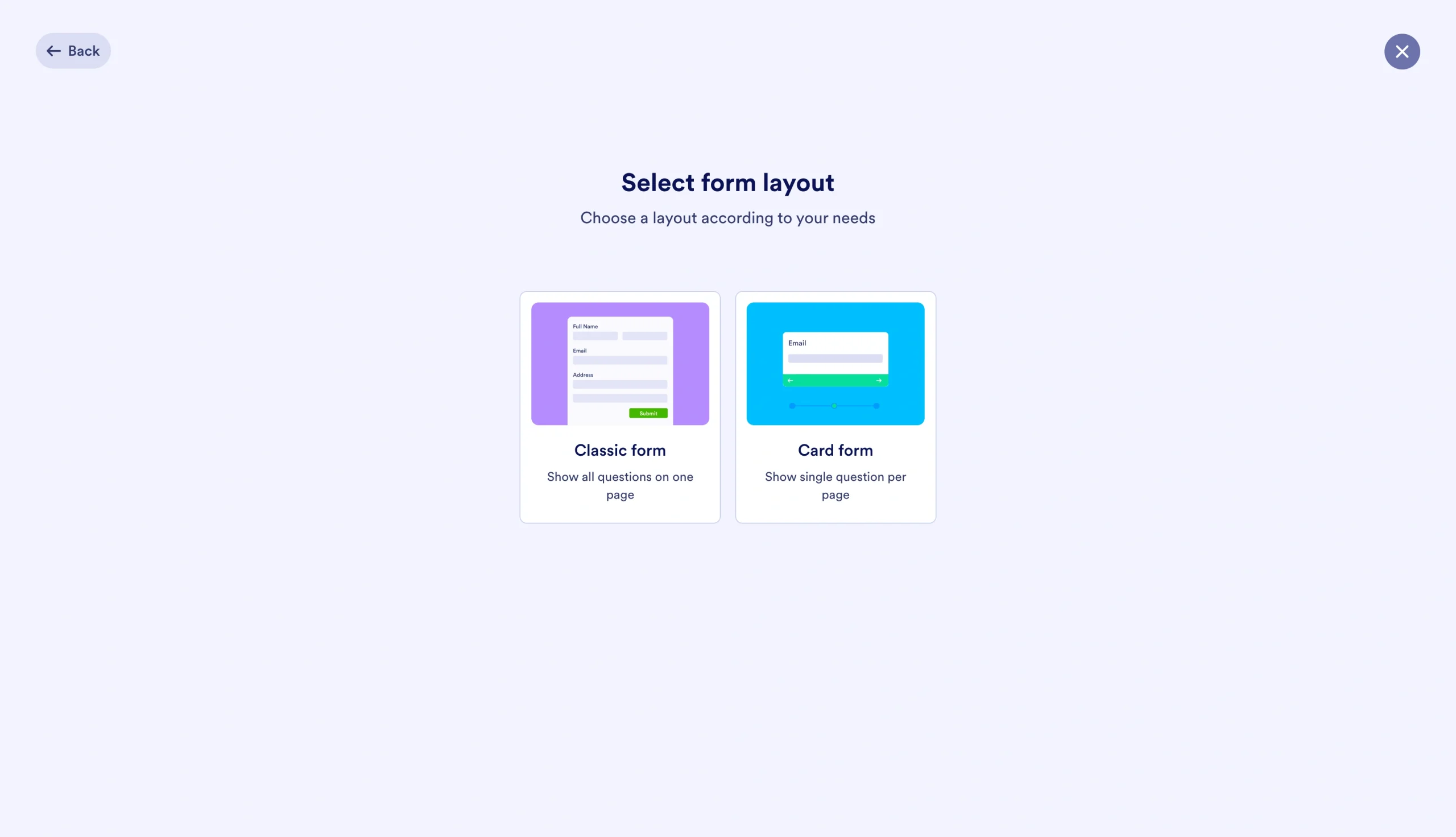
- Choose Classic Form or Card layout.
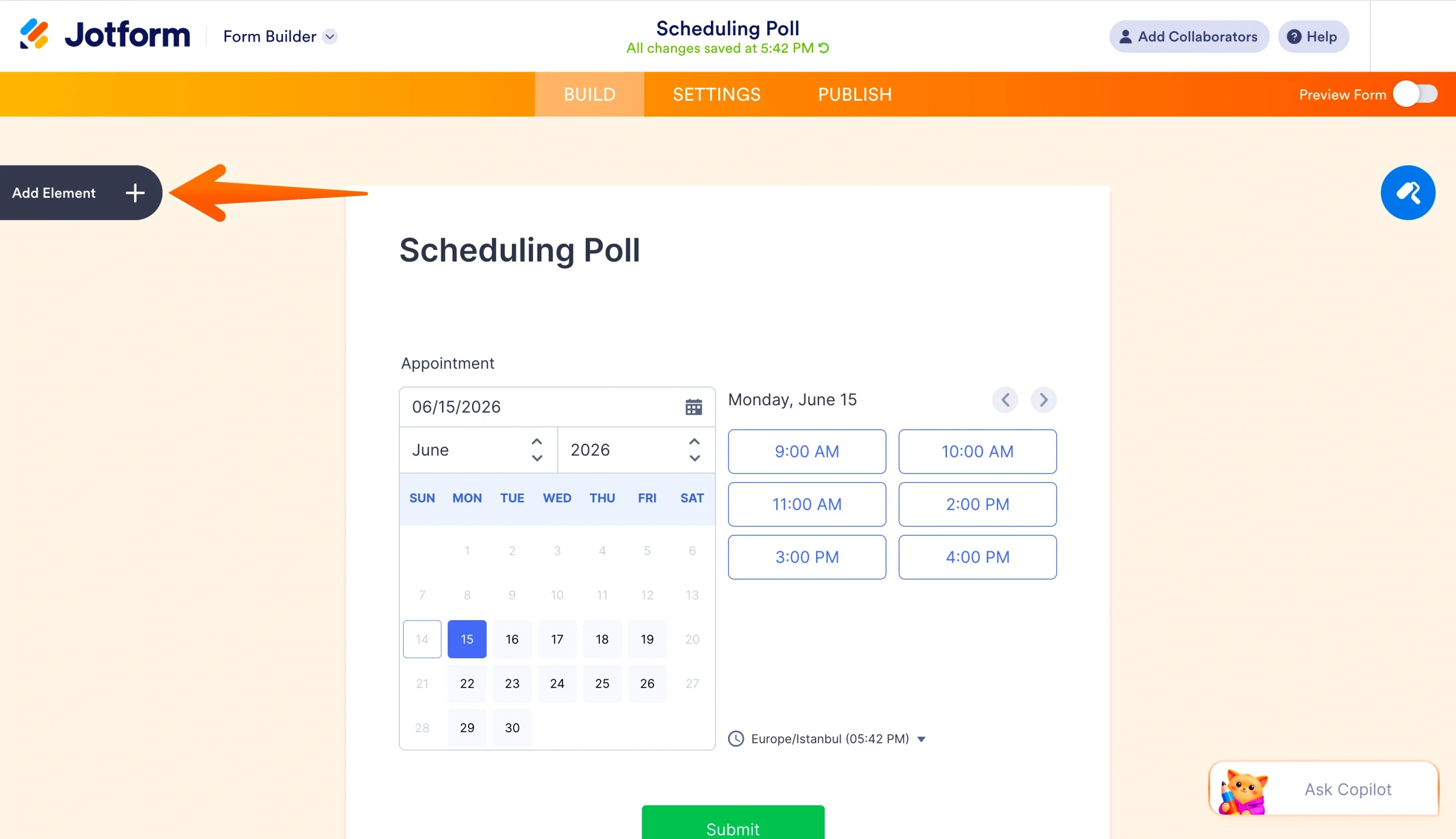
- Add a title to your scheduling poll by clicking the title box.
- Click the Add Element button on the left to open the Form Elements menu, then drag and drop your questions into place.
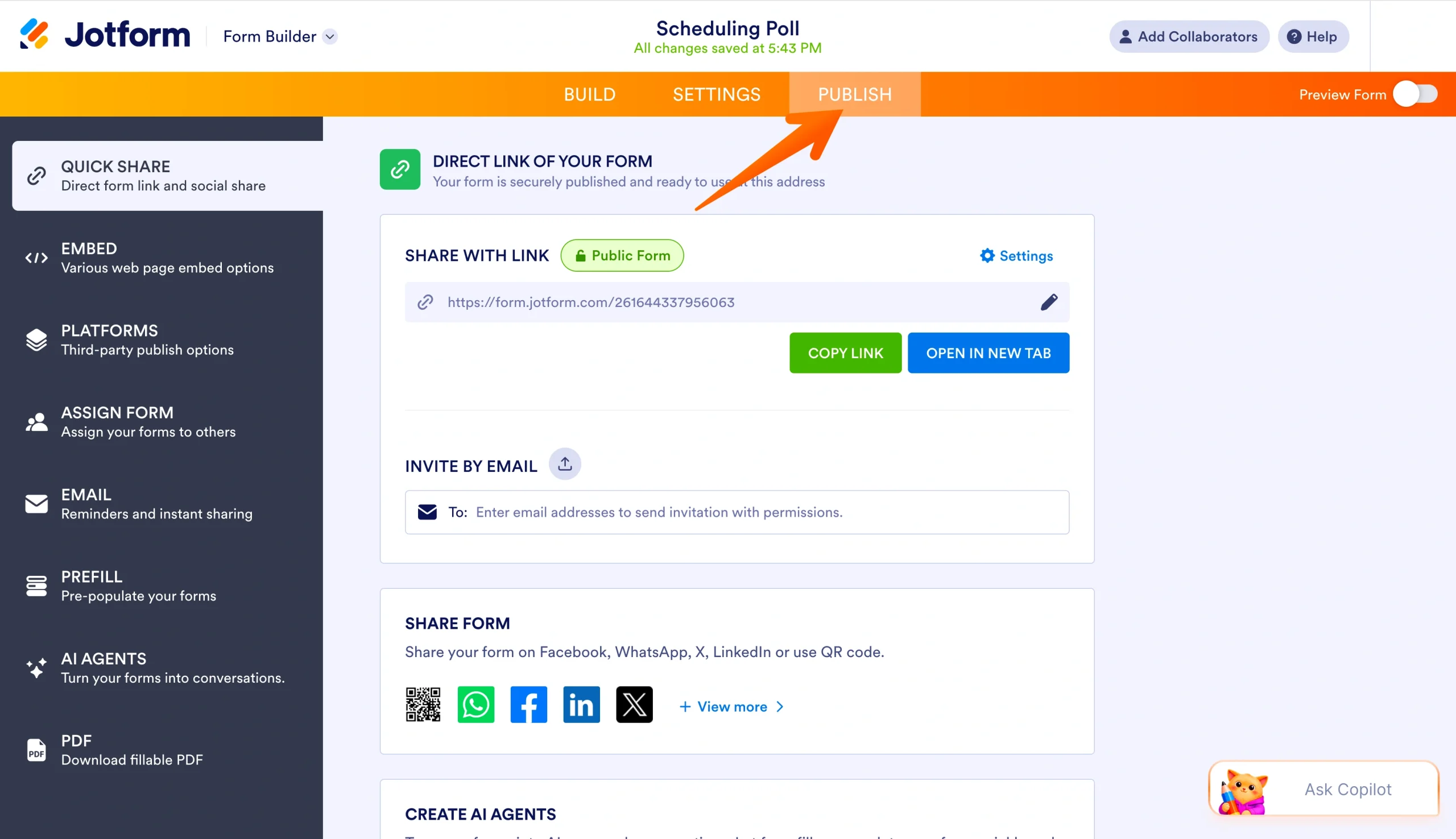
- Once you’ve finished adding your questions, click the Publish button in the top menu and choose your preferred sharing method.
You can also enhance your poll’s design by clicking the Form Designer button on the right-hand side of the Form Builder. If you prefer to work off a scheduling poll form template, follow these quick steps instead:
- Open and log in to Jotform.
- Click the Create button in the top-left corner of your workspace.
- Click the Form option.
- Click Use Template.
- Search for and choose your template by clicking on the Use Template button.
- Update your questions and design as necessary.
- Once you’ve finished, click the Publish button in the top menu and choose your preferred sharing method.
If a specific template catches your attention, you can also easily start using it by clicking the Use Template button on the template page.
Pro Tip
Get the custom poll design you want without additional work by using Jotform AI to instantly generate tailor-made forms based on your prompts.
Ease of use is just one of the benefits Jotform offers for those looking to streamline their scheduling process. This powerful form builder is part of the full Jotform suite of products, which provides access to other features that will take your forms to the next level.
Build advanced forms with Jotform
Fully streamlining your scheduling process requires more than just a basic form. That’s why Jotform offers a full suite of advanced features to make your polling process as smooth as possible.
To start, Jotform makes sharing your scheduling poll simple by letting you embed a survey in your website or send forms via email. These sharing features make it easy for attendees to access your form and submit their preferences.
As your respondents submit their answers, you can also manage this information using Jotform Tables. This tool lets you collect, organize, and sort responses to find your ideal meeting time faster. You can also connect your form to Jotform Workflows to create an automated scheduling workflow that eliminates administrative work.
Ready to start building your scheduling poll? Use the previous steps to navigate the SurveyMonkey form creation process. Or enhance the utility of your forms by trying Jotform for free today.
This article is for business teams, operations managers, administrative professionals, meeting organizers, and anyone who wants to simplify scheduling polls by comparing SurveyMonkey’s process with Jotform’s customizable form-building tools.





































































































Send Comment: