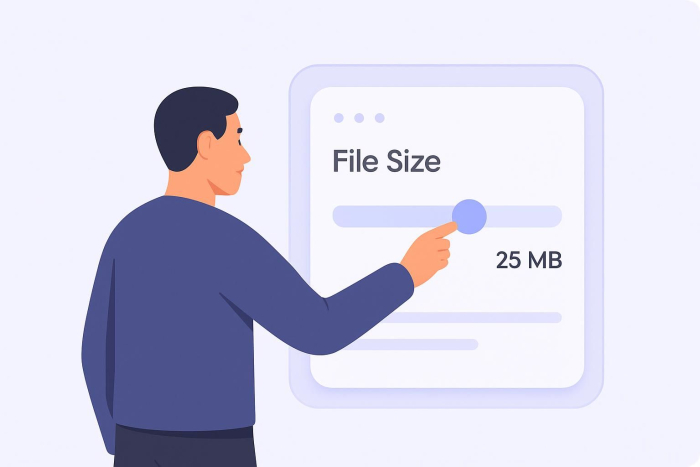
If you use WordPress to manage your website and have uploaded a high-resolution video, PDF, image, or audio file, you might have come across a message saying the file is too large. This message indicates you’ve reached your upload file-size limit, which can stop you from publishing important content.
WordPress doesn’t always control this limit. Your hosting provider usually does. Fortunately, you can increase your WordPress upload limit in minutes. Let’s explore how.
First, check your current upload limit
Before making any changes, you should first confirm your current upload limit. Doing this prevents guesswork and helps you confirm whether your fix will work. Here are two methods to check your current upload limit:
Method 1
- In your WordPress dashboard, go to Media → Add New.
- Below the upload box, you’ll see a line that says something like, “Maximum upload file size: 8 MB [or 32 MB].”
Method 2
- Go to Tools.
- Select Site Health → Info → Media or Server. (Here, you’ll find deeper configuration details.)
Look for these three key settings:
- upload_max_filesize
- post_max_size
- memory_limit
These values determine your actual upload cap. Upload_max_filesize shows the maximum file size allowed, while post_max_size represents the total size of post data. The memory_limit setting relays the memory available for processing.
If any of these settings is too small, it can trigger a “File too large” error, even if the other settings are at an adequate amount. For example, if upload_max_filesize is set to 64 MB but post_max_size is 32 MB, the lower value may block the upload.
Once you know your numbers, you can increase your maximum upload size on WordPress safely and correctly.
Fix 1: Increase upload limit via cPanel
You can use this method if your hosting provider gives you access to cPanel. Many shared-hosting and virtual private server (VPS) plans include access to it.
Working through cPanel is the simplest way to change PHP limits without touching core WordPress files.
Here’s how to increase your upload limit via cPanel:
- Log in to your hosting account and open cPanel.
- Look for a section labeled Select PHP Version or MultiPHP INI Editor (the name varies depending on your host).
- Inside that section, locate the following settings:
- upload_max_filesize
- post_max_size
- memory_limit
- Now, increase the values. For example:
- upload_max_filesize → 64 M
- post_max_size → 128 M
- memory_limit → 256 M
- Save your changes.
- Return to WordPress, go back to Media → Add New, and refresh the page to check whether the new limit appears.
Make sure that post_max_size is larger than upload_max_filesize, and that memory_limit is equal to or higher than both. If these settings are off, your uploads can still fail.
For many organizations, especially small businesses and nonprofits running shared hosting, this method solves the issue in under five minutes.
Note: If your host doesn’t offer cPanel, skip to Fix 2 or 4.
Fix 2: Use a WordPress plug-in
If editing server settings feels intimidating, you can try using a WordPress plug-in instead. This approach is simple and beginner friendly.
Follow these steps:
- In your WordPress dashboard, go to Plugins → Add New.
- Search for Increase Upload Limit, and install and activate a reputable plug-in.
- After activation, navigate to Media → Increase Upload Limit.
- Choose a new limit from the dropdown menu and click Save.
That’s it.
For many users, this resolves WordPress upload size issues quickly, without the need to touch technical files.
However, plug-ins can modify limits only if your hosting provider allows PHP overrides. If the server has restrictions, the plug-in won’t be able to change the WordPress file upload limit settings at the root level.
If you can’t use the WordPress plug-in to change your limit, that’s a clear indication that your host controls the cap. See Fix 4.
Fix 3: Edit .htaccess (for Apache servers only)
This method works only if your site runs on an Apache server. The fix will not work on NGINX servers. If you’re unsure of which type of server you’re using, contact your hosting provider before proceeding.
To adjust your WordPress configuration manually, follow these steps:
- Access your website files using a File Transfer Protocol (FTP) site or your hosting provider’s file manager.
- Locate the .htaccess file in your WordPress root directory.
- Open it, and paste the following code at the bottom:
nginx
CopyEdit
php_value upload_max_filesize 64M php_value post_max_size 128M php_value memory_limit 256M php_value max_execution_time 300 php_value max_input_time 300
- Save the file, and reupload it if you’re using an FTP site.
- Go back to your WordPress dashboard and navigate to Media → Add New, to confirm the new upload limit.
If you immediately see a “500 Internal Server” error after saving, your hosting provider likely does not allow PHP configuration edits through .htaccess. Simply remove the added lines and restore the file.
When PHP configuration is allowed, this method directly updates server-level settings.
Fix 4: Contact your hosting provider
Sometimes the simplest solution is asking for help. Many hosting companies restrict PHP settings on shared plans for security and performance reasons. If you’ve tried adjusting the upload limit settings yourself and nothing changes, your hosting provider is probably enforcing the limit.
Reach out to the support team with a clear request. You can copy and paste this message:
Hi, I’m getting a ‘File exceeds maximum upload size’ error on my site. Could you raise my PHP upload limits to 128 MB or higher?
Most support teams can make this adjustment quickly. Some hosting providers even offer a one-click PHP settings tool inside their dashboard that lets you increase limits without editing files.
Bonus: MultiSite? Don’t forget this setting
If you’re running WordPress MultiSite, there’s one more fix you can try to adjust your upload limit. Even when your server settings are increased, the network configuration sometimes can still cap uploads.
To adjust it:
- Go to Network Admin → Settings.
- Scroll down to Max Upload File Size.
- Enter a higher value (in KB).
- Save your changes.
Note: You can use this fix only if your server limits are already raised. Network settings cannot exceed what your hosting environment allows.
Ignoring the network settings is a common oversight, especially for educational institutions or enterprises that run multiple sites under a single installation.
Why upload limits matter for organizations
For individuals running a personal blog, upload limits can be inconvenient. However, for organizations, they can disrupt operations.
Small businesses frequently upload product catalogs, brochures, promotional videos, and branded PDFs. Similarly, educational institutions upload training materials and recorded lectures on a daily basis.
When your WordPress media upload size is too small, workflows related to these tasks can stall.
Many organizations also use tools like Jotform alongside WordPress to register individuals and collect documents, payments, and survey responses. If you have added a Jotform plug-in to your WordPress site for client onboarding or student registration, these server limits can affect file submissions.
While form file-size settings are separate from WordPress media upload settings, both rely on server configurations. That’s why understanding how to increase your WordPress upload size limit properly is so important.
Which fix is right for you?
Running into upload errors can be frustrating, especially when you’re on deadline. However, solving the problem may take just a few steps.
Whether you’re running a small business website or handling healthcare documentation, if you know how to adjust your WordPress upload size settings properly, you can ensure that your site runs smoothly, without any technical roadblocks.
Here’s a simple way to choose the right troubleshooting method for your issue:
- Use cPanel if you have shared or VPS hosting with PHP controls.
- Use a WordPress plug-in if you can’t access server settings and want a simple solution.
- Use .htaccess if you’re on an Apache server and have FTP access.
- Contact your hosting provider for support if the first three options don’t apply to you.
Remember, there is no “good” upload limit when it comes to WordPress. It depends on your business needs and scaling opportunities. For most businesses, 64–128 MB is sufficient. However, if you frequently upload high-definition videos or large design files, you may need 256 MB or more.
This article is for WordPress site owners, marketers, and admins who regularly upload large media files, like high-resolution videos, PDFs, audio, or product catalogs, and keep hitting the “file is too large” wall.


















































































Send Comment: