
Adding Google reviews to your WordPress website is easy, even though no native Google integration lets you display them automatically. Instead, to add reviews to WordPress, you’ll need a plug-in, a widget, an embed, or a manual method.
Each method has its pros and cons, and I’ve tested each below, shown you what it looks like on my own site, and explained how to do it with a step-by-step guide. I’ve also shared insights into why each method works.
As someone who works exclusively on WordPress websites and owns three built on WordPress, my favorite all-around solution is the free, no-code website widget.
Let’s get into the four methods for adding Google reviews to WordPress.
Option 1: Use a WordPress plug-in (easy, no-code method)
Using a plug-in is a straightforward way to add Google reviews to WordPress.
You simply install a reviews plug-in from the WordPress directory and connect it to your Google Business Profile.
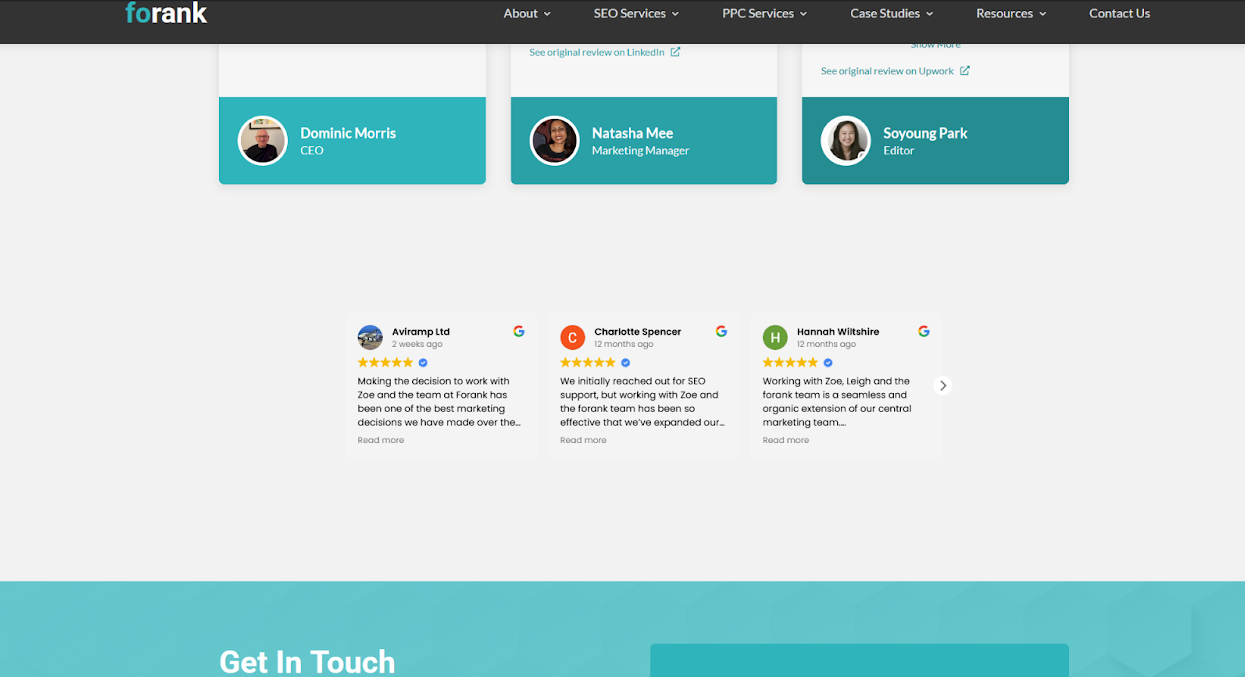
The WordPress Google reviews plug-in, Widgets for Google Reviews by Trustindex, looks like a popular and well-reviewed choice.
Some downsides of plug-ins include limited functionality in freemium models. For example, Widgets for Google Reviews allows only one widget on the freemium model. If you want widgets across multiple pages, you’ll need to pay more. You also must pay for useful features like review shortening or customizable designs.
Here’s what Widgets for Google Reviews looks like on my site:
Here’s how you add plug-ins:
- Visit the WordPress directory and choose a Google reviews plug-in.
- Go to your WordPress dashboard > Plug-ins > Add New, then search for your chosen plug-in > Click Install now
- From the plug-ins menu, go to Installed Plug-ins > Search for the plug-in you just installed > Activate
After step 3, the next steps depend on your chosen plug-in. After activating the plug-in, follow the setup instructions. Most plug-ins ask you to enter your Google Places API key or connect your Google Business account by typing in the business name or pasting the map URL.
Once done, you add a short code (such as HTML or shortcode) to your website to display Google My Business reviews on WordPress.
Why this works
- No coding required
- Automatically syncs new reviews
- Customizable layouts and styling, but only if you pay
Pro Tip
If using WordPress or plug-ins feels complicated, read this Jotform article: How to use WordPress. It introduces the CMS and how it works. You might just need a bit of time to get the WordPress basics down before you add your own reviews.
Option 2: Use a Google reviews widget for WordPress (recommended free method)
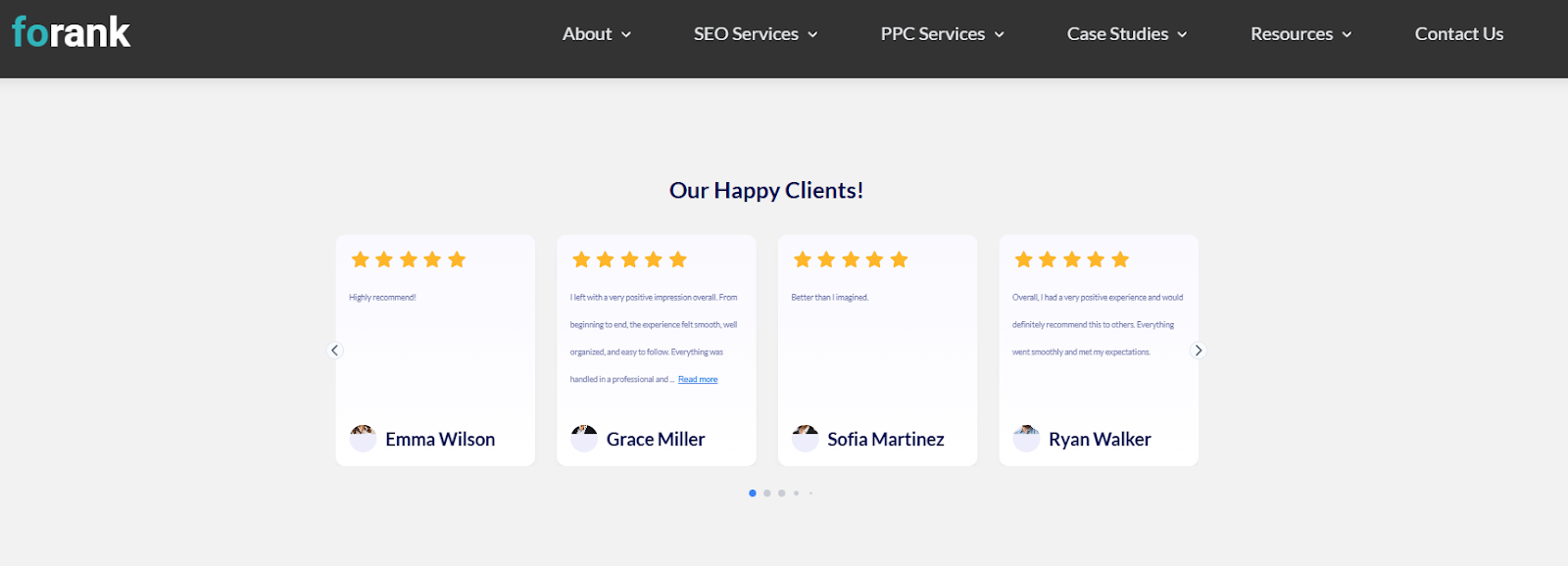
Jotform’s Google reviews widget is my favorite method. With it, you can display Google reviews on WordPress; you don’t need any coding skills, and it’s free.
It’s as easy as using a WordPress plug-in, and it’s free forever — and yes, that includes features like customization you often pay for with plug-ins.
Here’s what my customized widget looks like on my website:
Here’s a step-by-step guide showing how you use this Google reviews WordPress widget:
Step 1: Log in to Jotform and view My Widgets
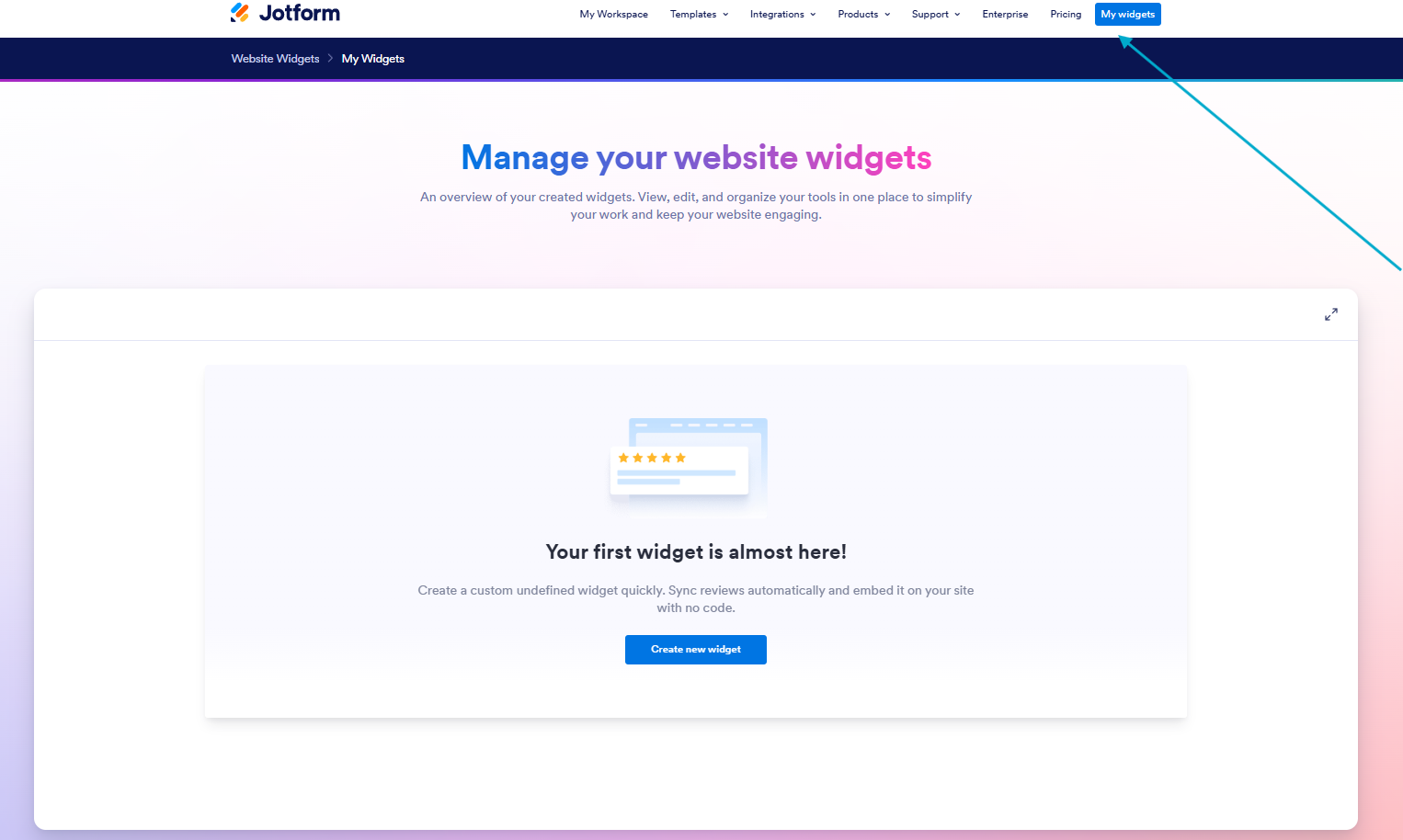
First, you need to log into Jotform, head to My Widgets; then click Create new widget.
Step 2: Customize your widget

Next, you can fully customize your widget, including
- Widget width
- Style of widget (for example, carousel, columns, grid, and so much more)
- Widget header (on or off)
- Header size
- Headings
- Review details (include names, ratings, or not)
- CTA button
- Content
- Button and text colors, so it matches your brand
Once you’ve customized your widget, click Try it on your website for free.
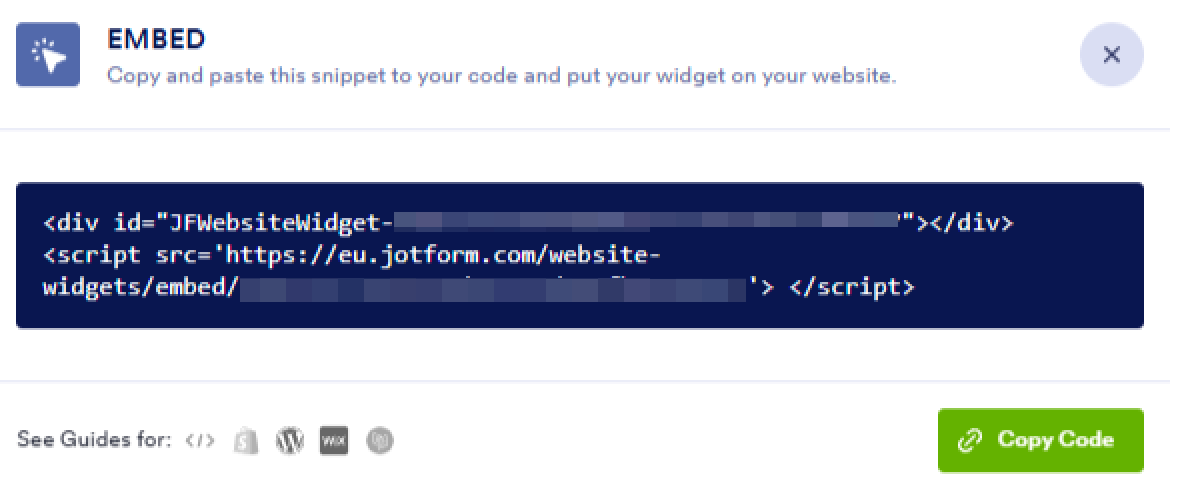
Step 3: Copy the embed code and paste it on your website
Pro Tip
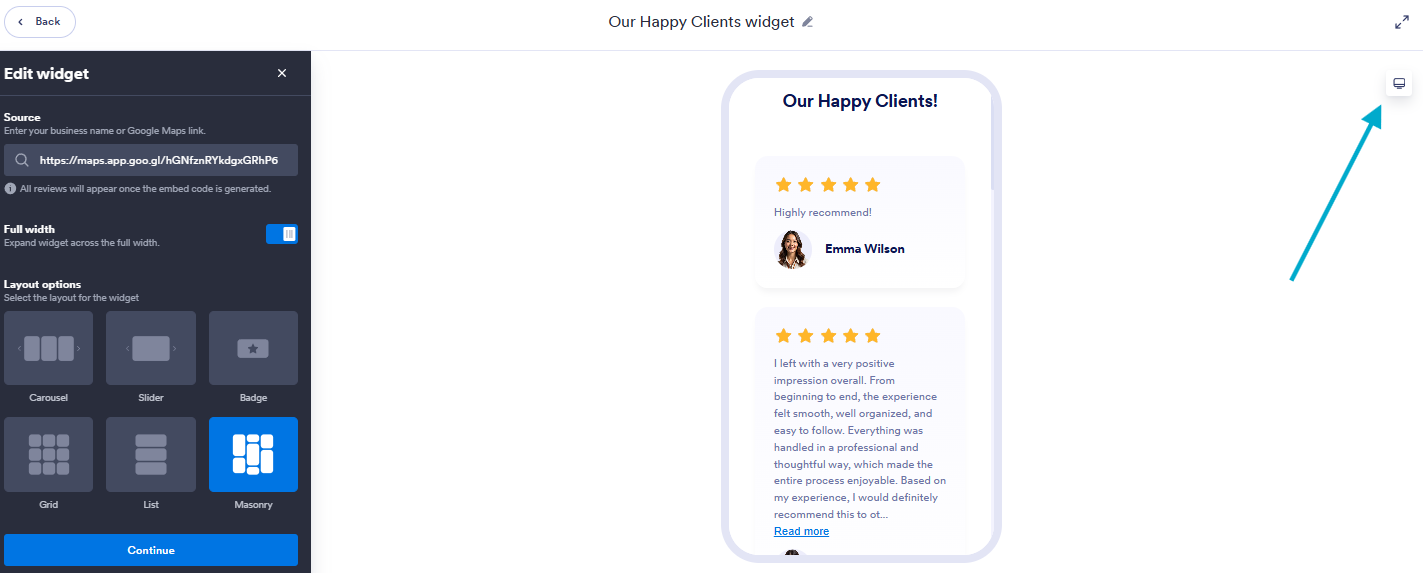
Jotform’s widget editor lets you preview how your widget looks on desktop and mobile, so you get the right look and feel for every device before you publish. All you need to do is toggle the view in the top right corner.
The following screenshot shows where the device toggle is:
Why this works
- Completely free forever, even with customization options
- No plug-in installation required
- Works with any theme and many editors, including popular choices like Gutenberg, Elementor, Divi, and more.
Option 3: Manually add Google reviews to your WordPress website
Manually adding Google reviews to your WordPress website is an option.
Here’s what my manually added reviews look like on my site:

Manually adding reviews is a good method when you want complete control over the reviews you feature, and you can style them however you like; however, well-styled reviews may need some coding skills. My review widget was styled by a professional developer.
This way of sharing reviews isn’t ideal as the only option.
Why?
Reviews like this won’t update dynamically, and unless you know how to add schema, the content may not be recognized as reviews by Google, so they offer no benefit to your SEO.
On the plus side, adding reviews like this is easy.
- Visit your Google Business profile, select the reviews you want to display, and copy the text
- Copy your selected Google reviews
- Paste them into an on-brand testimonials section
Pro Tip
Create a new section designed for testimonials on your WordPress page. Use columns, quote blocks, and star icons, and feature the person’s name, job title, and image to add review credibility.
Why this works
- It gives you complete control over which reviews appear.
- No tools or plug-ins are required, and you can build it on a WordPress site with basic drag-and-drop functionality.
- Implementation can match your brand and website style.
Option 4: Embed Google maps on your WordPress website
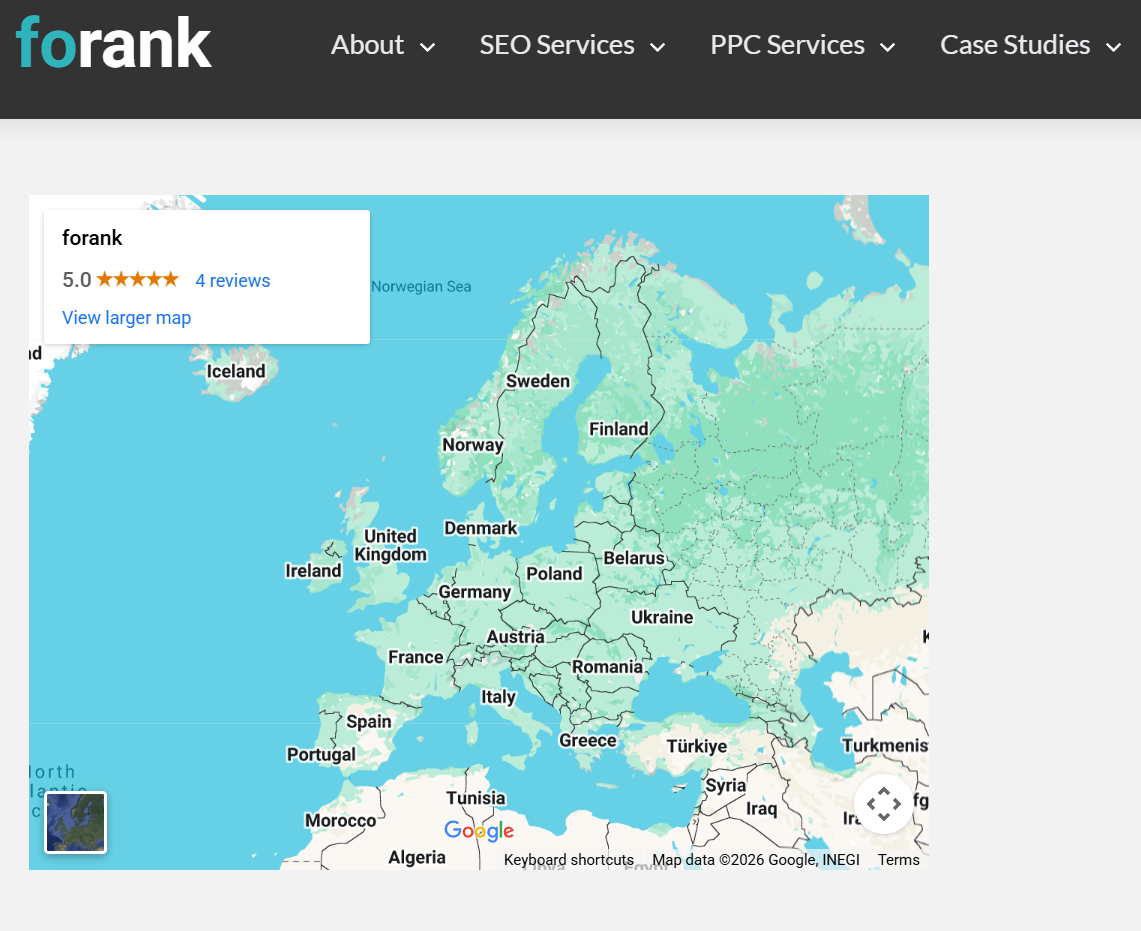
Another simple option is to embed your Google Maps business listing, which will display Google reviews on WordPress — but only your star rating, not the full review text.
I added an embed to my website, so you can see what it looks like:
Here’s how you do it:
- Search for your business listing on Google Maps
- Click Share, then Embed a Map
- Copy the provided iframe embed code
- Paste the code into the HTML section of your WordPress site
Pro Tip
It’s very easy to copy the link for sharing rather than the HTML embed code. You must click Embed a Map, outlined in step two.
Why this works
- Shows your official Google, which may be more easily trusted since it’s added by customers onto Google.
- Extremely easy to implement, Google Maps embeds can be added to any WordPress site without complex development work.
- Supports SEO, especially local SEO, as you’re communicating who you are and what people say about you to Google, using Google tools.
Extend your WordPress site with flexible, no-code website widgets
Adding Google reviews with Jotform is one way to build trust and boost conversions with easy-to-implement, no-code solutions.
Better, if you can use Jotform’s review widget, you’ll experience no issues using Jotform’s Website Widgets to enhance your WordPress site even further.
Start by adding the review widget and then try AI Chatbot Widgets to answer visitor questions instantly or form widgets for lead capture, bookings, and feedback. All widgets work seamlessly with any WordPress theme and popular WordPress page builders like Gutenberg, Elementor, and Divi.
You simply copy and paste the embed code. No plug-in required. It’s too easy not to try it.
This article is for small business owners, local service providers, freelancers, e-commerce store owners, bloggers, and marketers using WordPress who want to build trust, improve conversions, and strengthen local SEO by displaying Google reviews on their website.


























































































Send Comment: