If you run a WordPress website, there may be times when you want to share PDFs with your visitors — whether it’s a form, contract, brochure, menu, or something else. The good news is that there are a few different ways to embed PDFs into your site, both with and without a plug-in.
In this article, we’ll walk you through four easy, reliable methods for embedding a PDF in WordPress, and when each option makes the most sense. By the end, you’ll know exactly how to choose the right approach and get your PDF live.
Method 1: How to embed a PDF in WordPress using the Gutenberg Block Editor
You don’t always need a plug-in to embed a PDF in WordPress — you can actually do the job using WordPress’ native layout tool, the Gutenberg Block Editor. This method is easy and intuitive, even if you don’t have a deep understanding of how to use WordPress.
However, there are a couple of downsides to this method: You don’t have full control over how the PDF is displayed, and the PDF preview may depend on your browser and its settings. This method is best for situations when the viewing experience doesn’t matter quite so much.
Here’s what you need to do:
- Open WordPress and go to the post or page where you want to embed the PDF.
- Click + Block Inserter and search for and click on File. Click Upload and select the PDF you want to embed from the Media Library. You can also upload a PDF file from your computer.
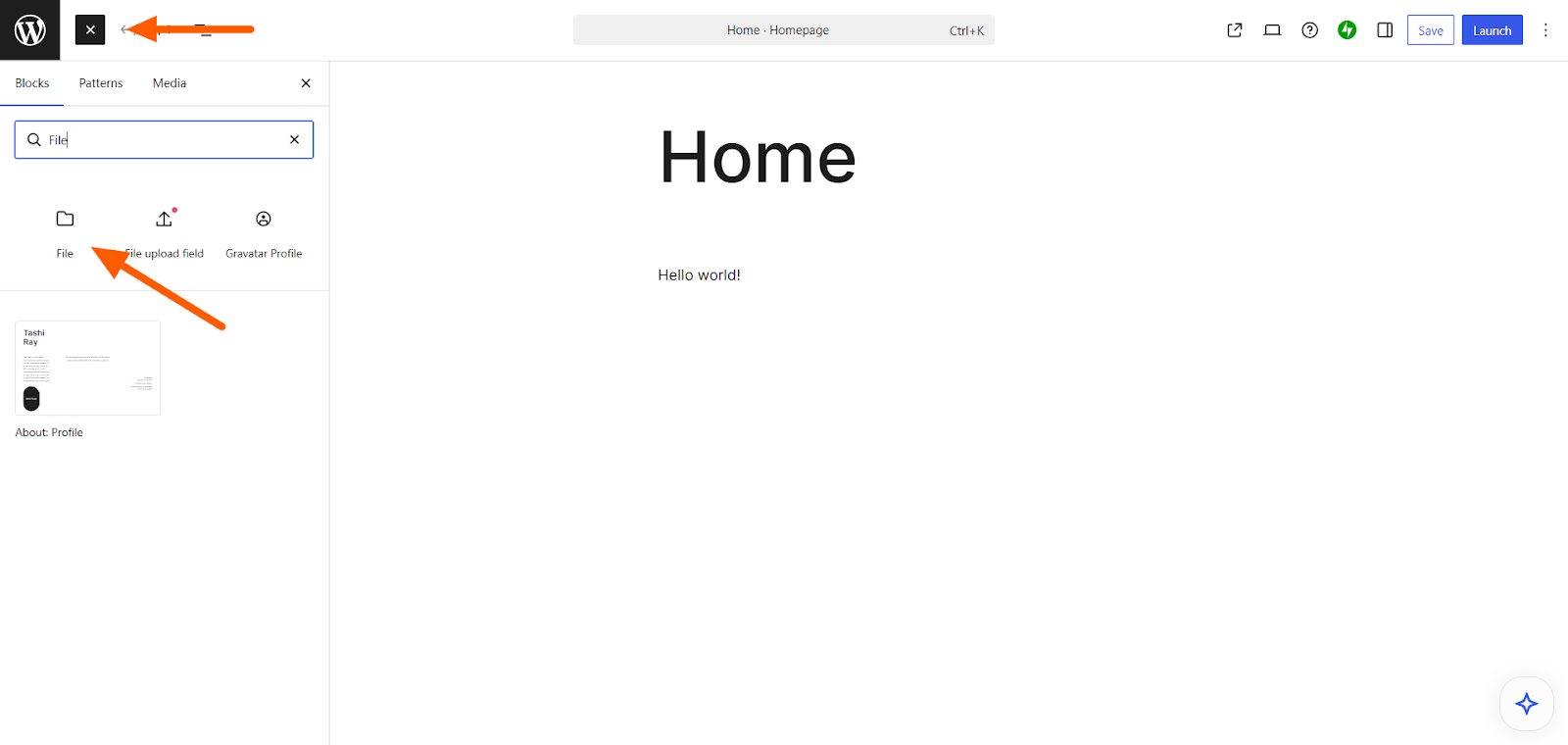
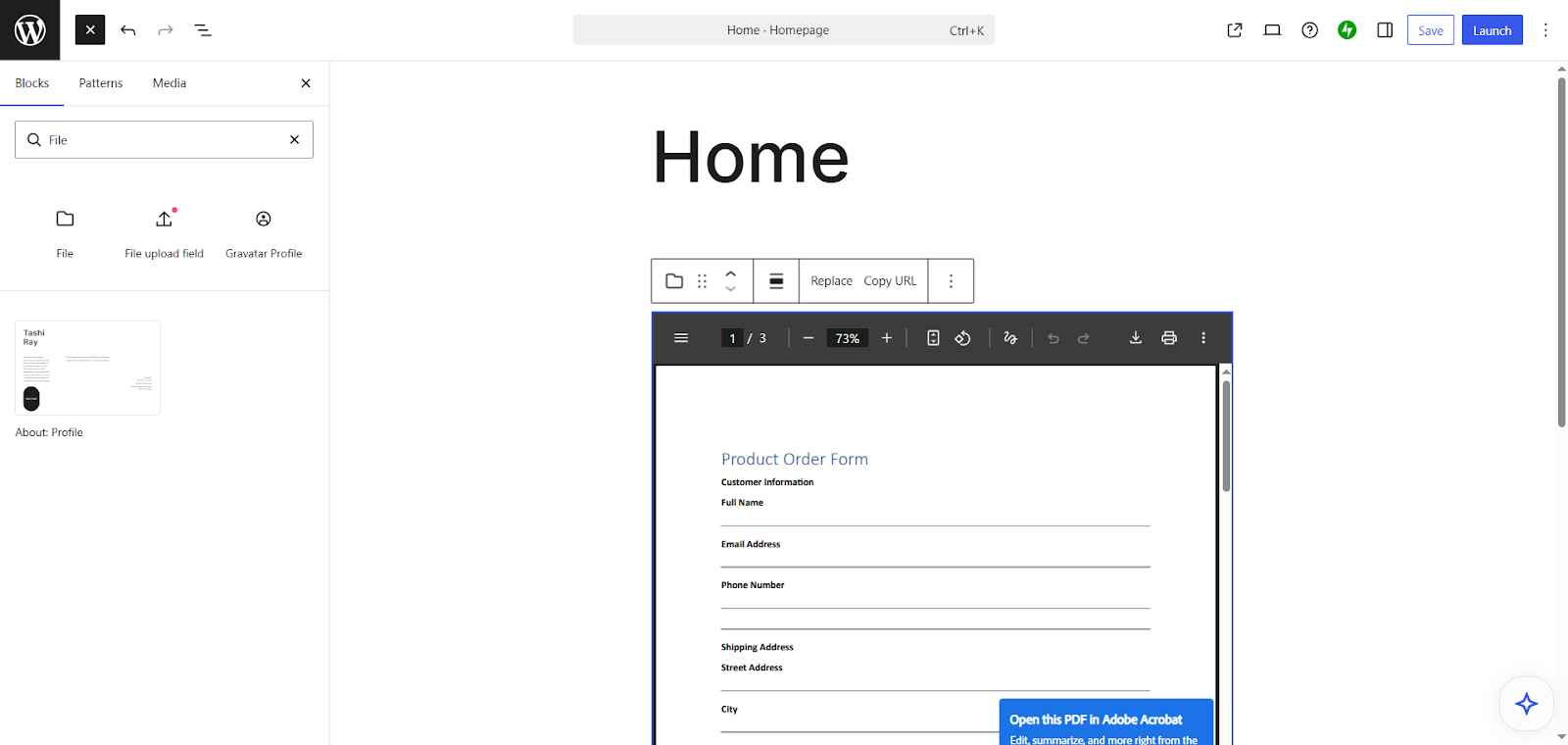
- The Gutenberg Block Editor will then embed the PDF into WordPress for you, and provide a download link for users as well.
Method 2: How to embed a PDF in WordPress using a plug-in
Plug-ins extend the functionality of WordPress, and there are several that can enhance the process of embedding PDFs into your website.
If you’re looking to go beyond simple document viewing and create a more polished, user-friendly experience, the plug-in method is a solid option. Just keep in mind that you’ll need to be on a paid WordPress plan to install, configure, and use plug-ins.
Some popular plug-in options include:
- PDF Embedder plug-in: This gives you more flexibility around the PDF’s appearance, so you have full control over its dimensions and device responsiveness.
- Dear Flipbook plug-in: This enables you to turn your PDF into an immersive 2D or 3D flipbook.
- Document Embedder plug-in: This includes advanced features such as search, filter, and sorting options for the PDF in addition to a responsive design.
Pro Tip
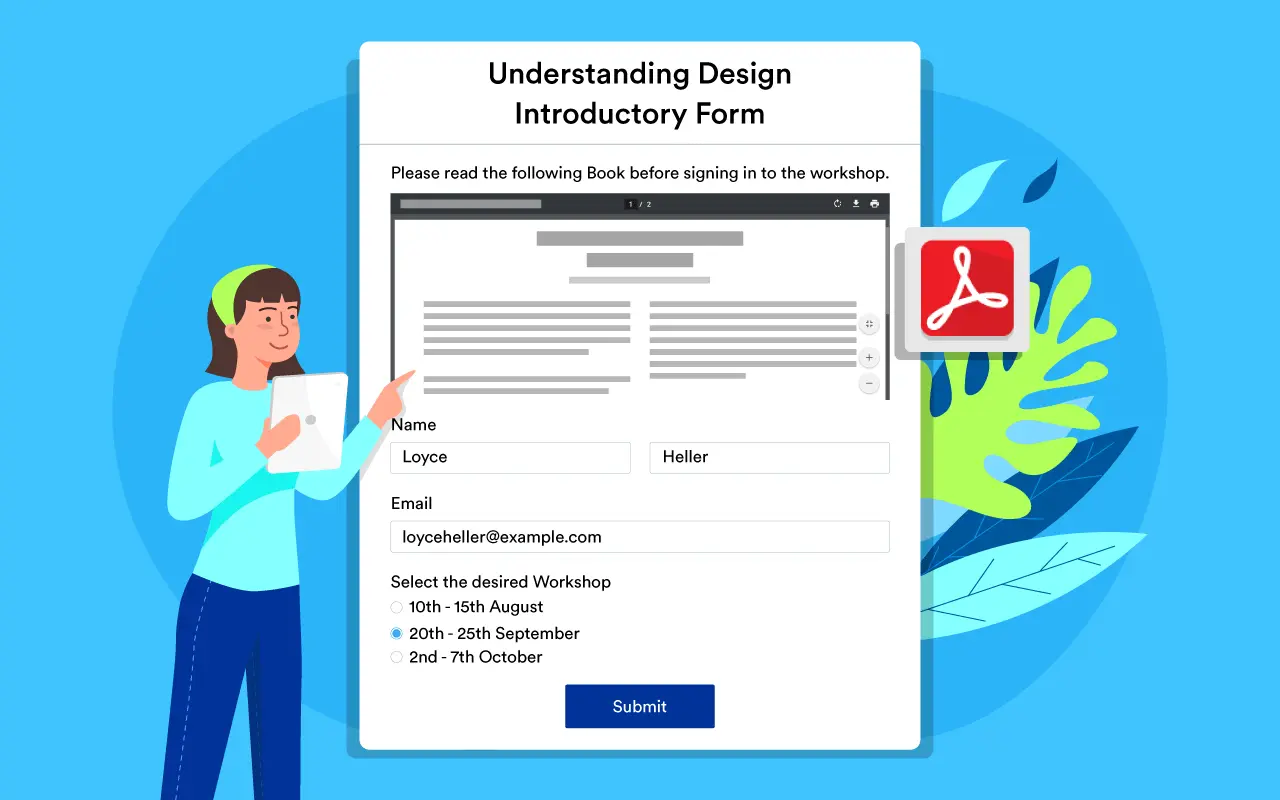
Plug-ins aren’t the only tools that help you go beyond the basics of PDF embedding. Jotform offers an easy way for you to convert fillable PDF forms into online forms which can be embedded into your WordPress website. You can also use Jotform’s PDF Embedder Widget to upload and embed PDF documents to display directly within a form.
Method 3: How to embed a PDF in WordPress using iFrame code
Another way to embed WordPress forms, contracts, and other types of PDF documents is using iFrame code.
Short for inline frame, an iFrame code enables you to embed content from another webpage inside your current one. This method is best when the PDF is hosted elsewhere, when you don’t need advanced viewing customizations, or when you want to avoid using a plug-in.
The general process is this:
- Upload the PDF to the Media Library in WordPress
- Copy the file URL, add a Custom HTML Block
- Then, paste the iFrame embed code with the PDF URL into WordPress
This process can be complex if you’re not accustomed to working with code.
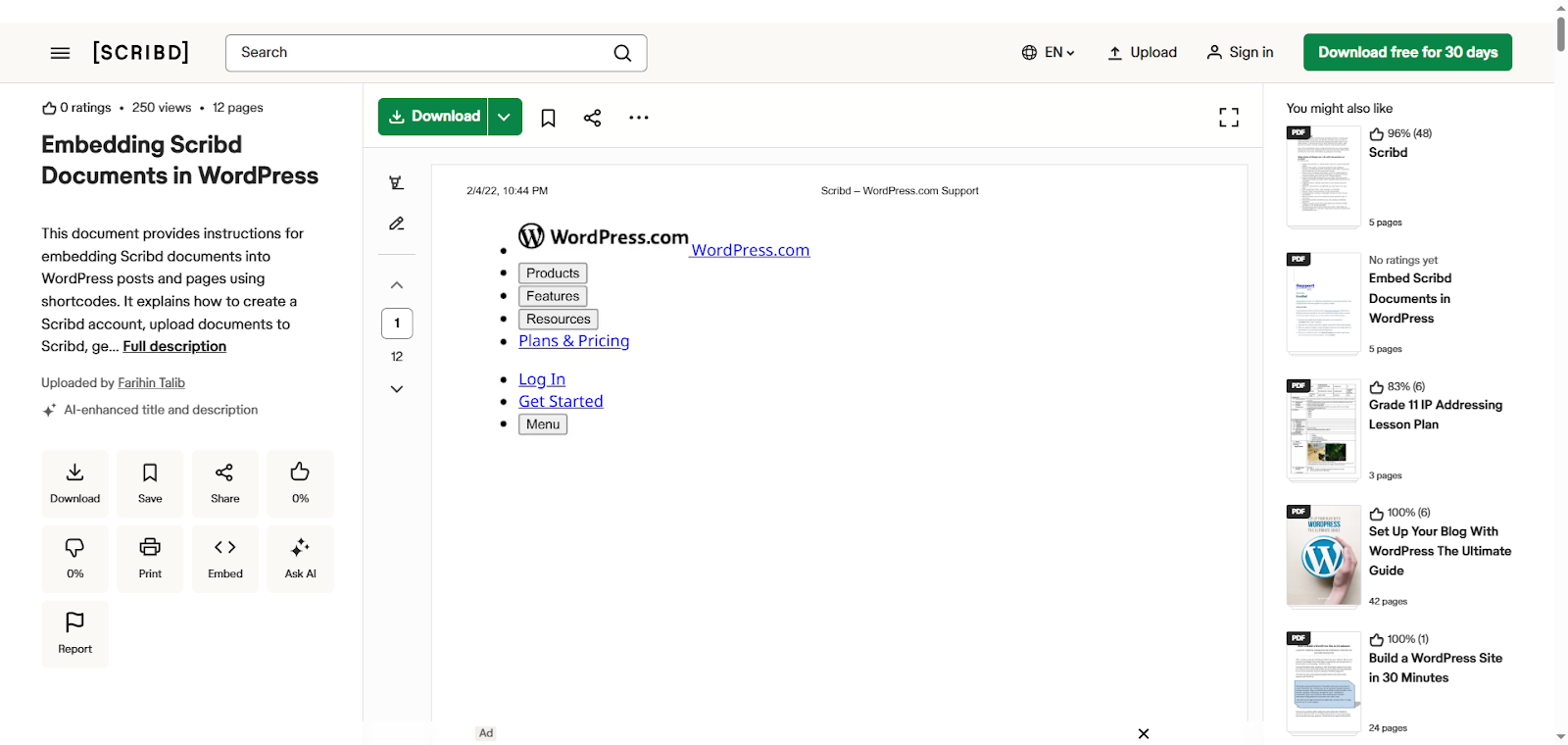
Method 4: How to embed a PDF in WordPress from Google Drive or Scribd
If the PDF you want to embed in WordPress is hosted in a file storage service like Google Drive or a document publishing platform like Scribd, this method works well. It’s a good option if the PDF is large and you want to make sure it renders properly on your website across different browsers.
That said, the process can be complex for non-coders. It involves getting the embed code from Google Drive or Scribd and adding it to WordPress via the Custom HTML Block. This embeds the external document viewer inside your WordPress page, giving viewers a seamless, smooth experience without any rendering issues.
How will you embed a PDF in WordPress?
You’ve now got several methods you can use to embed a PDF in WordPress, from native tools to plug-ins to code.
If the documents you’re looking to embed into WordPress are forms, Jotform is likely the simplest solution. All you need to do is use the Jotform Form Builder to get the embed code and paste it into WordPress, or use Jotform’s WordPress plug-in to make the job even smoother.
Give Jotform a try today and see how easy it is to embed your forms into WordPress.
FAQs on embedding PDFs in WordPress
The easiest way to embed a PDF in WordPress without a plug-in is to use the built-in Gutenberg Block Editor.
To embed a PDF in a webpage, you can use the embed or iFrame tags, or rely on third-party tools.
To embed a PDF in WordPress using iFrame code, you’ll need to have the file’s URL and add it to WordPress using the Custom HTML Block in the Gutenberg Block Editor.
This article is for WordPress website operators, content managers, and small business owners who need to embed PDFs on their site and want to choose the simplest or most effective method for displaying documents online.


























































































Send Comment: