
Canva is a great tool for designing and creating event sites. But if you want your guests to be able to RSVP from one, then you need more than a nice-looking website: You need an online RSVP form for Canva.
In this article, I’ll show you how to add an RSVP to a Canva website so that you can stop chasing people to see if they’re coming to your event. I’ll give you the step-by-step guide to creating an RSVP form, adding it to a Canva website, testing it, and tracking responses.


1. Start with a Canva event website template
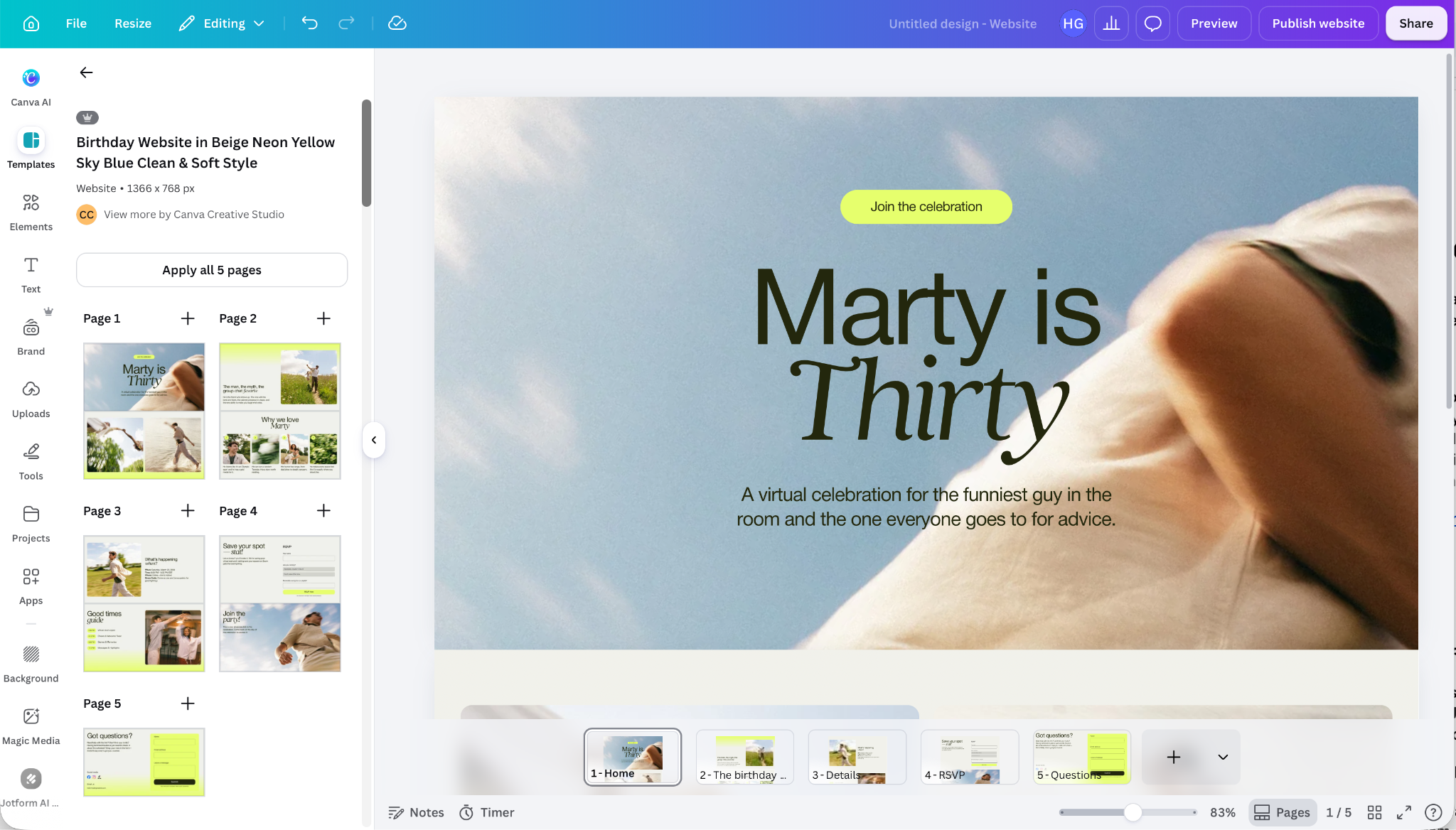
The simplest place to start is by building your website in Canva. Find a website design, event page, wedding website, or invitation page template that looks good and suits your event, and create your website. Canva has templates for everything from birthdays and weddings to awards receptions and business networking events. The steps are the same whether you’re building a birthday party invite or a Canva wedding website RSVP form.
Make sure to add all the relevant event information like time, date, and location. It’s surprisingly easy to forget!
2. Connect the Jotform App to Canva
With your design ready, the next step is to add the Jotform for Canva app to your Canva account. This is what we’ll use to add your RSVP form to Canva. It’s super intuitive to use, so it makes a great companion tool for Canva.
A Jotform Canva RSVP workflow is also flexible: You can create one RSVP form, add it to multiple Canva event templates and website pages, and manage all the responses in one place.
To connect Jotform, open Canva and click on the Apps tool in the sidebar. Search for “Jotform” and select the Jotform RSVP & Forms app.
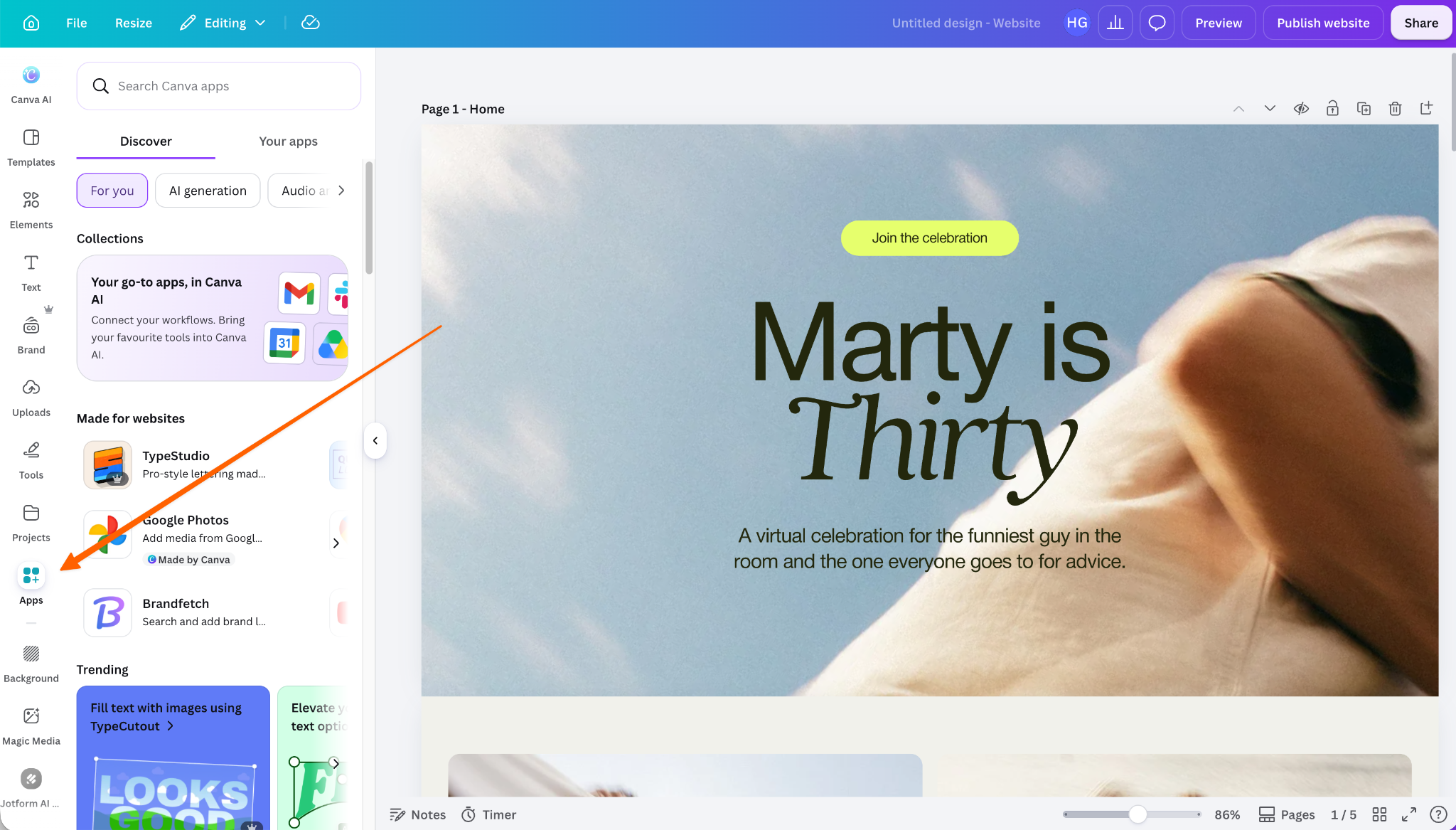
We’ll look at using the Jotform Canva app in a moment, but for now the most important thing to do is connect your Jotform account. There’s a little popup in the bottom-left corner telling you that you’re using Jotform as a guest. While it will still work, your RSVPs won’t automatically get saved.
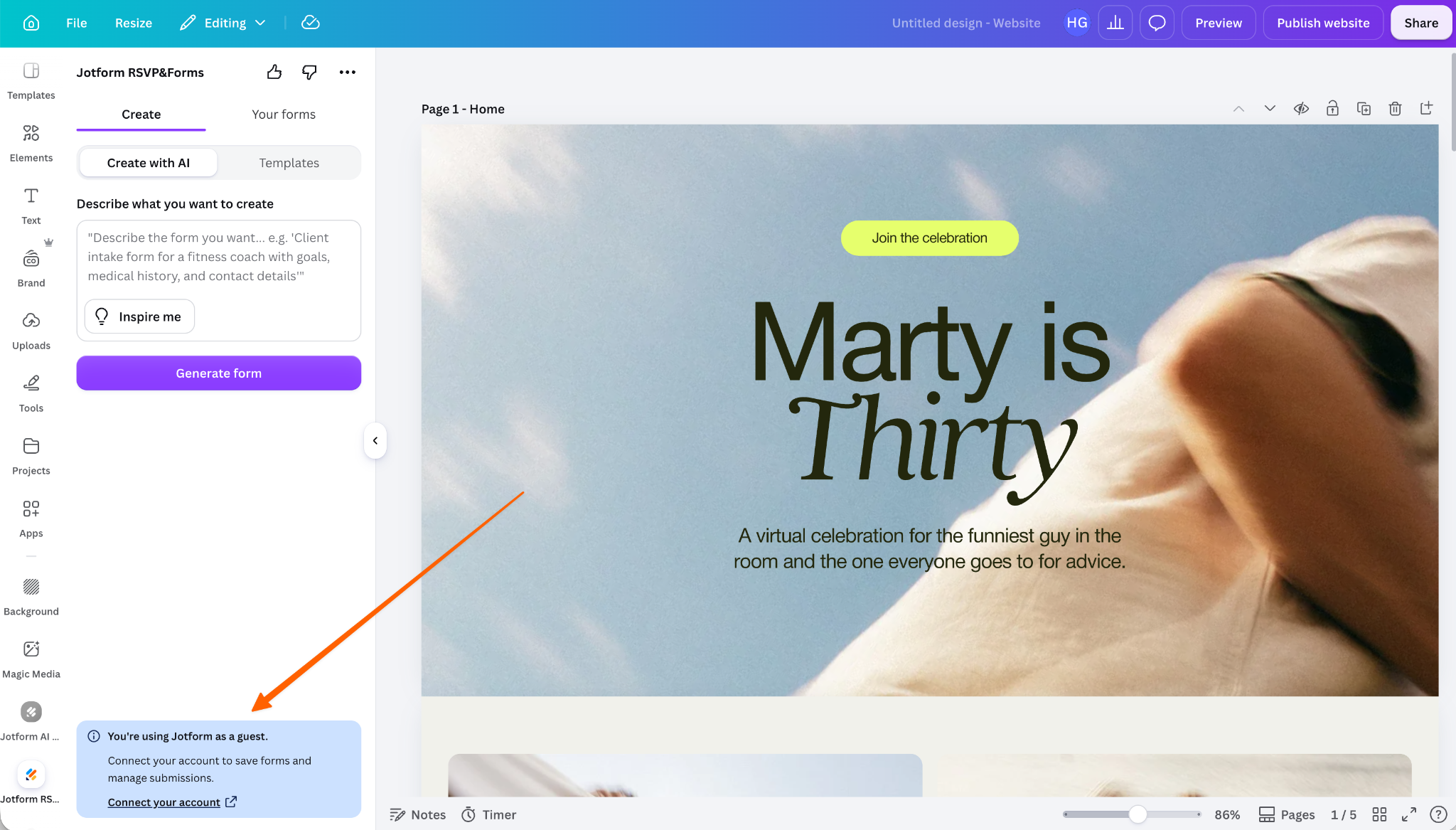
Click Connect your account and then Connect.
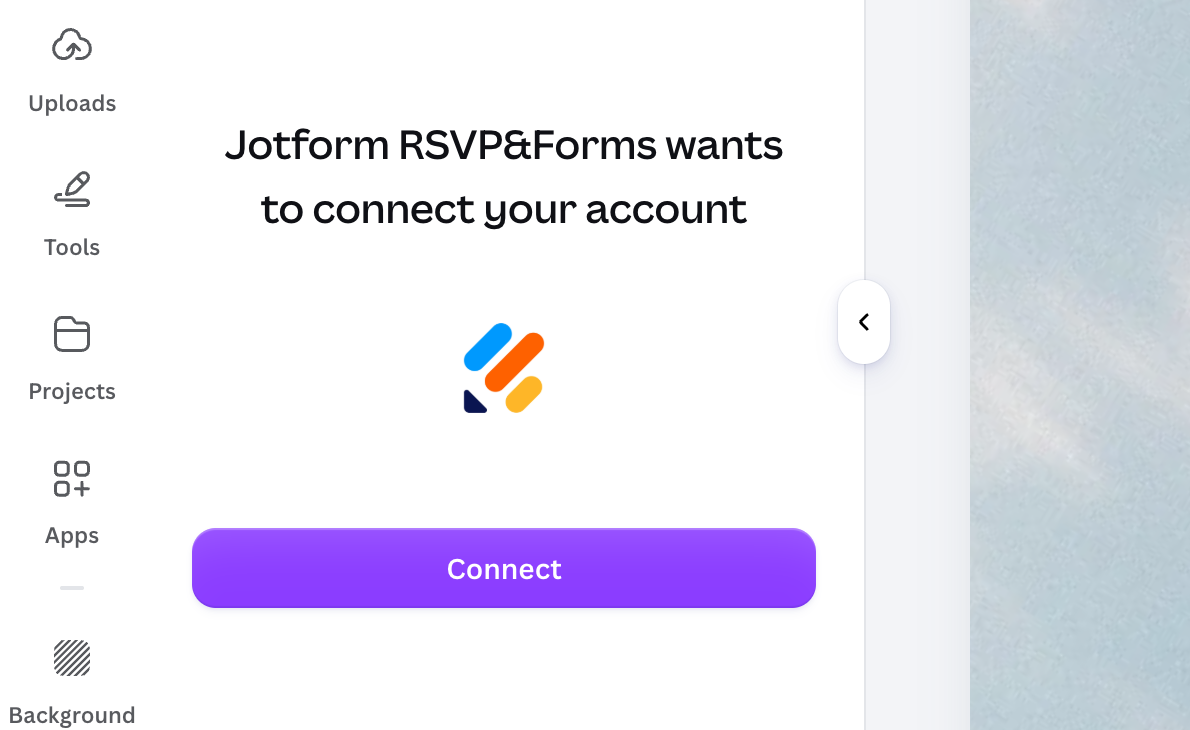
This will take you to Jotform’s website, where you can log into your account or create a free Jotform account if you don’t have one yet. Follow the sign-in prompts, click Allow, and wait for Canva to reload.
3. Create your Canva RSVP form
With your website ready to go and Jotform connected, it’s time to create your Jotform RSVP form. It’s best to do this through the Jotform website or app, so open it to continue.
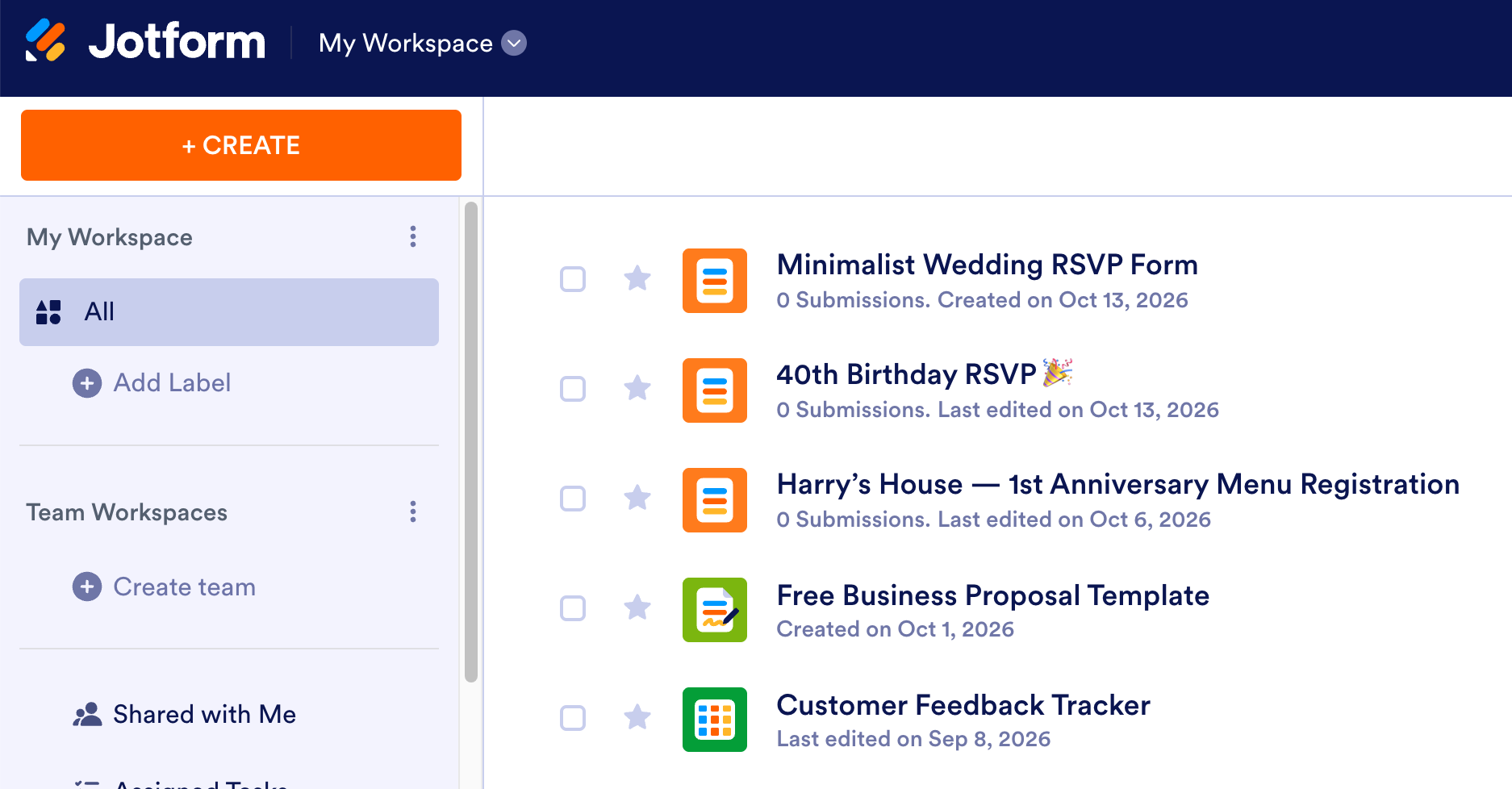
Once you’re in, click Create and select Form.
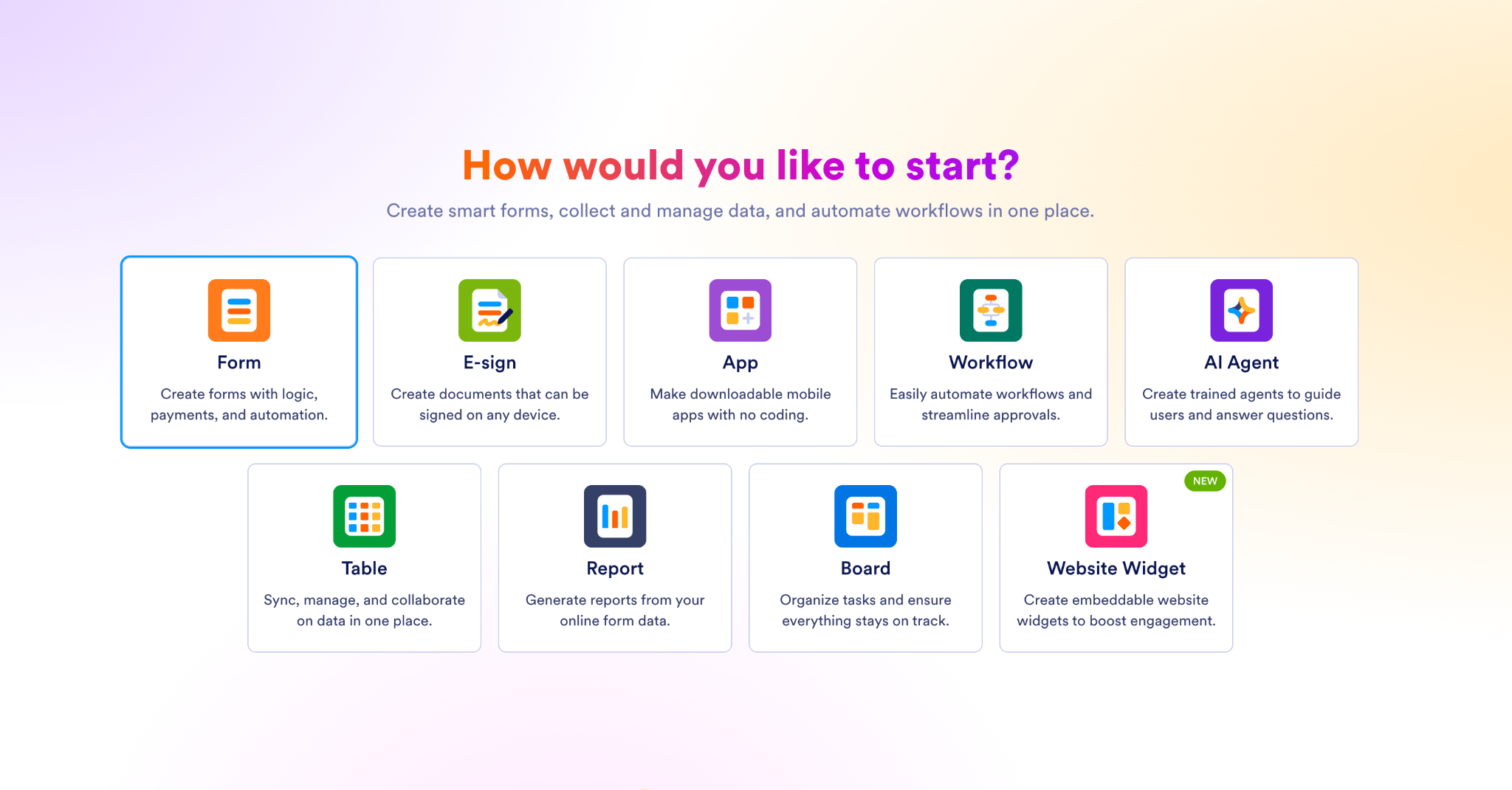
Jotform offers lots of ways to create forms. It has tens of thousands of templates for things like a wedding RSVP form and an invitation app with RSVP. You can also start from scratch, import an existing form, or even use AI to generate a form or customizable RSVP app. I like starting with a template, so that’s what I’m going to do.
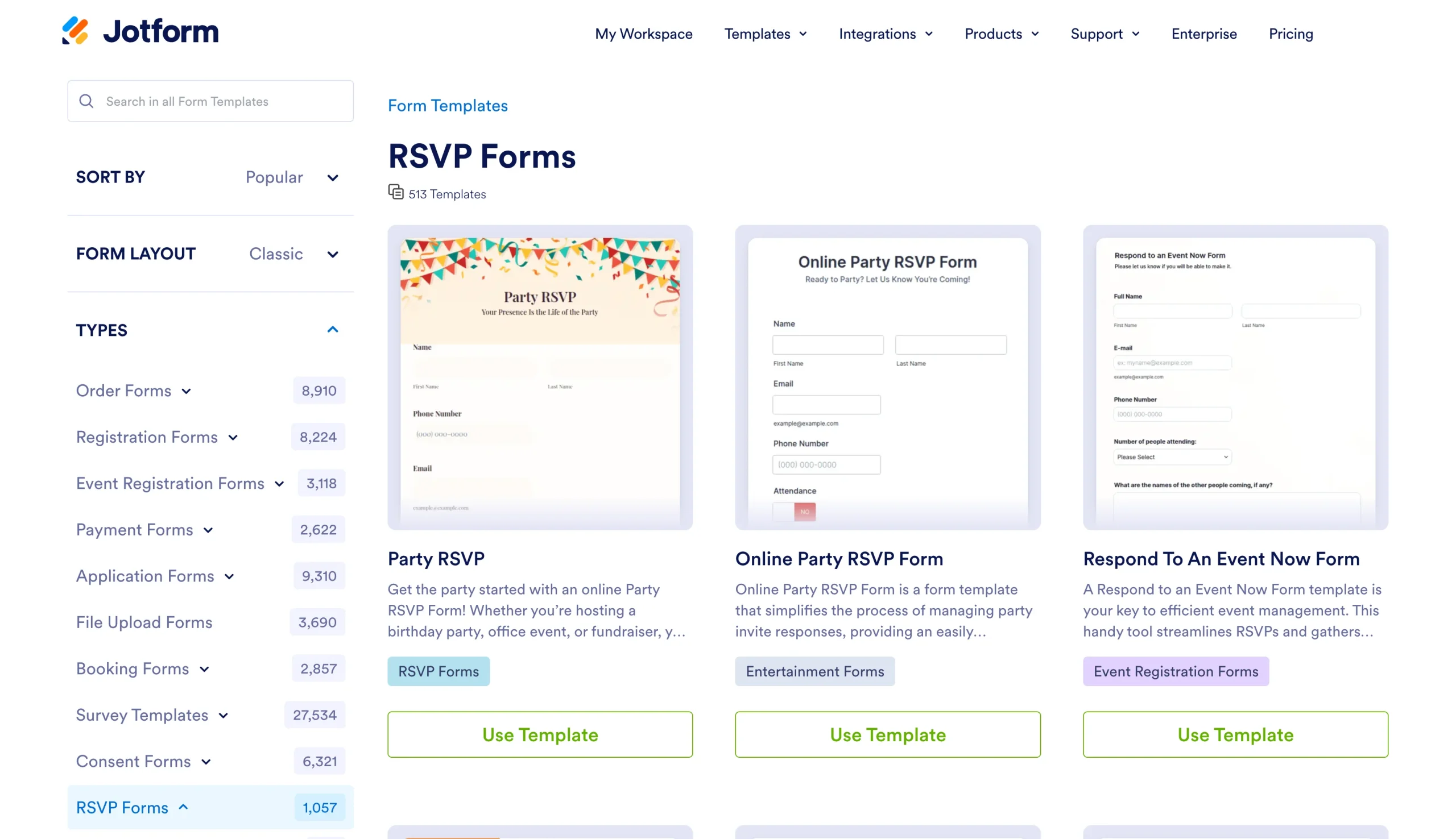
Use the search bar to find a template that works for you. I’ve gone with a birthday form.
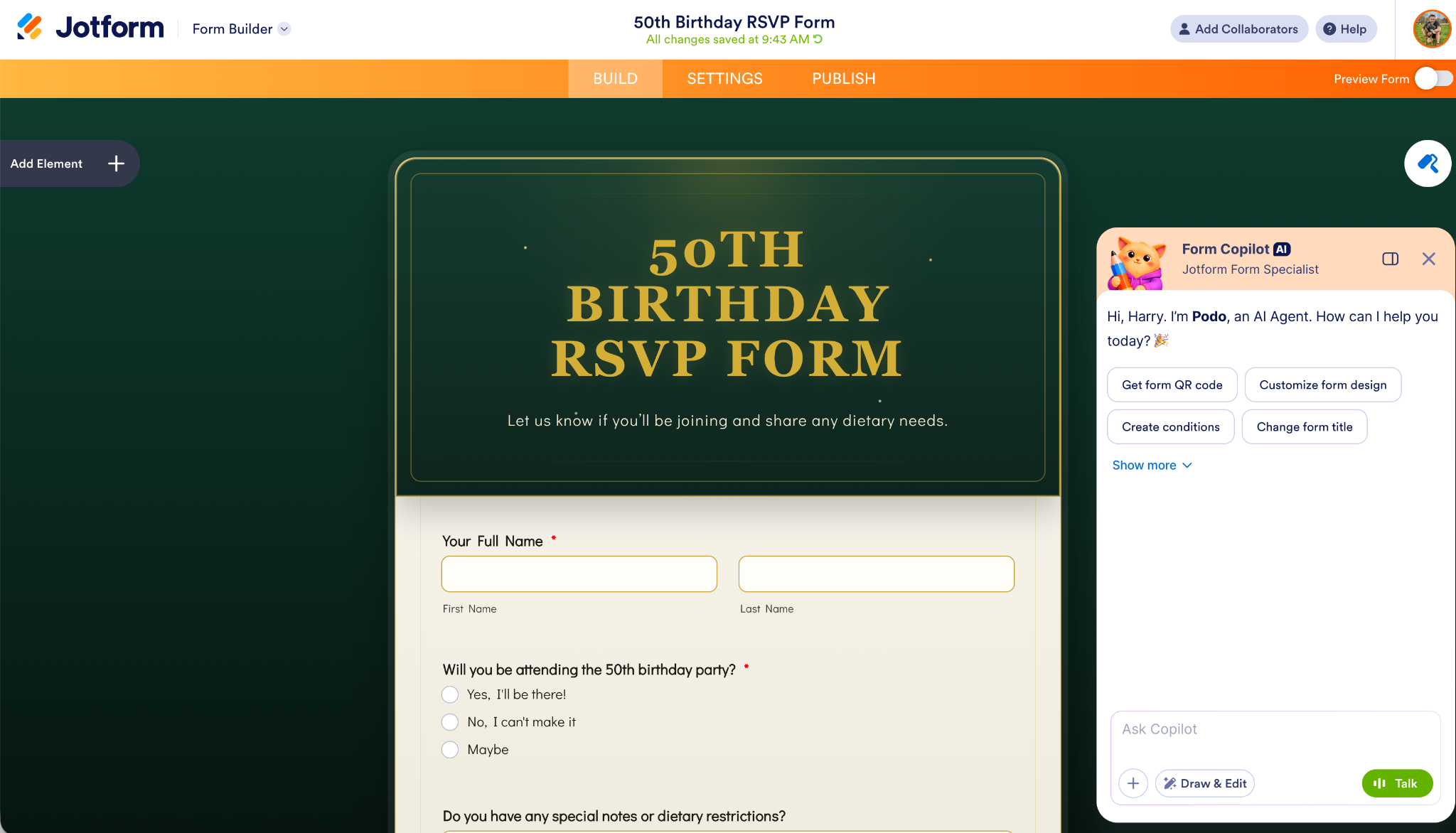
4. Customize your Canva RSVP form
Now it’s time to customize your RSVP form. Add any fields you need — like guest names, meal choices, plus-ones, dietary needs, and contact information — in the Build tab.
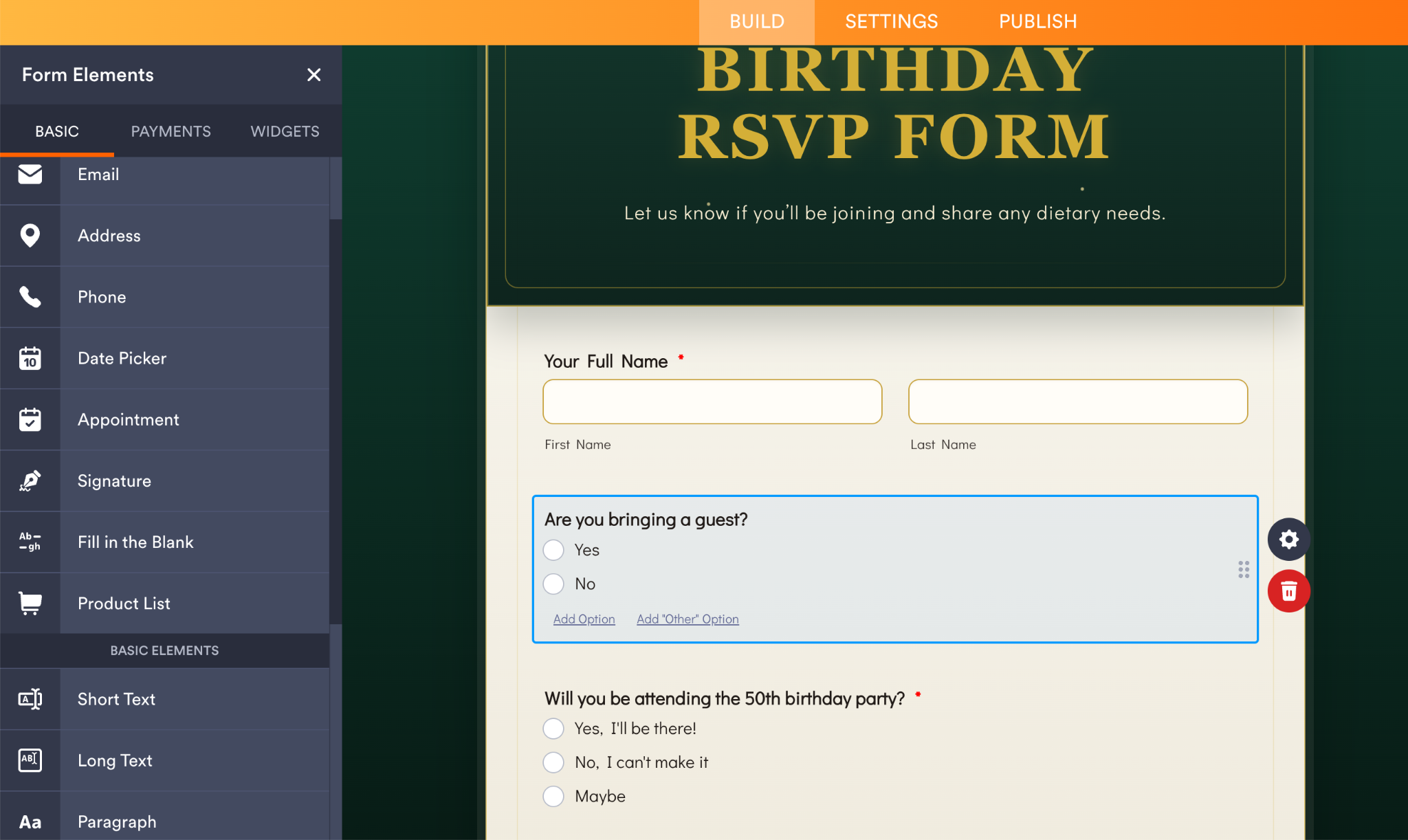
Depending on the template you choose, some or all of these might already be there.
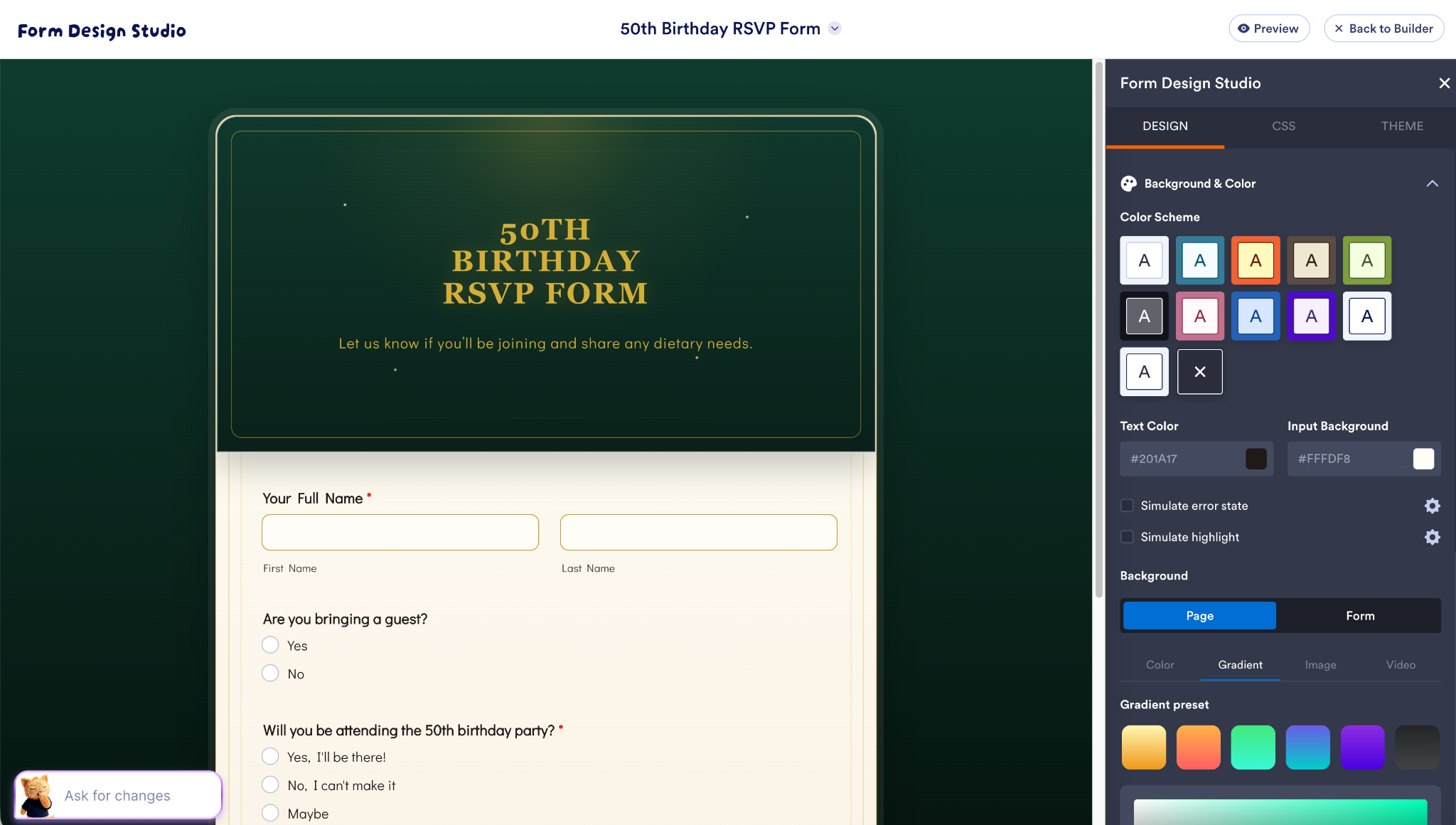
You can also use the Form Design Studio to customize how your form looks. You can make it unique and dramatic or go with something more functional that will blend in with any Canva RSVP site.
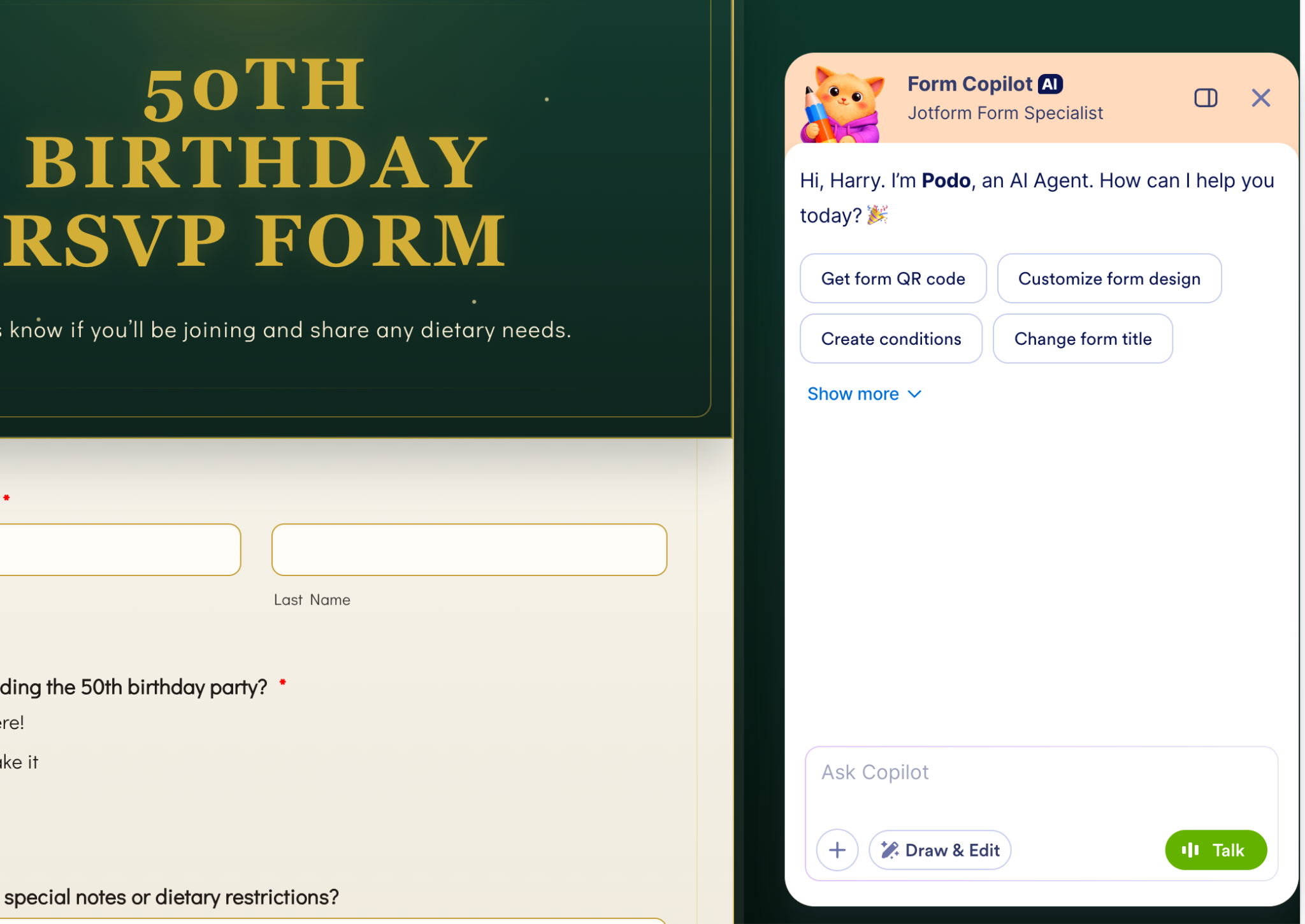
If you prefer using AI, you can ask Jotform AI to customize your form. Try using prompts like “Add a dietary requirements question” or “If someone selects ‘attending,’ add a question that asks if they’re bringing a guest.”
You can also add workflows, integrations, and automations, but we won’t get into those in this article. Jotform is really easy and intuitive to use, but if you get stuck, there are some great help docs and user guides to explore.
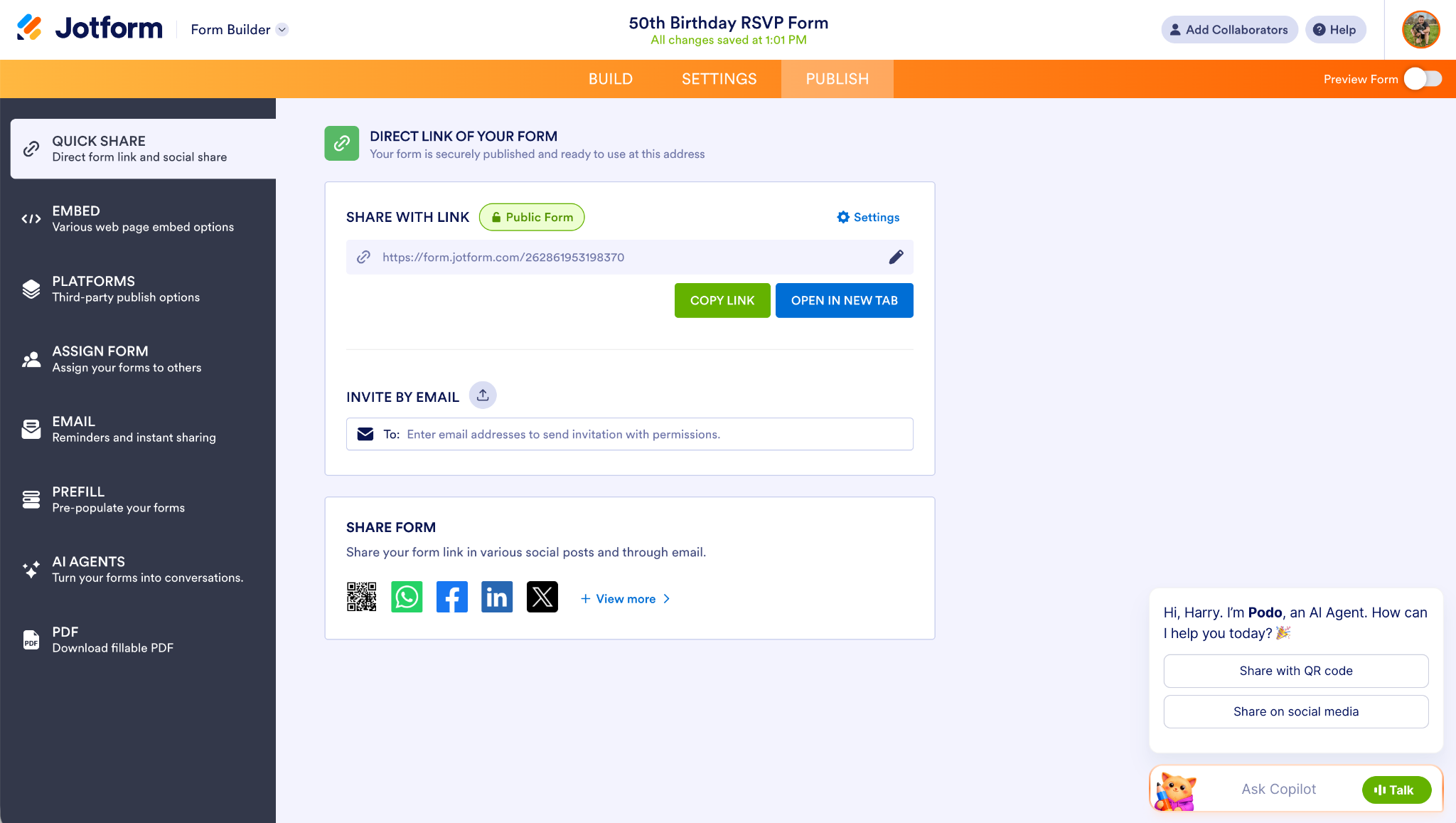
When you’re done, head to the Publish tab. Click Open in New Tab to see your form in the browser.
Pro Tip
If you click Copy Link, you can embed your form using Canva’s Embed tool.
Now’s a good time to make sure your RSVP form works. Fill it in yourself and you’ll see the responses in Jotform.
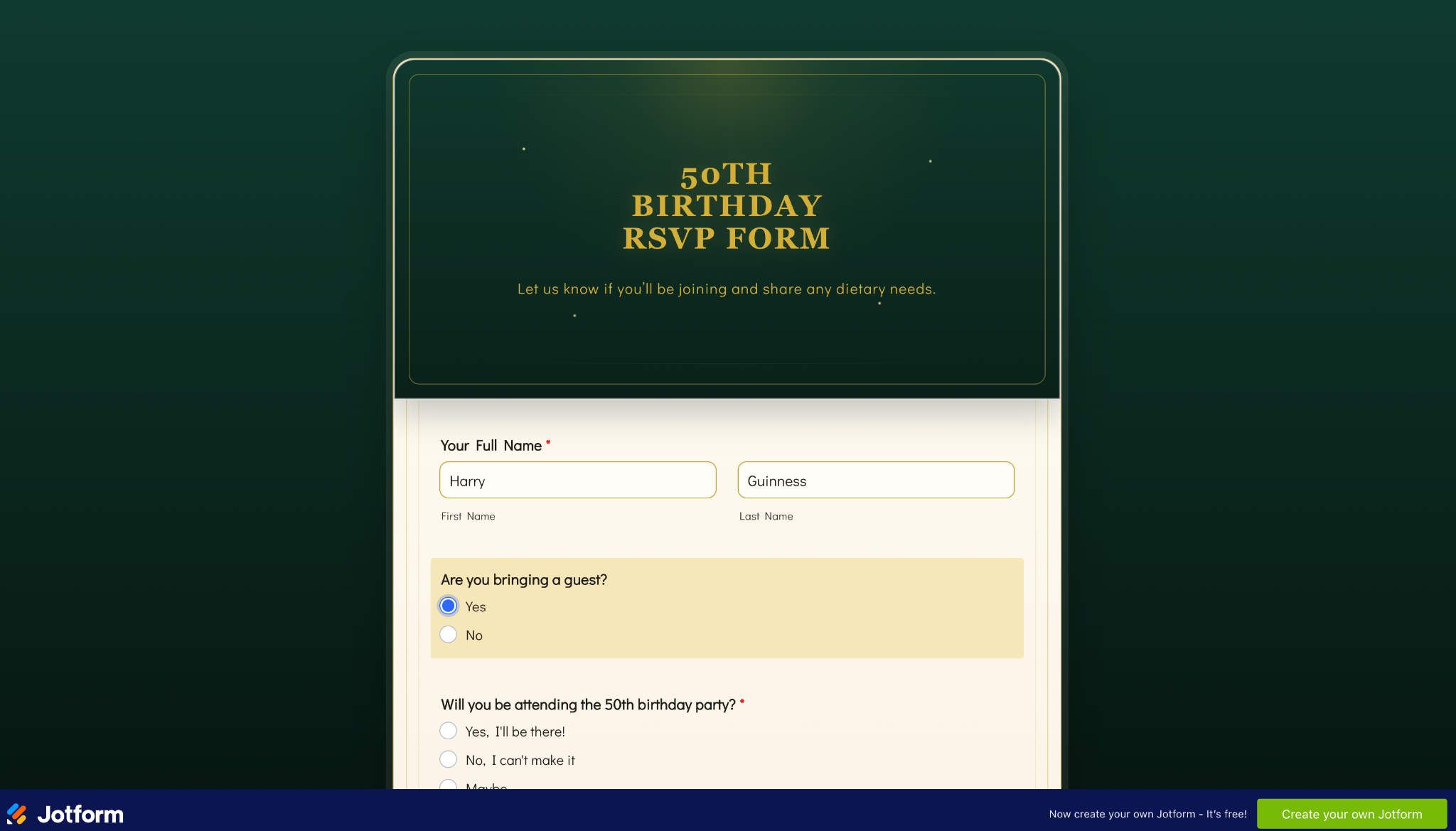
With your form live, it’s time to embed the RSVP form in Canva.
5. Embed your Canva RSVP form
Now that you have an RSVP form ready to go, here’s how to add and embed forms in Canva designs.
Go back to Canva and open the Jotform RSVP&Forms app. Select Your forms and you’ll see a list of your Jotform forms. You can search through them, too. Select the form you want to use, and it’ll be embedded in your Canva design.
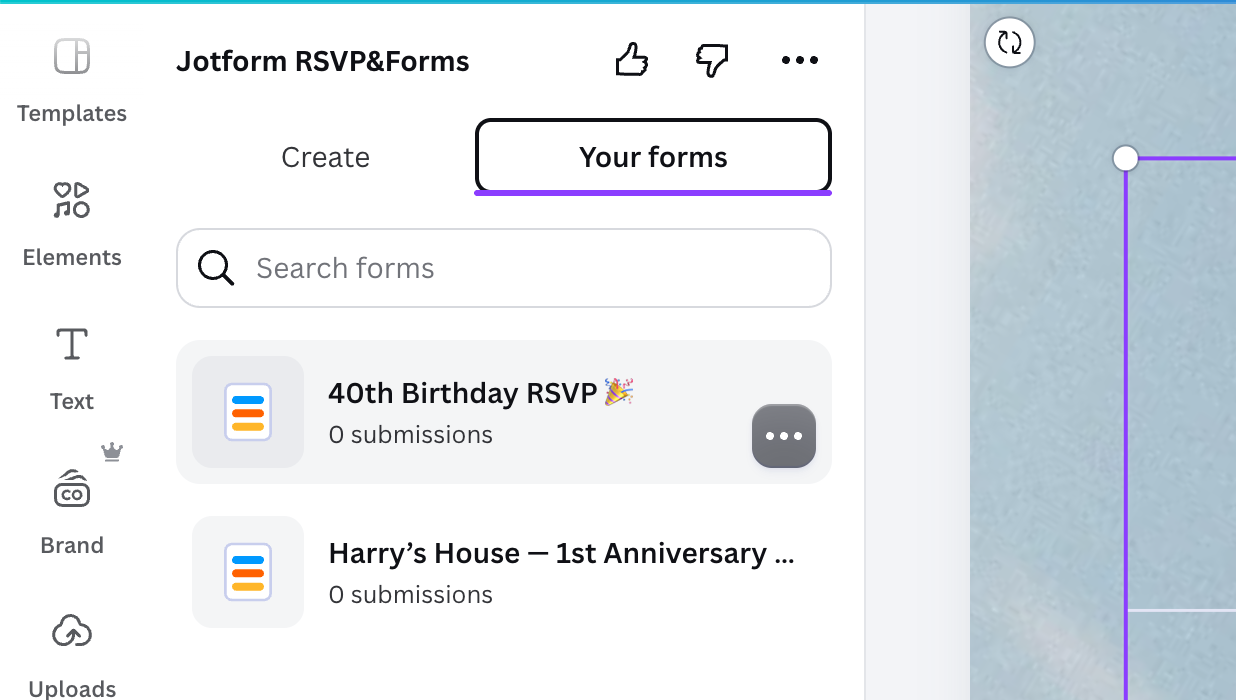
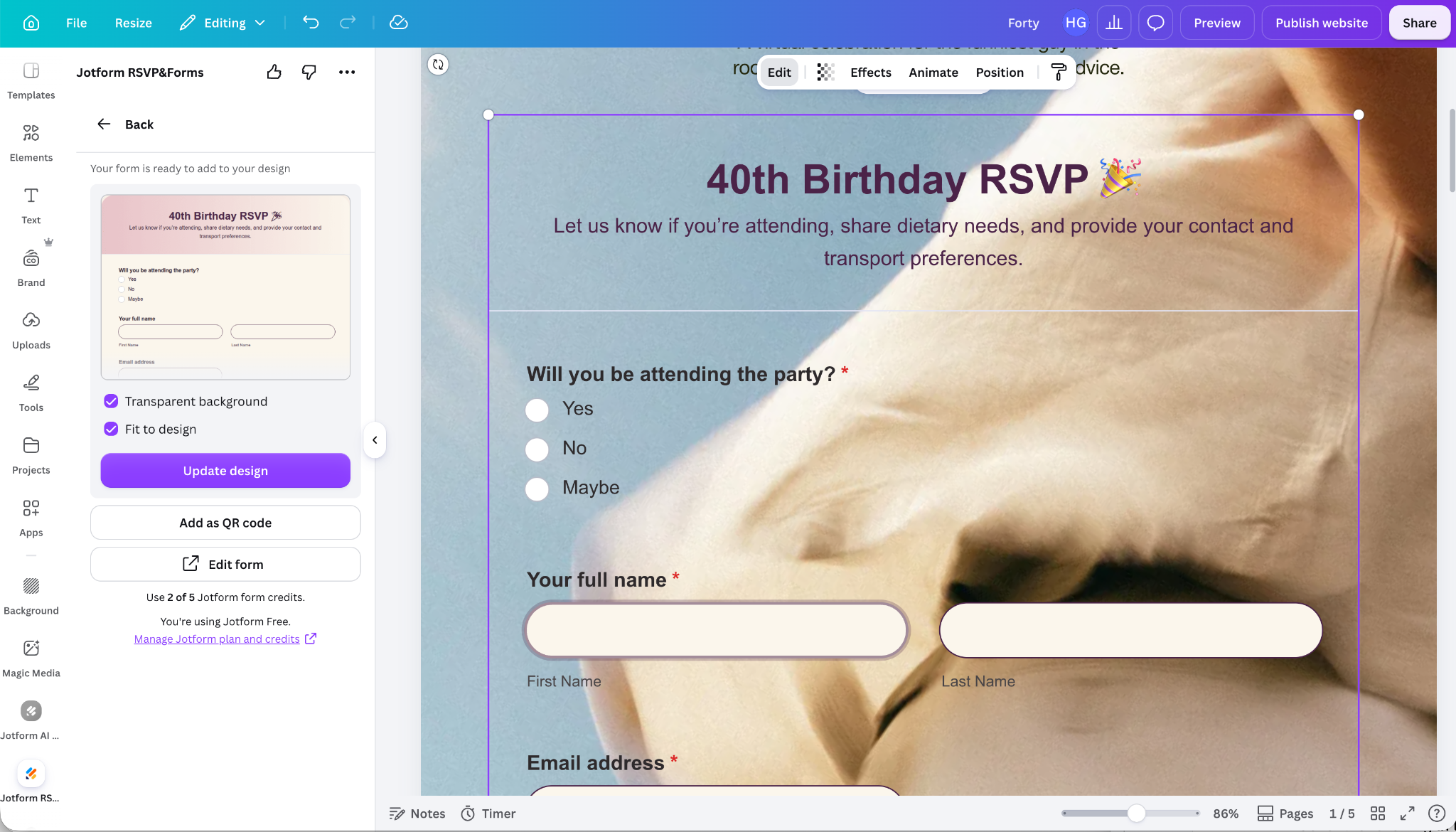
You can position your RSVP form like any other Canva design element. Make any tweaks you need to get it to work with your design.
Pro Tip
With Jotform AI’s Create with AI feature, you can generate excellent RSVP forms in Canva. Give it a prompt describing the form you need, and it’ll create it in a few seconds. For example, I generated the form in the screenshot above with the prompt: “Create an RSVP form for my 40th birthday party. It needs fields for attending (yes, no, maybe), dietary restrictions, whether they’re bringing a plus one, contact details, and if they need a taxi home.”
When you’re ready to share it online, click Preview in the top right to see how your website will look. Make any tweaks you need, and then click Publish website and finally Publish to push it live.
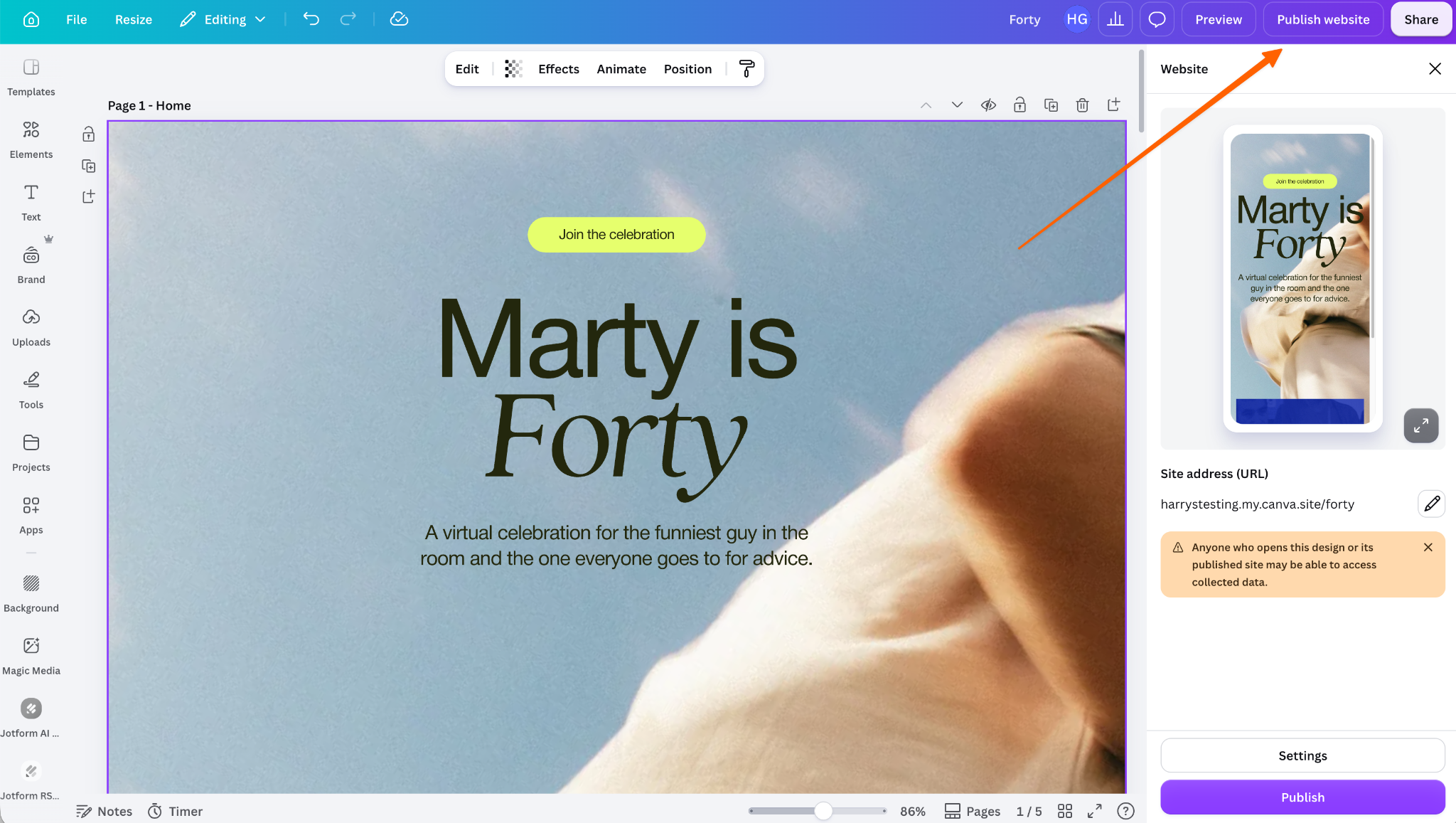
Before you share it, check the link on your laptop and smartphone to make sure everything works as expected. Submit a test RSVP and check all the links and buttons. Then share your Canva RSVP link with your friends, social media followers, and any other invitees, and they’ll be able to fill in your RSVP form through the website.
Pro Tip
If you want to give your guests a backup RSVP option, you can also use the Jotform Canva integration to embed a Canva RSVP QR code that takes your guests to a web- and mobile-friendly version of your form. Just click Add as QR Code. You can also add the form link as a button. If you go down this route, make sure to use a clear call to action — something like “Scan to RSVP,” “Tap to Respond,” or “RSVP by [DATE].”
6. Track your responses in Jotform
Instead of having to track replies across text messages, emails, direct messages, and other channels, Jotform keeps everything in one place and provides powerful tools for analyzing and reviewing your RSVPs.
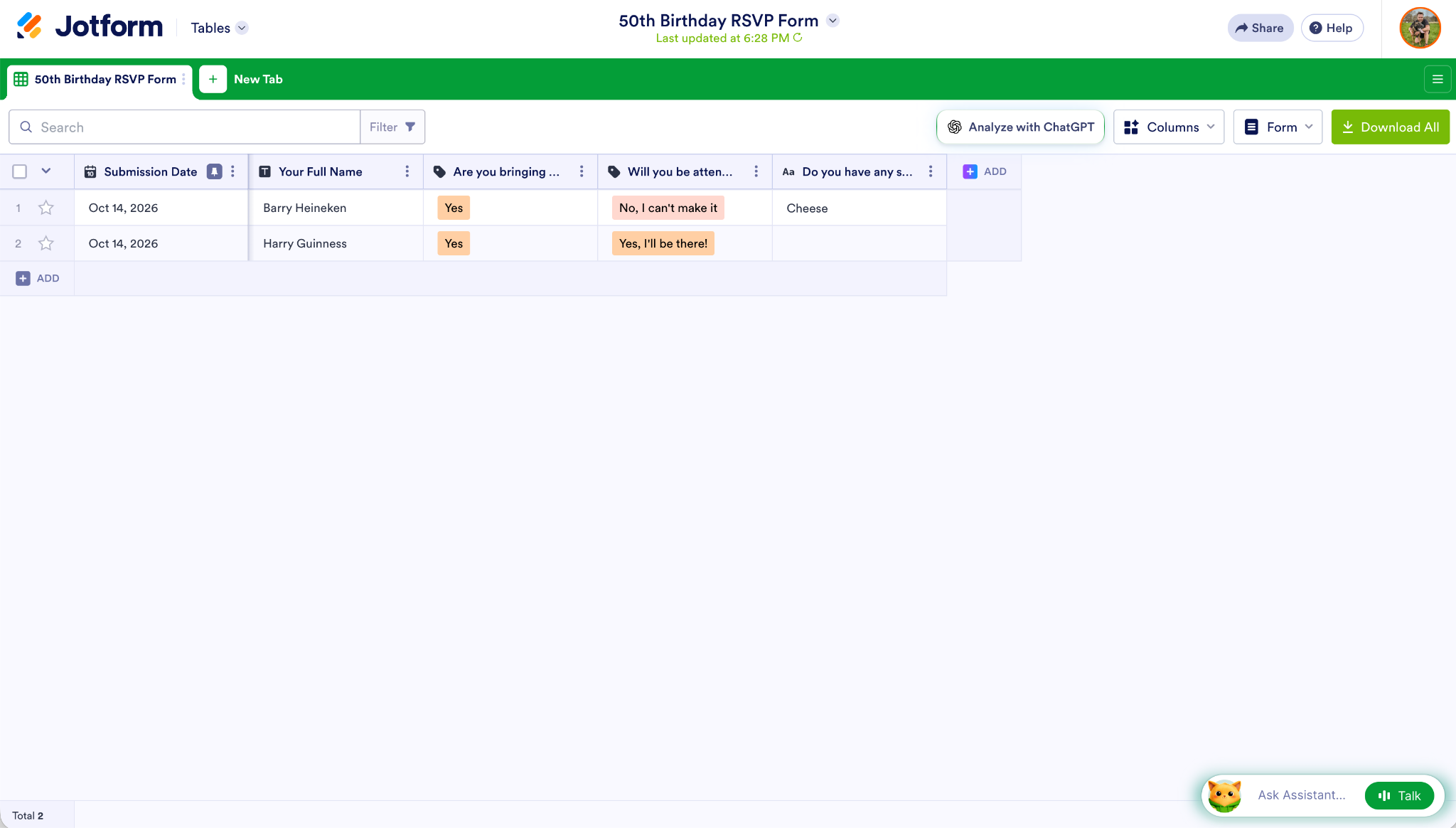
For example, Jotform Tables puts all your RSVPs and form responses in a spreadsheet so you can quickly see how many people have dietary requirements or how many extra guests are coming.
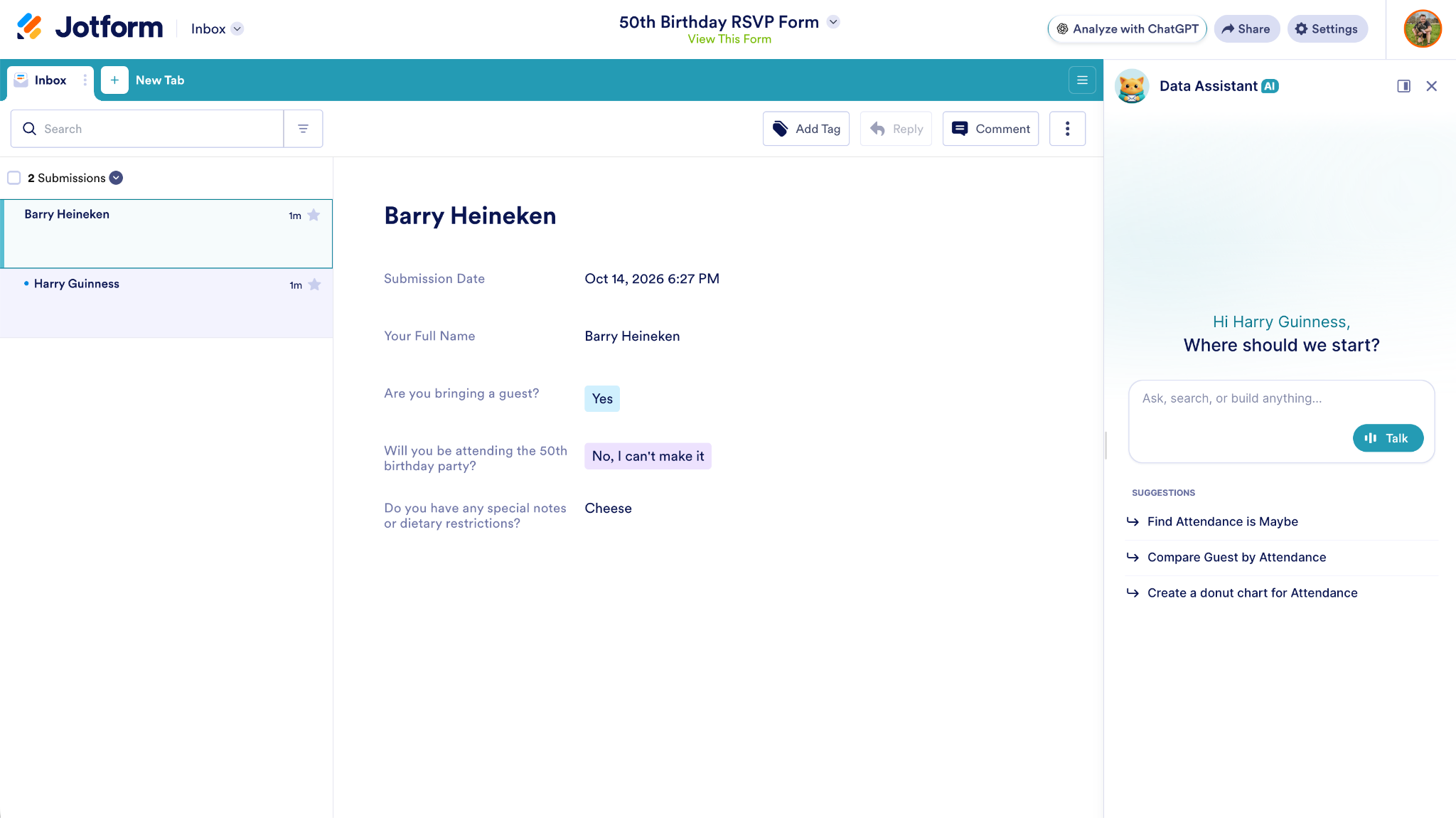
Jotform Inbox lets you see each individual response, reply to guests who have included contact details, and add tags and comments for your team.
Jotform has the features and tools you need to manage and organize every aspect of event planning. Whether you want a wedding RSVP tool, something to make event QR codes, or anything else, it has you covered. And it’s free to get started.
Use Jotform Apps to create your event hub
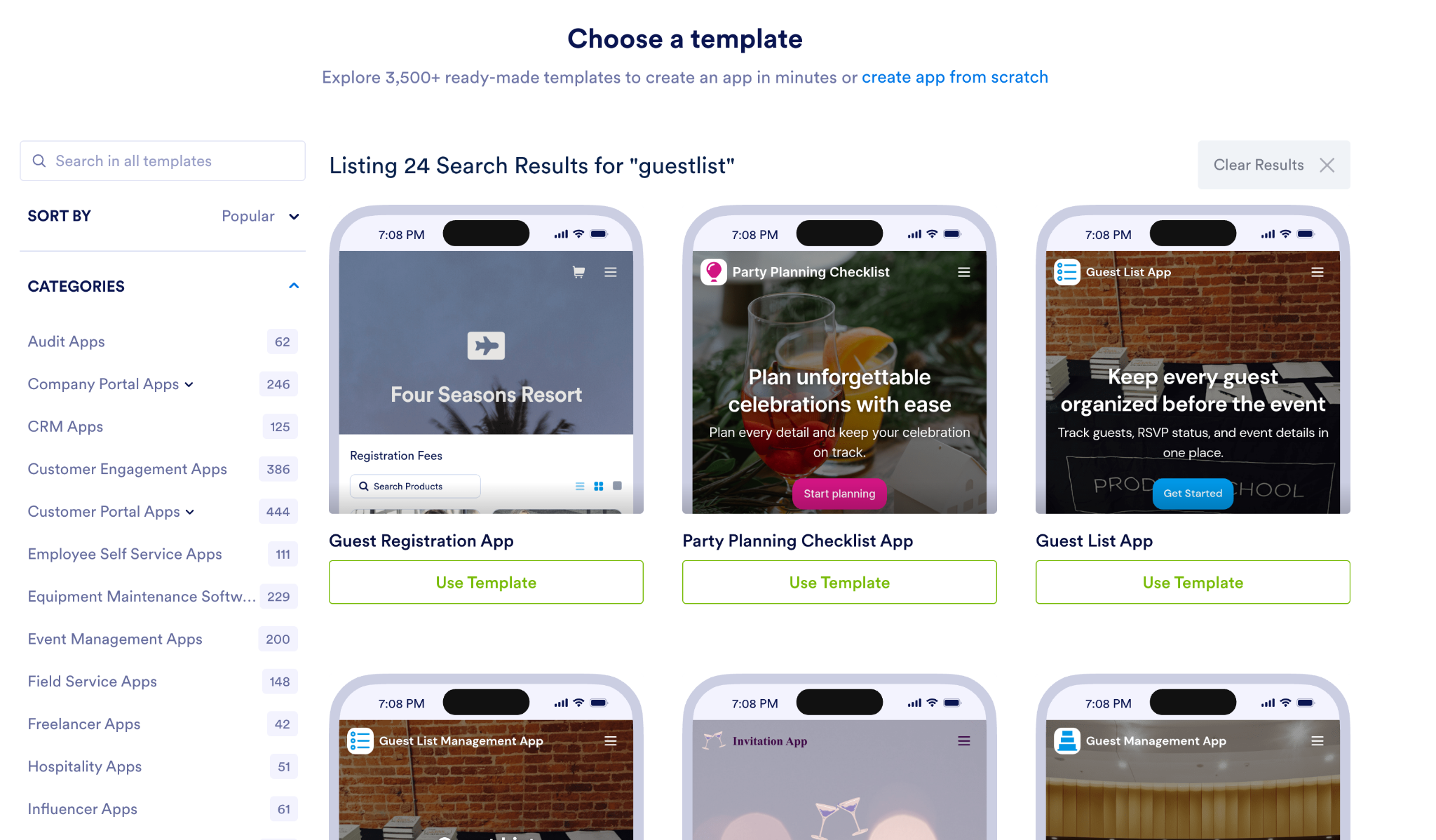
If you want a complete event hub with event details, forms, and guest information (like seating arrangements and dietary requirements), Jotform Apps is well worth a look. You can use it to build custom tools without coding, including RSVP apps, guest check-in apps, and party-planning tools.
To build one, simply
- Select an app template (or use one of Jotform’s other app-building tools).
- Customize the template with the information you need for your event.
- Add your RSVP form and other guest information.
- Use your app to plan and run a great event.
The Jotform AI App Builder can even build an app based on a prompt. For example, you could have it build a wedding QR code RSVP tool or a wedding invitation/RSVP platform just by describing the features you need it to have. It’s the easiest way to build an app.
For your next event, why not use Jotform as the ultimate RSVP and event-planning platform? It’s packed with features, offers thousands of templates, includes a modern AI assistant and app builder, and, best of all, it’s free to get started.
FAQs about Canva RSVPs
Yes, Canva has a free plan, though you’re limited to five websites on a free canva.site domain. Jotform is also free to start collecting RSVPs.
Canva’s native forms aren’t designed to make tracking RSVPs easy. Instead, Jotform for Canva allows you to use custom logic and tools like Jotform Tables to track your RSVPs — from the moment you send out the invite to the day of the event. It makes the whole process as easy and seamless as possible.
This article is for event hosts, couples, party planners, creators, and small teams who are building a Canva website for an event and want visitors to RSVP directly from the page.











































































Send Comment: