SurveyMonkey is an online form builder that is used by individuals, businesses, educators, researchers, and others who need to collect data from their audiences. The platform supports customer feedback forms, employee polls, pop quizzes, and other types of data collection tools.
It’s easy to embed a SurveyMonkey form on your website so visitors can interact with it without leaving the page. With a paid plan, you can also embed a single survey question in an email, with full responses completed on a hosted page.
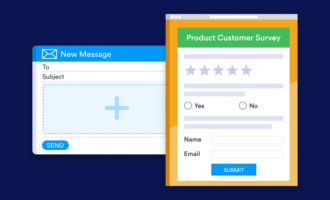
In this article, we’ll show you SurveyMonkey embed options for websites and emails with step-by-step instructions. We’ll also introduce Jotform, a free alternative that makes it easy to share forms across websites and emails.
Create a form in SurveyMonkey
Before you can embed a SurveyMonkey survey on a website or in an email, you have to create one. If you don’t already have a survey you’d like to embed, follow these instructions:
- Log in to SurveyMonkey or sign up for a free account if you don’t have a login.
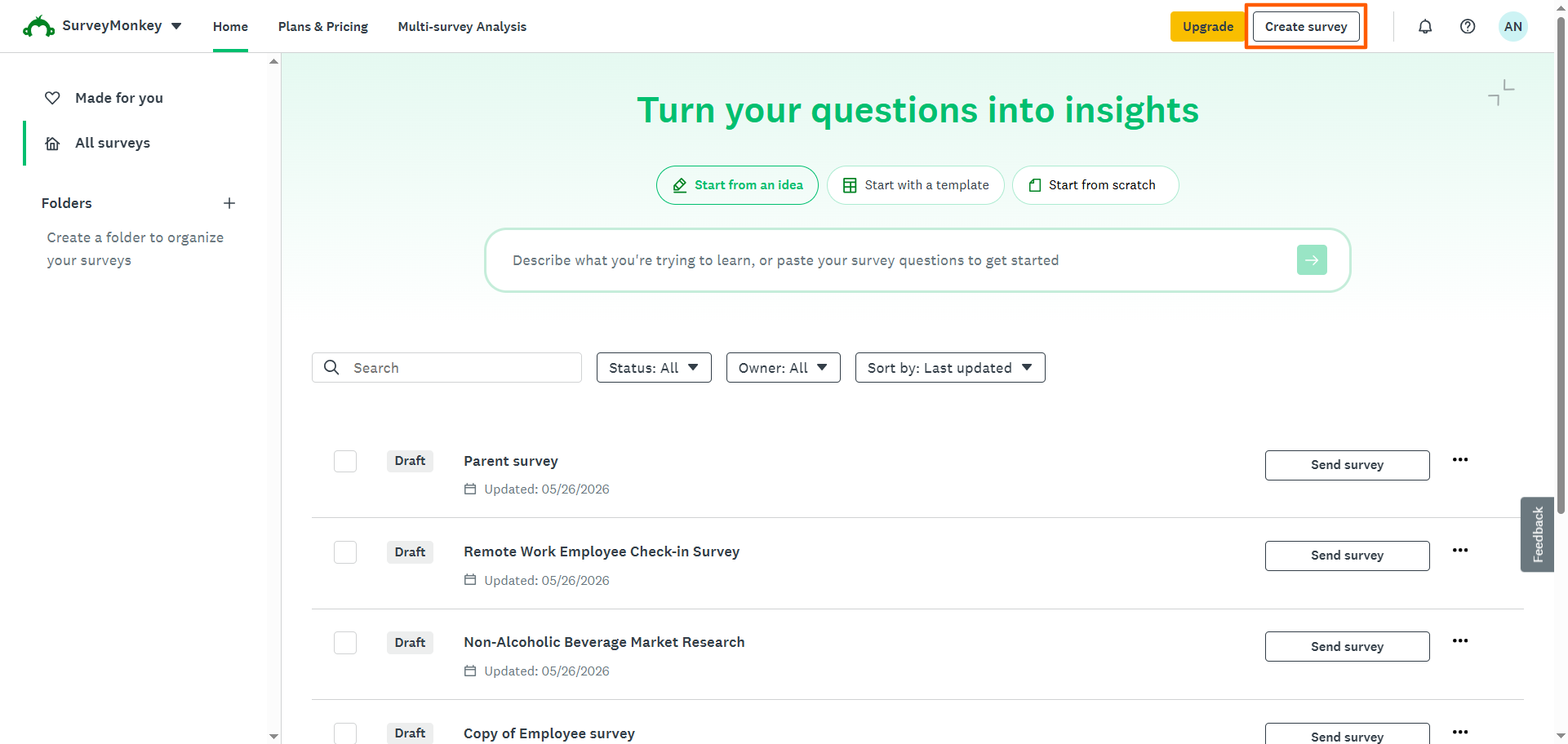
- Click Create Survey.
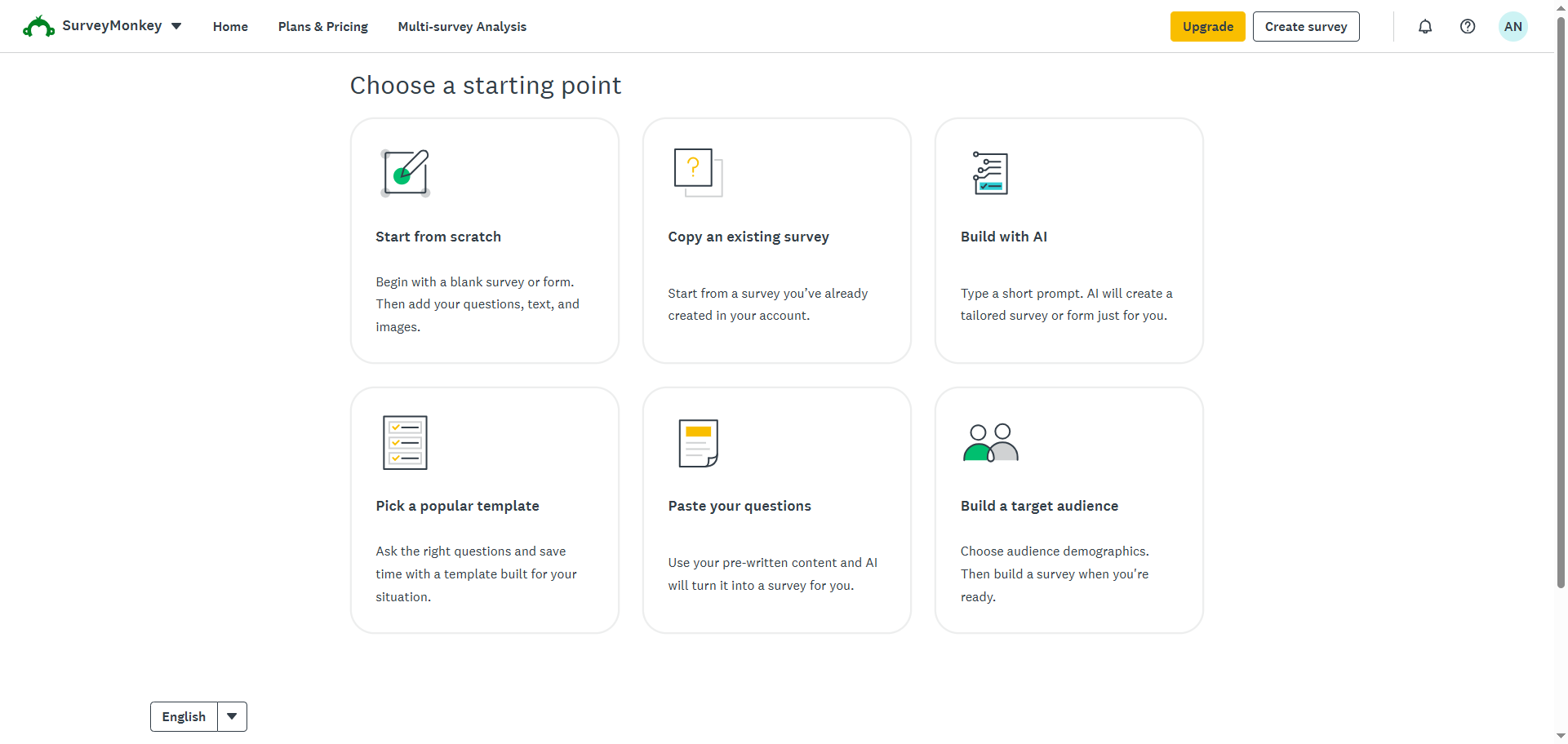
- Select how you’d like to create the survey. You can choose from these six options:
- Start from scratch
- Copy an existing survey (Note: This option appears only when you have existing surveys in SurveyMonkey.)
- Build with AI
- Pick a popular template
- Paste your questions
- Build a target audience
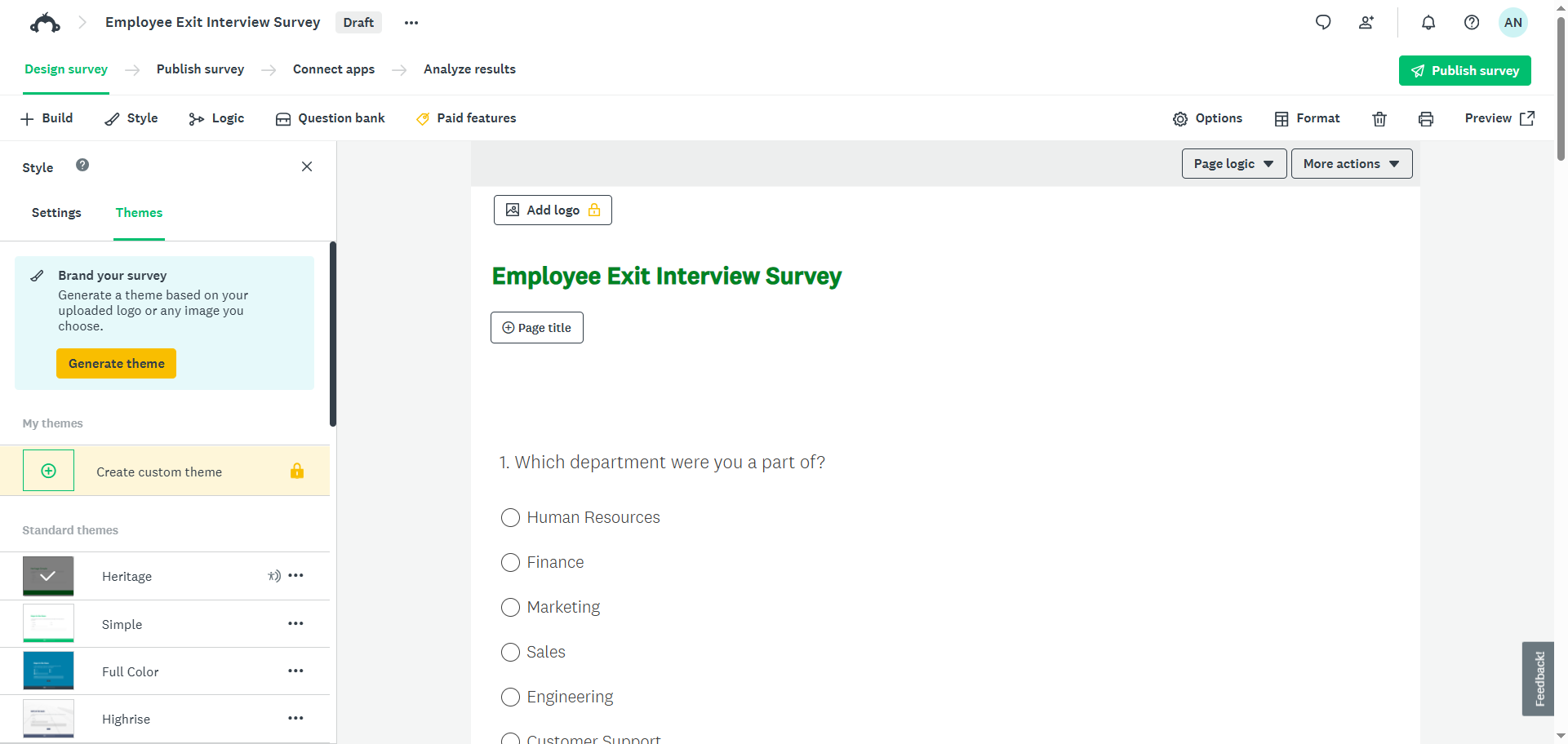
- Complete your survey by adding the necessary fields.
Pro Tip
Want to make sure your survey is engaging and relevant for your target audience? Read our article “How to create a survey” for three tips to help you succeed.
Embed a SurveyMonkey form on your website
To embed SurveyMonkey on a website, you’ll need to get an HTML embed code from the form builder and paste it into your website’s source code. SurveyMonkey uses a website collector to generate embed codes and offers four embed options: embedded surveys, embedded buttons, popup invitations, and popup surveys. You’ll need a SurveyMonkey account to generate embed codes, and some options require a paid plan.
Follow these instructions to add a survey to your website:
- Open your survey in SurveyMonkey.
- Click Publish Survey.
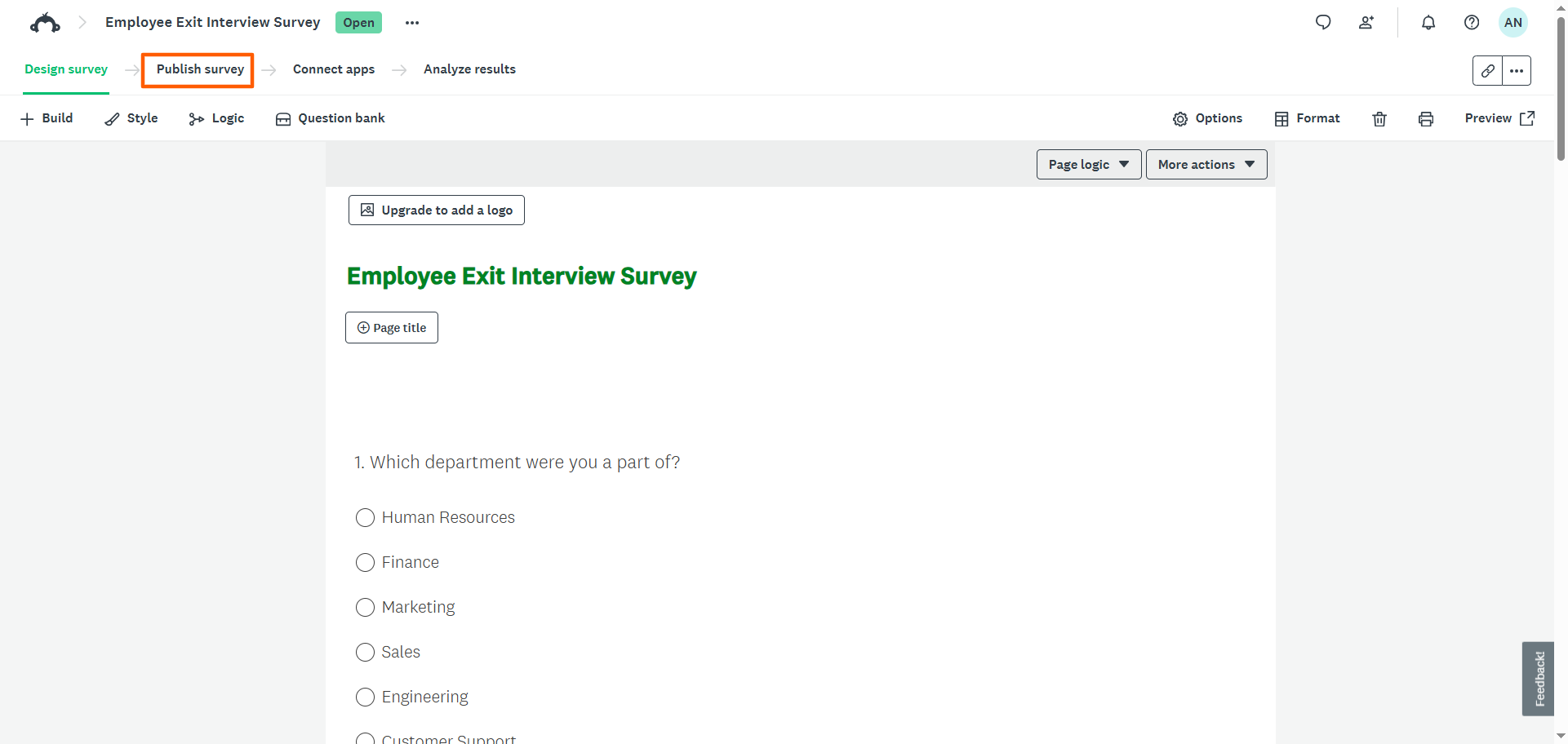
- Click Website. If a website collector doesn’t already exist, you’ll see the option Embed on a Site instead. Click that option.
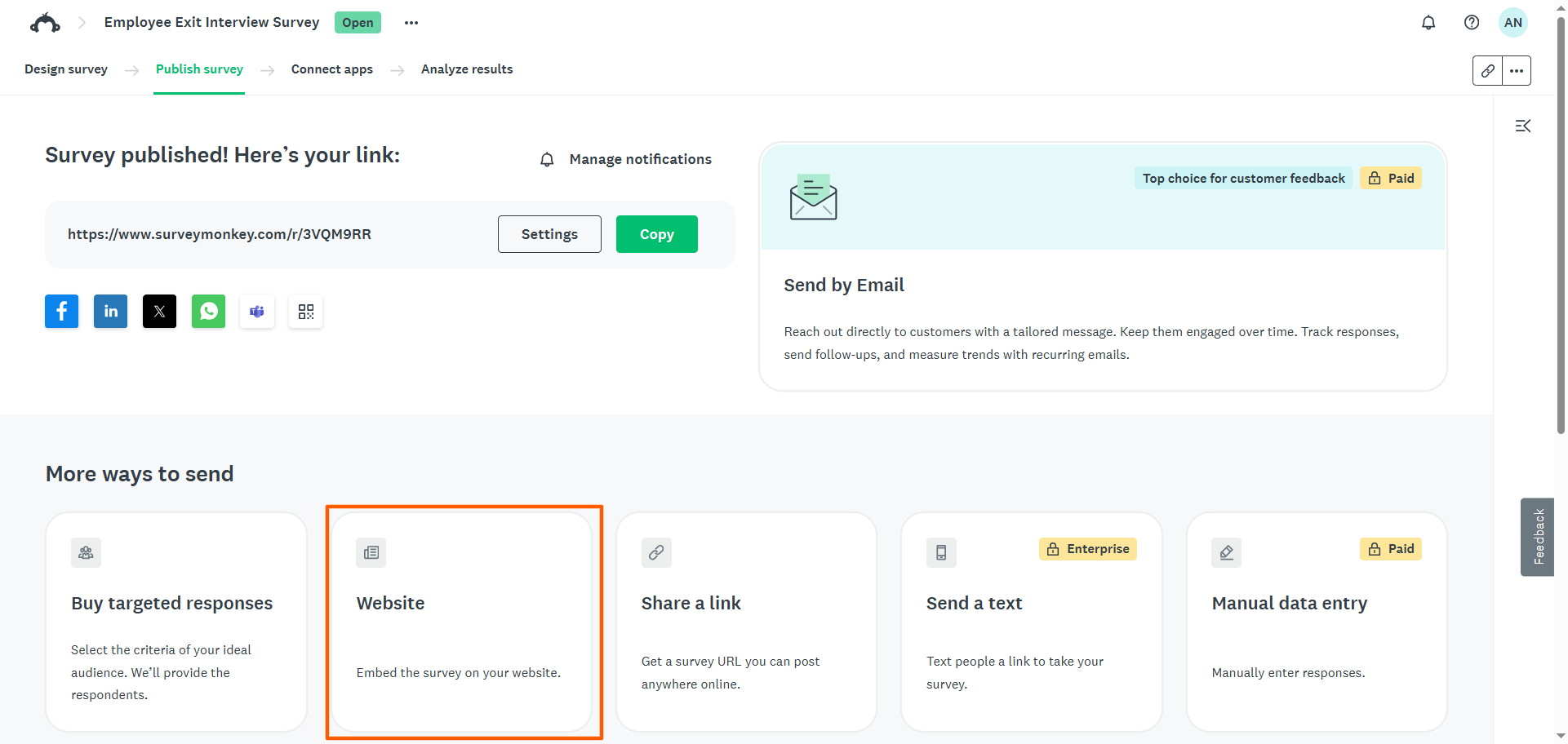
- Choose your embed type:
- Embedded survey: Displays the survey inline on the webpage
- Embedded button: Adds a button to your website that links to the survey
- Popup invitation: Shows a popup window inviting users to take the survey in a new tab
- Popup survey: Displays the full survey in a popup window when someone visits the webpage
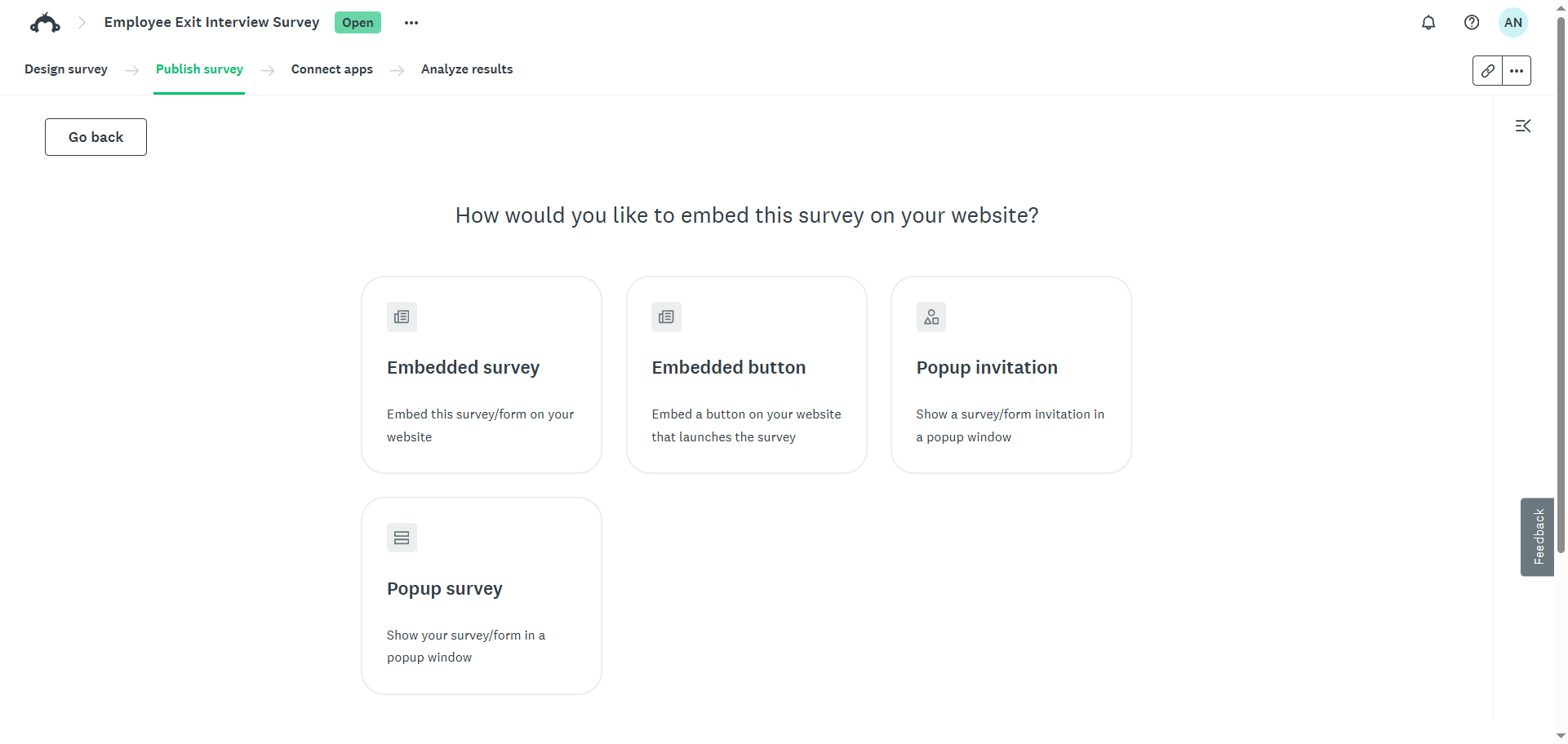
- SurveyMonkey will then provide the embed code.
You can customize settings such as width, height, border color, popup timing, sample rate, and more. You can also adjust collector options by scrolling down the page and reviewing the selections. SurveyMonkey will adjust the embed code accordingly.
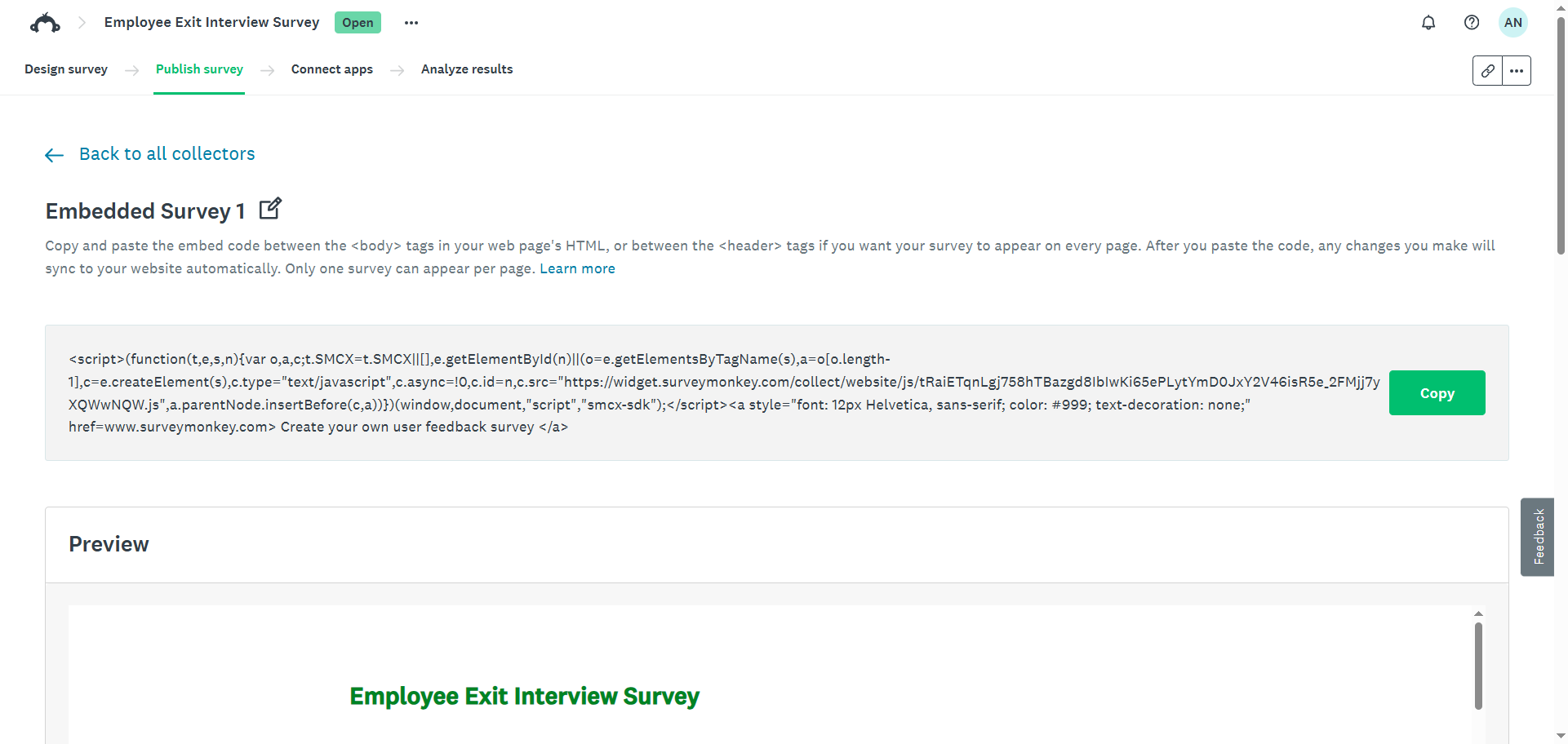
- View the live preview on this page to confirm how the survey should look on your site.
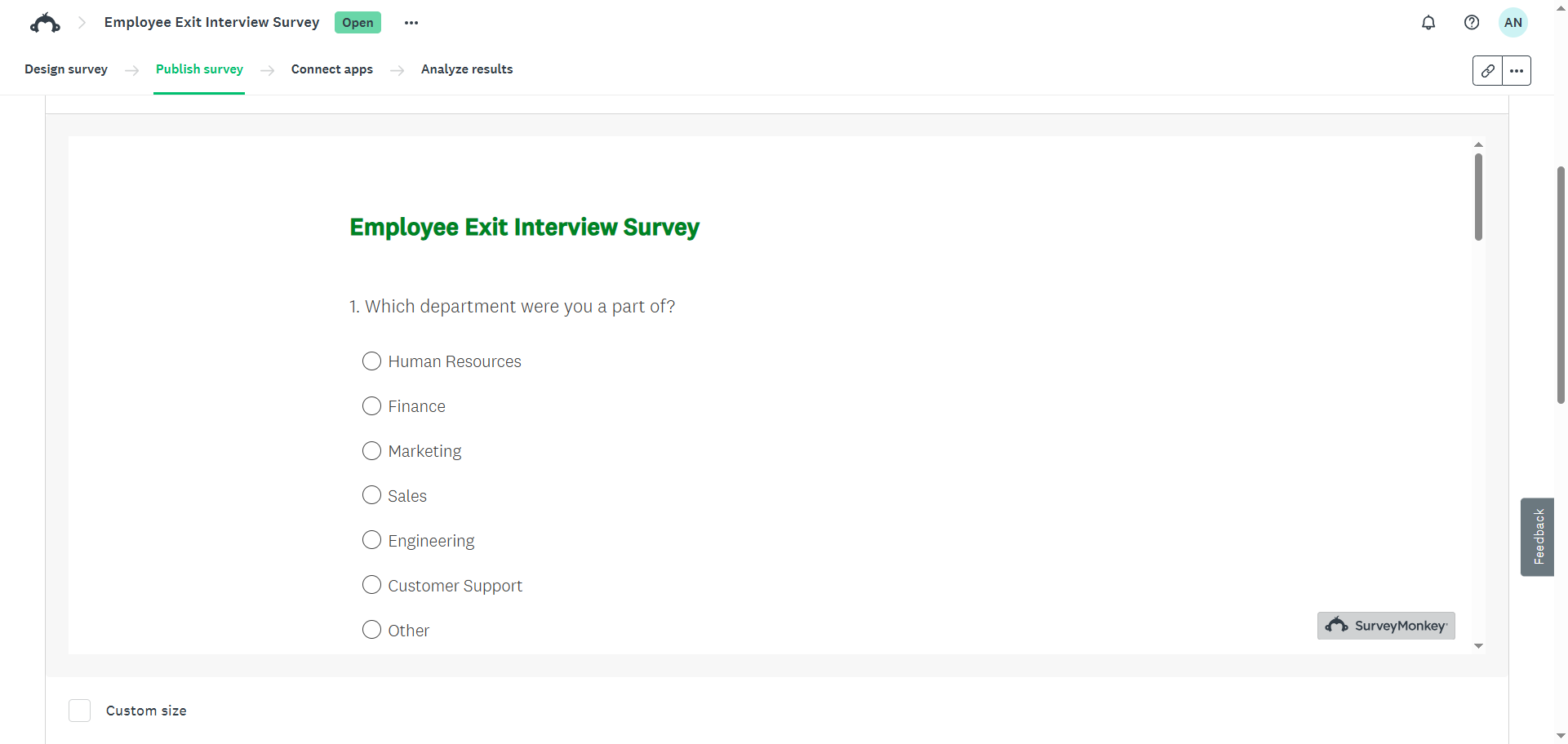
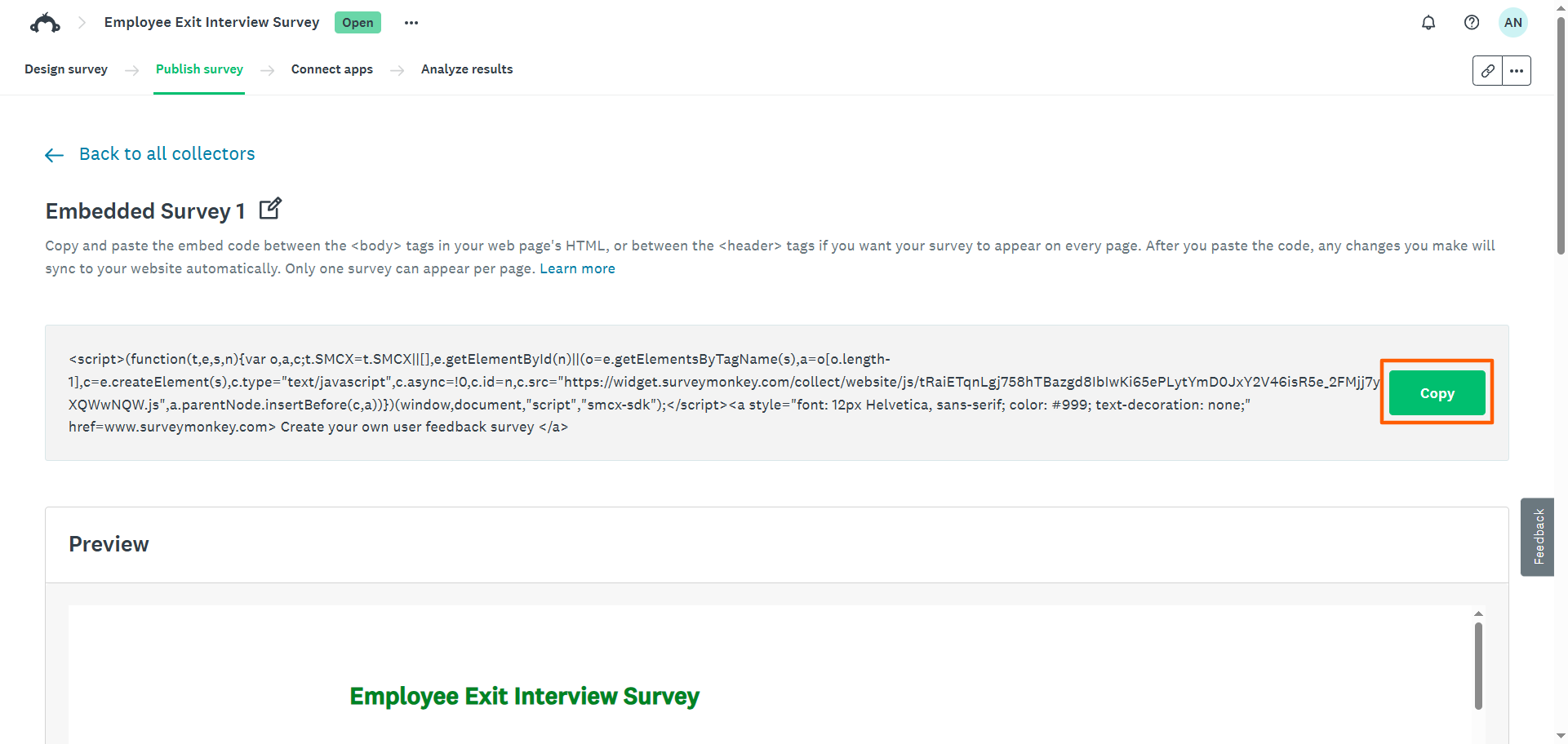
- Click Copy, then paste the script into your website’s HTML. The steps for embedding a SurveyMonkey survey vary depending on your website builder. For example, to embed a SurveyMonkey survey in WordPress, paste the code into a custom HTML block.
For embedded surveys and embedded buttons, paste the code wherever you want the survey or button to appear on the page. For popup invitations and popup surveys, paste the script immediately before the closing </body> tag.
Embed a SurveyMonkey form in an email
With a paid SurveyMonkey plan, you can embed the first survey question directly in the survey email invitation. When recipients answer that first question, they are taken to the full survey in their browser with their response already selected.
Note that SurveyMonkey supports embedding only the first question in an email invite, not the entire survey. The first question also must be a multiple-choice question, Net Promoter Score question, or star rating. If it isn’t one of those supported question types, you won’t be able to embed it in the email.
Here’s how to embed a survey question in an email with SurveyMonkey:
- Open your survey in SurveyMonkey.
- Click Publish Survey.
- Click Send by Email or Email Invitation.
- Type in your message. This is the message your survey respondents will see when opening the email.
- Toggle on Embed First Question. Doing so will replace the standard Begin Survey button with the first question of your survey.
- Enable In-Email Response Capture to record the first answer the moment the respondent clicks on the question in the email. Note that this feature cannot be changed once you send the email invitation.
- Preview the email to ensure the question displays correctly.
- Send or schedule the email invitation.
More embed options, no restrictions: Try Jotform
SurveyMonkey is a good option for creating surveys, but if you’re searching for a free survey builder with more embedding flexibility, Jotform is worth considering. As one of the leading SurveyMonkey alternatives, Jotform supports free website embedding and easy email sharing.
Sign up for a free Jotform account and follow the instructions in the next section to create and embed surveys in just a few steps, with no hassle or the need for an upgraded plan.
Embed a Jotform form in your website in 5 simple steps
Here’s how to embed a survey in a website with Jotform:
- Create or open a survey in Jotform Form Builder. You can choose from 13,000-plus survey templates, build a survey from scratch, or use Jotform’s AI tools to build a survey using a prompt.
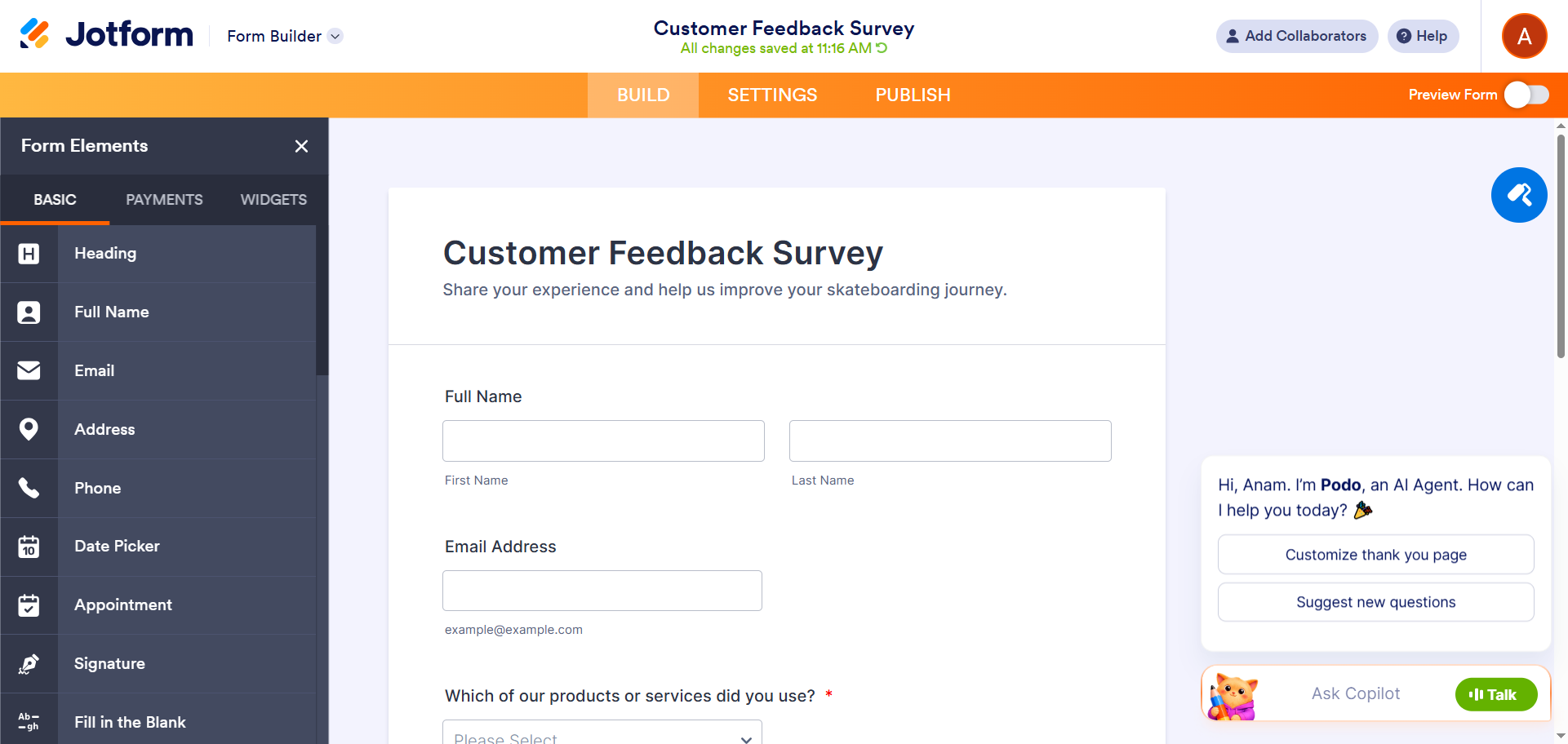
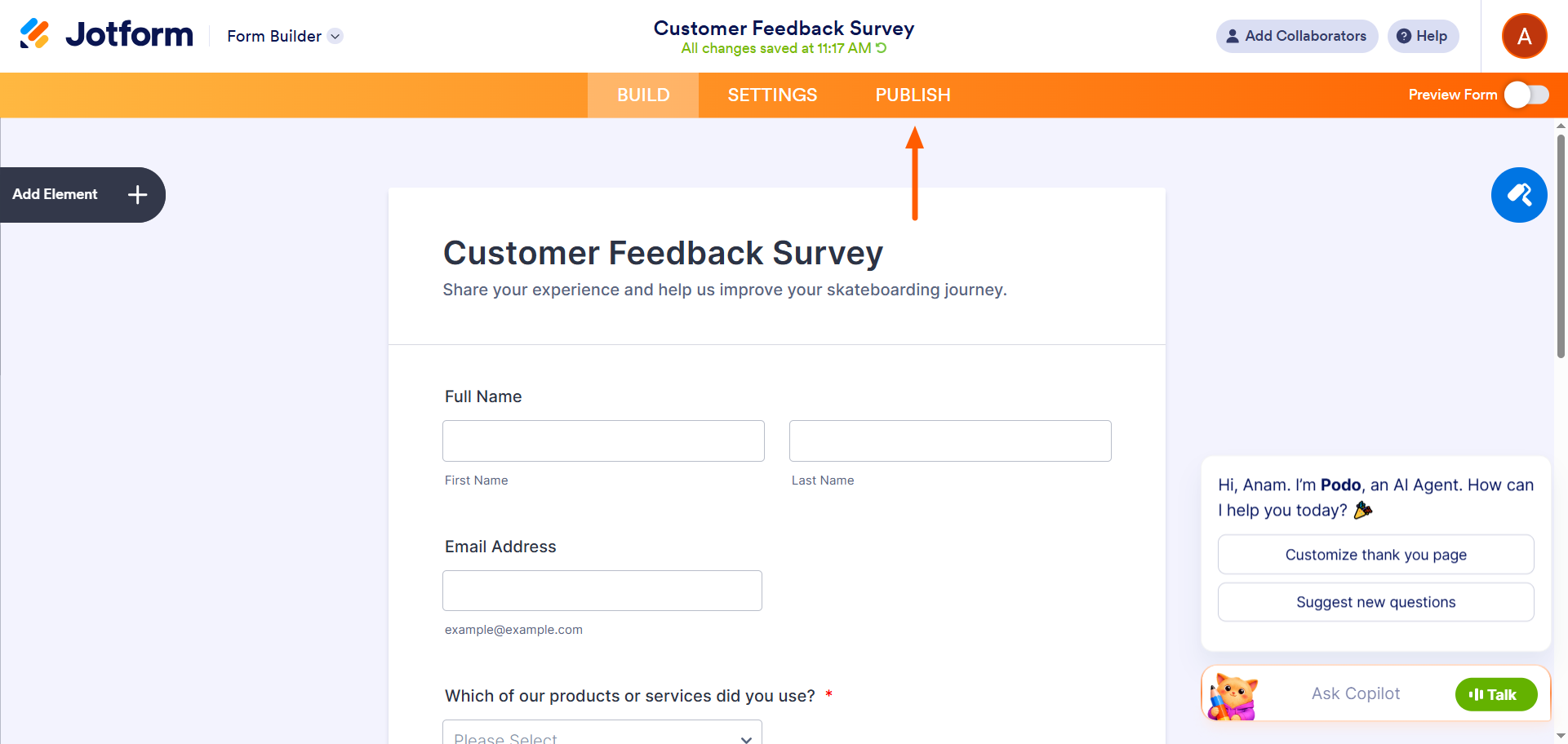
- Click Publish.
- Select Embed.
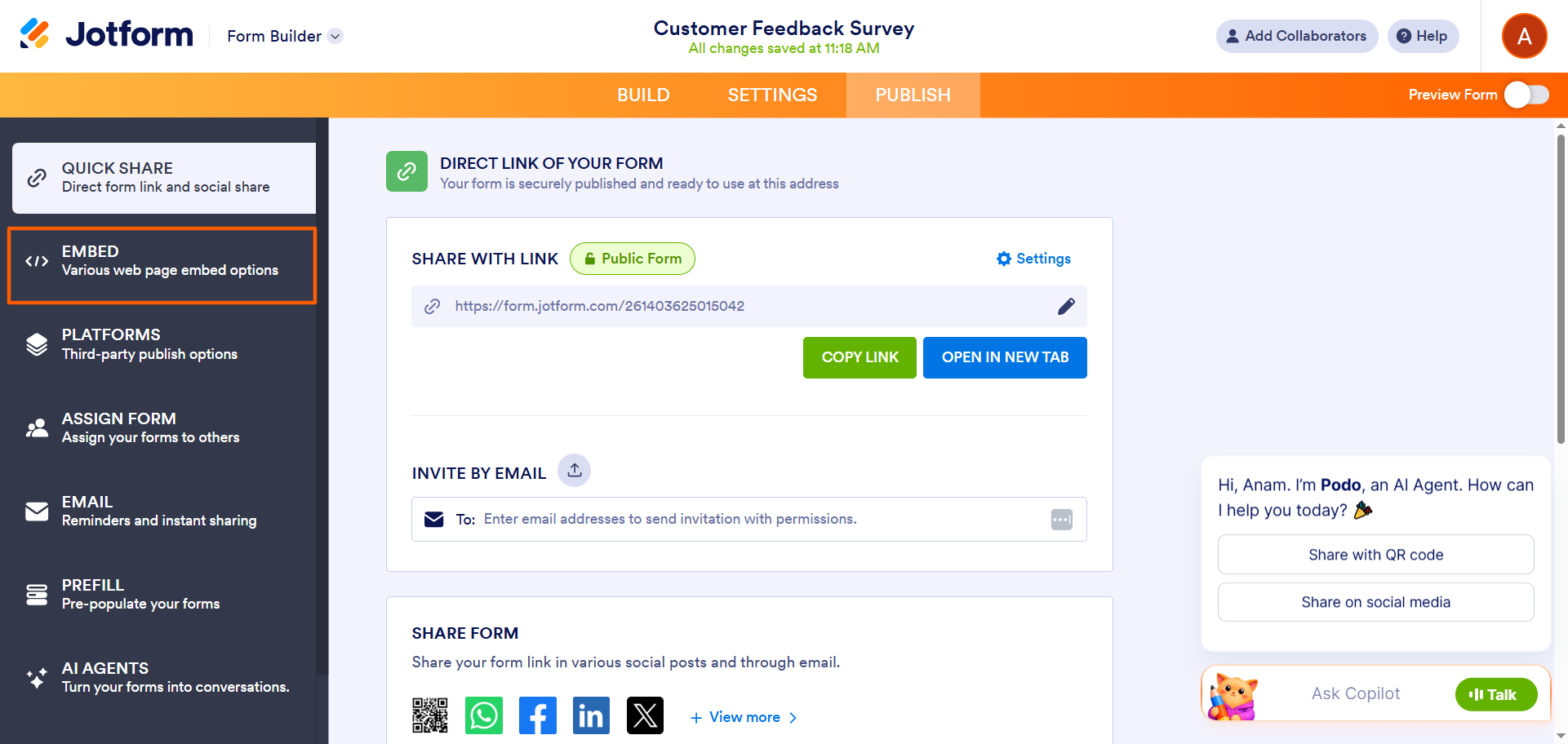
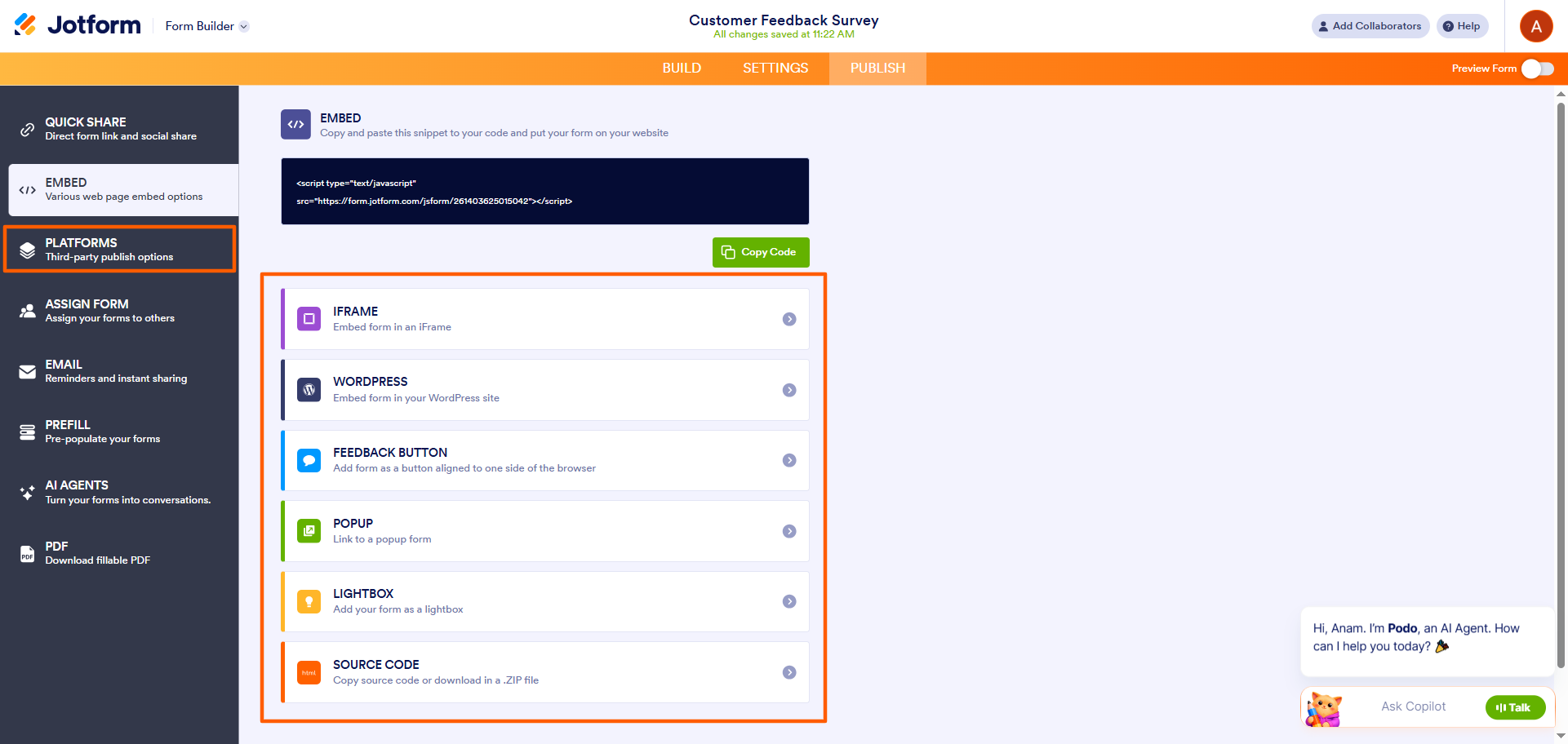
- Choose your preferred embed method. Jotform offers the following options: iFrame, WordPress, Feedback Button, Popup, Lightbox, or Source Code. For more platform-specific embedding, such as for Wix or Squarespace, click Platforms from the left-side menu and select your site builder to get a ready-made code snippet.
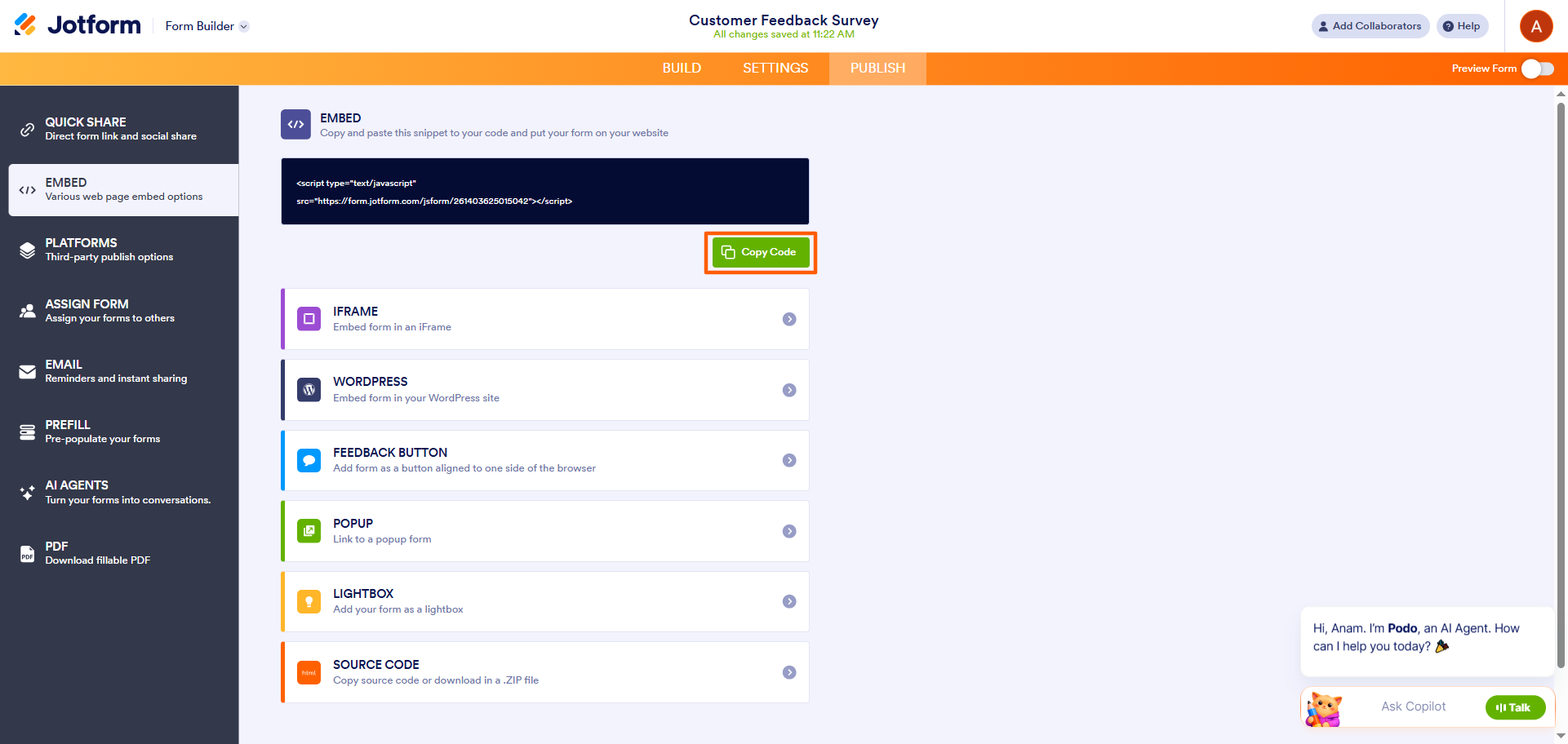
- Click Copy Code and paste it onto your website.
Pro Tip
Do you use WordPress? Jotform offers a native WordPress plug-in, making it easy to create WordPress embed forms. Once the WordPress integration is active, you can collect data, sell products, accept donations, schedule appointments, and more with Jotform.
Add a Jotform survey to any email in 5 easy steps
A quick note before the steps: Unlike a website, email isn’t a reliable place to embed a live form. Email clients render HTML inconsistently, so a form embedded directly in the body of an email can break visually, lose functionality, or trigger security warnings in the recipient’s inbox. That’s why we don’t recommend embedding a full form in an email.
Instead, add an eye-catching “Take the Survey” button that links to your hosted form. It looks polished in every inbox, opens the complete survey in one click, and preserves your form’s logic and styling. Here’s how to set it up:
- Create or open a survey in Jotform Form Builder. You can choose from Jotform’s survey templates, build a survey from scratch, or use Jotform’s AI tools to build a survey using a prompt.
- Click Publish, then select Email and choose Share on Email.
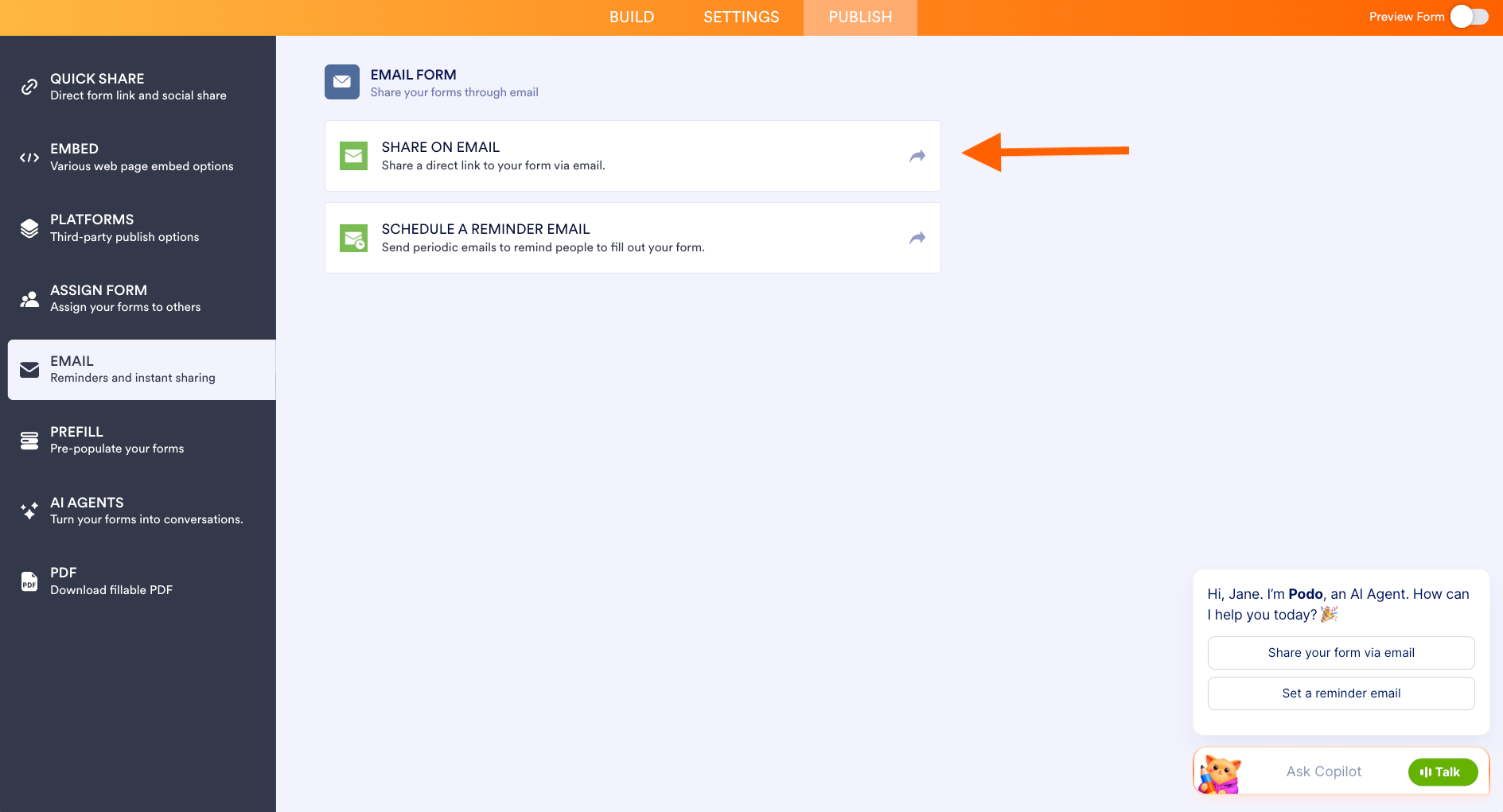
- Compose your email message, then click the Image icon in the editor and add your button image (for example, a “Take the Survey” graphic). You can upload the image to any online drive, such as Dropbox, and paste its direct link into the Source field.
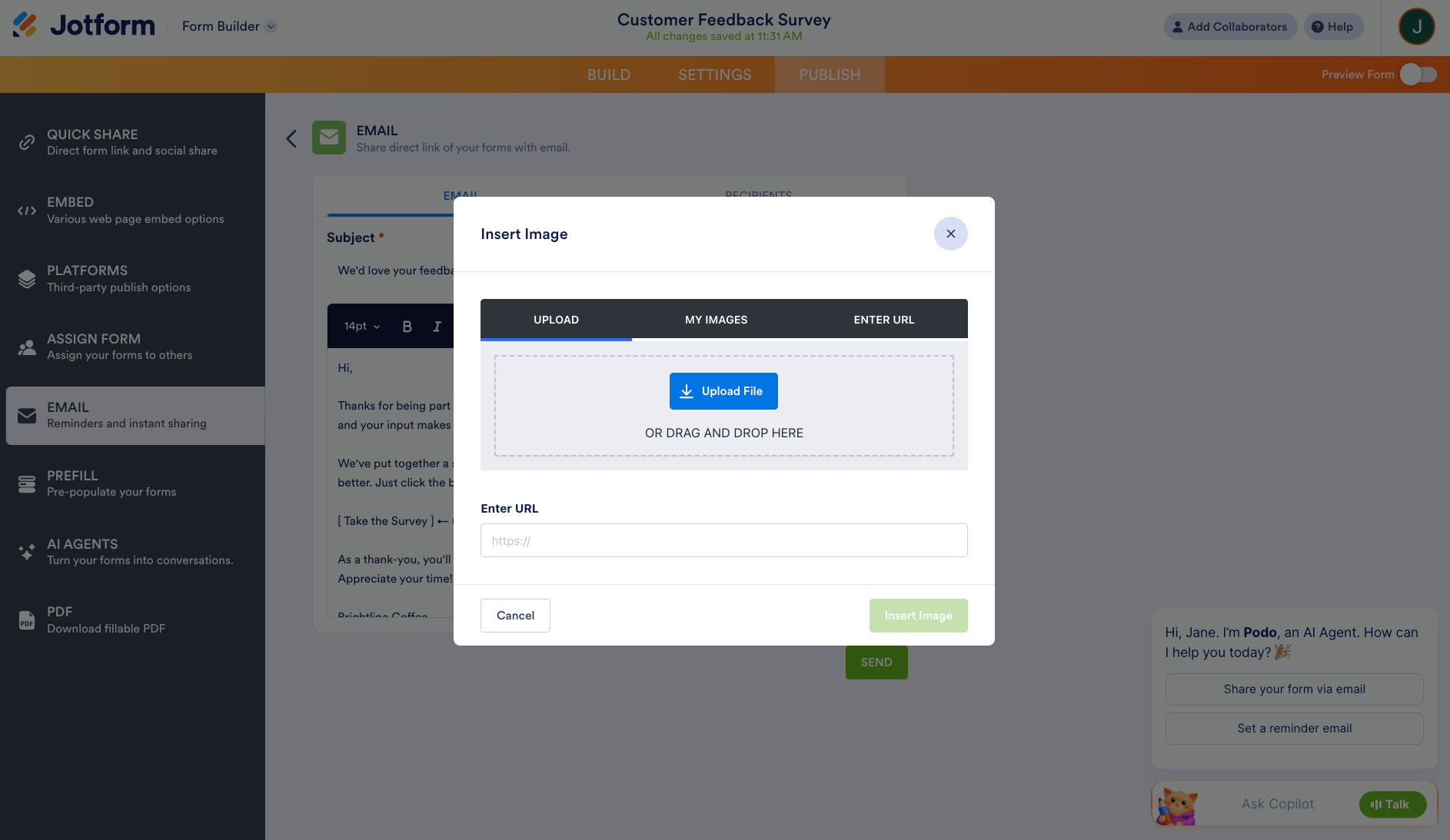
- Hyperlink the button to your form’s URL so a single click opens the survey in the recipient’s browser.
- Add your recipients, send a test email to yourself to confirm it renders correctly across email clients, then send or schedule when you’re ready.
Jotform not only makes it easy to share surveys through websites and emails, but it also offers more website embed options than SurveyMonkey, including Lightbox. Plus, Jotform comes with over 150 native platform integrations, free advanced conditional logic for building interactive surveys, and a free offline survey app that lets you collect data even when you’re off the grid.
SurveyMonkey vs Jotform for embedding forms: Quick comparison
When you compare Jotform vs SurveyMonkey head to head, one survey builder clearly stands out: Jotform. The following comparison table shows why so many users switch from SurveyMonkey to Jotform.
 Jotform |  SurveyMonkey | |
|---|---|---|
| Website embed types | iFrame, WordPress, Lightbox, Feedback Button, Popup, Source Code | Embedded survey, embedded button, pop-up invitation, pop-up survey |
| Email embed | Free button or link to the full survey | First question only (paid plans) |
| Native platform integrations (WordPress, Wix, etc.) | No; manual HTML only | |
| Free plan response limit | 100 responses per month | 25 viewable responses per survey |
| Survey templates | 13,000+ survey-specific; 20,000+ total | 500+ |
| Conditional logic | Free plan | Paid plans only |
| Offline mobile survey app | Yes, in some paid plans |
Already using SurveyMonkey? Switch to Jotform in one click
SurveyMonkey offers basic embed options for websites and email, but they may not meet every need. If you’re looking for more embed flexibility without upgrading your plan, Jotform is a compelling alternative.
If you’re ready to switch from SurveyMonkey but don’t want to rebuild all of your surveys from scratch, Jotform’s migration tool makes the process simple. In just one click, you can move your SurveyMonkey surveys to Jotform, with all questions and structure intact. No need to waste time re-creating your surveys.
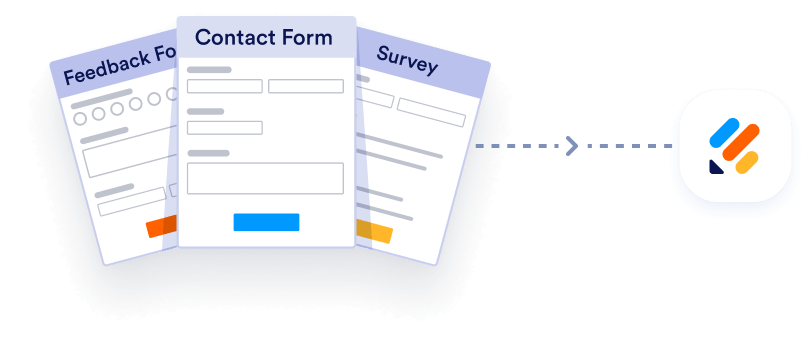
Migrate existing forms instantly
There’s no need to rebuild your online forms from scratch. Instead, migrate existing forms and submission data into your Jotform account in one click — so you can collect data without skipping a beat.
Your form can not be migrated.
Please ensure that your form URL is correct and that your form is set to “public” before attempting to migrate it again.
Once your surveys are in Jotform, you can take advantage of more flexible embedded survey options, survey templates, advanced conditional logic, and so much more. Migrate from SurveyMonkey to Jotform today.
FAQs about embedding SurveyMonkey surveys
The answer depends on the survey builder you use. Embedding a live, fillable form directly in an email isn’t reliable because email clients render HTML inconsistently, which can break the form visually, disable its functionality, or trigger security warnings. Instead, link to your hosted survey with a clear call-to-action button. In Jotform, you do this in the Publish > Email section by adding a button image and linking it to your form’s URL. Recipients can then open the complete survey with one click. SurveyMonkey takes a different approach. On paid plans, it lets you embed only the first survey question in the email before directing respondents to a hosted page to complete the survey.
Yes. SurveyMonkey lets you embed surveys on WordPress sites, but unlike Jotform, it doesn’t offer a native WordPress plug-in. Instead, you’ll need to generate the embed code in the Collect Responses section of the survey and copy it into a custom HTML block in WordPress.
Yes. SurveyMonkey has an API that developers can use to automate workflows and create apps from scratch. Learn more about the SurveyMonkey API on its API page.
This article is for marketers, small business owners, and operations teams who already use or are evaluating SurveyMonkey and want to embed surveys either on their website or inside email campaigns to increase response rates.




































































































Send Comment: