
If you’re creating online surveys, forms, or questionnaires, you have many platforms to choose from. One option is SurveyMonkey, a popular survey maker used for gathering data related to customer feedback, employee engagement, and market research.
SurveyMonkey offers several ways to build surveys, such as with templates and AI tools. In this article, we show you how to create a survey in SurveyMonkey using six different methods. Plus, we’ll introduce you to a data collection tool that works similarly but offers more advantages when you’re creating and sharing forms: Jotform.
6 ways to create a survey in SurveyMonkey
To explore SurveyMonkey’s survey features, you’ll need to sign up for an account. SurveyMonkey offers free and paid plans; select the one that works best for your needs.
Once you’ve signed up, you can create and manage your surveys from your homepage. When you click Create Survey from your homepage, you’ll receive five options for building your survey:
- Start from scratch
- Build with AI
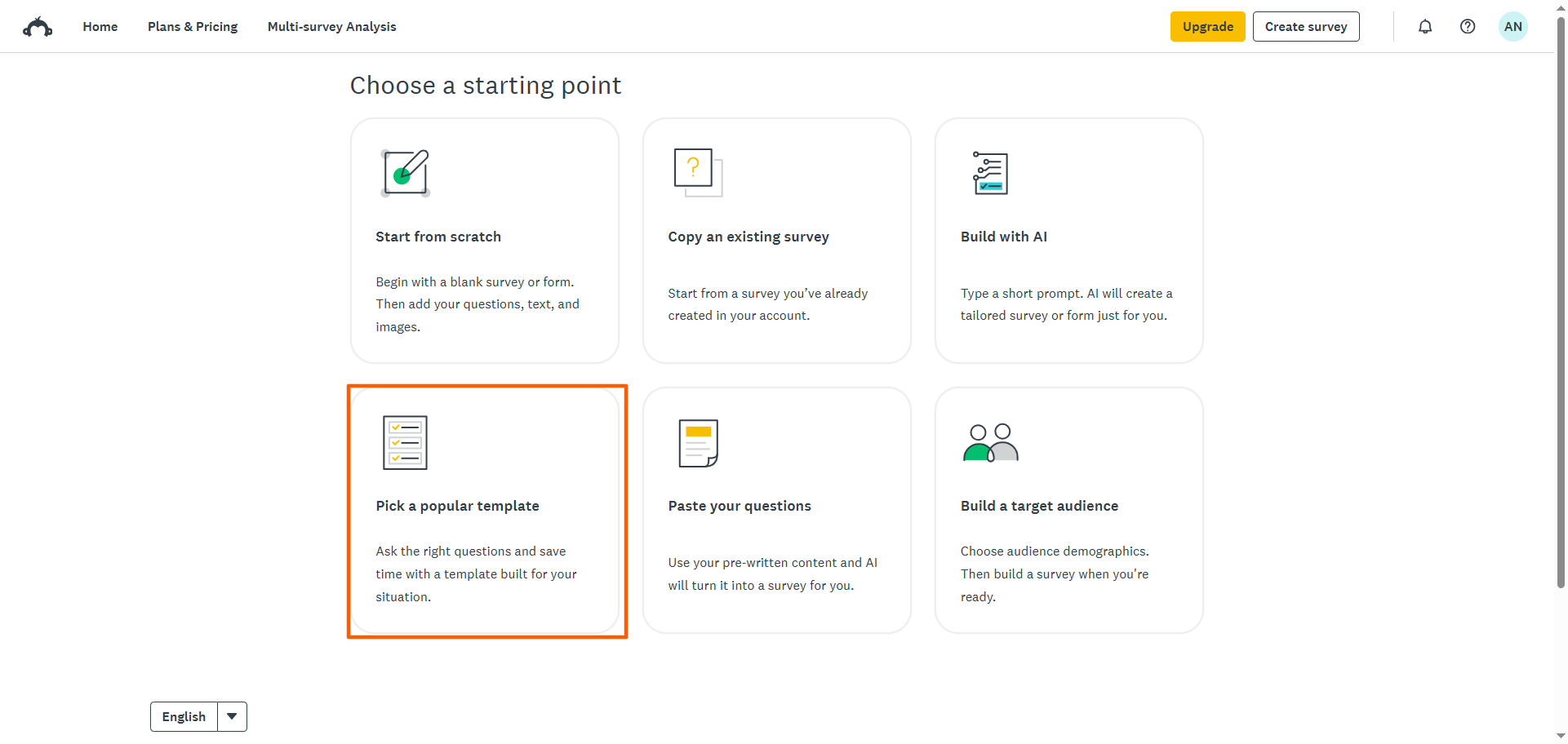
- Pick a popular template
- Paste your questions
- Build a target audience
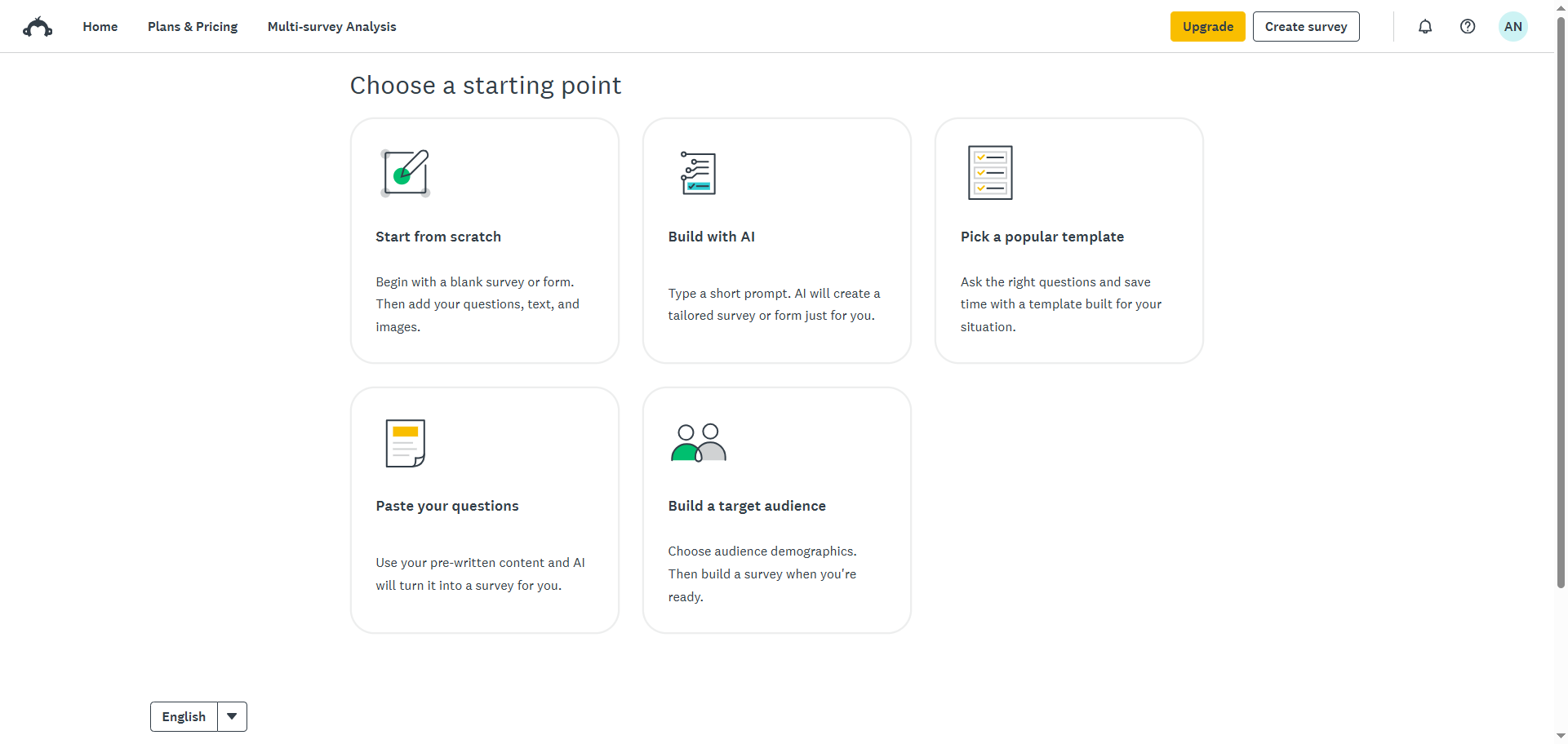
After you’ve created at least one survey with SurveyMonkey, you’ll be given a sixth option: Copy an existing survey.
We’ll provide step-by-step instructions for using each of these six options from SurveyMonkey, and we’ll explain when each option is best.
Pro Tip
Want to ensure your survey is engaging for your target audience? Check out our article “How to create a survey” for seven insightful survey-building strategies.
1. Start from scratch
The “Start from scratch” option in the SurveyMonkey survey builder is a good choice when you want full control of every question and field and the ability to customize your survey flow and structure.
For example, if you’re building a SurveyMonkey employee satisfaction survey for your organization, you may need to stick with approved questions from the HR department and use branded company colors in the design. As a result, it makes more sense to build your survey from scratch rather than using a template.
Here’s how to create a survey in SurveyMonkey from scratch:
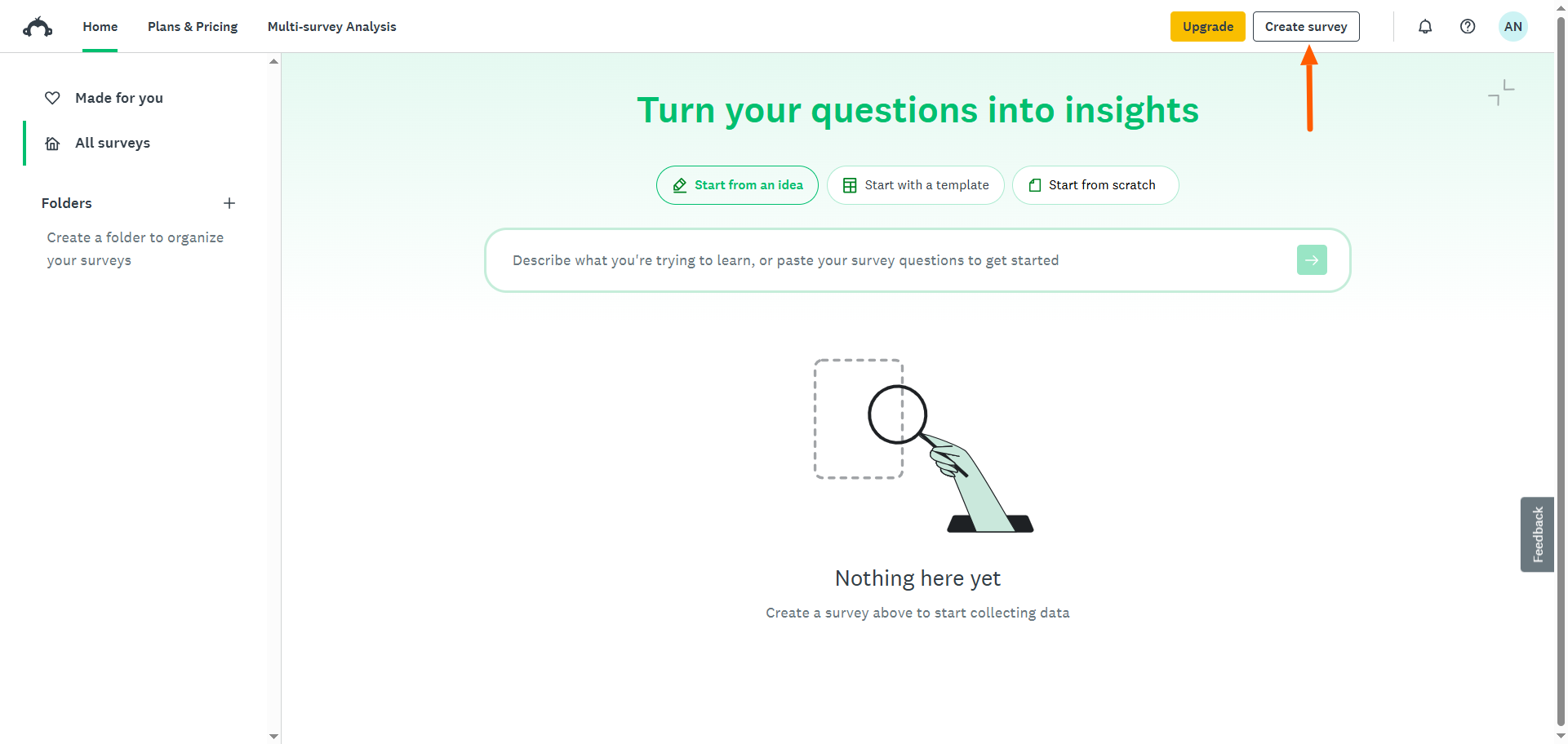
- From your homepage, click Create Survey.
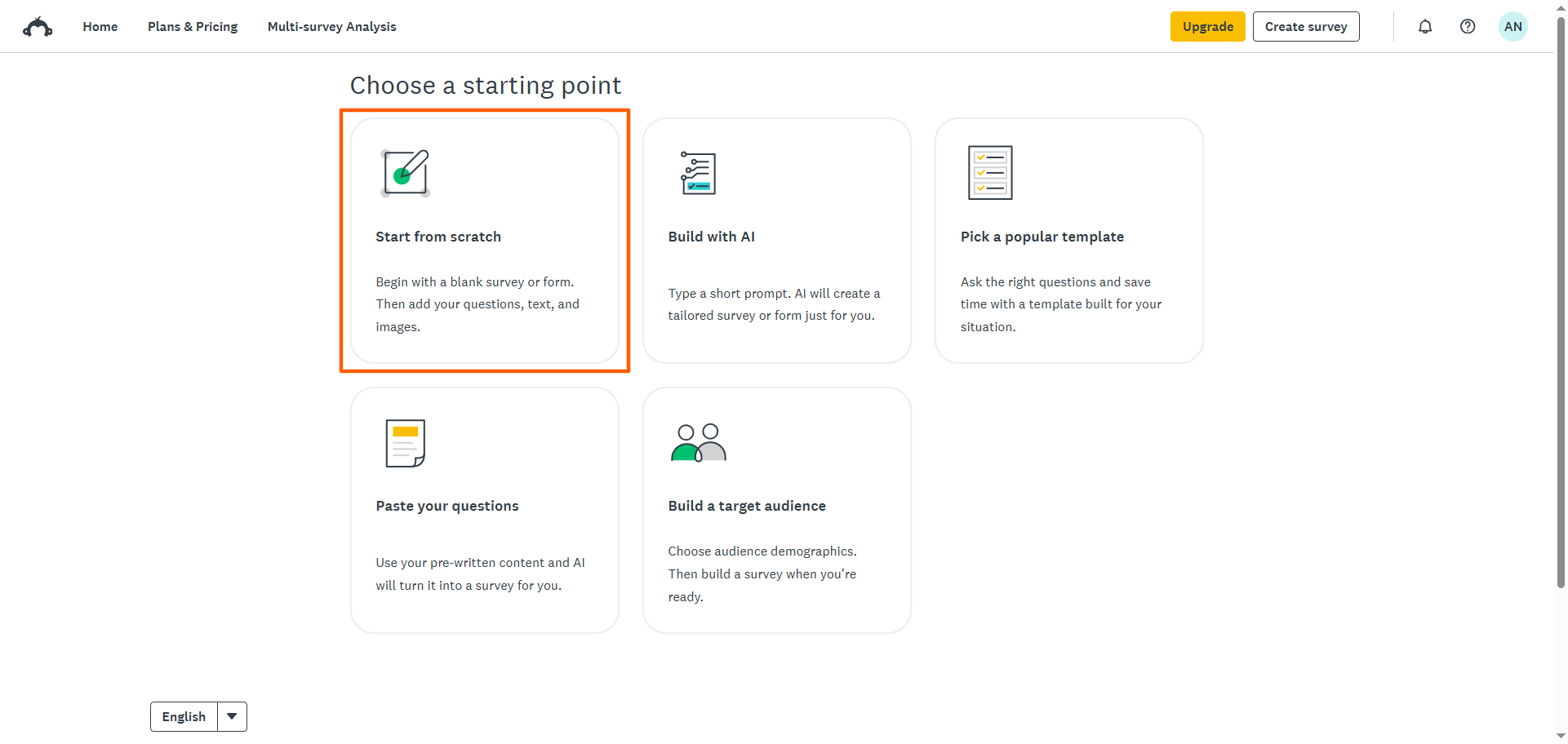
- Click Start from Scratch.
- In the survey builder, add questions to your survey from the +Build dropdown menu or the question format dropdown menu. Simply click on the question type you want to add. Then type in your question.
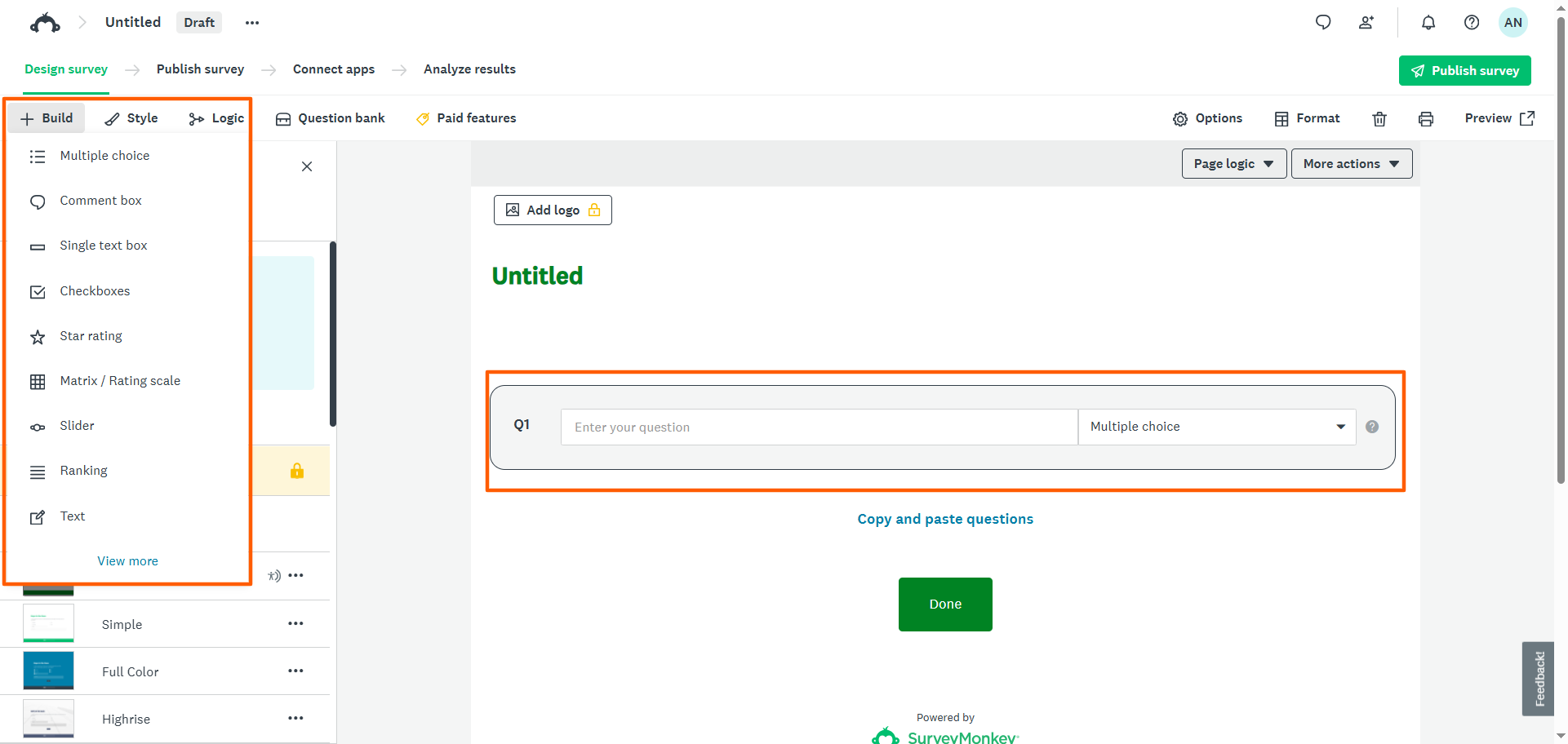
- Customize the survey Style and Logic from the top menu. You can also explore templated questions in the Question Bank.
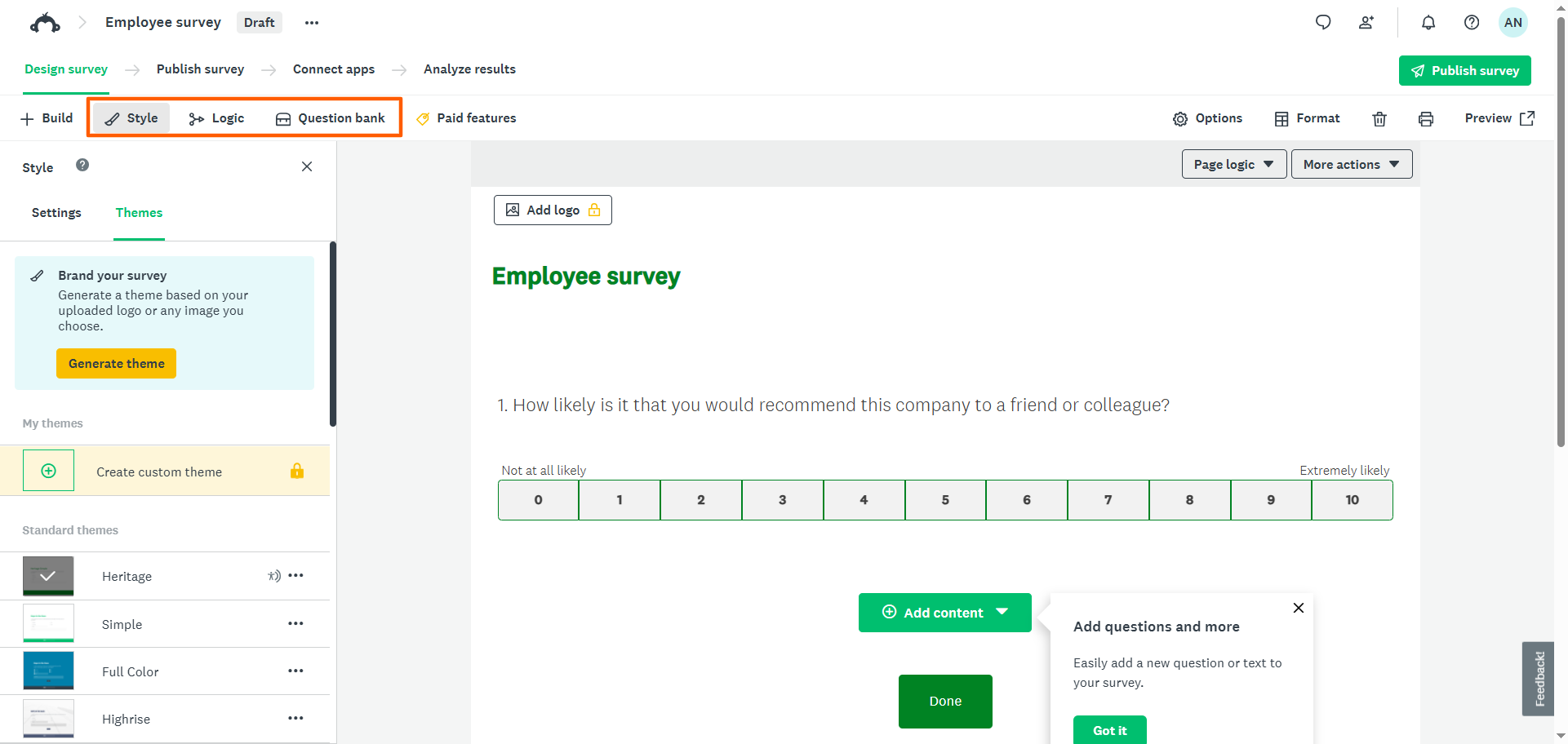
- Once you have completed the survey, click Preview to view your survey.
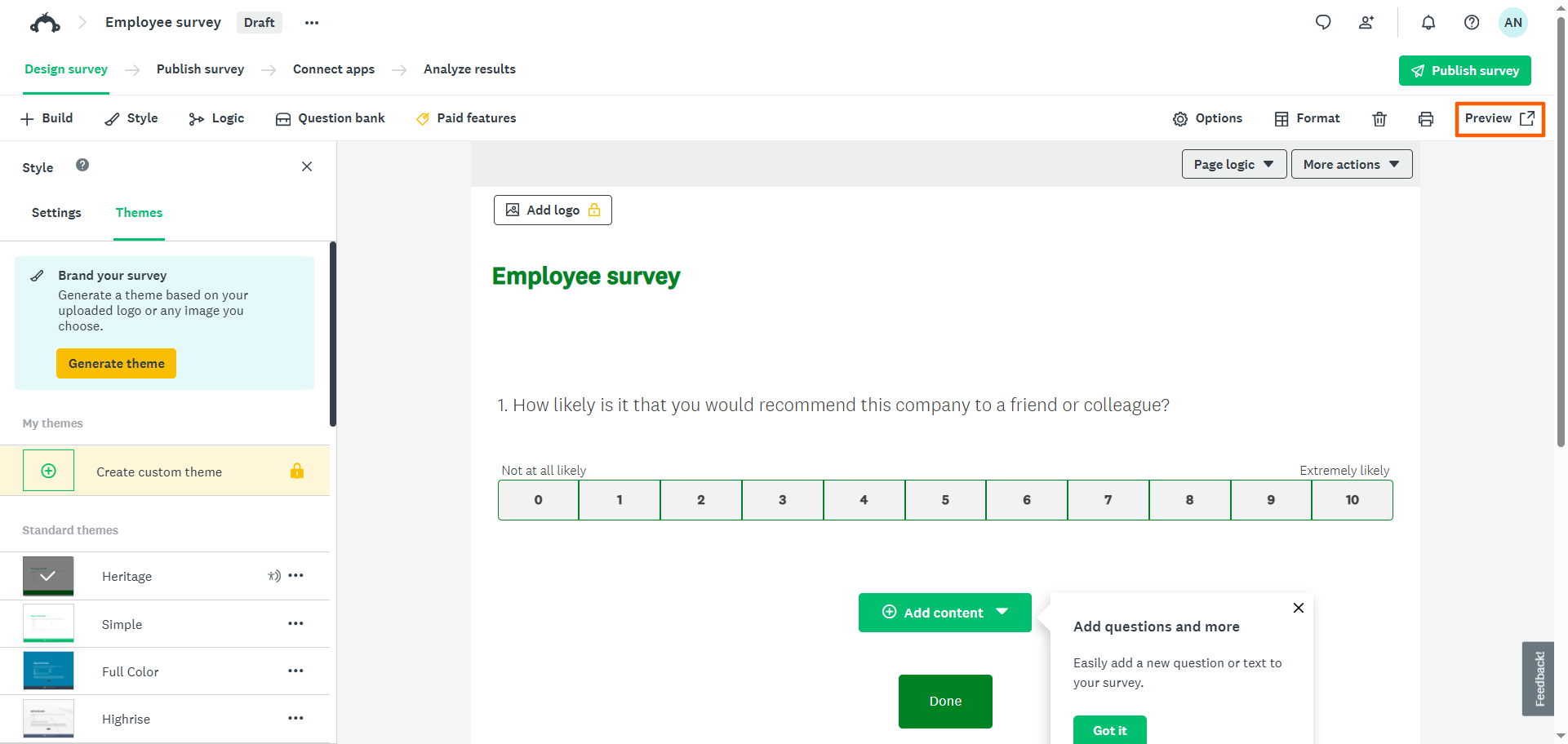
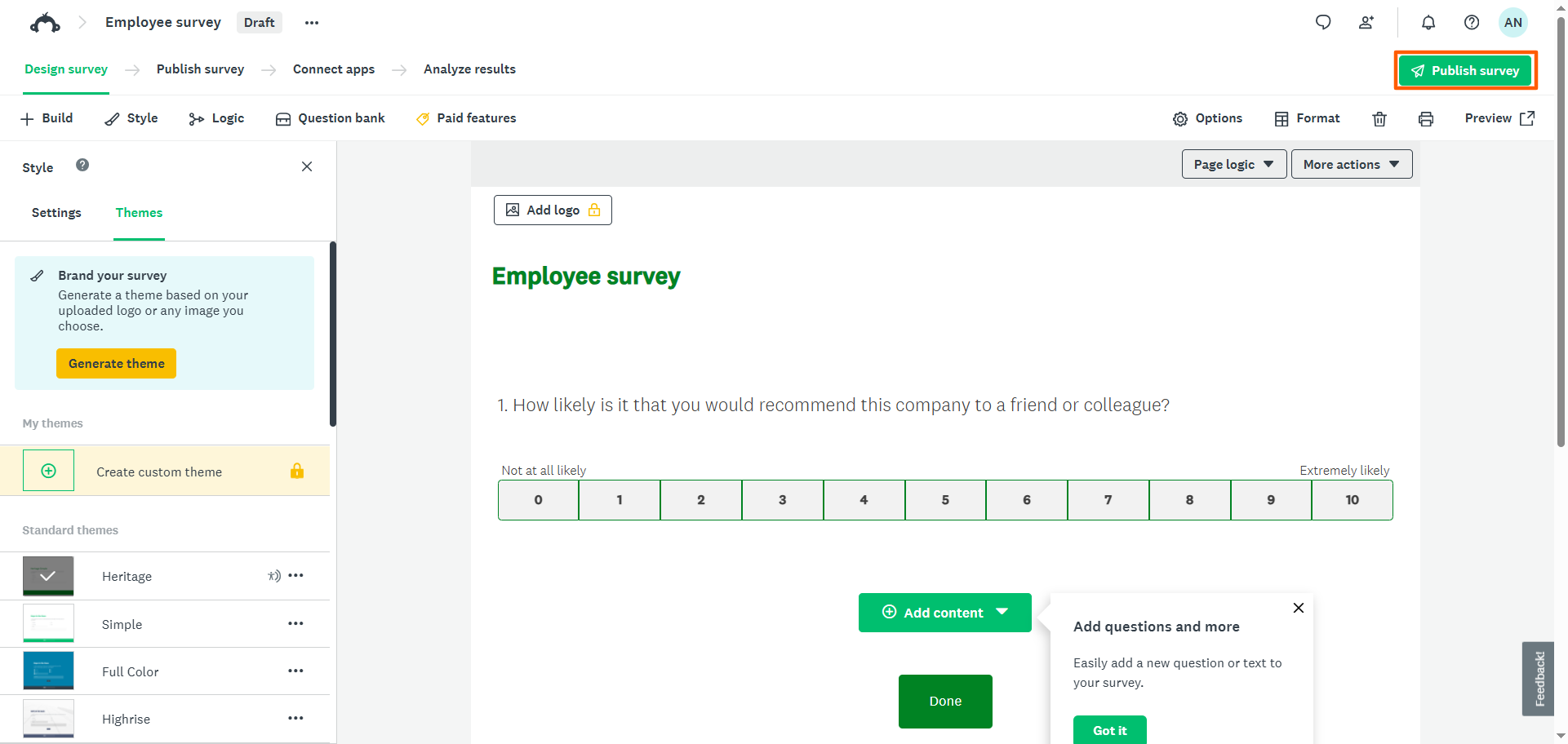
- To distribute the survey to your audience, click Publish Survey.
- Choose how you’d like to share the survey, such as link, email, or text.
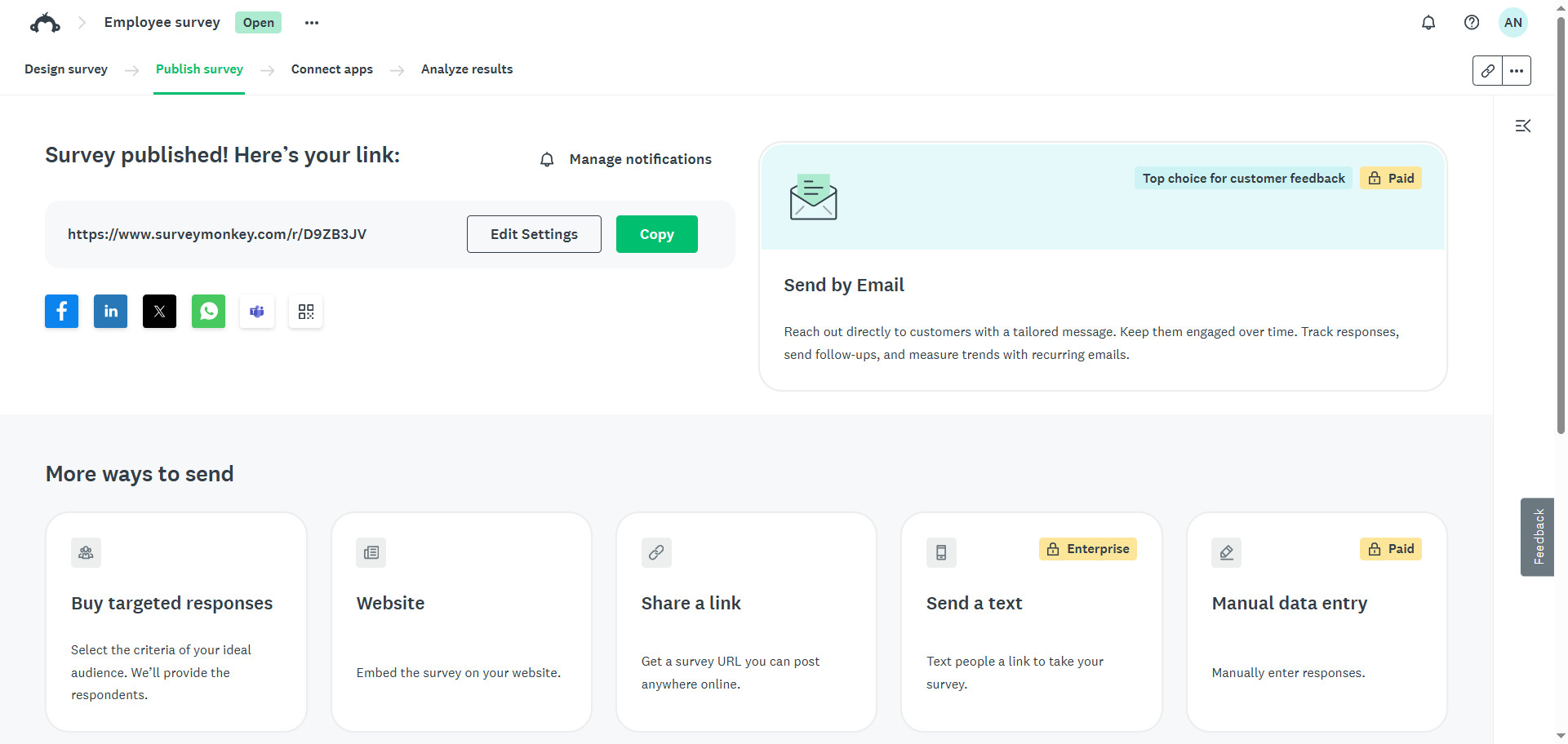
You’ve now created a SurveyMonkey survey from scratch.
2. Copy an existing survey
If you’ve already created one or more surveys using SurveyMonkey and you want to reuse or adapt one of them, then copying an existing survey is a good option. This lets you pull from the survey you’ve created and use it as a template to create a new survey.
Note that you will not see the “Copy an existing survey” option in SurveyMonkey until you have at least one survey in your account.
Here’s how to copy an existing survey in SurveyMonkey:
- From your homepage, click Create Survey.
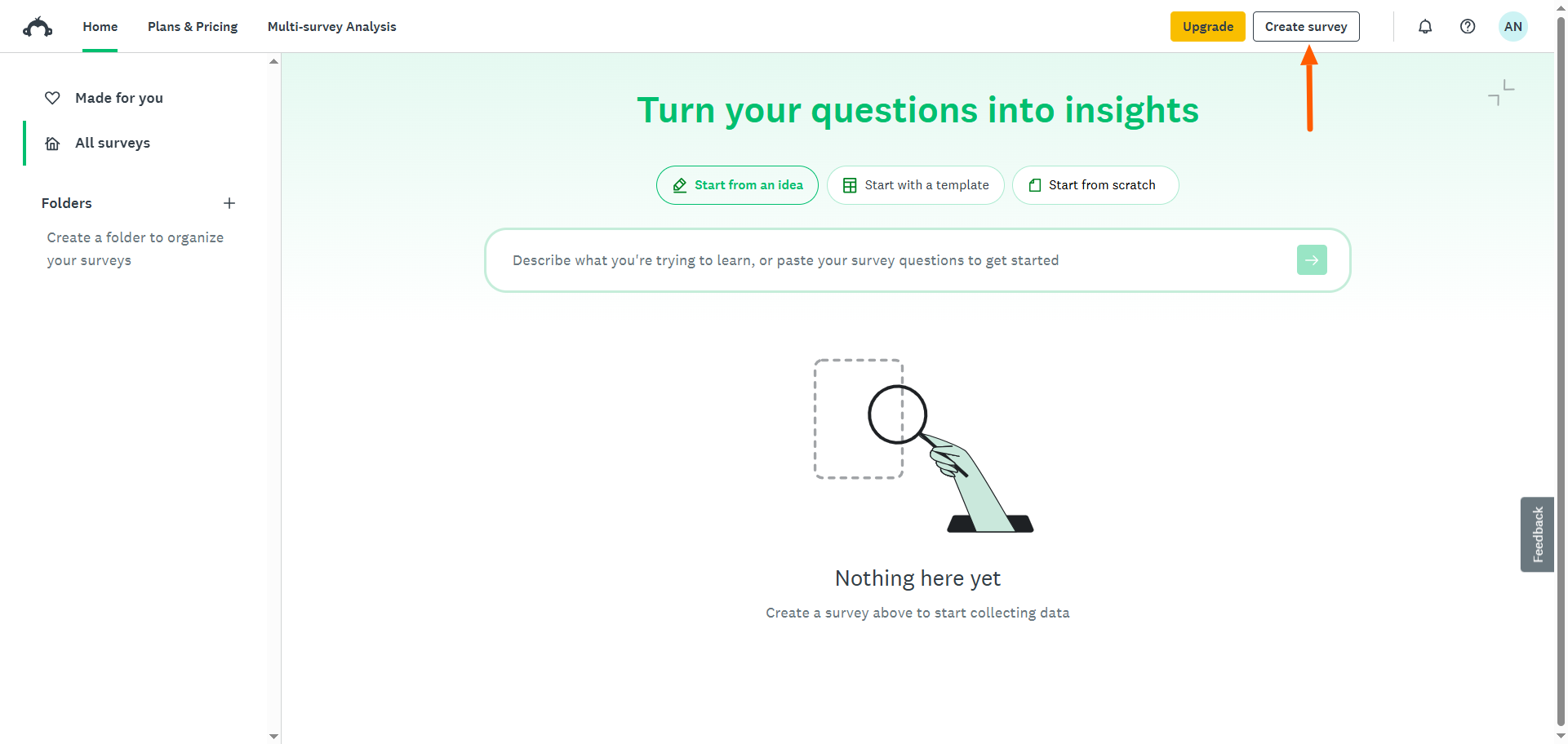
- Click Copy an Existing Survey.
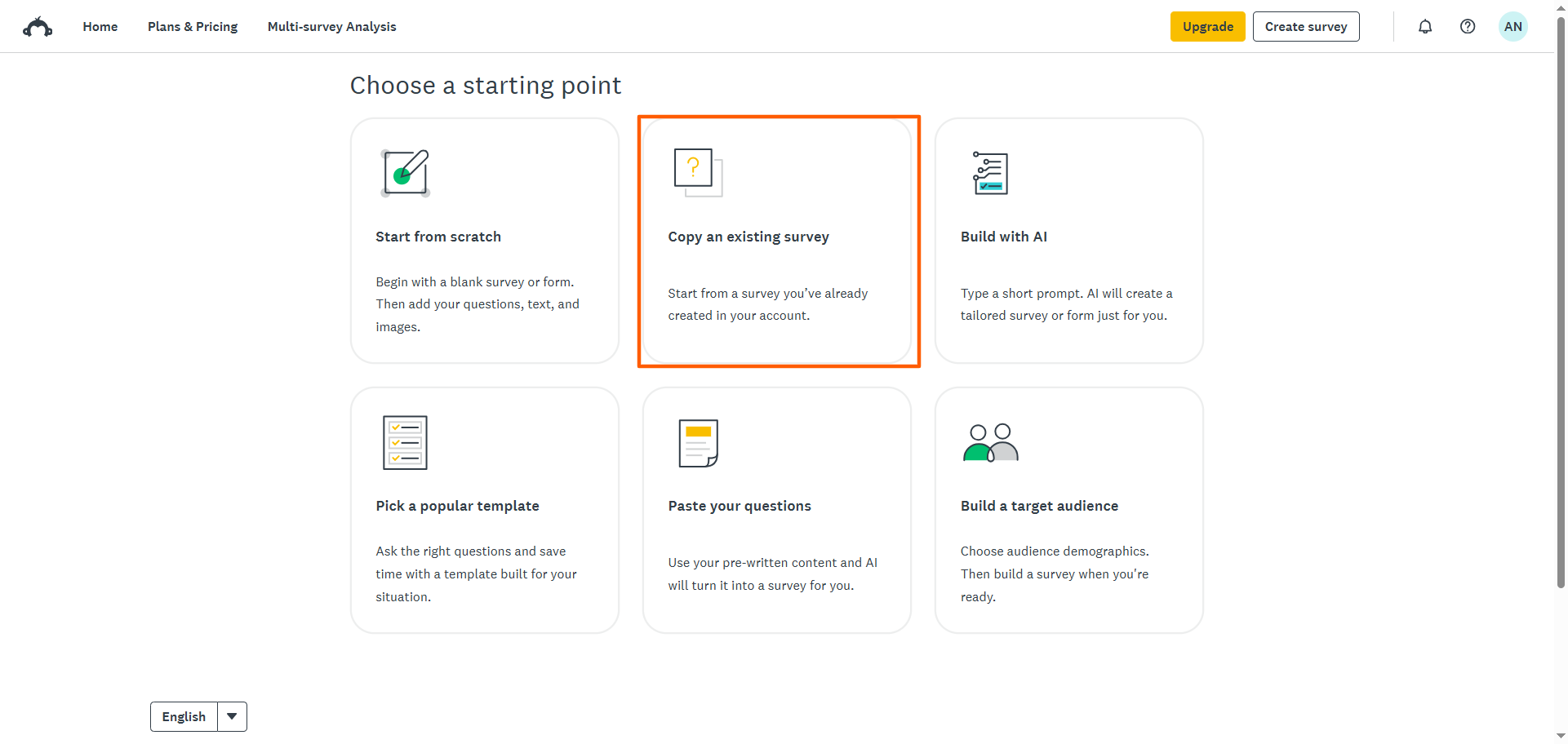
- Select the survey you want to use.
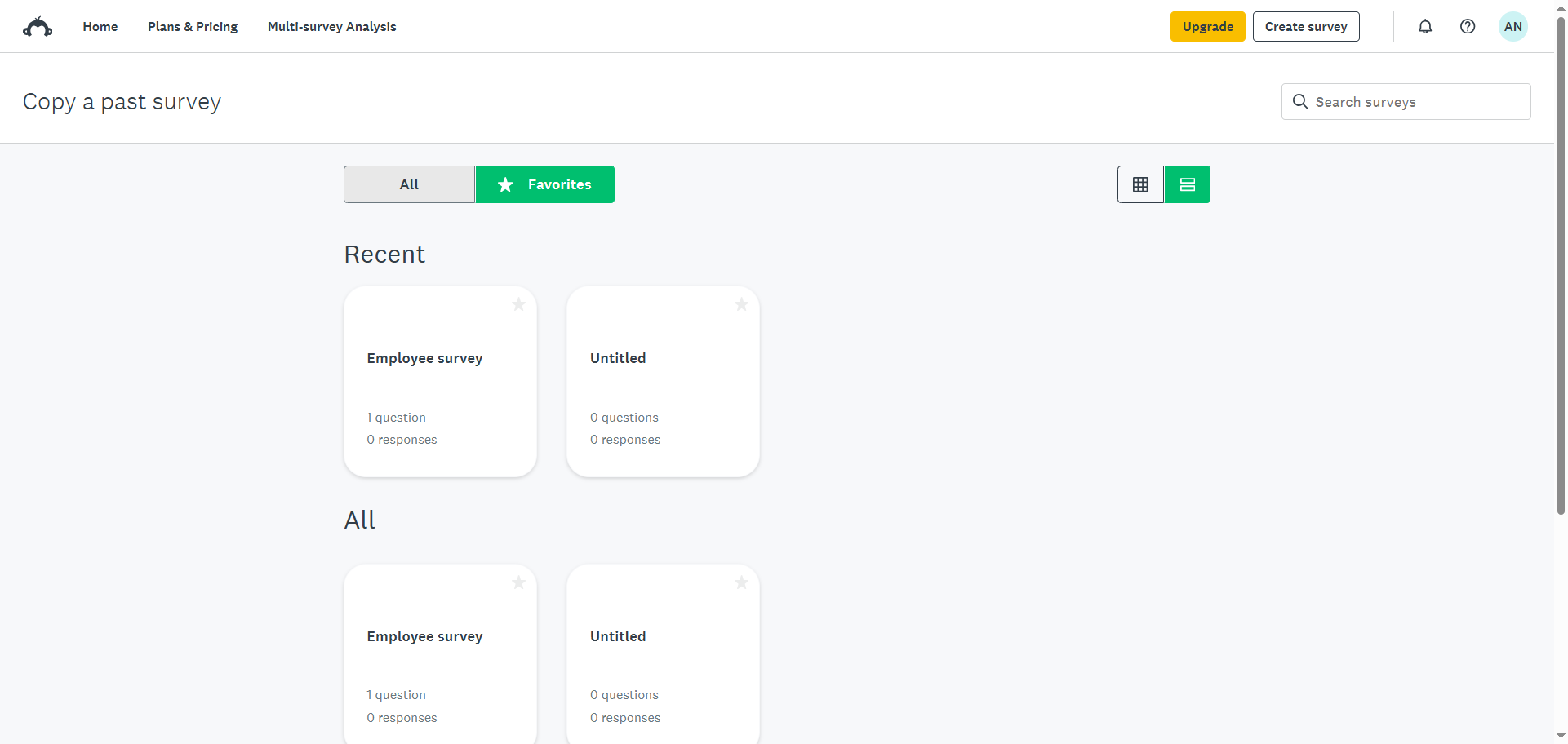
- Click Copy this Survey.
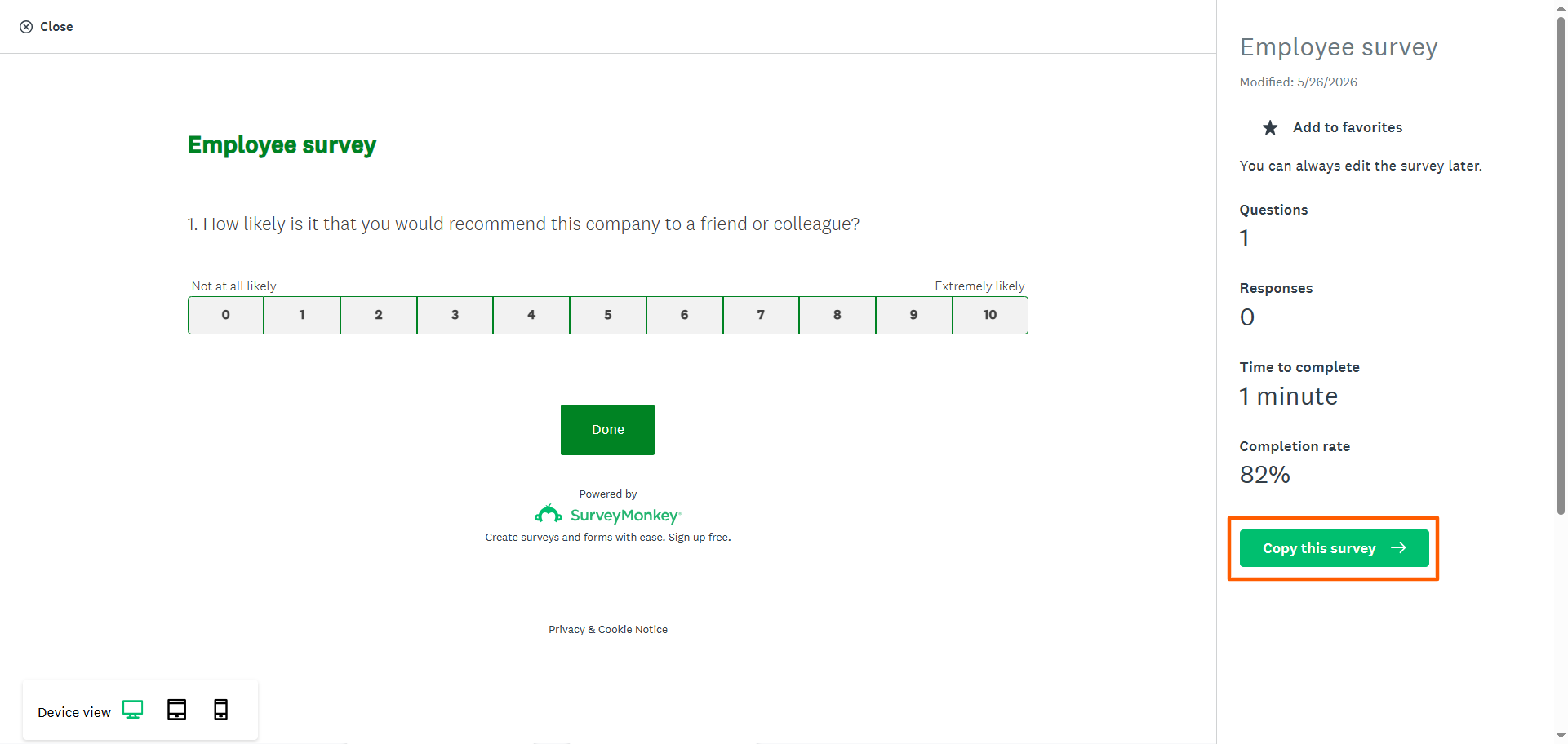
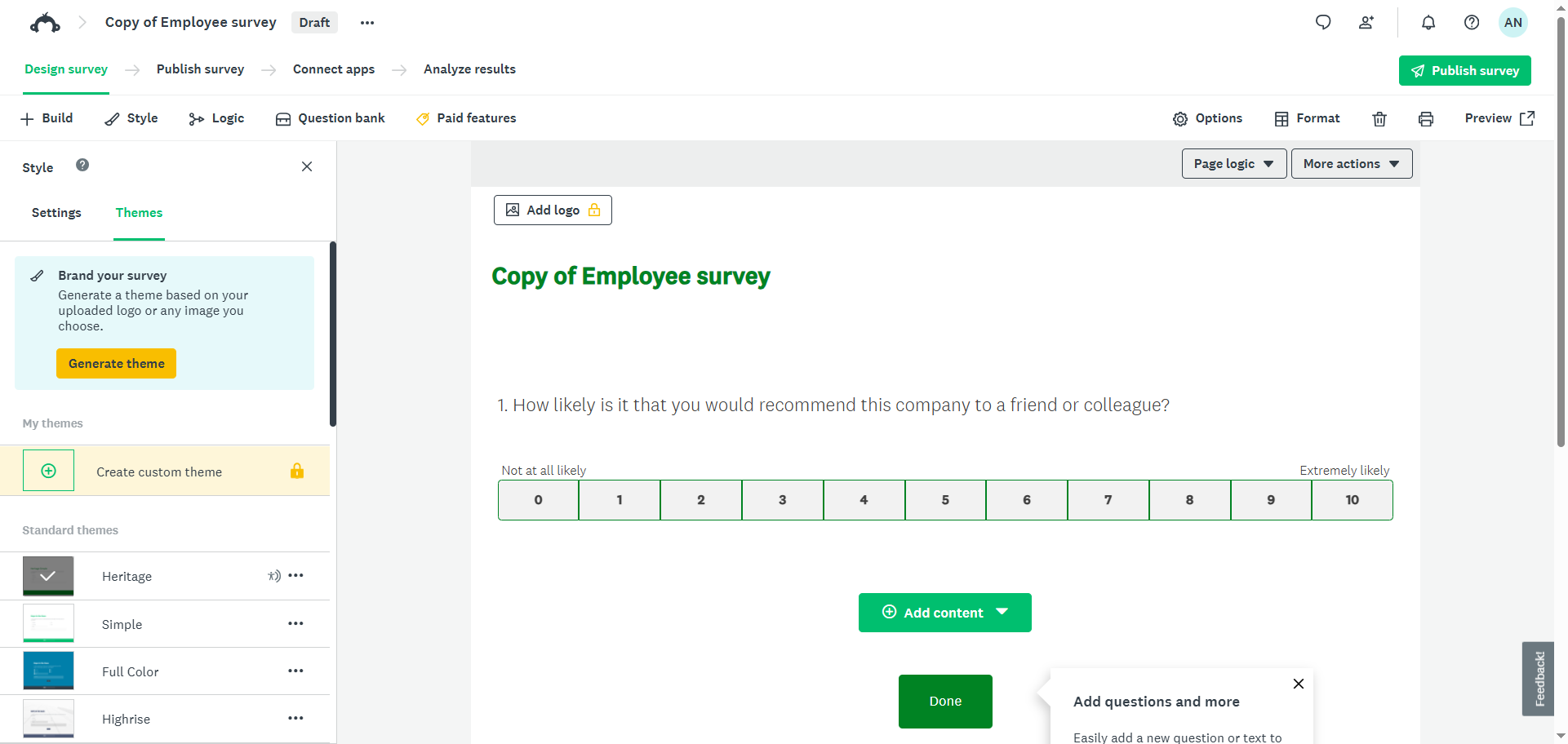
- SurveyMonkey will open a copy of your existing survey in the survey builder. You can then edit and customize this survey. First, click on the title to rename the survey. Then add, edit, and remove survey questions; customize the structure and design; and preview and publish the survey, just as you would with a survey you’ve built from scratch.
Pro Tip
If you want to try a different tool that offers more options for survey creation and workflow but you don’t want to start from scratch, try Jotform. Its SurveyMonkey to Jotform migration tool allows you to transfer your existing SurveyMonkey surveys in minutes. You don’t need to rebuild any fields or worry about losing your data. And once you start using Jotform, it’s easy to clone an existing form. Simply select the form you want to duplicate and click Clone.
3. Build with AI
If you want AI assistance, give SurveyMonkey’s AI tool a try. From your short text prompts, it generates full surveys that you can review, edit, and refine. It’s a good option if you want to generate a survey quickly.
Here’s how to create a free survey online with AI tools from SurveyMonkey:
- From your homepage, click Create Survey.
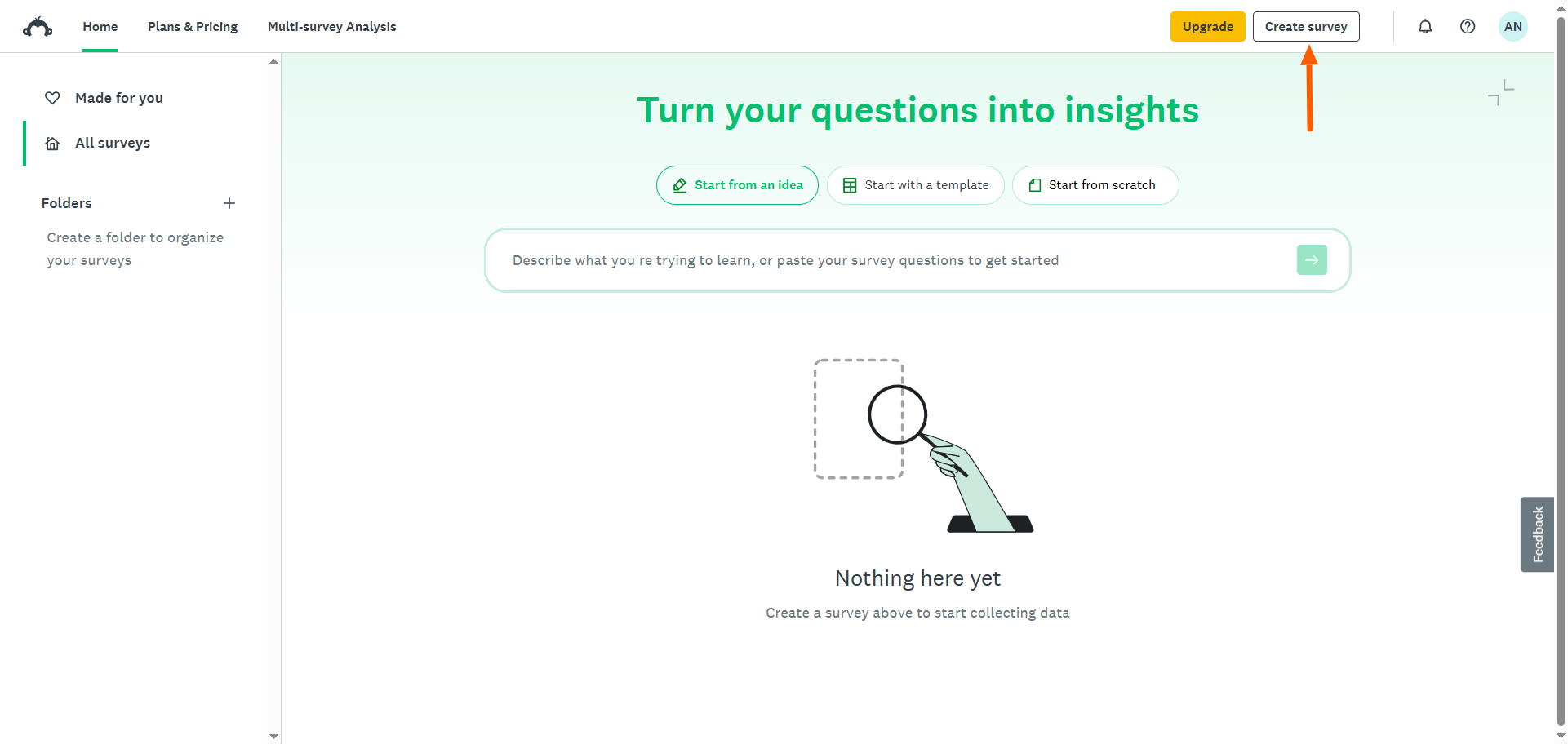
- Click Build with AI.
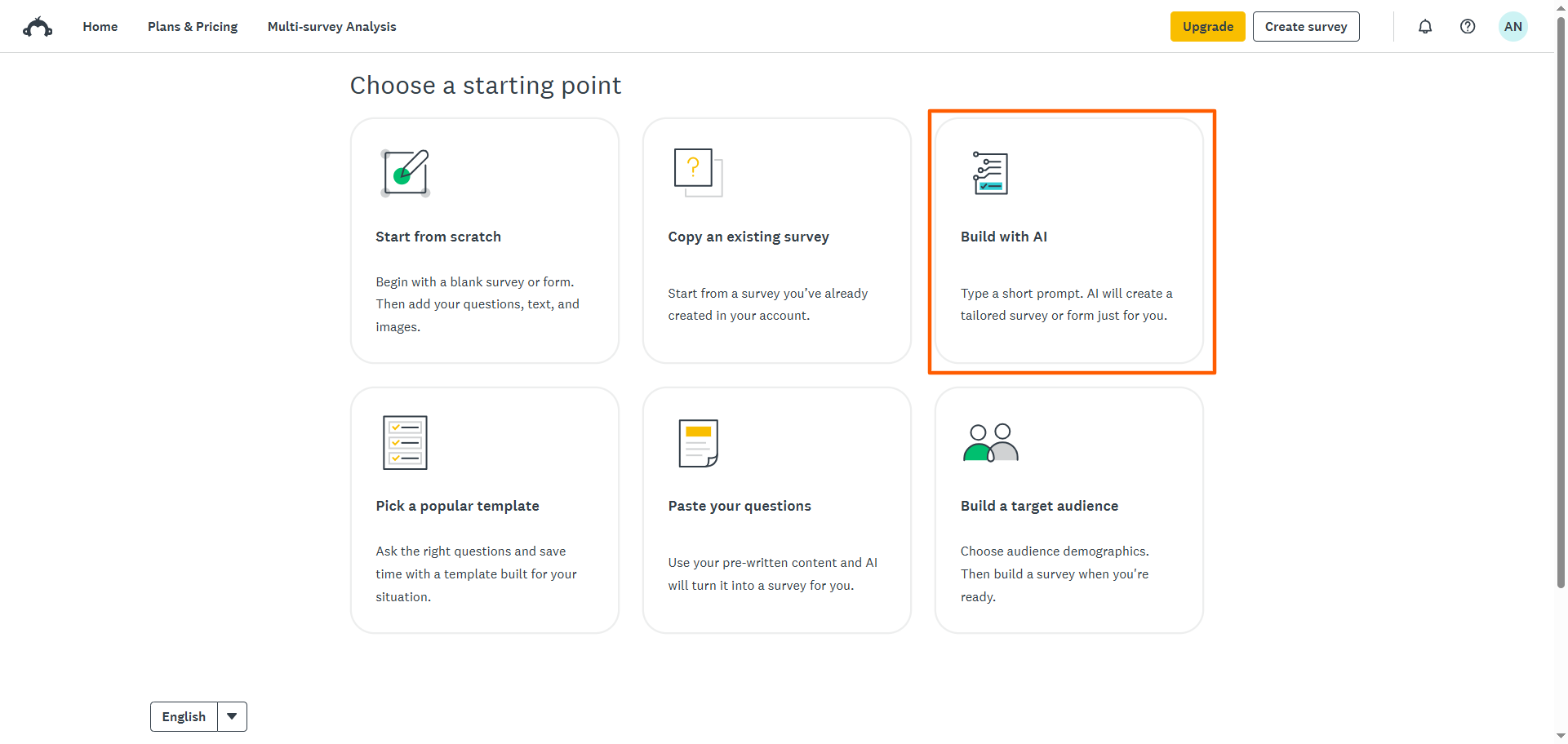
- Review SurveyMonkey’s instructions for using the AI tool. Note that SurveyMonkey suggests including in your prompt the goal of your survey and the type of feedback you want to collect. Click Continue.
- Write your prompt or select from the prompt templates available. Click the green arrow.
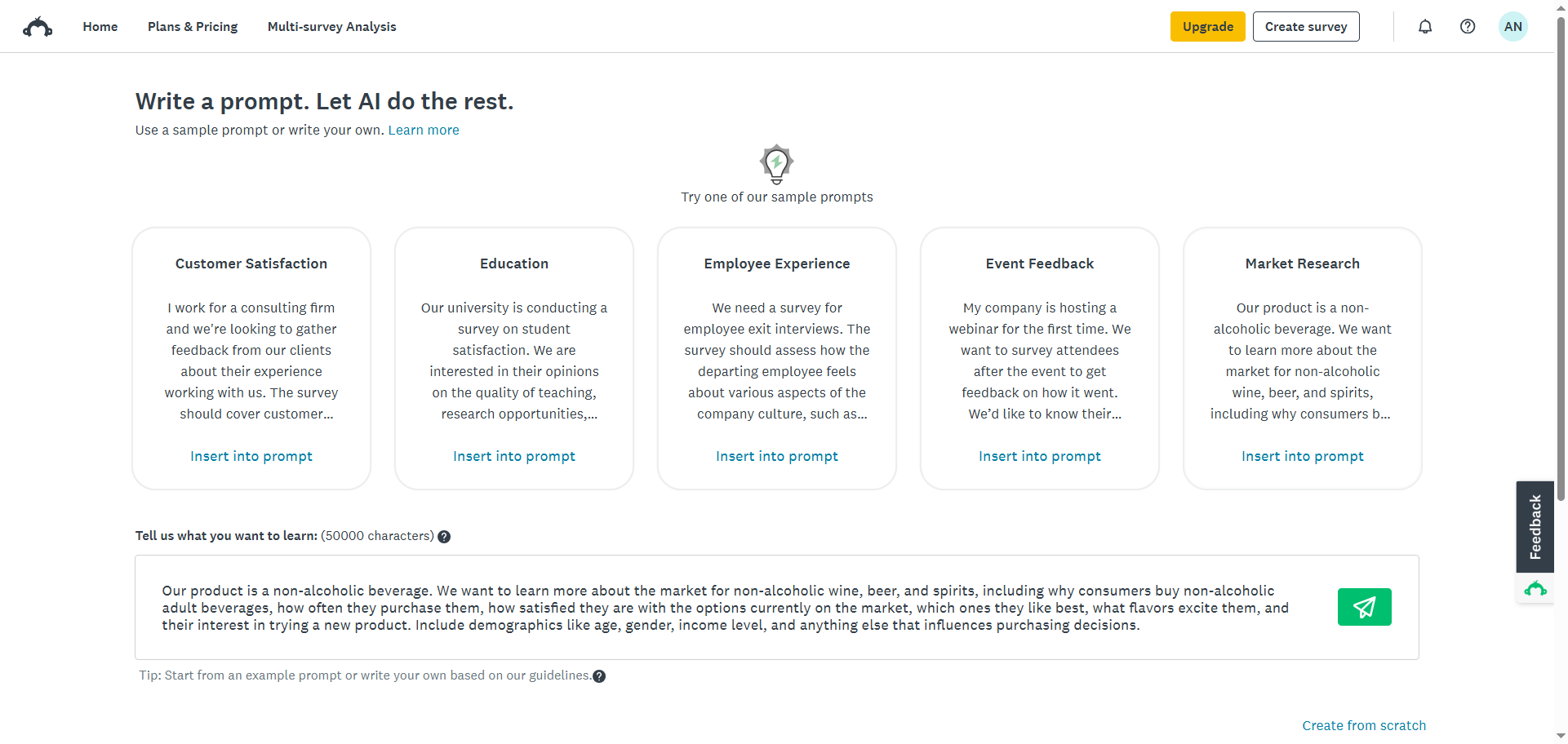
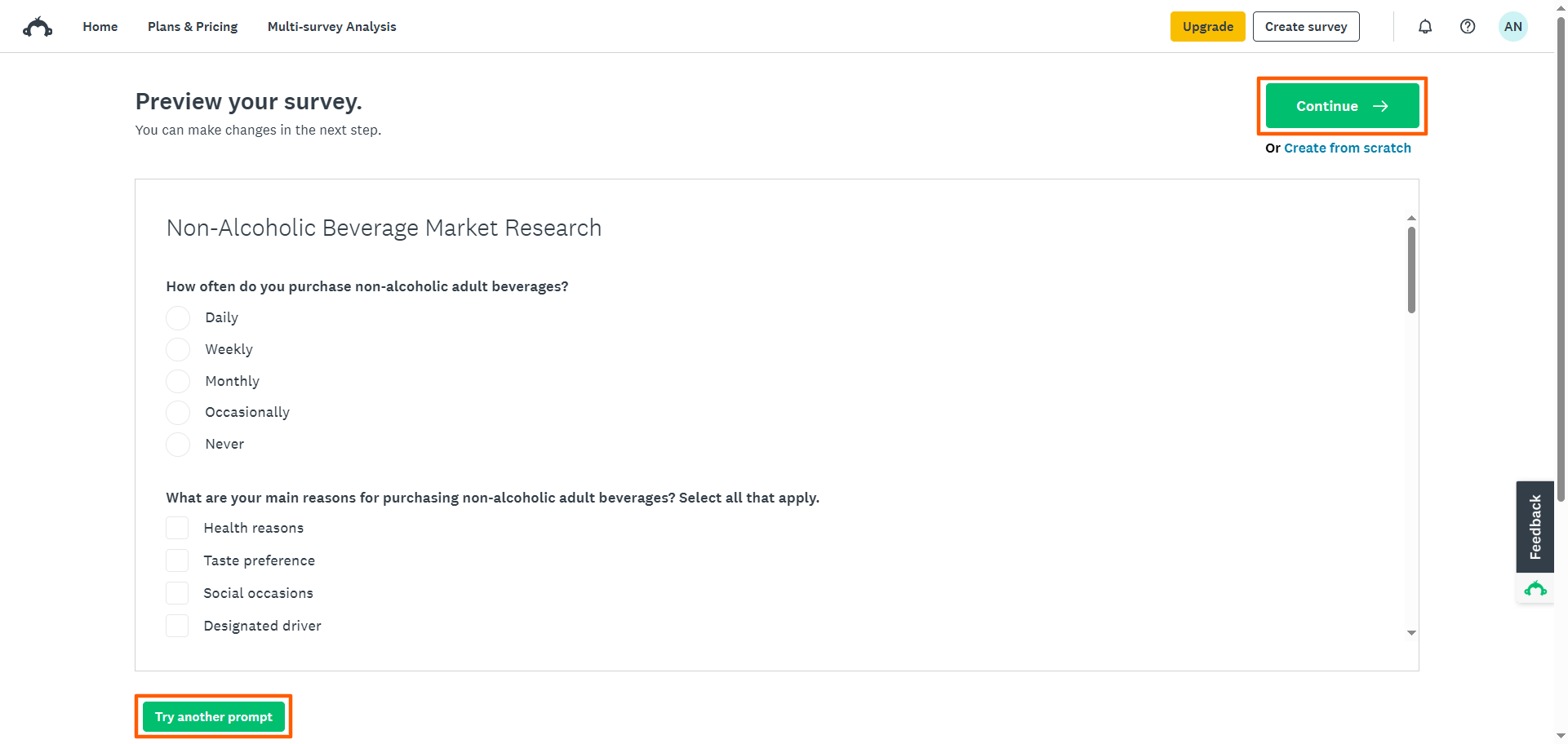
- SurveyMonkey will present your survey. If you’re happy with the questions, click Continue. This leads you to the survey builder. If you want to revise the survey, click Try Another Prompt. This leads you back to the prompt page.
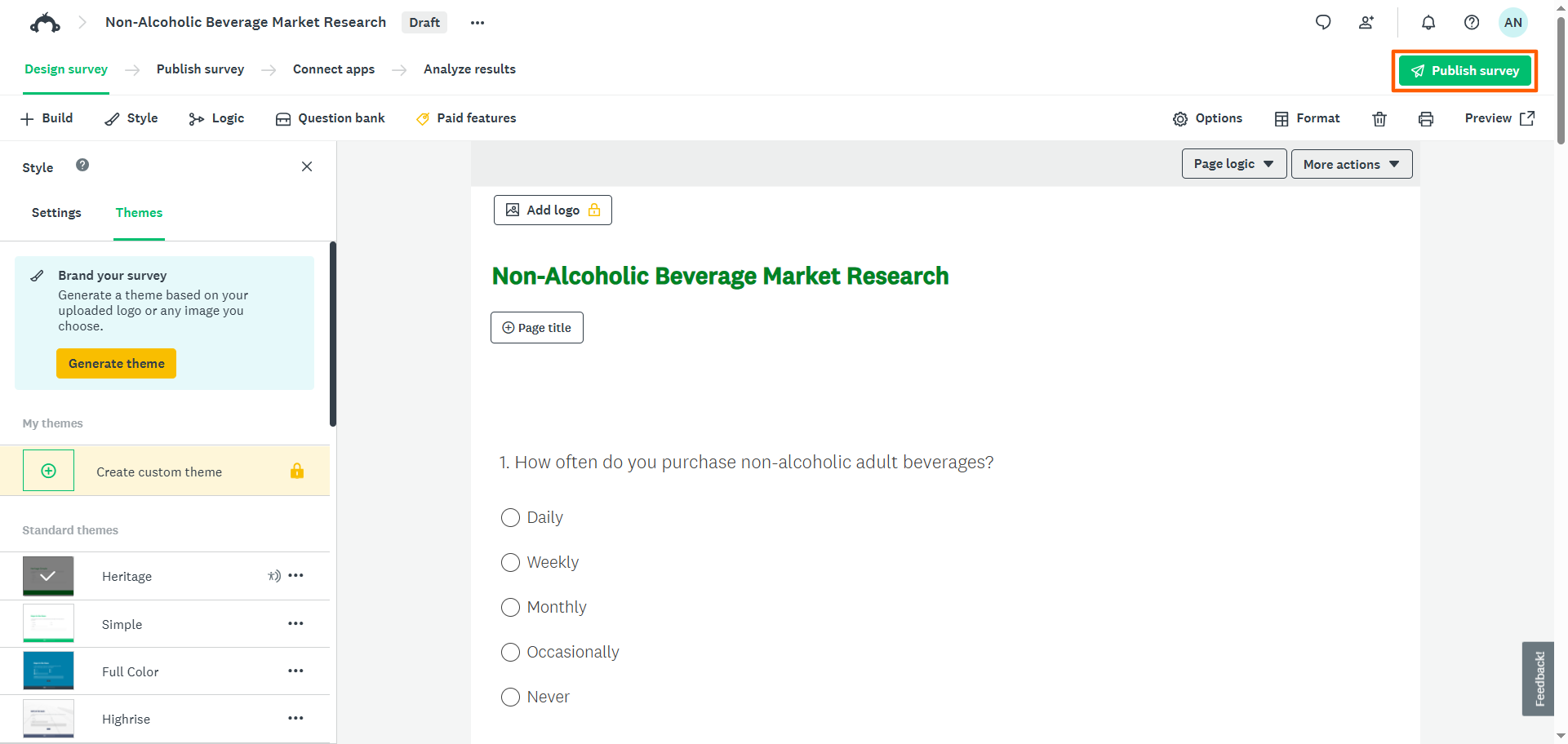
- Once you’re satisfied with the survey the AI tool has presented, you can make any minor edits you need in the survey builder. When you’re ready to send the survey, click Publish Survey.
Pro Tip
SurveyMonkey’s AI survey builder lets you use only 25 prompts per hour. If you’re not signed in, the cap is even lower. If you want to create several surveys quickly or have the freedom to use as many prompts as you’d like, try Jotform AI instead. It’s a free alternative that doesn’t have SurveyMonkey’s restrictions.
4. Pick a popular template
If you have a specific use case and want to get a head start on your survey, try a SurveyMonkey template. SurveyMonkey offers over 500 templates across a number of scenarios, such as customer feedback, academia, and healthcare.
Here’s how to create a survey in SurveyMonkey using a template:
- From your homepage, click Create Survey.
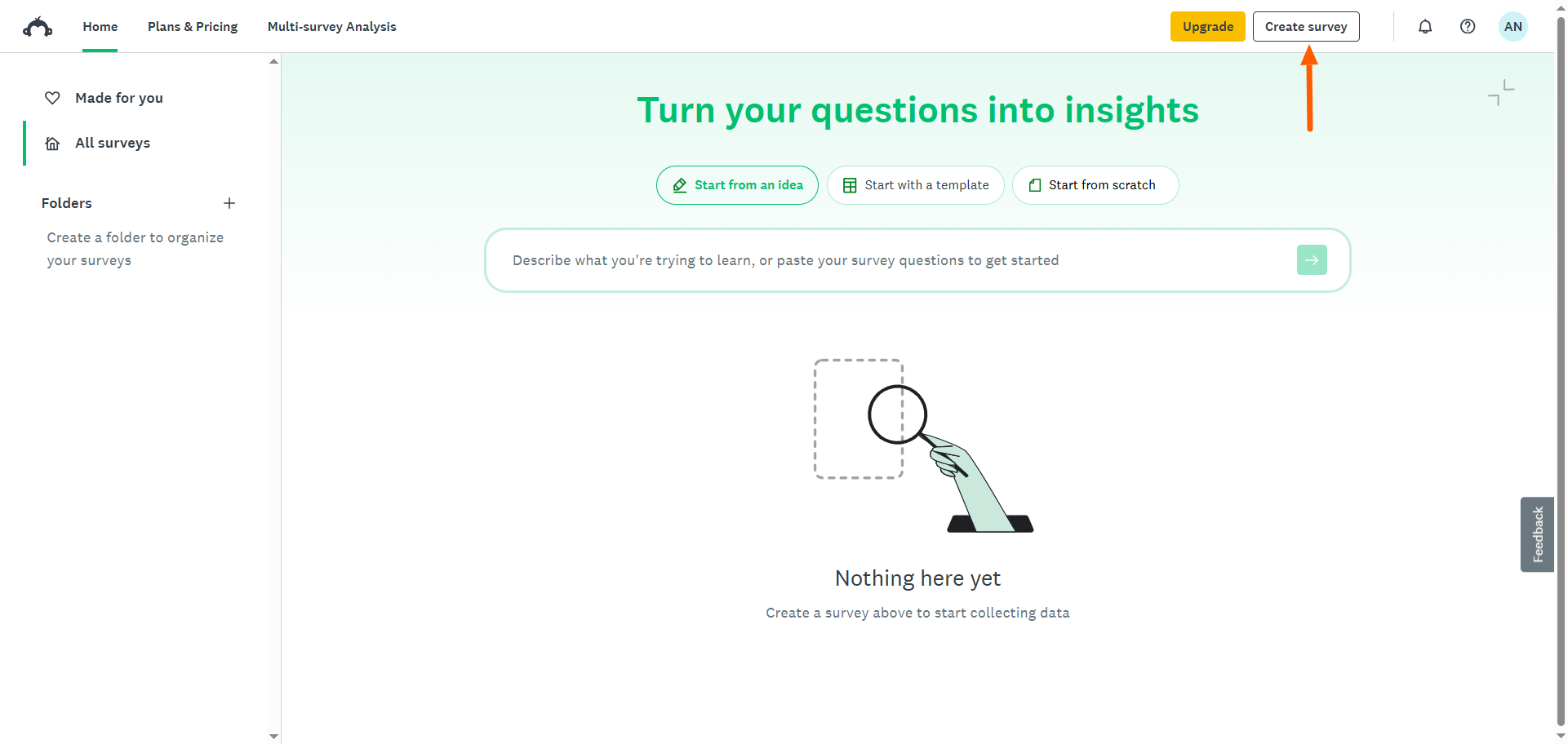
- Click Pick a Popular Template.
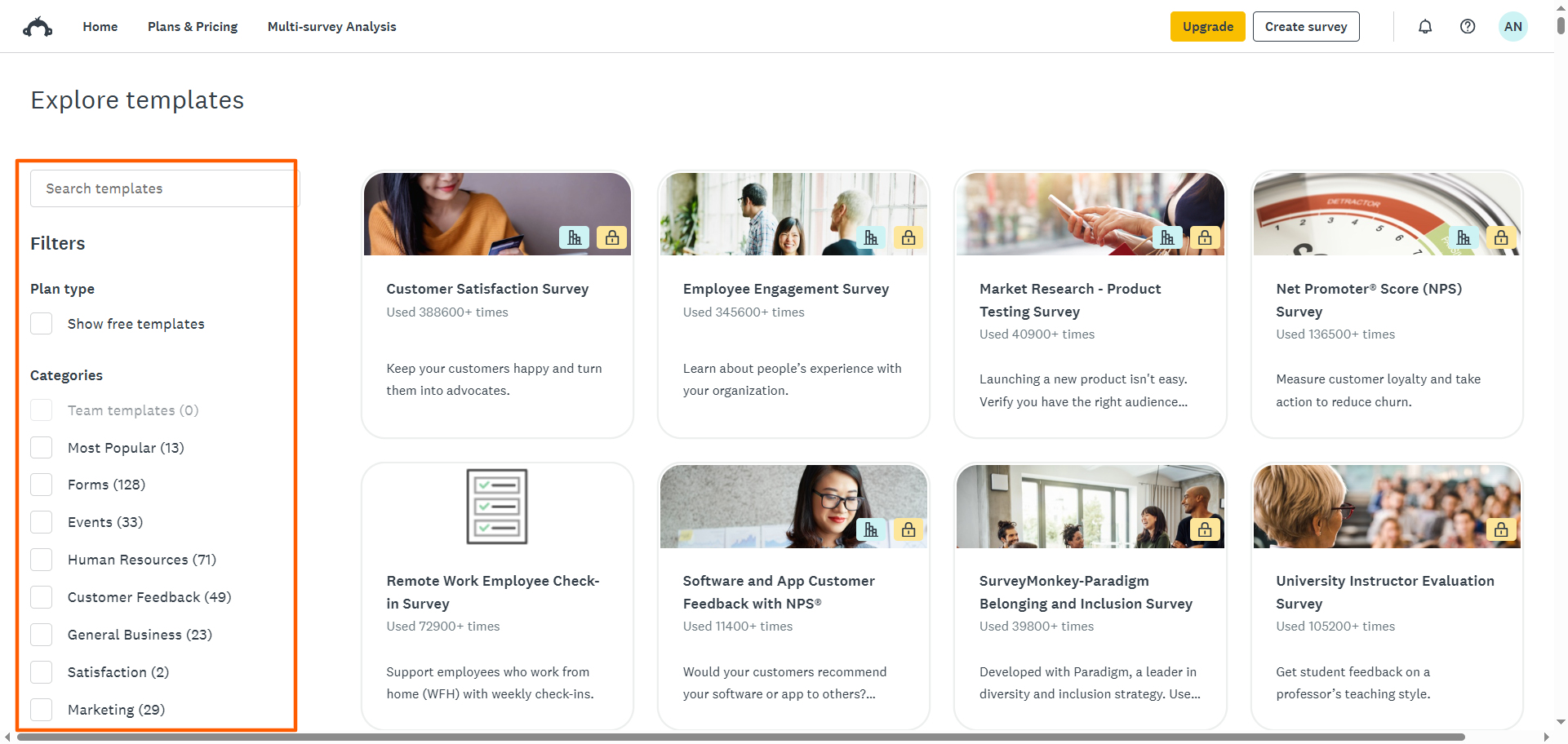
- SurveyMonkey will open its template library. Search for specific templates using the search bar, or filter categories by checkmarking the relevant options. Click on the template you want to use.
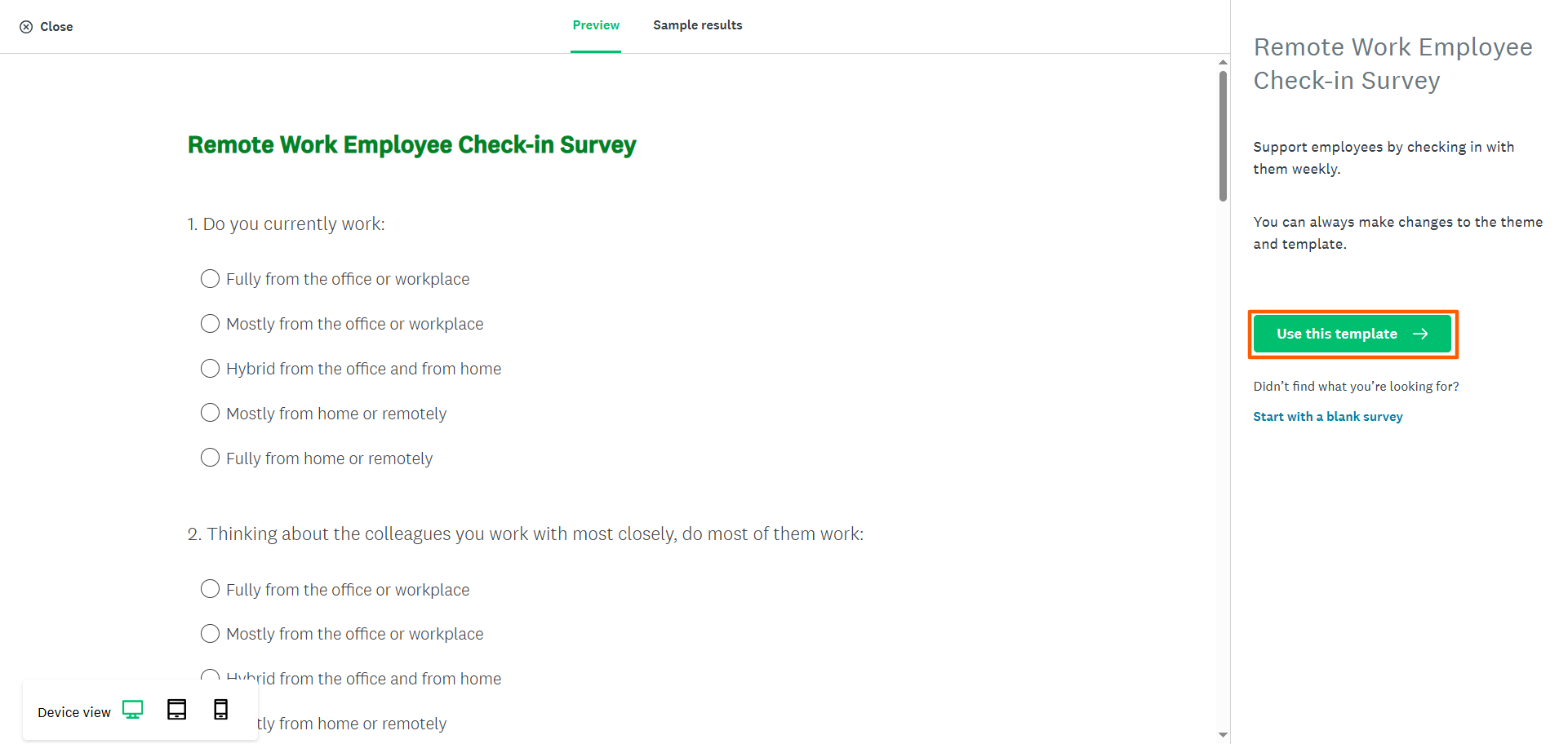
- Click Use this Template.
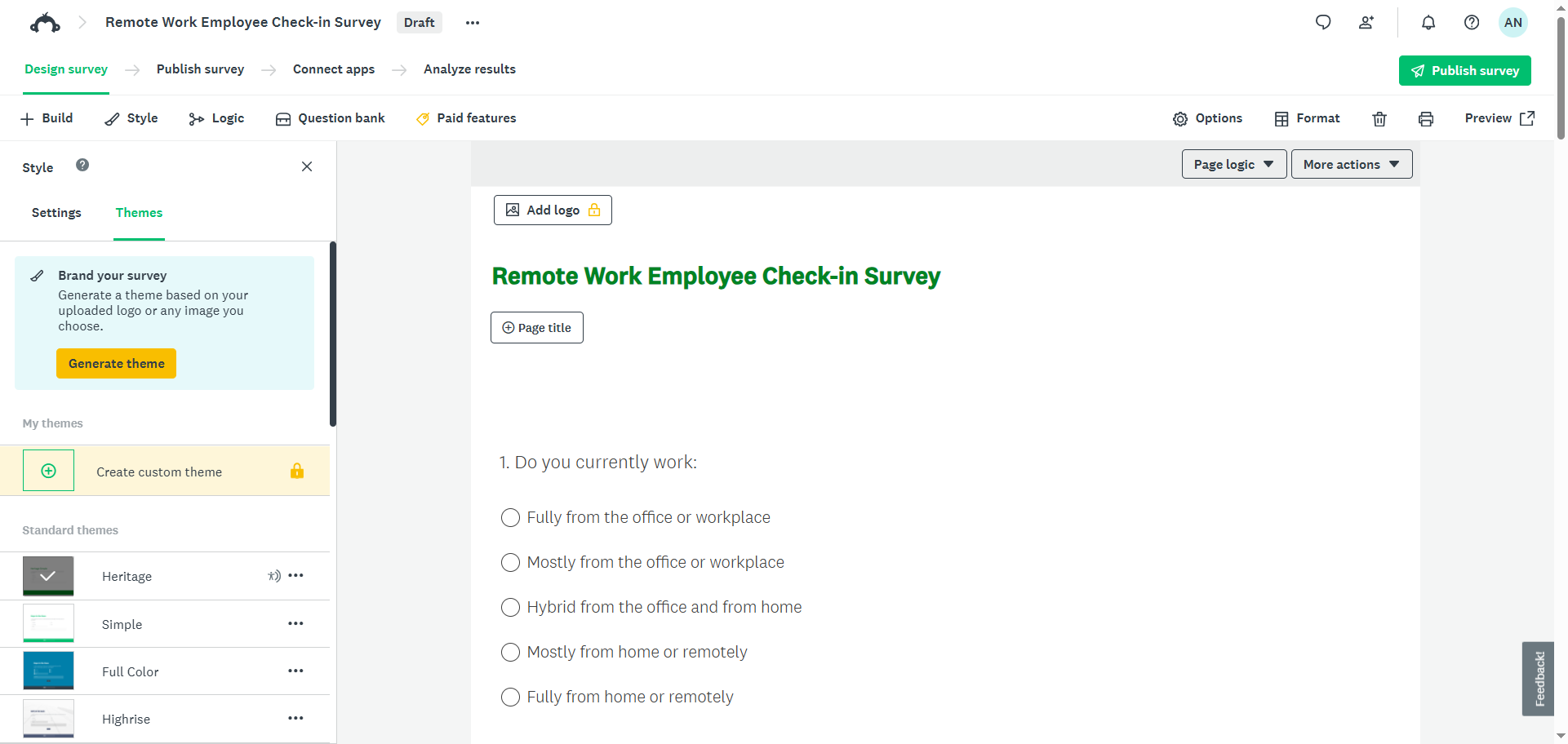
- SurveyMonkey will open the template in the online survey builder. From here, you can customize the template by editing the questions, fields, design, and layout. Once it’s complete, you can preview and publish the survey.
Pro Tip
While SurveyMonkey offers hundreds of templates, many of them require a paid plan. If you’re looking for a large selection of free survey templates, turn to Jotform. It comes with over 12,000 survey templates for every industry, use case, and profession.
5. Paste your questions
If you’ve already created and stored your survey questions in a different tool, such as Google Docs or Microsoft Word, you can copy them and paste them into SurveyMonkey. This is a good option if you’re used to working outside of SurveyMonkey and just want to use it quickly for building the survey.
Follow these instructions to make a survey in SurveyMonkey by copying and pasting:
- From your homepage, click Create Survey.
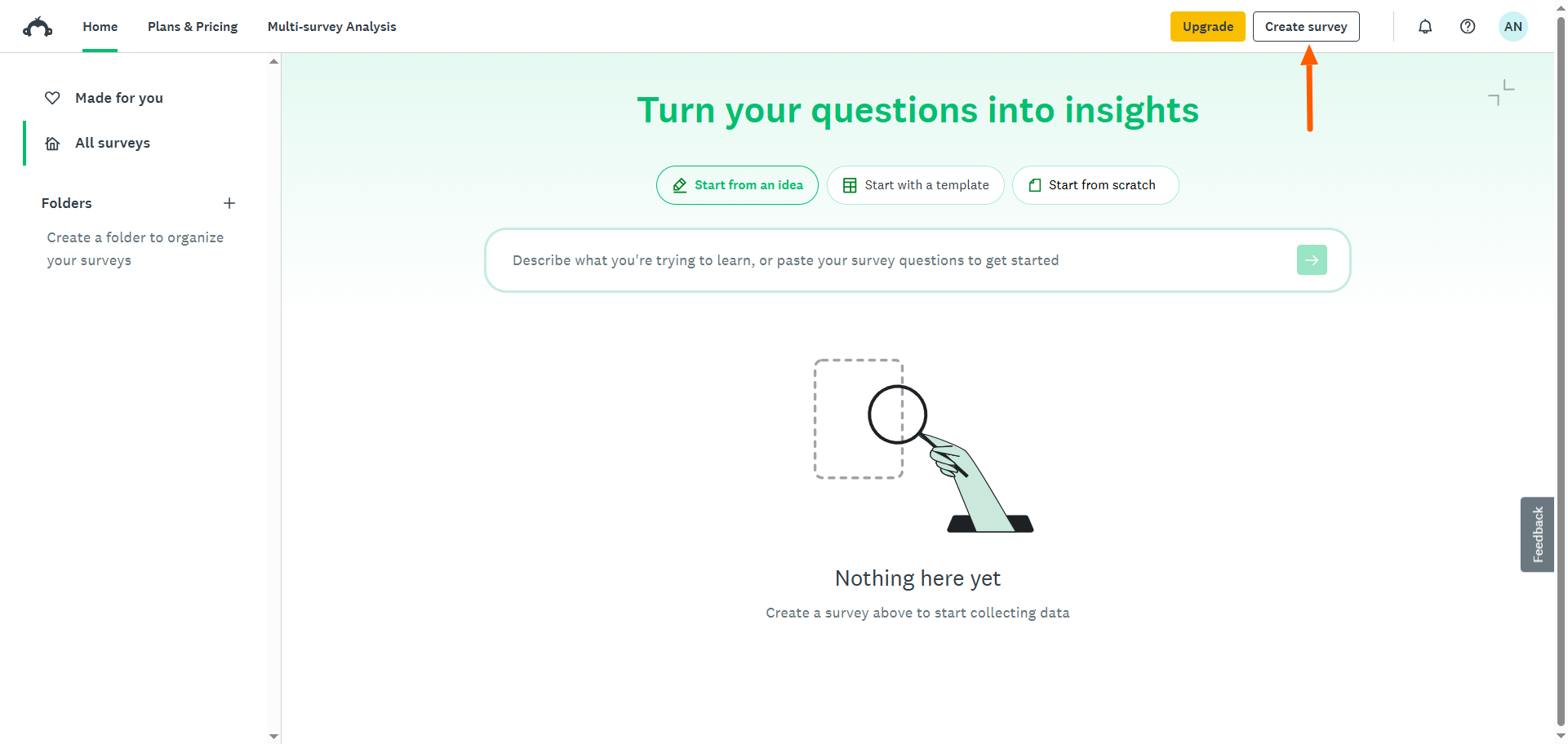
- Click Paste Your Questions.
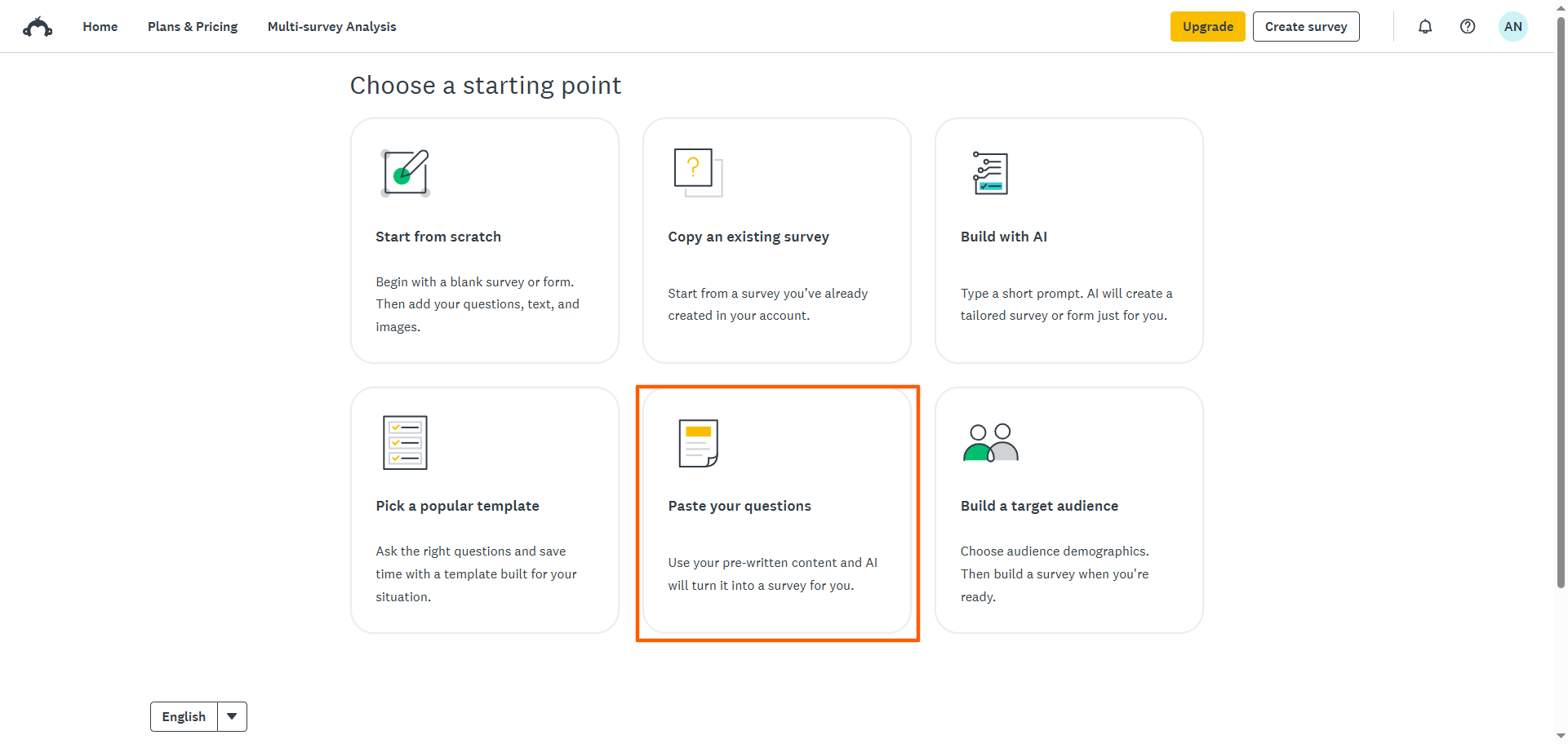
- Review SurveyMonkey’s instructions for using this feature. Click Continue.
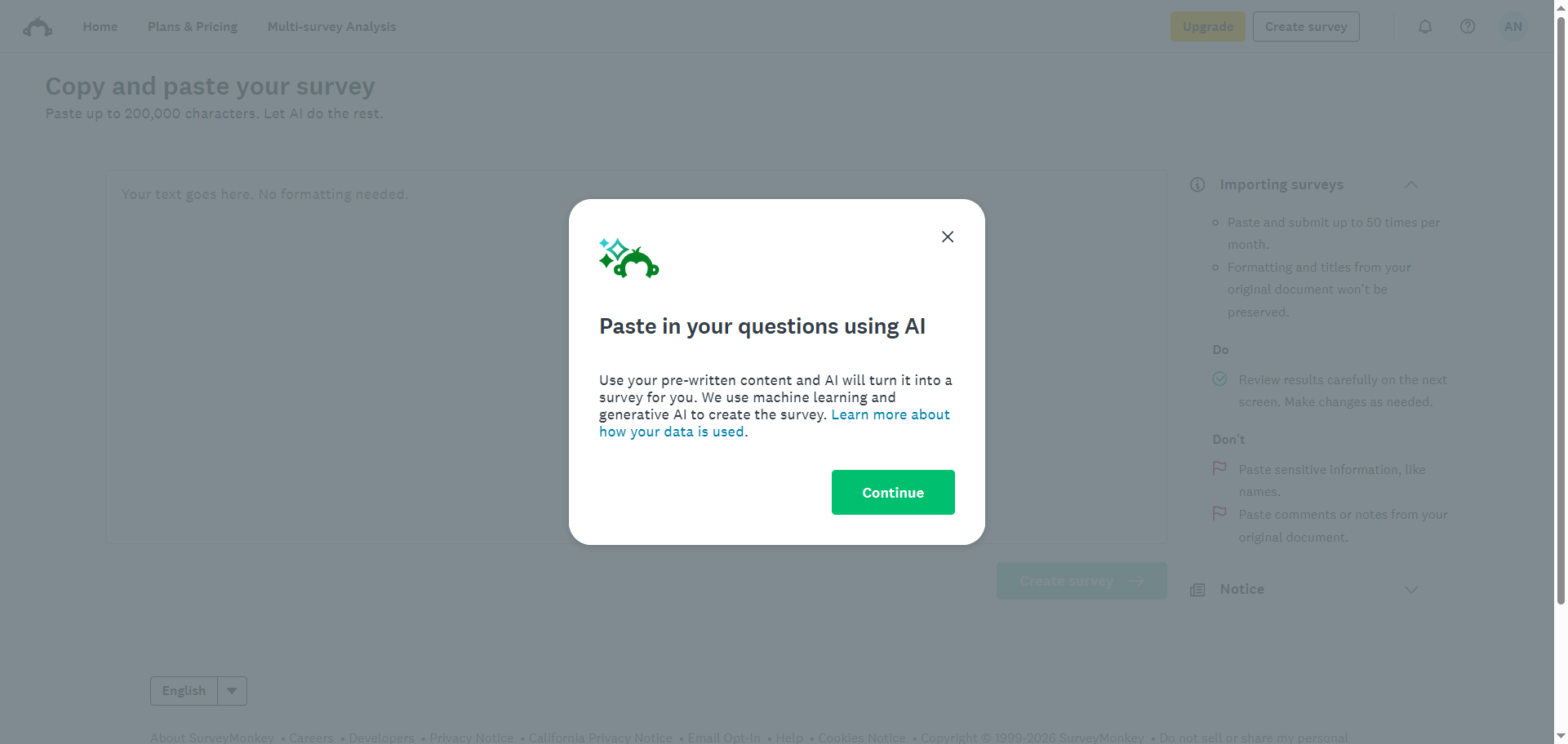
- Paste your survey questions into the text box. Click Create Survey.
- Click Continue to Survey.
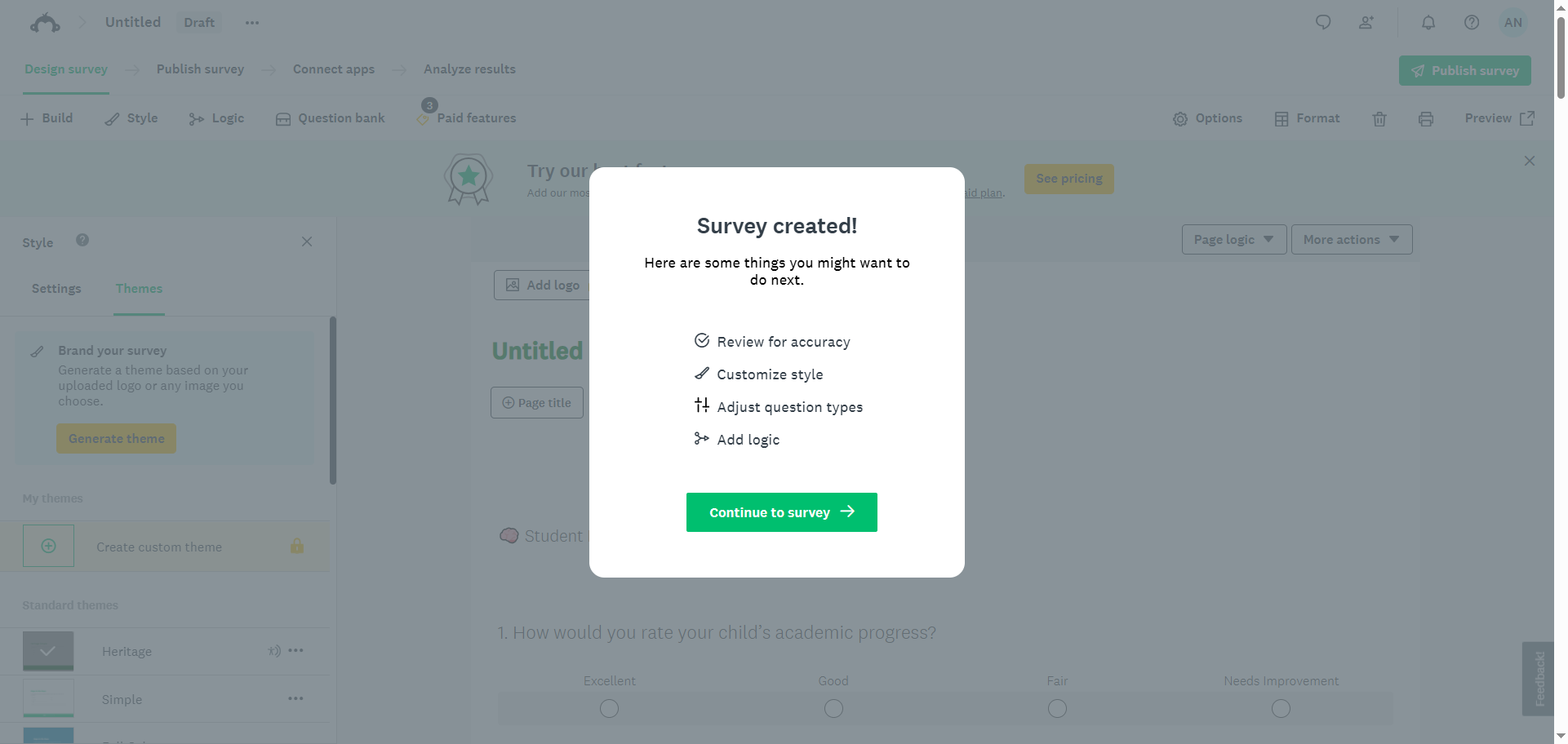
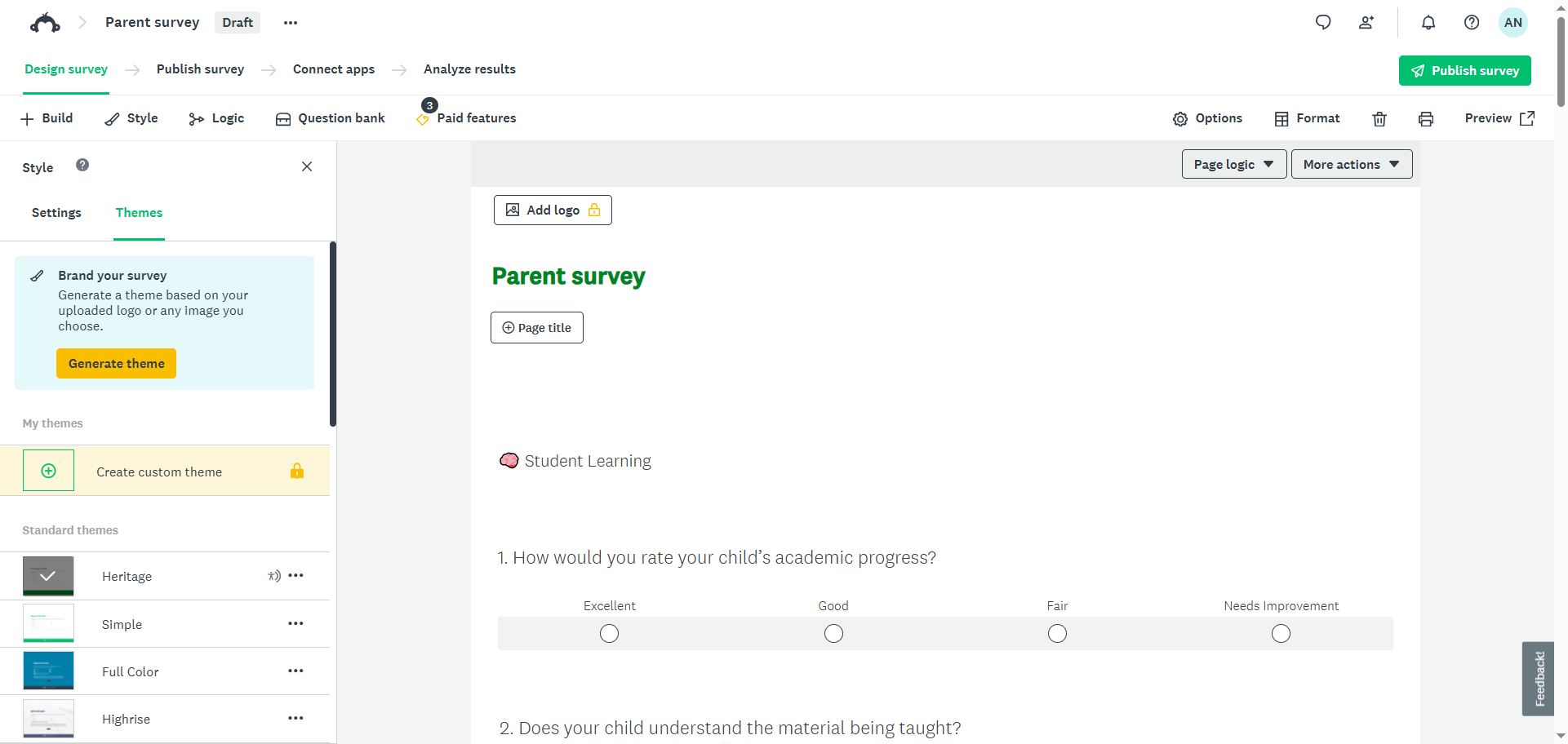
- SurveyMonkey will open the survey in the survey builder. Review it for accuracy and make any necessary edits to the questions, design, structure, or logic. Once it’s complete, you can preview and publish the survey.
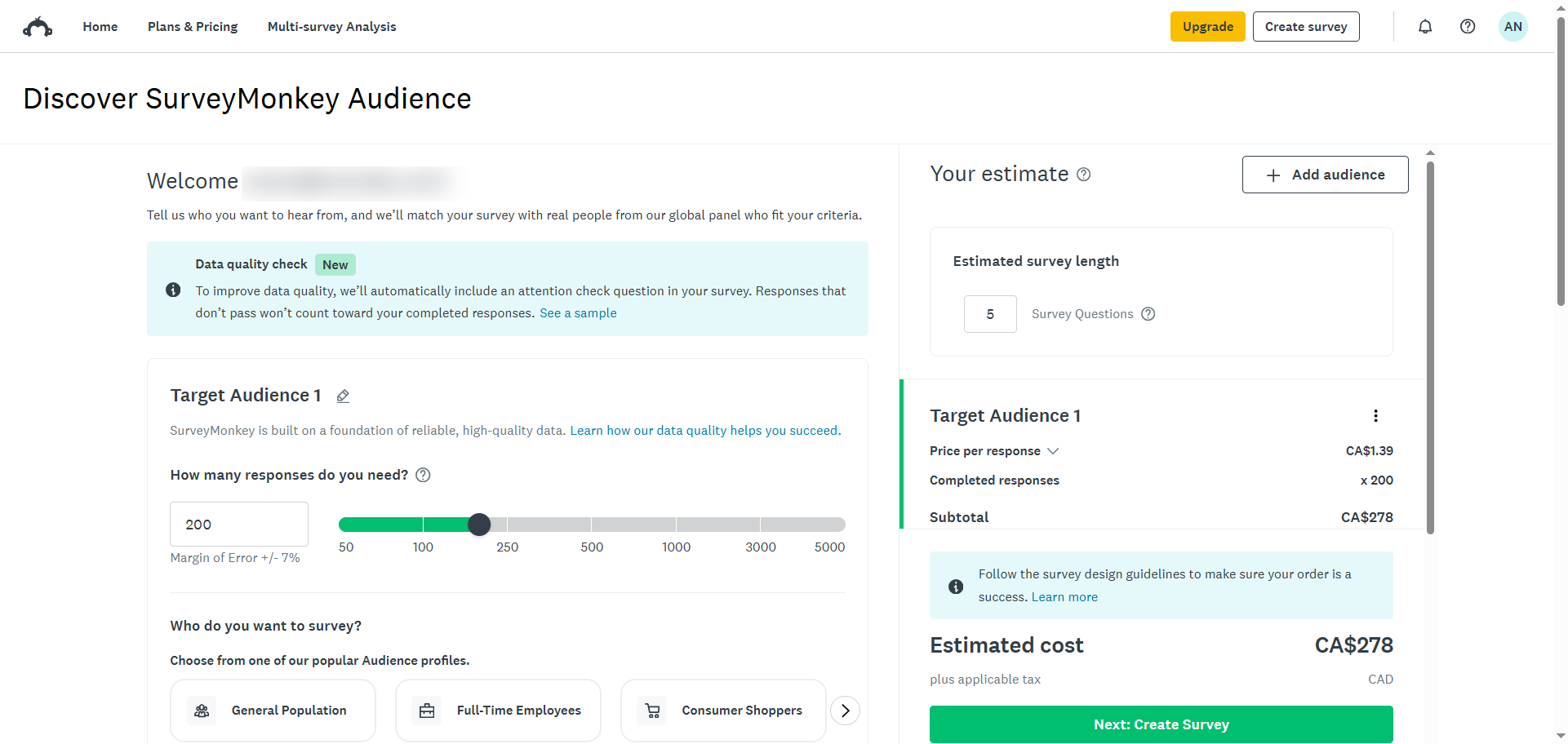
6. Build a target audience
If you’re creating surveys for market research and want to reach a specific demographic, the “Build a target audience” option in SurveyMonkey may suit your needs. It’s not a survey creation method, but it’s still an important distribution and audience feature.
Here’s how to build a target audience in SurveyMonkey:
- From your homepage, click Create Survey.
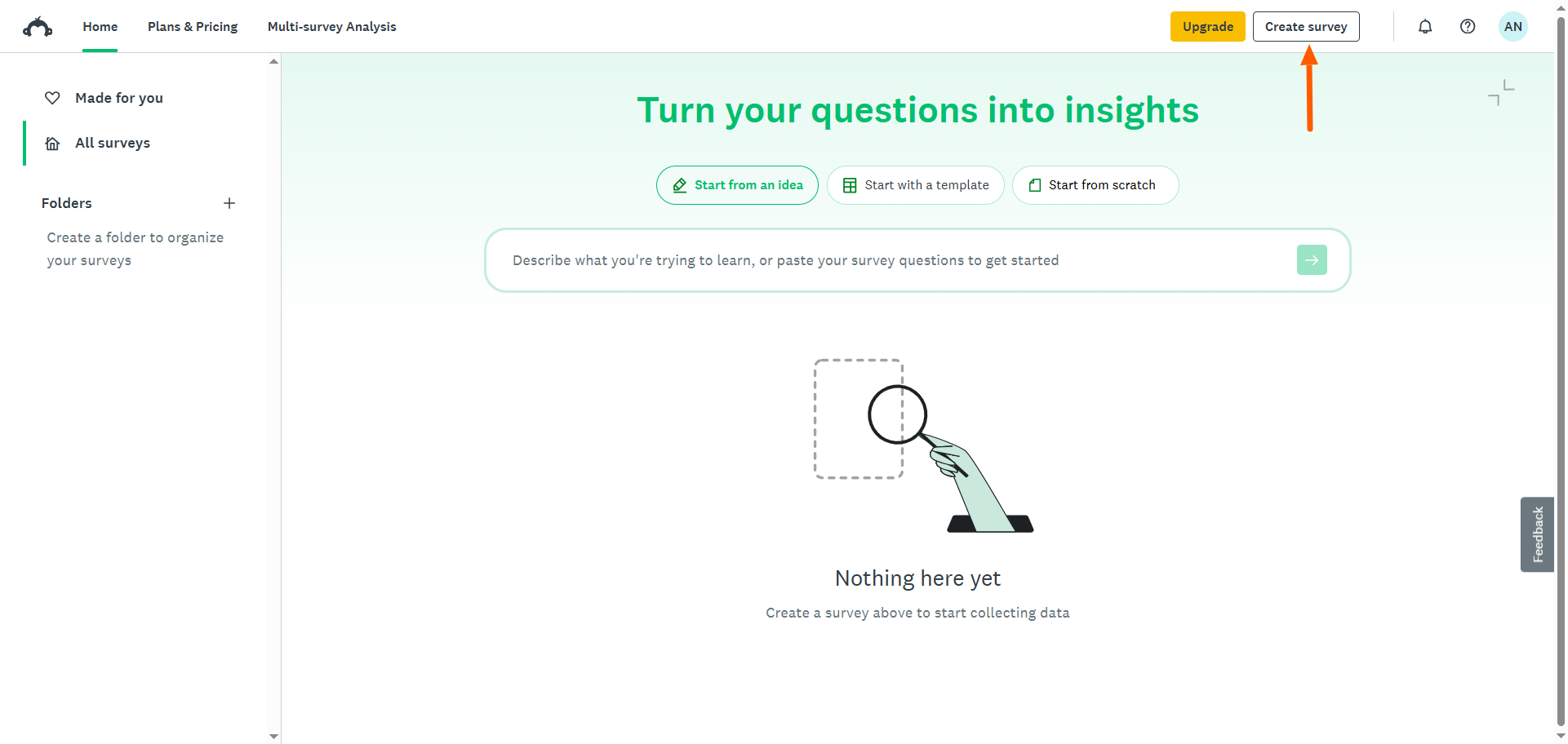
- Click Build a Target Audience.
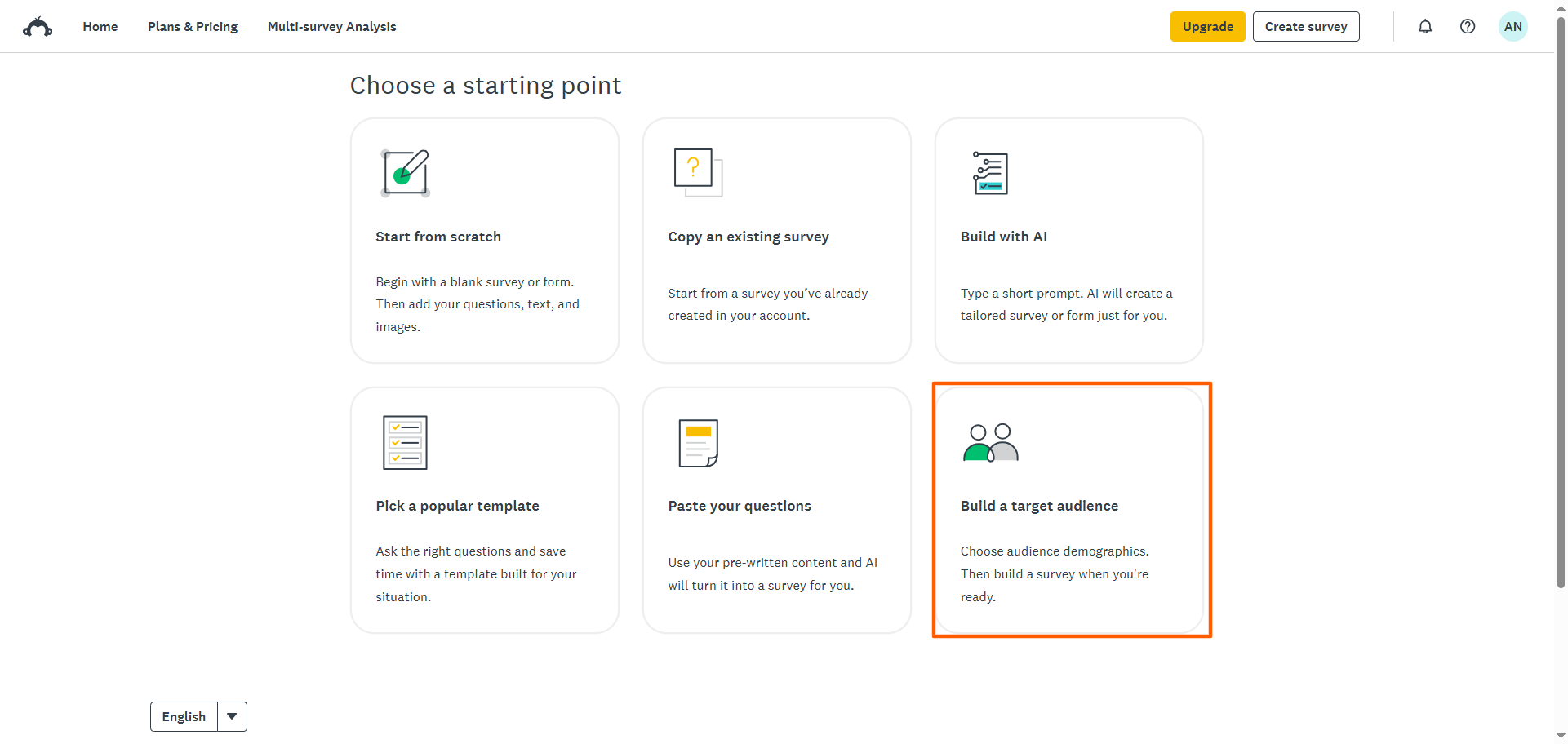
- Fill out the details for the type of audience you want to build. Note that this is a paid feature, and the cost will depend on the target audience details you specify.
How to create a survey with Jotform
You’ve learned several ways to create a survey in SurveyMonkey, but the options might not be right for your needs. Enter Jotform, one of the leading SurveyMonkey alternatives. This powerful free survey maker also offers multiple creation methods, but it has significant advantages such as thousands of free templates and hundreds of integrations.
When you compare SurveyMonkey vs Jotform, Jotform comes out on top. Here are the leading survey creation methods Jotform users love:
- Build with AI: Describe what you want to create, and Jotform AI does the hard work for you. You can also upload a file or import a URL to build your survey using AI with existing content in the AI Survey Generator, or you can use “Quick-Start” suggestions for inspiration. Unlike with SurveyMonkey, Jotform’s AI tool doesn’t come with prompt restrictions.
- Build from scratch: If you want more control over your survey, build it from scratch in Jotform’s survey builder. Unlike with SurveyMonkey, you can choose between two formats, Classic or Card, depending on the use case and desired engagement level. Jotform’s survey builder is highly intuitive, and it involves simply dragging and dropping fields to customize your design.
- Import a survey: If you have an existing survey in a different form builder, you can instantly bring it into Jotform using the “Import Form” feature. There’s no need to waste time rebuilding your survey.
- Use a template: Jotform survey templates save you time and energy. Jotform has 12,000-plus free survey templates for a range of uses, including business, human resources, healthcare, and education.
- Clone an existing survey: If you have built a survey in Jotform and want to duplicate it, Jotform makes it easy. Simply clone any survey from the My Forms dashboard in Jotform and adapt it for your new use.
In addition to offering several ways to create surveys, Jotform is a full-featured alternative to SurveyMonkey. You can build dynamic surveys that show or hide questions based on previous answers using the sophisticated conditional logic feature. This creates relevant surveys that get increased engagement.
You can also create, edit, and view your surveys on your smartphone with its mobile-friendly design. All surveys automatically adapt to any screen size without formatting issues, which makes filling out the surveys easier for your audience. And if your respondents find themselves without internet access, they can send responses with offline surveys, which are ideal for field research and events.
Jotform also makes it easy to analyze survey data. With Jotform Tables, you can view, track, manage, and organize your data in a spreadsheet-powered database that is also an excellent collaboration tool.
All in all, Jotform is a strong choice for creating and customizing surveys of any kind. Explore everything Jotform has to offer and sign up for a free account today.
FAQs about creating surveys on SurveyMonkey
Yes, SurveyMonkey has a plan that enables you to create surveys for free. It also has three paid plans that unlock advanced features.
The easiest way to create a survey is with Jotform, a leading survey builder. Jotform offers 12,000-plus survey templates, an intuitive drag-and-drop user interface, and advanced survey functions.
You can analyze survey results in an advanced form builder such as Jotform, which offers tools that include Jotform Tables and Jotform Report Builder. You can also use third-party tools such as Microsoft Excel or Google Sheets to analyze survey results.
This article is for marketers, HR professionals, educators, and small business owners who are new to SurveyMonkey or looking for a quick refresher on how to build a survey — including those who may be evaluating whether SurveyMonkey is the right tool for them.






































































































Send Comment: