Guide to building an app with AI
- Visit Jotform AI App Builder and describe the app you want
- Review the app structure
- Customize the layout and navigation
- Add branding, images, and content
- Test the app from a user’s perspective
- Share your app with a link or QR code
For a long time, building an app meant either writing code or paying someone to do it. But in 2026, that’s no longer the case. In fact, around 77 percent of businesses reported using or planning to use low-code or no-code solutions.
No-code AI app builders have transformed where the process begins. Instead of a blank screen and a programming language, you simply start with a plain-language prompt describing what you want. You tell the AI the kind of app you need, who it’s for, and what it should do, and it generates a working structure you can customize and improve from there.
For example, with Jotform AI App Builder, you describe the app you have in mind, and it generates a draft. From there, you can customize it, adjusting the layout, adding your own forms and content, and refining it until it’s exactly what you want — all without any coding required. When it’s ready, you share the finished app with a link or a QR code, and anyone can open it in a browser without installing anything.
If you’re an entrepreneur, small business owner, or part of a team that wants to learn how to create an app without coding or hiring developers, this guide walks you through the whole process, from writing your first prompt to sharing a working app. We’ll also discuss eight app ideas you can borrow and a few tips for a stronger result.
How to build an app with AI in 5 minutes
To create an app with AI, just follow a few steps to go from your first prompt to a finished app in about five minutes.
Here’s how to build an app without coding.
1. Visit Jotform AI App Builder and describe the app you want
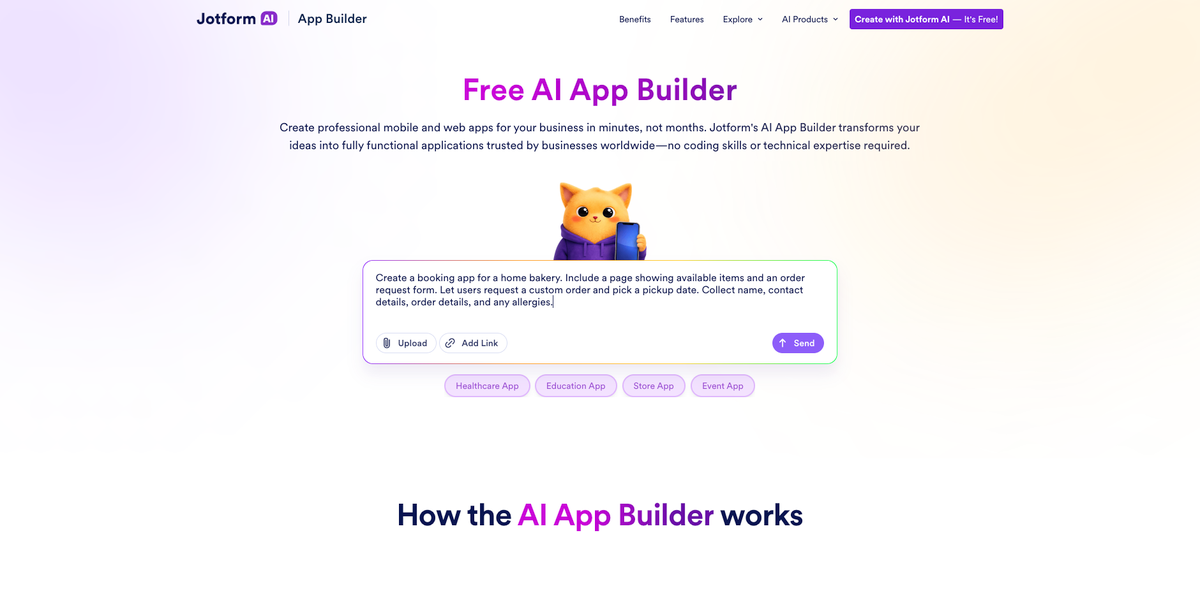
Open Jotform AI App Builder and describe the app you have in mind. The more specific you are about what it’s for and who will use it, the closer the first draft will be to what you need. You can type the description, use voice input, or point the AI to a file, URL, or screenshot if you already have something to work from.
Within a minute or so, it generates a first version with pages, navigation, and forms in place. If you’d rather start from a premade design, you can also browse Jotform’s free app templates and choose one to customize instead.
Start with this prompt
Create a [type of app] for [business, audience, or use case]. Include [main pages or sections]. Let users [main actions]. Collect [important information]. Add [special instructions, branding, policies, or extra features].
2. Review the app structure
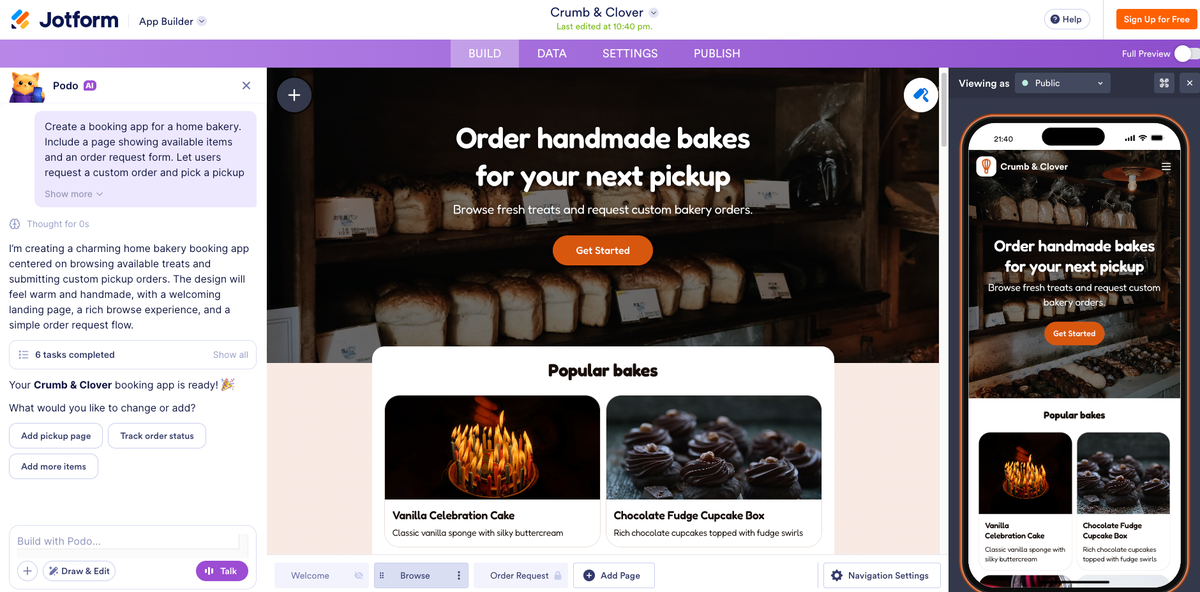
Before making any changes, review what the AI created. It usually generates a full structure: the pages, the navigation between them, and the forms or components each page needs based on your prompt.
Click through the app as though you’re using it, and check that the main pieces are present and in the expected places. This will give you a clear picture of what to keep, what to adjust, and what’s missing before you start customizing.
3. Customize the layout and navigation
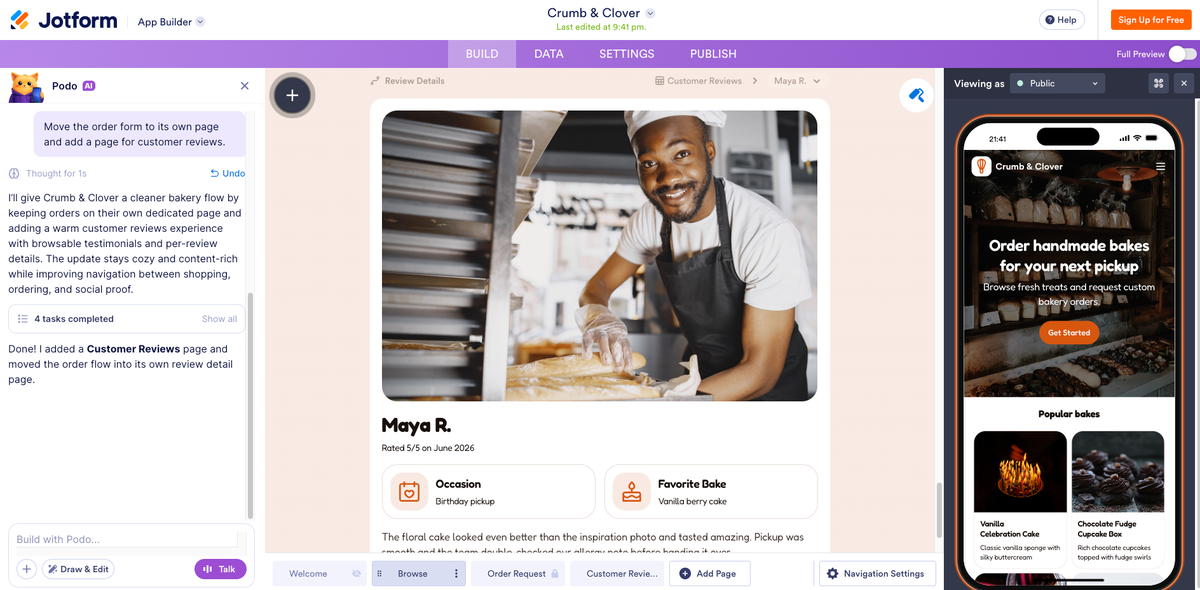
Once you’ve reviewed the first draft of your app, you can start adjusting the structure. Keep prompting the AI to make changes, like “add a page for customer reviews” or “put the contact form on the homepage,” or edit things yourself by rearranging pages and changing the navigation by hand. Both options are available, so you can describe what you want or edit it directly — whichever is quicker for the changes you want to make.
4. Add branding, images, and content
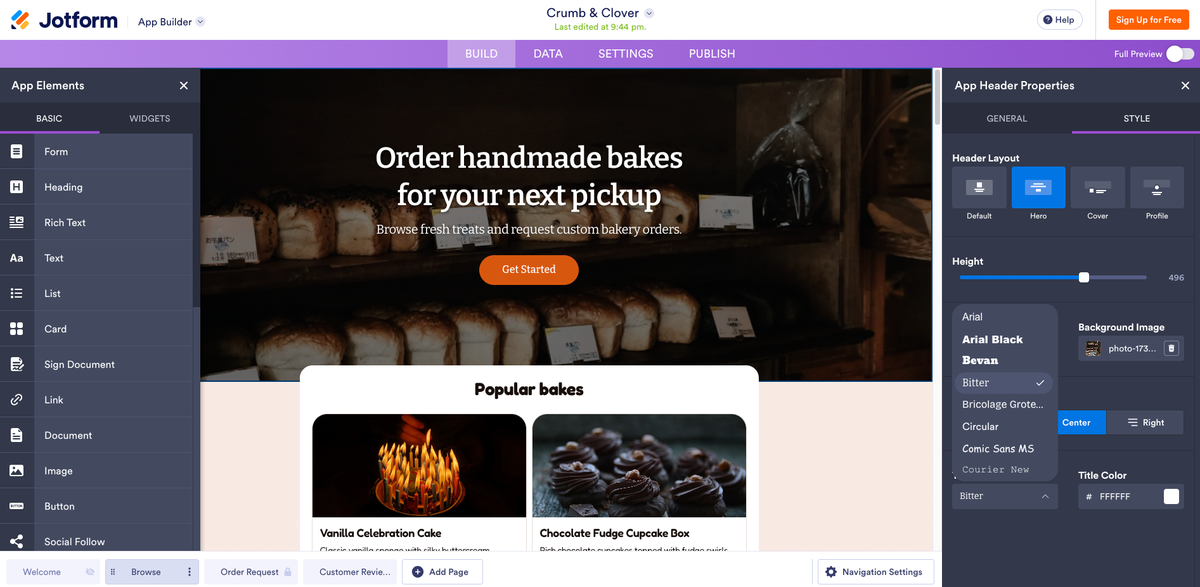
Next, upload your logo, set your colors, and choose fonts that match your brand. Then replace the placeholder text and images with your real content. You can click the + symbol in the top-left corner to add elements, or click the text or section you want to edit to open a sidebar on the right with editing options. This is where a generic draft starts to look like your business, so take the time to get the wording and visuals right, since they will influence users’ first impressions of your app.
5. Test the app from a user’s perspective
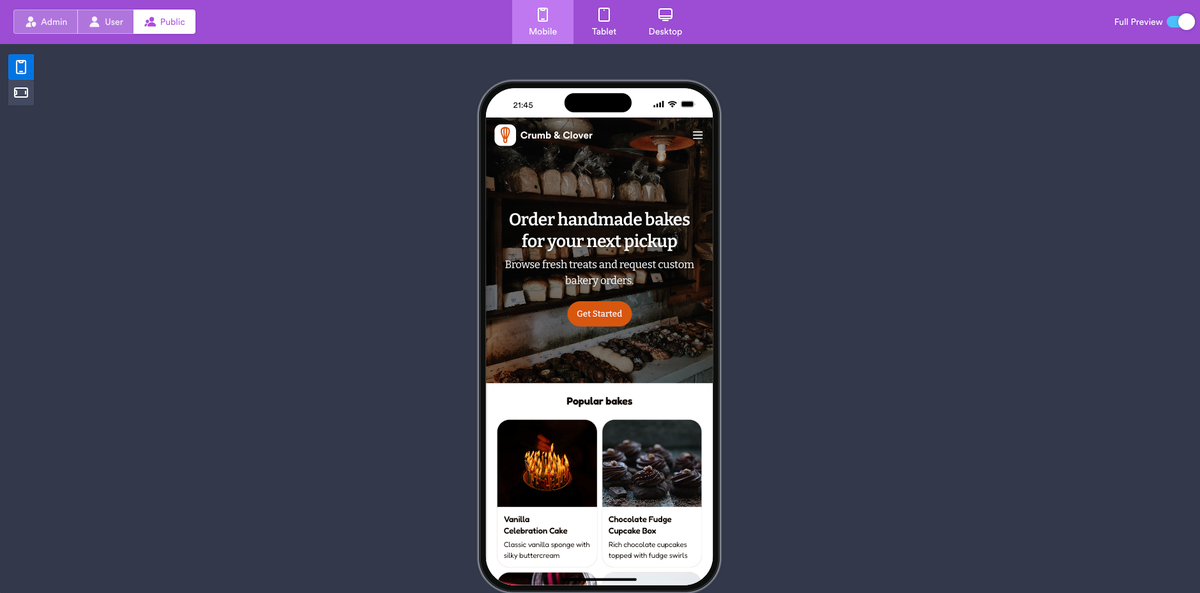
Before sharing, open the preview in the AI mobile app builder by toggling on Full Preview in the top-right corner. Explore the app in the mobile preview, since many users will open it on a phone. Fill out your forms, tap through the navigation, and confirm everything is working as expected. Checking it yourself first is the simplest way to spot a broken link or a confusing step before it’s live.
6. Share your app with a link or QR code
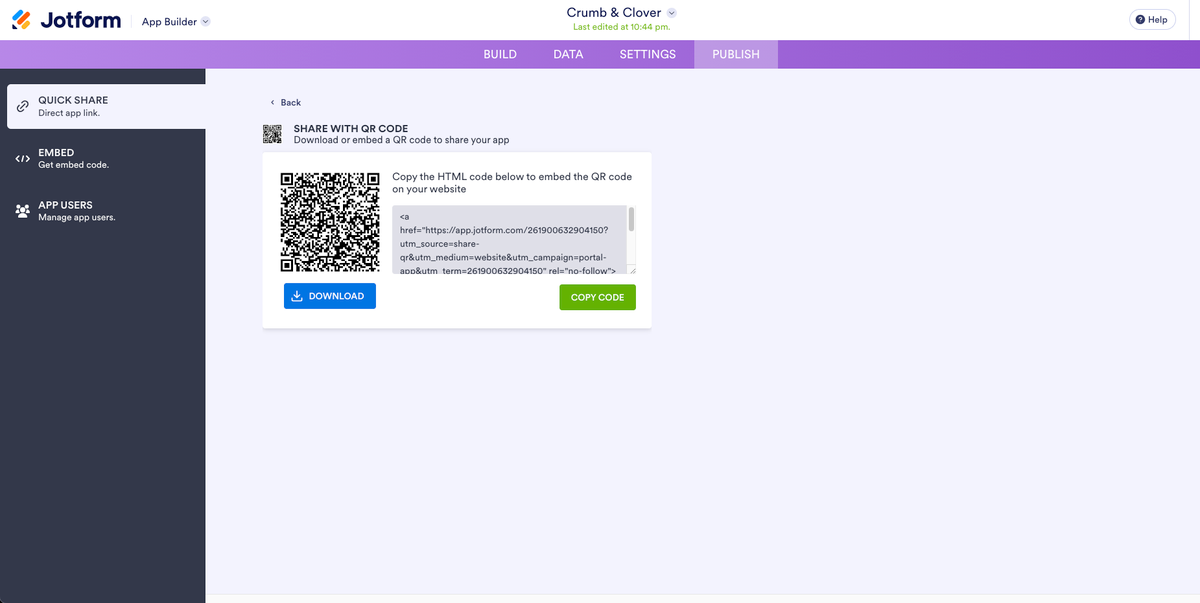
Once you’ve confirmed that everything looks and works as intended, it’s time to publish. Click the Publish tab at the top of the screen and choose how you’d like to share your app. You can share a link or post a QR code that people can scan to open it on their phones, which works well for flyers, storefronts, or event tables.
Your app will open in any browser without having to be downloaded, so anyone you share it with can start using it right away. As conditions, offerings, or information change over time, you can continue editing the app, and the updates you make will appear for everyone using the link.
Build apps directly in ChatGPT or Claude
Turn your ideas into functional apps through conversation with Jotform App Builder for ChatGPT & Claude. Create client portals, booking systems, or internal tools without coding. Add forms, customize layouts, and set up workflows as your needs evolve. Get started in ChatGPT or Claude.
8 AI app ideas you can steal right now
People searching for how to build an app with AI often have different goals. Some want a startup idea or a minimum viable product (MVP) before paying for custom development. Others want a simple customer-facing app, a client portal, or a way to replace a messy internal process with something more organized.
The eight examples below cover a range of common goals, and each one includes a prompt you can adapt to your needs. Even if none fits exactly, they’re good models for writing your own prompts when using an app generator, since each focuses on who the app is for, its purpose, what users must be able to do with it, and the information it collects.
1. MVP app for testing a startup idea
Before you spend money on custom development, a simple app can tell you whether people actually want what you’re planning to create. An MVP keeps things minimal, containing just enough to put the core idea in front of real users so that you can see how they respond.
Prompt: Create an MVP app for a meal-prep delivery startup. Include a homepage explaining the service, a menu page with three sample plans, and a signup form. Let users choose a plan and join an early-access list. Collect name, email, and dietary preferences.
2. Waitlist or beta signup app
When you’re not ready to launch but want to gauge interest, a waitlist app captures early demand and builds a list of people to contact when you go live. It’s one of the fastest ways to test whether an idea has an audience.
Prompt: Create a waitlist app for a productivity tool launching in three months. Include a landing page describing the product and a signup form. Let users join the waitlist and pick which features matter most to them. Collect name, email, and company size.
3. Marketplace request app
If you connect buyers with sellers or match people to services, a request app collects what someone needs and routes it to you. This suits anyone running a service marketplace, a referral network, or a made-to-order business.
Prompt: Create a marketplace request app for a local handyman service. Include a page listing service categories and a request form. Let users describe their project and request a quote. Collect name, contact details, project type, and preferred timing.
4. Membership or community app
For a group, club, or paid community, a membership app provides a single place to sign up, find information, and stay connected. It works well for associations, alumni groups, and similar organizations.
Prompt: Create a membership app for a local running club. Include a homepage with upcoming runs, a schedule page, and a membership form. Let users join and register for group runs. Collect name, email, pace group, and emergency contact.
5. Feedback and feature request app
Once you have users, it’s important to know what they think of your services. A feedback app collects suggestions and feature requests in one place instead of scattered emails, so you can keep track of what people want most.
Prompt: Create a feedback app for a mobile game studio. Include a page explaining how feedback is used, along with a submission form. Let users report bugs and suggest features. Collect the type of feedback, a description, and an optional email for follow-up.
6. Internal business workflow app
An internal app replaces a messy spreadsheet or email chain with a structured system that helps a team submit requests, log information, and track tasks consistently.
Prompt: Create an internal request app for an office team. Include a homepage with instructions and a request form. Let staff submit IT and facilities requests. Collect employee name, department, request type, urgency, and a description.
7. Client portal app
A client portal gives the people you work with a single place to find documents, submit information, and check on progress. It’s a strong fit for agencies, consultants, and freelancers who want a more professional handoff than email threads can provide.
Prompt: Create a client portal app for a marketing consultant. Include a welcome page, a page for shared resources, and an intake form. Let clients submit project details and upload files. Collect company name, contact info, project goals, and budget range.
8. Booking or order request app
When people need to book time or place an order, this app collects the request and everything you need to fulfill it. It suits salons, tutors, caterers, and any small business that takes appointments or custom orders.
Prompt: Create a booking app for a home bakery. Include a page showing available items and an order request form. Let users request a custom order and choose a pickup date. Collect name, contact details, order details, and any allergies.
Tips for building a better app with AI
A few best practices make it easier to get the results you’re looking for from an AI app generator on the first try. Keep these tips in mind when you make an app with AI:
- Include the details in your prompt: The AI can only act on what you tell it, so a vague request will generate a generic app. Name the pages you want, the actions users should take, and the information to collect. The more specific your first prompt, the less you’ll have to fix afterward.
- Start small and add on later: It’s tempting to describe every feature at once, but a focused app is easier to get right. Begin with the one thing your app needs to do, confirm it works, then build from there. You can always expand once real people start using it.
- Refine in small steps: Rather than asking for 10 changes in a single prompt, make them a few at a time so you can see the effect of each. If a change doesn’t look right, it’s much easier to undo when you haven’t stacked several others on top of it.
- Write for the person using the app: You know what your app is for, but your users don’t. Label buttons and forms in plain terms, ask only for the information you actually need, and cut anything unnecessary. Every extra field gives someone a reason to abandon the form.
The clearer you are with the AI generator and the simpler you keep your app, the closer the result will be to what you had in mind, and the less time you’ll spend adjusting it.
FAQs about building an app with AI
AI app builders work best for creating practical business, education, event, and internal workflow apps. Common examples include customer booking and order apps, client portals, event registration and RSVP apps, membership and community apps, feedback forms, and internal request or workflow apps that replace scattered spreadsheets and emails.
Most apps need to check off the following:
- A clear homepage explaining what the app is for
- The main pages or sections your users need to access
- A form to collect information or requests
- Simple, easy-to-tap navigation
- Your branding, including logo, colors, and fonts
- A confirmation message after someone submits
- Contact information so that people can reach you
This article is for entrepreneurs, small business owners, creators, educators, consultants, freelancers, and teams that want to create a custom app from a simple idea or prompt without hiring developers or writing code.


















































































Send Comment: