Guide to creating a calendar app without coding
- Go to Jotform AI App Builder and enter your prompt
- Customize your app layout
- Add your calendar or schedule sections
- Create event or appointment forms
- Add notifications and a confirmation message
- Test the calendar app experience
- Share your calendar app
Calendars used to be something you glanced at to check the date. Today, they’re something you actively maintain to keep track of meetings, reminders, deadlines, and appointments all in one place.
Businesses use calendar apps to manage appointments and keep their teams in sync, while schools use them to post class and event schedules for students to follow. Service providers rely on them, too, using a scheduling app to let clients book time with them directly instead of trading emails back and forth. Calendars can be shared among team members, clients, and even friends so everyone sees the same information.
Learning how to make a calendar app might sound like a project that requires coding experience, App Store approval, or a developer on retainer, but with the Jotform AI App Builder, which generates apps in the Jotform Apps platform, you can do it all on your own. You can make a no-code calendar app by describing what you need in a short, text-based prompt. From there, you can adjust the layout, add scheduling or event request forms, include calendar-style content, and share the finished app via a link or QR code.
How to make a calendar app
Building the app takes a few steps, but the good news is none of them involves code. You’ll describe the calendar app you want, refine the product the AI Agent generates, add your scheduling forms and content, and then share it with the world.
Here’s how to create an app without coding, from start to finish.
1. Go to Jotform AI App Builder and enter your prompt
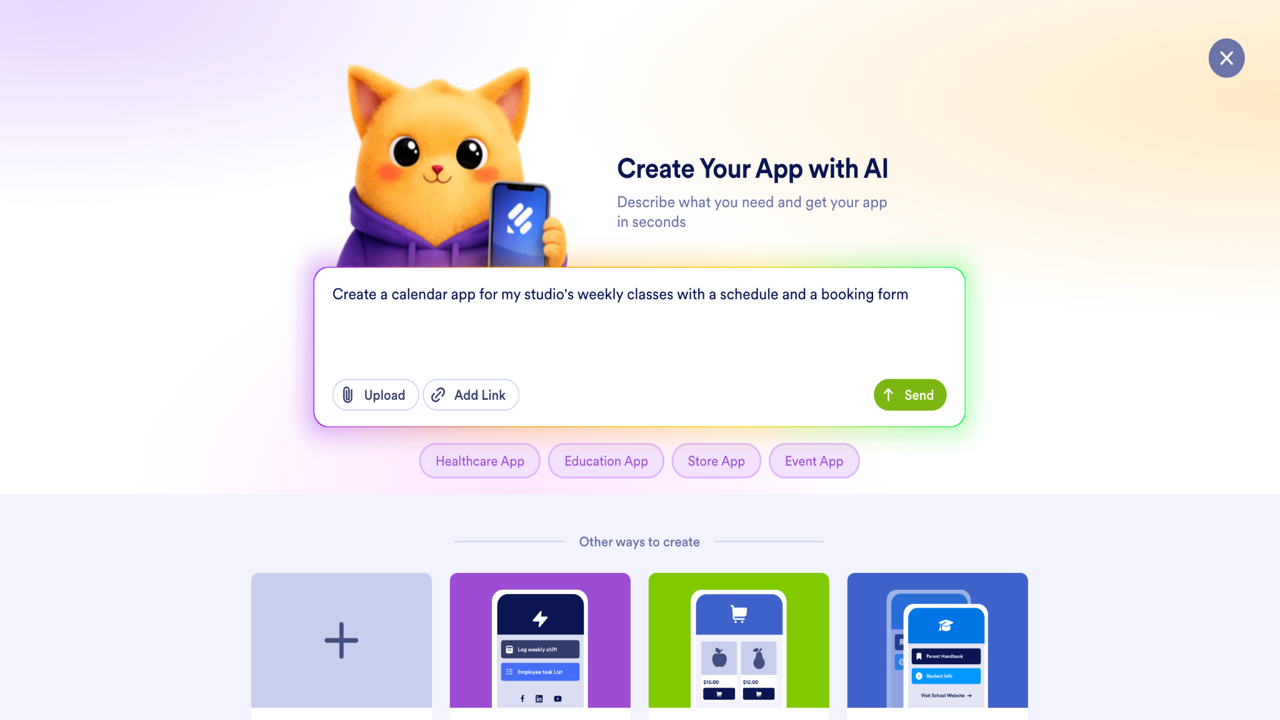
Open Jotform AI App Builder and describe the calendar app you want to create in the chat. A prompt as simple as “Create a calendar app for my yoga studio’s weekly classes with a schedule and a booking form” gives the AI Agent enough material to work with. If you have an existing design to match, you can also start from a file, a URL, or a screenshot.
Within minutes, the builder generates a first version of your app, with pages, navigation, and components already in place. If you’d rather start with a ready-made design, you can browse Jotform’s free app templates and customize one.
2. Customize your app layout
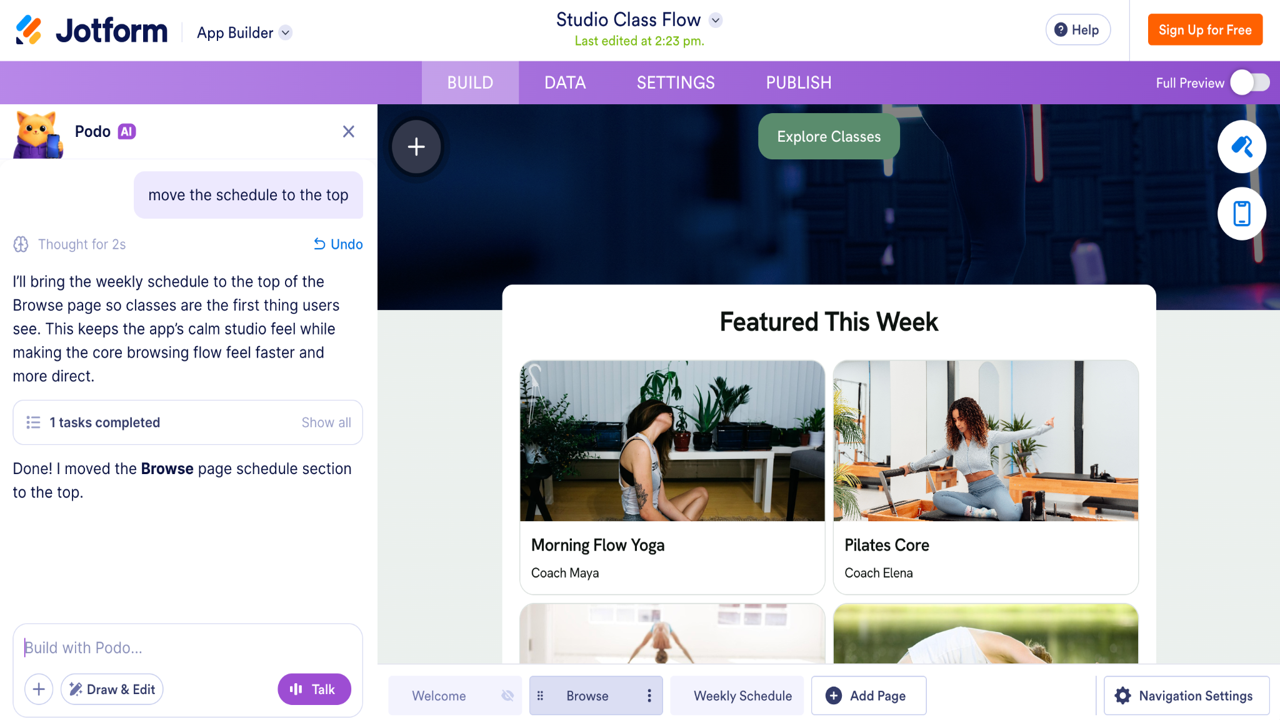
The first draft gives you a working layout to adjust. Once it’s been generated, use the “Build with Podo” window in the bottom left corner of the screen to prompt the AI Agent to make changes, such as, “Move the schedule to the top of the page” or “Add a page for upcoming events.” Alternatively, you can adjust things yourself, including rearranging components, editing content, and updating colors and branding.
Having both options available to you means you can make changes by describing what you want or by moving pieces around manually, whichever is easier.
3. Add your calendar or schedule sections
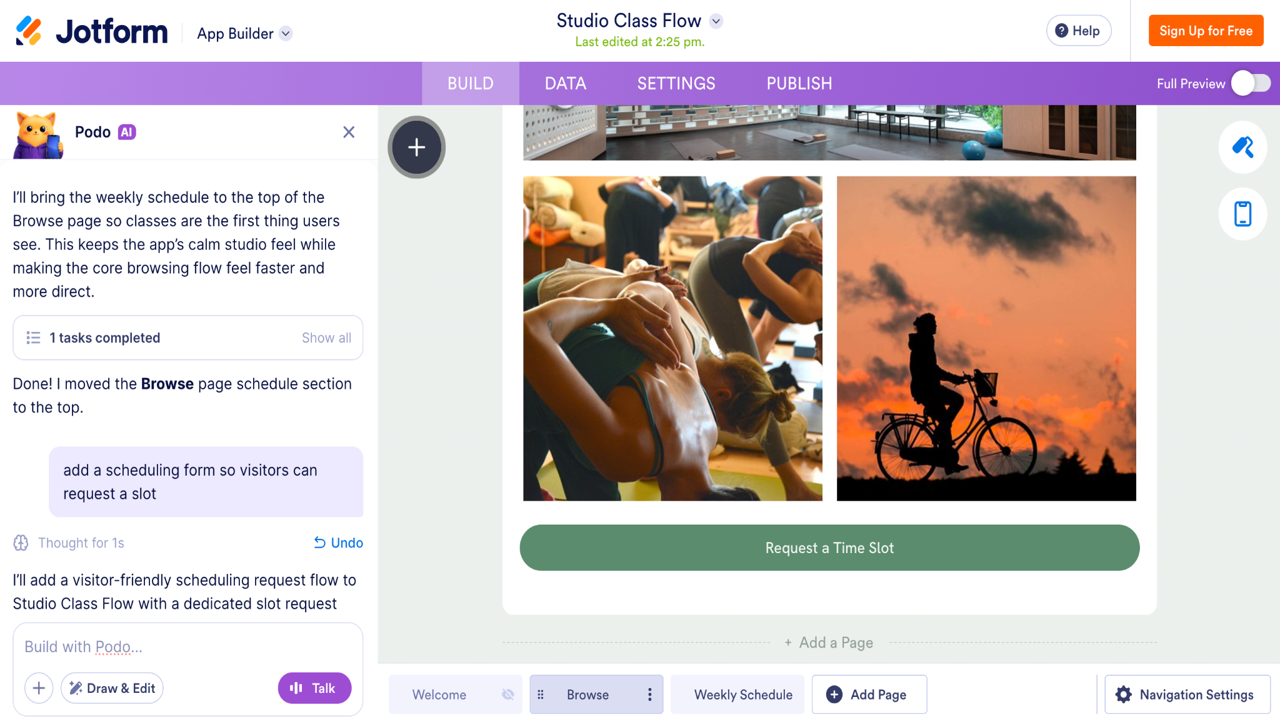
A calendar app is usually made up of an organization’s schedule plus the forms customers use to act within it, so this is the part of the process that makes your app useful and interactive. Add a page or section that lays out your events, classes, or appointment slots along with the forms people use to sign up or book a time slot.
Prompt the AI Agent with something like “Add a page that lists our upcoming events with dates and times” or “Add a scheduling form so visitors can request a time slot.” You can display that schedule as a list for your visitors to scroll through and link it to a Jotform Table so new bookings appear in an organized view automatically.
4. Create event or appointment forms
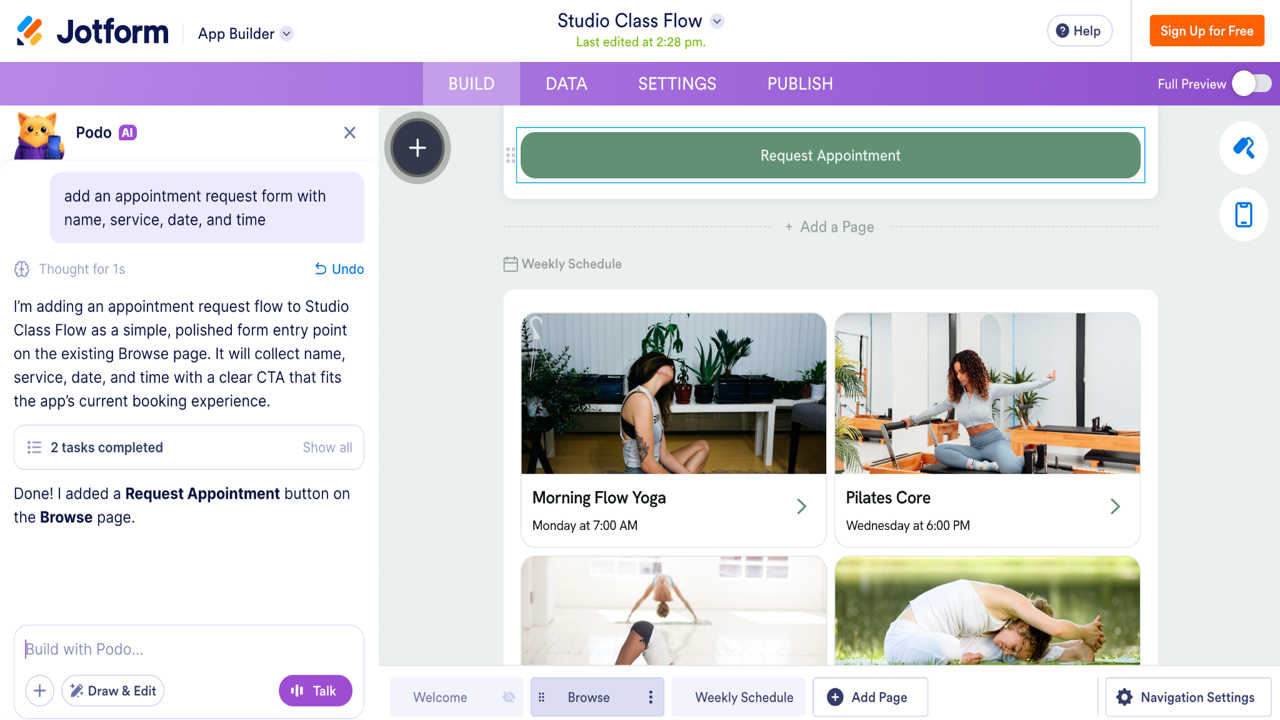
Depending on what you’re organizing, you might add an appointment request form, an event registration form, or an RSVP form. Ask the calendar app builder to “add an appointment request form with fields for name, service, date, and time,” and it will generate the fields for you.
From there, you can add or remove fields, mark the required ones, and use conditional logic so the form shows registrants only what’s relevant, such as revealing a “number of guests” field after someone chooses to attend.
5. Add notifications and a confirmation message
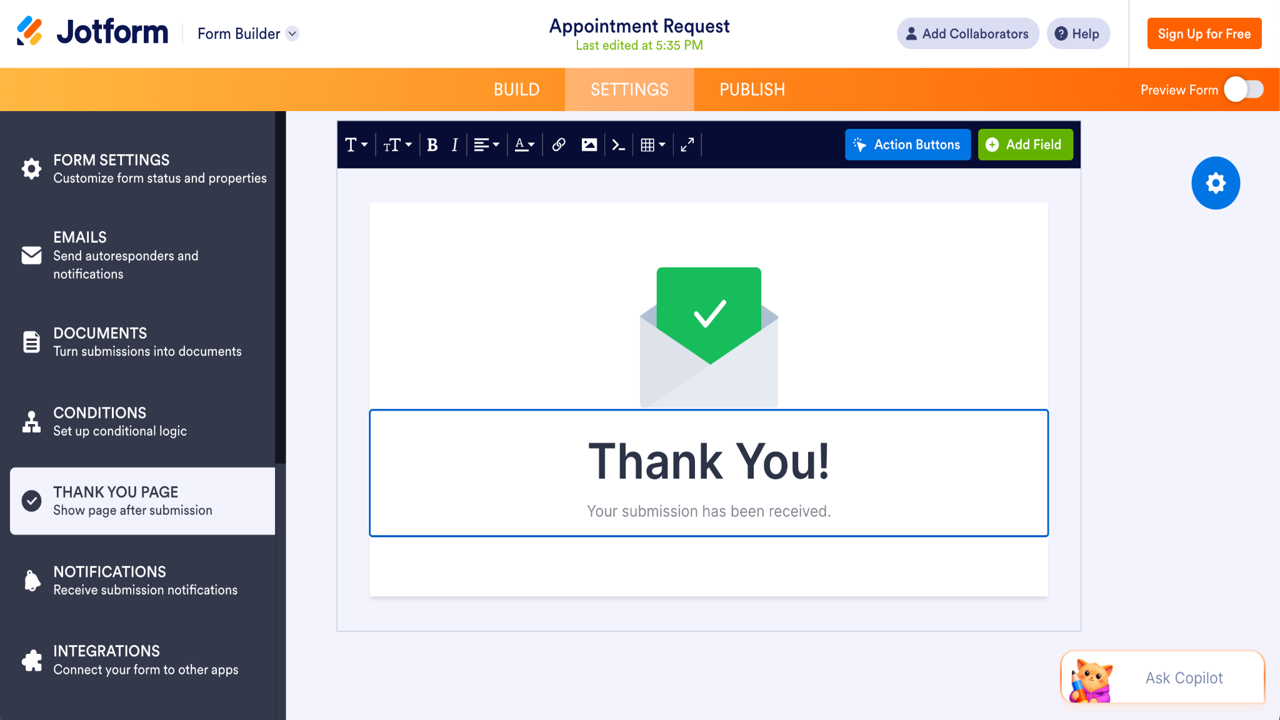
Set up a confirmation message so people know their booking or registration has gone through, and turn on email notifications so you’re alerted to each new submission. In your form builder, click Settings, then select Thank You Page to customize the message visitors see after submitting their form. Click Notifications in the sidebar to receive instant notifications when a form is submitted, and click Emails to draft an autoresponder that shares the information the person needs to know to attend, such as the location of a class, a meeting link, what to bring, or how to dress.
These messages are automatically triggered when someone submits, so no one is left wondering whether their request went through.
6. Test the calendar app experience
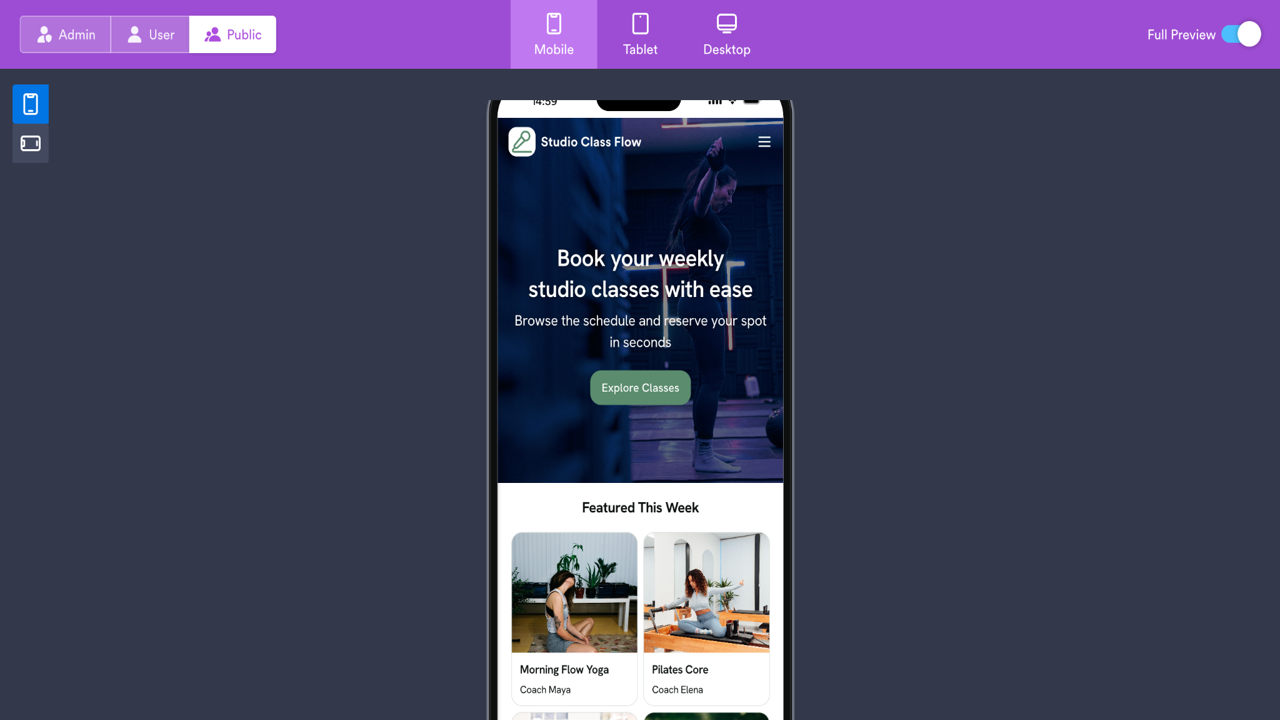
Test the app before sharing it to catch problems before your users do. Open the app preview and navigate through it in both desktop and mobile formats, since many people will open your calendar app on their phones.
Submit a test booking to ensure the form works, the confirmation message appears, and the notification reaches your inbox. Checking it yourself is the simplest way to notice a missing field or an awkward layout before anyone else can.
7. Share your calendar app
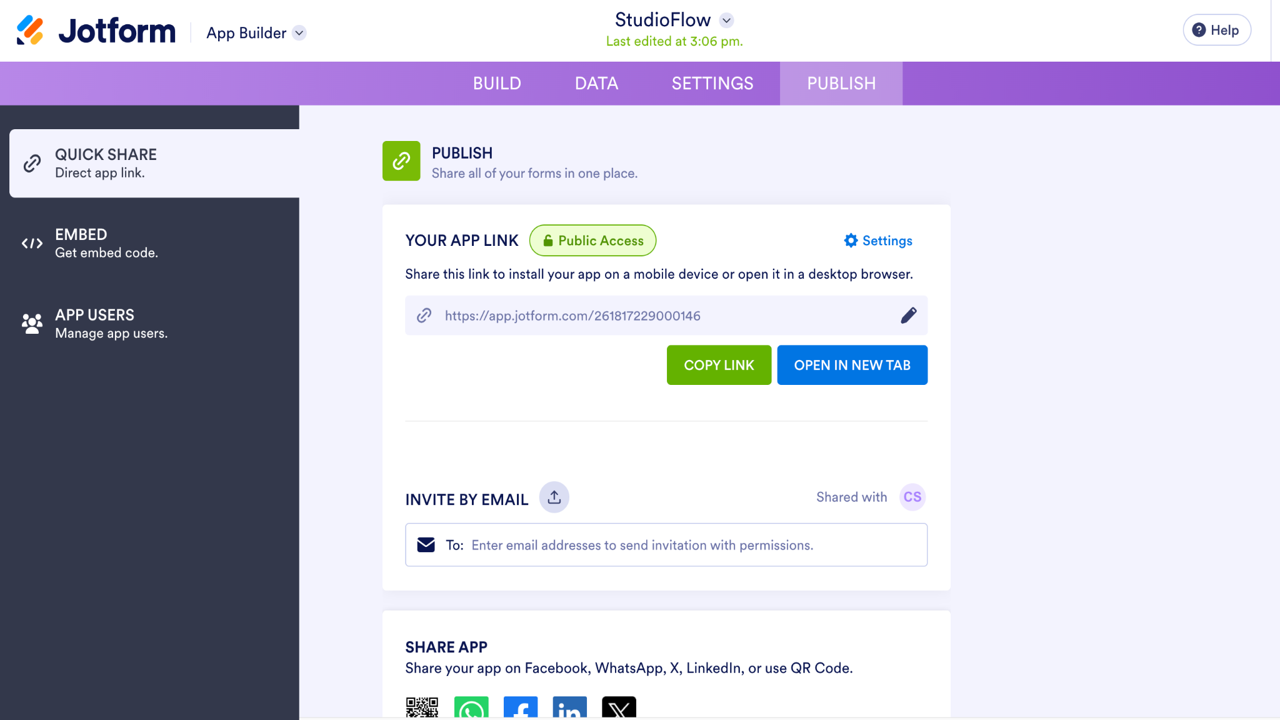
Once everything is working as expected, it’s time to publish. Share your app with a link, or post a QR code to a printed flyer, an event table, or a class schedule tacked up on the wall. Your app will work on any device, no installation needed, so anyone you share it with can open it in a browser and start booking right away. As your needs change, you can continue editing the app, and updates will appear for everyone using the link.
What to include in a calendar app
The right elements for your calendar app depend on your individual needs, but most calendar apps share a core group of essentials. Use the following checklist while you build, and add or skip items as needed:
- Event or schedule list
- Event dates and times
- Event descriptions
- Appointment request form
- Registration or RSVP form
- Location or meeting link
- Organizer’s contact information
- Cancellation or rescheduling instructions
- Business hours or level of availability
- Categories for different event types
- Confirmation of registration autoresponder
- Event reminder with instructions
- Mobile-friendly navigation
You won’t need every item for every app, so start with the ones your audience will use most.
5 calendar app prompt examples
The quality of your app depends a lot on the quality of your prompt. A vague request will yield a generic result, while a more specific request, naming the pages, forms, and details you want, will get you much closer to your desired outcome on the first try.
Here are five prompts you can copy and paste into the Jotform AI App Builder and adjust to fit your needs.
1. Event calendar app prompt
If you’re organizing events, an event calendar app keeps your schedule and registrants in one place. Here’s a prompt that sets up both:
“Create an event calendar app that lists upcoming community events with dates, times, and locations. Include an event registration form that collects the registrant’s name, email, number of guests, and food preference and sends a confirmation message after someone registers.”
This prompt gives you a browsable list of events and a working registration form. Replace the phrase “community events” with your own event type, such as a workshop or fundraiser, and update the fields to match the information you need from each attendee.
2. Appointment calendar app prompt
For anyone who books clients one at a time, an appointment calendar app replaces the back-and-forth of finding a time that works well for everyone. Try this prompt to get that booking flow started:
“Create an appointment calendar app for a hair salon. Add an appointment request form with fields for name, phone number, service type, and preferred date and time, and show my business hours so clients can only request open time slots.”
You’ll get an app centered on booking, with your availability visible up front. Change the service type to match your work, whether it’s consulting, tutoring, or coaching, and add fields for any information you’ll need before the appointment.
3. Team scheduling app prompt
A shared calendar app helps a team see who’s doing what and when. Here’s a prompt that brings it together in one view:
“Create a team scheduling app that shows this week’s shifts by employee, with a form for staff to request time off and a page listing who’s on call. Notify me by email when someone submits a request.”
This prompt creates an internal hub your team can access from any device. Adjust the app to fit your group’s rhythm, swapping shifts for project deadlines or meeting slots, for example, and add categories to keep different teams separate.
4. Class calendar app prompt
For fitness instructors and art studios, a class calendar app combines scheduling and enrollment. This prompt covers both at once:
“Create a class calendar app for a yoga studio that lists weekly classes with days, times, and instructors. Add a registration form so students can reserve a spot, and send an autoresponder email confirming their booking.”
You’ll have a schedule students can browse and a way for them to reserve their place in class. Update the class details to match your offerings, and use conditional logic if certain classes require additional information at signup.
5. Content calendar app prompt
A content calendar app keeps a publishing schedule organized in one view. Try this prompt to set one up:
“Create a content calendar app that lists upcoming posts by date, platform, and status. Add a form for submitting new content ideas, with fields for title, channel, and due date.”
This suits a marketing team or a solo creator tracking what goes out and when. Adapt the fields to your workflow by adding a campaign category or status labels such as “drafted,” “scheduled,” or “published.”
Tips for creating a better calendar app
A few habits separate a calendar app your customers can actually use from one they open once and then abandon. Keep these tips in mind as you refine yours:
- Start specific, then expand: Instead of asking the AI app builder for everything at once, begin with the one job your app needs to do, confirm that it works, and then add pages and forms from there. It’s faster to get a lean, focused first version right than a cluttered one with many moving parts you have to untangle.
- Write for the person filling out the form: Label fields in plain terms, add a short note to explain any complicated fields, and ask only for information you’ll use. Each extra field adds another reason for the registrant to abandon the form.
- Design for a phone first: Most people will open your app on a phone, so keep pages short and buttons easy to tap, and preview the app on a phone screen before sharing.
- Keep it current: A customized calendar app is useful only when its information is accurate, so update the schedule regularly and turn on notifications so no booking goes unanswered.
A customized calendar app works best when it stays simple, clear, and up to date, so revisit it as your needs change.
This article is for small business owners, team managers, educators, event organizers, coaches, consultants, and service providers who want to create a custom calendar app for events, appointments, schedules, deadlines, or internal planning without hiring a developer.




























































































Send Comment: