Build your app in minutes
- Go to Jotform AI App Builder
- Enter a prompt for your food ordering app
- Customize your app layout
- Add your menu items
- Create your order form
- Add payment options
- Test the ordering experience
- Share your food ordering app
Somewhere out there is a restaurant taking orders through a photo of a menu on WhatsApp. The menu has a thumb on it; the food is probably great. But I wouldn’t know because I judge a restaurant by how easy it is to order.
DoorDash says 95 percent of orders placed on its platform over the past six months came through mobile, which makes sense. A hungry person isn’t the most patient customer.
That leaves many restaurants and food businesses with an annoying mismatch: Customers want an app-like ordering experience, while owners do not want an app development project.
Jotform AI App Builder turns your instructions into a working restaurant ordering app you can customize yourself. In the sections ahead, we’ll build one from scratch.
How to create a no-code food ordering app with Jotform AI App Builder
Jotform’s AI-powered restaurant app builder works in three steps: describe, edit, share.
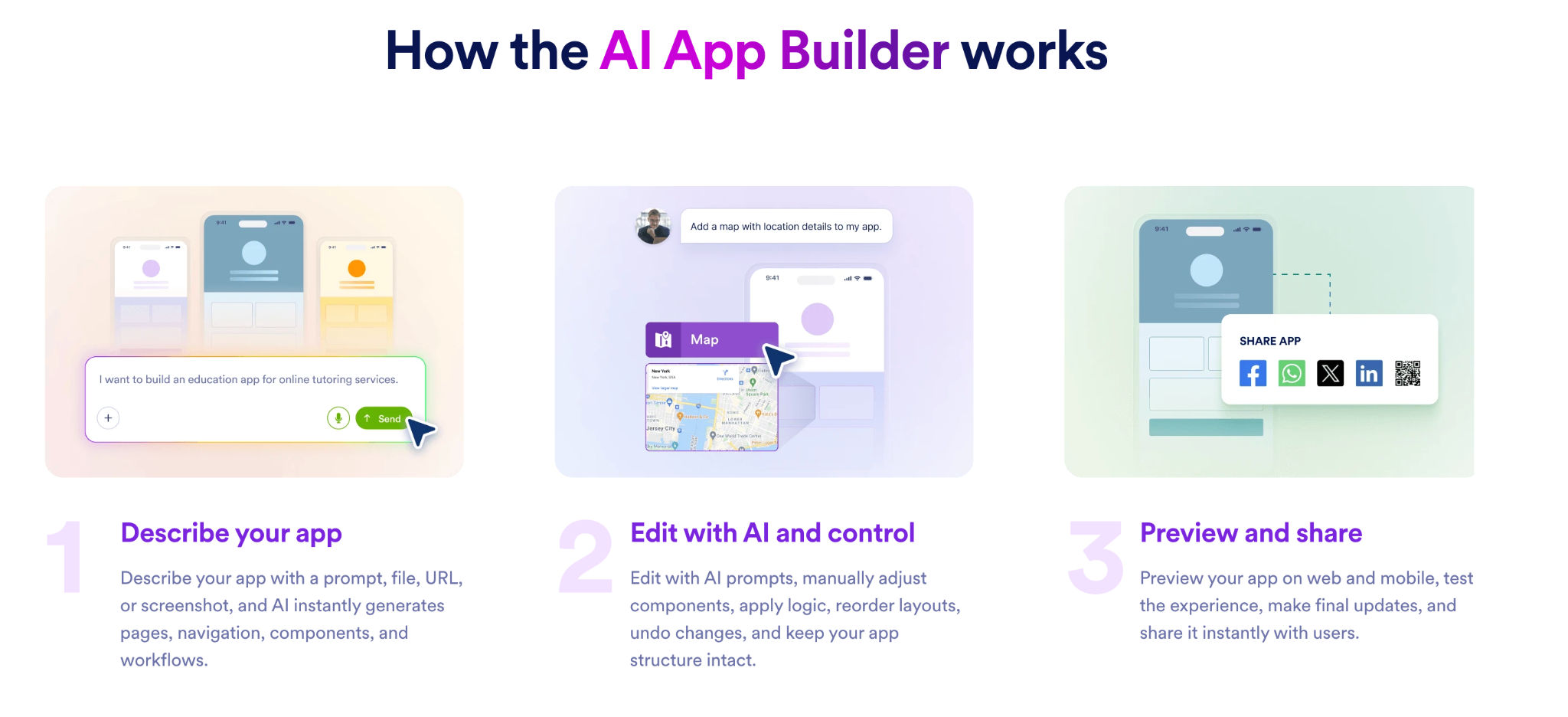
Step 1: Go to Jotform AI App Builder and enter your prompt
Go to Jotform AI App Builder and describe the online food ordering app you want to create. Include the type of business, the pages you need, how the menu should be organized, what information the order form should collect, and any design preferences.
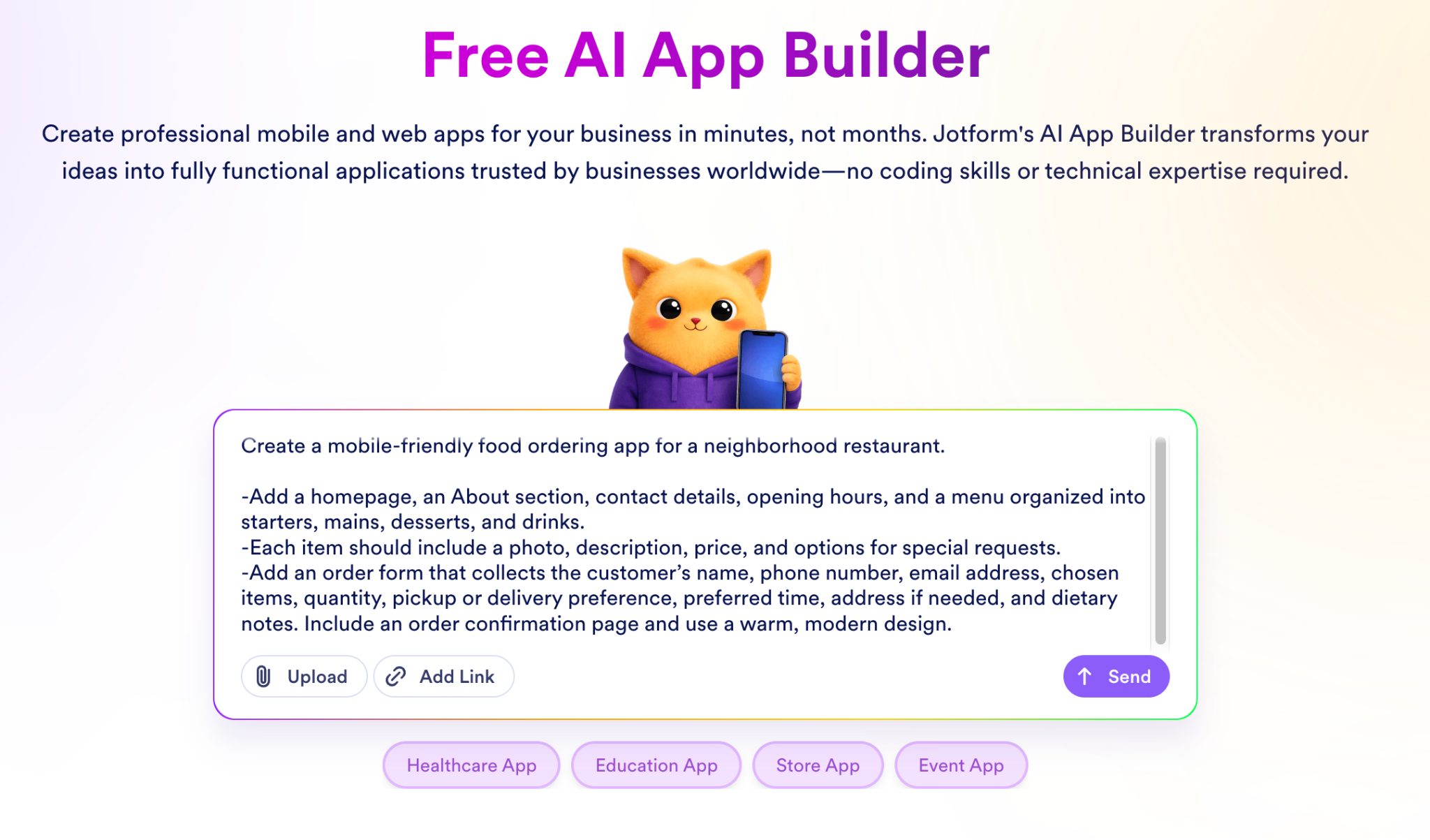
You can also upload a file or add a link if you already have a menu, website, or other material you want the AI to reference. When your prompt is ready, click Send.
Step 2: Review the app Jotform creates
In my test, Jotform took about two and a half minutes to turn the prompt into a working food ordering app. Before changing anything, though, it helps to get your bearings.
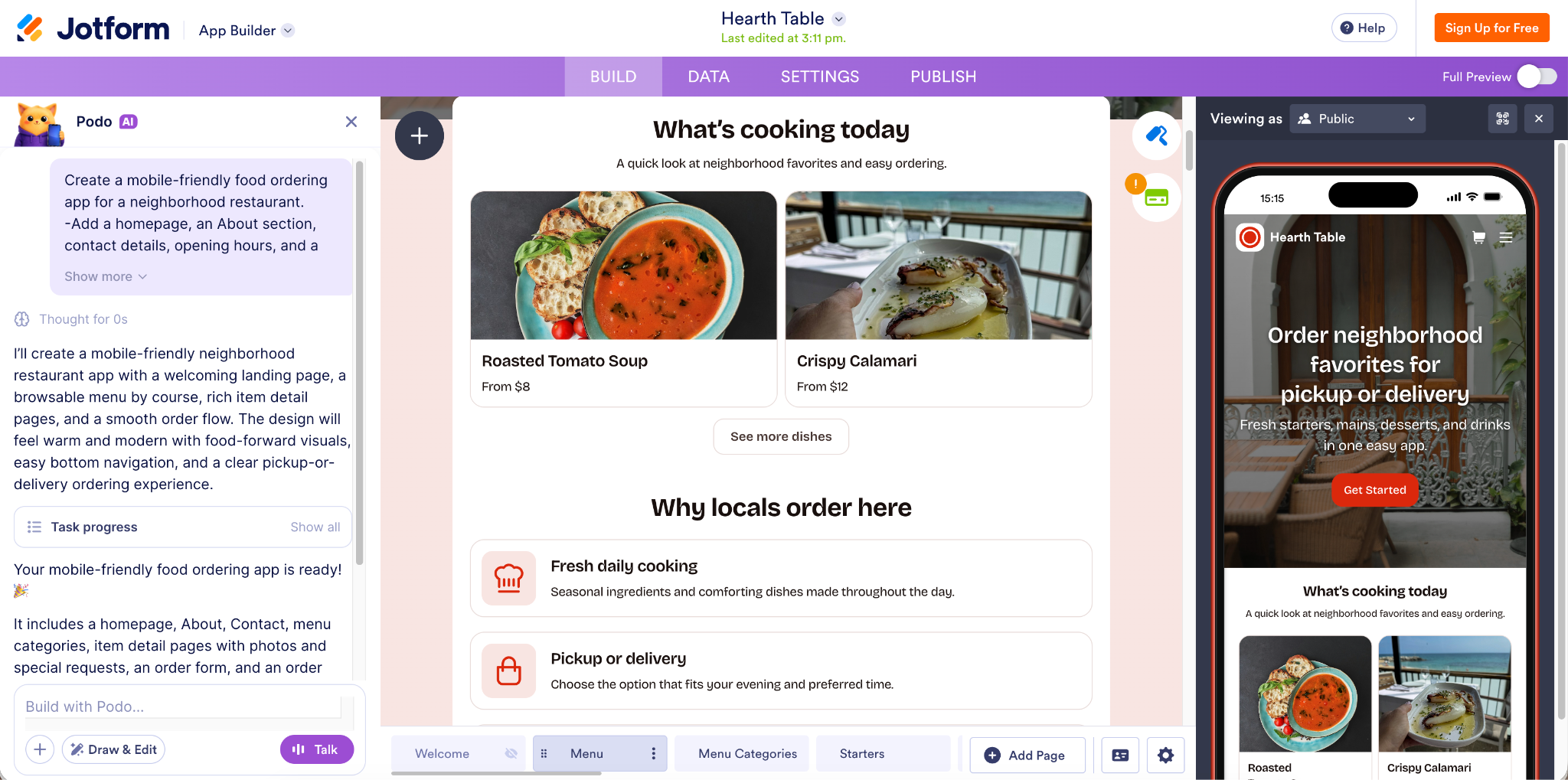
Jotform splits the workspace into three panels:
- On the far left, Jotform AI gives you a chat window where you can ask for changes in plain language.
- In the middle, the visual builder lets you edit the app directly, including adding pages, replacing photos, rewriting product descriptions, updating prices, swapping out CTAs, and adjusting the rest of the content.
- On the far right, a live mobile preview shows exactly how the app will look to customers as you make those changes.
Alternatively, you can start with a ready-made no-code Jotform restaurant app template.
Step 3: Customize your app
I use the Draw & Edit feature when I can see the exact element I want to change. It’s easier to point at it than describe it in the chat.
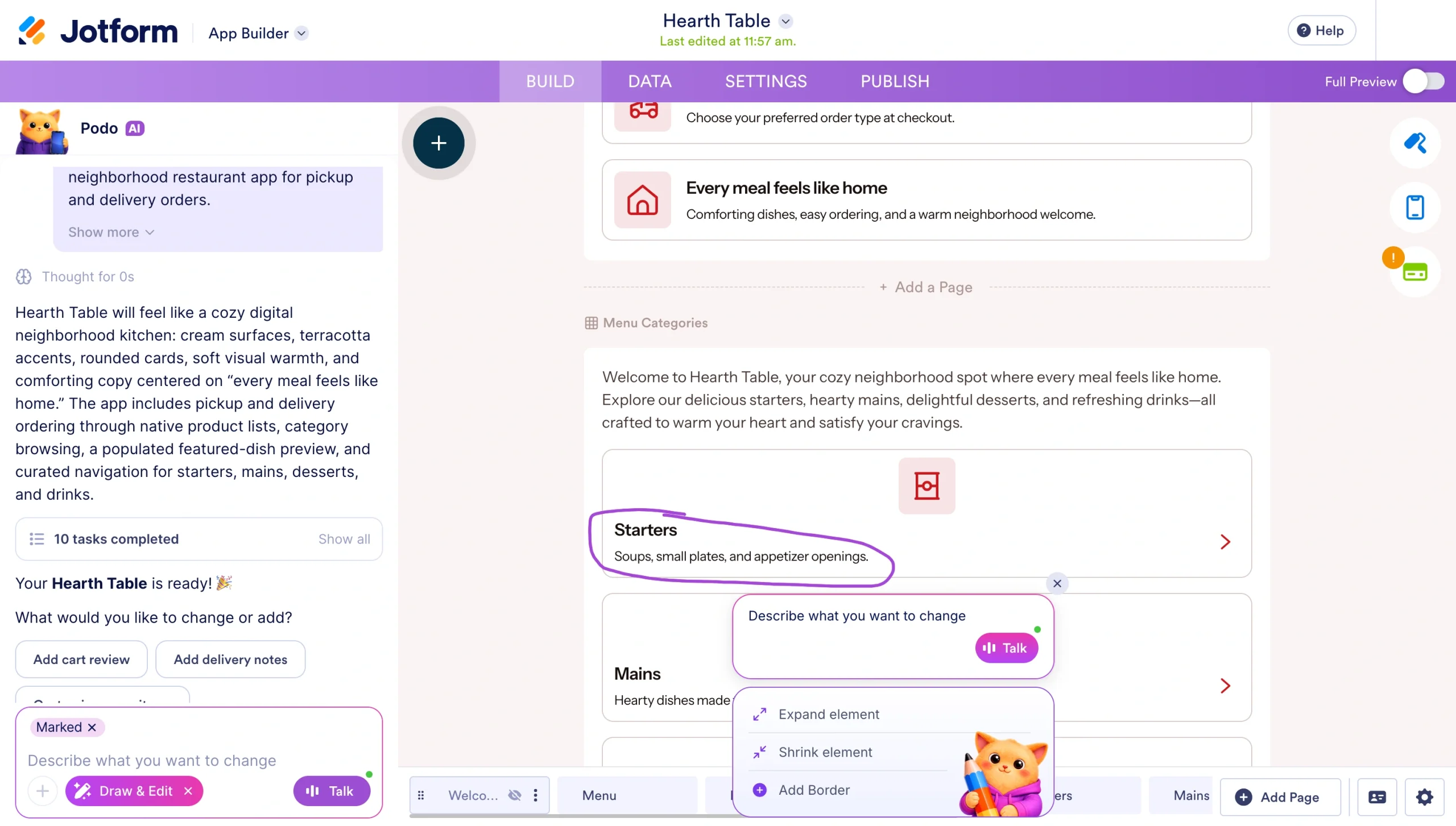
Click Draw & Edit, then click or draw around the text, image, button, or section you want to update. Jotform opens a menu with options such as Change Text To, Improve Text, and Move Element. You can choose one of those actions or type a more specific instruction.
For example, I selected the Menu Categories text and asked Jotform to add a short description of the food. The AI updated that section and left the rest of the page alone.
Then, you can make the app look like it belongs to your restaurant.
Click App Designer to open the design settings. Under General, you can choose a preset theme or create a custom color scheme, switch between light and dark mode, change the corner style, update the app background, and upload a page image. The App Layouts tab lets you change how the app’s content and navigation are arranged.
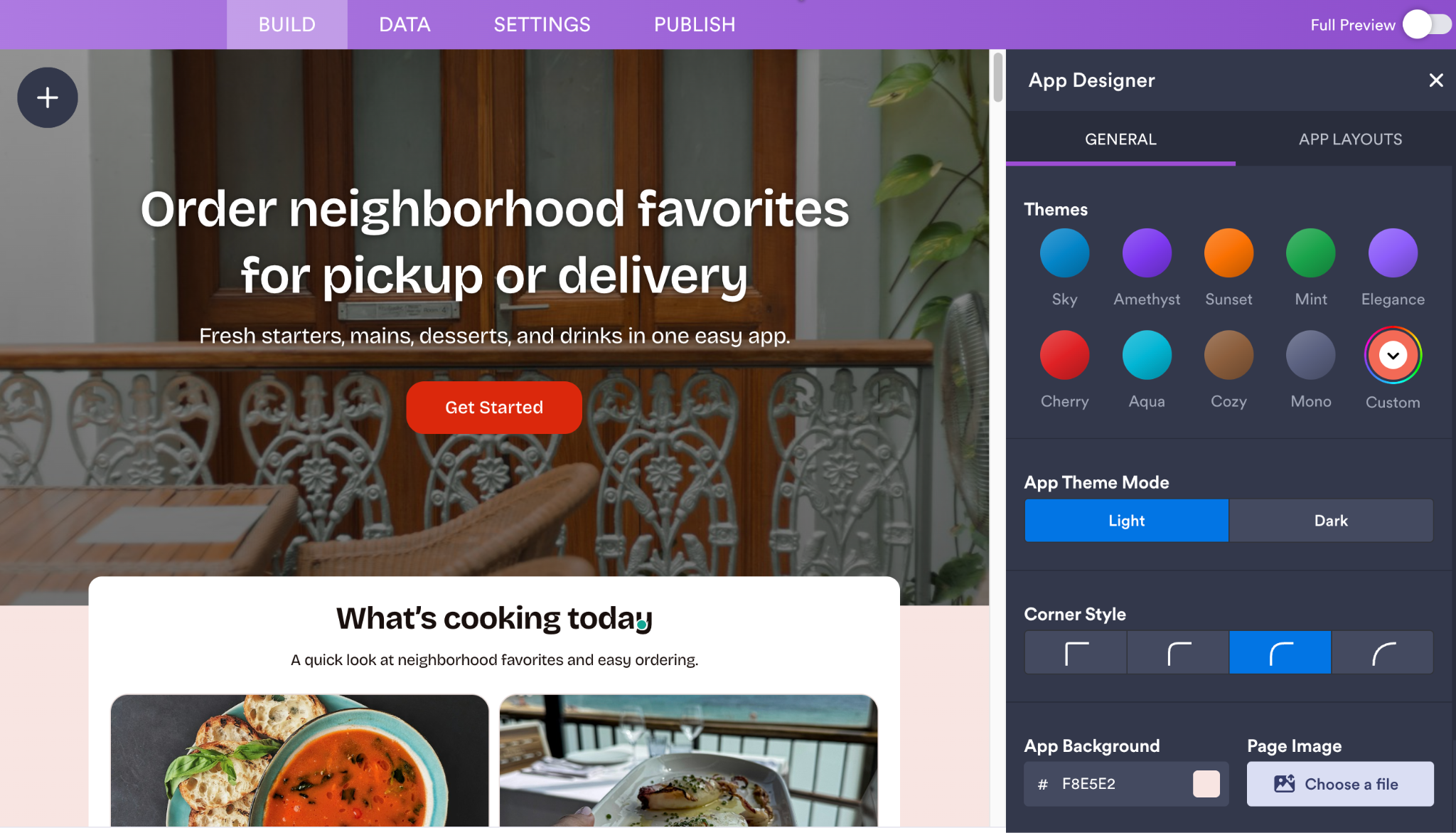
I’d start here because these settings apply across the app. Once the overall look matches your branding, you can move on to the more detailed work of updating dishes, photographs, descriptions, and prices.
Step 4: Add your menu items
Replace the sample menu with what your restaurant sells.
Select the menu section in the visual builder, then click the Edit List icon.
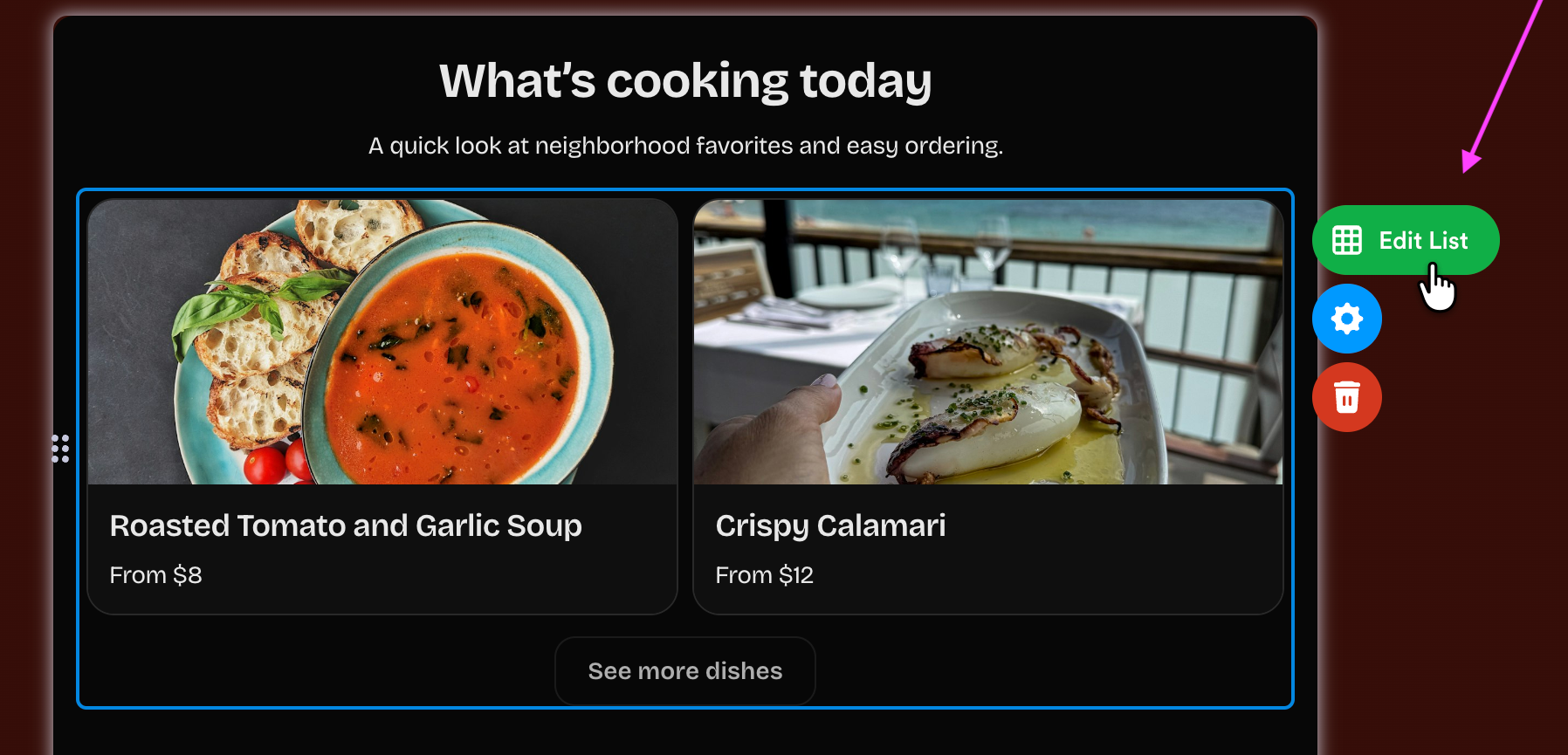
Jotform opens the full menu in a table, which is much faster than opening and editing each product card individually. You can also access this table through the Data tab.
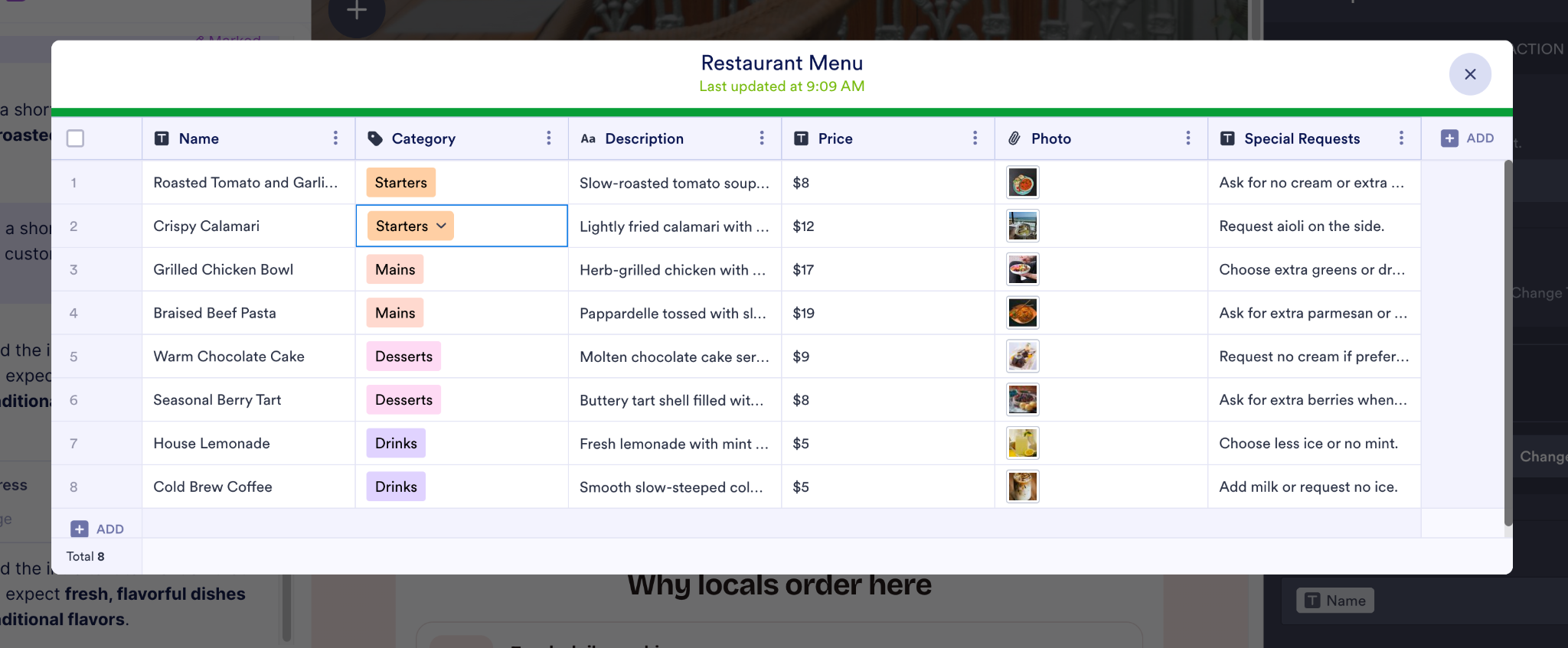
Each row represents one menu item, while the columns contain its name, category, description, price, photo, and special-request options.
Click any cell to update it. Use Add to create more menu items.
You can rename dishes, move them into the right categories, rewrite descriptions, change prices, replace the sample photographs, and specify the requests customers can make, such as removing an ingredient or adding an extra.
You can also bulk-edit the existing menu before returning to the visual builder.
Step 5: Customize your order form
Because we included an order form in the original prompt, Jotform AI App Builder had already created one and added instructions explaining how customers should use it.
Start by reviewing that form. You can rewrite the copy to better match how your restaurant handles orders, reformat it so it’s easier to scan, or use the AI editing options to simplify, expand, or change the tone.
Next, select the Food Orders form inside the visual builder. An Edit Form button appears beside it. Click the button to open the form separately in the Jotform Form Builder.
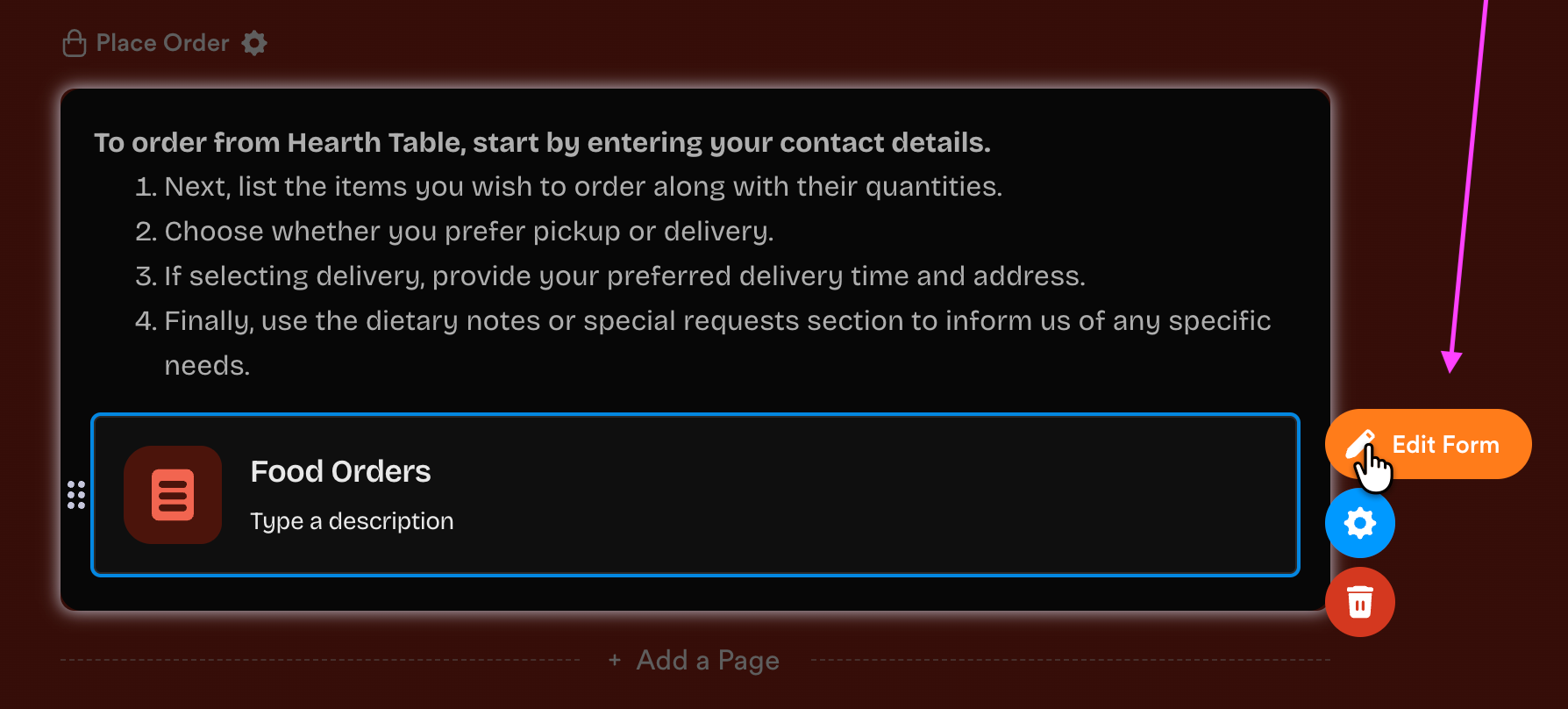
The form generated from our prompt already includes fields for the customer’s name, address, phone number, and email address, along with their selected items and quantities, pickup or delivery preference, preferred time, and any dietary notes.
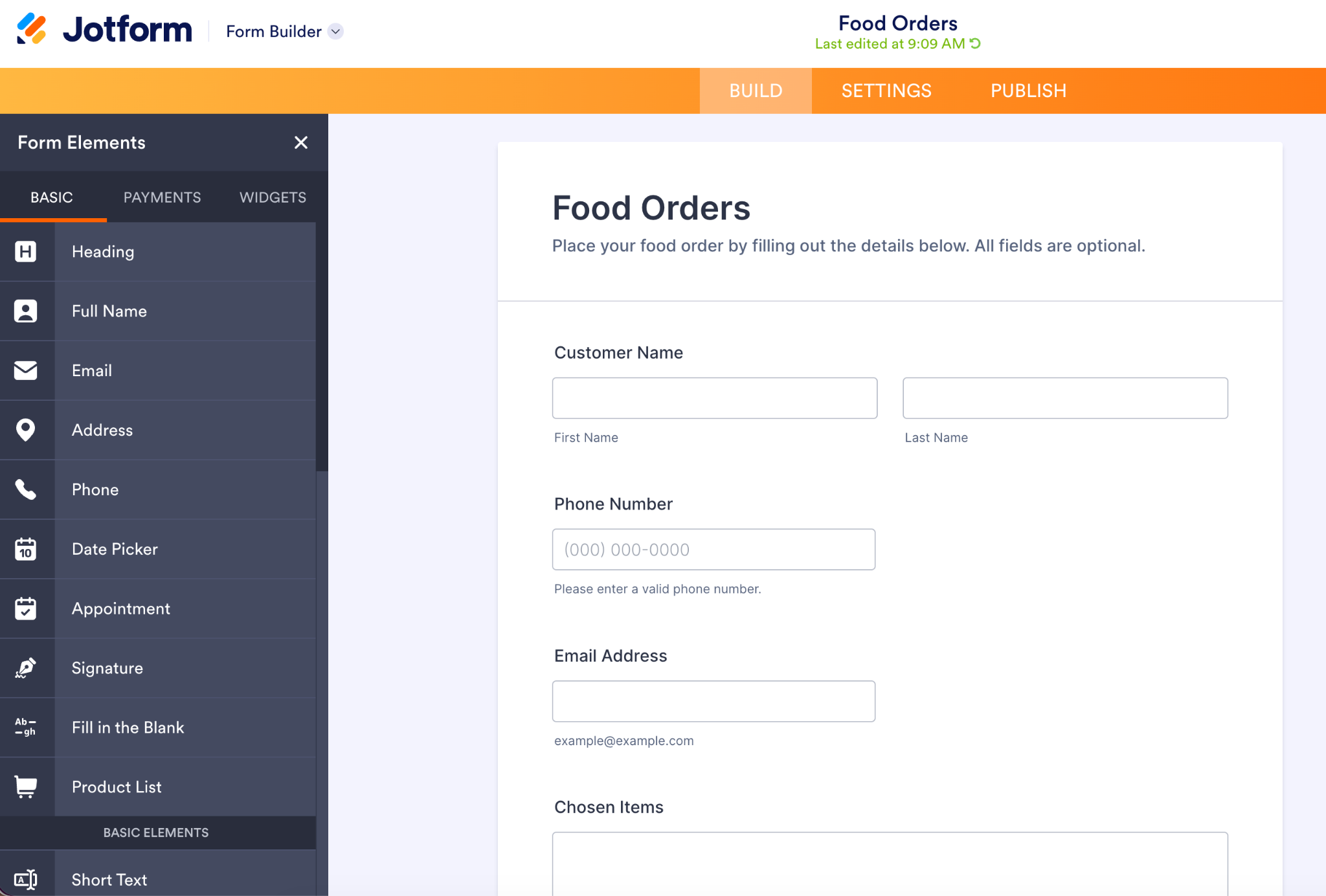
Use the Form Elements panel on the left to add anything that’s missing. You can drag basic fields, payment fields, and widgets onto the form. Then select an existing field to change its label, options, or settings.
This is also where you should decide which questions customers must answer. For example, you’ll need the customer’s address for delivery orders.
Step 6: Add payment options
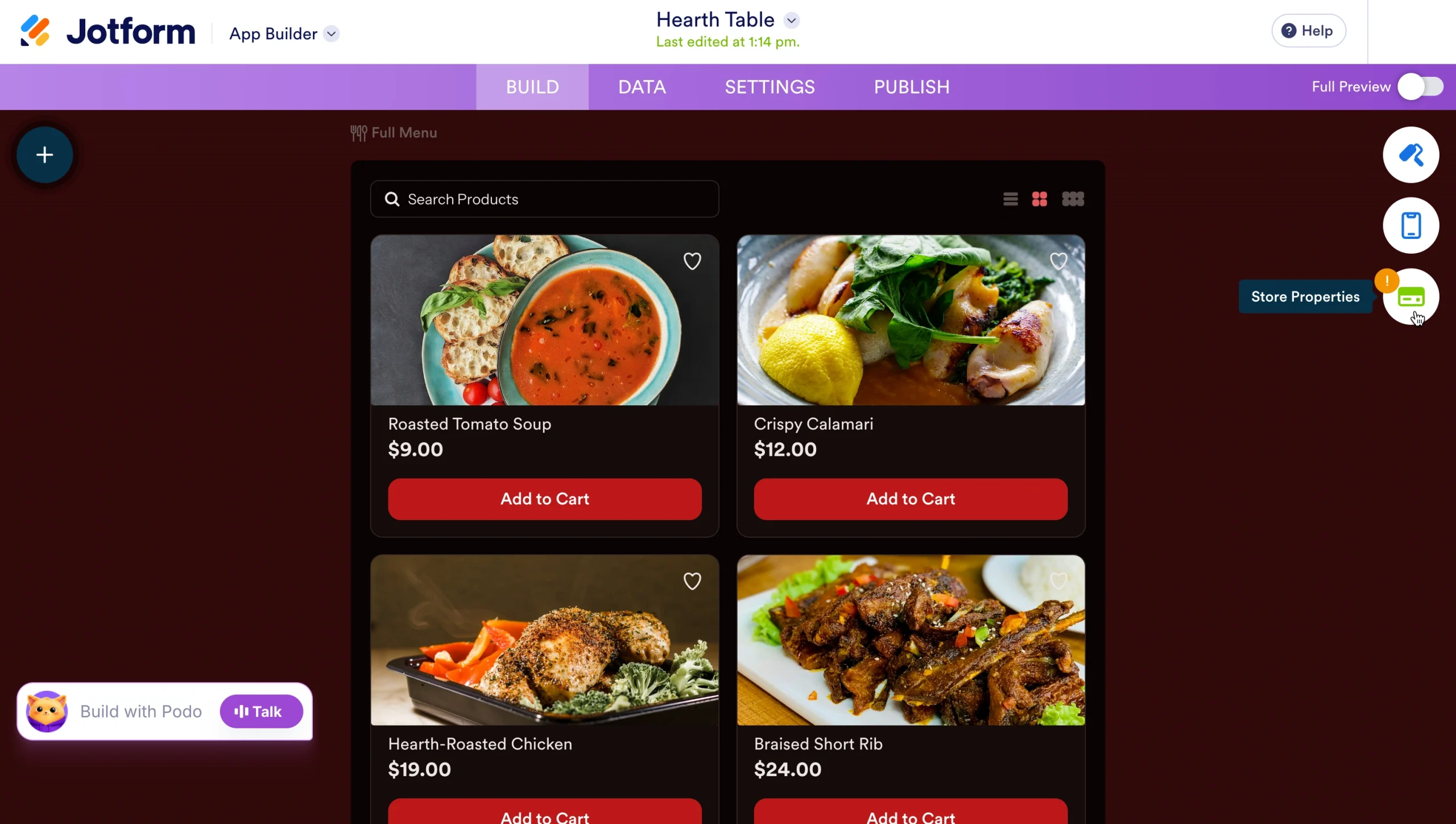
In the app builder, click the gear icon beside Place Order to open Store Properties.
Under the Payment tab, click Add Payment Connection, then choose the payment processor your restaurant already uses. Jotform currently supports more than 40 payment integrations, including Square, PayPal, Stripe, Authorize.Net, Apple Pay and Google Pay, Venmo, and Cash App Pay.
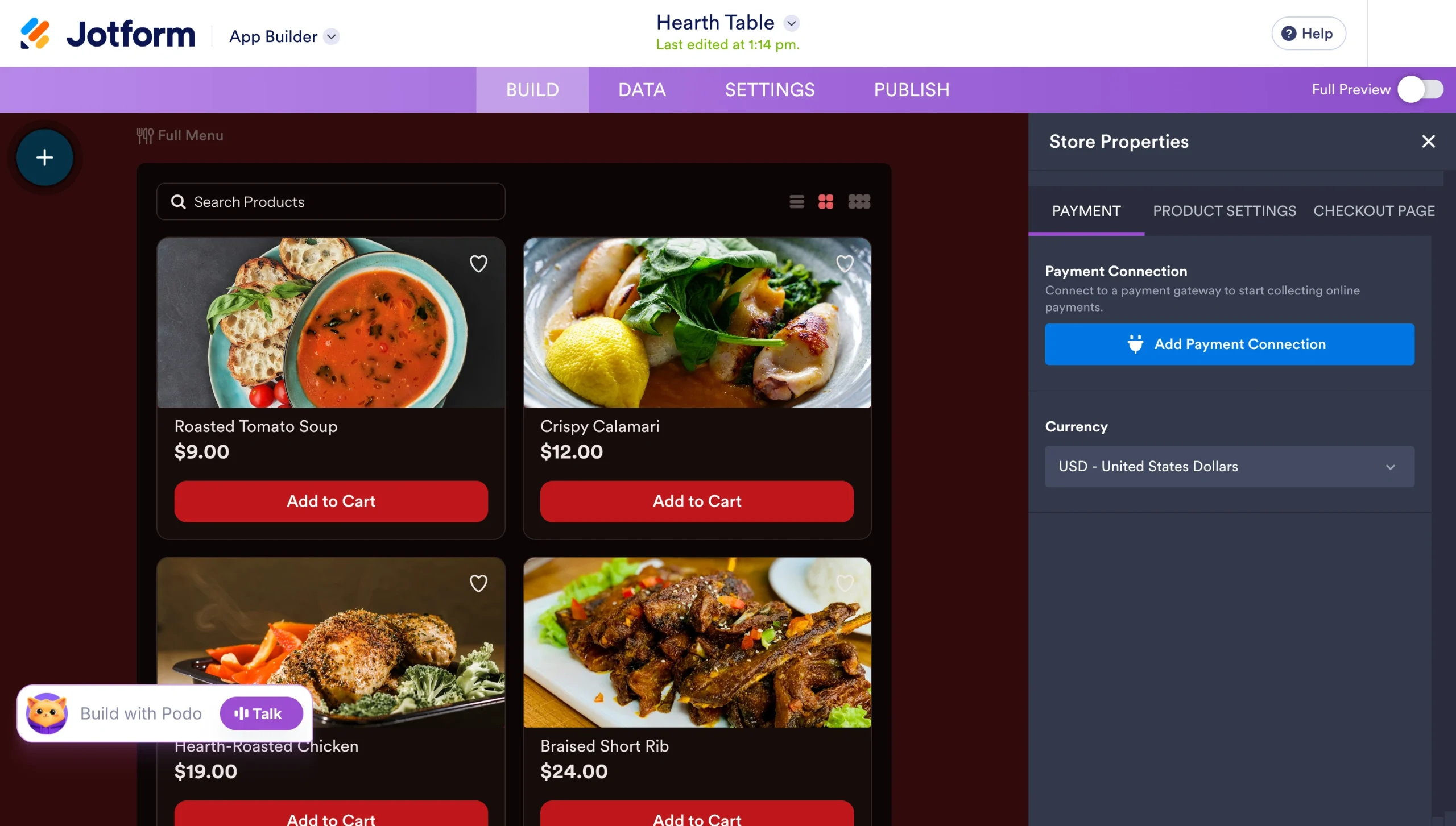
After connecting your account, select the currency you want to accept payments in.
You can also use the Checkout Page tab to decide what happens before payment. For example, you can enable express checkout as I did in this example, collect customer contact information, or add more fields to the checkout page.
Step 7: Test the ordering experience
Before publishing, run through the app as though you’re ordering from the restaurant for the first time.
Turn on Full Preview in the top-right corner. You can also use the Viewing As menu above the mobile preview and select User to see the version customers will interact with.
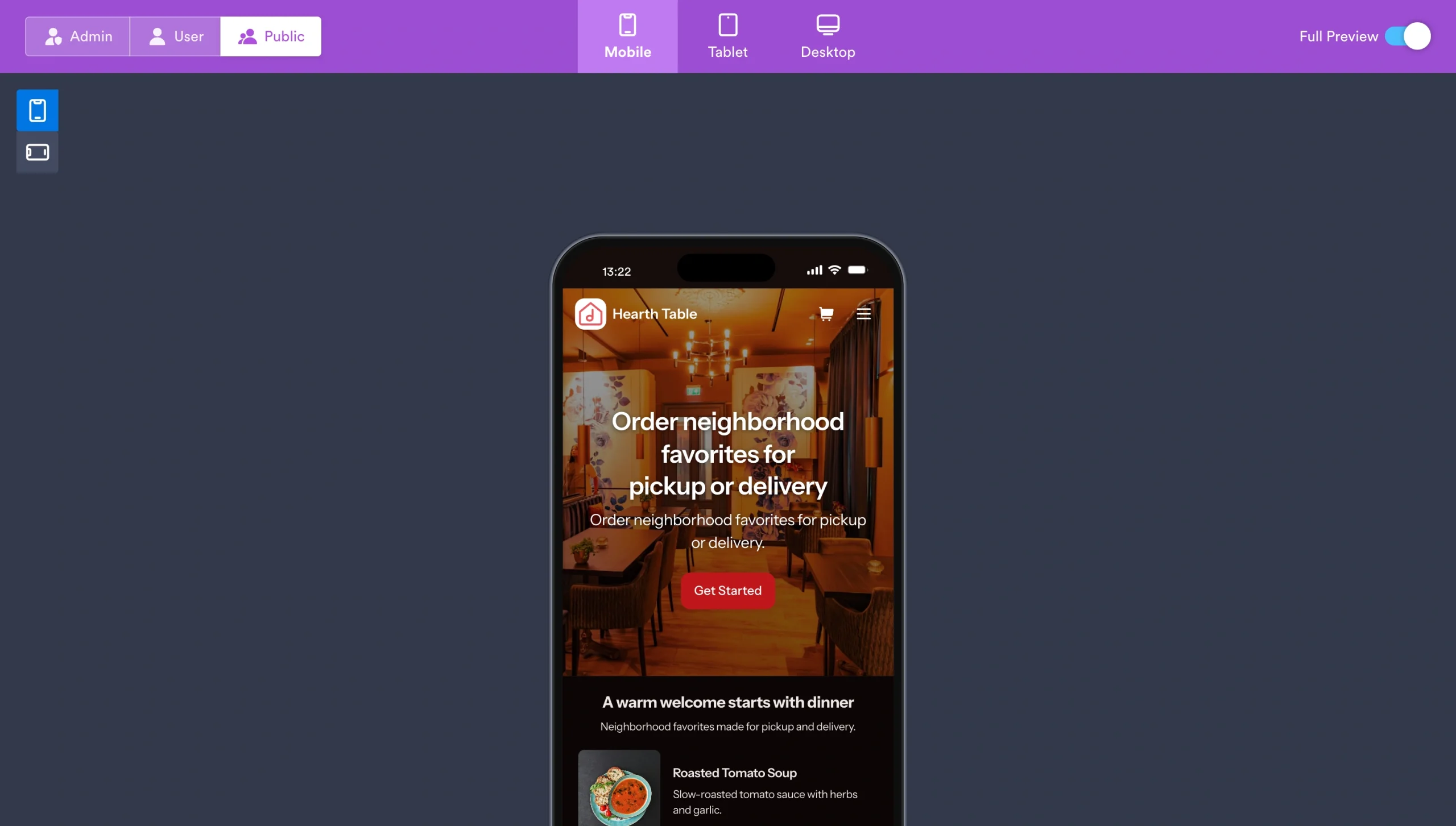
I recommend placing at least one complete test order.
Start from the homepage and use the main call to action. Browse the menu categories, select a dish, adjust the quantity, add a special request, and continue through checkout. Test both pickup and delivery to confirm the correct fields appear for each option.
📚 Read more: How to create an app without any coding knowledge
Step 8: Share your food ordering app
Once you’re happy with the ordering experience, open the Publish tab.
Under Quick Share, Jotform gives your app its own link. Click Open in New Tab for one final check, then select Copy Link to add it to your restaurant’s website, Instagram bio, Google Business Profile, and email campaigns.
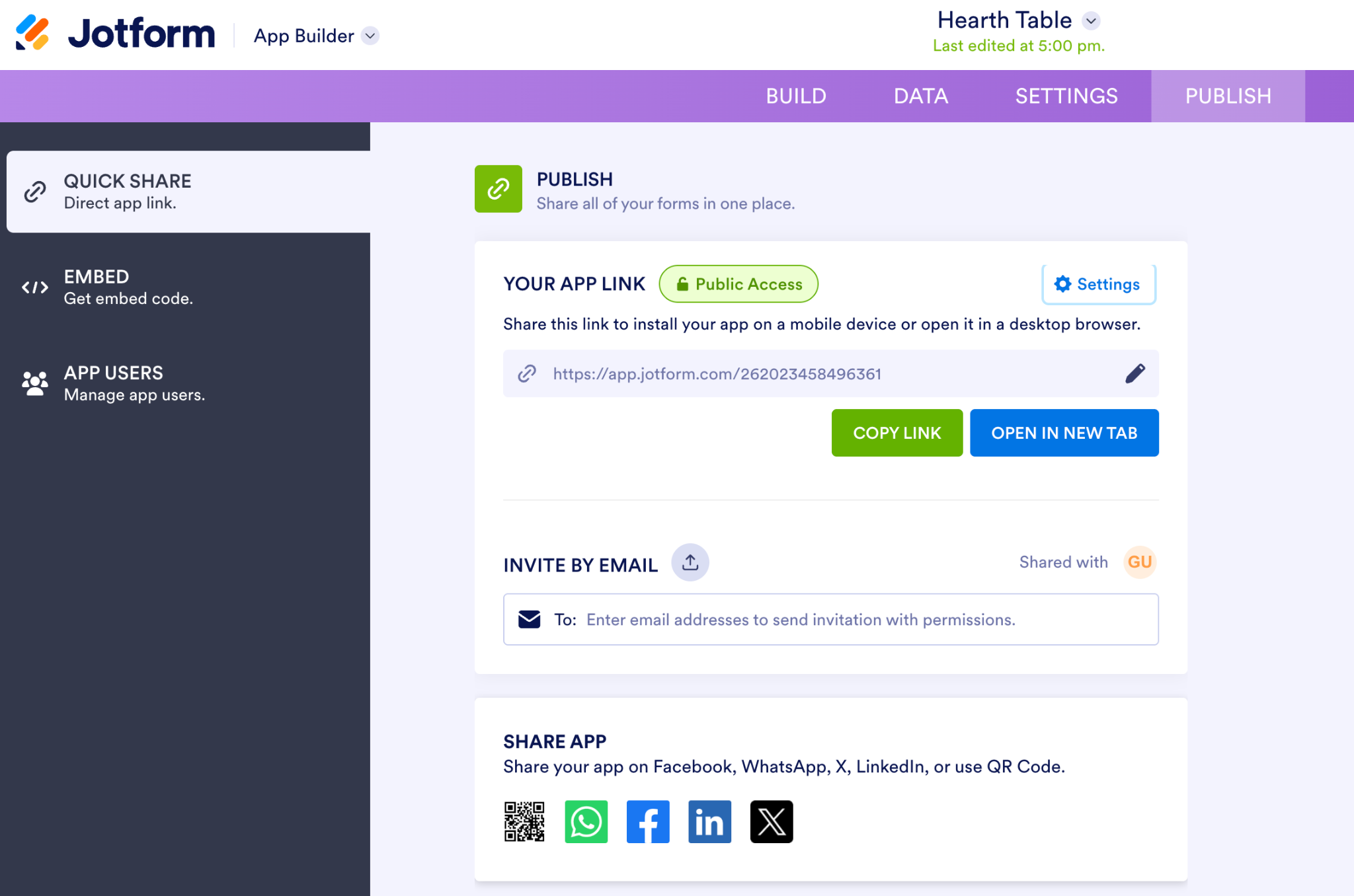
You can also invite specific people by email or share the app directly through WhatsApp, Facebook, LinkedIn, X, or a QR code. The QR code is especially useful for tables, menus, receipts, storefront signs, and takeout packaging.
Before sharing it widely, select Settings next to the app link and confirm who can access it. Leave the app on public access if you want any customer to be able to order.
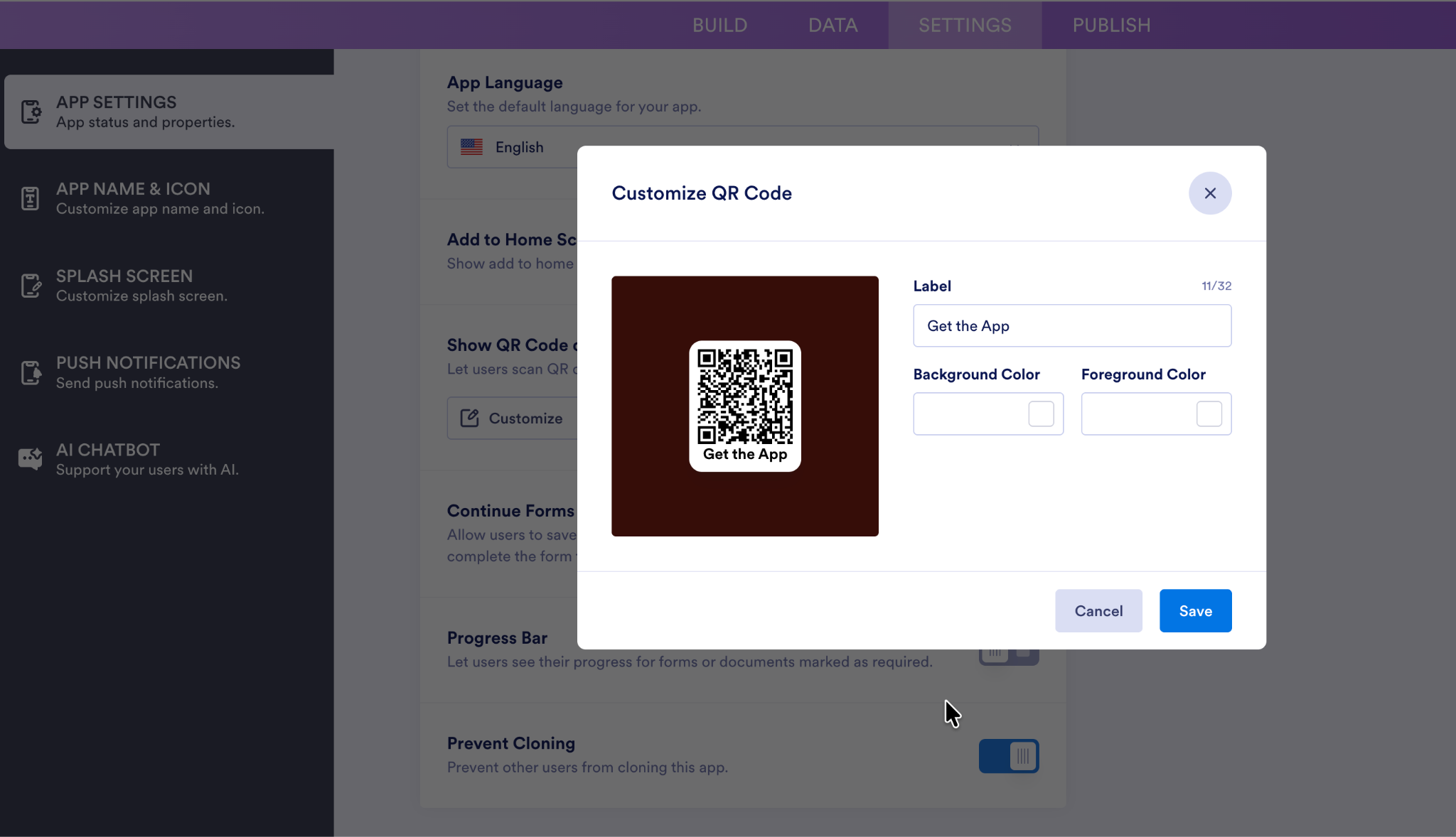
You can also customize the QR code. Go to Settings, open App Settings, and find Show QR Code. Select Customize to change the label and choose the background and foreground colors.
The Embed section also provides code for placing the app directly on your existing website.
Hearth Table is now open for business.
What to include in a mobile food ordering app?
A customer should be able to answer three questions without calling you:
- What can I order?
- Can you bring it to me?
- What happens after I pay?
Use this checklist to make sure your app covers the full journey:
- Digital menu: List every item customers can currently order, organized into clear categories. DoorDash’s analysis of small-business merchants found that adding descriptions to at least half of the menu items increased sales by more than 6 percent.
- Food photos: Show customers what they’re choosing. According to Grubhub, restaurants that add photos and descriptions to their menus can receive up to 70 percent more orders and 65 percent higher sales than those that don’t.
- Prices: Display the full price, including charges for extras, sizes, toppings, or substitutions.
- Allergy and dietary information: Mark common allergens and identify options such as vegetarian, vegan, halal, or gluten-free when relevant.
- Pickup and delivery options: Let customers choose how they receive their food. If you’re building a food delivery app, collect the delivery address, confirm the service area, and clearly state any delivery fees or minimum order requirements before checkout. The National Restaurant Association reports that 47 percent of U.S. adults pick up takeout at least weekly, while 37 percent order delivery that often.
- Promotions or daily specials: Make limited-time dishes, meal deals, and seasonal offers easy to find. In the same restaurant-industry research, 82 percent of delivery customers said access to a daily special, discount, or value promotion mattered when choosing where to order.
- Special instructions field: Let customers request changes, but clearly explain which substitutions your kitchen can reasonably accommodate.
- Location and service area: State where customers can pick up orders and which neighborhoods or ZIP codes you deliver to.
- Business hours: Include both your opening hours and the hours during which you accept orders.
- Customer contact fields: Ask for the customer’s name, phone number, and email address so you can confirm or clarify an order.
- Payment information: List the payment methods you accept and explain whether customers pay online, at pickup, or at the door.
- Order form: Collect the items, quantities, and options needed to prepare the order correctly.
- Order confirmation message: Tell customers their order went through, what they ordered, and when they can expect it. Baymard’s checkout research has repeatedly found that unclear confirmation pages can leave customers unsure whether a purchase went through, sometimes leaving them waiting around for a confirmation email before they feel certain.
5 food ordering app prompt examples
The more specific you are about what you sell and how orders reach you, the less editing you’ll do afterward. Here are five starting points. Steal the one closest to your business and change the nouns.
Pro Tip
AI can work with a paragraph, but a food ordering app has a lot of moving parts. OpenAI recommends headings, lists, and delimiters for separating steps and priorities in complex instructions.
1. Restaurant food ordering app prompt
Create: A mobile-friendly ordering app for a neighborhood restaurant called Hearth Table.
Menu
- Organize dishes into starters, mains, desserts, and drinks.
- Give each item a photograph, description, price, and dietary labels.
- Let customers choose extras and enter special requests.
- Add a section for daily specials.
Ordering
- Offer pickup and delivery.
- Let customers select a preferred date and time.
- Collect the customer’s name, phone number, and email address.
- Ask delivery customers for their address and confirm whether it falls within our service area.
Payment: Let customers review their order and pay online.
Pages: Include the homepage, menu, opening hours, location, contact details, and order confirmation.
Design: Use a warm, modern look with deep red and cream branding.
This is the full-service template. Replace the categories, fulfillment options, and service-area rules to reflect how your restaurant operates.
2. Café ordering app prompt
Create: A fast preorder app for a café called Side Street Coffee.
Menu
- Add categories for coffee, tea, seasonal drinks, pastries, and sandwiches.
- Include a photograph, short description, and price for each item.
Drink options
- Let customers choose the size.
- Offer hot or iced versions where relevant.
- Add milk choices, extra espresso shots, syrups, and decaf.
Ordering
- Offer pickup only.
- Let customers choose an available pickup time.
- Collect their name and phone number.
- Allow customers to add a short note to the barista.
Payment: Let customers pay before collection.
Pages: Include the menu, address, opening hours, seasonal special, Wi-Fi details, and loyalty program information.
Design: Keep the layout bright, compact, and easy to navigate quickly on a phone.
The point here is speed. The prompt focuses on drink modifiers, timed pickup, and the information a customer needs while ordering coffee with one eye open.
3. Food truck ordering app prompt
Create: A mobile ordering app for a food truck called Rolling Tacos.
Homepage
- Show today’s location and service hours at the top.
- Add a link to the truck’s weekly location schedule.
- Include links to Instagram and other social profiles.
Menu
- Add tacos, sides, drinks, and meal deals.
- Include a photograph, price, ingredient list, spice level, and allergy information for each item.
- Let customers remove ingredients and add extras.
- Make it possible to mark an item as sold out.
Ordering
- Let customers choose quantities and a pickup time.
- Collect customers’ names and phone numbers.
Payment: Accept online payment and show an order summary before checkout.
Design: Use bold colors, large text, and buttons that are easy to read outdoors.
A food truck app should be as short as the line you’re trying to eliminate. The rotating-location section is the one feature this business type needs that the others don’t.
4. Catering ordering app prompt
Create: A catering inquiry and ordering app for a company called Gather & Serve.
Event details
- Ask for the event date, event type, venue address, guest count, and customer contact details.
- Collect dietary requirements and allergy information.
- Let customers upload an event brief or supporting file.
Packages
- Add options for breakfast, working lunch, cocktail reception, and seated dinner packages.
- Show the price per person, minimum order, and what each package includes.
- Offer add-ons such as drinks, desserts, serving staff, tableware, setup, and delivery.
Next steps
- Let customers request a quote.
- Allow them to choose a consultation time.
- Add an option to pay a deposit once the order is approved.
Pages: Include package information, FAQs, service areas, notice periods, cancellation terms, and allergen policies.
Design: Use an elegant, understated style with plenty of space for event photography.
A catering order form breaks the usual pattern because nobody impulse-buys lunch for 80 people. This prompt treats the app as part menu, part intake form, and part quoting workflow, with room for approval before any money changes hands.
5. Meal prep ordering app prompt
Create: A weekly meal prep ordering app for a business called Batch Made.
Plans
- Offer five-meal, 10-meal, and 15-meal plans.
- Let customers choose between a one-time order and a recurring weekly plan.
Menu
- Show the current weekly meals.
- Include a photograph, ingredients, price, calories, protein, dietary labels, and reheating instructions for each dish.
- Add filters for vegetarian, vegan, high-protein, gluten-free, and dairy-free meals.
Customization
- Let customers choose portion sizes.
- Allow ingredient exclusions and dietary notes.
- Prevent customers from selecting more meals than their chosen plan allows.
Delivery
- Collect the customer’s name, contact details, and address.
- Let them choose from available delivery days.
Payment: Show the selected meals, plan size, delivery details, and total before payment.
Design: Use a clean layout that makes nutritional information easy to compare.
Meal prep apps have more moving parts than a standard restaurant menu. Your customers may be choosing a plan, comparing nutrition, excluding ingredients, and deciding whether they want one delivery or the same order every week. The prompt accounts for that up front.
My top 3 tips for creating a better food ordering app
Here are three things I’d design around from the jump:
Ditch the kitchen logic and use hungry people logic
In restaurants, menus are typically organized by kitchen categories: starters, main courses, sides, and drinks. But your customers may be looking through the menu with a less elegant system like dinner for four people, dishes under $40, or something sweet.
I’d keep the standard categories, then add a few shortcut collections, such as “Feeds 4 for $40,” “Desk Lunches Under 15 Minutes,” or “Late-Night Cravings.”
For bestsellers and preset combos, count how many taps it takes to go from opening the app to checkout. Three taps is a useful target. Customers ordering a popular item shouldn’t have to reconstruct it across five screens.
Capitalize on the 9-day reorder window
Acquiring new customers is expensive; repeat diners keep the lights on. According to Restolabs’ analysis of 4 million direct orders, the median gap between repeat orders is 8.9 days. The same dataset shows that returning customers account for roughly 80 percent of order volume.
There are two things that follow these findings:
- Put reordering at the top of the app: Jotform Prefill can pull information from a previous submission into a new form, while the Quick Reorder Form template lets customers view past orders and start a new one.
- Schedule an email for seven to nine days after the first order: Link directly to the shorter reorder flow. Jotform lets you delay an autoresponder by a set number of days or add a timed pause before an email action in Jotform Workflows. The native WhatsApp integration, however, triggers immediately after form submission.

Sell pickup time as inventory
I’d turn pickup windows into limited inventory. If your kitchen can comfortably handle eight app orders every 15 minutes, release eight spaces for each time slot. Once they’re booked, remove that time instead of accepting a ninth order the restaurant already knows will be late.
Jotform’s Appointment field can handle this for you. Set the slot length, switch the appointment type to Group, and set the maximum number of customers allowed in each slot. Once the eighth person books, the slot automatically greys out and prevents the ninth booking.
The same principle applies to your food inventory. Jotform’s Inventory widget reduces available quantities as orders arrive and automatically disables an item when it sells out.
Bon appétit
A hungry person isn’t a patient customer, but an impatient one is loyal to whoever makes ordering easy. Fortunately, Jotform makes building the first version of your ordering app faster than deciding what to order.
Take Jotform AI App Builder for a spin; it’s free forever.
This article is for restaurant owners, café owners, food truck operators, caterers, ghost kitchens, and small food businesses that want to let customers browse menus, place orders, and submit delivery or pickup requests without hiring a developer.



















































































Send Comment: