Website Widgets
From review ratings to other on-site operations, maximize your website’s potential with Jotform website widgets.
Guides
How to Manage Your Website Widgets
Jotform makes it easy to manage all your website widgets from one place. You can edit them, copy the embed codes for them, and organize your widget library directly from your Workspace. If you’ve got one already embedded on your website, any...

How to Add Google Reviews to Your Website
Jotform makes it easy to showcase customer feedback on your website with the Google Reviews widget. Display reviews from your Google Business Profile to help visitors learn more about your business and build confidence before they contact you or...

How to Add TripAdvisor Reviews to Your Website
Jotform's TripAdvisor Reviews widget lets you showcase your overall rating and authentic TripAdvisor reviews on your website in a clean, responsive layout that looks great on any device. Simply connect your TripAdvisor listing, customize the...

How to Embed Google Play Reviews on Your Website
Jotform’s Google Play Reviews widget lets you showcase ratings and reviews from your app’s Google Play listing directly on your website. New reviews can appear automatically, making it easy to keep your site updated with the latest user...

How to Embed Airbnb Reviews on Your Website
With Jotform’s Airbnb Reviews Widget, you can easily showcase real guest feedback from your Airbnb listing directly on your website. Instead of asking visitors to leave your site to check ratings and reviews, you can highlight authentic...

How to Add eBay Reviews on Your Website
With Jotform's eBay Reviews Widget, you can showcase authentic feedback from your eBay customers directly on your website. Simply connect your eBay profile, customize how the reviews are displayed, and embed the widget to give visitors a better...

How to Embed Apple App Store Reviews on Your Website
Make it easy to showcase what users really think about your app. The App Store Reviews Widget lets you pull real reviews directly from the App Store and display them beautifully on your website — no manual updates needed. By highlighting...

How to Add Facebook Reviews to Your Website
Turn your Facebook feedback into powerful social proof with the Facebook Reviews Widget. This widget automatically pulls in reviews from your Facebook Page and displays them directly on your website in a clean, professional layout. By showcasing...

How to Embed Yelp Reviews on Your Website
Showcase your business reputation with the Yelp Reviews Widget. This widget automatically pulls your latest Yelp reviews and displays them on your website in a sleek, customizable layout. By featuring real customer ratings and feedback, you can...

How to Embed Etsy Reviews on Your Website
Highlight your shop’s reputation with the Etsy Reviews Widget. This widget automatically pulls customer reviews from your Etsy store and displays them beautifully on your website, helping you showcase real buyer experiences with zero manual...

How to Add Back to Top Button to Your Website
With Jotform's Back-to-Top Button Widget you can add a convenient button that lets visitors instantly go back to the top of your webpage with a single click. Simply customize the button's appearance and behavior, and then embed it on your website...

How to Add Visitor Counter to Your Website
Jotform helps you quickly track and display website traffic with the Visitor Counter widget. Show page views, unique visitors, and visitor activity over different time periods to give you and your audience a clear look at how much traffic your...

How to Embed AliExpress Reviews on Your Website
With Jotform’s AliExpress Reviews widget, you can easily embed AliExpress reviews on your website and show product ratings and customer feedback right where shoppers can see them. It's a simple way to highlight real customer experiences and give...

How to Embed a Weather Widget on Your Website
With Jotform's Weather Widget, you can display real-time weather information for any location directly on your website. Simply choose the location, customize the widget's appearance, and embed it on your website to keep visitors informed about...

How to Add OpenTable Reviews to Your Website
With Jotform’s OpenTable Reviews Widget, you can easily showcase customer reviews from your OpenTable restaurant profile on your website. Connect your OpenTable page, customize the widget, and embed it to build trust, highlight great dining...

How to Add an Age Verification Widget to Your Website
With Jotform’s Age Verification Widget, you can restrict access to your website or specific content by asking visitors to confirm that they meet your minimum age requirement. You can choose the verification method, customize the widget’s...

How to Embed Social Media Feed on Your Website
Displaying a social media feed on your website is a great way to keep your content fresh and engage visitors with your latest posts. Instead of manually updating your website with new content, you can automatically showcase posts from your...

How to Add a Twitter/X Feed to Your Website
With Jotform’s Twitter/X Feed Widget, you can display your latest posts and conversations directly on your website. Customize the feed to match your site, choose what to show, and keep visitors connected with your latest updates without sending...

How to Embed a PDF File on Your Website
Displaying a PDF file on your website is a simple way to share documents such as brochures, manuals, reports, menus, forms, or presentations without requiring visitors to download them first. Instead of opening a separate file, users can view the...

How to Embed Flipbook on Your Website
Displaying a flipbook on your website is a great way to present PDFs, catalogs, brochures, magazines, menus, or reports in an interactive, page-turning format. Instead of asking visitors to download a PDF, you can let them browse your content...

How to Add an Instagram Feed to Your Website
With Jotform's Instagram Feed widget, you can display your Instagram content directly on your website in just a few steps. Customize the layout to match your site’s design, and then embed the widget to showcase posts, products, customer...

How to Add a Facebook Feed on Your Website
Displaying a Facebook feed on your website is a great way to keep visitors updated with your latest posts, announcements, photos, and events. Instead of manually adding new content to your website, you can automatically showcase updates from your...

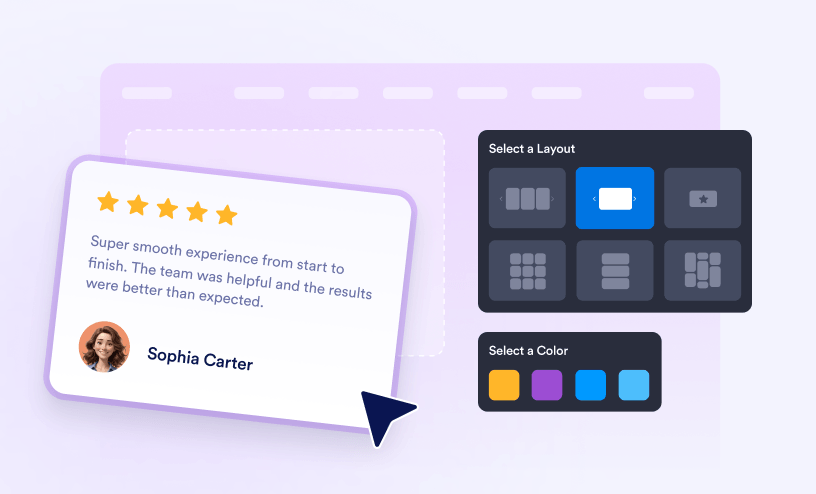
How to Add Testimonials on Your Website
Displaying customer testimonials on your website is a great way to build trust and showcase positive experiences from real customers. Instead of simply telling visitors about the quality of your products or services, you can highlight authentic...

How to Embed Tumblr Feed on Your Website
Displaying a Tumblr feed on your website is a great way to keep your content fresh and engage visitors with your latest blog posts, photos, GIFs, videos, and other updates. Instead of manually updating your website with new content, you can...

How to Add a Spinning Wheel to Your Website
With Jotform’s Spinning Wheel Widget, you can add an interactive wheel to your website and let visitors spin for discounts, coupons, rewards, or other offers. Customize each segment, embed the wheel, and turn promotions, giveaways, and lead...

How to Add a Dynamic Text Heading to a Website
A Dynamic Text Widget is a great way to display messages on your website that automatically change or rotate over time. Whether you're highlighting special offers, announcing important updates, or showcasing key features, dynamic text helps...

How to Add a Clock to a Website
A clock widget is a simple way to display the current time on your website, helping visitors stay informed at a glance. Whether you're showing your local time, highlighting a different time zone for global audiences, or adding a stylish time...

How to Add a Dino Game to Your Website
Jotform's Dino Game widget helps you add a fun, interactive dinosaur runner game to your website. Visitors can jump over obstacles, beat high scores, and enjoy a classic arcade-style game without leaving your page. Whether you're creating a...

How to Add a Medium Feed to Your Website
With Jotform's Medium Feed Widget, you can display articles from your Medium profile or publication directly on your website. Connect your Medium URL, customize the layout to match your site’s design, and embed the widget in just a few steps....

How to Add a Graphs and Charts Widget to Your Website
Jotform's Graphs and Charts Widget makes it easy to present information in a clear, engaging, and visually appealing way. Whether you're sharing business metrics, survey results, sales figures, or other important data, the widget helps visitors...

How to Embed Tournament Bracket to Your Website
Jotform makes it easy to create and display tournament brackets on your website with the Bracket Maker widget. Organize teams or players, choose from different tournament formats, and present matchups, scores, and winners in a clear,...

How to Add Social Share Buttons to Your Website
Jotform makes it easy to add social sharing buttons to your website with the Social Share widget. Visitors can quickly share your content across popular social media platforms, helping you reach a wider audience with just a few clicks. Whether...

How to Add a Button to Your Website
With Jotform's Button Widget, you can create customizable buttons that direct visitors to important pages, products, forms, or other online resources. Personalize the button’s text, colors, size, and style to match your website’s design, then...

How to Add Before and After Slider to Your Website
With Jotform's Before & After Slider widget, you can create interactive image comparisons that let visitors see changes by dragging a slider between two images. It's a great way to showcase transformations, progress, or side-by-side comparisons in...
How to Embed Google Maps on a Website
With Jotform's Google Maps Widget, you can easily display an interactive map on your website to help visitors find your business, event venue, office, or any other location. You can customize the map's appearance, set your preferred location, and...

How to Add a Number Counter to a Website
Jotform's Number Counter Widget you can showcase important numbers on your website in a visually engaging way. Use it to highlight customer counts, completed projects, years of experience, or other key achievements, then customize the counter to...

How to Add Dark Mode to Your Website
With Jotform’s Dark Mode widget, you can let visitors switch between light and dark themes on your website. This gives them more control over how your site appears in different lighting conditions. Whether you’re creating a blog,...
How to Add Content Locker to Your Website
With Jotform's Content Locker widget, you can control who can view content on your website by setting requirements visitors must meet before it's unlocked. It's a simple way to share exclusive content, collect leads, or give access to specific...
How to Add Social Media Icons to Your Website
Jotform makes it easy to add links to your social media profiles with the Social Media Icons widget. Display recognizable social media icons on your website so visitors can quickly find and connect with you on their favorite platforms. Whether...

How to Add a Poll to Your Website
With Jotform's Poll Widget, you can easily create interactive polls to gather opinions, feedback, or preferences directly from your website visitors. Simply add your question, customize the answer choices and design, then embed the widget on your...

How to Add a Radio Player to Your Website
With Jotform's Radio Player Widget, you can embed an online radio station directly on your website, allowing visitors to listen without leaving your page. Simply add your radio stream, customize the player's appearance, and embed it into your...

How to Add a Social Media Follower Counter to Your Website
Jotform's Social Media Follower Count widget helps you display your follower count from popular social media platforms on your website. It's a simple way to show your online presence and encourage visitors to follow your social media accounts....

How to Add a Photo Gallery to a Website
With Jotform's Photo Gallery Widget, you can showcase your photos in a beautiful, organized gallery that visitors can browse directly on your website. Simply upload your images, customize the gallery's layout and style, and embed it into your...

How to Add A Dice Game to Your Website
Jotform's Dice Game widget lets you add an interactive dice roller to your website for games, activities, and other fun experiences. You can configure different dice types, display custom results, and create a rolling experience that fits your own...

How to Add a Telegram Feed to Your Website
With Jotform's Telegram Feed Widget, you can display posts from your public Telegram channel directly on your website. Simply connect your channel, customize the widget's appearance, and embed it on your website so visitors can stay up to date...

How to Add a Popup to Your Website
With Jotform's Popup widget, you can display eye-catching popups on your website to share important messages, promotions, announcements, or calls to action. It's a simple way to grab visitors' attention at the right time without interrupting their...

How to Add a Store Locator to a Website
With Jotform's Store Locator Widget, you can help visitors quickly find your business locations using an interactive map and searchable location list. Simply add your store locations, customize how they're displayed, and embed the widget on your...

How to Add Team Showcase to Your Website
Jotform takes the hassle out of introducing your team on your website with the Team Showcase widget. Display team members with their names, roles, photos, biographies, and social media links to help visitors get to know the people behind your...

How to Add a Podcast Player to Your Website
Jotform's Podcast Player widget lets you add a fully functional podcast player to your website, allowing visitors to listen to your episodes without leaving the page. It's a simple way to showcase your podcast, encourage longer engagement, and...

How to Add Hotels.com Reviews to Your Website
Jotform’s Hotels.com Reviews widget lets you display guest feedback from Hotels.com directly on your website, giving visitors helpful social proof as they compare accommodations and make booking decisions. Keeping reviews close to your rooms,...

How to Embed Houzz Reviews on a Website
Jotform’s Houzz Reviews widget lets home service, remodeling, design, and construction professionals display client feedback from Houzz directly on their websites. Showing ratings and reviews alongside your services, project galleries, or...

How to Add a Scoreboard Widget on Your Website
Add an interactive scoreboard to your website with the Scoreboard widget. Whether you're keeping score during a friendly game, tracking points in a classroom activity, or creating a simple competition, the widget lets visitors update and view...

How to Add a Calorie Calculator to Your Website
The Calorie Calculator widget helps visitors estimate their daily calorie needs based on personal details, including age, height, weight, activity level, and fitness goals. Using the widely recognized Mifflin-St Jeor equation, it calculates basal...

How to Add Logo Showcase to Your Website
Showcasing the companies, organizations, or brands you work with is a great way to build trust and reinforce your credibility with visitors. Whether you're highlighting clients, partners, sponsors, or media features, displaying their logos on your...

How to Add a Quotes Widget on Your Website
Jotform’s Quotes widget lets you display inspiring, motivational, or thought-provoking quotes directly on your website. Whether you're highlighting famous sayings, company values, testimonials, or custom messages, it provides a simple way to add...

How to Add a Media Slider to Your Website
With the Image Slider widget, it's easy to create responsive image or video slideshows without any coding experience. Jotform lets you add images and videos, customize transitions and navigation controls, adjust the slider's layout and appearance,...

How to Add an RSS Feed to Your Website
With the RSS Feed widget, you can display content from any public RSS or Atom feed in responsive list, grid, masonry, carousel, or slider layouts, customize which post details appear, and match the widget to your website's design, all without...

How to Add a Click-to-Call Button to Your Website
Jotform's Click-to-Call widget makes it easy to add a customizable Call button to your website without any coding knowledge. Whether you're running a local business, service website, clinic, or sales page, visitors can contact you instantly from...

How to Integrate WhatsApp Chat Into Your Website
Jotform's WhatsApp Chat widget lets you add a customizable WhatsApp button to your website, making it easy for visitors to contact you instantly. Whether you're running a business website, online store, portfolio, or service page, it's an...
How to Add an Announcement Bar to Your Website
With Jotform’s Announcement Bar Widget, you can keep important messages front and center on your website. Use it to announce sales, share updates, promote new features, or highlight important notices, and then customize the bar to match your...
How to Add Spotify Player to Your Website
With Jotform’s Spotify Player, you can embed music, podcasts, and other Spotify content directly on your website, allowing visitors to listen without leaving the page. Use it to showcase a playlist, promote a podcast, feature an album, or...