

Leonardo da Vinci reportedly walked around with a notebook dangling from his belt, swinging it up and open to jot down random reminders like “Measure Milan” and “Examine Ginnetto’s crossbow.” More than five centuries later, using a scratch pad to catch fleeting thoughts and ideas is still good enough for some people. If you want more, however, task list apps can help you accomplish way more than pen and paper ever could.
Even the most basic task-tracking software today can organize your to-dos with folders, tags, calendars, kanban boards, cross-device syncing, and role-based sharing. There are dozens of tools in all sizes to choose from. I wanted to know which ones worked the best and cost the least for the most common use cases. In this blog, I talk about eight of my favorite task list apps for documenting, prioritizing, and finishing tasks in 2026.
| App | Best for | Features for teams |
|---|---|---|
 Jotform |
Building a workflow-based to-do app from AI prompt, template, or no-code builder |
Shared app-building workspace, role-based permissions, and approval workflows |
 Todoist |
Straightforward, minimalist to-do lists for individuals |
Task assignments, user tagging in comments, karma points for gamification |
 TickTick |
Free to-do list management with plenty of features |
Shared lists and task assignments |
 Microsoft To Do |
To-do lists based on data from Outlook, OneNote, and Microsoft 365 |
Limited task assignment and tagging |
 Any.do |
Small or mobile-based teams coordinating with clients and customers |
Task and subtask assignments, granular guest permissions, task chat rooms, and time tracking |
 Trello |
Customizing the design and feel of personal to-do lists |
Ability to turn team emails and chats into tasks, card mirroring across boards, Timeline views |
 Asana |
Complex, cross-team task management with lots of moving parts and contributors |
Task dependencies, custom rules, AI agents for workflow improvements |
 ClickUp |
Task lists that require lots of input from clients or contractors |
Granular guest permissions, time tracking, 10+ project views |
1. Jotform
Best for: Building a workflow-based to-do app from AI prompt, template, or no-code builder
Key strengths
- Build and iterate on interactive to-do lists with plain-language prompts.
- Easily add and customize dynamic push notifications for your app.
- Use the automation builder to turn approval workflows into to-do items.
Main limitations
- Creating a basic task-tracking app without AI or templates takes longer than with other platforms.
- Free plan may not be enough for team to-do lists.
Jotform Apps is far more customizable and capable than a basic task tracker such as Todoist or TickTick, but it’s way less cumbersome and complicated than platforms including ClickUp or Asana. It’s an app builder that lets you design the to-do list app that works the way you want. You start by building a form with fields for each area in which you want to-do items, then use the drag-and-drop app builder to design a front end that organizes and displays all of that data however you want. One of the reasons Jotform tops this list is that you can skip all manual setup by using the AI App Builder or the library of thousands of free app templates. Although either should get you most of the way there, Jotform is built to fine-tune your apps for your specific workflows.
Both its forms and apps work with Jotform’s built-in Workflows automation tool, letting you move, sync, reformat, and transform submission data so it looks as good on a desktop screen as it does on mobile. All of the customization options and no-code tools let you create full-blown team task-management apps and service request portals. You get 100 form submissions per month on the free plan, so you’ll likely need to upgrade to a paid plan if you’re building something for collaboration. But that’s a small price to pay, considering how easy it is to create and maintain workplace-ready task trackers.
Pricing
- Starter (free): Unlimited apps; five published forms, with 100 submissions per month across them; and 100MB of account storage
- Bronze ($34 per month on annual plan): 25 forms, 1,000 submissions per month, 1GB of account storage, and the option to remove Jotform branding
- Silver ($39 per month on annual plan): 50 forms, 2,500 submissions per month, and 10GB of account storage
- Gold ($99 per month on annual plan): 100 forms and 10,000 submissions per month, and 100GB of account storage
- Enterprise (custom pricing): Unlimited forms and submissions, advanced security controls, and dedicated support options (available from a sales representative)
2. Todoist
Best for: Individuals who want straightforward, minimalist to-do lists
Key strengths
- Gamify productivity with points for task completion, streaks, and goals; lose points for overdue tasks.
- Send to-do list items and updates to a unique email address created for every project.
- Instantly create tasks with plain language, no AI necessary.
Main limitations
- Limited permissions settings make external collaboration awkward.
- It’s not designed for displaying and reviewing long-form information.
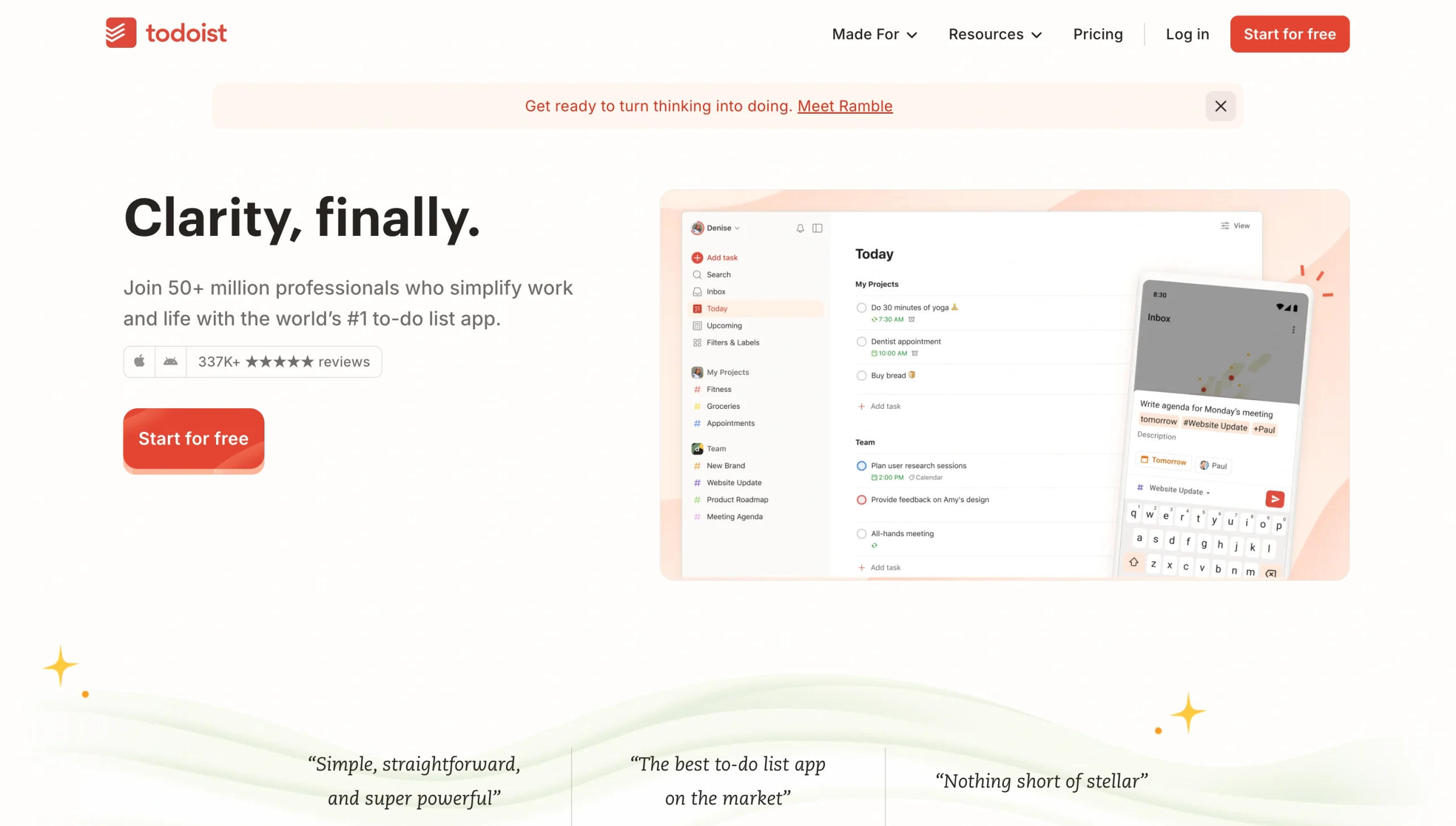
I have a soft spot for software that is loudly and proudly restrained. So while Todoist is light on features for team-based task management, the trade-off is getting an extraordinarily polished and easy-to-use interface. Projects sit atop a hierarchy pyramid and contain tasks, which themselves can contain subtasks. Projects can be organized as a list, board, or calendar, and tasks are parsed from plain-language descriptions like “Finish to-do list apps article by Friday” without relying on LLMs. Everything in Todoist feels faster and smoother than a lot of other software, and it results in quality-of-life improvements that I enjoyed more than I expected to.
To be fair, Todoist’s focus on simplicity makes it difficult to both add external collaborators to a project and keep certain details private. But every project having its own email address for creating or updating tasks, surprisingly long lists of integrations and templates, and the task-completion gamification make Todoist an excellent option for personal task management, especially given its $7-per-month price.
Pricing:
- Beginner (free): Five personal projects, one week’s worth of activity history, and a 5MB limit on project attachments
- Pro ($5 per month): 300 personal projects, calendar-based projects, unlimited activity history, 100MB limit on attachments, and unlimited voice-to-task conversions
- Business ($7 per month): 500 team projects, 1,000 team members and guests, team-based roles and permissions
3. TickTick
Best for: Free, feature-heavy to-do-list management
Key strengths
- It includes free built-in habit tracking, Pomodoro timers, and Eisenhower matrixes.
- List, calendar, and kanban views have filter and tag options other apps charge for.
- Model Context Protocol provides a limited but useful way to let LLMs create tasks for you.
Main limitations
- Sharing and task history are too limited for company to-do lists.
- Upsells for the premium plan are aggressive.
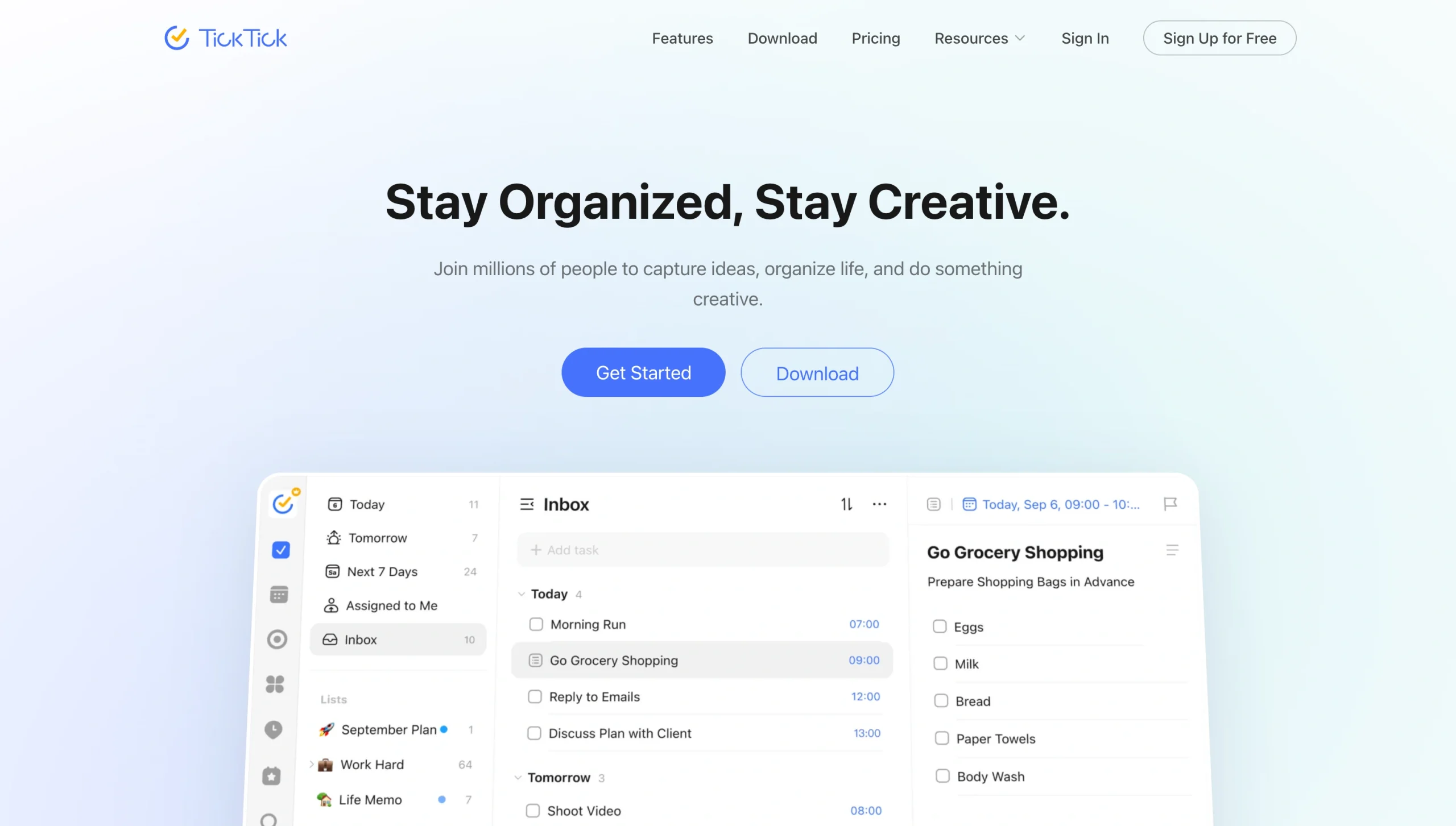
If you want a free to-do list app, there is no better option than TickTick. It looks and feels like Todoist, with lists standing in for projects but the same labels for sections, tasks and subtasks, with a few important upgrades. TickTick’s standalone apps take better advantage of running outside a browser than Todoist’s apps do, for example. You can pin digital sticky notes and checklists to your computer background (or on top of other apps), enable desktop notifications, and put a focus timer in the corner of your screen that always stays in front of other windows. And if you’re working on keyboard-only tasks, the app has shortcuts for almost every to-do-management action.
TickTick isn’t better in every way. Sharing and collaboration are extremely limited, with little more than the option to share an unfiltered List as an email or a link. Commenting was also hard to find in the app and didn’t notify the people I tagged outside of the app. Also, if you manage team tasks, its limited task histories will make it hard to see how projects have evolved. Still, you’re getting a lot of software for free with TickTick, even if the Premium upsell is prominently displayed on nearly every screen.
Pricing
Free: Nine lists, with 99 tasks per list
Premium ($50 per year): Unlimited lists, tasks, and subtasks; two-way calendar sync with Google Calendar and Outlook; location-based reminders; more design customizations; and advanced statistics with historical completion data
4. Microsoft To Do
Best for: To-do lists based on data from Outlook, OneNote, and Microsoft 365
Key strengths
- Turn flagged emails or OneNote items into tasks.
- The super-simple interface has intuitive search and folder organization.
- All features are included in the free plan.
Main limitations
- You can’t assign subtasks to specific people, ruling out real project planning.
- There’s no kanban board or built-in calendar view, just simple lists.
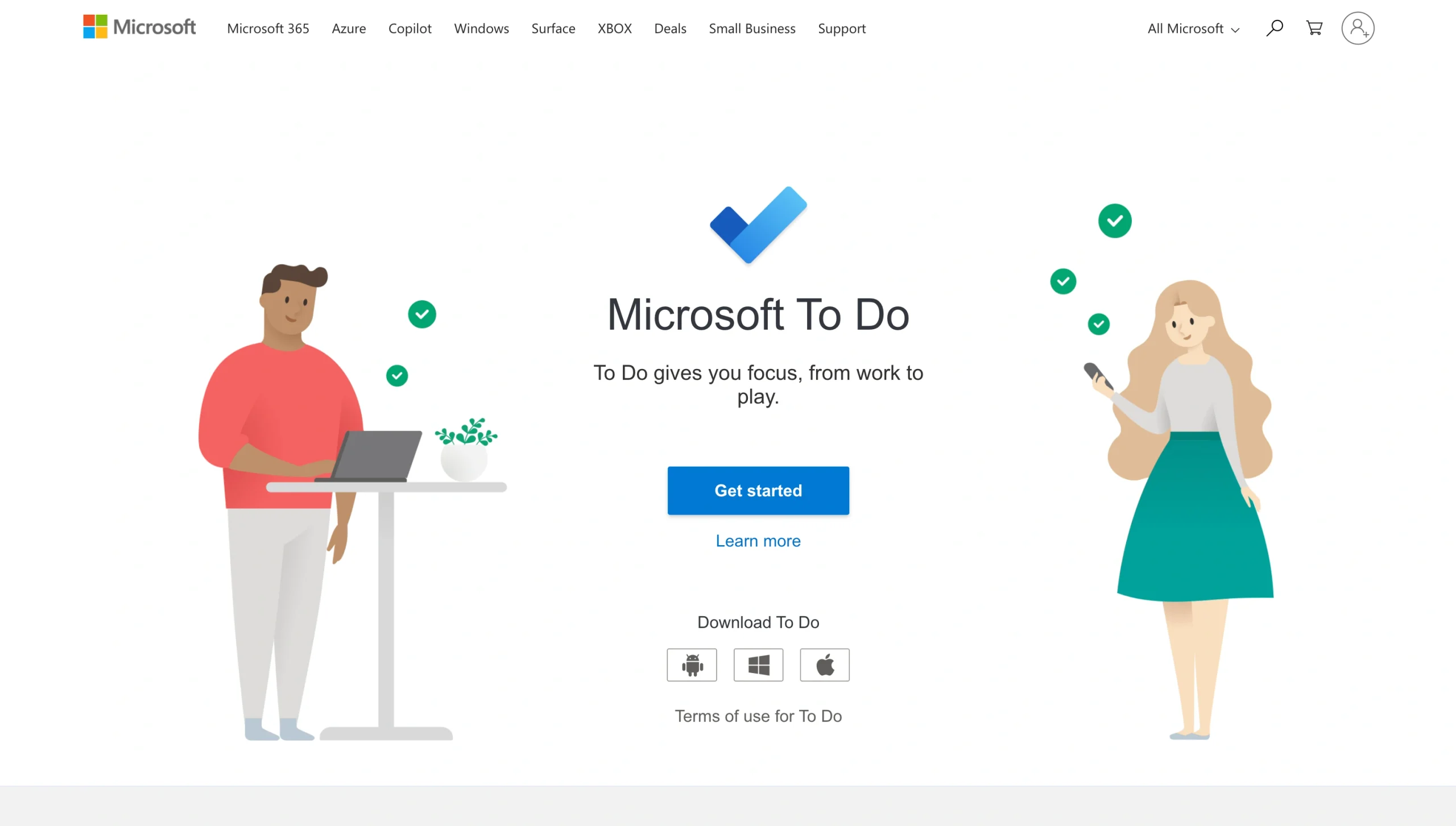
Microsoft To Do, developed by the team behind Wunderlist after Microsoft acquired its maker in 2015, is more of a task hub than a standalone app. It’s a place that centralizes flagged emails, OneNote items, and other Microsoft 365 to-dos in a single interface. If you already have an Outlook account (even a free one), you might be collecting tracked tasks without realizing it. Click the checkmark icon from Outlook’s left-hand sidebar and you’ll see a list of emails you’ve flagged or tasks collaborators have assigned to you. Its interface is the sparsest and has the fewest features among apps on this list, but if you’re already inside Microsoft’s ecosystem, using To Do is the easiest way to save, organize, and track to-dos from the apps you’re already using.
There’s no kanban board, built-in calendar view, or the automation and gamification features other apps on this list use. You also cannot assign a subtask to a specific person, only “main” tasks, which seems odd considering Microsoft’s focus on workplace collaboration. But To Do is free and natively integrated into one of the most popular email providers in the world, which may be enough.
Pricing
Free: There is no paid upgrade, and none of the features technically require a Microsoft 365 plan. However, features in other paid apps, such as Teams, allow you to send tasks to To Do.
5. Any.do
Best for: Small or mobile-based teams coordinating with clients and customers
Key strengths
- Add and update tasks by messaging the Any.do WhatsApp bot, even with a voice note.
- Use AI Suggest to generate subtasks and milestones for big tasks.
- Assign subtasks to individual team members and let external collaborators view boards.
Main limitations
- Most of Any.do’s integrations rely on Zapier rather than working natively.
- The mostly text-free interface takes a while to learn.
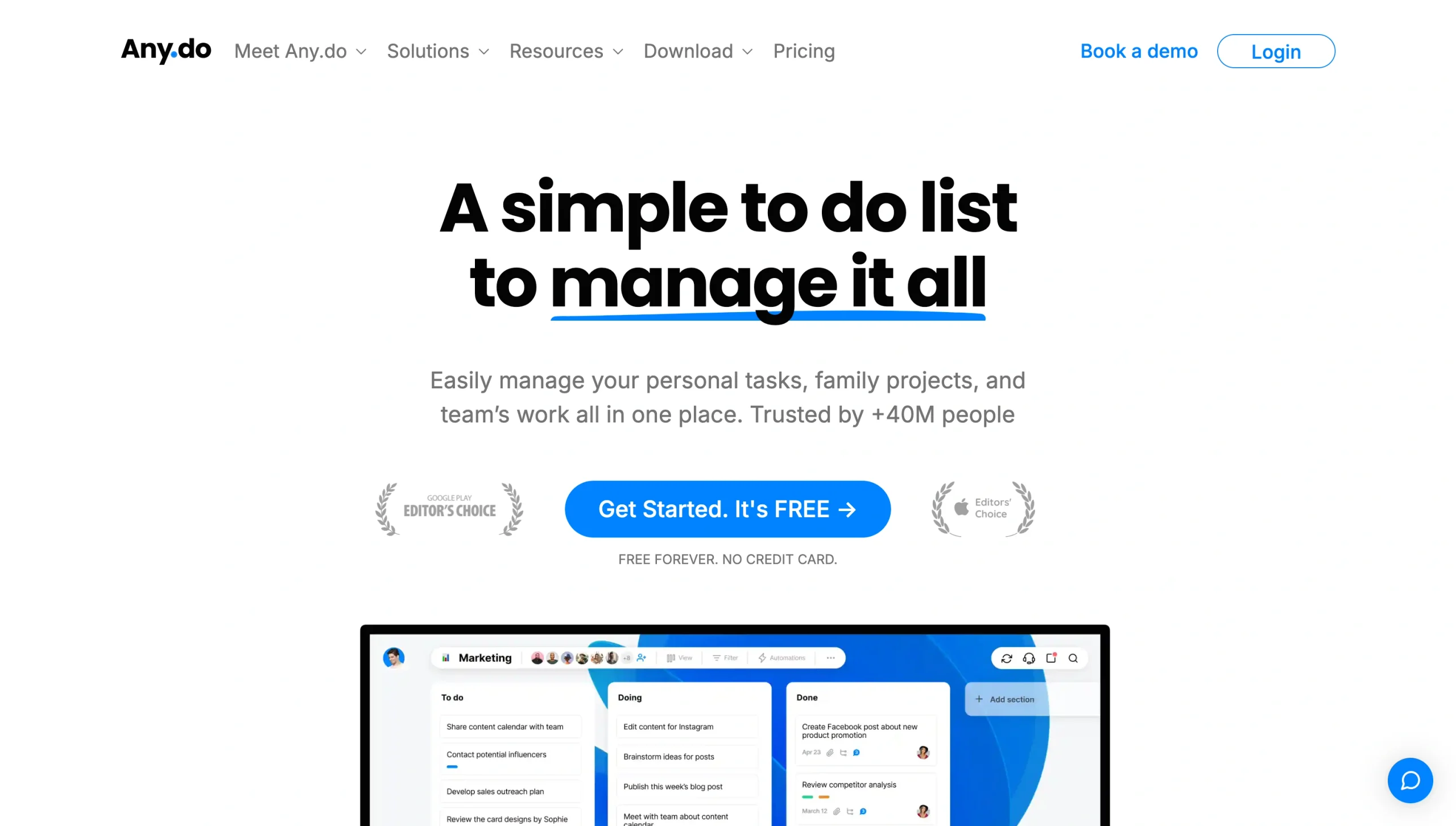
Any.do doesn’t look like a business task-management app at first glance. It’s a bit busy, with overlapping visual elements, patterns, and menus labeled with nothing but icons. But it has a lot to offer smaller teams, especially those that spend most of their time away from a desk. While its built-in automations builder isn’t as flexible as Jotform’s or Asana’s, it covers the basics, letting you do things such as add due dates or assign tasks based on a handful of triggers. And, unlike most budget to-do list apps, Any.do lets you assign subtasks to individuals and invite external collaborators to view only select aspects of a board.
My favorite feature is Moment, a mobile-only feature that gives you one task at a time and asks you to sort it into Today, Later, Done, or Delete. It’s a small thing, but it’s great for people trying to juggle too much. Still, I wish Any.do had more native integrations and perhaps some better analysis features, which here felt like plain lists. It has a nice template library, though, with ready-to-use lists for tour guide operators, movers, landscapers, and dozens of other mobile-first planners that need a tool like Any.do.
Pricing
- Free: Unlimited personal lists, basic recurring and one-time reminders, calendar integration, ChatGPT integration, and email-to-board features
- Premium ($8 per month): Unlimited Moment interactions, advanced recurring reminders, AI-generated subtasks, personal WhatsApp bot, and Zapier integrations
- Family ($10 per month): Everything in Premium for four users, shared spaces and boards, role-based permissions, and board filters
- Teams ($8 per member, per month): Everything in Premium, Slack integration, unlimited shared boards, time tracking, custom fields, and external viewers
6. Trello
Best for: Customizing the design and feel of personal to-do lists
Key strengths
- AI Quick Capture turns email, Slack, and Teams messages into tasks.
- Card mirroring keeps a single to-do synced across multiple boards.
- Unlimited cards and activity logs are standard on every plan.
Main limitations
- There’s no built-in way to run reports or track time.
- Kanban boards’ narrow focus doesn’t work for tasks without defined stages.
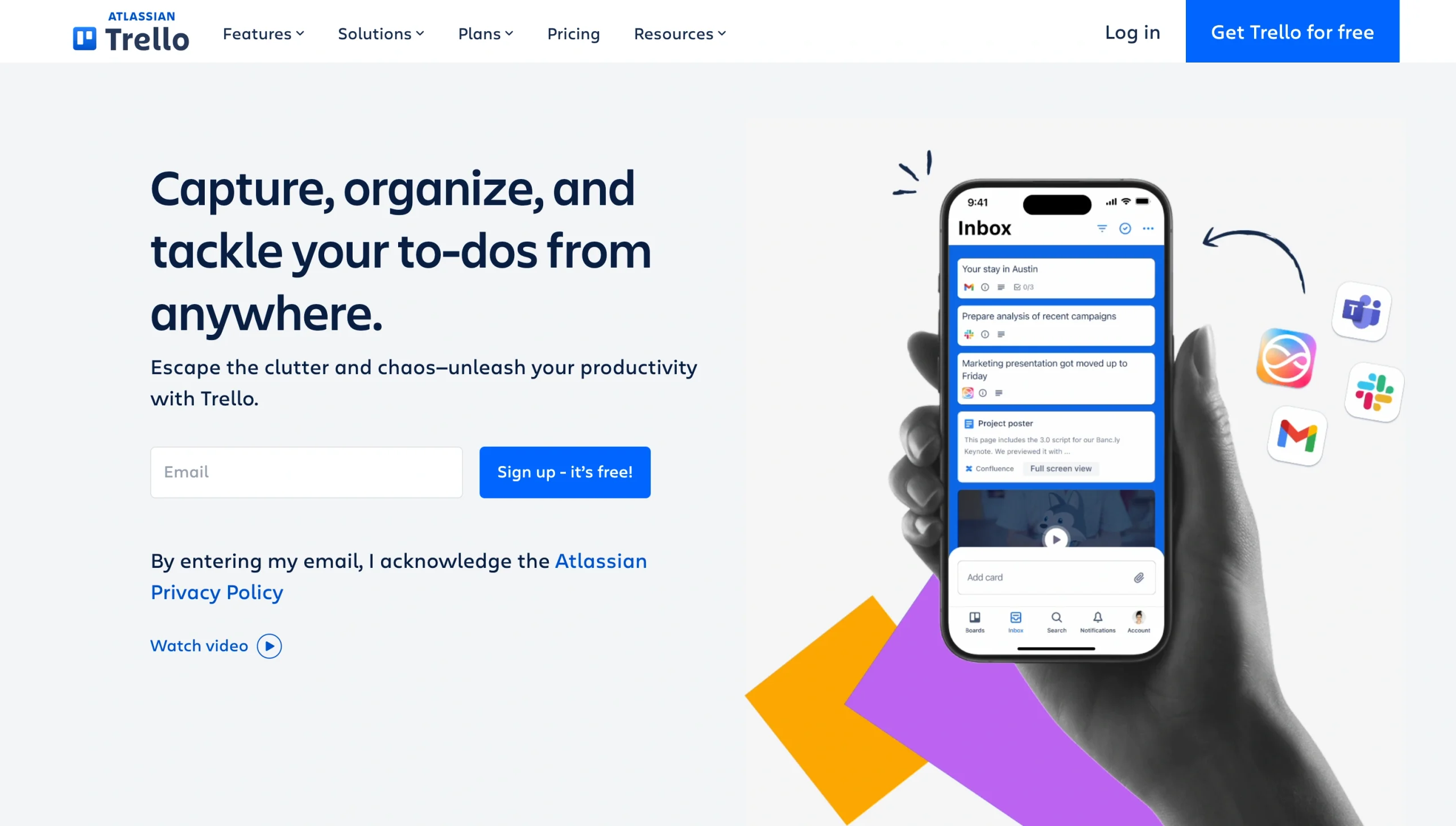
As someone who once worked for a company with more than 50 people that used Trello for project planning, I can confidently say that the app, which popularized kanban boards, is better suited for individuals. It has decent commenting and sharing features, a built-in card automation tool, and a decent list of integrations. But boards with too many cards (and GIFs) quickly become laggy, there’s no way to create task dependencies, and reporting features are pretty basic. So while Trello might be fine for a smaller team, options such as Jotform and ClickUp are better for larger teams.
I think Trello is an awesome tool for individuals, however. It’s one of the cheaper platforms on this list; it even includes unlimited cards on the free plan. It’s also incredibly easy to learn and master its interface. Importantly, Trello is the most visually customizable and fun to-do list app I tested. Being able to add board backgrounds, card cover photos, custom stickers, and your own design palette to columns, lists, and tags makes task planning and forecasting more enjoyable.
Pricing
- Free: Unlimited cards across 10 boards per workspace, basic checklists, 250 automation runs per month, unlimited file attachments smaller than 10MB, and basic Power-Ups
- Standard ($6 per month): Unlimited boards, advanced checklists, 1,000 Butler automation runs per month, 250MB file attachments, and unlimited Power-Ups
- Premium ($12.50 per month): Timeline and calendar views, dashboard reporting, unlimited Butler automation runs, board Observers, and admin controls
- Enterprise (price based on headcount): Advanced admin and security controls, SSO, unlimited workspaces, priority support, and unlimited Butler automation runs
7. Asana
Best for: Complex, cross-team task management with lots of moving parts and contributors
Key strengths
- Programmable task dependencies ensure the next step is assigned to a specific person.
- Unlimited automations, custom fields, and rules let you create finely tuned task templates.
- Detailed dashboards and reporting help you identify bottlenecks and inefficiencies.
Main limitations
- The interface is overwhelming and confusing at first.
- Costs climb quickly on large projects that have lots of contributors.
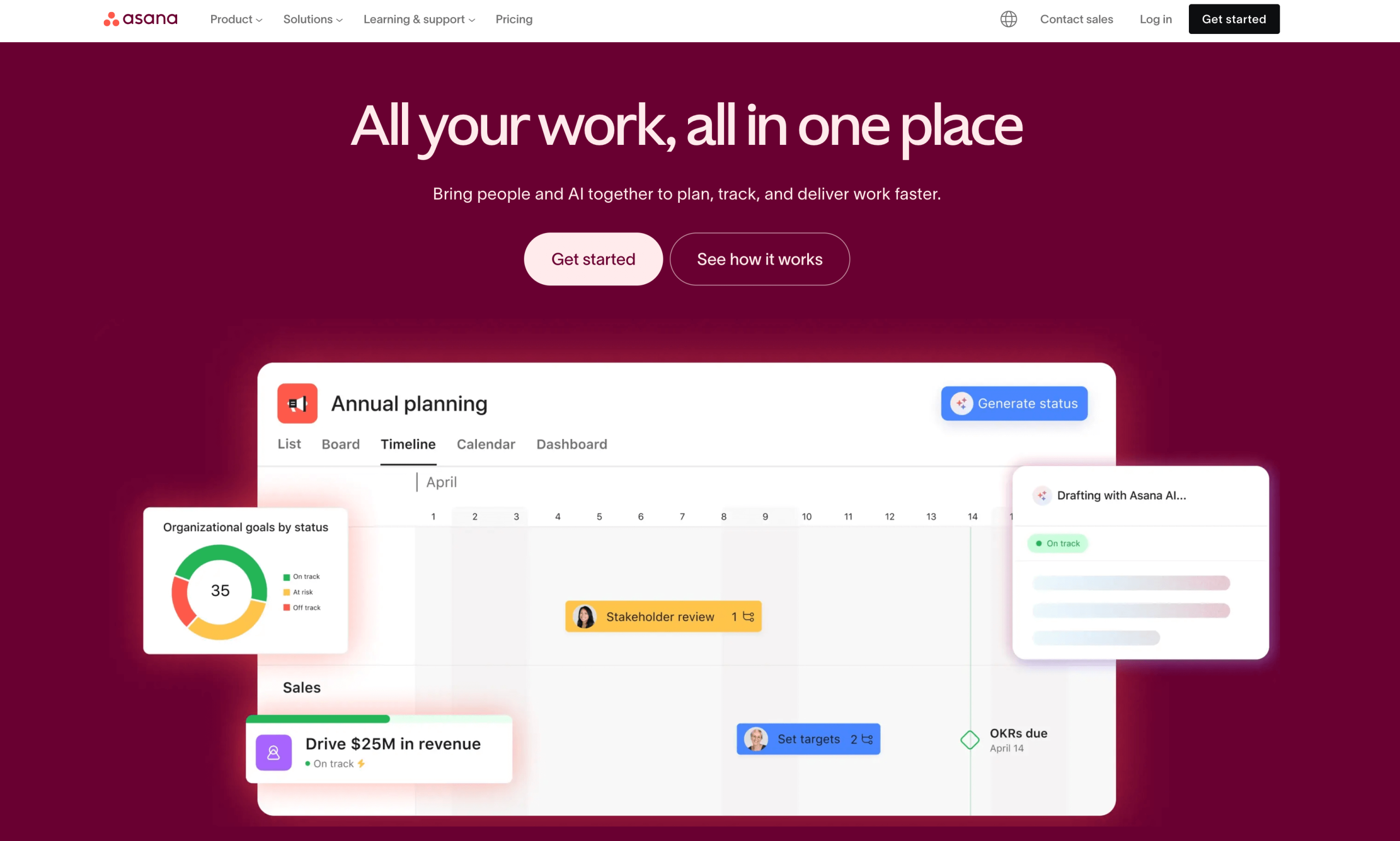
Asana is overkill for most personal, and even some team-oriented, to-do lists. But for tracking tasks across teams and departments, it’s one of the most robust and well-rounded project management tools. Every user has a My Tasks tab to consolidate to-do items from all the projects they’re on. That helps contributors prioritize tasks over projects, so they never have to dig for what to work on next. For those in charge of structuring and managing projects at a higher level, Asana’s dependencies builder lets you sequence work across contributors. (For example, design work can’t begin until wireframes are approved.)
Every paid plan comes with unlimited workflows and rules, along with enough custom fields to customize repeatable processes such as onboarding new employees or providing status updates to clients. Asana has also added pre-built AI agents since I last tested it, letting you tag bots that specialize in tasks such as generating project reports or workflow improvements. Those agents performed well with my limited test data, avoiding the wordy and unspecific responses I’ve grown to expect from most templated agents. Overall, Asana makes the most sense for projects with dozens of contributors, which also makes it the most expensive recommendation on this list.
Pricing
- Personal (free): Two users; unlimited tasks, projects, and storage; status updates, time tracking, and basic integrations
- Starter ($13.49 per user, per month): AI Studio and 50,000 credits, timeline and Gantt views, unlimited automations, forms, custom fields, and unlimited account guests
- Advanced ($30.49 per user, per month): 75,000 AI Studio credits, approval workflows, advanced integrations, conditional logic and branching for forms, and formula fields
- Enterprise: 200,000 AI Studio credits, capacity planning, workflow bundles, and advanced security features (with options available from a sales representative)
8. ClickUp
Best for: Task lists that require lots of input from clients or contractors
Key strengths
- Granular guest permissions let you control exactly what outside contributors see.
- Time and workload tracking make estimating and billing hours easier.
- The more than 10 types of project views provide outstanding task visualization.
Main limitations
- Setup and customization is time-consuming.
- Email automations are gated behind Business and Enterprise plans.
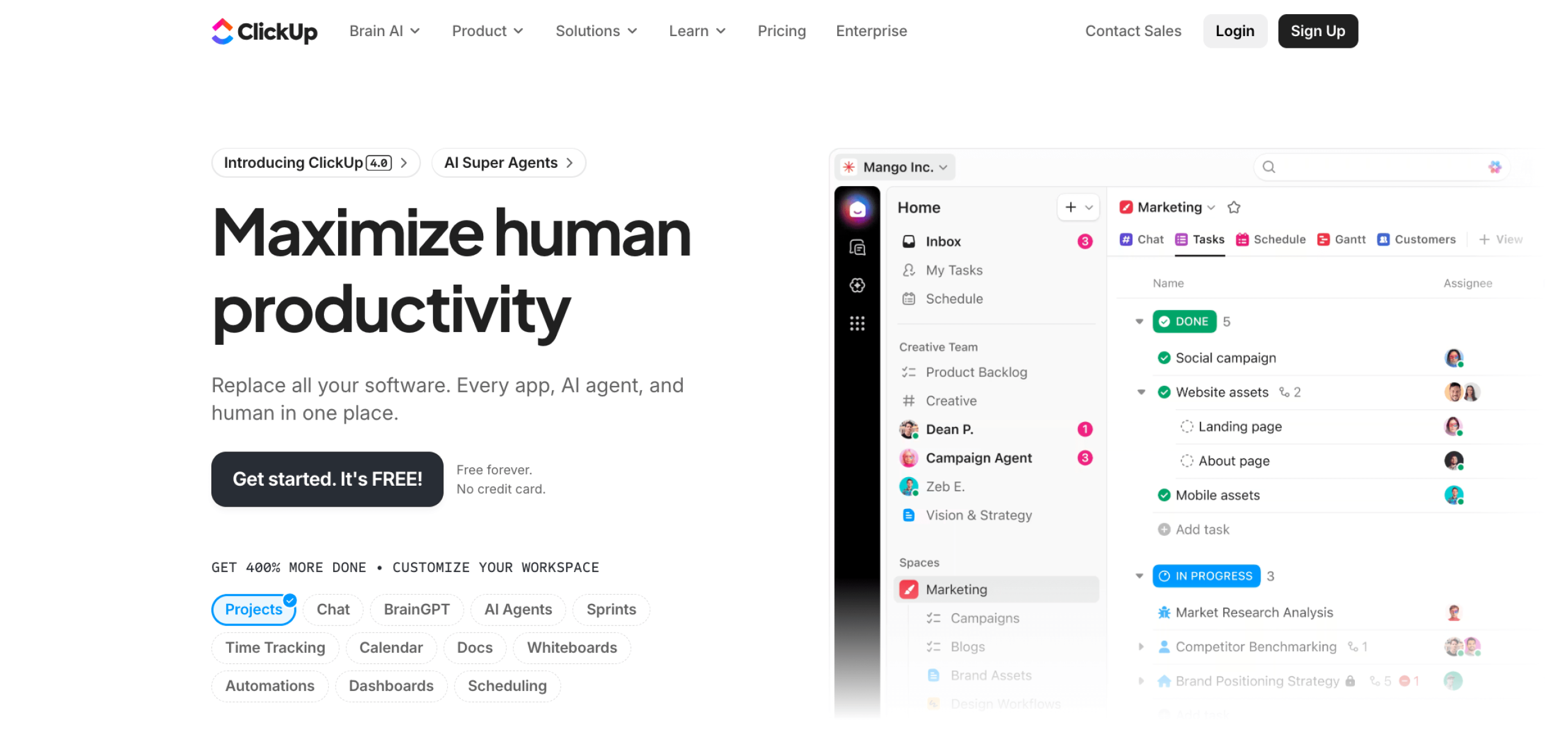
When task management forms and automations aren’t enough for collecting and consolidating data from people outside an organization, ClickUp’s sharing and collaboration features are the next best thing. Its item- and task-level guest permissions let you be selective about the parts of a project people can see and interact with. Time tracking on ClickUp felt more intuitive than on other tools I tested. It’s easy to do things such as estimate how long future projects will take or audit billable hours for outside contributors.
It’s worth pointing out that setting up projects, guest permissions, and time tracking in ClickUp requires a ton of up-front work, though templates and generative AI features can give you a jump-start. The main reason to pick this platform is its customization and granularity. Thankfully, its free plan is generous, so you can try it before deciding if it’s for you.
Pricing
- Free: Unlimited tasks and users, basic kanban boards, calendar views, one form, and a shared 60MB across the workspace
- Unlimited ($10 per user, per month): Unlimited Spaces, storage, forms, and custom fields, as well as time tracking, integrations, a ClickUp email address, and 1,000 automation actions per month
- Business ($19 per user, per month): Unlimited dashboards and message history, 5,000 automation actions per month, private whiteboards, sprint reporting, and portfolio workload management
- Enterprise: White-label workspace, 250,000 automations per month, enterprise security, HIPAA compliance, and unlimited custom roles (with options available from a sales representative)
Which task list app is best for you?
Every app on this list does the same thing: It gives you somewhere to write down what needs to get done and check it off when it’s finished. Every tool on this list nails that, each with its own way of doing it. Complexity, customization, and collaboration are the main things that set them apart:
- Choose Any.do or ClickUp if your tasks rely heavily on outside contributors. Both let you share individual tasks, boards, or lists with clients and freelancers. Their commenting, tagging, automation, and field customization features keep everyone on the same page.
- Choose Jotform or Asana if your team’s workflow needs more structure than a simple list can offer. Jotform is the better fit if you’re interested in how to create an app without coding. Asana makes more sense if you want enterprise-level dependency mapping, dashboards, and reporting.
- Choose Todoist, TickTick, or Trello to build a to-do list just for you. All three are affordable and easy to set up without being too simple or limited. Each has a mobile app and plenty of personal productivity boosters.
Which app you use to track your tasks determines how, when, and where you’ll document your progress and successes. So pick something that matches your preferred working style and comes with enough flexibility to evolve and change with you. Jotform, with its AI App Builder and workflow-focused form automation, comes with everything you need to build something wholly your own. Sign up for a free plan and give it a try today.
This article is for professionals, small business owners, students, freelancers, operations teams, and individuals looking for a task list app to organize work, track priorities, manage deadlines, and improve productivity.

































































































Send Comment: