
If you’re a blogger, marketer, educator, or creative professional, you know the importance of video in keeping your audience engaged. In fact, web pages that contain video keep visitors on-site for an average of six minutes compared to 4.3 minutes for pages without video. That’s why so many WordPress users choose to embed their YouTube videos on their websites.
Embedding a single YouTube video in WordPress is easy, but embedding a dynamic gallery — such as an entire channel feed or playlist — can be complicated. To do this, you have three options: Use a third-party plug-in, use a free lightweight widget, or build a static gallery manually with native blocks.
In this article, we’ll cover all three options and show you exactly how to embed a YouTube gallery in WordPress. By the end, your website will be primed to keep visitors engaged with your content for a longer period of time.
Option 1: Install a WordPress YouTube gallery plug-in
Most users instinctively start by searching the native WordPress Plugin Directory for tools that can help them embed a YouTube gallery into their website. There are many plug-in options available, such as Smash Balloon’s YouTube Feed Pro, EmbedPress, Feeds for YouTube, and GS YouTube Gallery. (Check out the best WordPress plug-ins for other tasks here.)
While these plug-ins have an advantage in that they’re built for WordPress specifically, they do come with a couple of drawbacks. In some cases, you’re required to generate a YouTube Data API key from the Google Cloud Console in order to use the plug-in, which can be a complicated process.
In addition, many plug-ins have a freemium paywall model, which means the free versions are heavily restricted. You may not be able to use certain features, like basic grid layouts, or remove watermarks. Plus, having too many plug-ins in WordPress can slow down your site and impact your site security. As a result, it’s best to use plug-ins with caution.
If you’re set on this route, here’s how to embed a YouTube playlist in WordPress with a YouTube gallery plug-in:
- Navigate to the WordPress dashboard and click Plugins. Search for “YouTube gallery” and select the plug-in you want to use from the available options. Follow the prompts to install it. Note that the exact instructions for installation will depend on the plug-in you’re using.
Keep in mind that many plug-ins are available for free, but you can only use them on a paid WordPress plan.
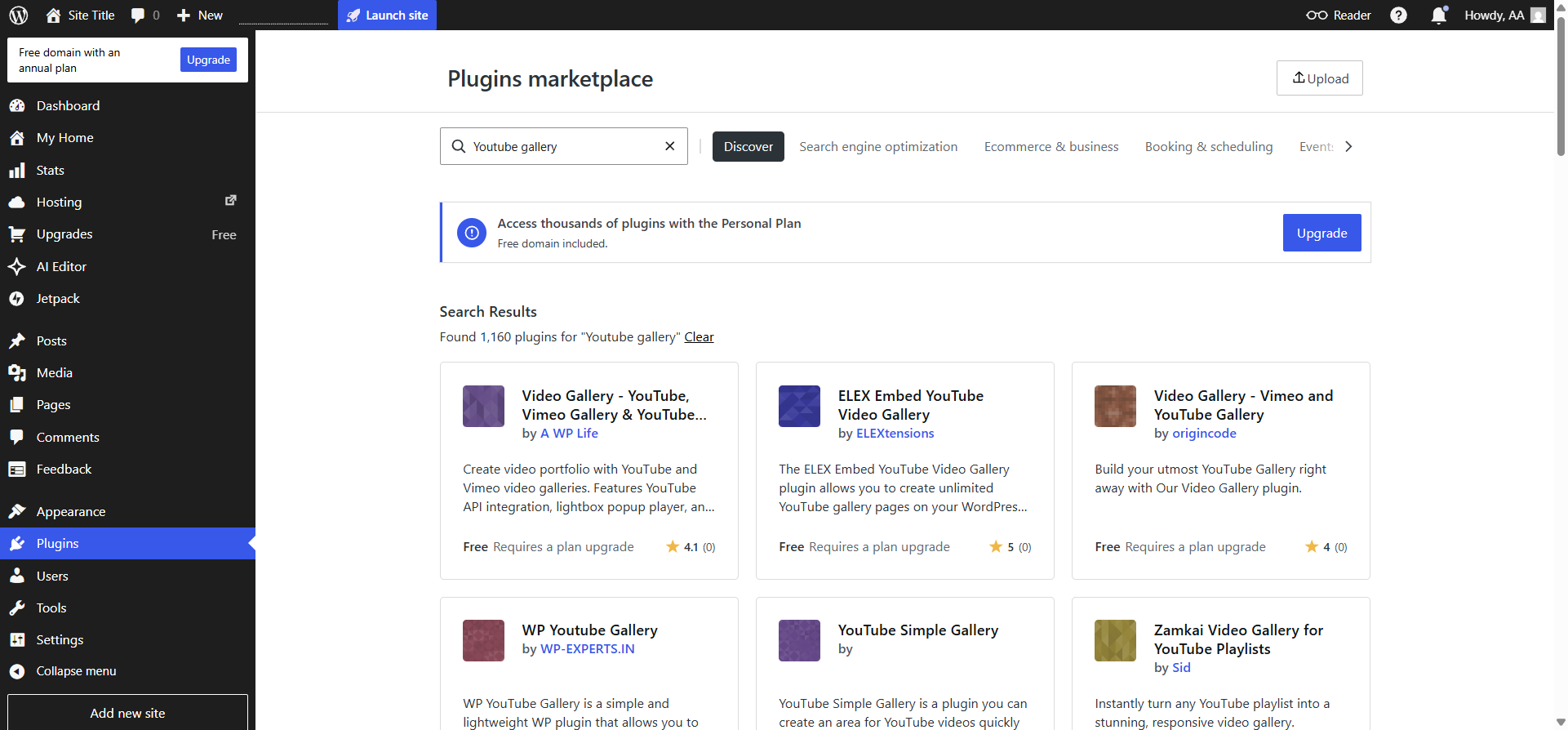
- Once installed, open the plug-in from the WordPress dashboard. Select the option to create a new gallery. Some plug-ins may enable you to create galleries from playlists, channels, or specific videos.
- Select Playlist as your gallery source. You’ll need to enter your YouTube playlist URL, playlist ID, or YouTube API key at this stage. With most plug-ins, you can customize the gallery settings, such as the number of columns, playback options, and thumbnail size. Save the gallery.
- Depending on the plug-in you’re using, you can add the gallery to your chosen web page using a dedicated WordPress block or a shortcode.
Pro Tip
Adding a YouTube channel feed to WordPress with plug-ins isn’t a simple process. If you’re new to WordPress and want to check out some tips and strategies for using the tool, check out our “how to use WordPress” guide. This in-depth article covers everything from choosing and installing WordPress plug-ins to enhancing your site with themes and forms.
Option 2: Use a free YouTube gallery widget (recommended)
If you’re looking for a highly customizable, auto-syncing video grid without having to generate API keys or pay for premium plug-in features, try using free external widgets. The Jotform YouTube Gallery Widget in particular is a leading choice because it’s easy to use, doesn’t require any coding or API keys, and is completely free.
Widgets process content externally, outside of WordPress, so they don’t bloat the WordPress database. All you have to do is paste a channel or playlist URL in the widget, configure your layout, and customize the colors. Then you can easily embed the widget using a native WordPress Custom HTML block.
Here’s how to use Jotform’s free WordPress video gallery widget:
- Visit the Jotform YouTube Gallery Widget page and paste or type your YouTube gallery URL into the widget settings box on the left. Select your preferred language, add a header description, and scroll down to see additional settings. Click Continue.

- Customize the YouTube gallery by selecting a layout, adjusting header details, specifying the number of columns and rows, and choosing colors to match your website or brand. Scroll down to select all your specifications.

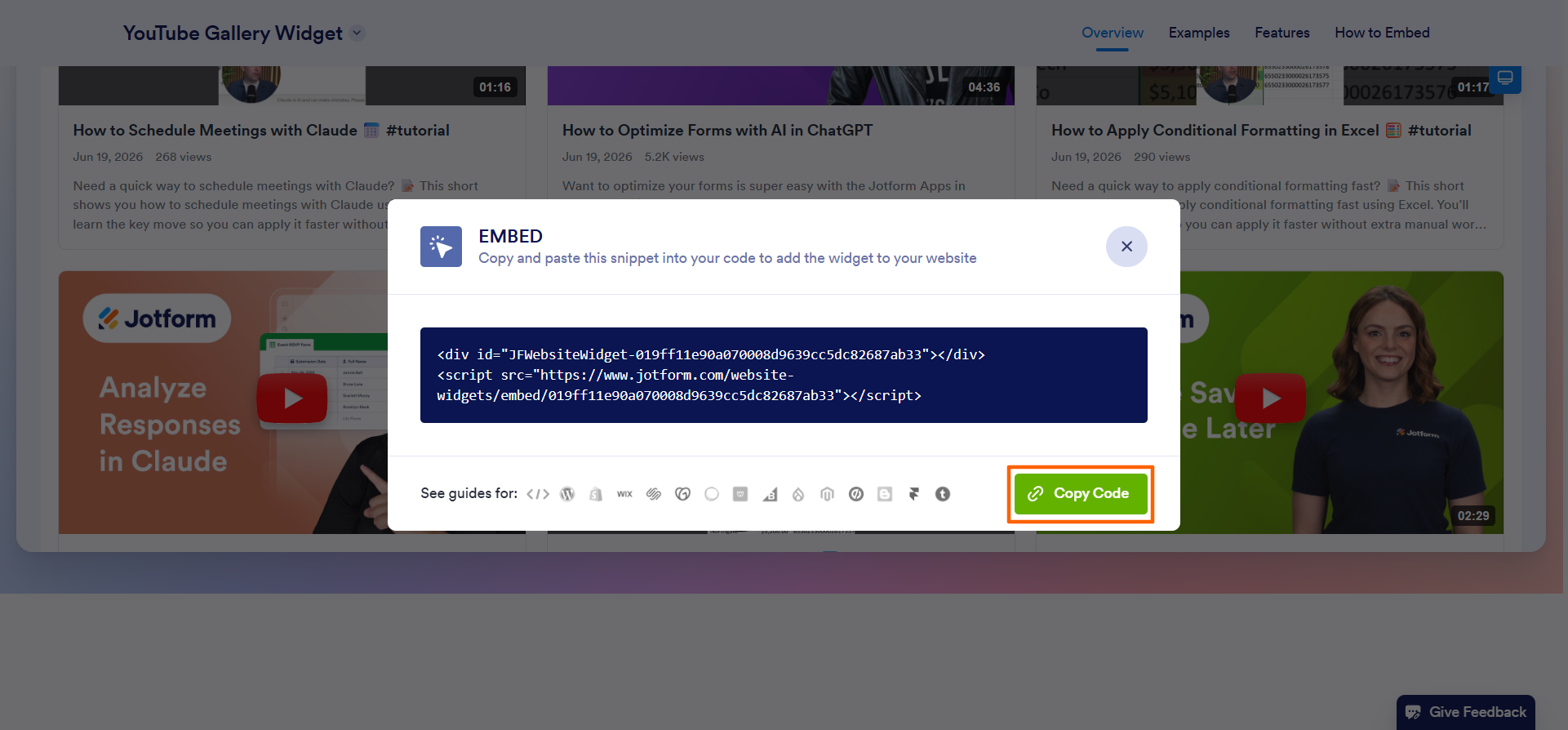
- Click Try it on your website for free. Jotform will provide an embed code for the widget. Click Copy Code to copy the embed code. Note that Jotform will prompt you to sign up or log in to get the code.
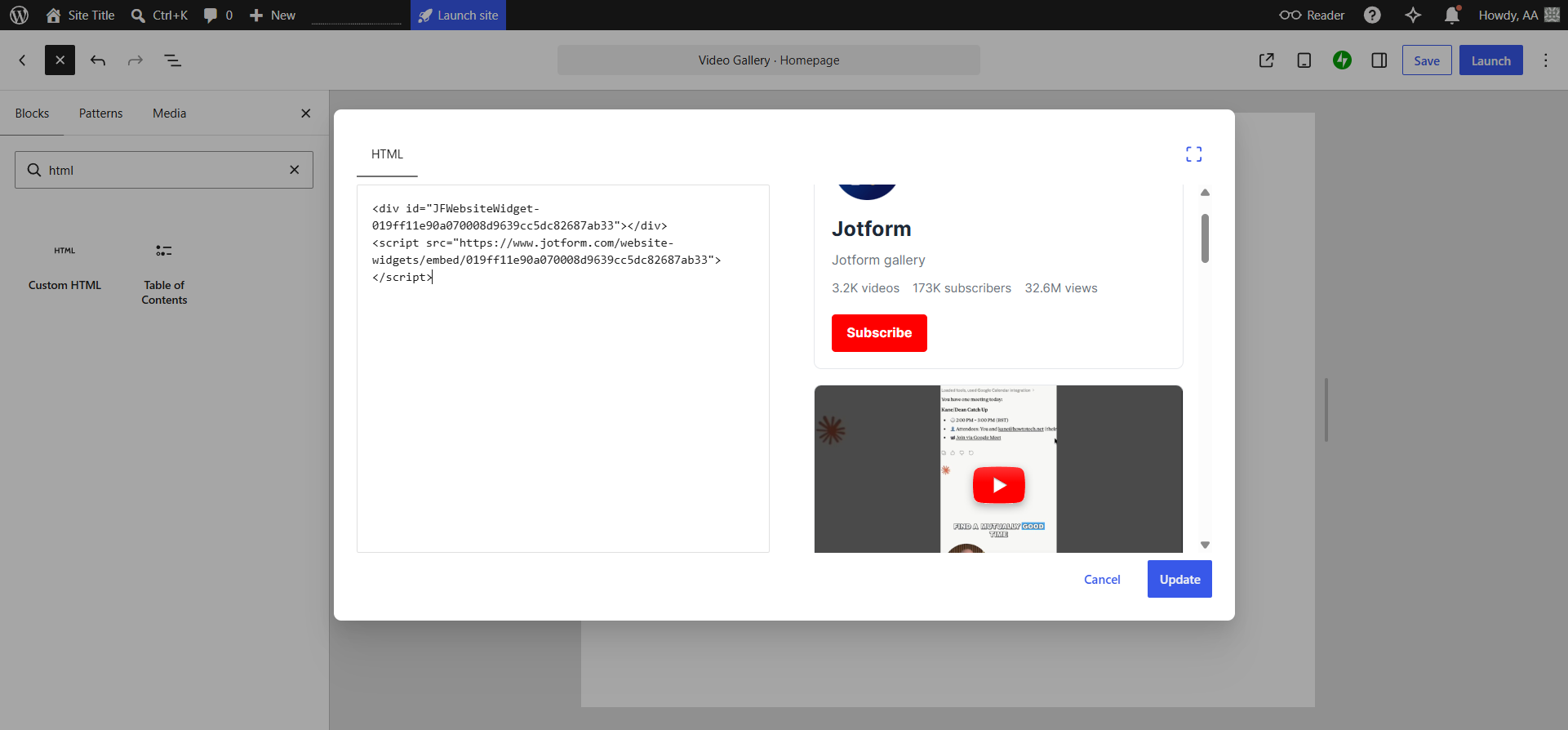
- Go to your WordPress site and add a Custom HTML block from the Block Inserter. Paste the widget embed code into the HTML block. Click Update. WordPress will automatically insert the custom Jotform YouTube Gallery Widget into your WordPress site.
Option 3: Build a static gallery using native WordPress blocks
If you’re not interested in using a third-party plug-in or external widgets, your next best solution is to build a gallery in WordPress using native Gutenberg blocks.
However, you should know that the YouTube block only supports single YouTube videos, not galleries. That means you’ll need to manually add a Columns block, insert single YouTube blocks into each column, and then paste individual URLs for each video into each YouTube block. Needless to say, this is an arduous manual process.
Keep in mind that this option also creates a completely static gallery — the individual blocks do not automatically update if a new video is uploaded to YouTube. You’ll have to manually update the gallery whenever a new video is published.
Here’s how to embed a YouTube channel feed in WordPress with a static gallery using WordPress blocks:
- From the Block Inserter, search for and insert a Columns block into your WordPress site. Specify the number of columns you want in each row.
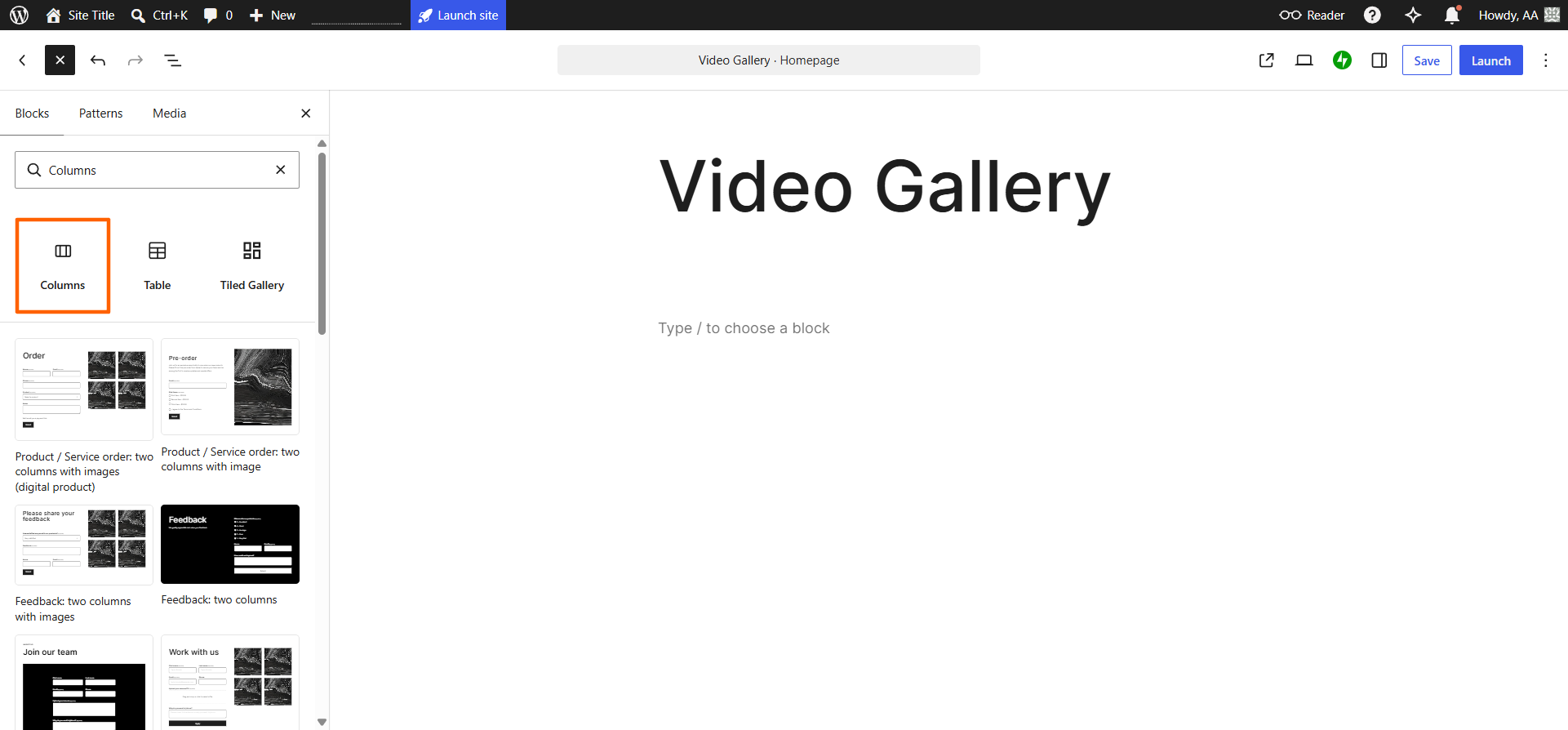
- Select the + button in the first column, search for the YouTube block in the popup Block Inserter, and add the YouTube Embed block into the column.
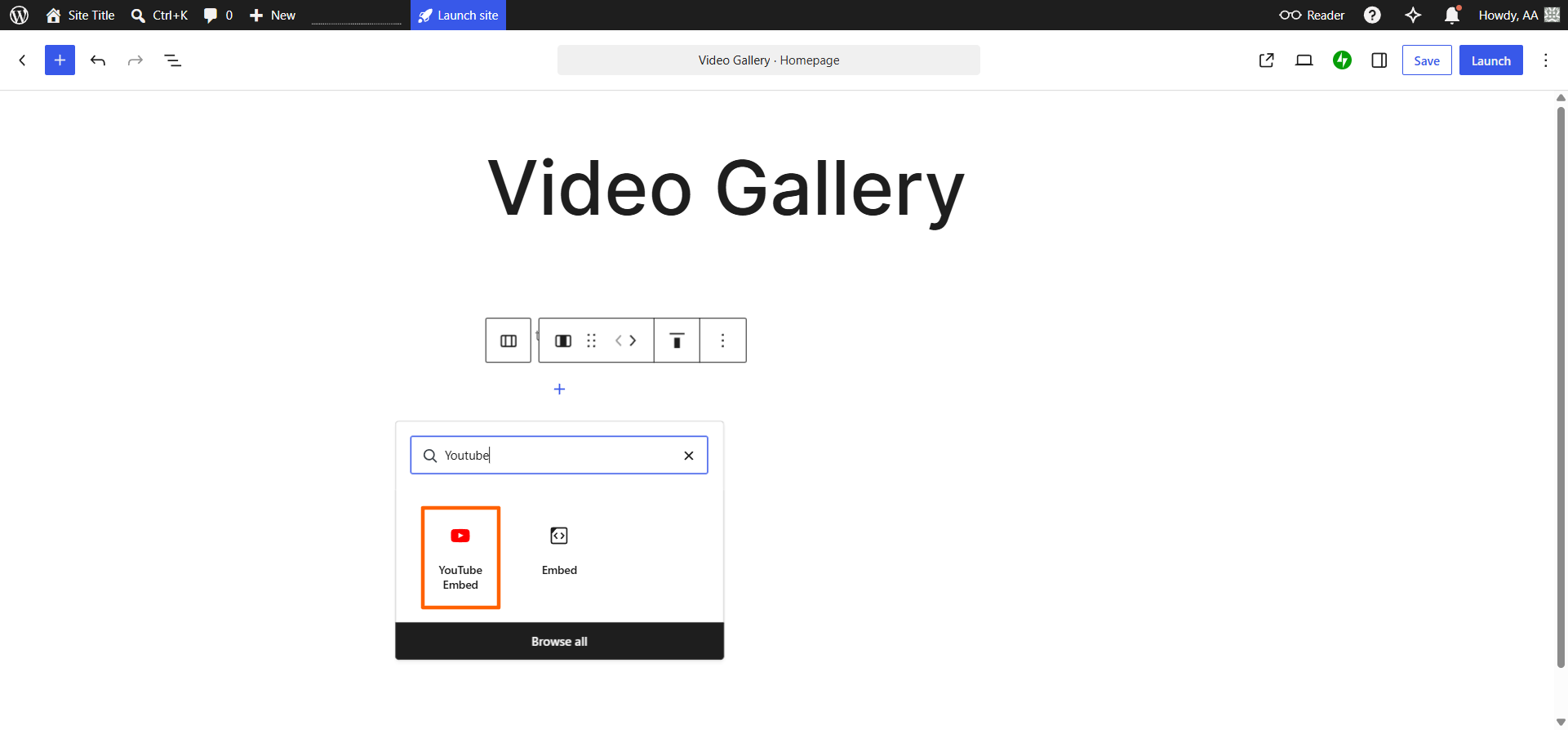
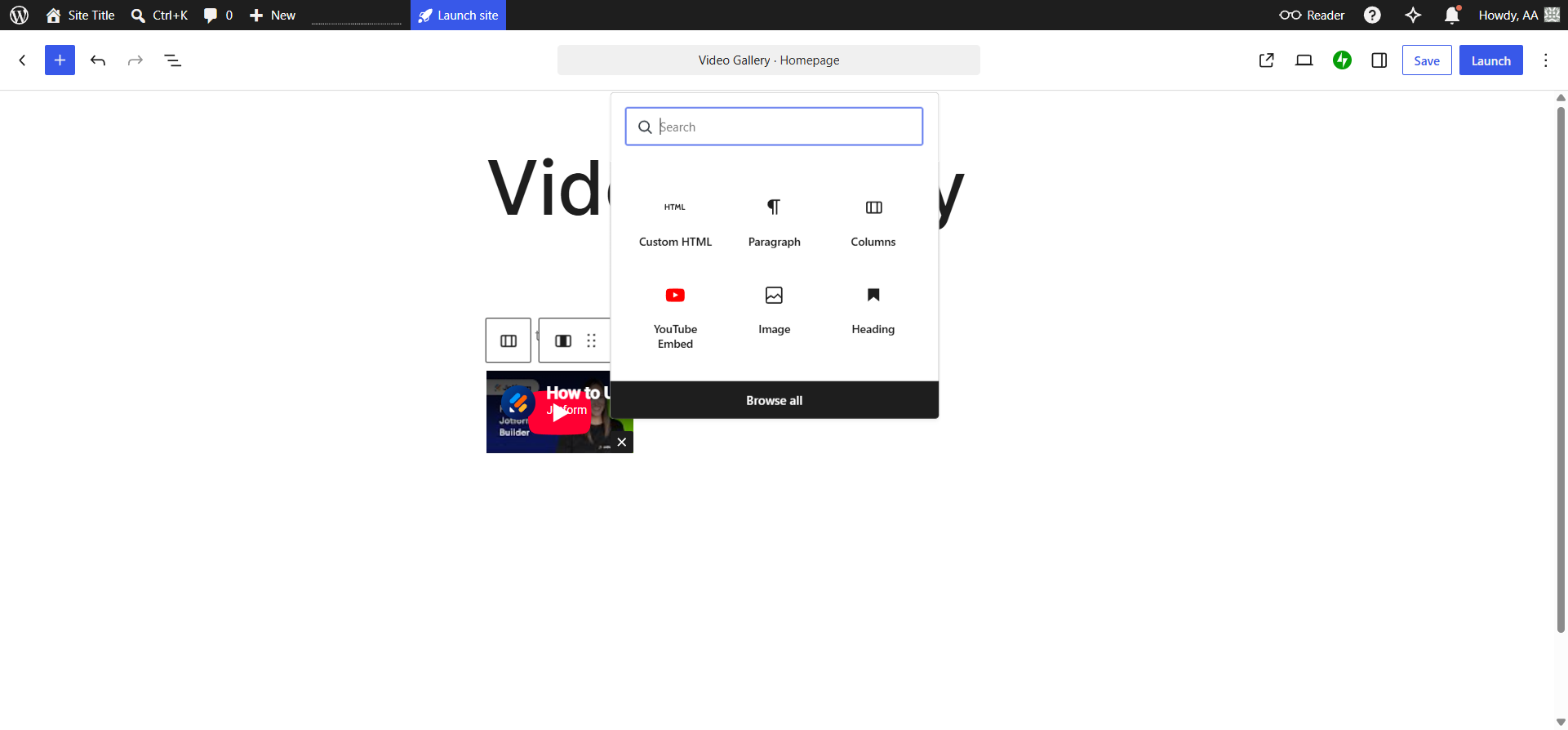
- Copy the YouTube video URL that you want to embed and paste it into the YouTube block in WordPress. Click Embed to display the video in WordPress.
- Repeat this process to add videos to the rest of the columns. Add more columns and rows as needed until you have a WordPress YouTube grid block that meets your needs.
Enhance your WordPress site with smart, no-code widgets
To safeguard your site’s speed and security, you should keep WordPress plug-ins to a minimum. That’s why using external, serverless tools like the Jotform YouTube Gallery Widget is a great choice.
This widget enables you to add rich media to WordPress without putting stress on your server. Plus, it’s free, easy to use, and doesn’t require any complicated coding or API keys. Not only that, but the widget reduces manual work so you can have a live gallery on your website without having to update it whenever a new video is published.
In addition to the YouTube Gallery Widget, Jotform offers a number of other free website widgets that can enhance your WordPress site. For example, the Google Reviews Widget helps showcase customer feedback and build trust, while the Back to Top Widget helps customers more easily navigate your site. You can also use Jotform’s WordPress forms to collect data from your website visitors, such as lead information from a contact page.

Explore what Jotform has to offer — from free website widgets to thousands of online forms — and see how you can improve your website and increase engagement at the same time.
This article is for bloggers, educators, portfolio creators, and marketers using WordPress who want to showcase a dynamic grid of YouTube videos without slowing down their site or dealing with complex API configurations.






































































































Send Comment: