
Embedding a PDF viewer in WordPress keeps users on your site and elevates their experience. The alternative — forcing a download to their hard drive — breaks that experience since it means navigating away just to read the file. Keep users on your website, and time on page goes up, engagement with your brand holds, and they still have the option to download the file if they want it.
But how do you go about adding one to your site? Whether you’re a restaurant displaying a menu, a B2B agency sharing a case study, or an educator providing a syllabus on WordPress, the native Gutenberg editor isn’t always the best solution for PDF embeds in WordPress. It leans on the visitor’s browser to render the PDF inline. Plus, the Gutenberg PDF embed block has a documented history of breaking in Safari, causing headaches for developers.
To get a reliable, custom PDF viewer on WordPress with navigation controls that render on every browser, site owners can count on two paths: installing a document viewer plug-in from the repository, or using a free, lightweight, serverless widget that protects page speed.
In this article, I cover both of those methods of embedding a PDF on WordPress. I include a step-by-step guide for each option so that you can choose the best solution for you.

Option 1: Install a dedicated WordPress PDF viewer plug-in
The standard WordPress way is installing a third-party PDF embed plug-in. Here’s how you do it:
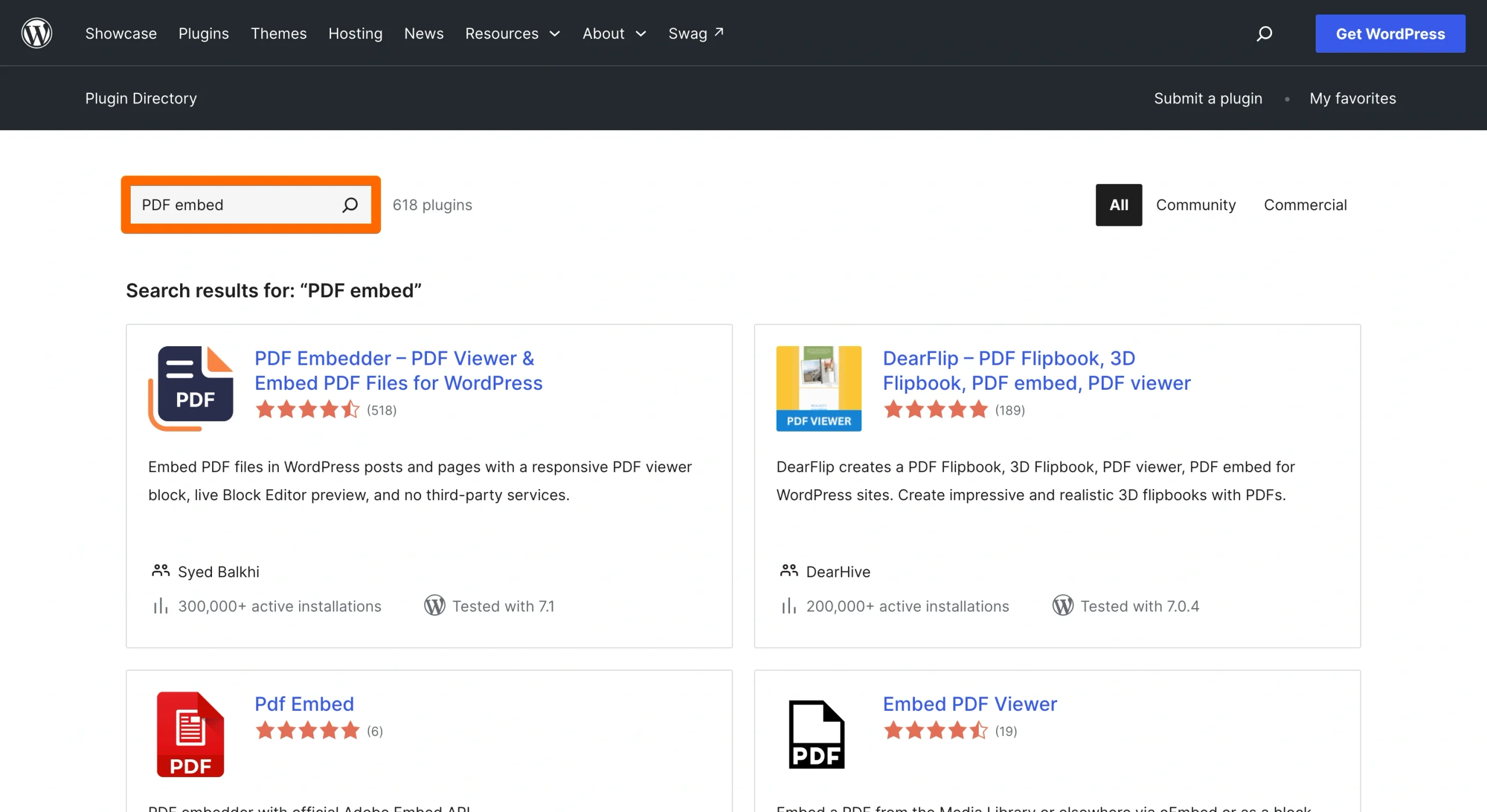
- Search the WordPress Plugin Directory. In this example, we searched for “PDF embed.”
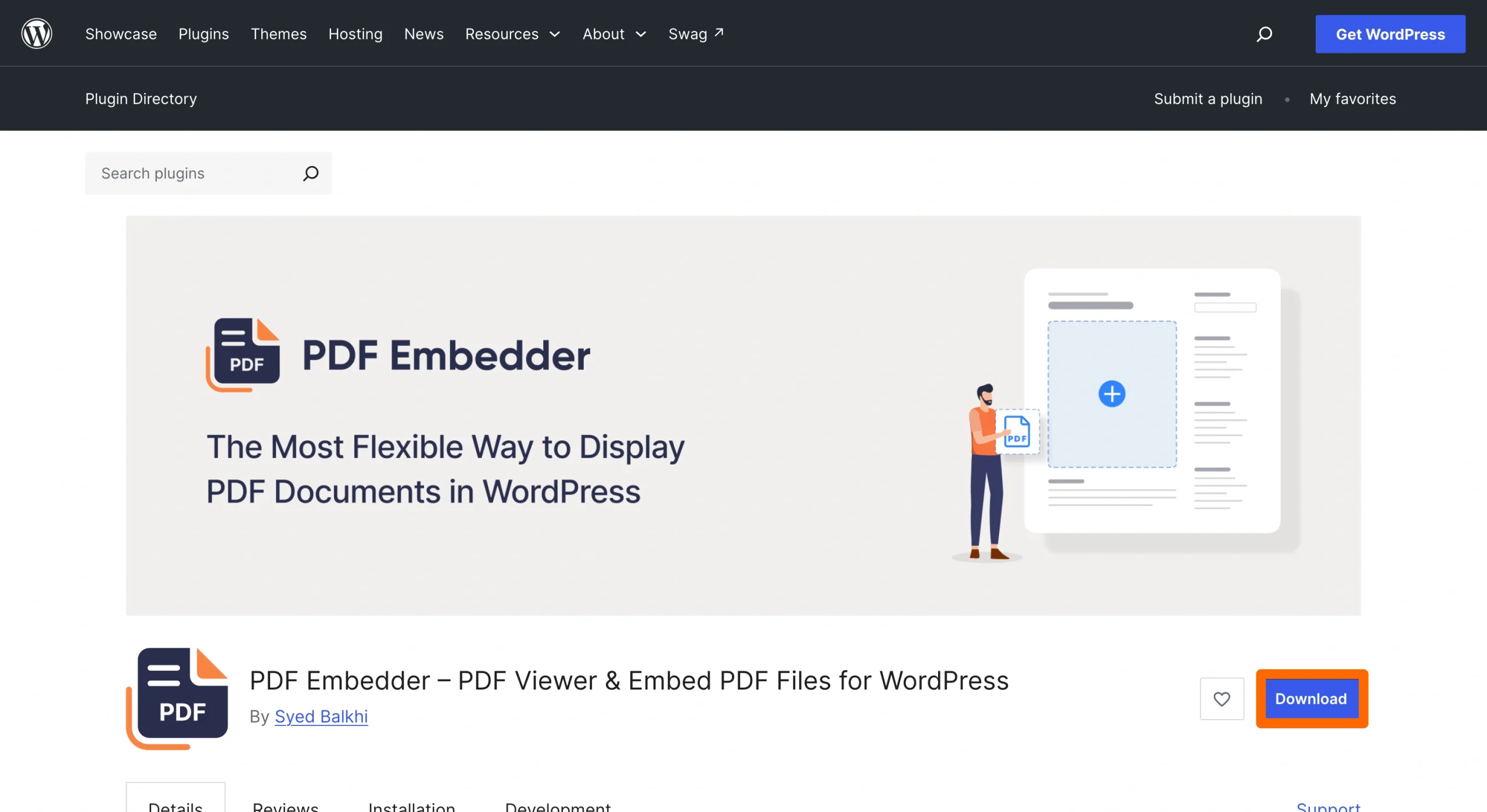
- Choose your plug-in and click Download button.
- Install the plug-in on WordPress by navigating to Add Plugin in the side menu under Plugins, then clicking Upload Plugin and Choose File. A window will open where you can select the file from the folders on your computer.
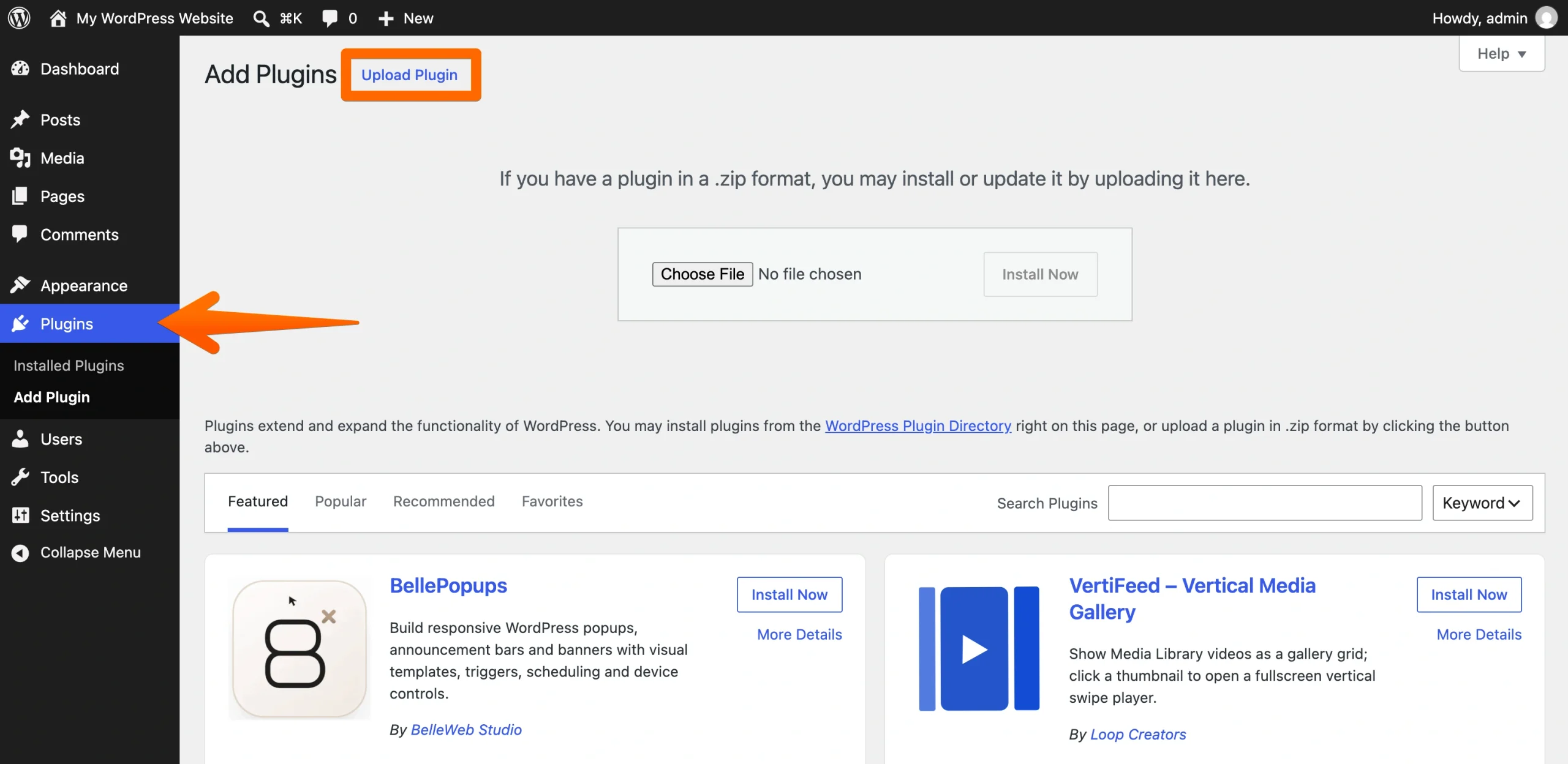
- Click Choose File to select the plugin’s .zip file from your computer, and then click Install Now to proceed with the installation.
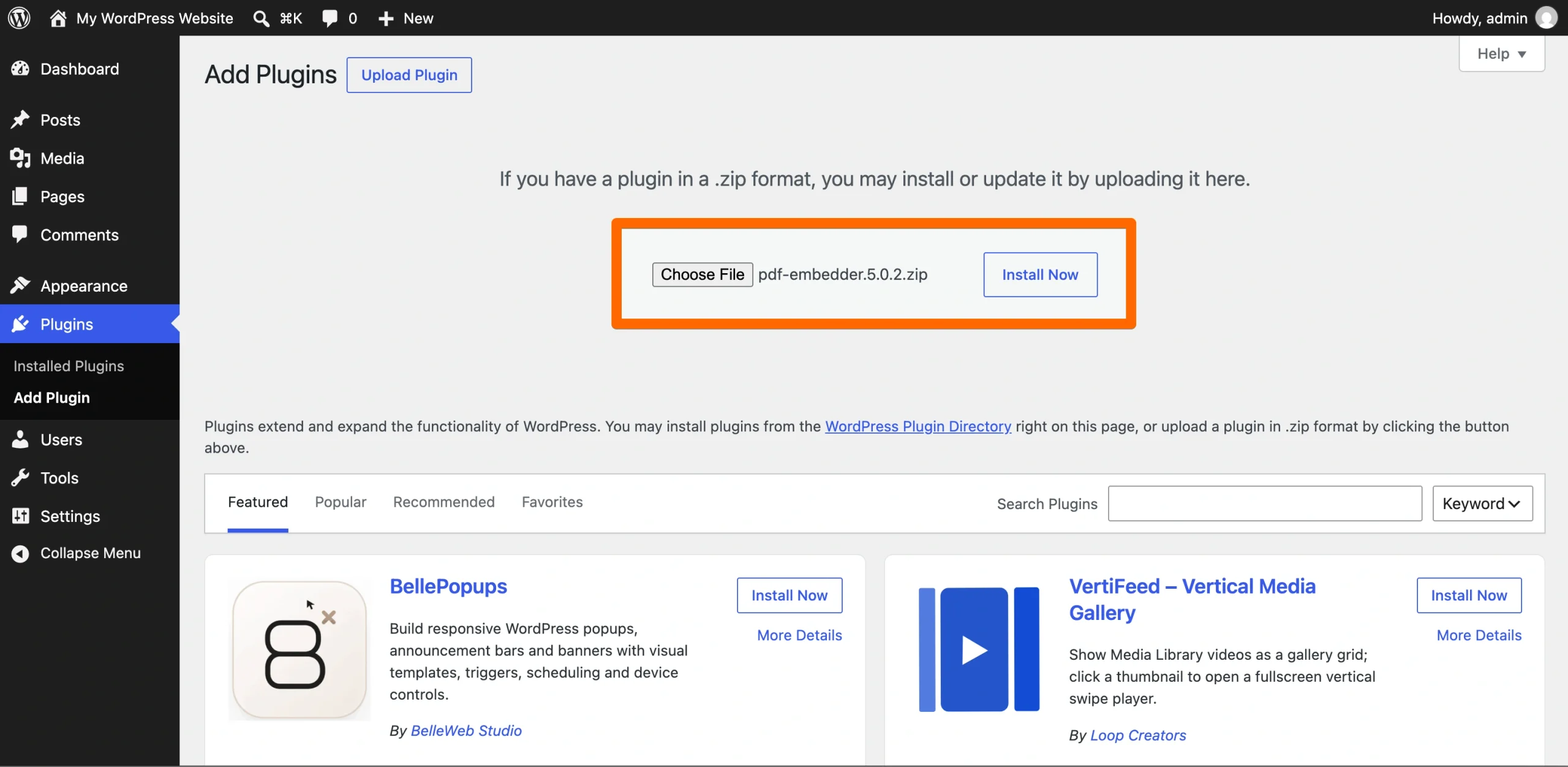
- Generate a shortcode to render the viewer.
The workflow is easy enough. But as I mentioned, it doesn’t always work on all browsers, and it’s a solution that relies on a dedicated plug-in that can cause complications.
For example, these third-party plug-ins can
- Add weight to your website: This can affect things like page speed and Core Web Vitals. Admittedly, decent plug-ins and compressed PDF files shouldn’t really do this, but always check reviews and read what other website administrators are saying about the impact of installing your chosen plug-in.
- Lock useful features behind paywalls: If you want to offer your users a full-screen reading mode, continuous scrolling, or a custom download button, you’re usually forced to purchase a premium license.
If you’d rather skip all this, a WordPress PDF plug-in alternative is coming up next.
Option 2: Add a free, customizable PDF embed widget (recommended)
If you want a reliable, fully featured PDF viewer without paying for annual plug-in renewals, relying on inconsistent browser-native rendering, and slowing down your front end, the best solution is a hosted embed.
That’s exactly what the Jotform PDF Embed Widget offers. Here’s how it works:
- Upload your PDF file by dragging and dropping it into the upload area on the left-hand side, or clicking Upload PDF.
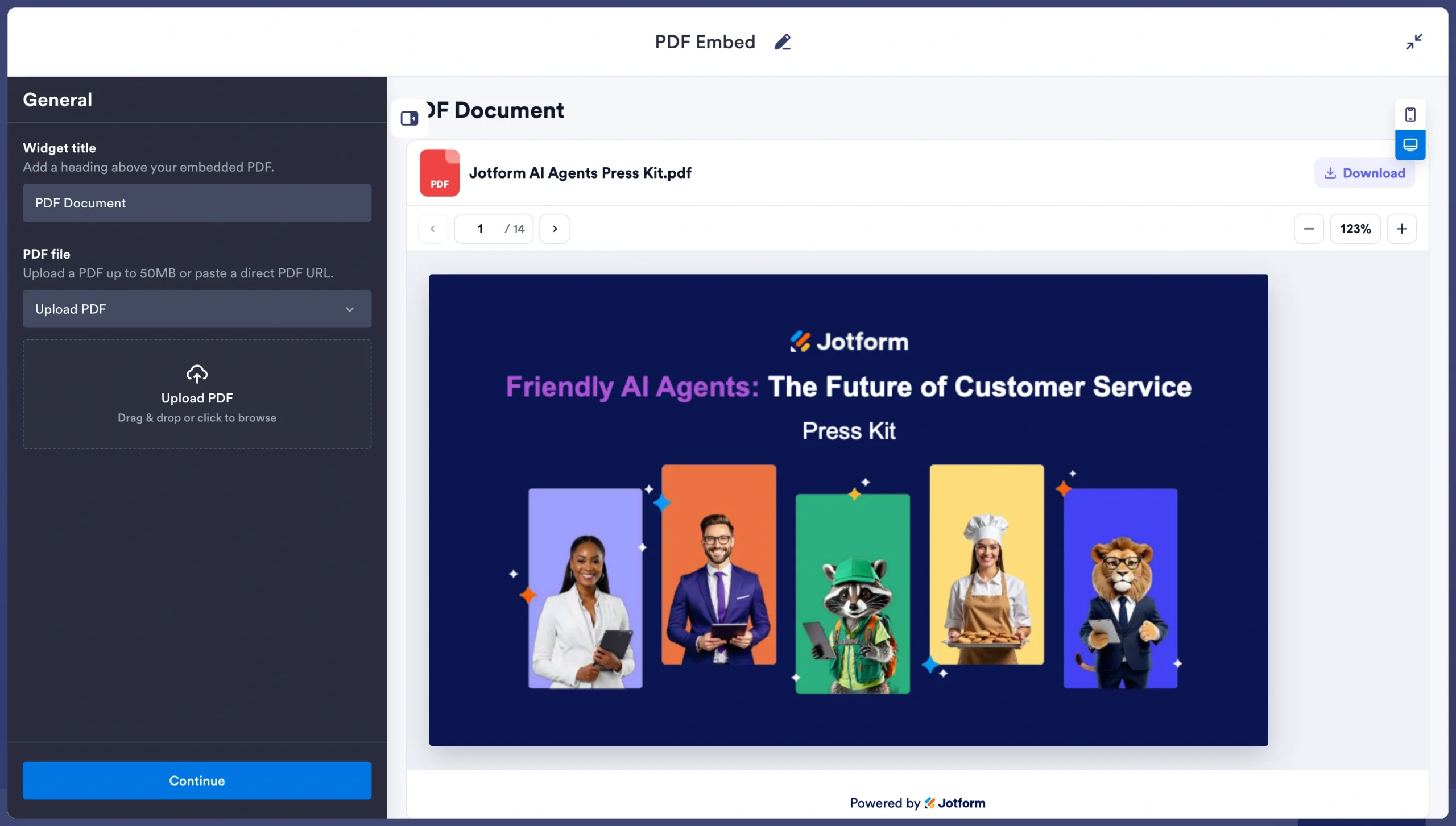
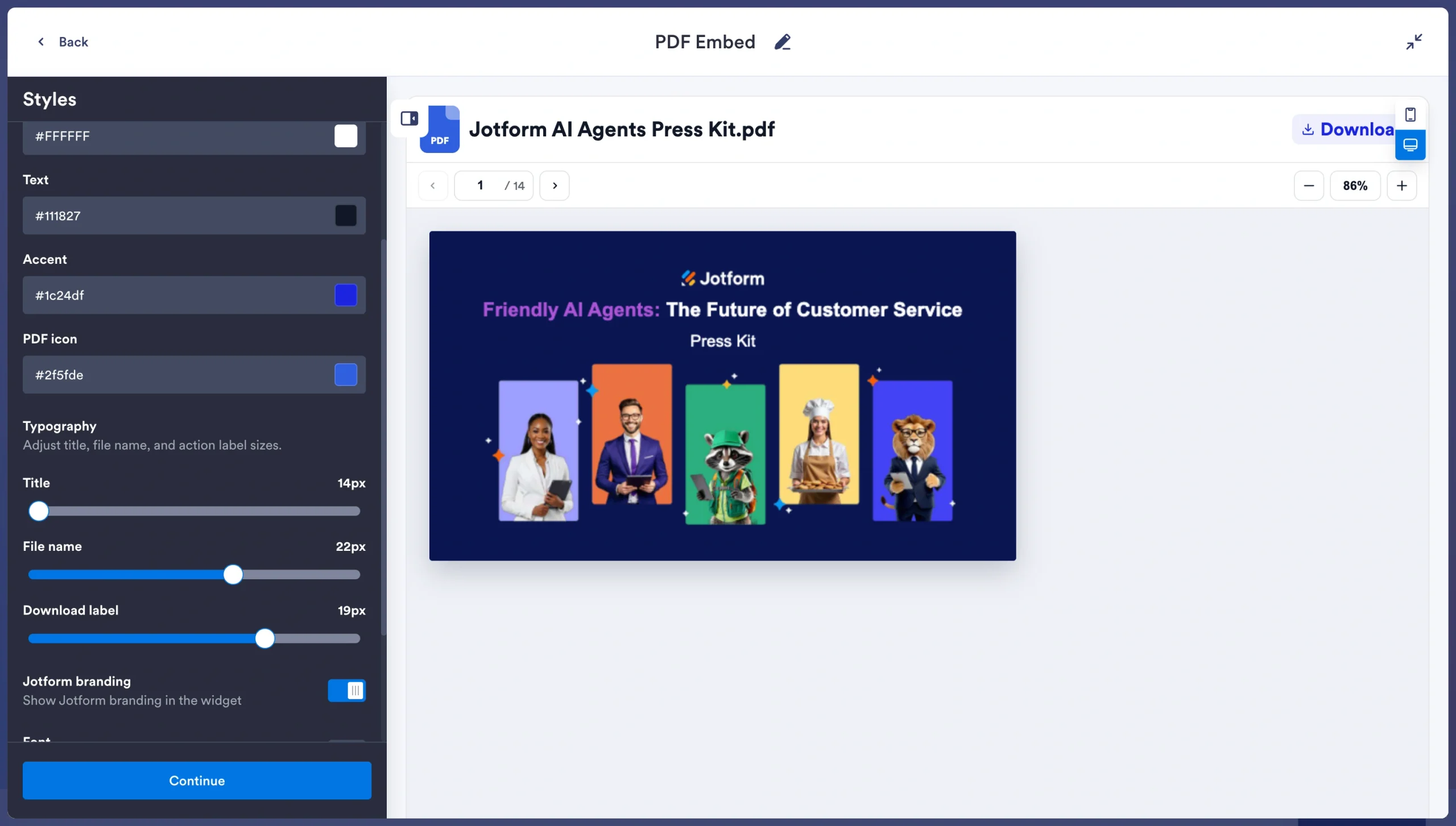
- Use the Styles settings to configure the viewer visually so it has the look and feel of your site.
- After clicking Continue, copy the generated iFrame snippet by clicking Copy Code.
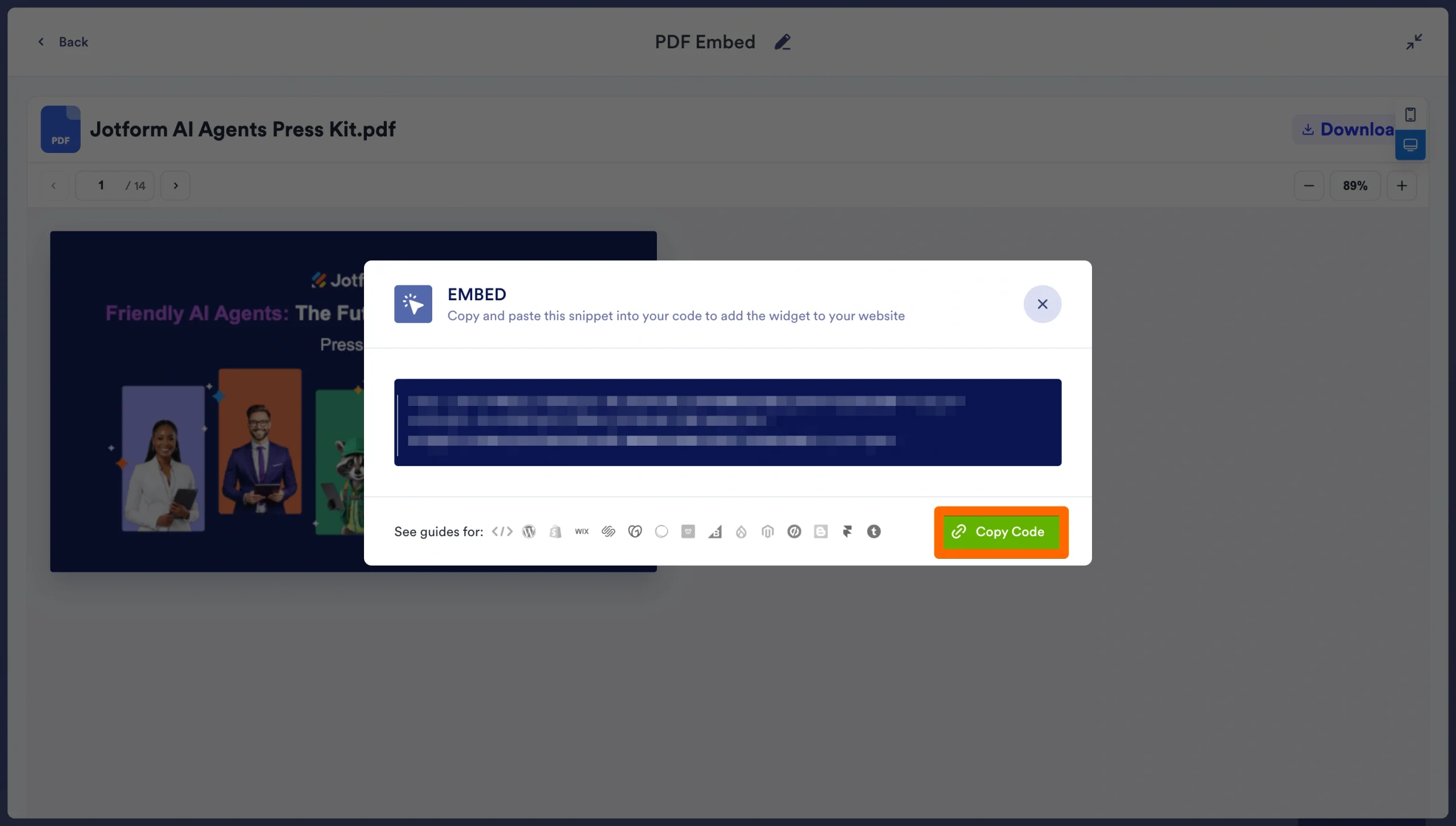
- Paste the generated code into a standard “Custom HTML” block on your WordPress website.
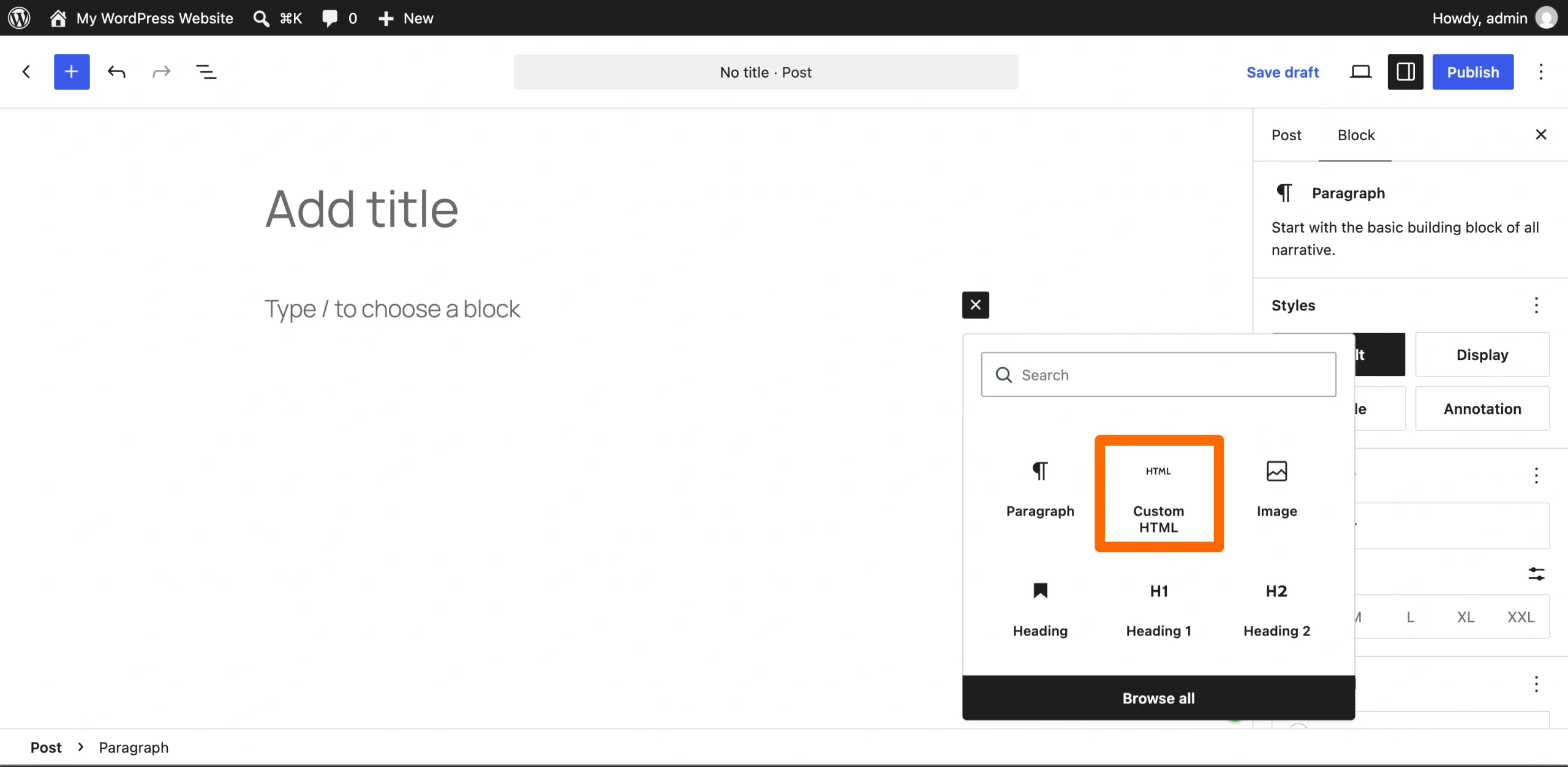
The result is a flawless, cross-device PDF viewer that handles all the heavy rendering completely off-server so that processing and load time are unaffected.
I ran this on my website to test how fast I could set it up. This is what the PDF viewer looks like:
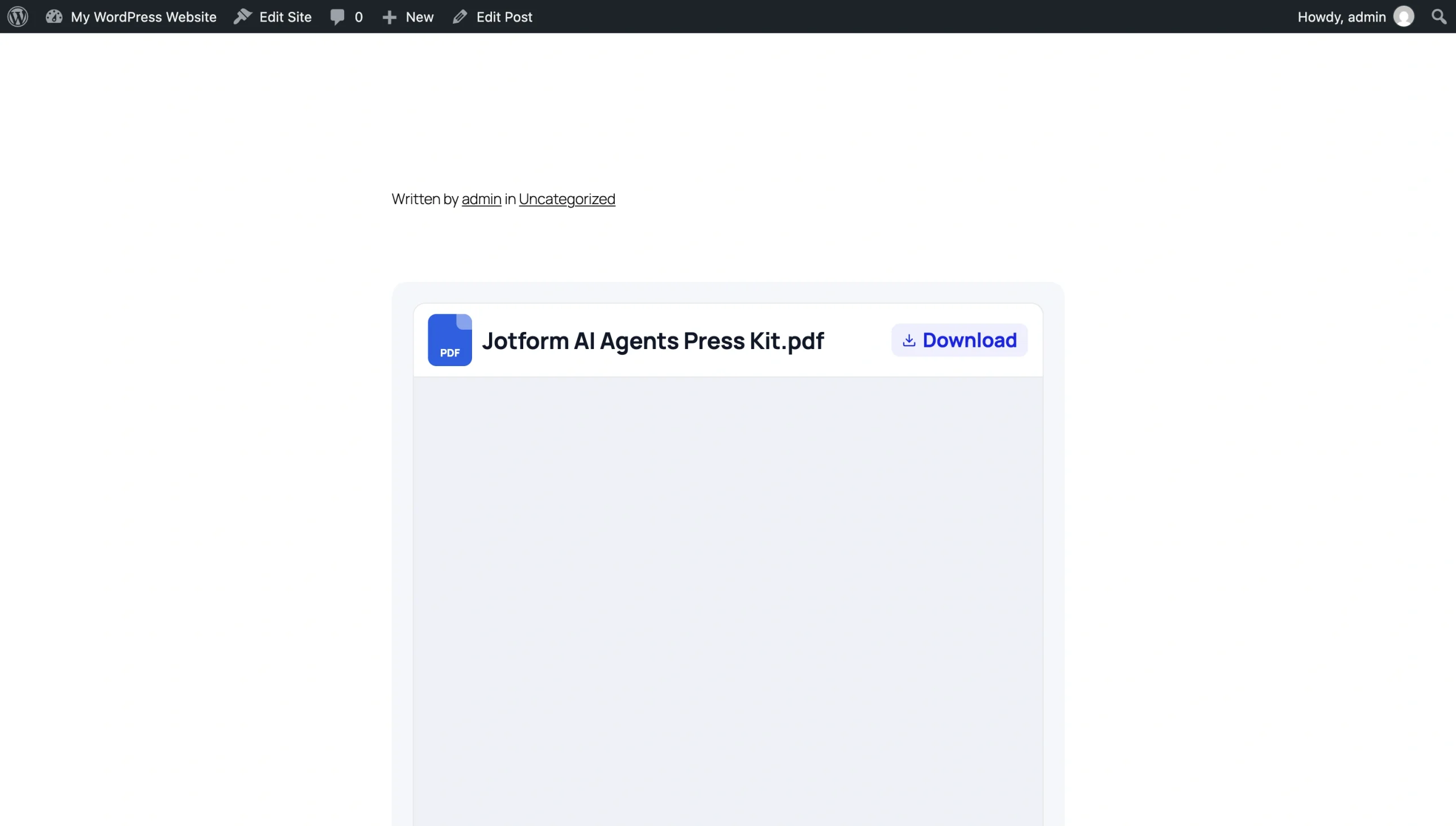
It took less than five minutes to embed the PDF, and it looks great! Granted, I didn’t upload a new file or alter the style, but even if I had, this is an incredibly fast method for embedding a PDF into WordPress for free.
Jotform lets you upload your documents and guarantees a consistent, professional viewing experience across every device and browser — complete with seamless scrolling and native controls — at no cost. And because it’s an off-server embed, it won’t slow down your WordPress page load times, eat into your Media Library storage, or push you toward an expensive premium plug-in tier.
Supercharge your WordPress site with smart, serverless widgets
Jotform’s PDF Embed Widget is just one tool in a much bigger toolkit. Jotform’s full library of free website widgets covers dozens of other common WordPress pain points, and every one of them works the same off-server way:
- No plug-in install
- No Media Library bloat
- No annual license standing between you and the features you actually want
Once you’re using Jotform, you’ll find yourself spoiled with other great widgets that elevate your website’s user experience, including the
- FAQ Widget: Turns long blog posts and pillar pages into skimmable, expandable answers without installing a dedicated accordion plug-in
- QR Code Widget: Provides a menu, downloadable resource, or print piece with a scannable link back to your site
- Popup Widget: Captures emails or promotes an offer without adding a heavy, script-laden popup plug-in to your theme
Better yet, there’s the Jotform-WordPress integration, which connects your widgets and Jotform’s WordPress forms plug-in to a single account so that you can manage everything in one place.
As a growing business or creator, your server’s power should go toward handling sales and traffic, not rendering documents and running heavy scripts. By reaching for free, off-server tools like Jotform’s, you can provide your visitors with a premium, highly responsive website experience without asking your site to do more work than it needs to.
This article is for WordPress site owners, B2B companies, educators, and restaurants who want to display readable documents (whitepapers, menus, schedules) directly on their pages without forcing user downloads or bloating their site with heavy plugins.




































































































Send Comment: