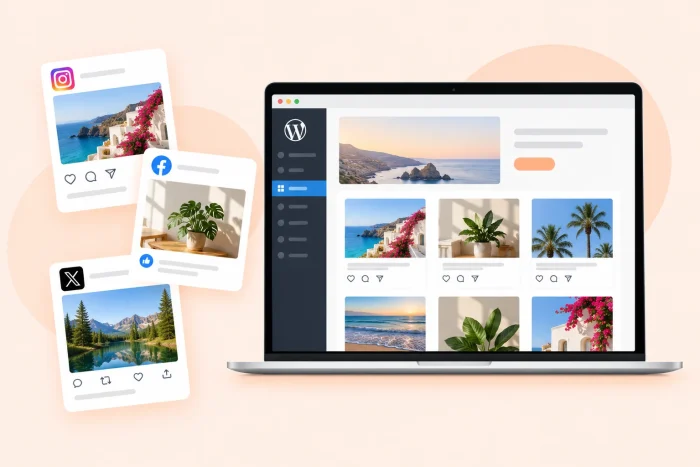
Adding a social media feed to your WordPress site keeps your homepage fresh without manual updates, since new posts appear on your site automatically as you publish them to your feed. It shows visitors that your brand is active and lets them see real engagement with your posts before they decide to buy or get in touch.
A feed also keeps visitors on your site longer, a metric known as dwell time. Linking to your Instagram profile sends visitors to an app filled with other brands’ posts, but a feed on your site lets those visitors browse your content without leaving your page.
If you’ve tried to embed an Instagram feed in WordPress with a Gutenberg block, you’ve probably found that these blocks can handle a single post at most; worse, you can’t feature any posts from Instagram or Facebook without a plug-in. Regardless, neither WordPress.com nor self-hosted WordPress natively displays a feed that updates as you post, so adding a live feed means using a tool that can do it for you.
That leaves you with two options: installing a social feed plug-in from the WordPress plug-in directory or embedding a free hosted social feed widget that combines several networks in one feed.
If you’re a site owner, blogger, or web design agency that wants to add a social media feed to WordPress without installing bloated plug-ins or managing API tokens, this guide covers both options, starting with plug-ins.
Option 1: Install a dedicated WordPress feed plug-in
The standard way to add a social feed in WordPress is with a plug-in, and if you’ve already installed some of the best WordPress plug-ins for your site, the process will feel familiar. You search the plug-in directory, connect your social accounts, and add the feed to a page from the block editor. This is straightforward if you already know how to use WordPress.
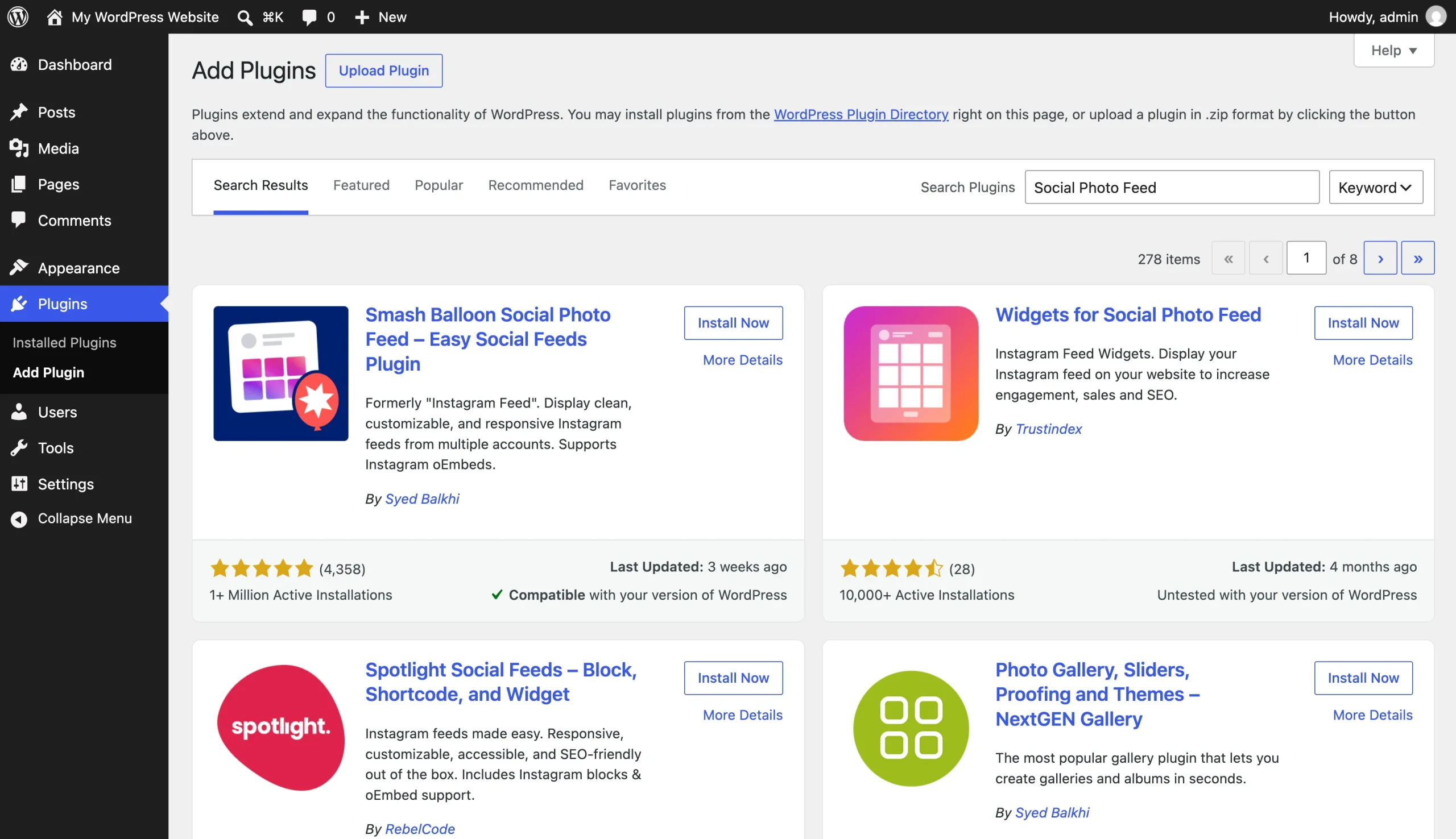
Smash Balloon Social Photo Feed is a widely used option, with more than 1 million active installations. Its free version connects to Instagram without requiring a developer account.
Here’s how to set up a WordPress social feed plug-in for free:
- Install the plug-in: From your WordPress dashboard, go to Plug-ins; then search for Smash Balloon Social Photo Feed, and click Install Now and Activate.
- Connect your account: Open the plug-in’s menu item in your dashboard, create a new feed, choose your source, and log in with the Instagram account you want to display to authorize the connection.
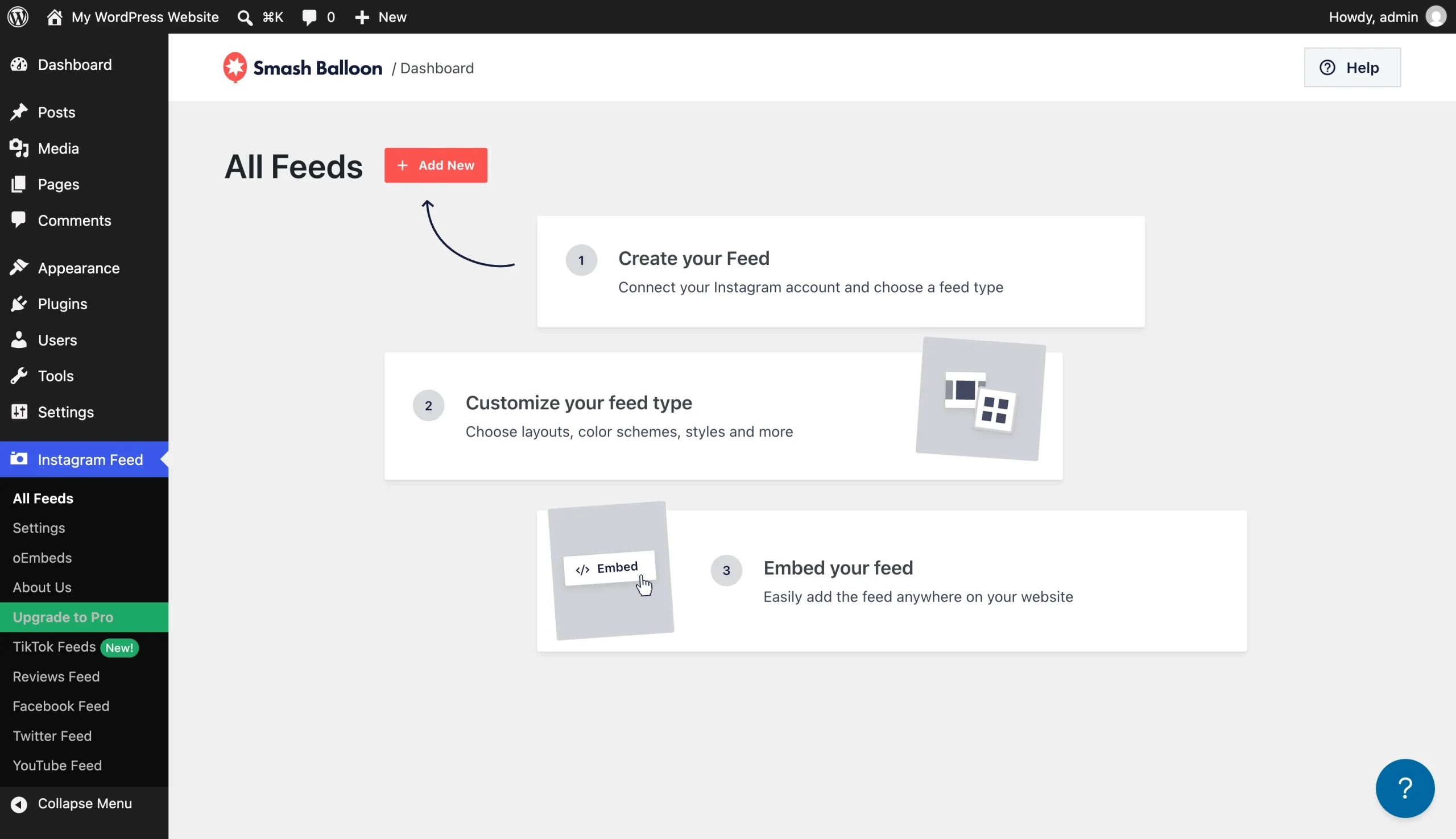
- Customize and publish: Use the visual customizer to set your layout, colors, and number of posts; then add the plug-in’s block to a page in the block editor and click Update.
If your site is hosted on WordPress.com, you’ll need a paid plan before you install anything. Beyond that, Smash Balloon’s free version displays only accounts you own, and it requires an authorized connection to Meta. Those access tokens expire after 60 days, and although Smash Balloon refreshes them automatically, a failed refresh means the feed stops updating until you log back in and reconnect.
The free plug-in covers Instagram only. To show other platforms, you’ll need a separate plug-in for each. Combining them into one feed takes Smash Balloon’s Social Wall, which comes in its annual All Access Bundle, along with Pro-only features like masonry layouts, hashtag feeds, and like counts. A well-built plug-in caches your feed to keep pages quick, but a poorly built one slows your load times, especially if it loads scripts on every page.
Option 2: Add a free, off-server social feed widget (recommended)
If you’re looking for a free Smash Balloon alternative combining several networks in one feed, a hosted widget covers that without a paid bundle. Jotform Social Feed Widget gathers posts from Instagram, Facebook, X, LinkedIn, YouTube, and Pinterest, plus platforms like Vimeo, Reddit, Medium, and any RSS source, then displays them in a single responsive feed.
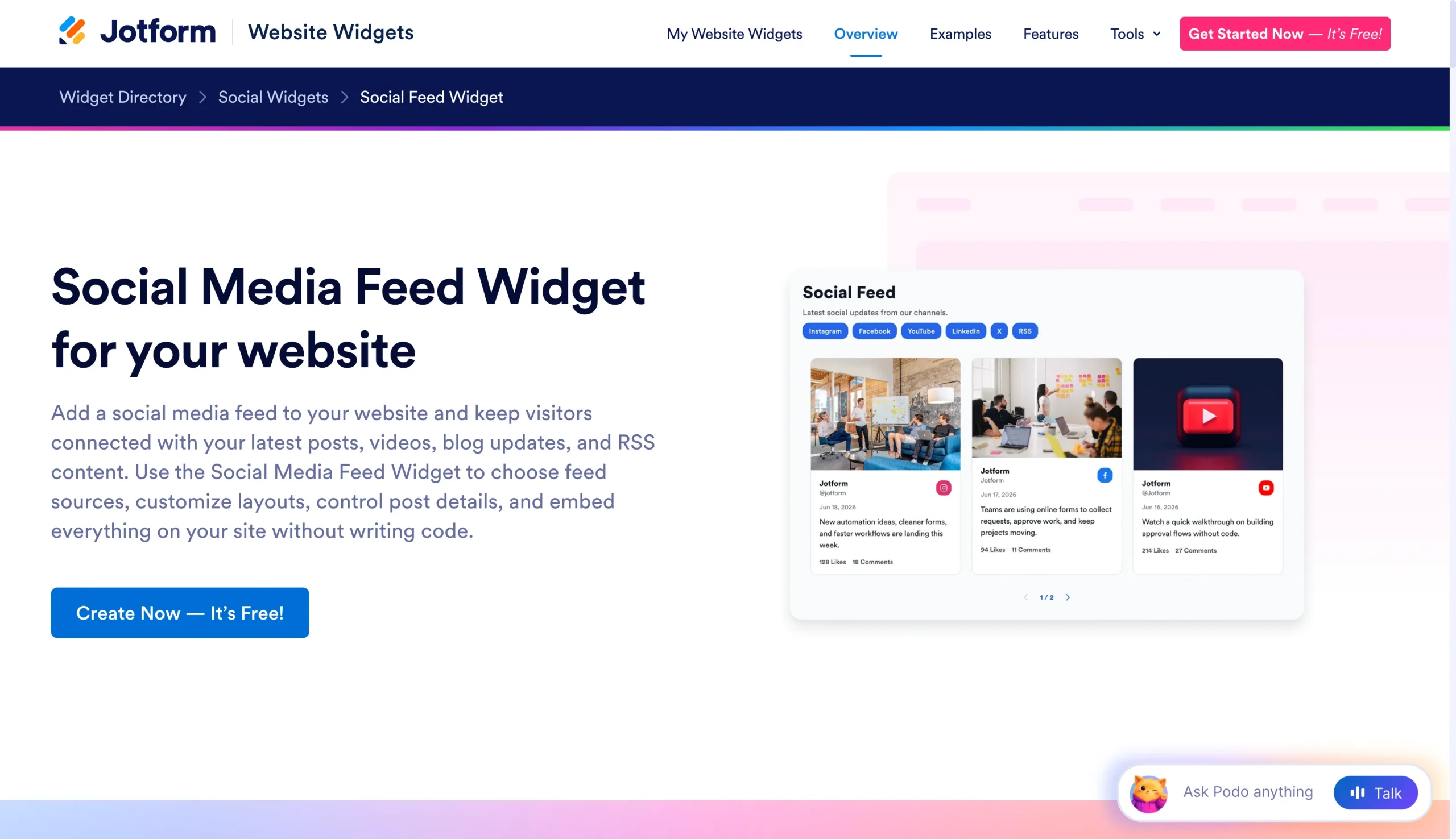
Instead of logging in and authorizing your account inside WordPress, you enter a public @account or profile URL in the widget builder, so there’s no token for you to renew and no plug-in to update on your site. That also means you can feature accounts you don’t own, like a partner brand or an event page.
If your site is on WordPress.com, check your plan first, since its Custom HTML block only keeps embed code on a paid plan with hosting features turned on. Self-hosted sites aren’t affected.
Here’s how to add multiple social feeds to WP with one widget:
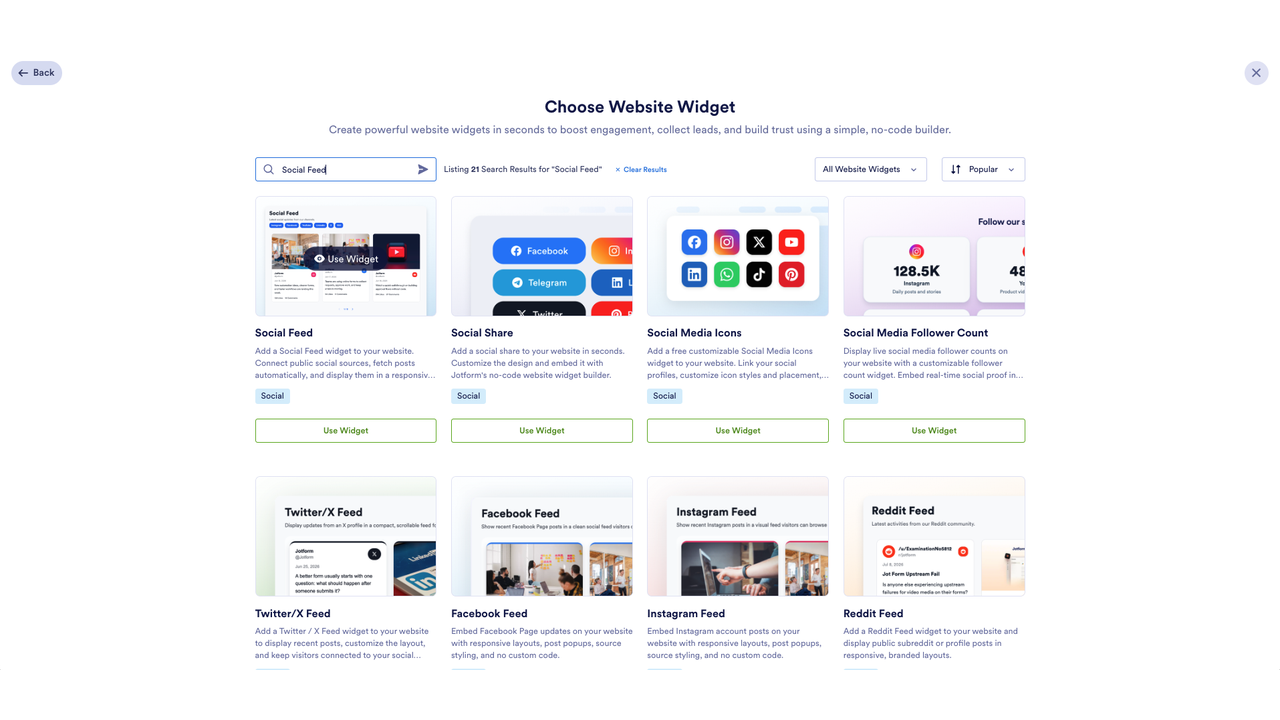
- Create the widget: On your Jotform Workspace page, click Create, select Website Widget, search for Social Feed, then click Use Widget.
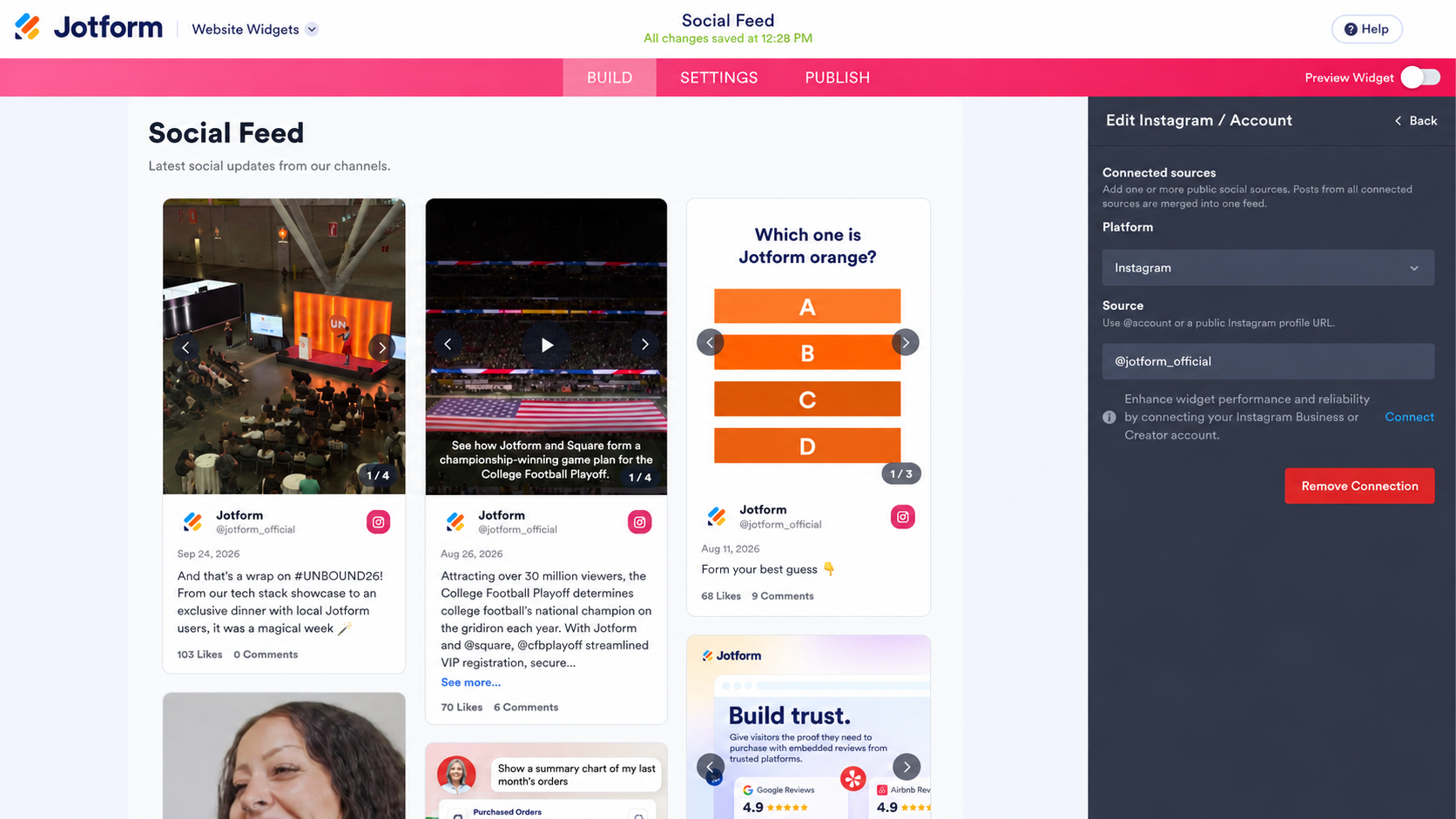
- Add your sources and style the feed: Under the Widget Properties panel, in the General tab, click + Add first source and choose a platform, enter a public @account or profile URL, and click Connect; then repeat for each account you want in the feed. In the Layout tab, you can pick a grid, masonry, list, carousel, or slider layout, and in the Style tab, you can customize the design to match your theme.
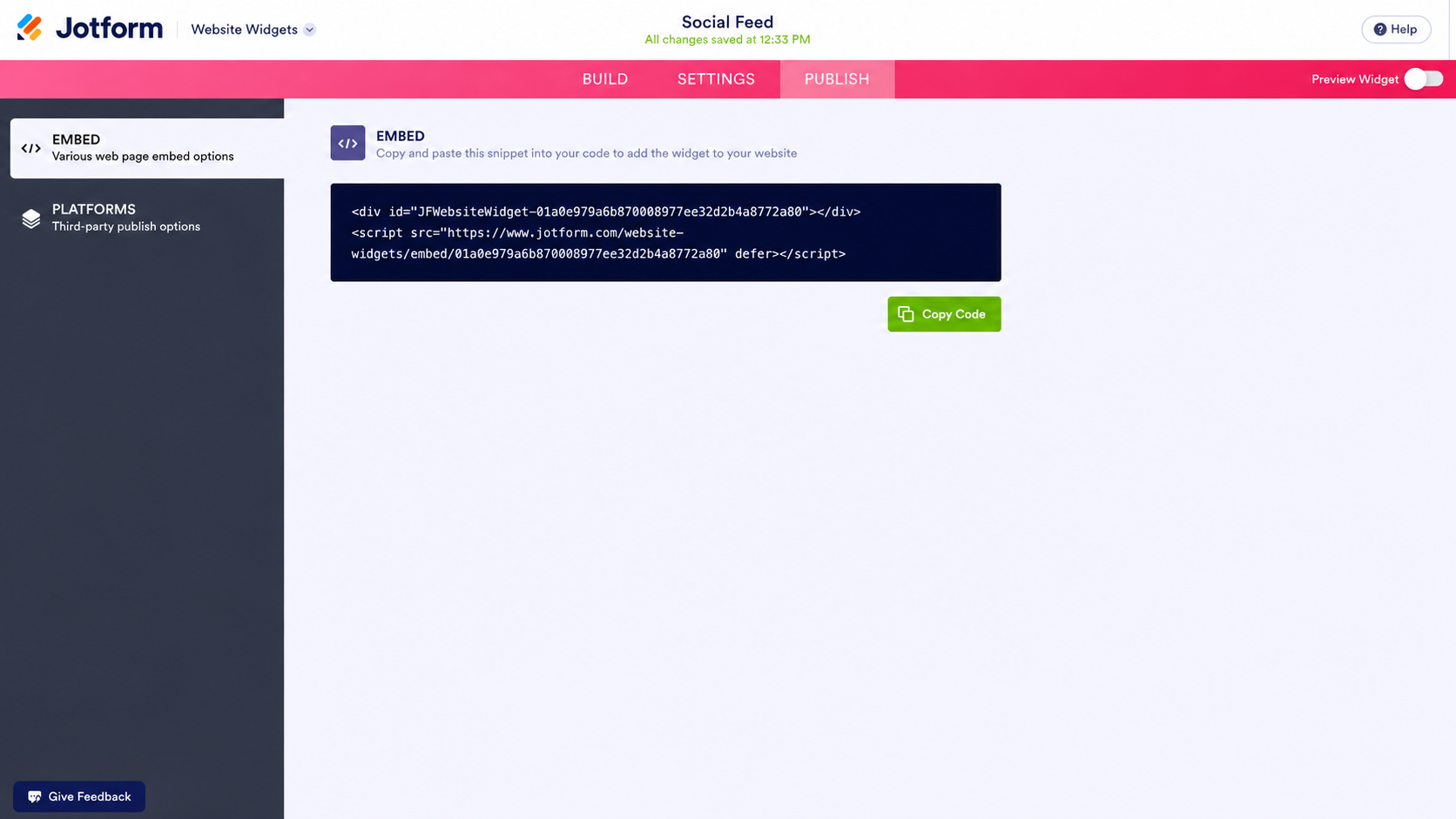
- Copy embed code: Click Publish at the top and copy the embed code.
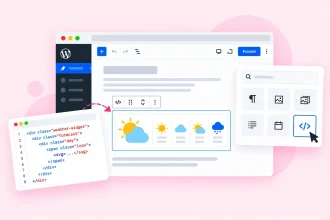
- Embed it in WordPress: Open your page in the block editor, click the plus (+) icon on the top left, select Custom HTML, click Edit HTML, paste the code, and click Update.
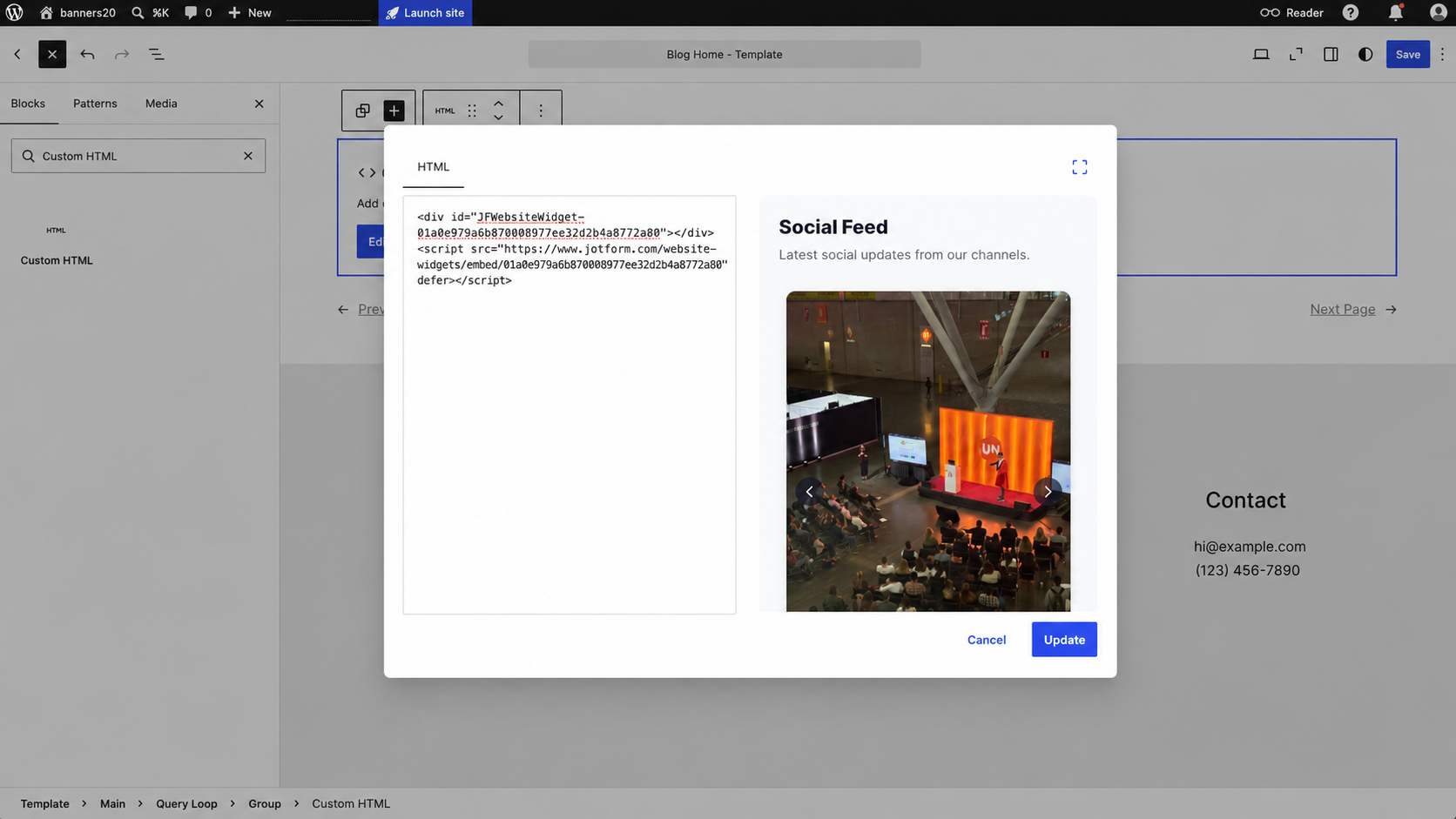
Once published, your social feed will appear on your WordPress page like this:
You can also control what each post card shows, from captions to engagement counts. Because nothing gets installed on your site, it’s a lightweight social feed widget to maintain.
Supercharge your WordPress site with smart, serverless widgets
If you’re looking for more ways to make your WordPress site engaging without adding a plug-in for each feature, apart from adding a social feed, Jotform’s free website widgets directory has more than 150 options, including
- A social share widget letting visitors share your pages to their own networks, which pairs naturally with a feed of your posts.
- A banner widget with a countdown or coupon code for a sale or launch you’re also promoting on social media.
- A WhatsApp chat widget for visitors who see a post they like and want to ask about it.
Each one embeds through a Custom HTML block the same way the social feed does, so you’re not adding another plug-in to keep updated every time WordPress or your theme changes. If you’re also collecting signups or inquiries from your visitors, Jotform’s WordPress forms let them sign up or send a question without leaving the page.
Your time is better spent creating content than reconnecting accounts or paying an annual fee just to combine your Instagram and Facebook feeds. Jotform Social Feed Widget brings your networks together on one page for free, so visitors can see what you’re posting without leaving your site.
This article is for WordPress site owners, bloggers, and web design agencies who want to increase dwell time and showcase dynamic social proof without installing bloated, site-slowing plugins or managing complex API tokens.































































































Send Comment: