
Since 63 percent of consumers prefer to find information about products or services on mobile devices, there’s a high chance that your site is being viewed on a phone screen. And since many of these consumers are in a hurry and want to reach out now, every extra step between them and getting in touch increases the chance they’ll give up and try a competitor.
A phone number written as plain text on your site counts as an extra step — visitors have to take down the number, leave your site, open their phone app, and type it in. A click-to-call button replaces all of that with a single tap that starts the call.
WordPress lets you create a button that starts a call by using the block editor to turn any button into a phone link. What it doesn’t offer is a floating call button that stays on-screen as visitors scroll and appears on every page of your site.
There are two ways to place a call button on your site: You can create a native Gutenberg button and set its link to a “tel:” URL, which works but only stays in the spot you place it in, or you can use a free hosted widget that floats over your pages and follows visitors as they scroll.
If you’re a local business owner, freelancer, or WordPress forms expert who wants to add a click-to-call button in WordPress, this guide covers both options. This is also a smart way to start learning how to use WordPress, since neither option requires code.
Option 1: Manually build a native Gutenberg button
You can create a clickable phone number in WordPress using the Gutenberg buttons block and a “tel:” link, without plug-ins or external tools. WordPress treats it as an ordinary link, but because the URL starts with “tel:” rather than “https:,” tapping it on a phone opens the visitor’s phone app with your number already entered.
Here’s how to set up a click-to-call WordPress button using Gutenberg links:
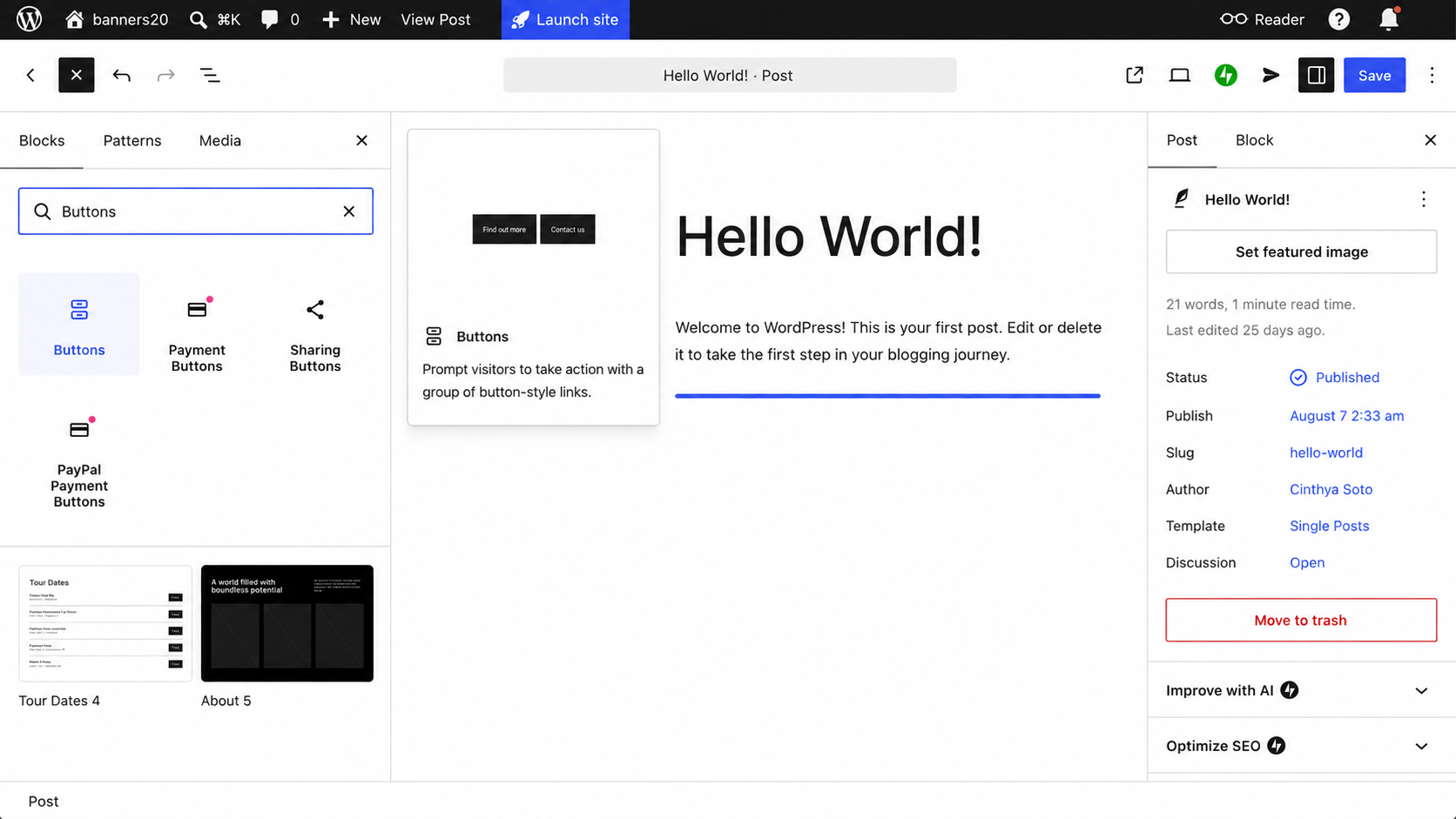
- Open the page or post you want to edit, click the plus icon, search for Buttons, and select it. Click inside the button and type your text — something like “Call Us Now.”
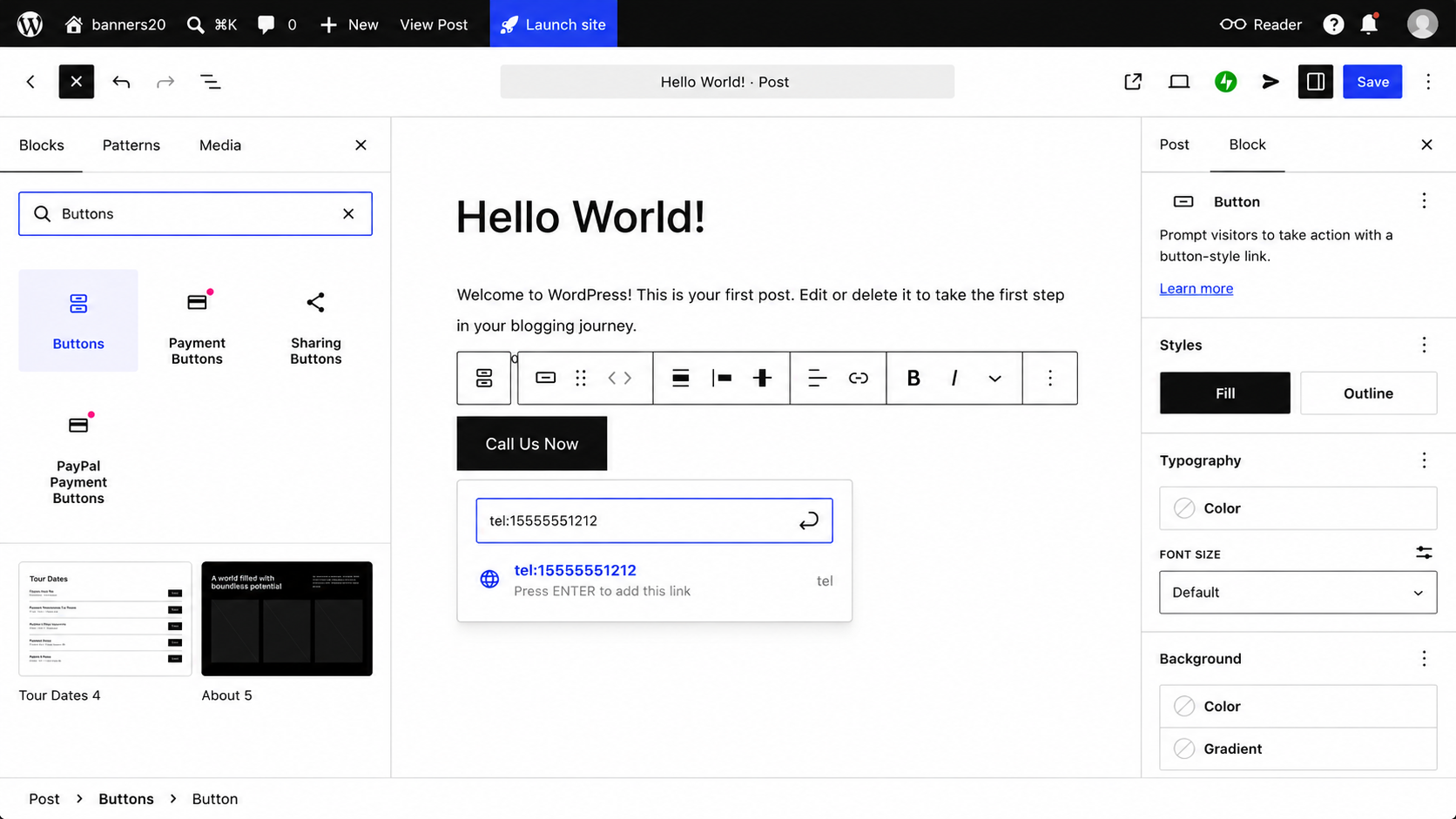
- With the button selected, click the link icon or press Cmd+K, then type “tel:” followed by your number with no spaces or dashes, like “tel:15555551212.” For international numbers, include the plus sign and country code, like “tel:+442079460192.” Press Enter to apply it.
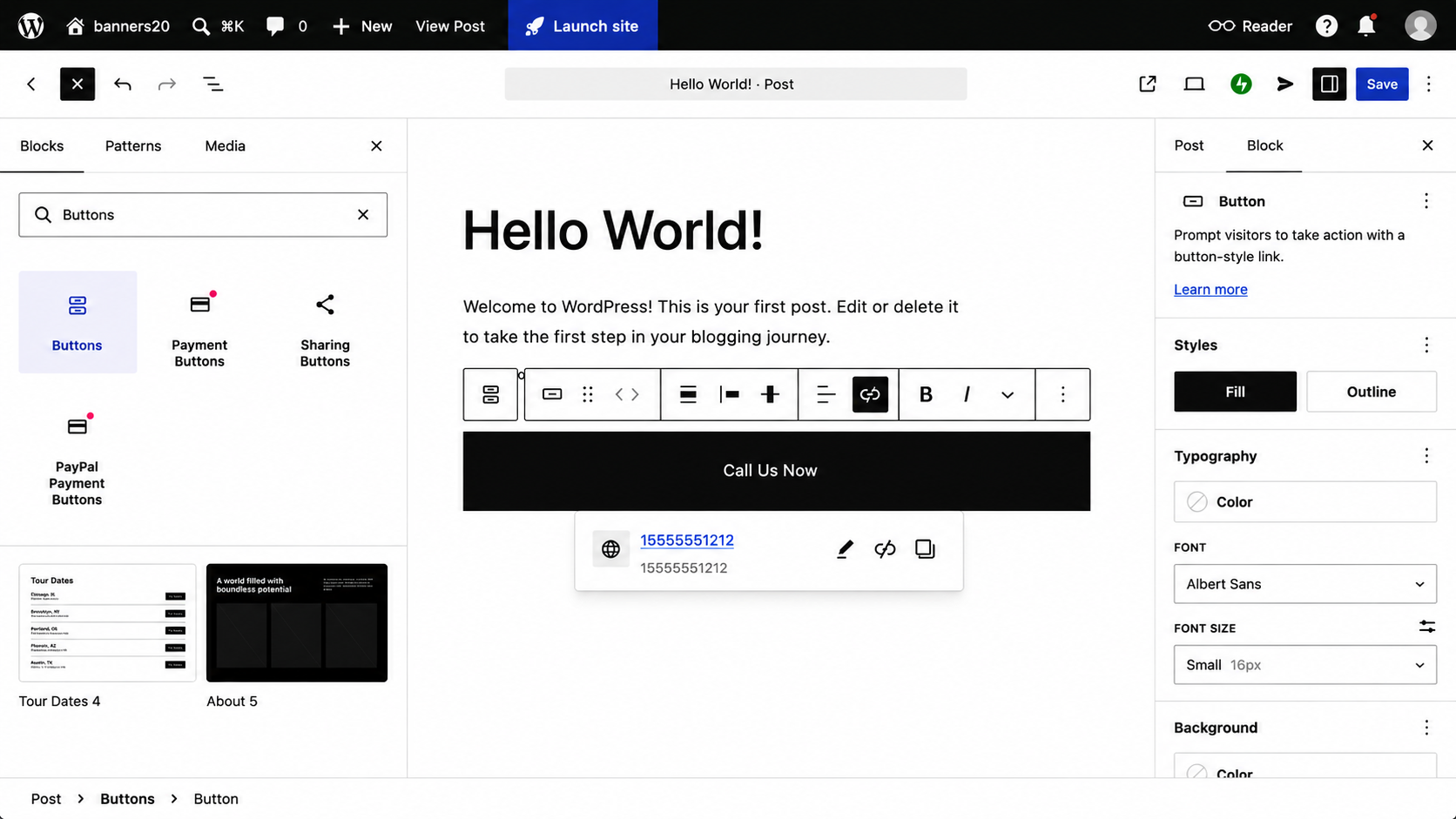
- Use the block settings sidebar to choose a fill or outline style, set your colors, and adjust the border radius. Setting the width to 100 percent is worth doing, since a full-width button is easier to tap with a thumb. Click Save in the top right, then open the page on a phone and tap the button to confirm it dials correctly.
This method creates a static button that only exists exactly where you placed it on that specific page. A visitor reading halfway down a long page has already scrolled past it, and using it means scrolling back up. You can add the button to your footer template in the Site Editor so that it appears on every page, saving you from adding it manually to each one. But a footer button still means a user has to scroll to the bottom before they can click it.
For a visitor who’s ready to call now, a button they have to hunt for is a button they’re less likely to use.
Option 2: Add a free, floating click-to-call widget (recommended)
If you want a floating phone button on WordPress to help you boost conversions, the smartest solution is a hosted widget. The best WordPress plug-ins can do this, but each one adds another install to manage and update for a single button. With a free hosted widget like Jotform’s Click-to-Call Widget, the button floats over your pages, so it stays visible as customers scroll.
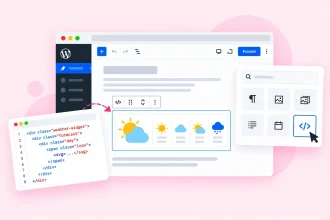
All you have to do is copy the embed code that the widget generates and paste it into a Custom HTML block in your WordPress footer to add a responsive floating button to every page of your site. This lets a visitor halfway down a long page tap the button without having to scroll back to find it.
Here’s how to add a click-to-call button to WordPress:
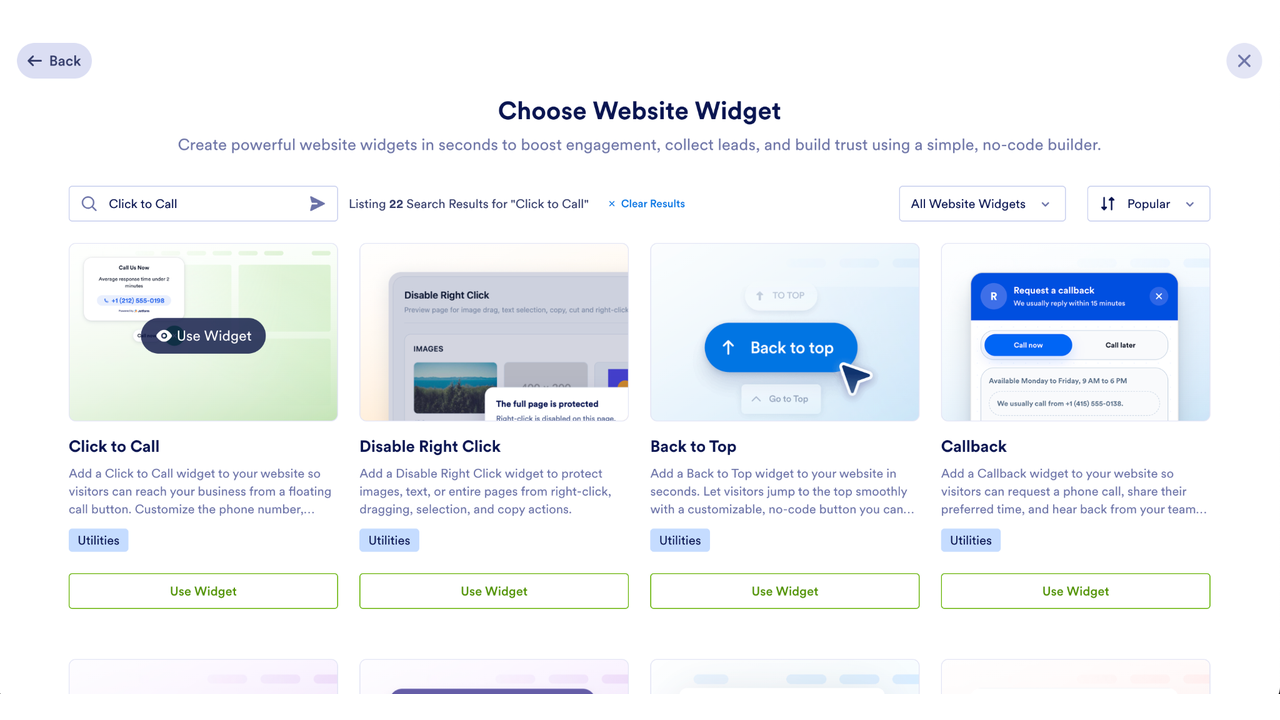
- On your Jotform Workspace page, click Create, select Website Widget, search for “Click to Call,” and then click Use Widget.
- Enter your phone number with the country code, add a label like “Call Us Now” if you want text beside the icon, and then style the button and edit how far it appears from the bottom and side of the screen. You can also show it on mobile only, which prioritizes tap-to-call for the visitors most likely to use it.
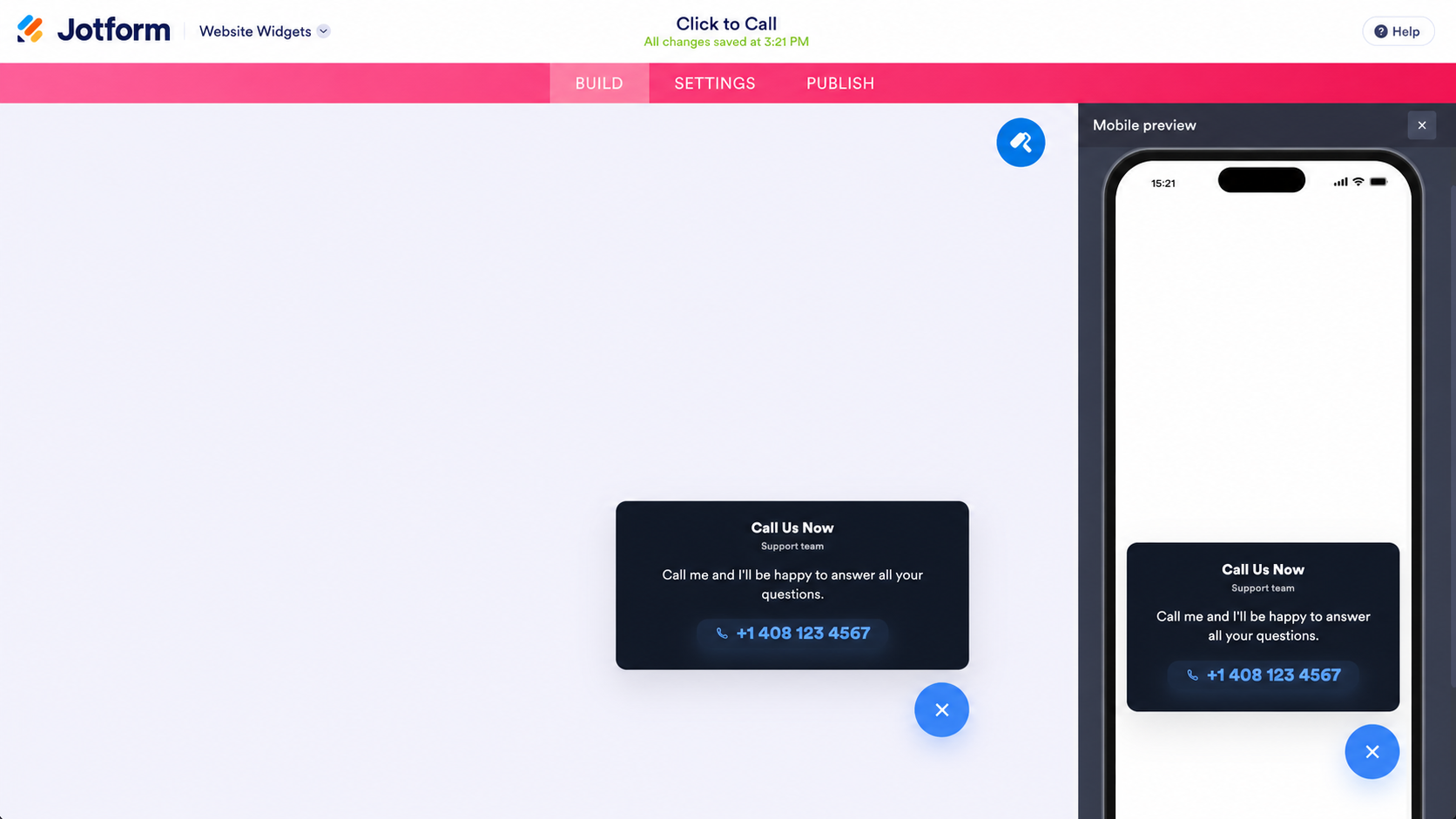
- Click Publish and copy the embed code.
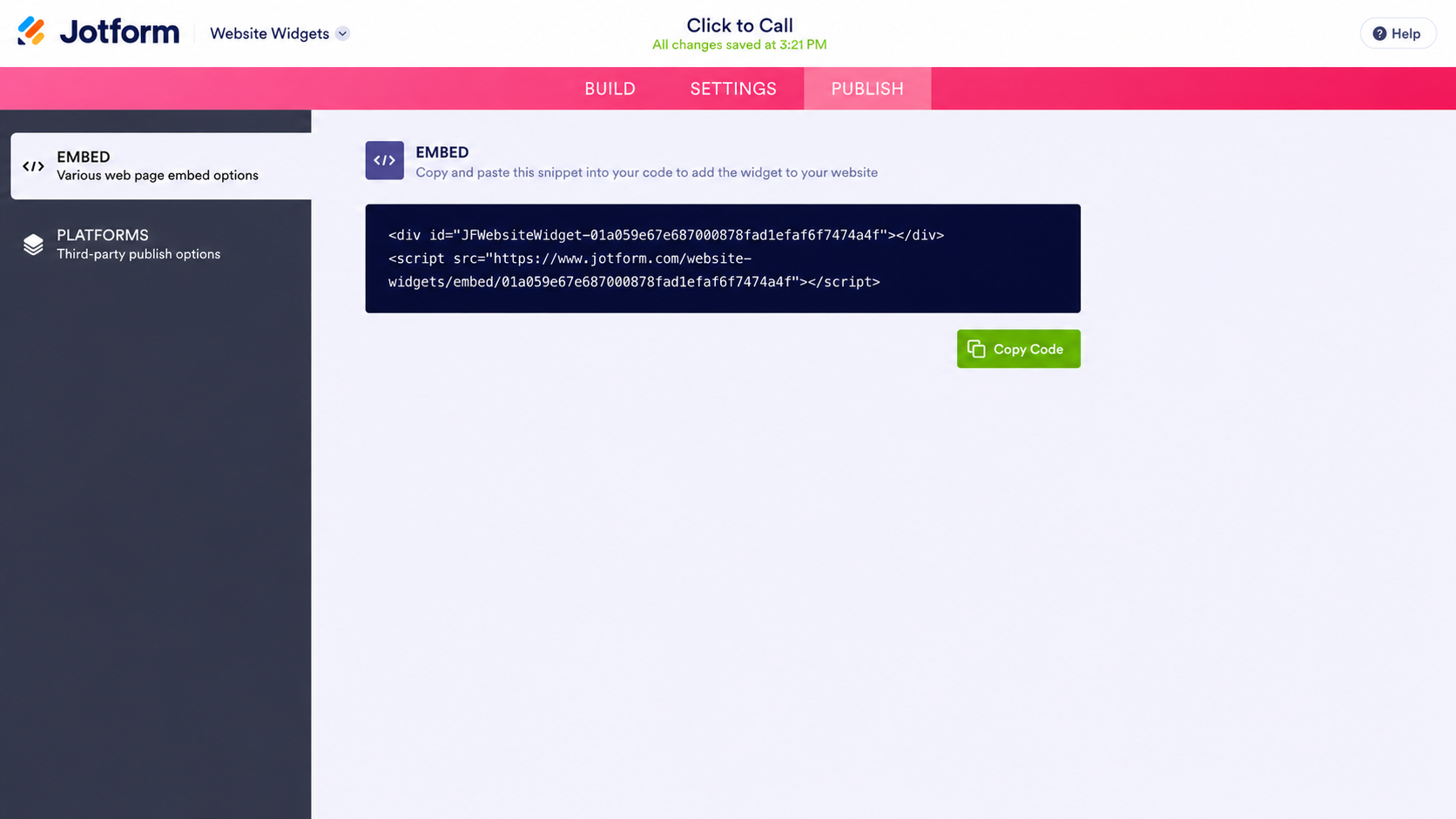
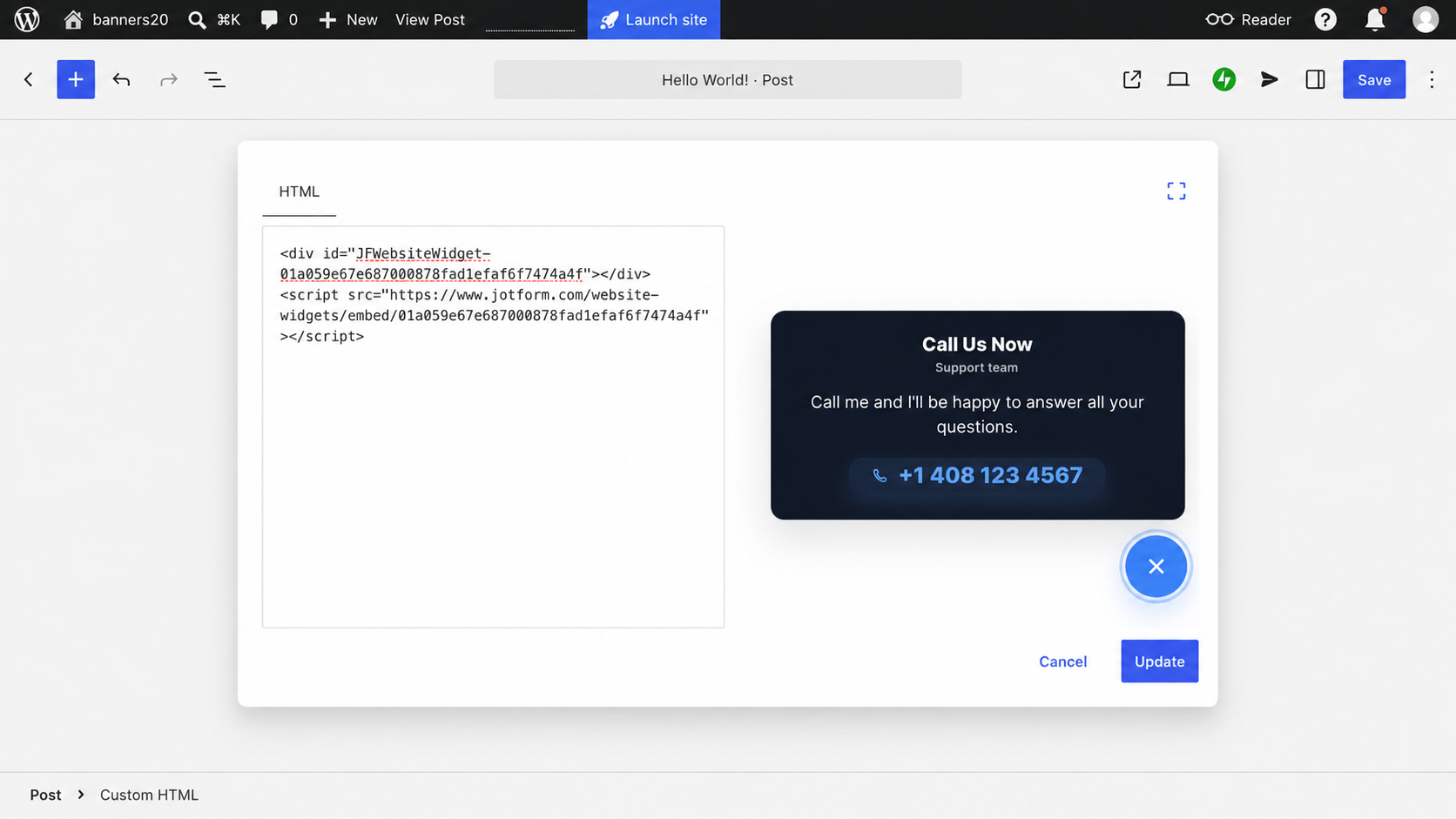
- Head to your WordPress back end. To add the button to one page, open that page in the block editor, click the plus icon where you want the button to appear, select Custom HTML, click Edit HTML, paste the code, and click Update.
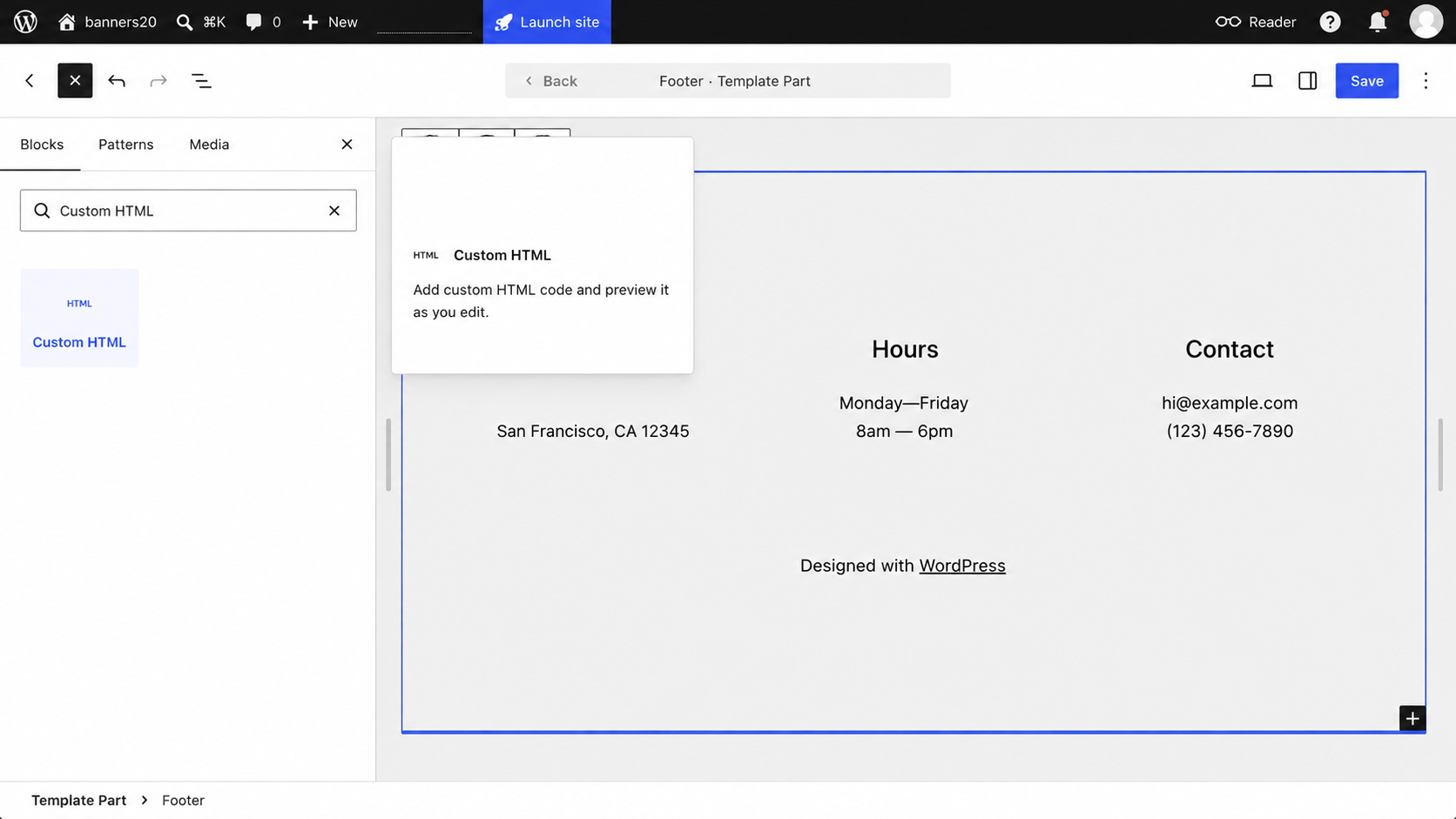
- To add it to every page, leave the editor and go to Appearance in your dashboard sidebar. Select Editor, open your Footer template, add a Custom HTML block, paste the code, and click Update.
This method gives you complete visual control without installing any plug-ins. You set the colors, size, and shape to match your theme, choose where the button appears on the screen, and pick which devices show it — all from the widget builder.
Supercharge your WordPress site with smart, serverless widgets
A call button is one of several features you can add to a WordPress site without a single-use plug-in for each one. Jotform’s free website widgets directory has more than 150 options, including
- A WhatsApp chat button for customers who prefer messaging to calling — suitable for questions that don’t require a conversation
- A countdown timer for a promotion or booking deadline, so visitors know how long they have to act
- A back-to-top button for long service pages, which keeps your navigation within reach on mobile
Each one embeds via a Custom HTML block, just like the call button, so you don’t have to install and update a separate plug-in every time you want more functionality on your site.
As a business owner, you’re better off answering calls than managing plug-ins for one small job. With a free tool like Jotform’s Click-to-Call Widget, you can capture mobile leads at the moment they’re ready to call. Give it a try for free today.
This article is for local business owners, freelancers, and WordPress web design agencies who want to capture mobile leads instantly without installing heavy, site-slowing plugins.
































































































Send Comment: