
According to a 2026 BrightLocal consumer review survey, 41 percent of consumers say they always read reviews when vetting businesses — a 12 percent increase from 2025. As more people look for proof that your business delivers, you might as well put that proof front and center by embedding reviews on your WordPress website.
But how do you do that when WordPress doesn’t have a native Trustpilot reviews integration? You can embed reviews on the website platform via plug-ins, third-party widgets, or the good old manual copy-and-paste. Plug-ins and widgets are popular among users seeking easy solutions, while manual methods work for those who want complete control over what page visitors see.
In this guide, we’ll walk you through how to embed Trustpilot reviews on WordPress using each method.
Use a WordPress plug-in to embed Trustpilot reviews
This is one of the best methods if you’re looking for an easy way to directly add Trustpilot reviews to WordPress sites.
You can use Trustpilot’s integration if you want to go the official route, or a third-party WordPress plug-in if you need features that the official solution doesn’t provide (like advanced customization).
Displaying reviews via Trustpilot’s official integration
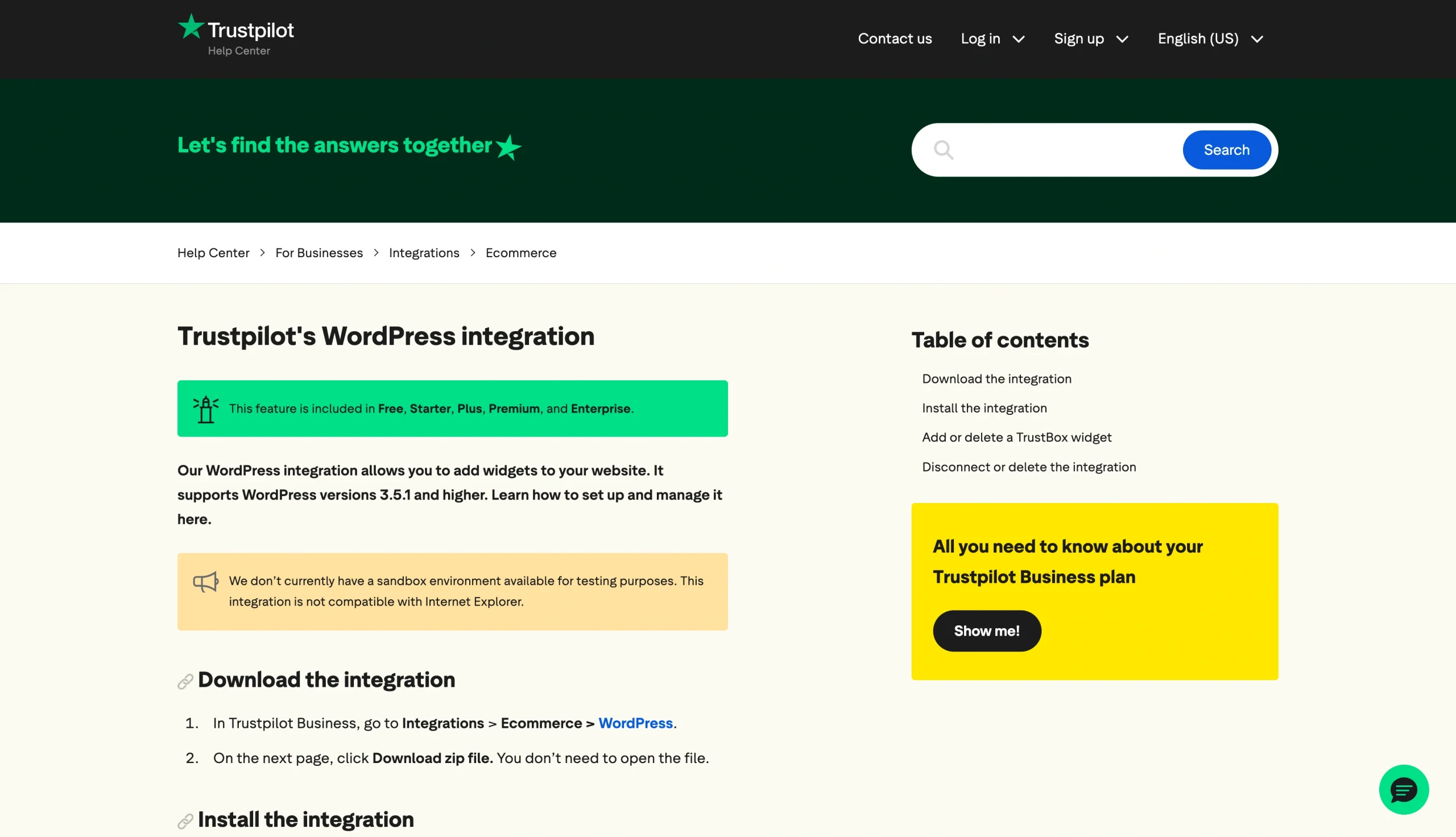
Trustpilot offers a WordPress integration for versions 3.5.1 and higher. The integration is relatively easy to activate. Here’s how to go about it.
Step 1: Download Trustpilot’s WordPress integration
To do this, open your Trustpilot Business account. Then, head to Integrations > Ecommerce > WordPress. Once the page opens, tap Download zip file to save the integration to your device.
Step 2: Install the WordPress Trustpilot reviews plug-in
Log into your WordPress dashboard and follow these steps:
- Go to the admin panel on the left.
- Click Plugins, then Add New.
- Click the Upload Plugin button at the top of the page.
- Click Choose File.
- Select the zip file (WordPress integration) you downloaded to your device — you’ll find this in your Downloads — then click Install Now. This will open a new page, “Installing Plugin from uploaded file: trustpilot.zip.“
- Wait for the installation process to complete. When that’s done, you’ll see “Plugin installed successfully.”
Step 3: Activate the integration
Once you’re done with the installation,
- Click Activate Plugin. You’ll then see the Trustpilot tab on your WordPress admin panel.
- Head to the tab and log into your Trustpilot profile.
- Read the legal terms and check the I understand and accept box.
- Click Confirm.
Step 4: Add a TrustBox widget
To display Trustpilot reviews on WordPress, you’ll need to add a TrustBox widget. To create one, go to the Trustpilot tab on your WordPress admin panel.
Under TrustBox, you’ll see a list of available options, including Mini, Horizontal, and Micro Button. Choose your preferred Trustpilot reviews WordPress widget, then drag and drop it onto the live preview of the page where you want it to appear.
Step 5: Customize your TrustBox
The WordPress Trustpilot reviews plug-in offers quite a few customization options — you can choose where your widget appears on a page, as well as tailor its size and language to meet your needs.
To customize your widget, hover over its preview (when still on the TrustBox tab) and click Customize. The TrustBox settings column will appear, letting you tailor your widget. Once you’re done, click Publish changes for your reviews to go live.
Integrating reviews through a third-party WordPress plug-in

WordPress and Trustpilot allow website owners to use third-party solutions, such as Better Business Reviews and Smash Balloon, to display reviews. Here’s how to set up the Better Business Reviews Trustpilot-WordPress Plugin to give you an idea of how to use third-party solutions:
- Open your WordPress admin and go to Plugins.
- Click Add new.
- Enter “Better Business Reviews” in the search box and press Enter.
- Click Install.
- Click Activate Plugin.
Why this method works
The WordPress Trustpilot reviews plug-in route is one of the most common among website owners. Here’s why:
- Easy setup process: You don’t need to write any code to set up the WordPress integration. As long as you know how to use WordPress and activate plug-ins, you’re good to go.
- Automatic review updates: The plug-in automatically pulls in the latest customer reviews. You get to display fresh feedback without manually updating it.
- Customization options: You can customize your widget’s size, language, and style to match your site’s features.
- Flexibility: The plug-in works on any WordPress page. You can add your TrustBox widget to your homepage, checkout, product pages, or any other desired landing page.
While plug-ins are convenient and easy to use, they come with challenges such as
- Feature limits: Depending on your chosen plug-in, you might need to upgrade to paid plans to unlock features such as unlimited reviews, advanced customization, and automatic syncing.
- Limited control over reviews: Plug-ins automatically pull and display reviews, so you have little to no control over the feedback shown on your site.
- Plug-in maintenance: Plug-in developers need to regularly maintain their solutions. If they don’t, you might run into compatibility issues when WordPress updates its system.
- Extra setup: Some third-party tools might require additional setup. With Smash Balloon, for example, you need to first create a Trustpilot Review Feed on the provider’s dashboard before connecting your Trustpilot page.
Manually add Trustpilot reviews to your WordPress website
This method involves copying reviews and pasting them on your WordPress site. It gives you complete control over what site visitors see, but it’s more hands-on than using plug-ins and widgets.
There are two ways to manually add reviews to your site: create a dedicated review page or add feedback to existing pages. Here’s how to go about both.
Adding reviews to a dedicated testimonials page
- Go to your site’s dashboard.
- Click Pages on the left sidebar.
- Click the Add new page button and give your page a title. You could name it “Customer Reviews,” “Testimonials,” or “What Our Customers Say.”
- Click Create draft.
- Go to your Trustpilot Business profile and select the reviews you want to add to your site. Copy them or take screenshots.
- Go back to the draft in your WordPress site and click the + block inserter icon to start adding your chosen reviews.
- Click Publish when you’re done.
Adding reviews to existing pages
If you prefer to have your reviews on existing pages, such as your homepage or a product page, follow these steps instead:
- In Trustpilot, copy or screenshot the reviews you want to display on your site.
- In WordPress, go to Pages > All Pages.
- Select the Page you want to add reviews to and click Edit.
- Add the reviews.
- Click Publish.
Why this method works
Some WordPress users prefer this manual approach because it
- Provides complete control over what site visitors see: You can choose to highlight standout reviews and skip the negative ones.
- Reduces plug-in dependence: Going manual keeps your WordPress setup leaner.
- Offers design flexibility: You can align reviews with your page fonts, colors, and overall styles.
However, this method also poses challenges such as
- Reputational risk: If you only display positive feedback, you might come across as untrustworthy if page visitors find negative reviews on Trustpilot.
- Time-consuming maintenance: Unlike widgets or plug-ins, manual reviews are static — you have to update them yourself if you want page visitors to see new feedback.
Get more from WordPress without adding another plug-in
Adding Trustpilot reviews to your site can enhance customer confidence in your brand. It can also help you get on the first page of Google by boosting your credibility.
Of course, how you embed Trustpilot reviews on your WordPress website matters. To win audiences’ and search engines’ trust, your site needs to feature authentic, fresh reviews.
Jotform offers a wide range of widgets, including eBay Reviews, Tripadvisor Reviews, and Etsy Reviews. Explore Jotform’s free Website Widgets to quickly add social proof to your WordPress website.
This article is for WordPress website owners, ecommerce managers, marketers, and small business teams who want to showcase Trustpilot reviews on their sites to build credibility, increase customer trust, and strengthen social proof without complex development work.



































































































Send Comment: