
A visitor counter isn’t simply window dressing. It works as social proof, the idea that people look at what others are doing to decide what to do themselves. A counter with solid numbers tells new visitors your site is active and others find it worth their time, which can make them more likely to spend time there.
A counter can also create a sense of belonging. Browsing is mostly a solitary activity, and seeing that others have been on your site makes a visitor feel like part of a group. The reverse is also true: On a low-traffic site, a small number can make the site feel abandoned, so check your traffic data before adding one.
WordPress doesn’t include a visitor count block in its core editor, but there are three ways to add one:
This guide covers all three, along with the pros and cons of each.
Option 1: Install a WordPress visitor counter plug-in
If you’re like most WordPress users, your first instinct is to head to the Plugin Directory and search for a tool such as WP Visitor Statistics or Post Views Counter. That’s a reasonable place to start. Like many of the best WordPress plug-ins, they don’t require any code, and you can set everything up without leaving your dashboard.
However, this approach comes with a couple of drawbacks:
- The tracking happens on your own site: Every view gets recorded in your WordPress database. A small blog won’t feel the difference, but a busy site or a budget hosting plan might. It’s also one more plug-in you’ll need to keep updated and secure.
- The free versions can be limiting: For example, Post Views Counter’s free version shows a view count on each post, but if you want a sitewide total, you’ll need to upgrade to Pro. WP Visitor Statistics reserves its front-end counter, widgets, and shortcodes for Pro users.
If a plug-in still sounds like the right fit, here’s how to set up a plug-in like Post Views Counter.
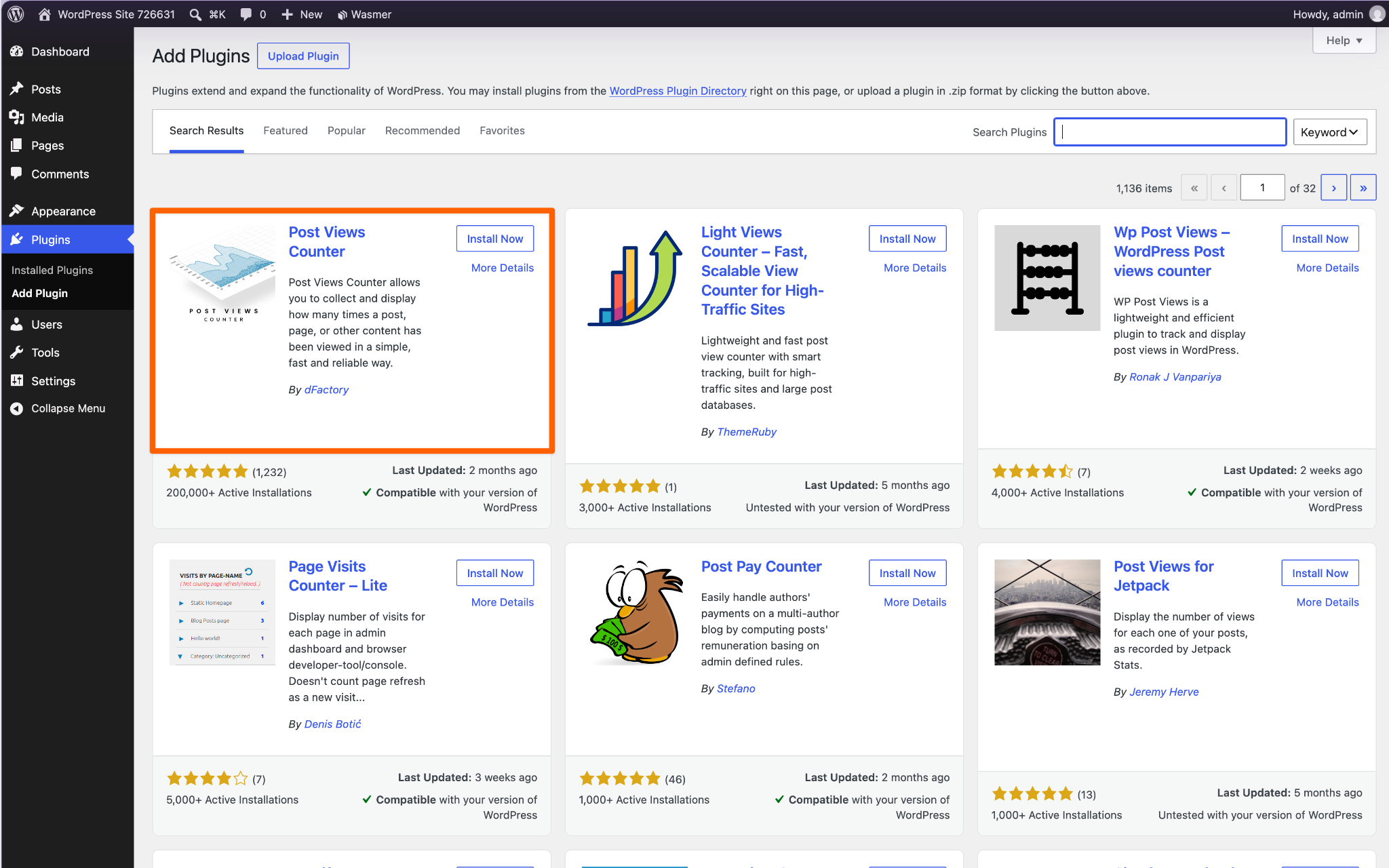
Step 1: Install and activate the plug-in. In your WordPress dashboard, go to Plugins > Add New Plugin. Search for “Post Views Counter,” then click Install Now and Activate.
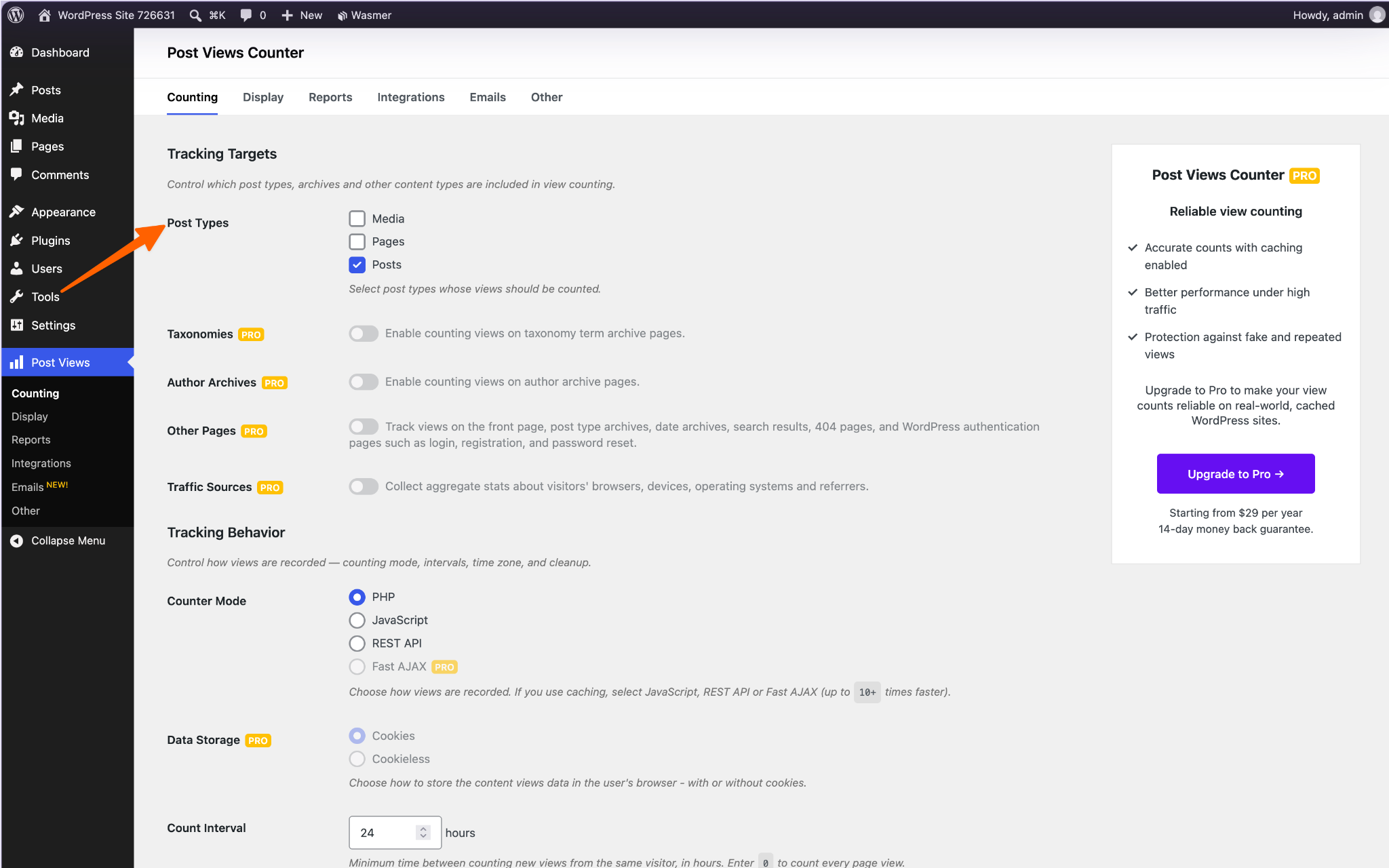
Step 2: Choose what to count. Open the Post Views Counter settings and select the content you want to track, such as posts and pages. Exclude bots and logged-in users so your own visits don’t inflate the numbers.
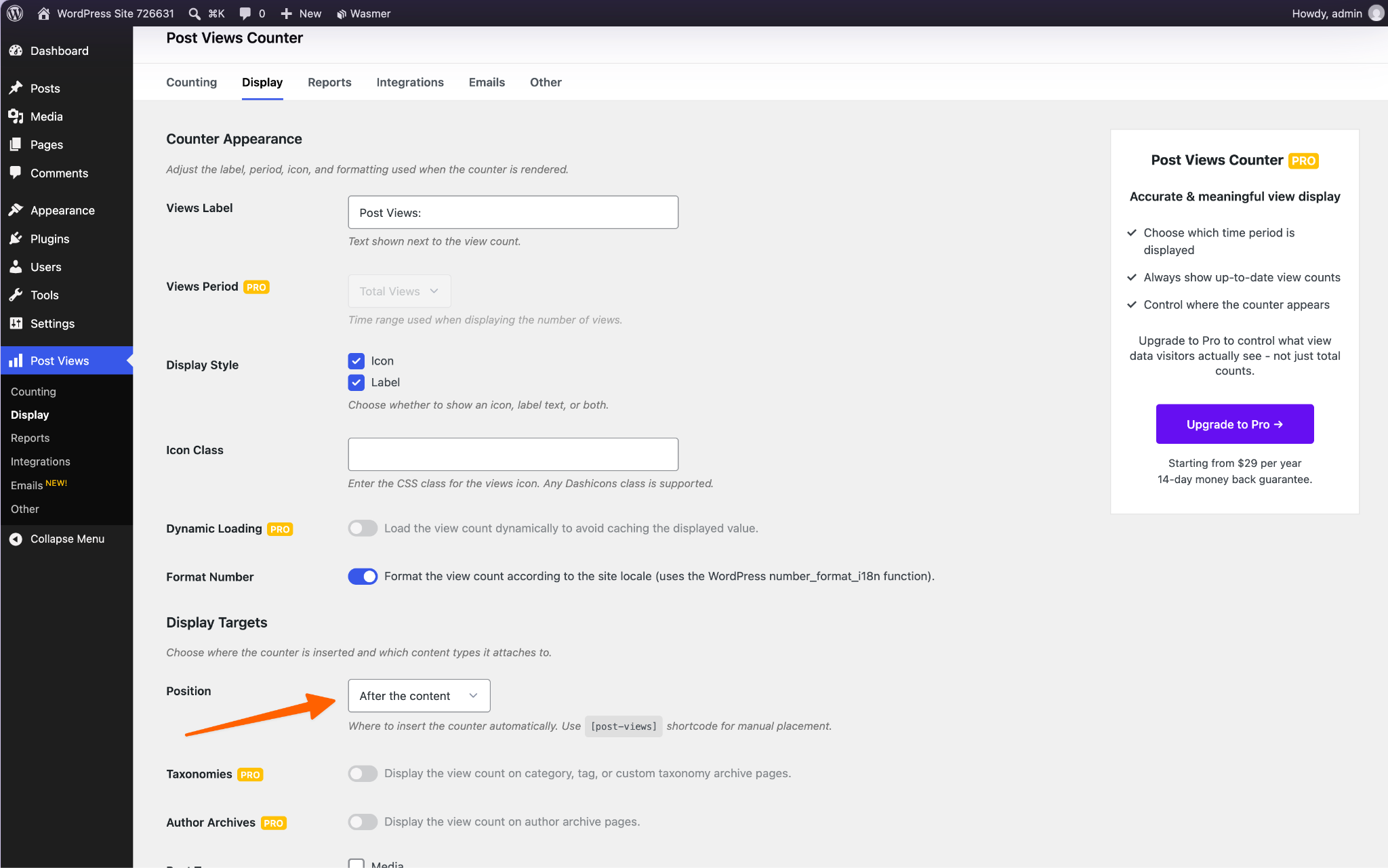
Step 3: Display the counter. In the display settings, choose whether the count appears before or after your content. To place it yourself, add the Post Views block or the [post-views] shortcode where you want it.
Option 2: Use a free visitor counter widget (recommended)
If keeping your WordPress database clean matters to you, a third-party HTML embed is the better route. Instead of installing anything, you paste a small piece of code into your page, and the counting happens somewhere else. The free Jotform Visitor Counter Widget works this way, and it addresses both trade-offs from Option 1:
- Jotform’s servers handle the tracking. Views are recorded outside your site, so the counter adds nothing to your WordPress database, and no extra plug-in needs updating.
- You get more for free. You can show page views or unique visitors for today, this week, this month, or all time. You can also pick from four layouts: Cards, Inline, Mini, and Vertical.
Here’s how to add it to your site.
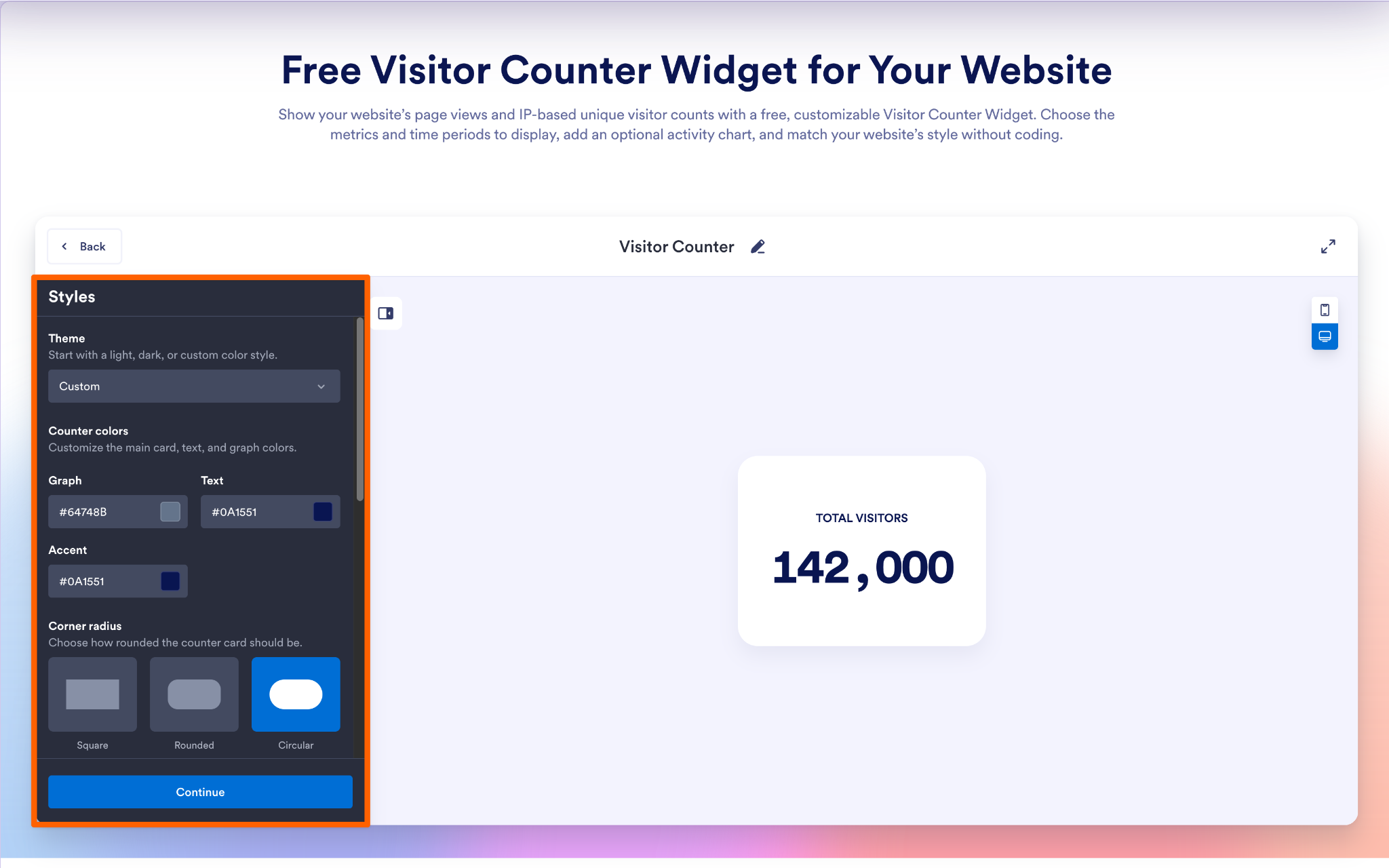
Step 1: Choose your metrics. Open the Visitor Counter Widget page and add the counters you want to display. For each one, pick a time period, choose between page views and unique visitors, and give it a title.
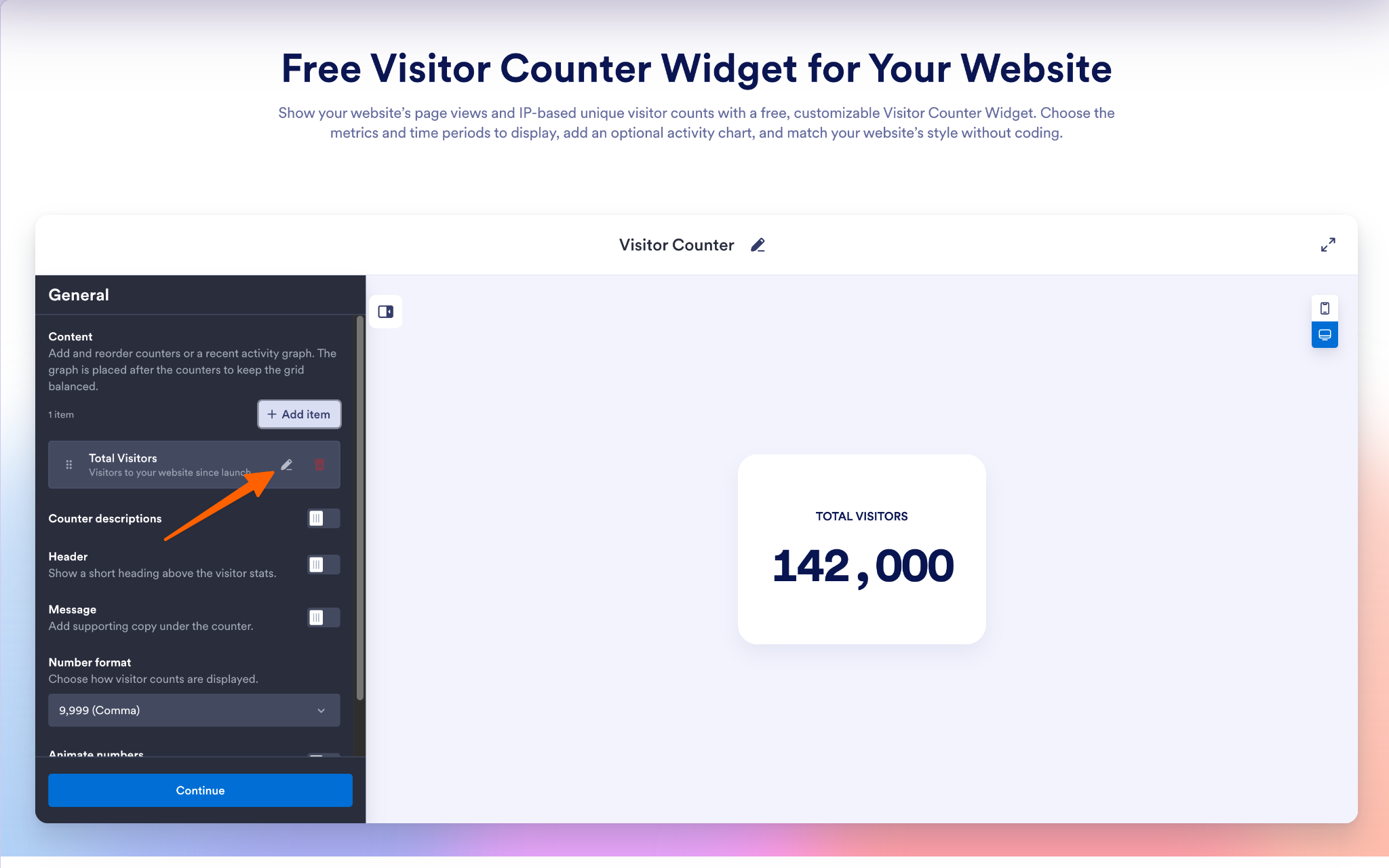
Step 2: Customize your counter. Choose a layout, then adjust the colors, spacing, and number formatting to match your site. If you’re switching from another counter, you can set a starting value so your all-time page views don’t restart at zero.
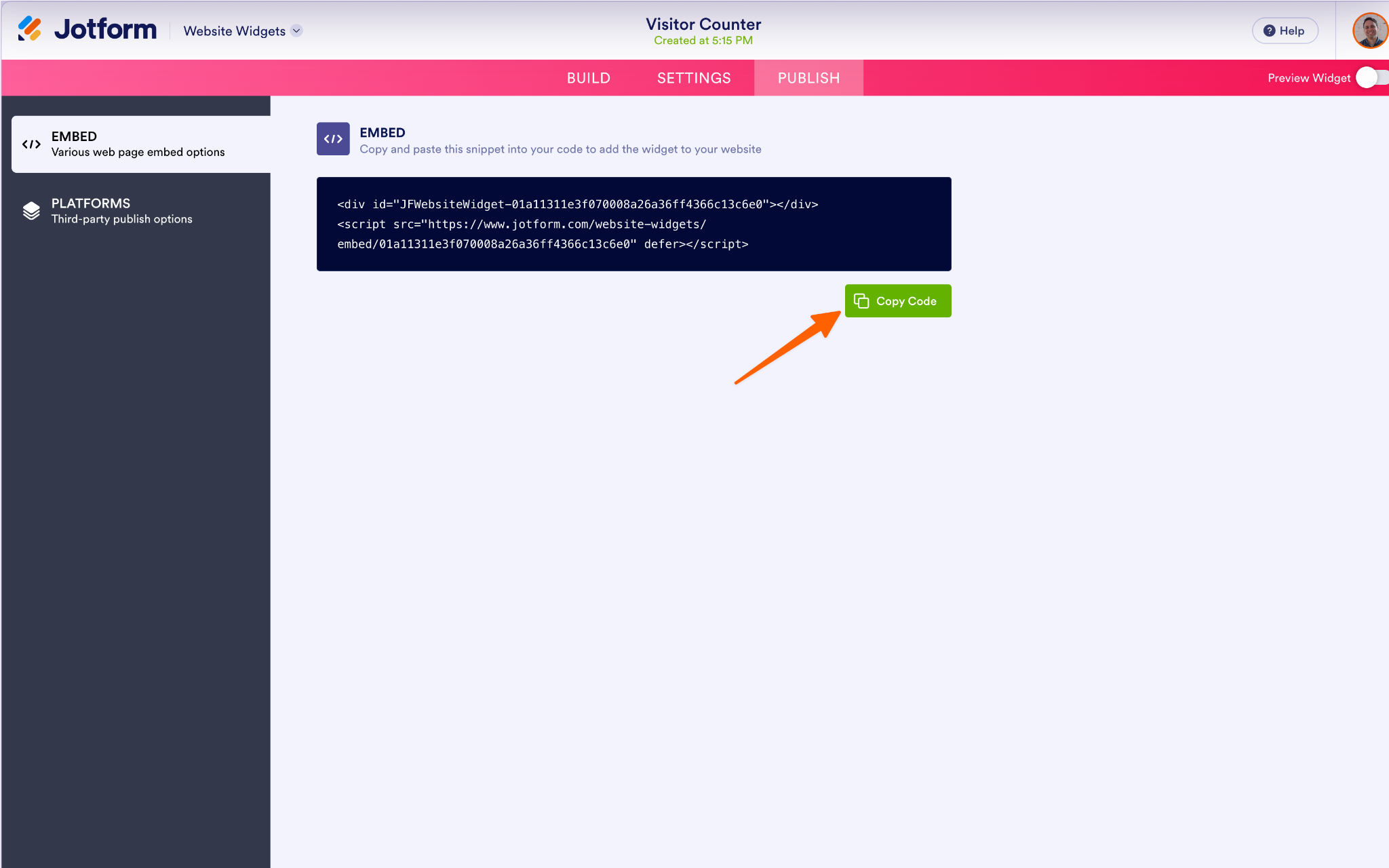
Step 3: Embed it in WordPress. Click Try It on Your Website for Free and copy the embed code. In WordPress, open the page or post where you want the counter, add a Custom HTML block, and paste the code in. Click Update or Publish, then view the page to check your counter. If the block editor is new to you, our guide on how to use WordPress covers the basics.
Keep in mind that unique visitors are estimated from IP addresses, so treat that number as a close approximation, not an exact head count.
Option 3: Code a custom PHP view counter
If you’re a developer, or you’d rather not depend on a plug-in or an outside service, you can build a view counter into your theme yourself. You’ll add a short PHP script to your child theme’s functions.php file. Each time a post loads, the script adds one to a number stored with that post as a custom field, also called post meta.
Before you start, take two precautions:
- Work in a child theme: If you edit the parent theme’s file, the next theme update will wipe out your code.
- Back up your site: That way, you can restore it quickly if something goes wrong.
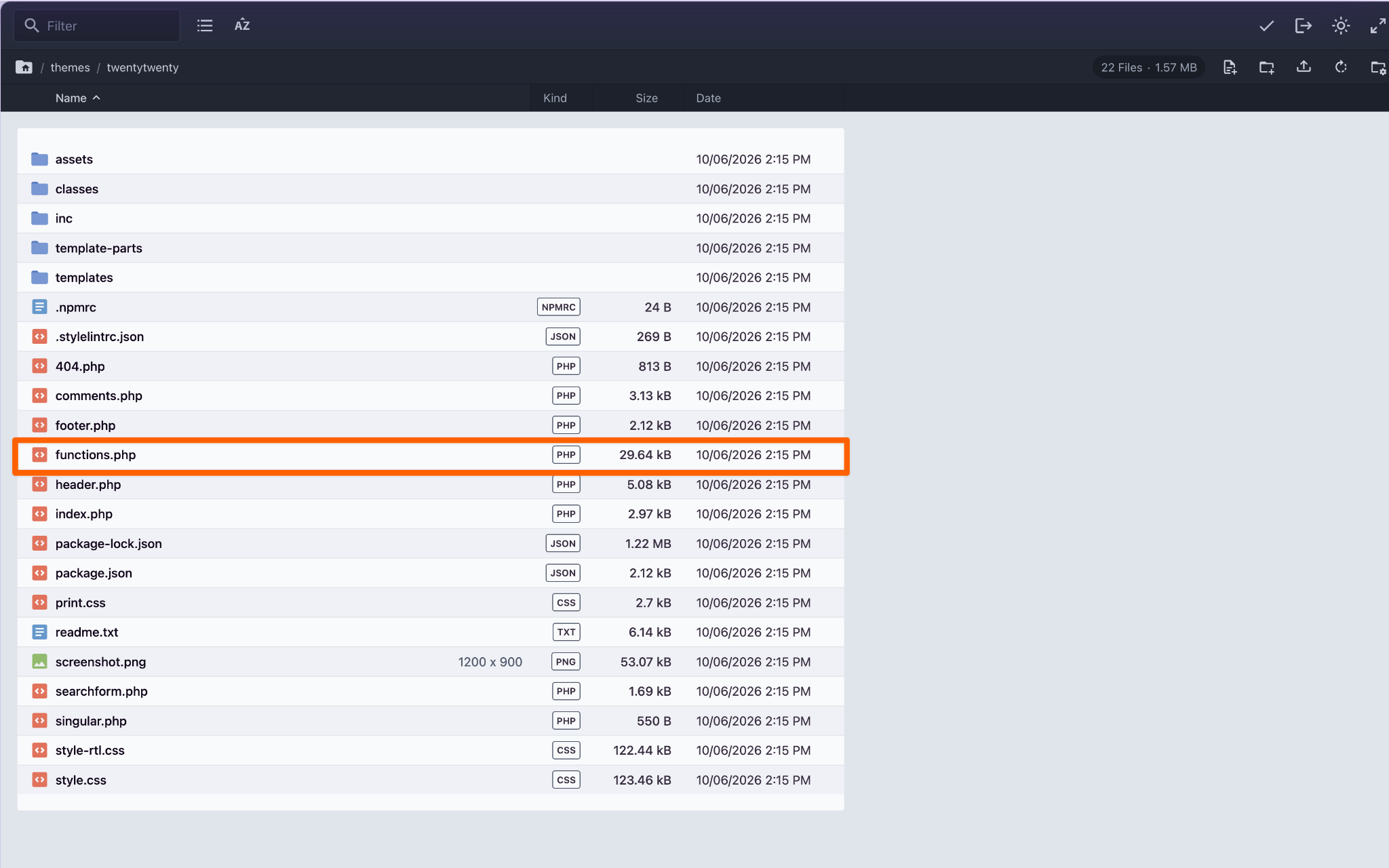
Step 1: Open your child theme’s functions.php file. Use your host’s file manager or an FTP client, not the WordPress dashboard. If a mistake locks you out of the dashboard, you’ll still be able to reach the file.
Step 2: Add the tracking code. Paste this at the bottom of the file. It counts views on single posts and pages, and it skips logged-in users so your own visits don’t inflate the numbers.
function my_track_post_views() {
	if ( ! is_singular() || is_user_logged_in() ) {
		return;
	}
	$post_id = get_queried_object_id();
	$views   = (int) get_post_meta( $post_id, 'my_view_count', true );
	update_post_meta( $post_id, 'my_view_count', $views + 1 );
}
add_action( 'wp_head', 'my_track_post_views' );
Step 3: Display the count. Add this second snippet after the first one. It creates a shortcode, so you can type [view_count] into a shortcode block on any post or page.
function my_view_count_shortcode() {
	$views = (int) get_post_meta( get_the_ID(), 'my_view_count', true );
	return '<p class="view-count">' . esc_html( number_format_i18n( $views ) ) . ' views</p>';
}
add_shortcode( 'view_count', 'my_view_count_shortcode' );
This approach avoids third-party tools, but it comes with trade-offs of its own:
- The load is still on your server: Every view writes to your WordPress database, just like the plug-ins in Option 1.
- One mistake can break your site: A missing semicolon or bracket in functions.php can trigger a critical PHP error and take your site offline until you fix the file.
- Caching can skew the numbers: If you use a page caching plug-in, cached pages skip this code, so some views never get counted.
Enhance your WordPress site with smart, no-code widgets
A visitor counter is a small addition, but how you add it matters. Every plug-in you install adds code your site must load, update, and secure, so it pays to be selective. An embedded tool like the Jotform Visitor Counter Widget gives you the social proof without adding to your database.
The same goes for other features you might be tempted to add with a plug-in. Jotform offers more than 150 free website widgets that embed the same way. For example:
- Google Reviews: Shows customer feedback alongside your visitor count to build even more trust.
- Back to Top: Lets readers jump to the top of a long post with one click.
- FAQ: Allows you to answer common questions in a searchable accordion.
Of course, sometimes a plug-in is the right tool, such as when you’re embedding WordPress forms. In those cases, just choose one that earns its place.
Browsing the web is mostly a solitary activity, but a visitor counter tells every new arrival they’re in good company. If your traffic numbers are ready to show off, try the free Jotform Visitor Counter Widget and give your site the social proof it’s earned.
This article is for bloggers, portfolio creators, community sites, and small businesses using WordPress who want to display social proof and activity through a visitor count without slowing down their site’s backend.





































































































Send Comment: