
If you own a website, you’ve probably heard more about web accessibility in the past couple of years than you did before. There are serious reasons why it keeps coming up.
Making your website usable for people with disabilities is first an ethical matter — to allow people relying on screen readers, keyboard navigation, or captions to access and use your content. But it’s also increasingly a legal issue: A growing number of U.S. courts have treated the websites of businesses that serve the public as places of public accommodation under the Americans with Disabilities Act (ADA). Those sites are measured against the Web Content Accessibility Guidelines (WCAG), the technical standard that defines what an accessible website looks like.
If you’re like most non-technical WordPress website owners, your first step toward making a website accessible might be installing an accessibility plug-in that adds adjustable fonts, skip links, dark modes, and clear navigation. But not all WordPress accessibility plug-ins are worth your time. Like all plug-ins, they can clash with visual page builders, add scripts and stylesheets that slow down your pages, require constant upkeep, and become a security risk once outdated. That’s why lightweight, cloud-hosted options that don’t require plug-in installation or maintenance are gaining ground.
That said, plug-ins are still the default step for WordPress website owners. And with hundreds of options in the WordPress Plugin Directory, choosing the right one can be challenging. To make things easier, I tested the most popular WordPress accessibility plug-ins and narrowed them down to the five best options. Below, I’ll walk you through what each one does well and where it falls short. Then I’ll show you how the Jotform Accessibility Widget offers a lightweight alternative if skipping traditional plug-ins makes the most sense for you.
Pro Tip
Still getting comfortable with WordPress? Our guide on how to use WordPress walks through themes, plug-ins, hosting, and setup from scratch.
The 5 best accessibility plug-ins for WordPress in 2026
| Tool | Best for | Key features | Setup complexity | Plans/pricing |
|---|---|---|---|---|
 Equalize Digital Accessibility Checker |
Finding and fixing accessibility issues in the WordPress editor |
Real-time WCAG scans, automated code-level fixes, accessibility statement generator |
Low |
Free and paid |
 Accessibility Tool Kit by WebYes |
Website scanning, code-level fixes, and visitor toolbar in one free plug-in |
Page checker, automatic code fixes as pages load, optional frontend toolbar, statement generator |
Low to moderate |
Free and paid |
 AccessiYes by CookieYes |
Free visitor toolbar and multilingual sites |
Frontend overlay for text, contrast, spacing, and motion; dyslexia-friendly font; preset accessibility profiles |
Low |
Free |
 Accessibility Widget by OneTap |
Granular customization controls |
Enable/disable control modules, per-device launcher styling, over 40 languages |
Low |
Free and paid |
 WP Accessibility (Joe Dolson) |
Fixing theme-level and skip-link issues |
Skip links, theme/core fixes; diagnostic CSS; alt text enforcement |
Low to moderate |
Free |
1. Equalize Digital Accessibility Checker
Best for: Finding and fixing accessibility issues in the WordPress editor
The first on my list is Equalize Digital, an accessibility checker and enhancer. It scans your WordPress website and gives you an analysis of your accessibility status, including
- What you’re doing right
- What’s wrong
- What needs fixing
Then it applies code-level fixes to language, text attributes, viewport behavior, and more with one click to enhance your site’s accessibility level.
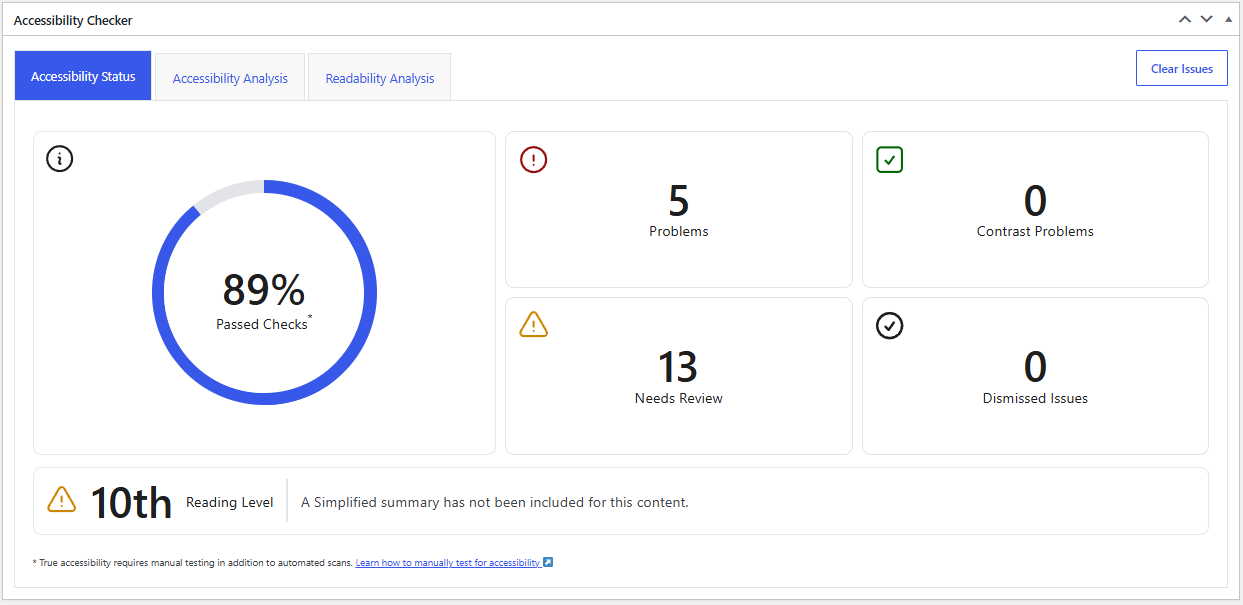
After installing the WordPress plug-in, setup was straightforward. Inside the Accessibility Analysis tab, each accessibility barrier appears as a heading with a dropdown on the right. Clicking the dropdown opens details about the affected image, form label, or heading that needs to be made accessible.
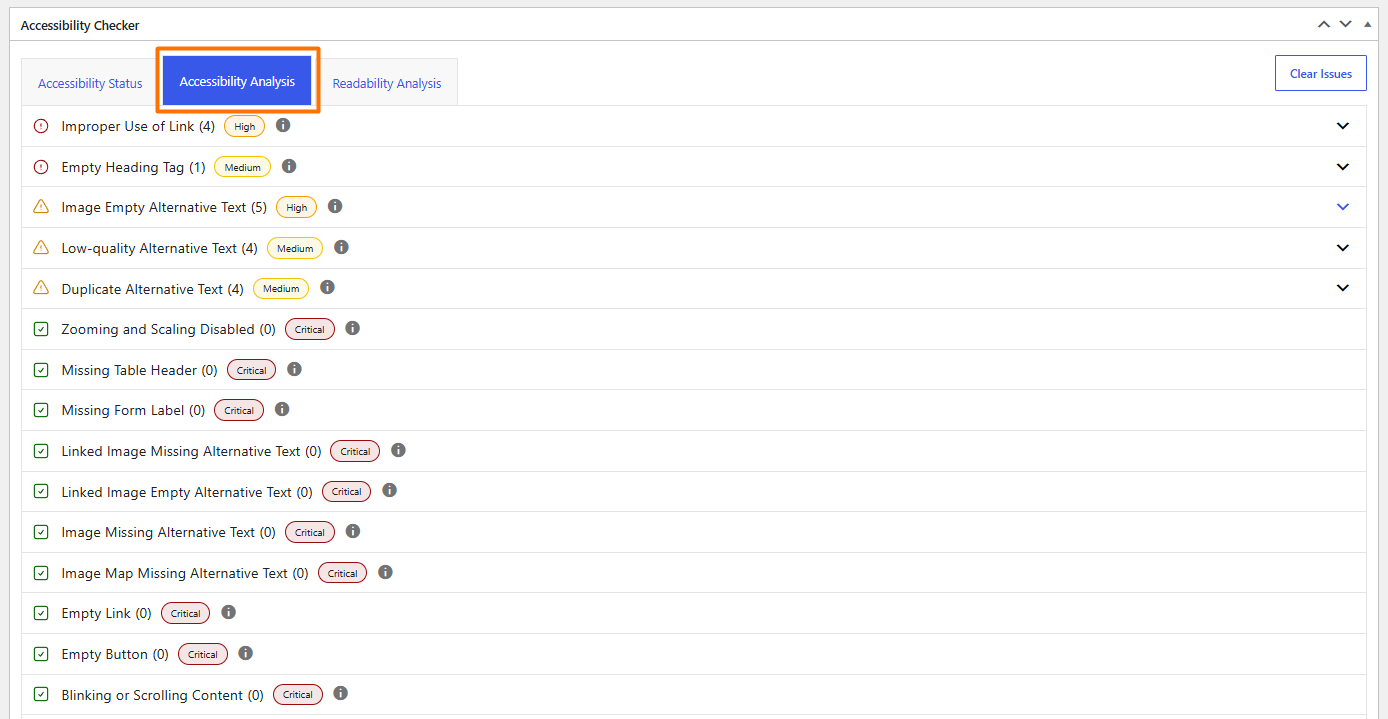
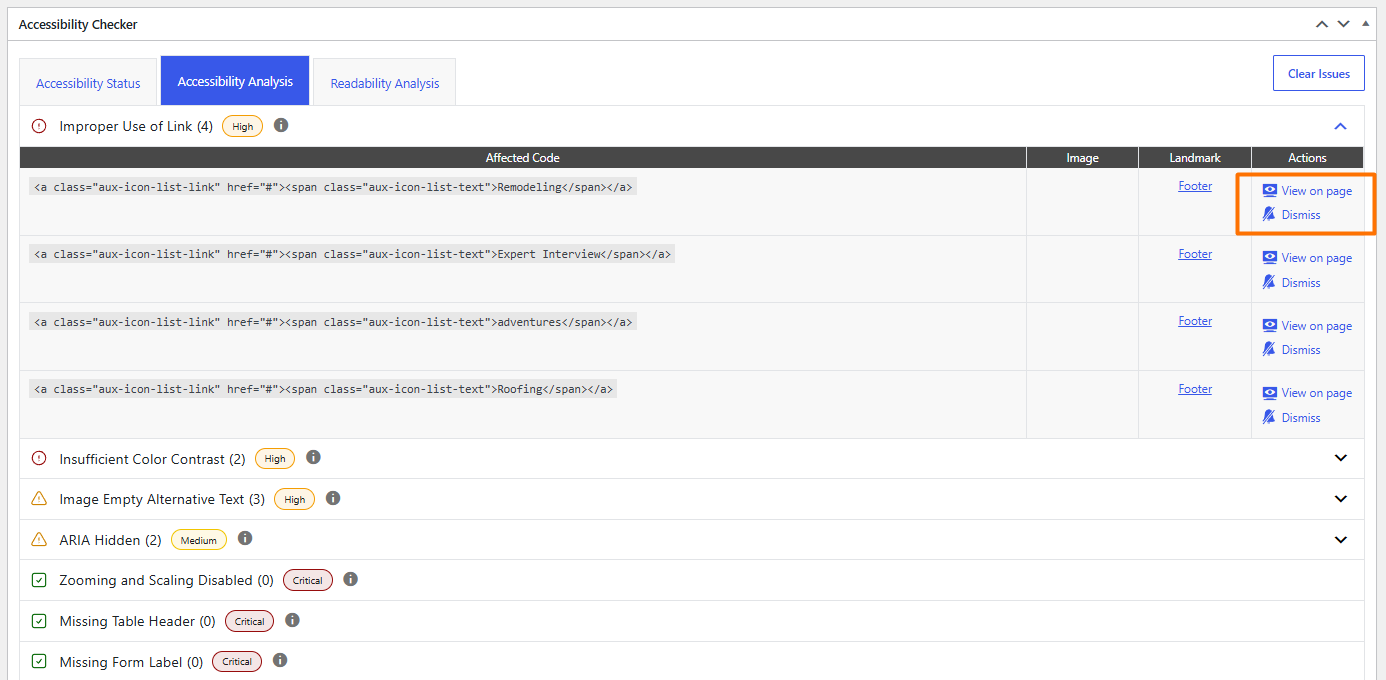
The Landmark option pointed me to where the error appears live on a page. And from the Actions tab, I could click to fix or dismiss it. Each problem also includes an information link directly to documentation on Equalize Digital’s website to help you fully understand the issue and make an informed decision about how to correct it.
When logged into your site as an admin, you’ll see indicator arrows on each webpage that point out accessibility issues, along with a button in the bottom-right corner that lets you fix issues directly on a page without going into the WordPress admin area.
It’s worth mentioning that not all errors detected by the accessibility scanner can be fixed automatically by the plug-in. Some require nuance, and you may need to go directly into the code — for instance, to fix an empty href in a link tag. And because the Equalize Digital plug-in doesn’t offer an overlay or toolbar, visitors can’t customize the public-facing view of your website.
The tool is available for free, with no limits on the number of pages and posts you can scan. The paid versions give you access to bulk scanning and full site reports.
Key features:
- Issues are reviewed against current WCAG A, AA, and AAA criteria
- Accessibility statement generator
- Help articles and instructions to guide remediation of accessibility issues
- Automated fixes for common accessibility issues
Limitations:
- Page-by-page scanning is allowed on the free plan, but site-wide scanning requires a paid subscription
Pricing: Equalize Digital is free to use with limited functionality; paid plans give you access to more automated fixes, WooCommerce, and other advanced features, with pricing starting at
- Professional: $190 per year
- Small business: $750 per year
- Agency: $2,250 per year
2. Accessibility Tool Kit by WebYes
Best for: Website scanning, code-level fixes, and a visitor toolbar in one free plug-in
Even with relatively few active installs — just over 1,000 — Accessibility Tool Kit by WebYes is one of the best tools for improving your WordPress website’s compliance with WCAG and Section 508. The toolkit scans your website to find accessibility issues, fixes common issues at the code level, and enhances usability for end users with a floating toolbar.
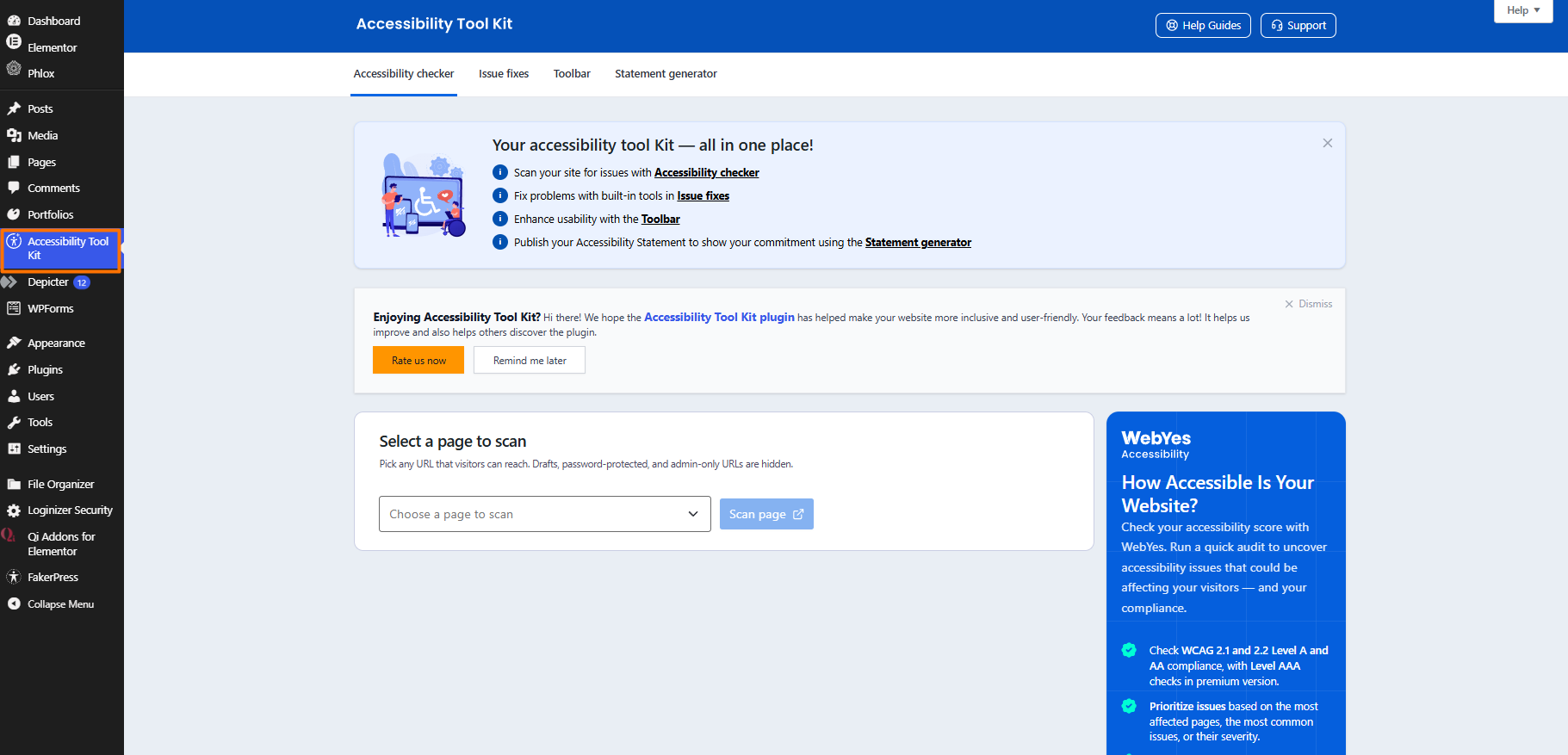
Once installed and activated, an accessibility toolkit menu appears in your WordPress admin dashboard. You can start scanning individual pages by choosing the page and clicking “Scan page.”
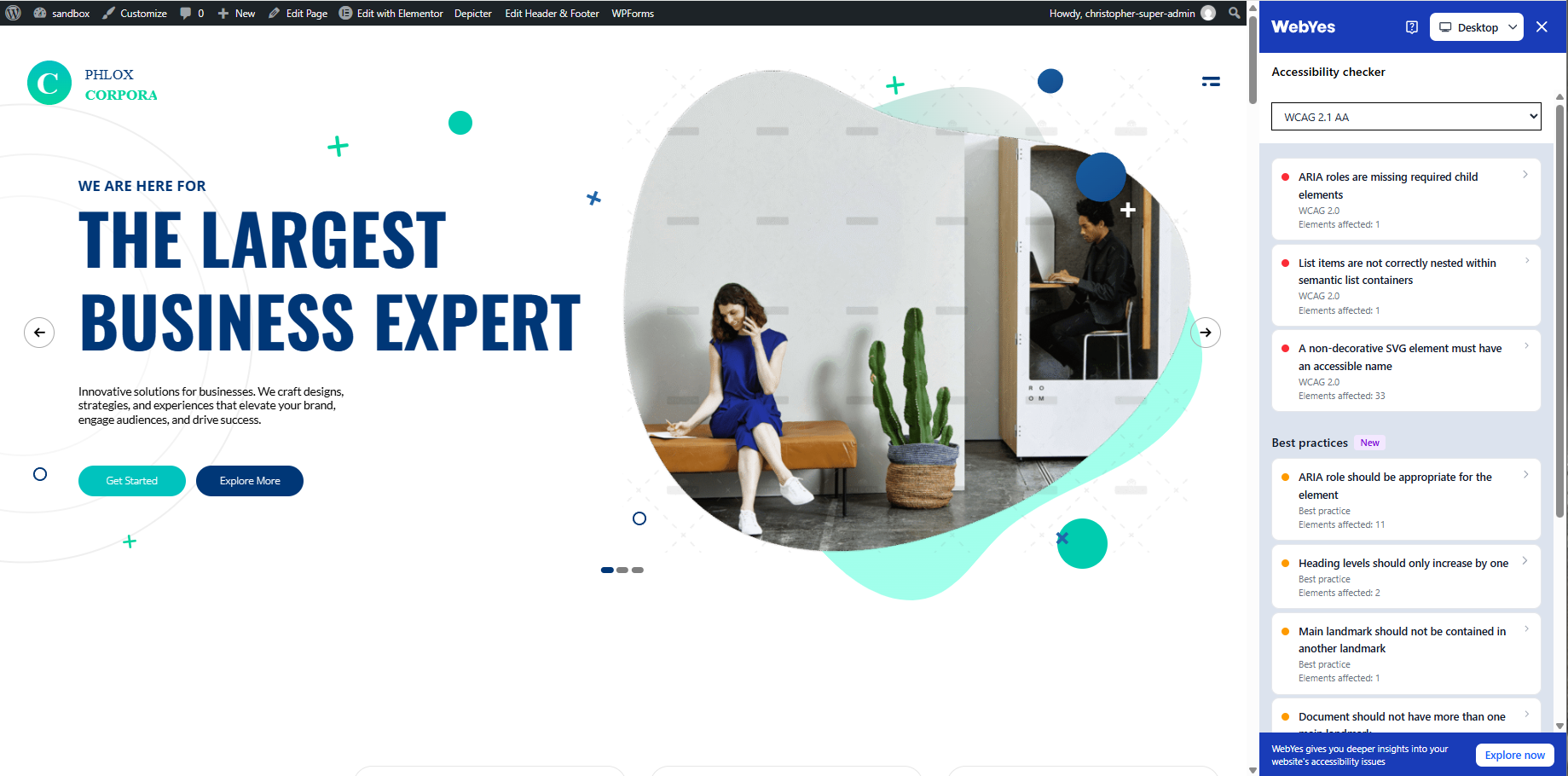
When you select a page, a new window opens with a sidebar panel that shows all the accessibility issues detected and suggested best practices for fixing them. The fixes align with WCAG 2.1 AA-level requirements, and you can see and fix issues for both desktop and mobile devices.
The plug-in also lets you overlay an accessibility toolbar and give users more control over how they view and interact with your website. When you enable the toolbar, you can choose which widgets to include, such as a font resize button, a contrast button, and grayscale mode. You can also choose the toolbar placement and hide it on smaller screens.
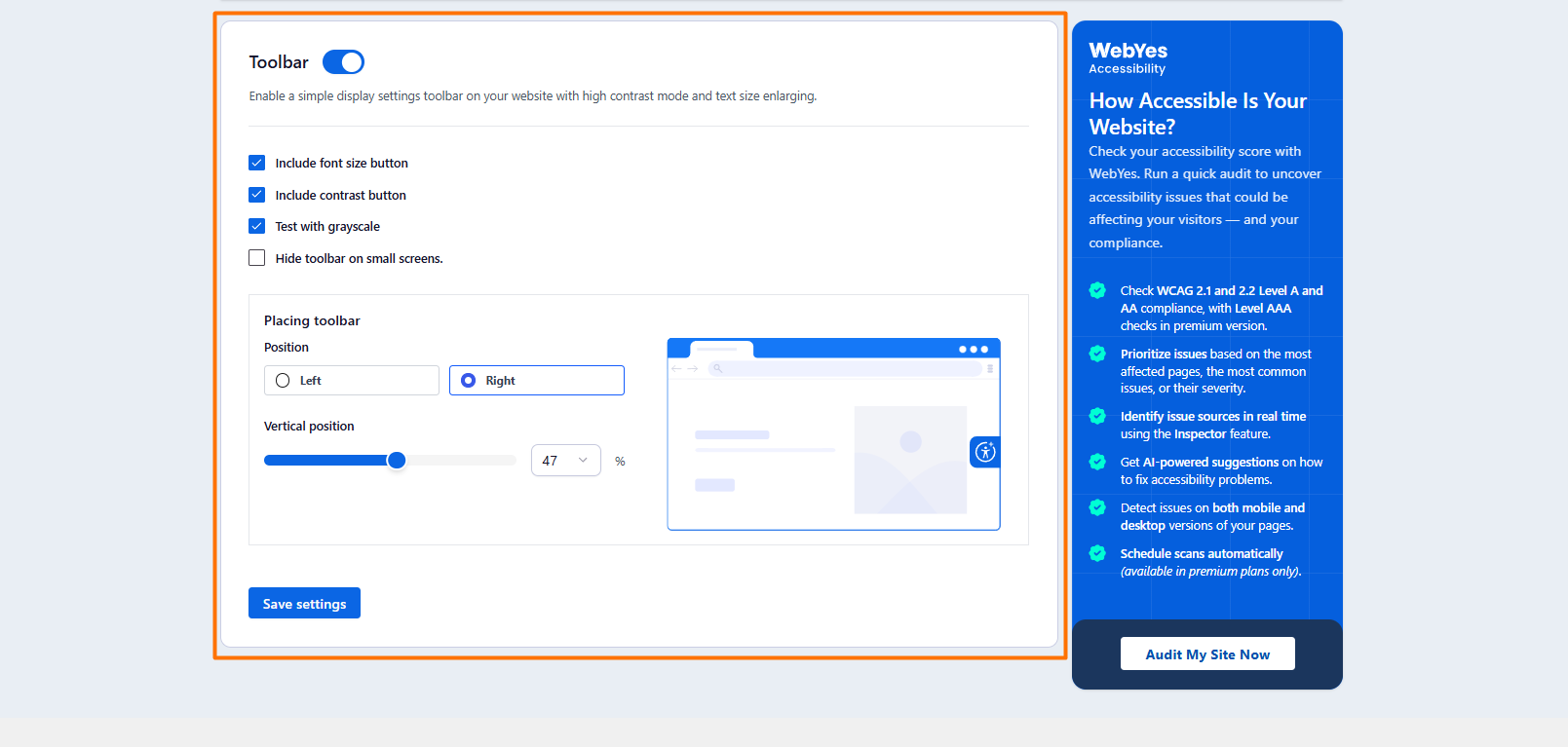
On the public-facing view, visitors with visual disabilities can view pages in grayscale, resize fonts, and customize contrast to suit their needs from the widget on their screen. The accessibility plug-in also strengthens screen reader accessibility with ARIA attributes.
Key features:
- Automatically detects WCAG violations such as low color contrast, missing alt text, unlabeled form fields, and incorrect heading hierarchy
- Improved readability for screen readers
- Accessibility statement generation to show compliance
- Customizable widget to allow front-end users to customize their experience
Limitations:
- Automated scans often miss nuanced contextual issues like image alt text accuracy
Pricing: WebYes Accessibility Tool Kit is completely free; paid plans give access to more features and start at
- Pro: $24 per month (billed annually)
- Enterprise: $42 per month (billed annually)
- Scale-up: Custom pricing
3. AccessiYes Accessibility Widget
Best for: Free visitor toolbar and multilingual sites
The AccessiYes Accessibility Widget by CookieYes adds an accessibility overlay to your WordPress website to enable visitors to tailor your site’s look and behavior to their specific needs. The plug-in has over 20,000 active installs.
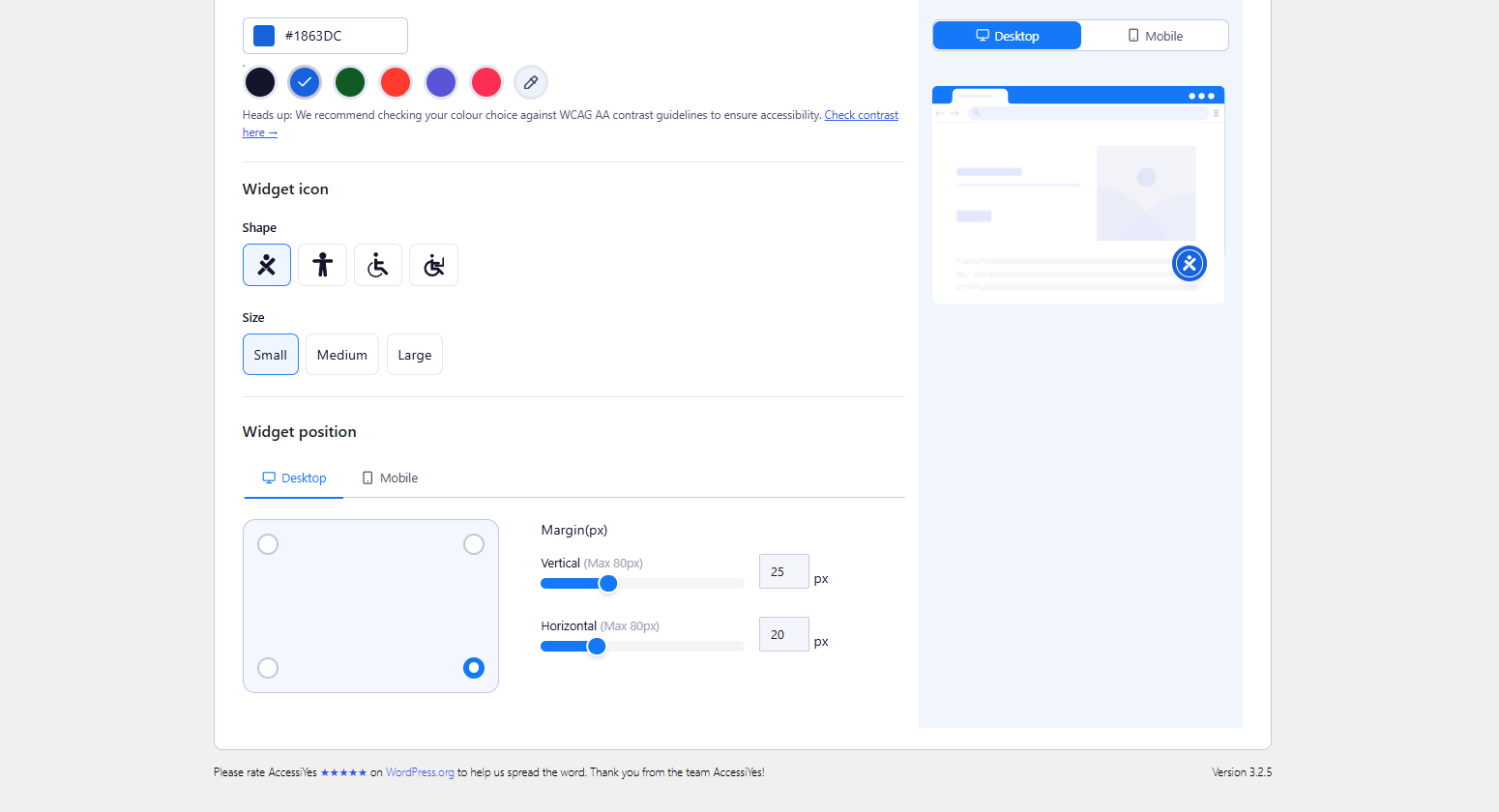
Once installed, you can set the look and feel of the overlay widget to match your website by choosing
- A color that aligns with your theme
- Your preferred widget icon, shape, and size
- Whether the widget appears vertically or horizontally on desktop or mobile
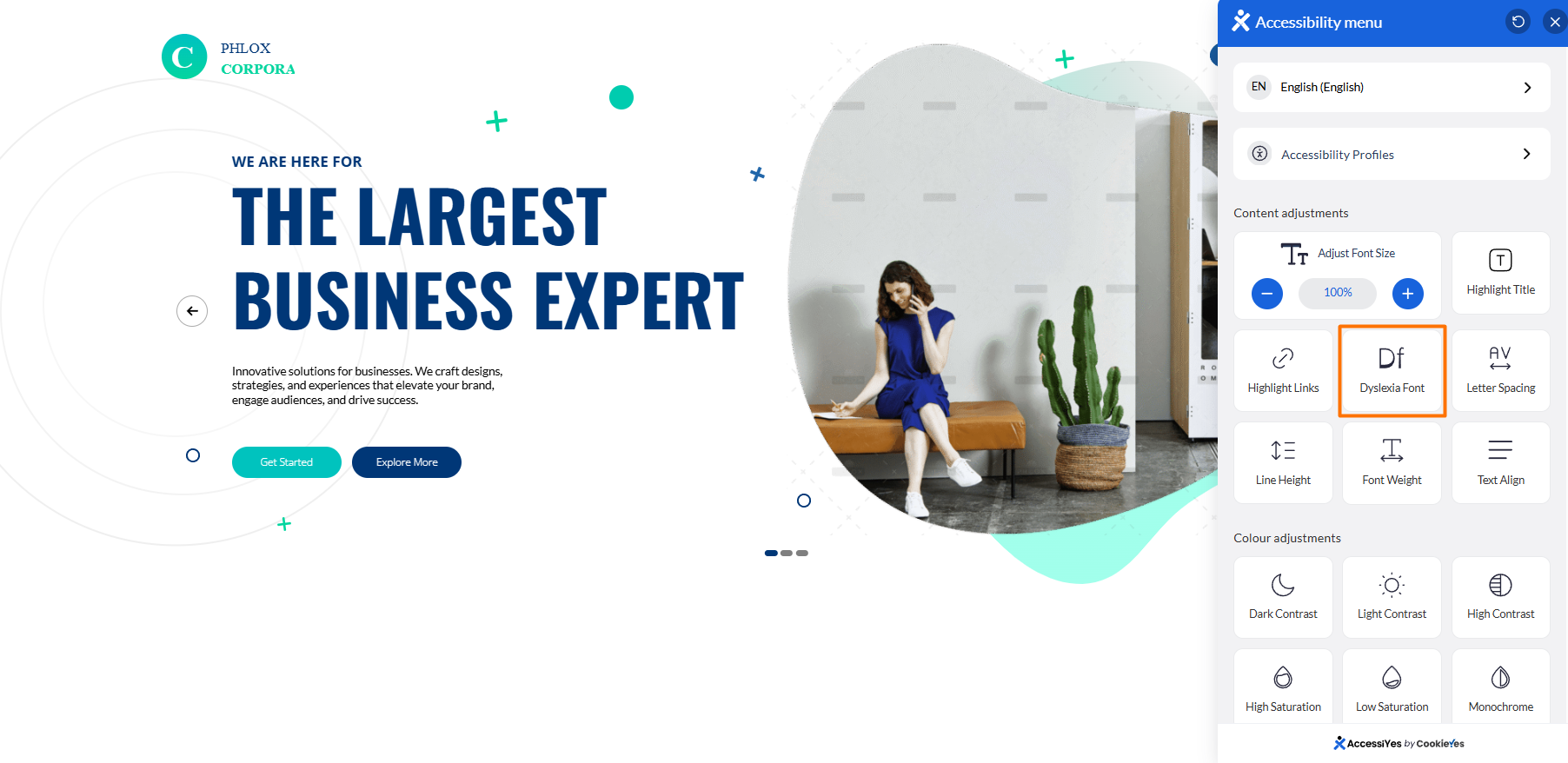
On the front end, web visitors can choose from multiple content adjustment settings to enhance their user experience and align the website to meet their accessibility needs. For example, I could
- Adjust font size by percentage
- Highlight page titles
- Highlight links
- Space out letters and line heights
- Increase font width
- Align text left, center, or right
- Modify contrast or saturation levels
- Disable site sounds
- Have content read aloud using the page-reading feature
- Stop moving animations
- Use keyboard shortcuts
- Enlarge the cursor
- Enable dyslexia fonts
After the first visit, AccessiYes lets users apply pre-configured accessibility settings with a click — useful for e-commerce websites with returning customers.
AccessiYes’s major downside is that it doesn’t offer website scanning. If you’d like to run an accessibility scan, it recommends pairing with a separate scanner tool.
Key features:
- AccessiYes lets you choose which accessibility options appear in the widget across content, colors, and navigation modules, so visitors see only what matters to them
- Extensive usability options are available for users with disabilities across visual, cognitive, and motor impairments
- You can generate an accessibility statement and display it in the widget or connect an existing statement
Limitations:
- It addresses basic frontend adjustments — no accessibility scans or structural HTML fixes
Pricing: AccessiYes by CookieYes is completely free
4. Accessibility Widget by OneTap
Best for: Granular customization controls
Accessibility Widget by OneTap is a web accessibility plug-in for WordPress that gives end users multiple ways to interact with a website. It offers many of the same options as other accessibility plug-ins, such as dyslexia font, highlight links, font weight, color adjustment options, keyboard navigation, and the ability to hide options on the screen. But it also includes a reading mask that highlights a section of the page, removes distractions, and keeps the user focused on a specific section.
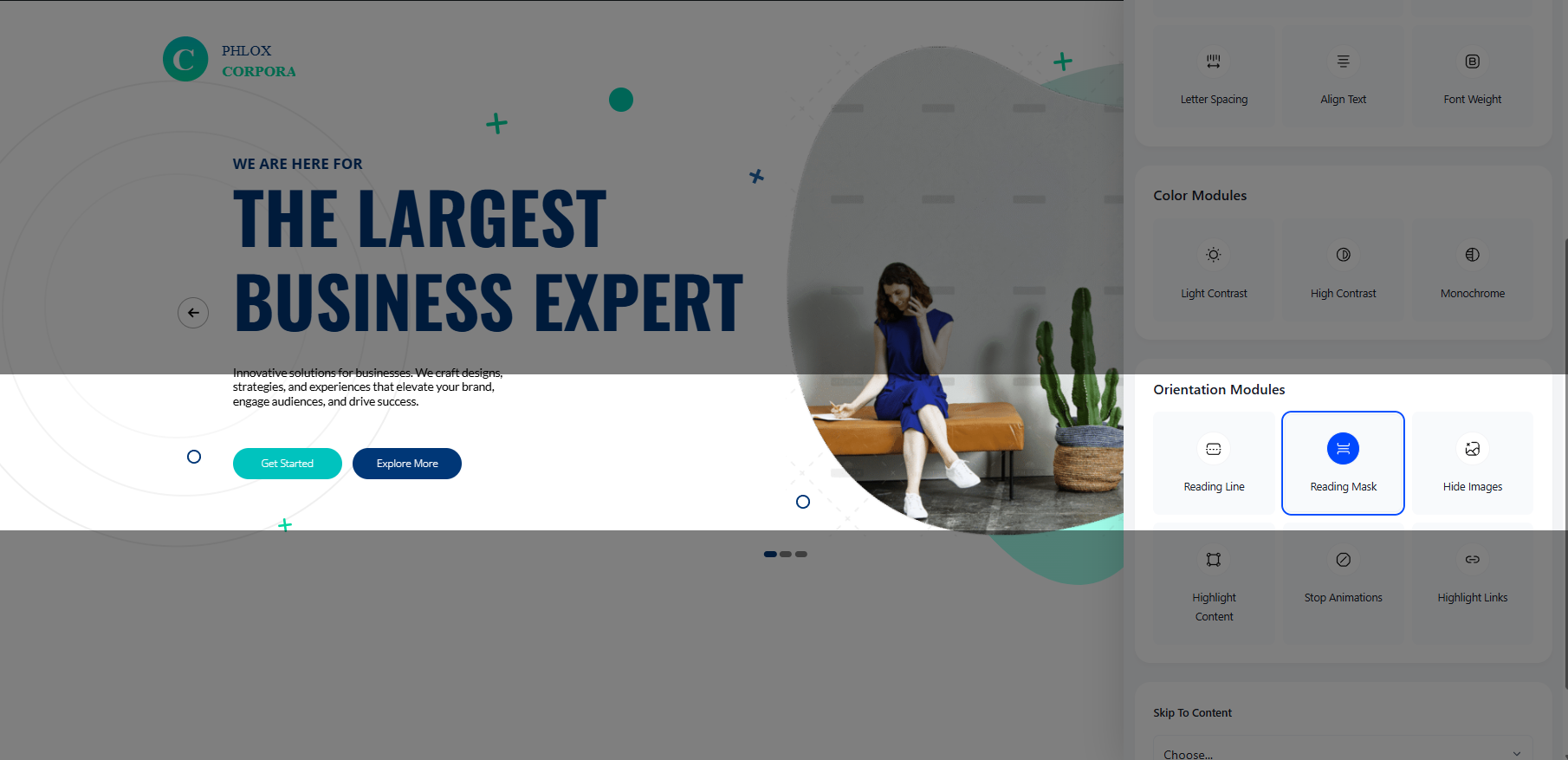
As a site admin, OneTap allows you to customize the website accessibility widget for mobile, tablet, and desktop. You can set the widget to different positions on the screen for all device sizes, choose colors, set the icon size, and add a border to make the icon more prominent.
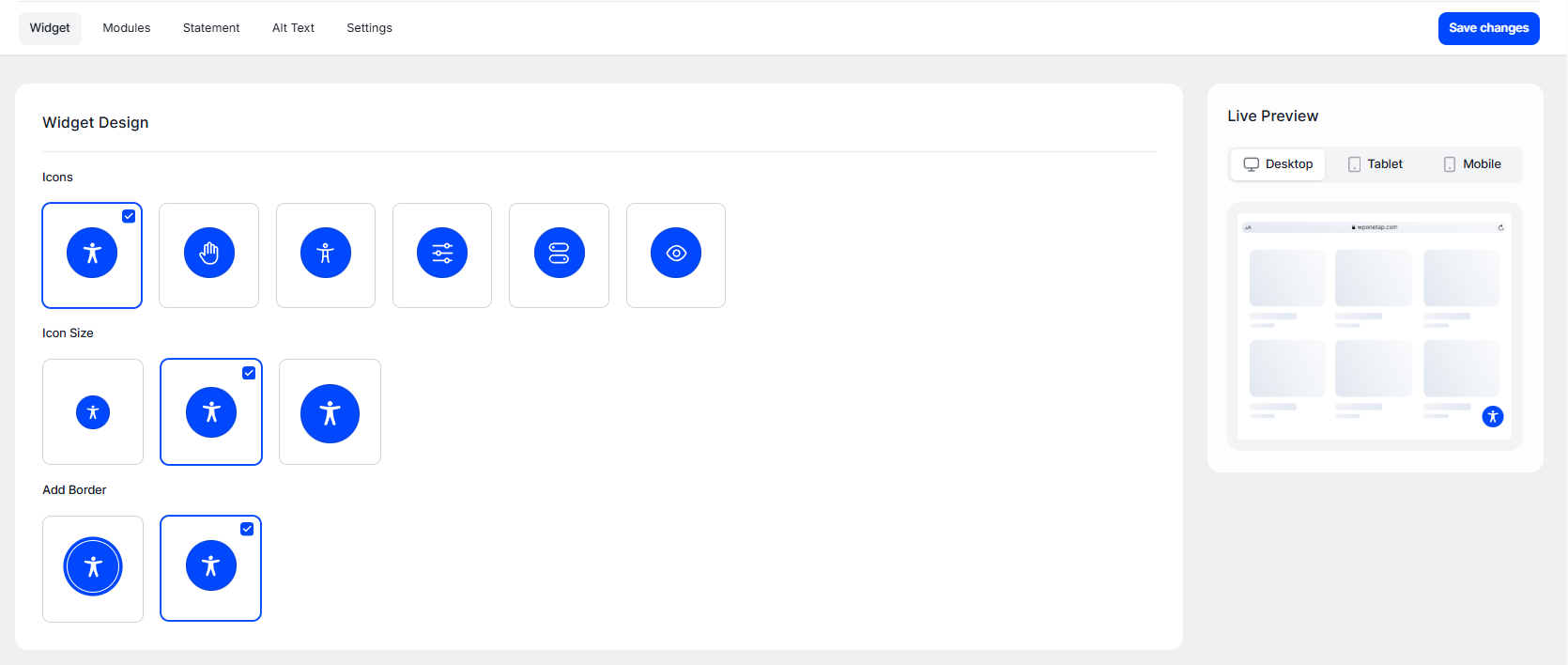
With OneTap, you can make your WordPress website accessible in over 40 languages, generate accessibility statements, and provide an inclusive digital experience for a wide range of people, including those with ADHD, seizures, and epilepsy.
Key features
- You can turn different accessibility modules on or off based on your audience
- OneTap gives you more granular customization controls over the look, feel, and behavior of the widget
- More than 40 languages plus accessibility statement generation to support compliance with relevant laws
Limitations:
- Many important features — like dyslexia fonts, dark contrast, mute sounds, and text-to-speech — are locked behind paid subscriptions
Pricing: OneTap offers a free plug-in with limited functionality; paid plans then scale with the number of websites:
- One website: $129 (one-time payment, one year of updates)
- Three websites: $169 (one-time payment, one year of updates)
- Agency plans: From $199 (one-time payment, lifetime updates)
5. WP Accessibility
Best for: Fixing theme-level and skip link issues
Founded by Joe Dolson, a WordPress core committer and a member of the official “Make WordPress Accessible” team, WP Accessibility is one of the best free web accessibility plug-ins for WordPress. The tool provides features to address issues caused by inaccessible WordPress themes. For instance, if your theme doesn’t have skip links, WP Accessibility lets you enable and keep them visible at all times to allow keyboard users to navigate your page with one tab press.
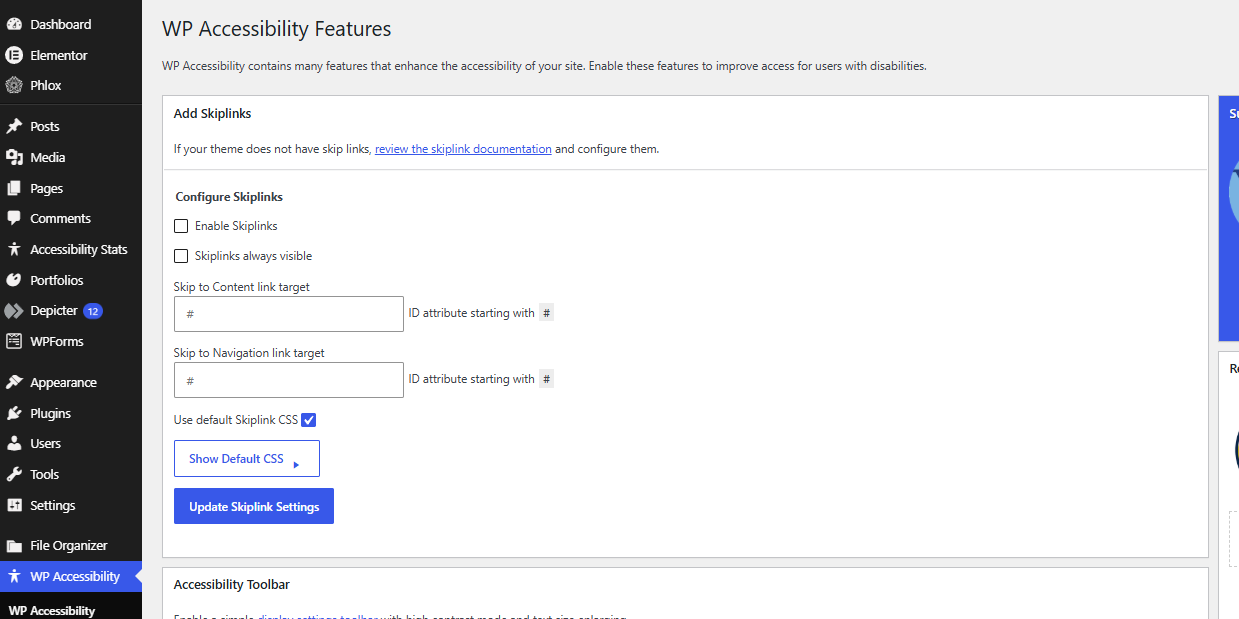
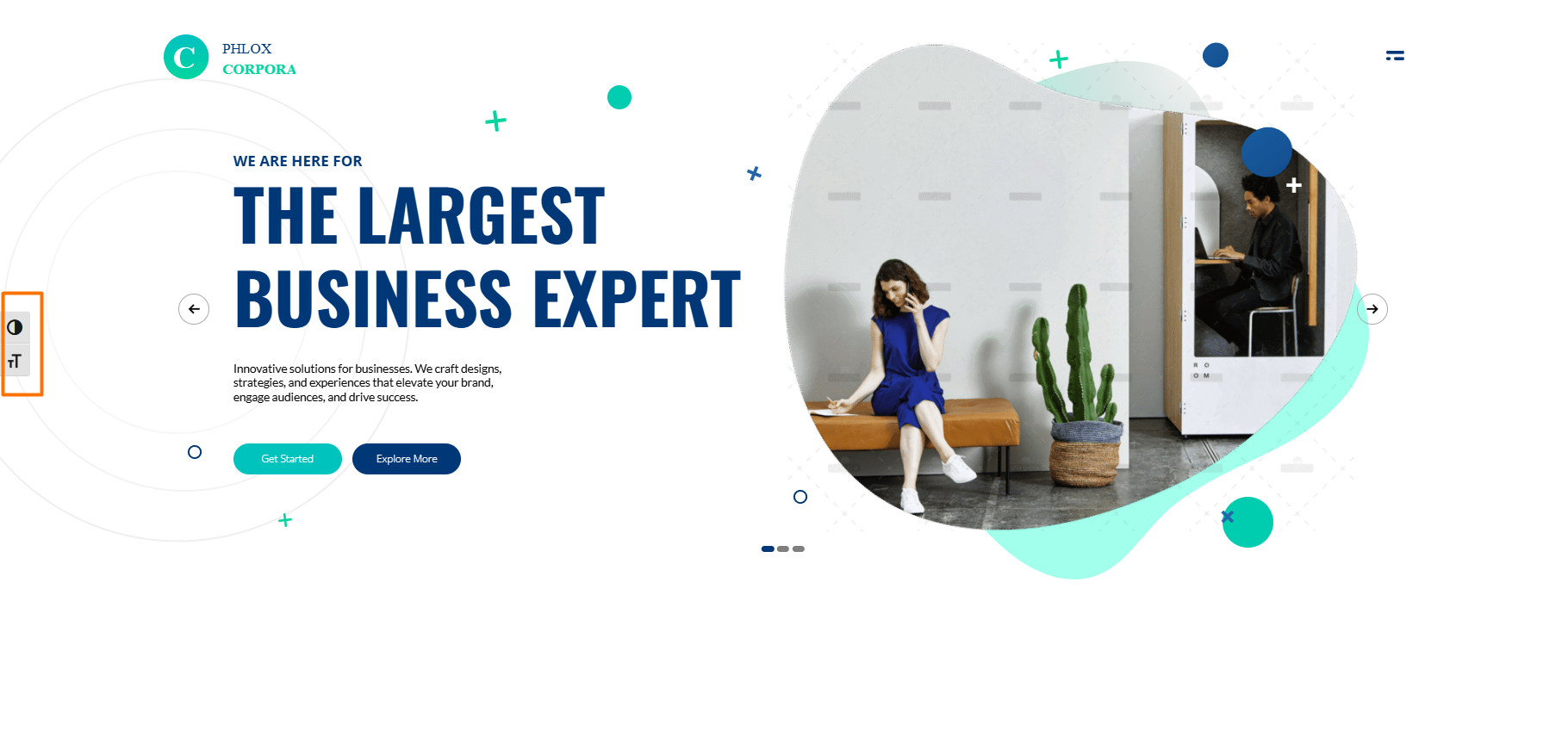
Compared to other tools on this list, WP Accessibility offers a minimal user-facing accessibility toolbar. Once enabled, you can decide the toolbar size and placement on the user’s screen or anchor it to a CSS ID. Visitors see a simple, small toolbar with only two controls: font size toggle and contrast toggle. Toggling the text control simply adjusts the text to very large or very small. There’s no option to adjust along a range as with other accessibility plug-ins — which, in my opinion, can be limiting.
Key features:
- WP Accessibility offers tools to help fix theme, content, and core WordPress accessibility issues
- You can enable diagnostic CSS to show CSS-detectable issues in your visual editor
- If you’re an advanced site owner, you can customize the plug-in’s appearance using your own CSS styles
Limitations:
- The toolbar widget doesn’t provide a range to choose from when adjusting font size or contrast level
Pricing: The plug-in is completely free
Make your WordPress site fully inclusive with a serverless accessibility widget
If you’d rather avoid plug-ins entirely, Jotform offers a cloud-hosted Accessibility Widget that allows you to add a floating toolbar with user controls for readability, contrast, images, motion, and other browsing preferences. With this accessibility toolbar, visitors can adjust your website to suit their needs and enjoy a more inclusive browsing experience regardless of their disabilities — whether temporary, permanent, or situational.
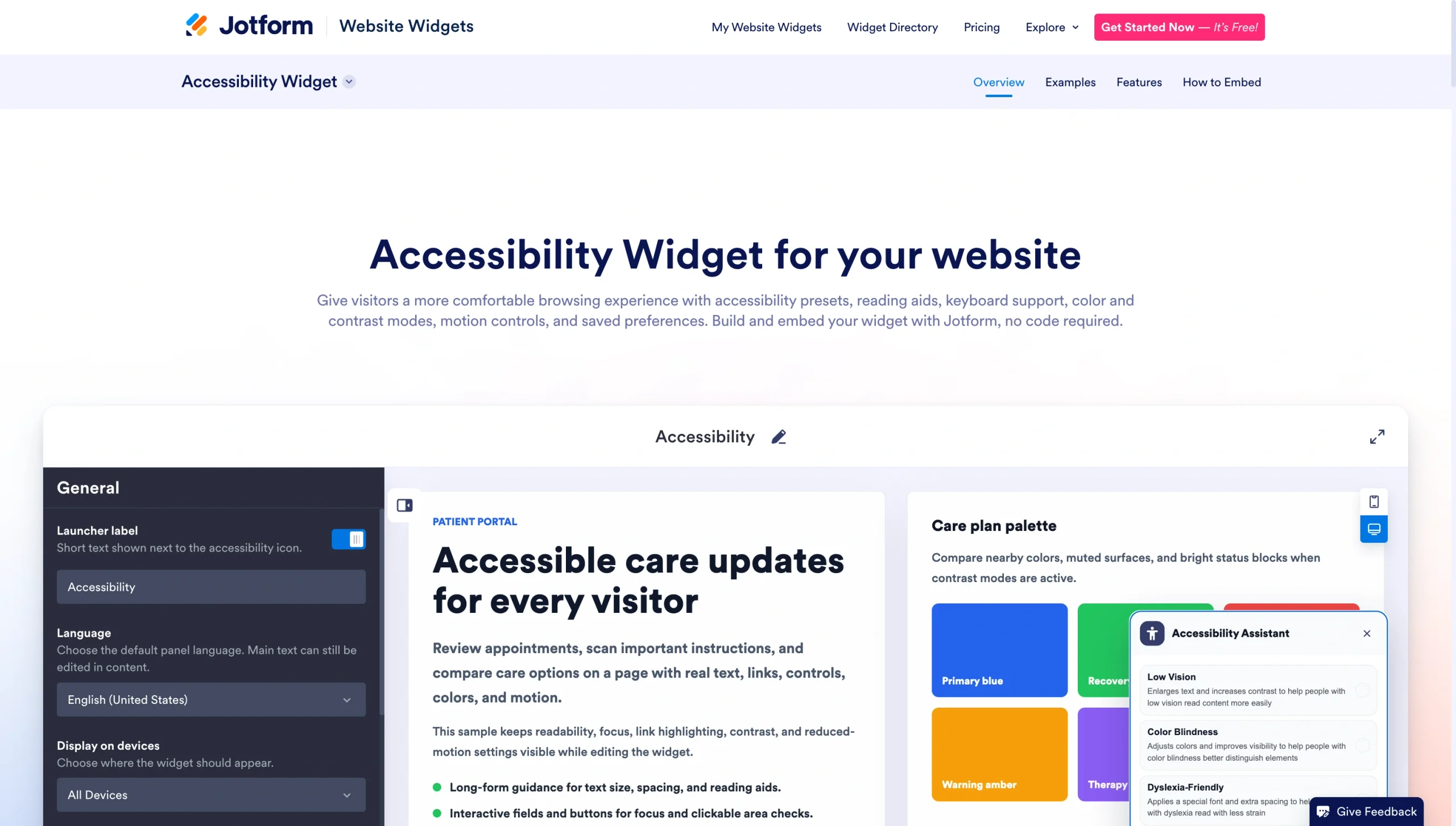
Start customizing the WordPress accessibility widget inside Jotform’s visual no-code editor. Then, choose the tools that appear in the visitor-facing toolbar, style the widget launcher to match your brand, and set how long the widget keeps user preferences.
When browsing your site, visitors can apply accessibility controls such as
- Low vision, dyslexia-friendly, cognitive and learning, seizure-safe, or motor assistance presets
- Text-to-speech and reading aids to make text larger, add extra spacing, and enable a reading mask and reading line guides to support diverse levels of comfort
- Color and contrast modes such as grayscale, inverted, and color-blind for visitors who need stronger visual separation
- Keyboard and navigation support with larger clickable areas, a bigger cursor, visible keyboard focus, and highlighted links for easier movement around the page
- Motion controls to stop animations for those who are sensitive to movement
Jotform’s Accessibility Widget is fully no-code. And you can embed it on any website that accepts custom HTML, including WordPress, Shopify, Squarespace, Wix, and Framer. Once you’ve finished customizing the widget, simply copy the embed code from your Jotform editor and paste it into your website’s HTML field. This no-plug-in-install approach saves you the headache of plug-in conflicts, maintenance, and updates.
The same no-install approach scales beyond accessibility. Instead of installing a separate plug-in for every small feature, with each one adding extra weight and maintenance overhead, Jotform’s website widgets directory includes a range of embeddable widgets that handle all of your site’s functionality needs — such as visitor counting, weather forecast, user reviews, countdown timers, and more — without growing your plug-in list.
In addition to the no-code accessibility toolbar, you can add even more widgets to make long, content-heavy web pages more usable for your visitors:
- Back to Top Widget to let visitors jump to the top of your website smoothly
- Searchable FAQ Widget to keep content readable and easy to scan
- AI Chatbot Widget to answer questions and help with filling WordPress forms in real time
Ready to start enhancing your WordPress website with no-code widgets? Try the Jotform Accessibility Widget, then explore other tools in our website widget directory as you add more functionality to your website — with no installs, no updates, and no plug-in conflicts to manage.
This article is for WordPress site owners, developers, and web designers who want to ensure their website is inclusive, WCAG/ADA compliant, and easily navigable for users with disabilities without adding bulk to their theme or breaking responsive layouts.













































































Send Comment: