
Top 5 WordPress glossary plug-ins
Whether you run a healthcare website, sell a complex technical product, or just want to share a list of uncommon words and acronyms found on your website, having a glossary provides a place where users can find simplified definitions and guidance. Glossaries can also significantly improve internal SEO because you can link a term to its definition anytime it’s used.
Building a glossary from the ground up isn’t easy, especially when you’re learning how to use WordPress. That’s why many site owners turn to traditional WordPress glossary plug-ins for help. However, some plug-ins can weigh down your site with JavaScript and CSS, while others conflict with built-in tools such as site searches and caching tools.
Good news: The Jotform Glossary Widget is a modern alternative worth considering. It’s an off-server solution that stores and organizes your definitions with a simple, automatically generated embed code. With our WordPress glossary widget, you won’t have to worry about slow page loads or regular maintenance. It’s a one-and-done solution you can set up immediately.
If you’re not sure whether to go the traditional route or with Jotform, this guide is for you. Read on for an honest look at the top five traditional WordPress glossary plug-ins to help you decide whether Jotform or another solution is the right fit for your site.
| Plug-in | Best for | Price | Customization | Term navigation layout |
|---|---|---|---|---|
 Glossary by Codeat |
Sites using the Bricks, Divi, or Genesis WordPress themes |
Free tier; paid plan from$29.99/year |
Four templates in free version; advanced customizations in paid plan |
Grouped by category or as an indexed list |
 Heroic Glossary |
Technical documentation and knowledge bases |
Free |
Professional templates and customization options |
A-to-Z listing of terms |
 My WP Glossary |
Site admins who are comfortable handling their own customizations |
Free |
Limited pre-built customization options; option to add your own CSS code to enhance the glossary’s design |
A-to-Z listing of terms |
 CM Tooltip Glossary |
Automating glossary links and pages |
Free tier; paid plan from $39/year |
Customization for colors, fonts, sizes, and positioning |
A-to-Z index, individual pages for each term |
 Clever Linked Terms |
Managing glossary links and semantic linking |
Free |
Multiple glossary index templates; some customization for tooltips and index |
A-to-Z index, individual pages for each term |
1. Glossary by Codeat
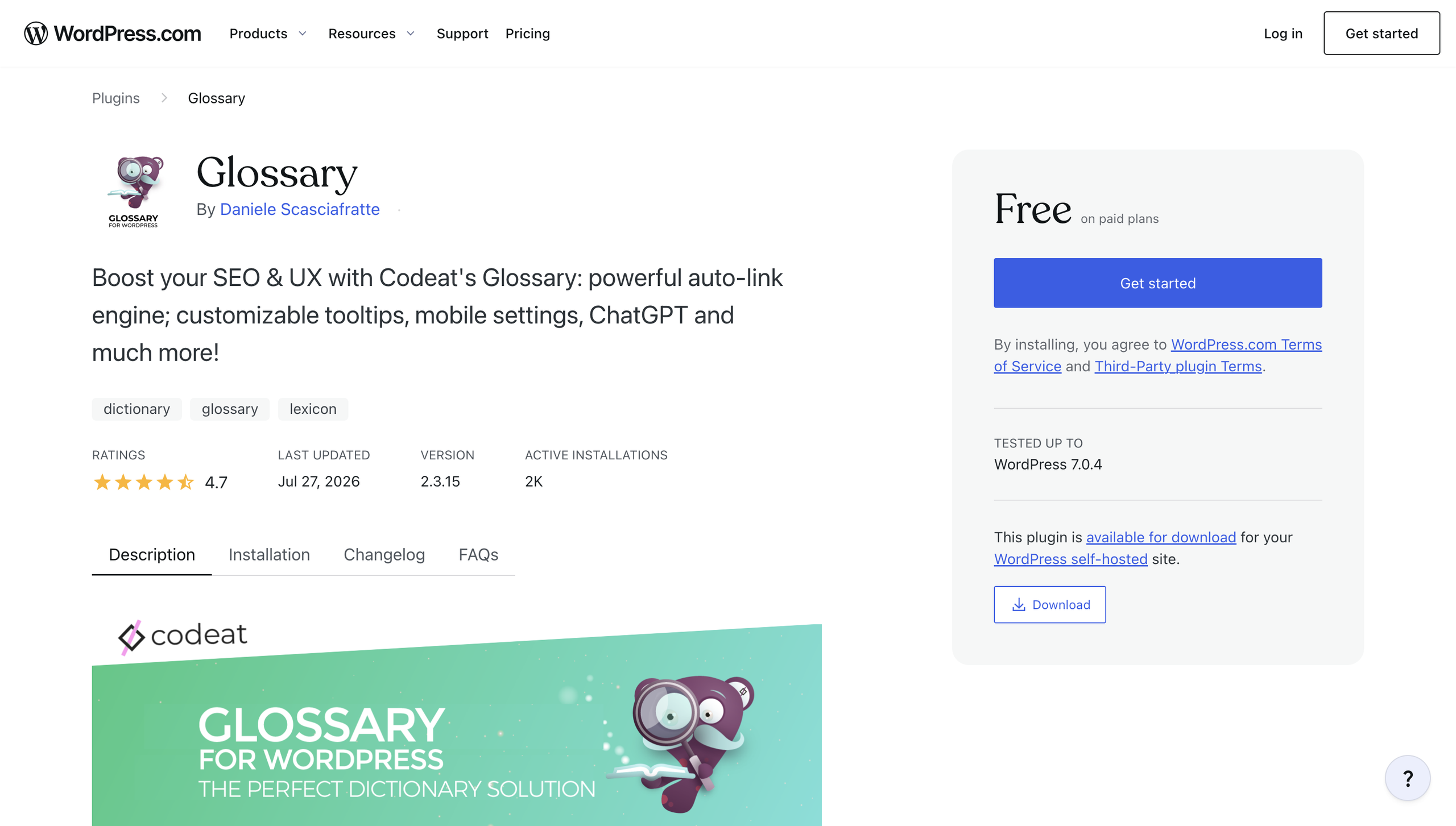
Glossary by Codeat is a robust solution, even on its free plan. With it, you can create a list of terms and categorize them based on topic, purpose, or any other classification. It averages a 4.7 rating* and has over 2,000 active installations, so it’s a popular option. Users highlight its ease of use, even among those less technically skilled.
Glossary’s key features include highlighting, which displays a linked term’s definition when a visitor hovers over it. You also get four free templates, so you can choose the one that best fits your site structure. Terms are listed in a responsive glossary table in WordPress, which you can customize to fit your site’s colors and theme.
Unique to Glossary is its ChatGPT integration, which allows you to generate content for terms you choose. However, it does require an OpenAI API key.
Glossary doesn’t promise compatibility with every WordPress theme, so try the free version before committing to paid. Some of the features users like most, such as access to customer support and advanced styling options, are available only with a paid plan.
2. Heroic Glossary
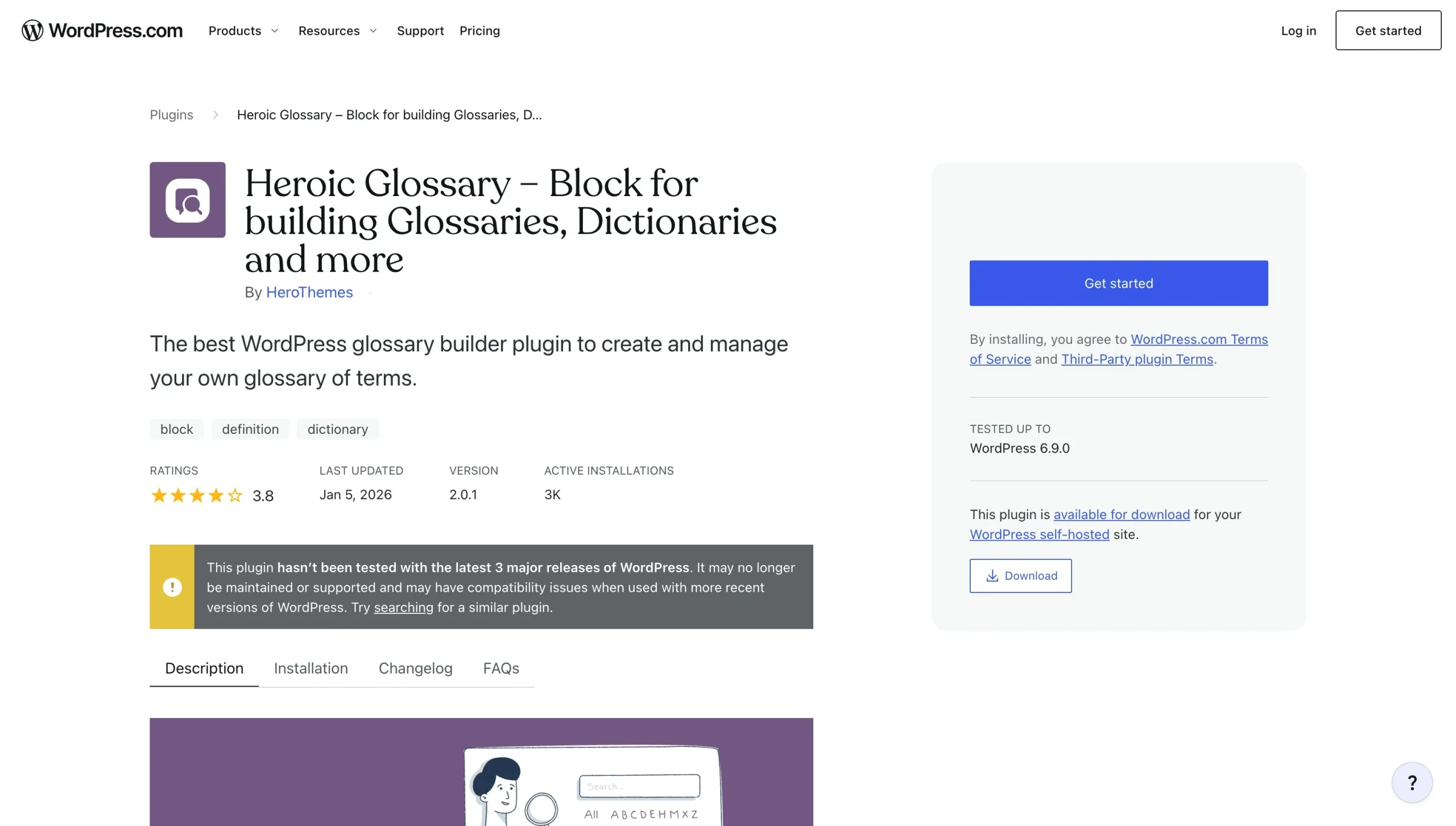
Built by HeroThemes, the Heroic Glossary is used by over 3,000 websites and maintains a 3.8 rating. Its straightforward, A-to-Z glossary doesn’t limit the number of terms you define. You can create a single glossary that covers all your content or multiple ones to address specific sections or topics.
Heroic Glossary follows an SEO-friendly site structure, so search engines won’t misinterpret your content. Plus, it’s mobile-responsive, so it adjusts to your visitor’s screen size.
Heroic Glossary offers multiple themes and customization options, and it’s compatible with every WordPress theme. However, it is designed for the Gutenberg editor; users who rely on the Classic editor should look elsewhere.
3. My WP Glossary
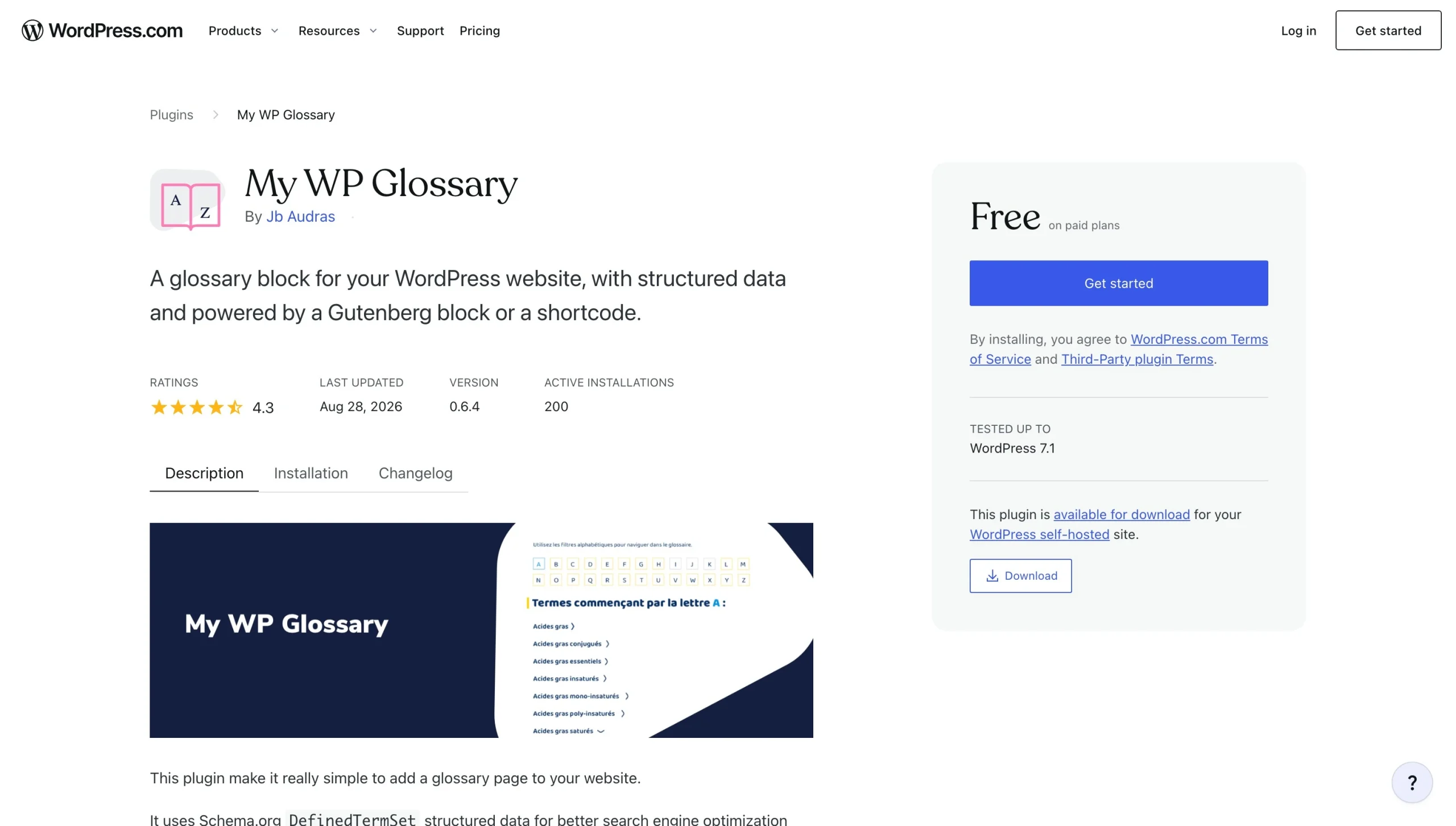
My WP Glossary is a simple plug-in that prioritizes theme compatibility and SEO. It has an average rating of 4.3, with several hundred installations.
My WP Glossary stands out for its structured schema. It uses the DefinedTermSet schema, which is recognized by Schema.org as a property used for glossaries, dictionaries, and enumeration. This schema also makes it easy for search engines to understand your glossary and properly interpret it.
Unlike some of the other plug-ins, My WP Glossary doesn’t offer many predesigned templates or customizations. That’s by design; its limited number of CSS styles means the plug-in will work on all WordPress themes. You can implement your own designs using the provided CSS styles, but it does require a bit of coding.
Site administrators may dislike its automated linking. The plug-in adds a link to your dictionary anytime you use a term, even if it’s used multiple times on the same page. This may require hands-on oversight or tweaking to avoid duplicate post links.
4. CM Tooltip Glossary
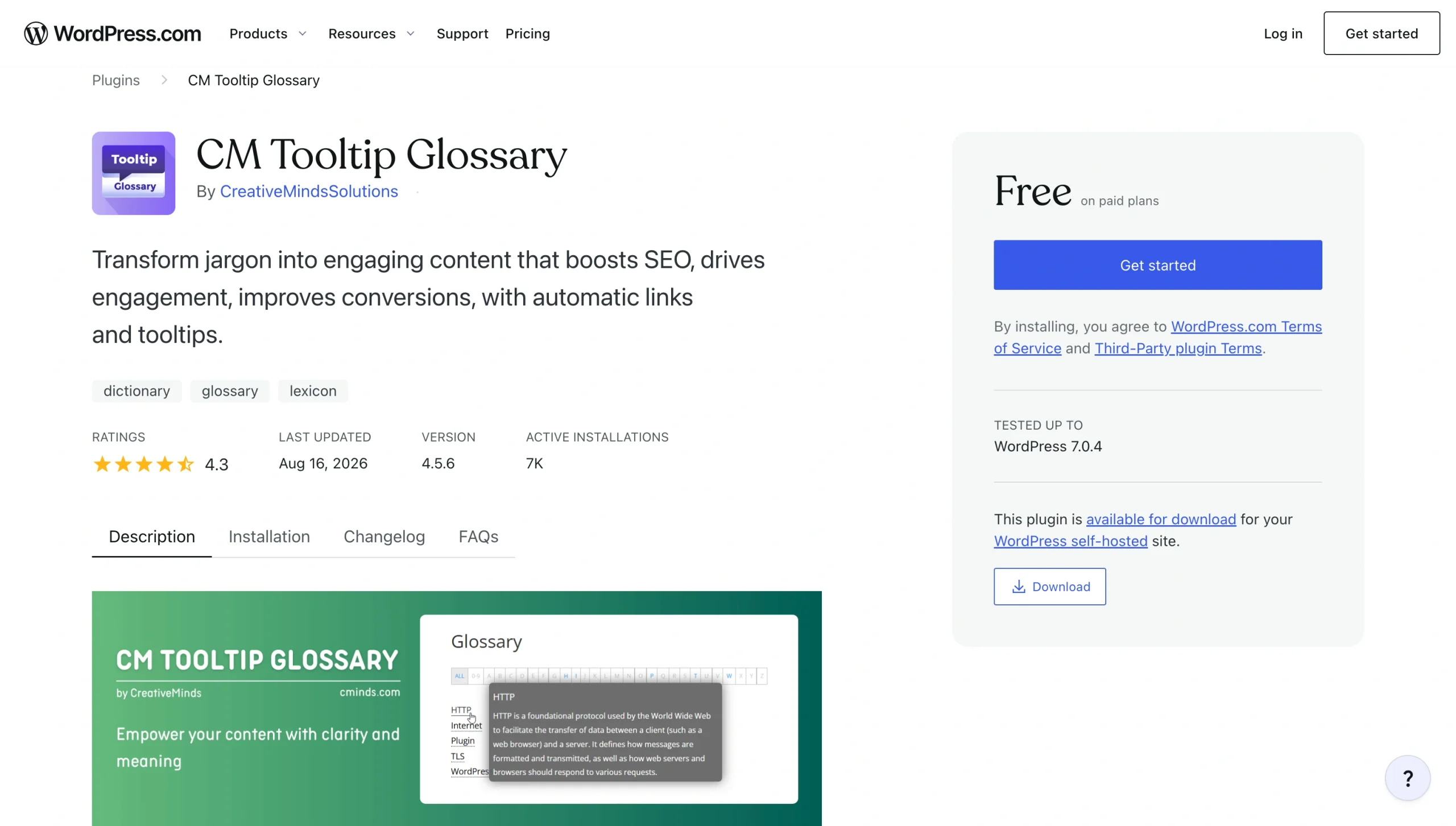
CM Tooltip is one of the oldest glossary plug-ins available through WordPress. It was introduced in 2012, so its developers have been able to improve the tool and add new features since then. CM Tooltip boasts a 4.3 rating, with over 7,000 active installations.
The free version includes essential features such as 500 term listings, A-to-Z indexing, and a custom post type glossary for WordPress that extends your site’s coverage. Visitors who hover over terms will see a concise definition, and you can customize the tooltip layout for improved visibility. Its duplicate prevention tool stops tooltips from appearing multiple times on a single page.
You get advanced features, such as unlimited terms, optimized performance caching, and a mobile-first design, with a paid subscription. Upgrading to the highest paid tier gives you access to AI integrations and multi-language support.
CM Tooltip Glossary is tested on Genesis, Divi, Avada, Ultra, and several other themes. The company recommends using the plug-in on a tested theme for best results.
5. Clever Linked Terms
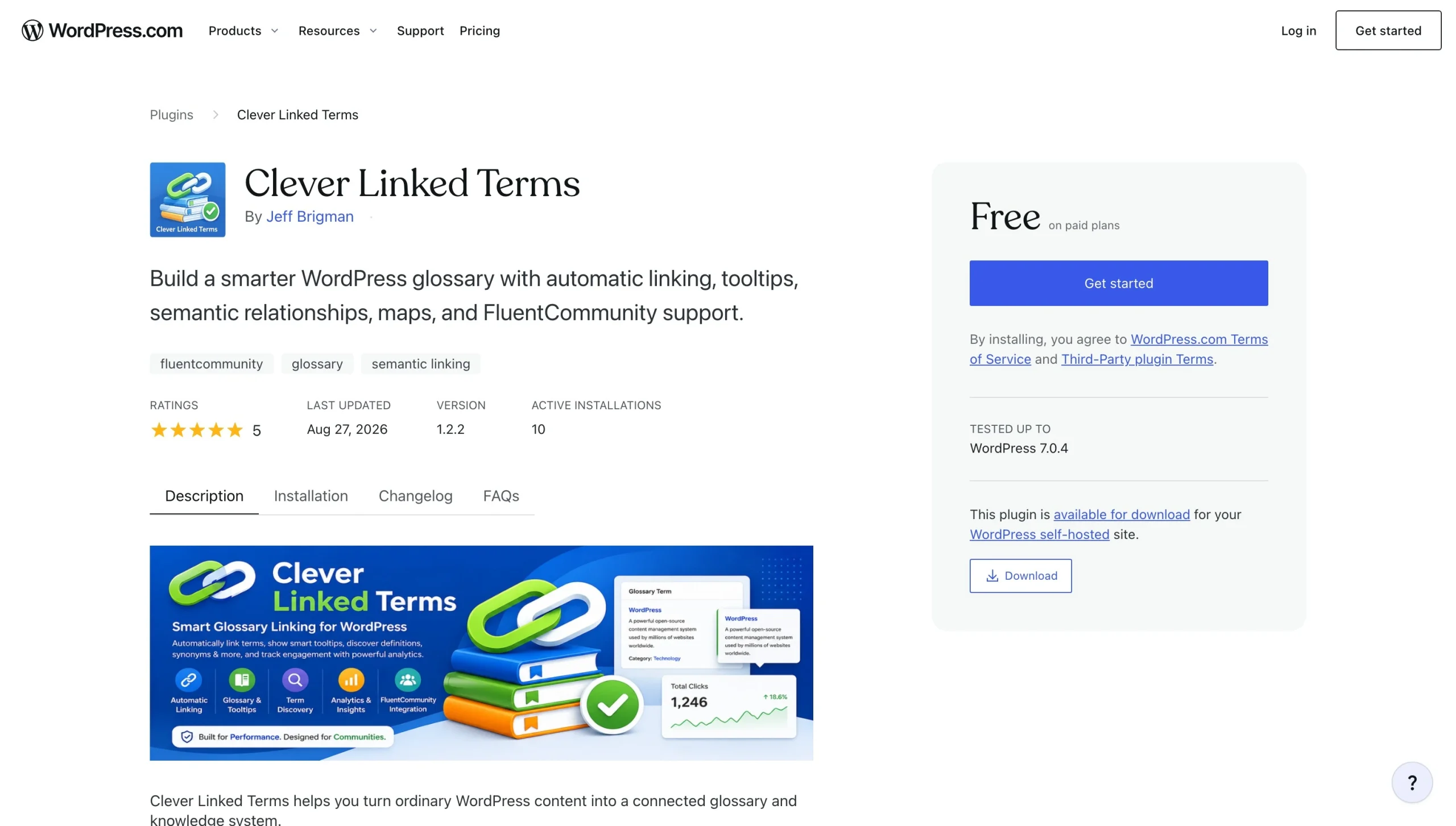
Clever Linked Terms ranks among the best tooltip plug-ins for WordPress. Its high rating (5 out of 5) stems from its automated linking and content discovery tools. Automated linking connects terms to your glossary and dedicated definition pages, while the content discovery tool analyzes your content for related terms and tags.
Clever Linked Terms lets you set link limits so a page isn’t overwhelmed with duplicates and tooltips. You can also exclude pages or posts from automated linking. But while you can create the index slug and title, plus choose from several glossary index layouts, you don’t have the extensive customization offered by other tools on this list.
Clever Linked Terms offers a free dictionary plug-in with WordPress through an external API. You can also connect it with Wikipedia, Merriam-Webster Thesaurus, and Encyclopedia Britannica.
Simplify complex terminology with a serverless glossary widget
Third-party plug-ins are the standard for adding functionality to a WordPress website, but that doesn’t make them the best option. Tools like the Jotform Glossary Widget provide modern functionality without degrading website performance. That’s because Jotform handles index searching, sorting, and text terms off-server, using a cloud-hosted component that doesn’t hurt your site’s Core Web Vitals.
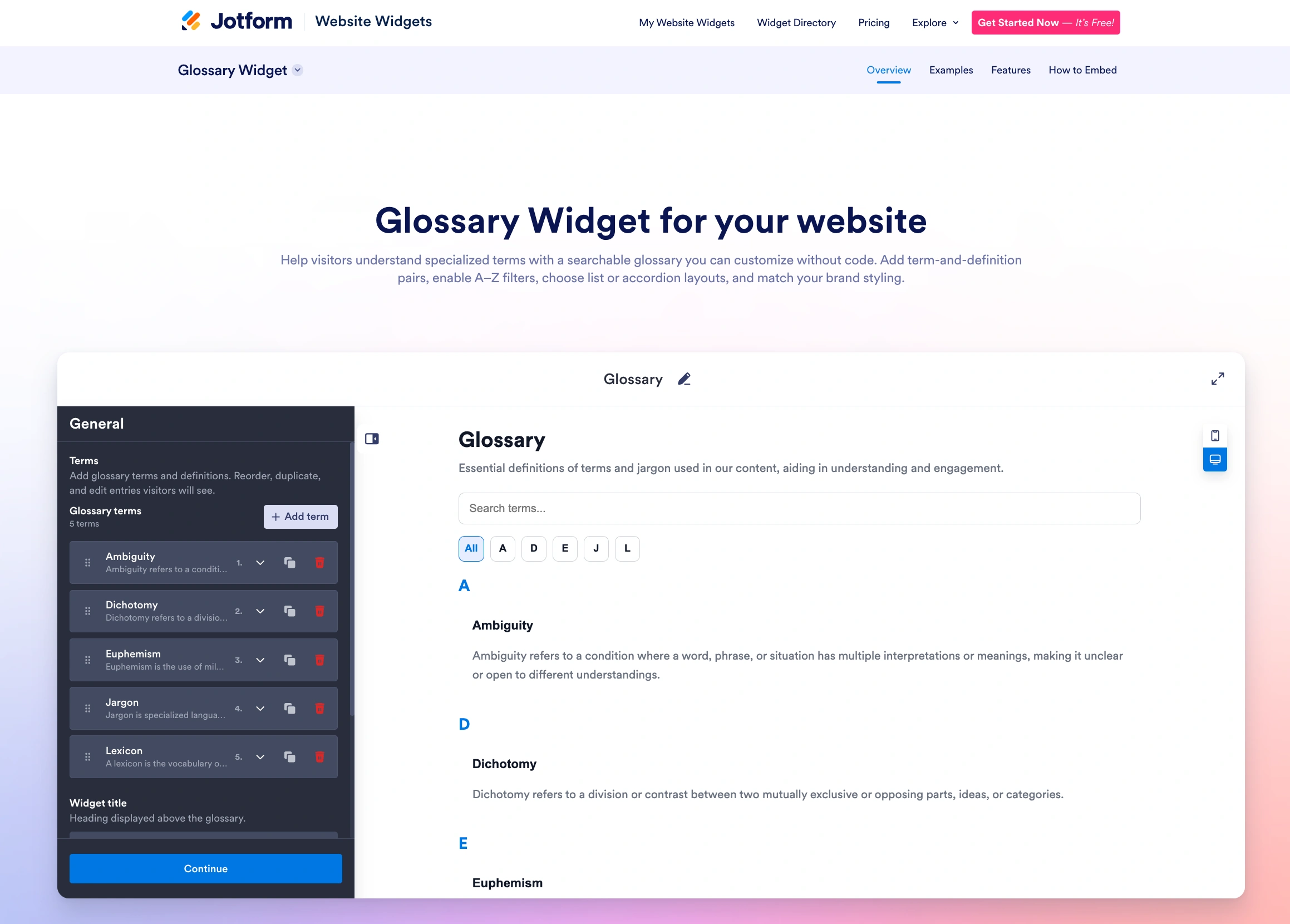
With Jotform, you don’t have to worry about a WordPress core update that breaks your plug-in. Layouts stay intact, no matter what changes WordPress makes to its platform.
Besides a glossary tool, Jotform offers over 150 Website Widgets to support your website. For example, our FAQ Widget and Help Center Widget add a searchable database of questions that visitors can peruse, and they can connect with you if they need additional help. With the Timeline Widget, you can showcase key moments in your company’s history and future goals. And when you integrate Jotform into your WordPress website, you can store customer data from WordPress forms into a searchable Jotform table and collect online payments.
Jotform takes the hassle out of building a fully functional, fast, and user-friendly WordPress website. Try Jotform today for an experience free of plug-ins that optimizes site performance.
* Ratings and number of reviewers reflect statistics at time of writing.
This article is for WordPress site owners, educators, tech writers, content marketers, and web designers who want to build a clean dictionary, encyclopedia, or jargon buster page on their site to explain complex industry terms without bogging down database performance or causing theme layout conflicts.
































































































Send Comment: