
Whether you’re a photographer showcasing a portfolio, a real estate agent highlighting the properties you have for sale, an e-commerce store displaying your products, or anyone else who needs a big visual impact on your website, a high-quality photo gallery is essential. When you have a beautifully structured and responsive WordPress photo gallery, you’ll keep your visitors engaged and drastically increase the appeal of your brand.
WordPress’s best feature is its ecosystem of third-party plugins, themes, and tools. That’s great if you’re looking to add a photo gallery. But the “Gallery” block included with the default Gutenberg editor is notoriously basic. Its plugin struggles with automatic cropping and often cuts off the most important parts of your image, doesn’t support modern masonry layouts, and generally just falls short of what a photo-heavy workflow needs. For serious visual impact, you need a WordPress gallery plugin alternative.
So, if you want features like fully customizable professional photo galleries with advanced layout options, keep reading. You have two main options: Install a bloated gallery plugin that will slow down your website or use a lightweight serverless widget that protects your page load times and server performance.

Option 1: Install a dedicated WordPress photo gallery plugin
The standard way to get a great-looking responsive image grid is to install a third-party WordPress photo gallery plugin from your wp-admin dashboard. And it works! At least, if you get all the complex settings configured correctly and don’t mind potentially slowing down your website.
If you really want to install a gallery plugin to embed an image gallery in WordPress, here’s how to do it:
- Log in to your WordPress dashboard, head to the Plugins section, and click Add Plugin.
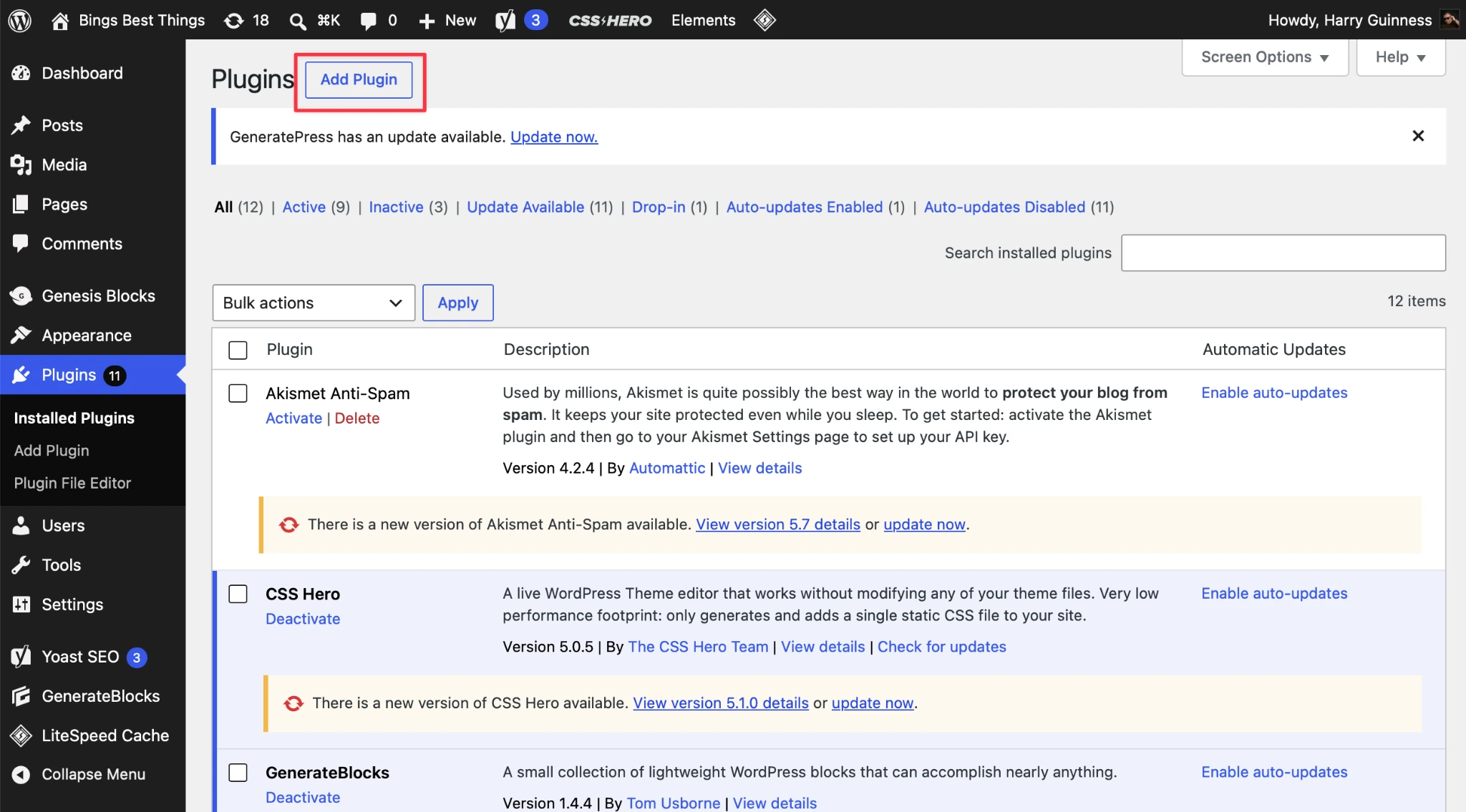
- If you’ve got a gallery plugin downloaded, click Upload Plugin. Otherwise, use the search to find a gallery plugin that looks like it will meet your needs.
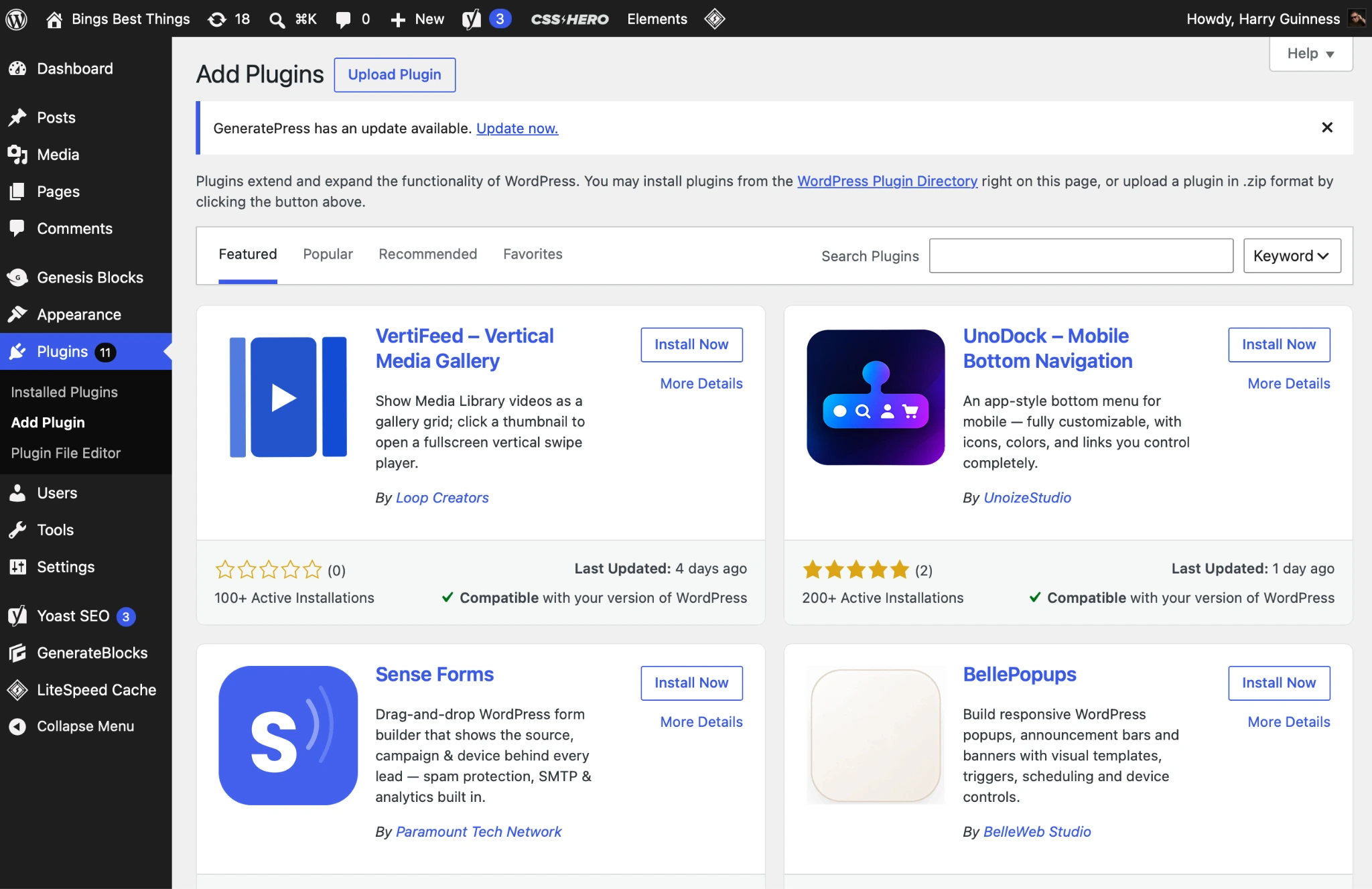
- Click Install Now to install the plugin, then Activate to activate it. I went with NextGEN Gallery from Imagely.
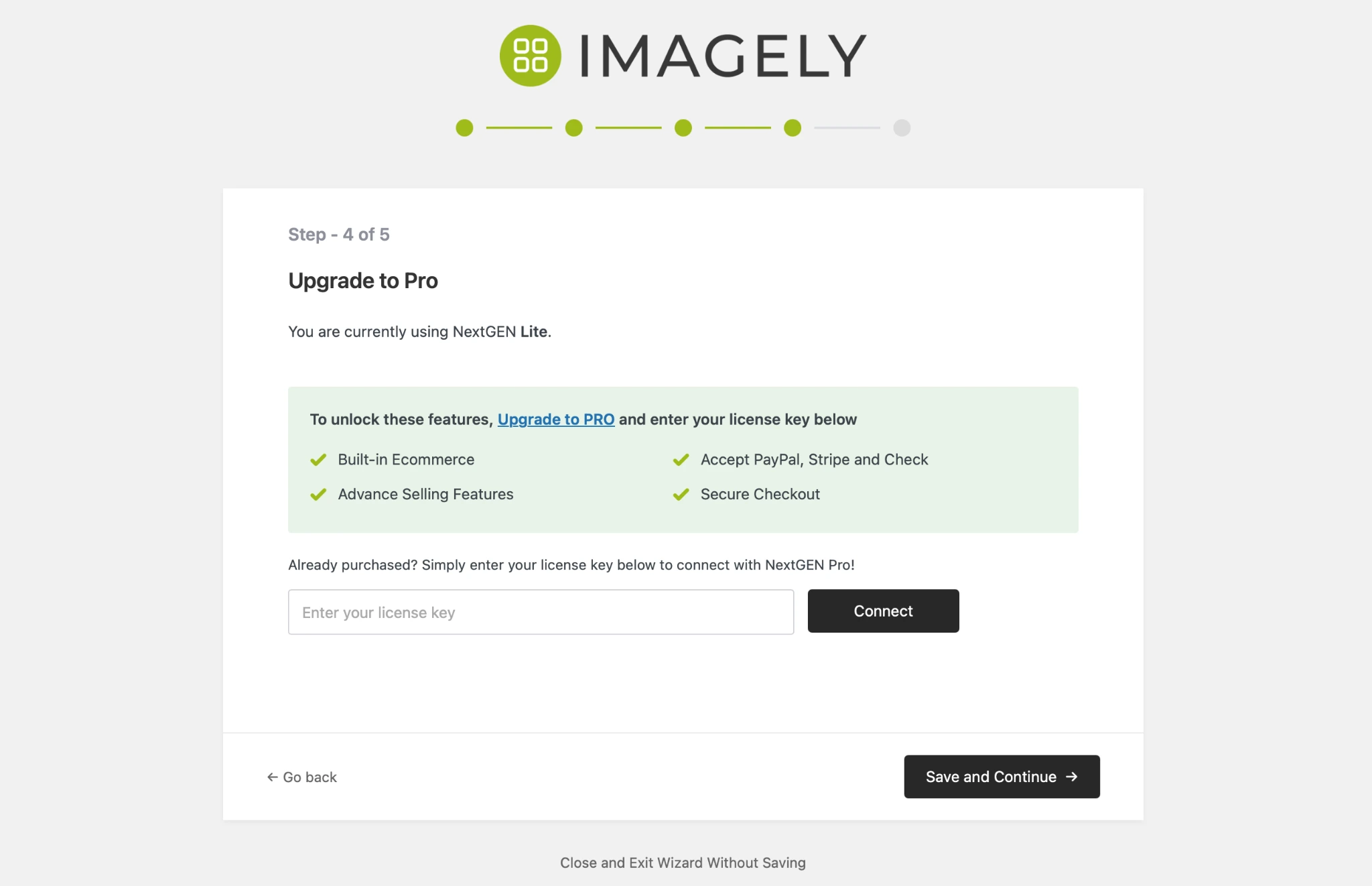
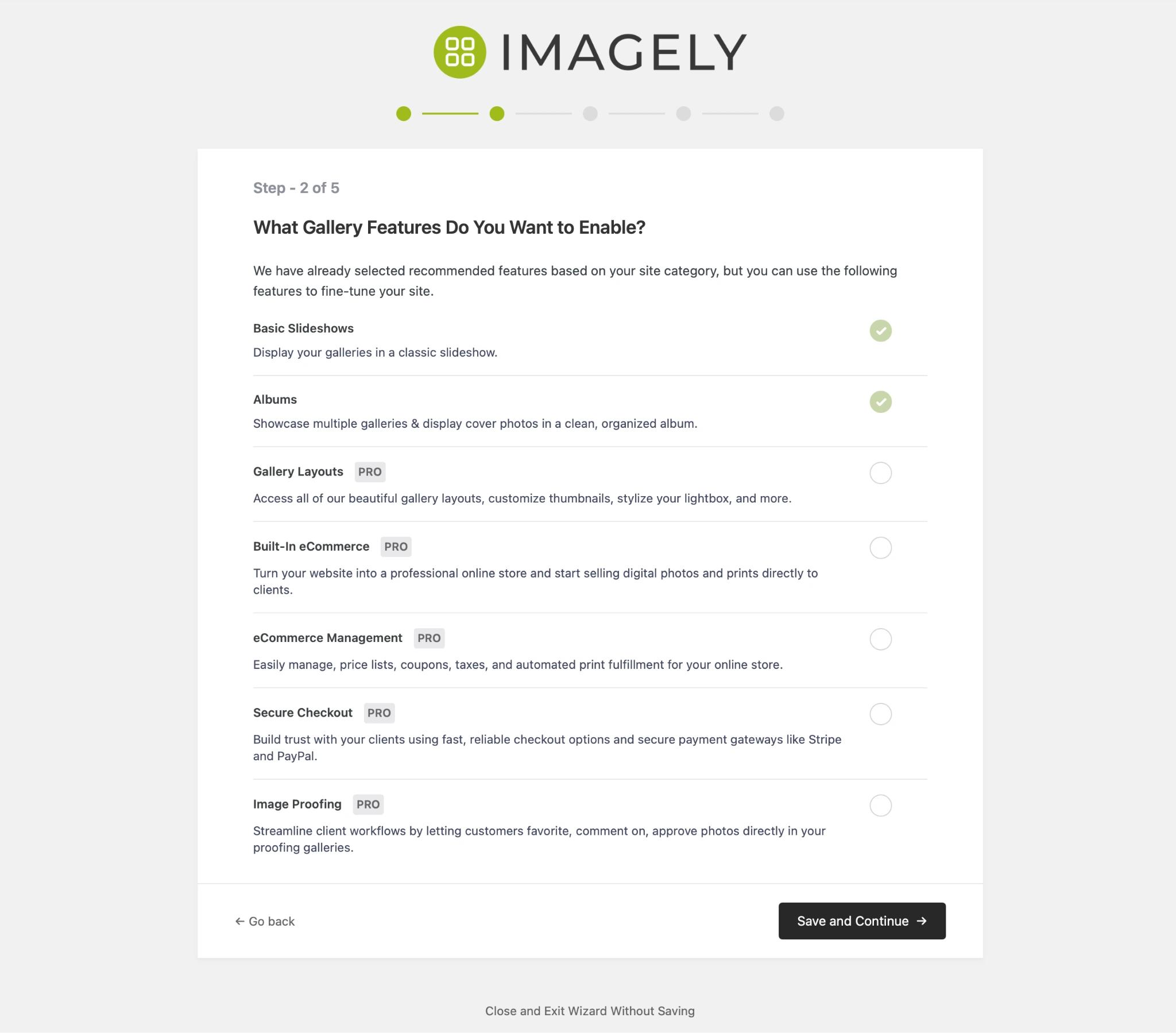
- Work your way through any onboarding wizard, upselling, or pressure to install other plugins.
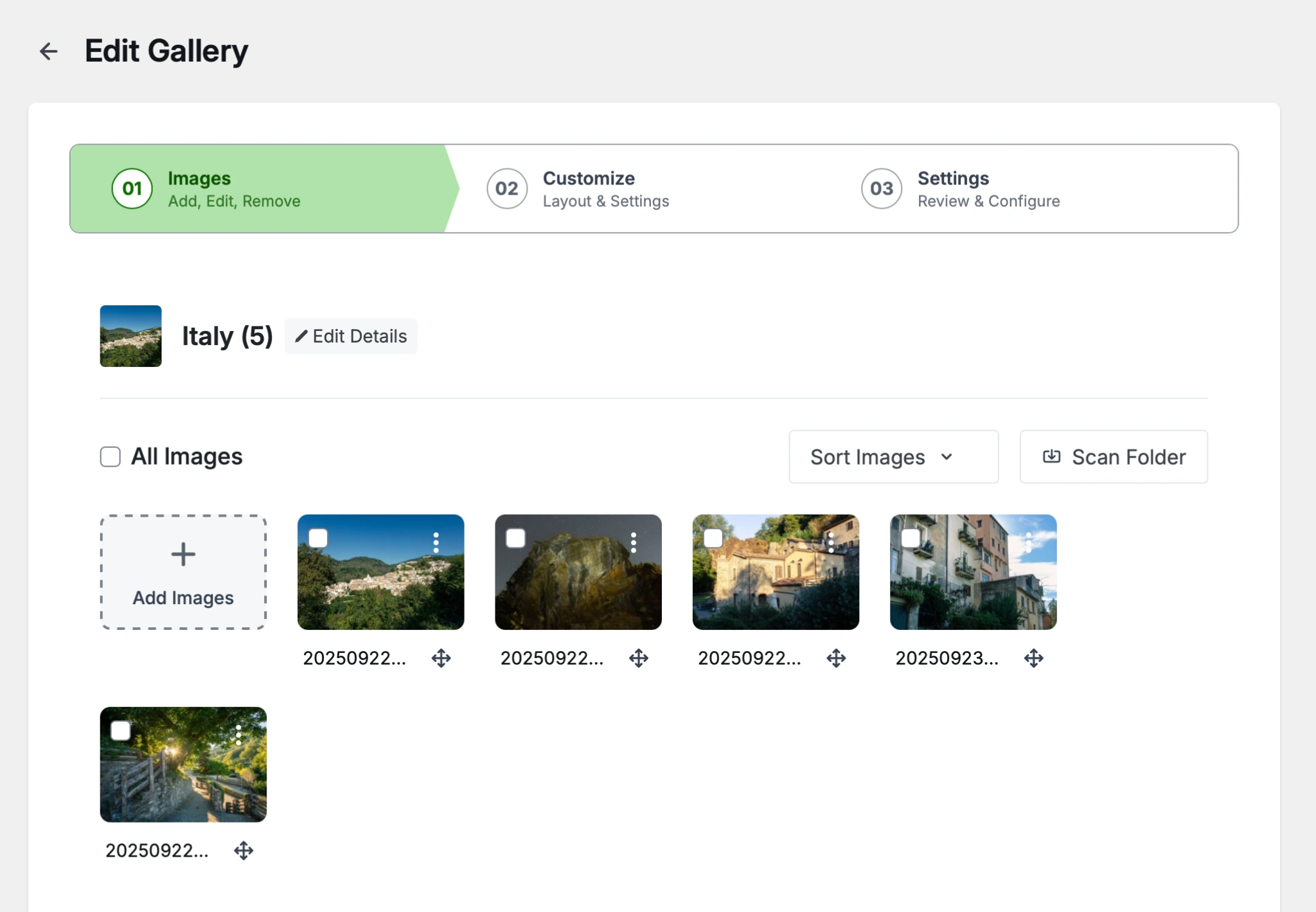
- Open the plugin and upload the photos you want to add to your first gallery. The exact controls differ between plugins, but the general idea should be similar.
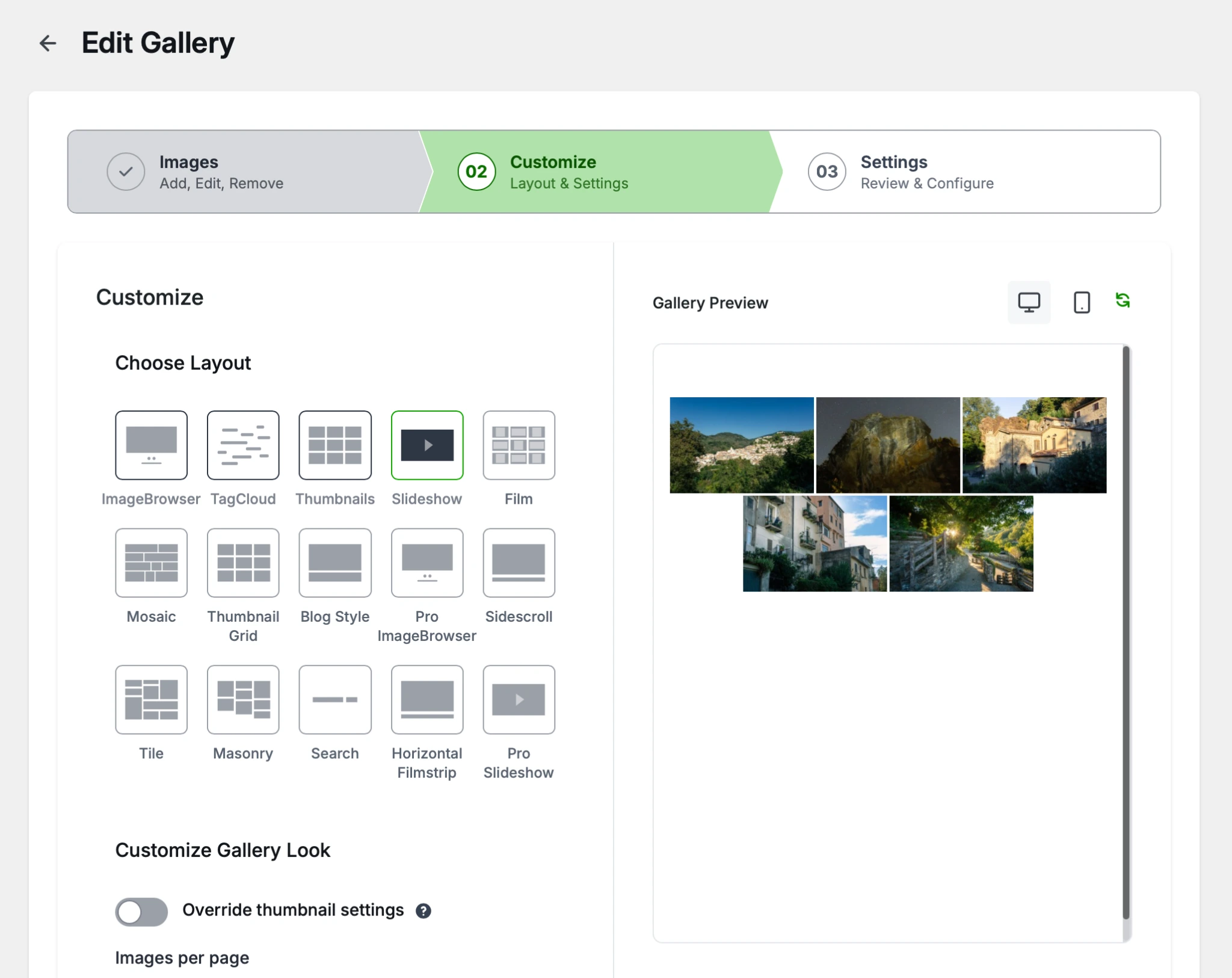
- Select the layout you want. You need to play with the settings to figure out what works best for your site and images.
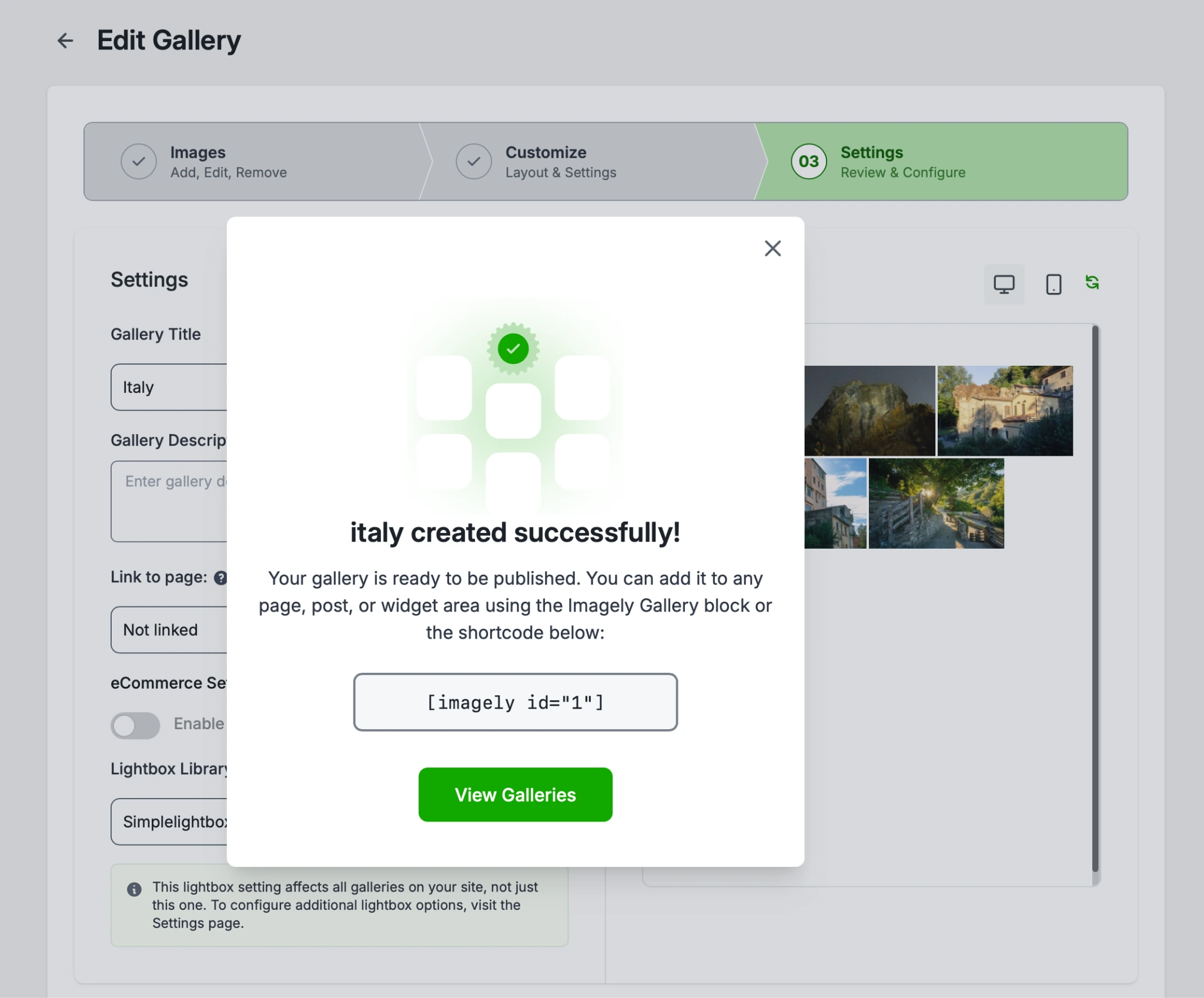
- Finalize any details and copy the shortcode. You can paste this on any post or page on your site to add the gallery to it.
This approach has downsides. The biggest one is that most popular gallery plugins operate on a free model. Most of the features and layouts weren’t available in the plugin I used without upgrading to Pro. I also didn’t like how I was pushed to install extra plugins as part of the setup process.
And then there are the technical issues. Gallery plugins inject CSS and JavaScript files into your website, which affect load speed, especially on mobile devices. A poorly designed or configured plugin can even drag down your Core Web Vitals score, meaning the wrong gallery damages your Google ranking and slows your website performance so potential customers click away before your photos even load.
Taken together, it’s hard to recommend using third-party gallery plugins unless you have the WordPress experience necessary to find the right plugin and configure it correctly.
Option 2: Add a free, customizable photo gallery widget (recommended)
If you want a dynamic, perfectly styled photo grid with advanced layouts and no annual fee that won’t slow down your website or clutter your database with images, then the best solution is to use a reliable hosted embed service like the Jotform Photo Gallery Widget. (Yes, Jotform does much more than just great WordPress forms.) You upload high-quality images and create your layout, copy the generated iframe snippet, and add it to your website. This gives you a flawless, responsive image showcase with all the heavy formatting handled completely off server. If you want a free masonry gallery for WordPress, it’s the first tool you should try.
Here’s how to set it up:
- Head to the Jotform Photo Gallery Widget and sign up for a free Jotform account. (Or log in if you already have one.)
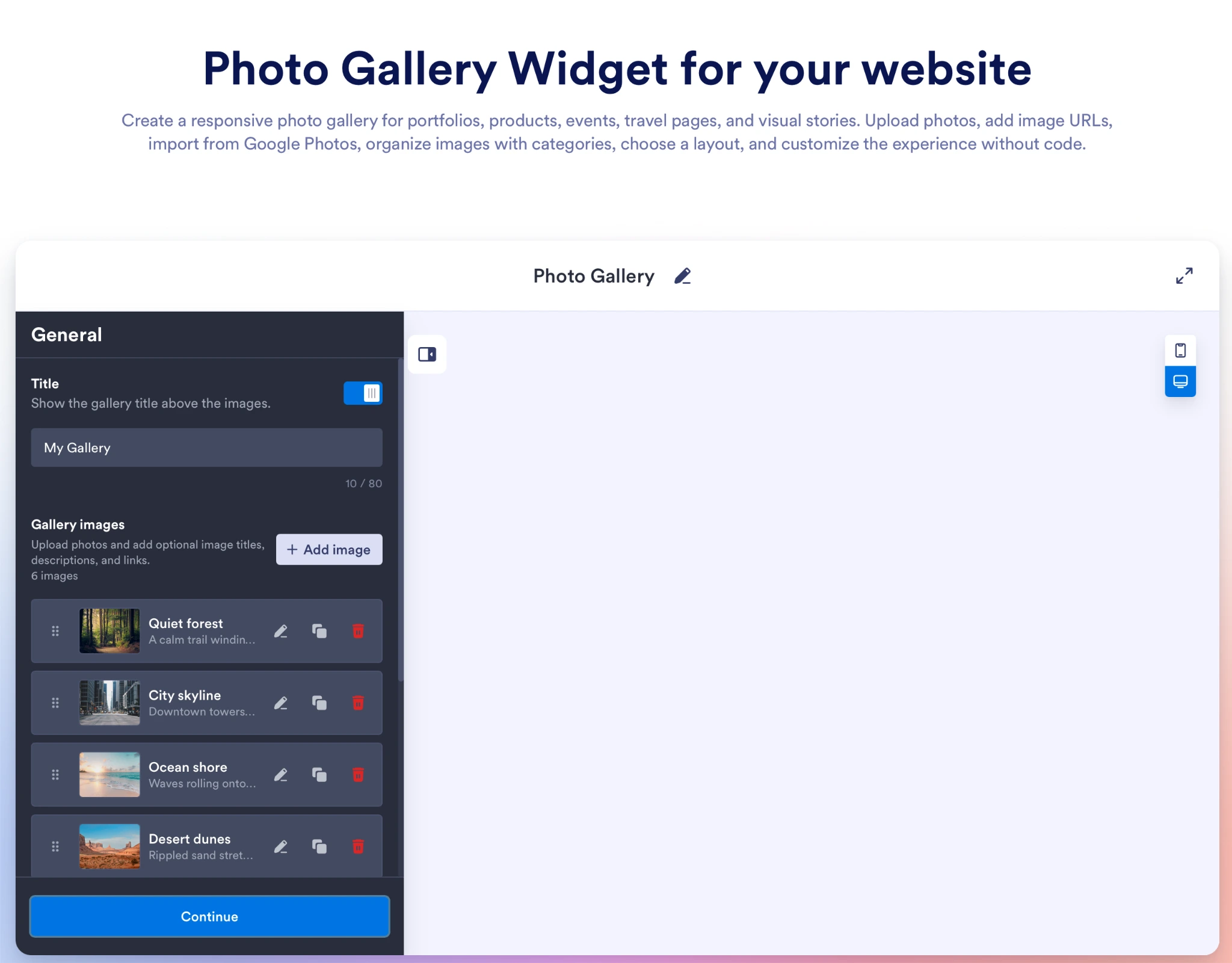
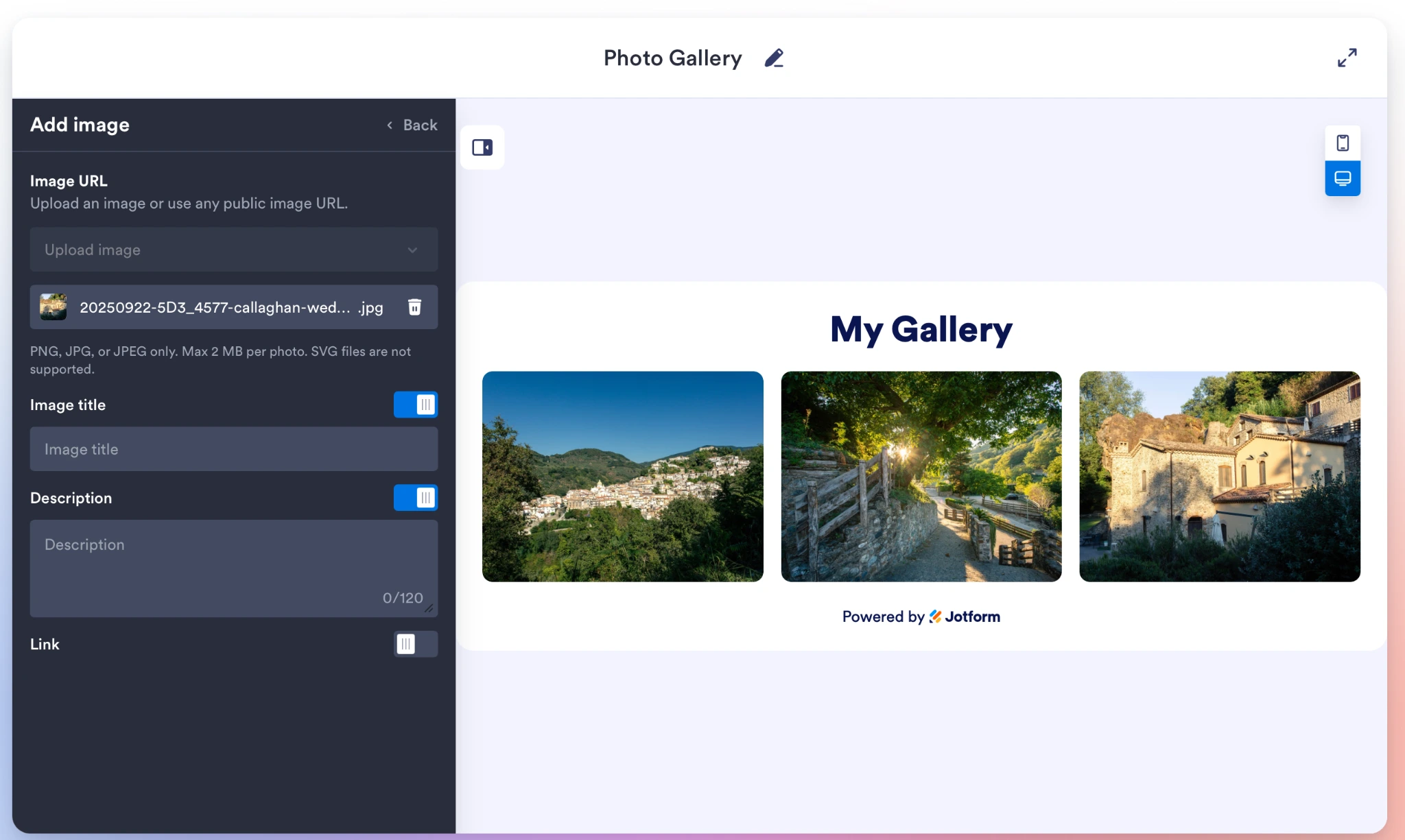
- Click Add Image and upload your images. You can give them titles, a description, or a link. Click the button in the top right corner to preview your gallery on mobile devices.
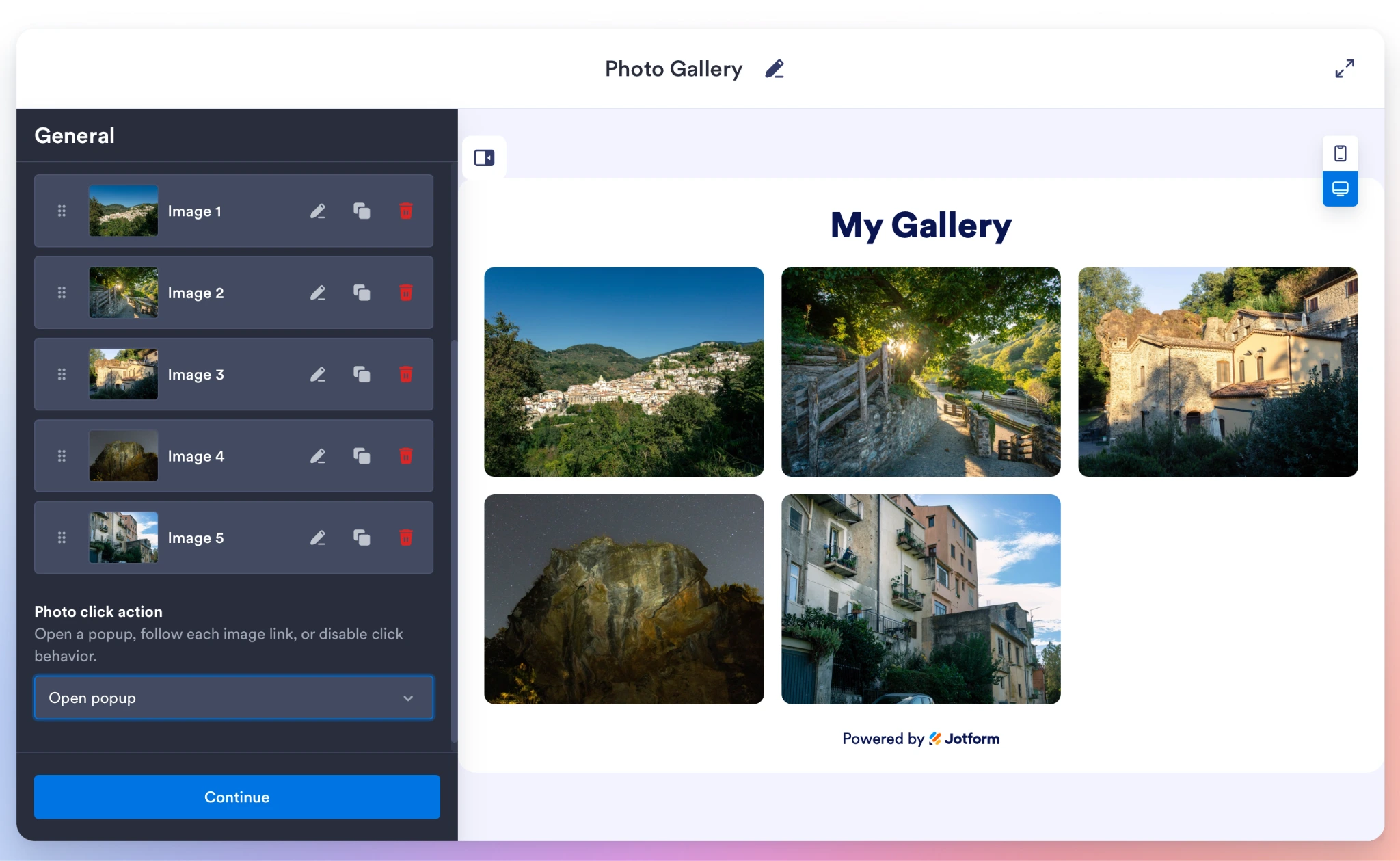
- When you’ve uploaded your images, select what you want to happen when someone clicks on one. You can choose from nothing, open a popup, or follow a link. Then click Continue.
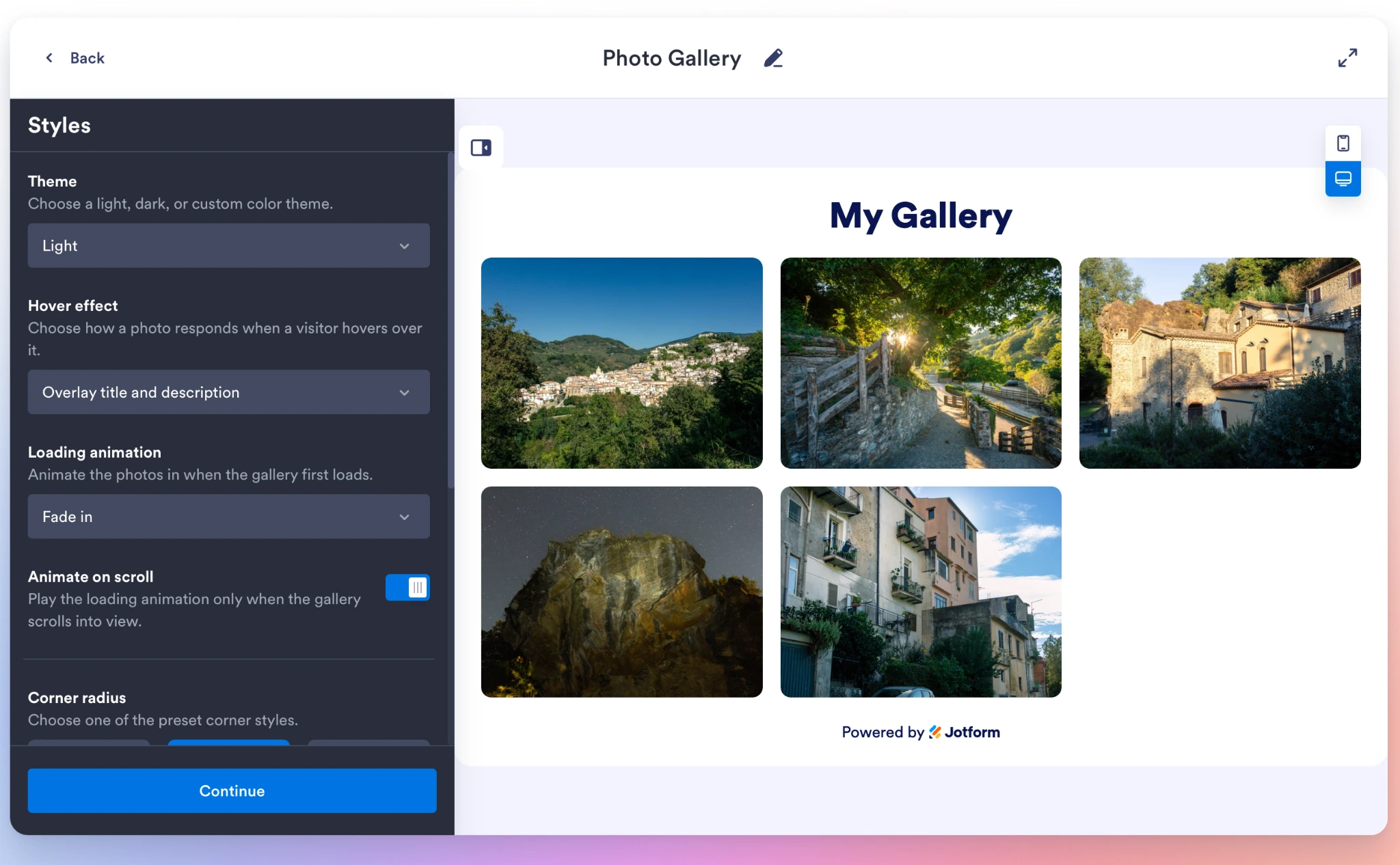
- Select your theme, effect, animations, and other details of how your gallery will look. This is where you can personalize it. You can even use custom fonts and CSS. Once you’re done, click Continue.
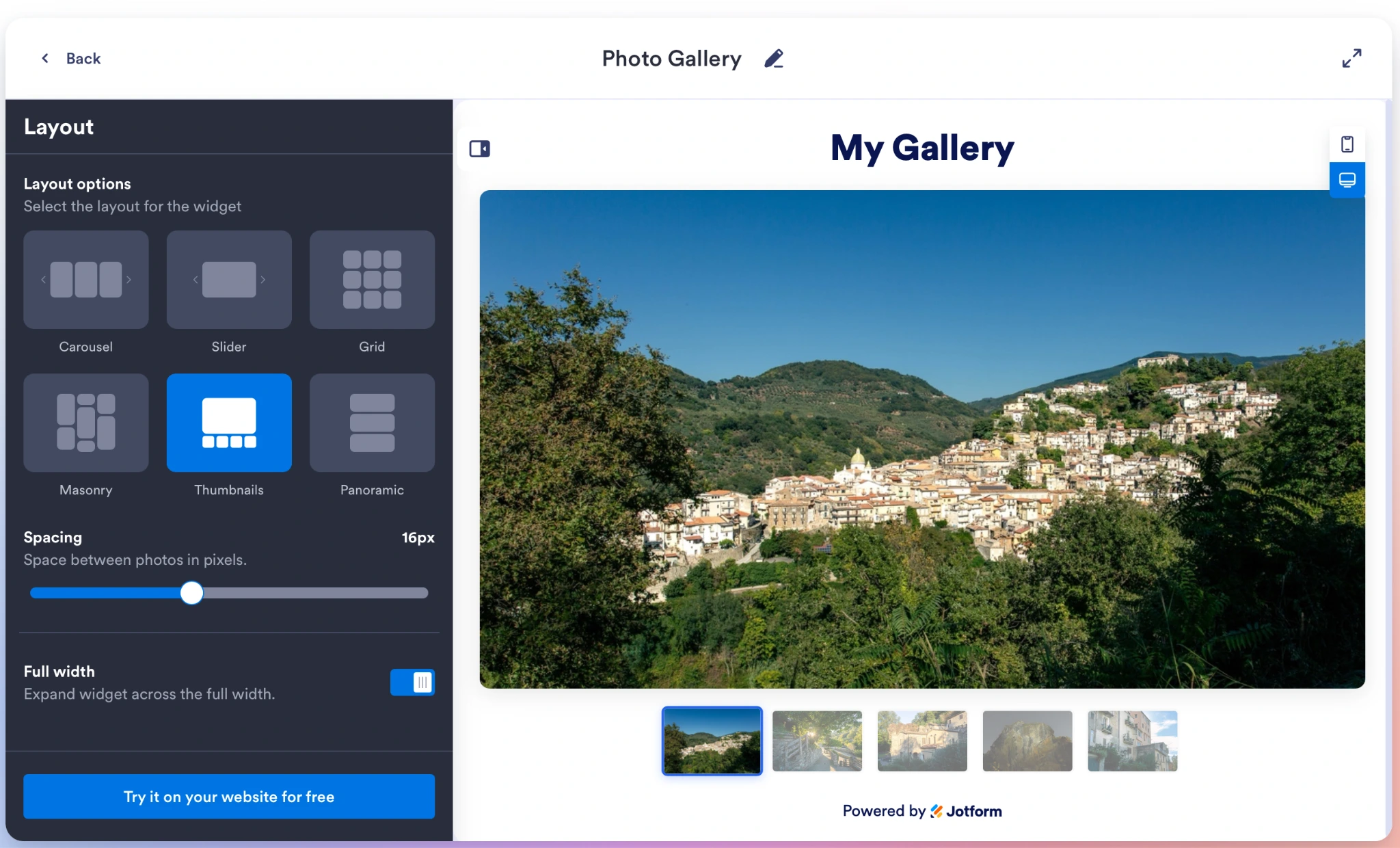
- Select your layout and spacing. Then click Try It On Your Website for Free to generate the iFrame code.
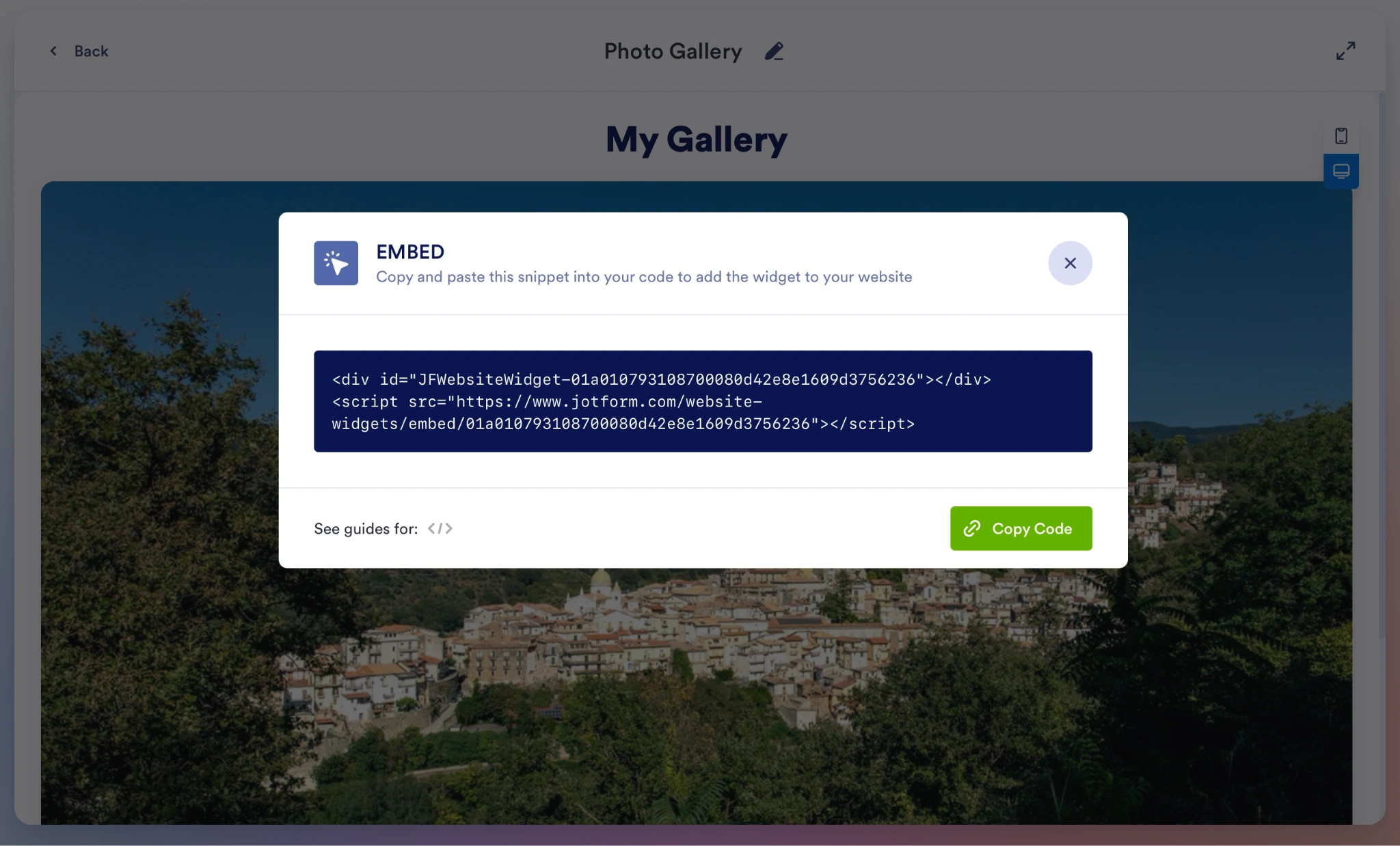
- Click Copy Code to copy the embed code to your clipboard.
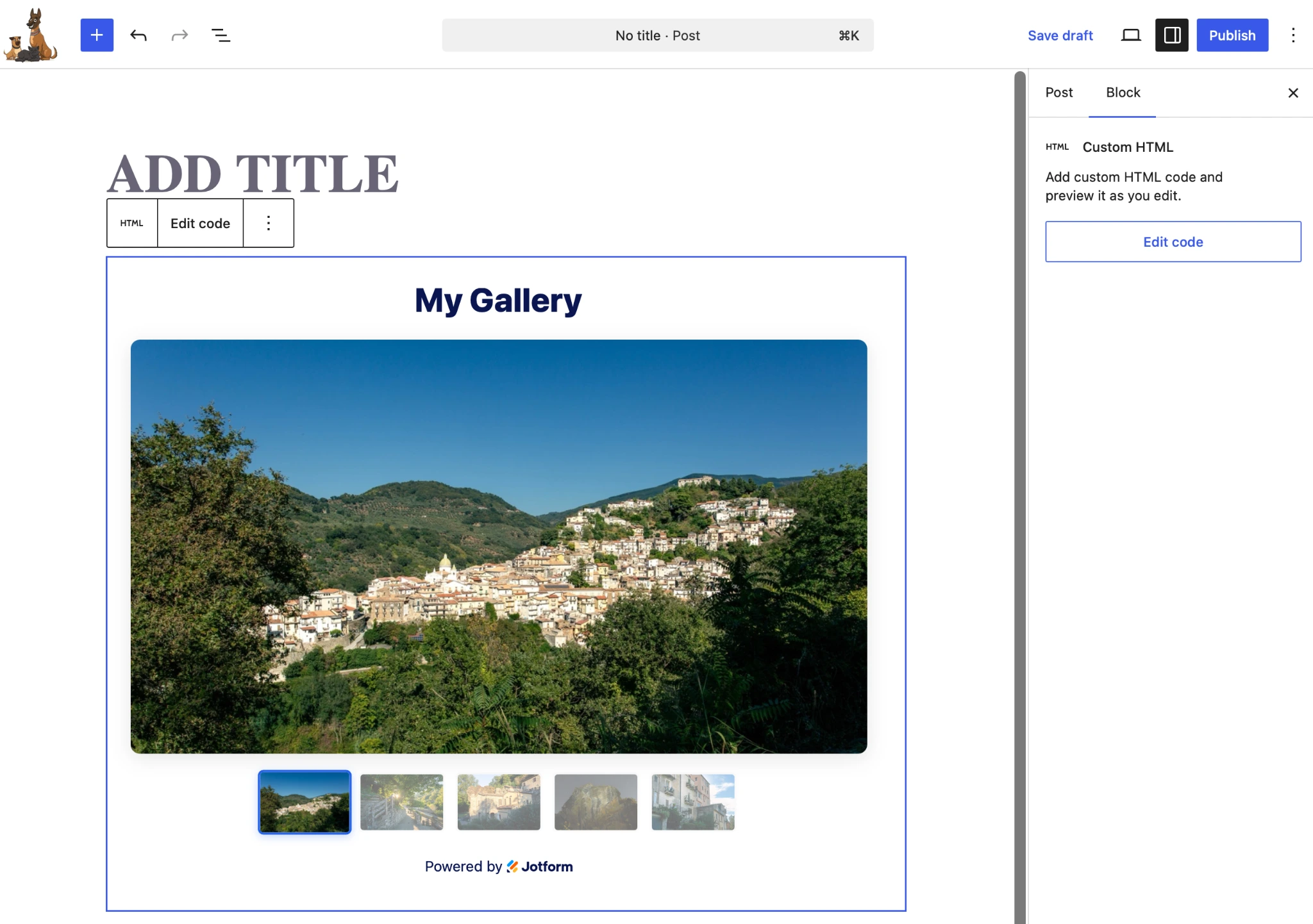
- In WordPress, create a Custom HTML block and paste in the embed code. You’ll then see a preview of the gallery.
- Publish your post and enjoy your fast, responsive gallery.
The big thing about Jotform Photo Gallery Widget is that it offers unparalleled visual control without requiring a premium plugin or impacting your website’s performance. You can upload your images and fully customize the look and layout of the gallery. It supports masonry, grid, and carousel layouts, click-to-zoom light boxes, and custom CSS so it perfectly matches your theme. And it does all of this for free.
Because everything is handled on Jotform’s servers, it won’t slow your WordPress load times, and your images don’t take up any storage space on your server. You’ve no need to fear database bloat as you upload more images. For a more detailed walkthrough, take a look at our guide on how to add a photo gallery widget to your website.
Supercharge your WordPress site with smart, serverless widgets
As well as the photo gallery, the Jotform Website Widgets directory is packed with free website widgets, including a visitor counter, weather widget, Google Reviews widget, Facebook Reviews widget, and 150-plus other options. All these widgets solve some of WordPress’s biggest pain points without relying on bloated third party plugins that have expensive subscription plans. You can add features to your website for free without slowing it down.
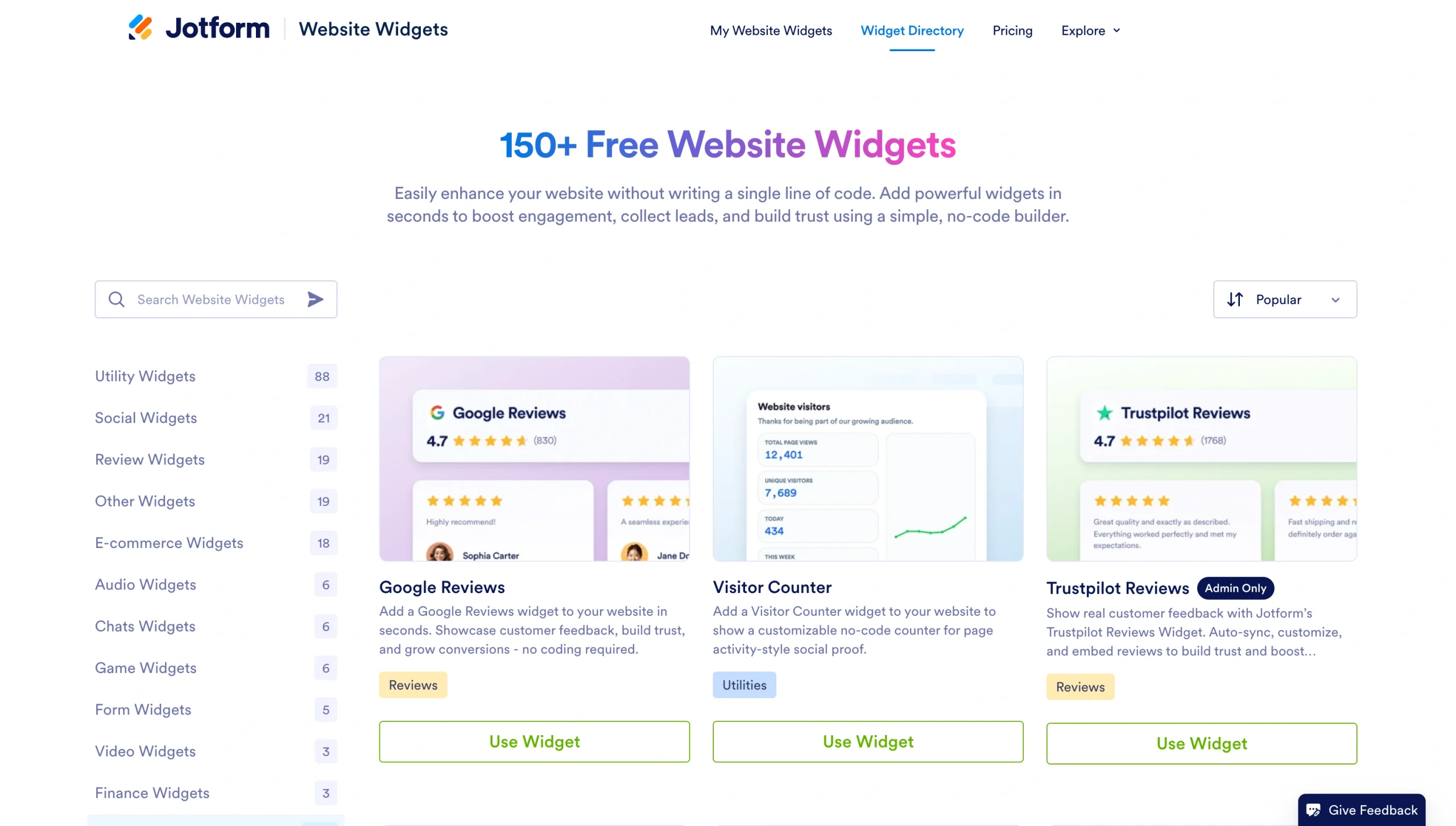
These widgets are great when you want to build an authoritative, visual web presence while keeping your site lightweight. And they all support the Jotform WordPress integration, so you can embed them directly in your WordPress site. (For more on getting started, here’s a guide on how to use WordPress.)
If you’re a content creator or running a growing business, your website should be handling sales and traffic, not getting bogged down with image rendering and bad plugins. By using free, off-server tools like Jotform Photo Gallery widget to build your custom WordPress photo gallery, you can get an instantly deployed, highly responsive, premium photo grid—with none of the headache of third-party plugins.
This article is for WordPress site owners, photographers, real estate agents, and e-commerce brands who want to display a beautiful, fast-loading image grid or masonry layout without bloating their database or paying for premium plugin renewals.





































































































Send Comment: