
An RSS feed (RSS is short for Really Simple Syndication) is a running list of a website’s latest updates, typically with a title, description, and link to the original content.
When you embed an RSS feed on a WordPress page, the page refreshes as the feed updates. In September 2026, RSS reader Feeder counted more than 300,000 active feeds (meaning feeds that had published something in the previous 30 days) from over 100,000 websites.
WordPress comes with a native RSS block, and I’d start there for a simple list of updates. But you can’t show an image, so a podcast feed full of episode artwork, for instance, shows up as a stack of text links.
For more control over the design, you have two common options: an aggregator plug-in or a hosted widget. I’ll walk you through both.
Option 1: Install a dedicated WordPress RSS aggregator plug-in
On WordPress, the native block shows you up to 10 items, always the most recent, which is fine for a sidebar but thin for a resources page.
I’ll use the Feedzy RSS plug-in as an example because it both displays a feed and imports items into WordPress as posts.
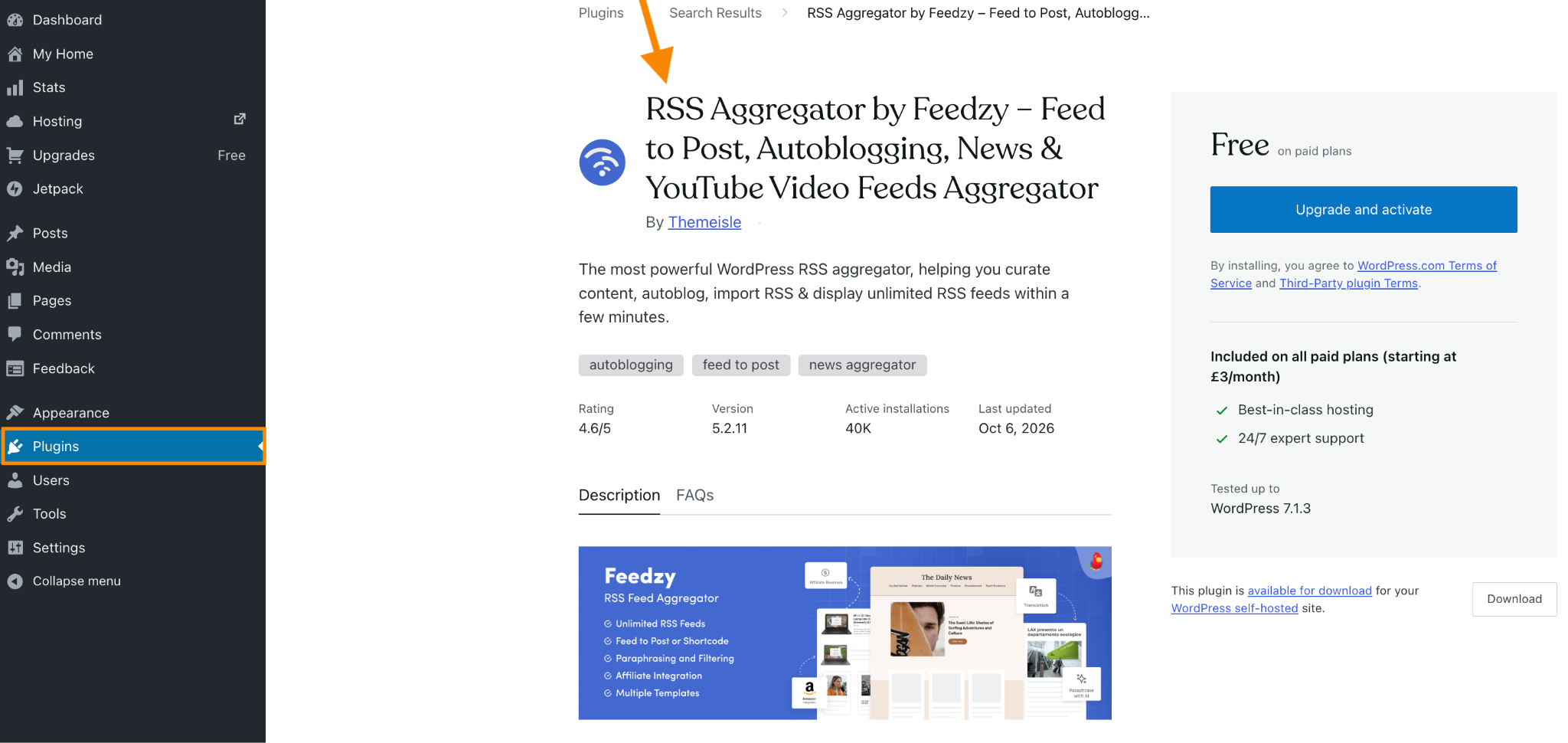
- Install the plug-in: In your WordPress dashboard, go to Plugins > Add New, search for “Feedzy RSS Feeds” by Themeisle, then click Install Now and Activate. If you’re on WordPress.com, you’ll need a paid plan to install plug-ins.
- Add the feed to your page: In the block editor, type /feedzy, select the Feedzy block, and paste in your feed URL. Click Load Feed, then adjust the settings in the right sidebar. If you’re using another editor, add this shortcode in a shortcode-compatible area, replacing the placeholder with your feed URL: [feedzy-rss feeds=”your-feed-URL”]. You can also use a Shortcode block in the WordPress editor.
- Sort out the images: Feedzy can display images supplied by the feed and use a default image when one is missing. If you’re using shortcode, add thumb=”yes” and default=”your-image-URL” inside the closing bracket. I’d choose a default that works across the feed, such as the publication’s logo.
- You can stop at displaying the feed or create full posts: For just a feed, your visitors see the entries and follow their links to the original source. Feedzy’s Feed to Post feature goes further by creating WordPress posts, pages, or custom post types from those entries.
For that route, go to Feedzy > Import Posts > New Import and configure the source and post settings.
I’d save the first imports as drafts so you can check the formatting before anything goes live. The free version allows one import project; additional projects and custom import schedules require Pro.
Feedzy, or another WordPress plugin that imports feed items as posts, turns every imported item into a real post. So iIf you import three feeds and keep everything on the same database as your own content, you’d get 1,095 posts a year.
That’s why our recommended option is …
Option 2: Add a free, customizable RSS widget
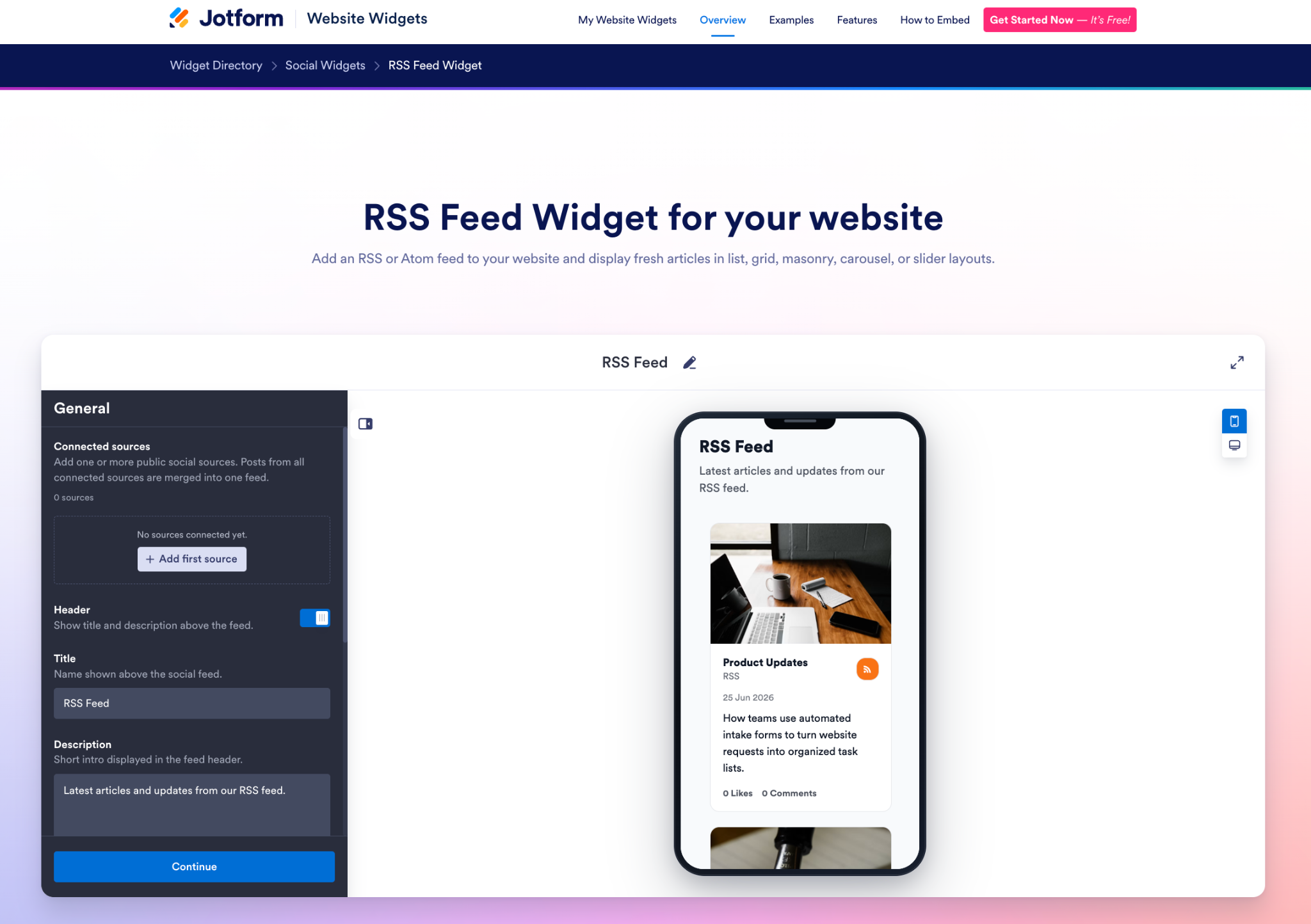
Another option for a feed with images is Jotform’s RSS Feed widget. I’m using NASA’s Image of the Day for this walkthrough.
- Connect your RSS feed: Open the Jotform RSS Feed widget page. Under General > Connected Sources, click Add First Source.
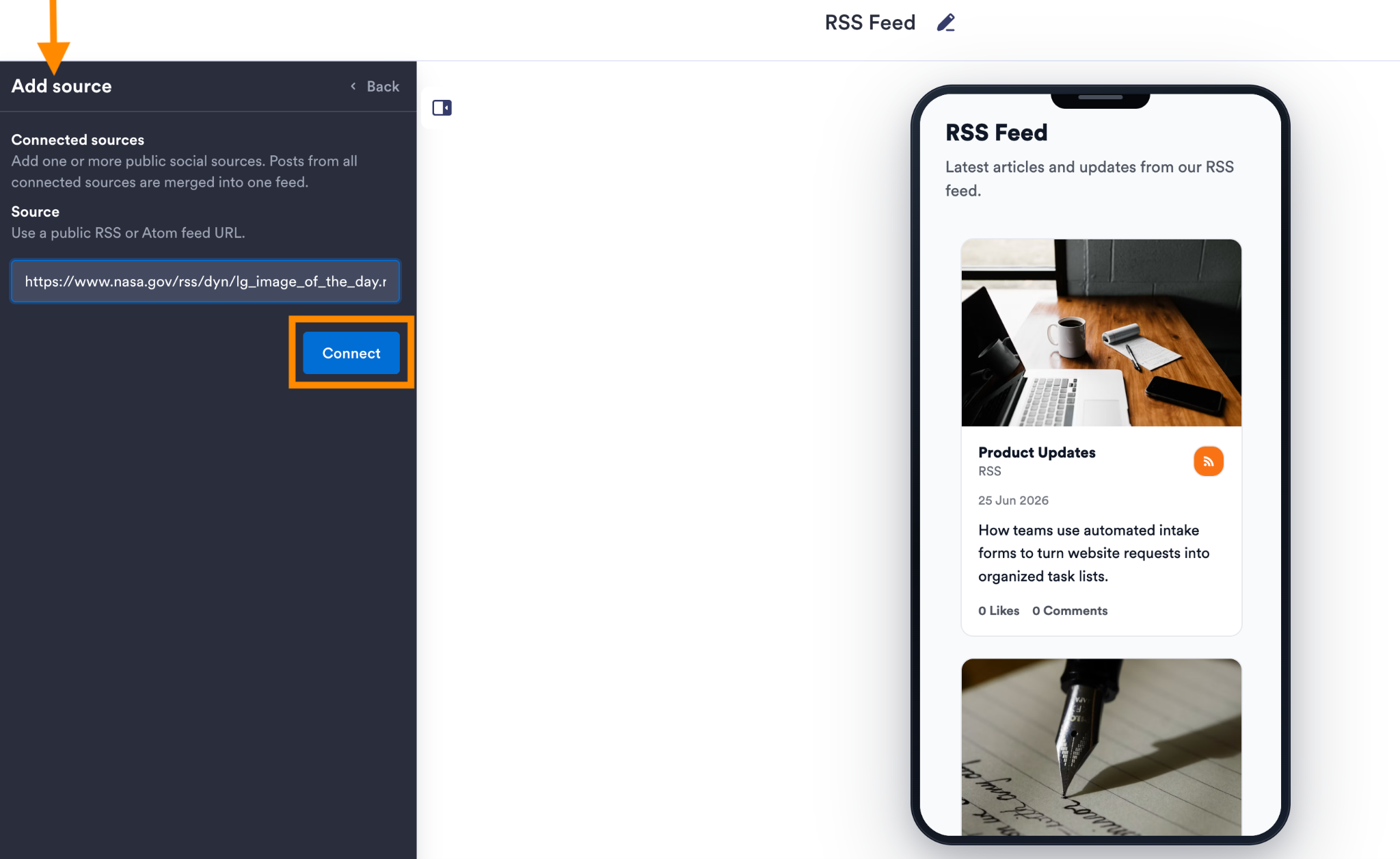
- Paste your public RSS or Atom feed URL into the Source field: Click Connect. For the NASA example shown here, I used: https://www.nasa.gov/rss/dyn/lg_image_of_the_day.rss
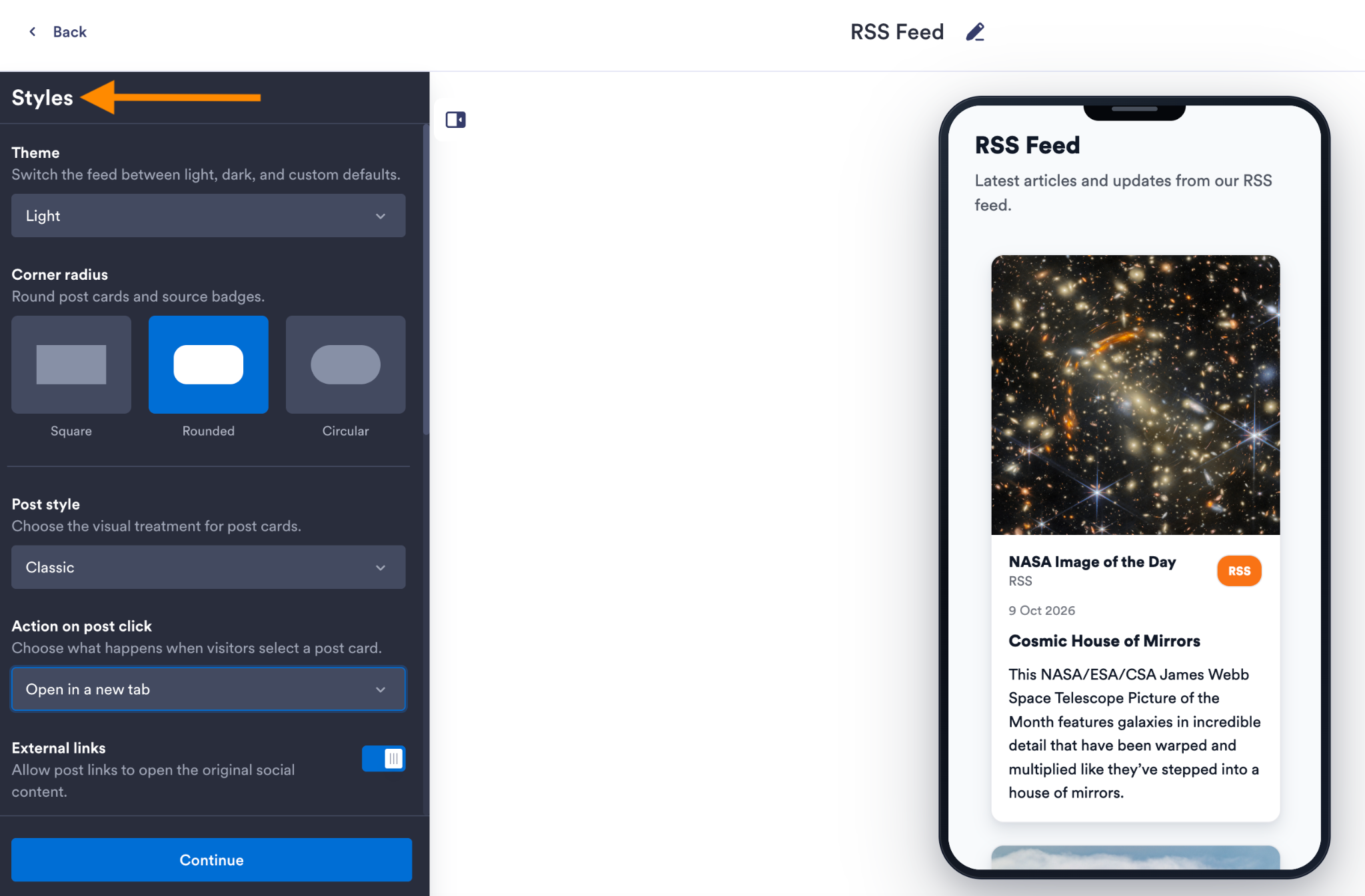
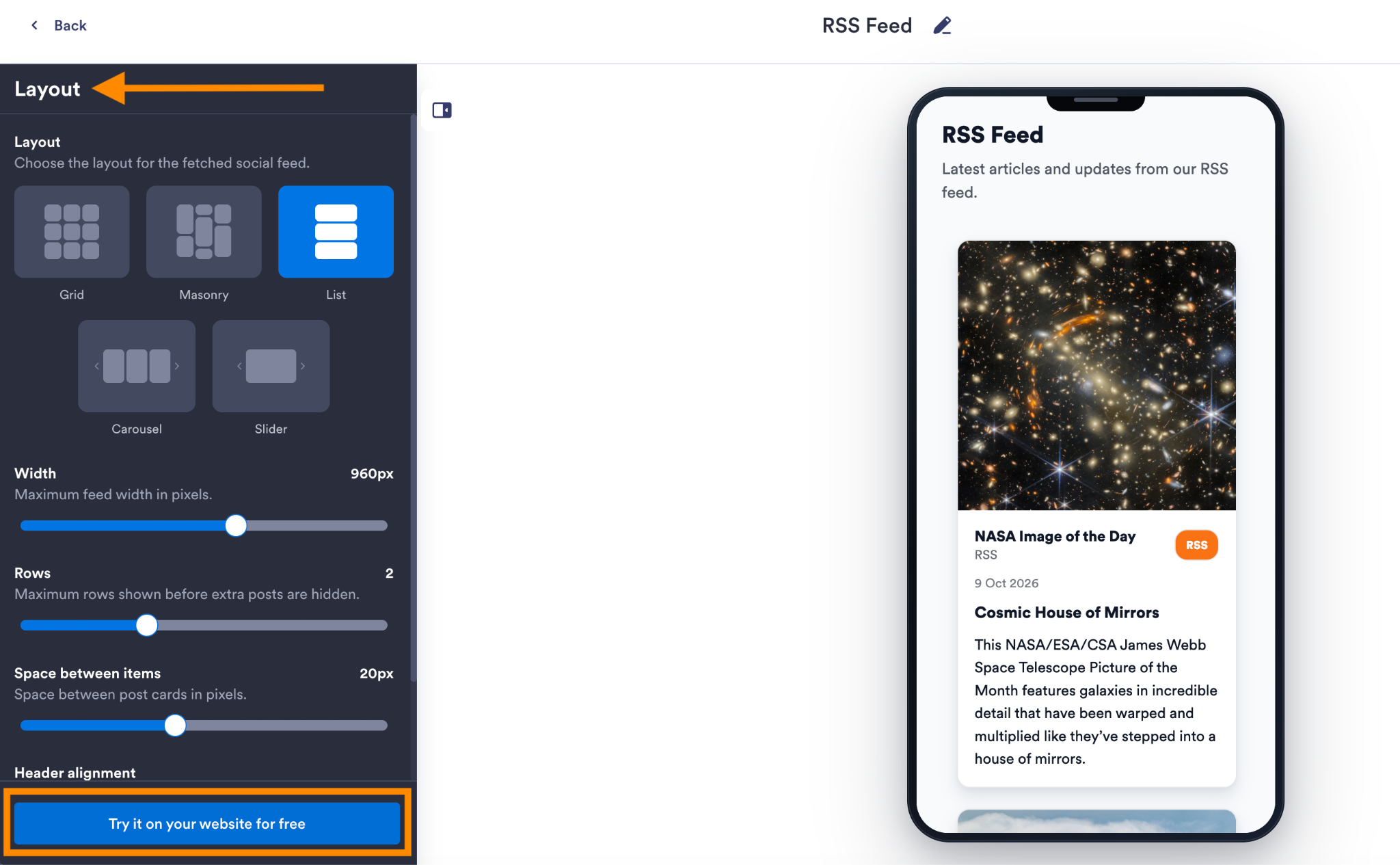
- Customize the cards and layout: In Styles, choose a light, dark, or custom theme. You can adjust the card corners and post style, then decide what happens when someone clicks an entry.
- Next, choose a layout: You have the choice of Grid, Masonry, List, Carousel, or Slider layouts. The Layout panel also lets you adjust the feed’s maximum width, number of rows, and space between items. You can show or hide details such as dates, captions, and source labels. Keep the information that helps someone choose what to click on.
- Copy the code into WordPress: Click Try it on your website for free.
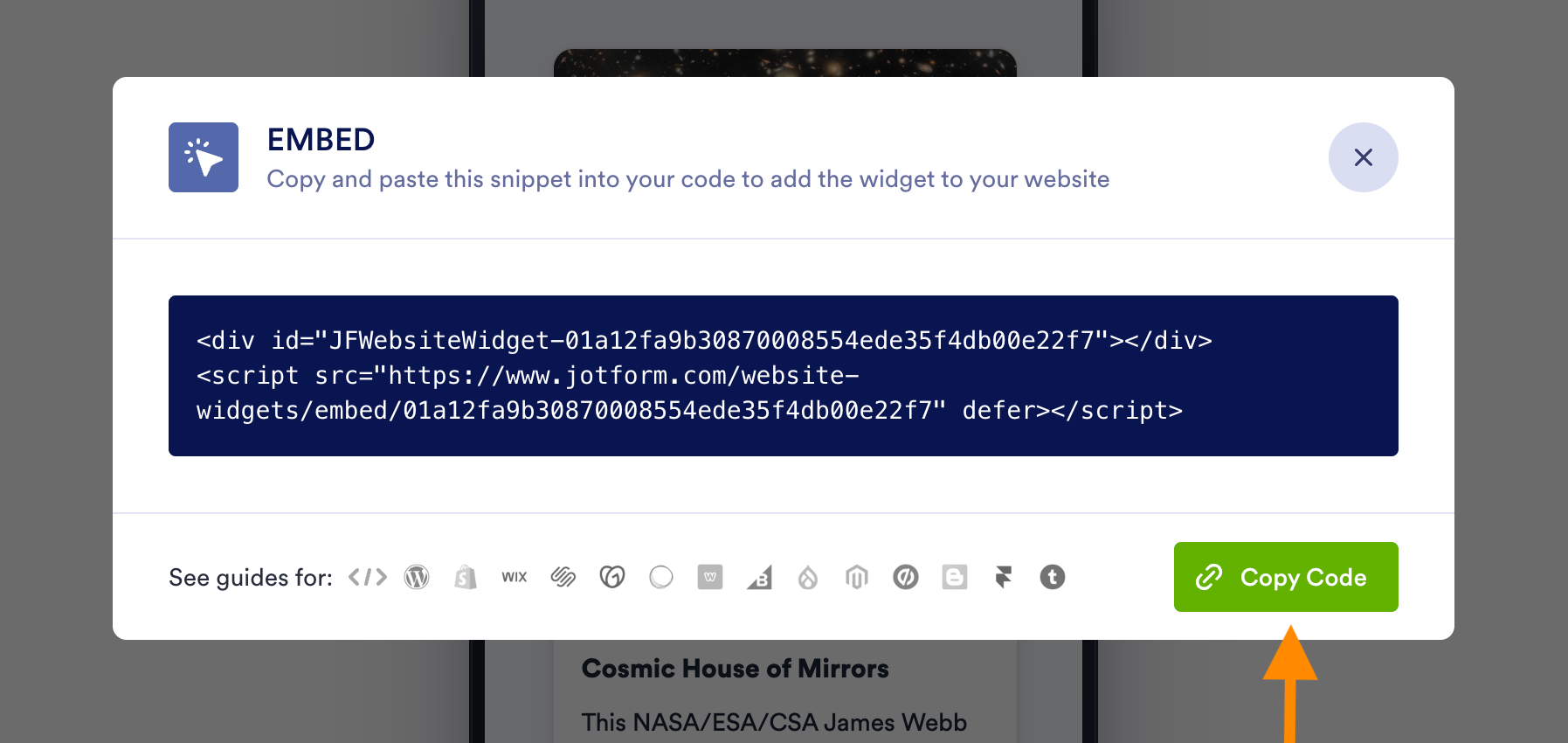
- Copy the entire snippet: Click Copy Code in the embed window.
- Open your WordPress page or post, click the + block inserter, and search for Custom HTML. Add the block, then paste in the code. In the editor, click Edit HTML to open the code window. Paste the snippet on the left, check the preview on the right, and click Update. Then save or publish the page itself.
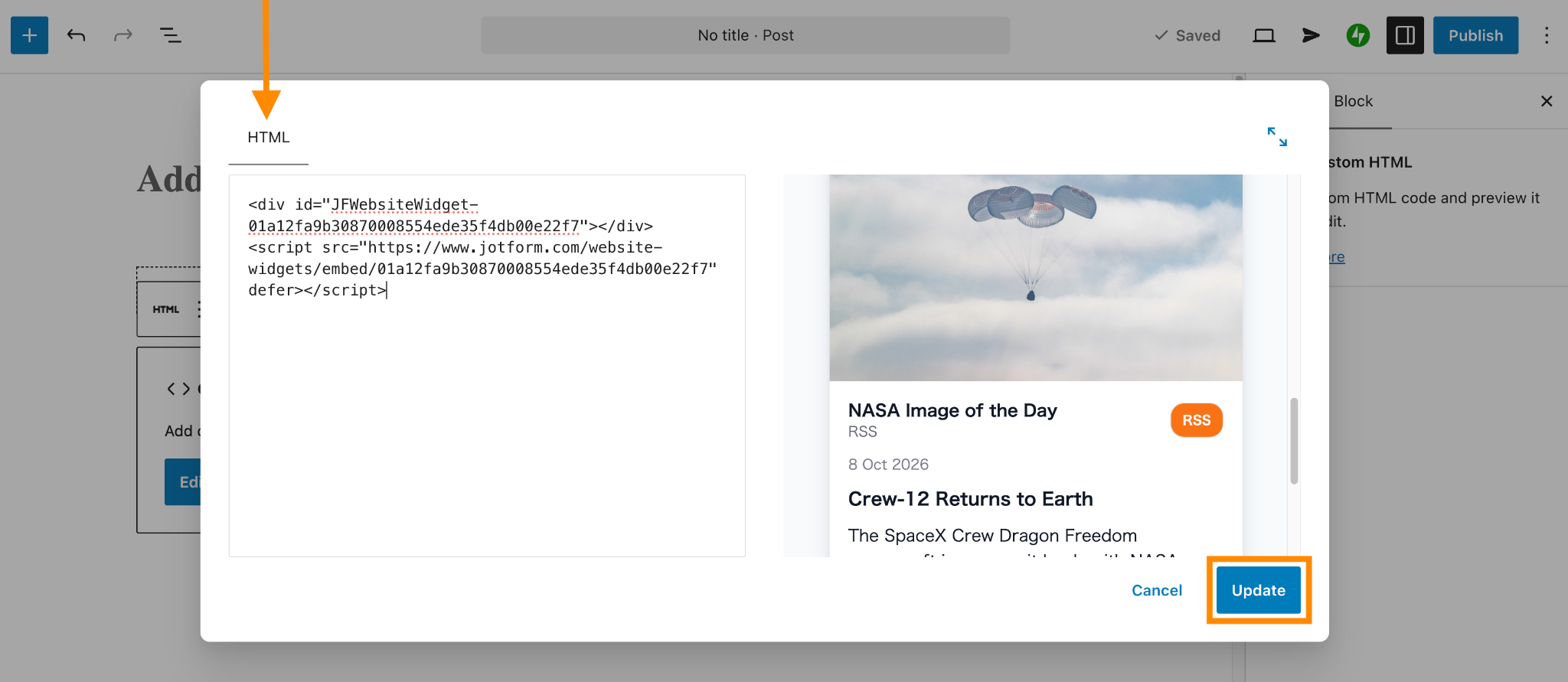
On WordPress.org, the widget is free, but WordPress.com requires a paid plan with hosting features activated to accept the script. If part of your code disappears after saving, check those requirements first.
Jotform’s serverless RSS widget supplies the feed, and new entries don’t become posts in your database. Your visitors’ browsers still have to load the embed and its images, though, so check the published page’s loading speed, especially with an image-heavy feed like NASA’s.
Pro Tip
New to WordPress? Jotform’s guide on how to use WordPress covers the basics, and when you’re ready to collect something from visitors, there’s a WordPress integration for embedding forms and a full guide to WordPress forms.
More widgets, fewer plug-ins for your WordPress website
For the NASA feed, I wanted images and a layout I could adjust. The free Jotform RSS Feed widget handles that without importing every entry into WordPress or adding another RSS plug-in to maintain.
The same approach works for other small jobs, too. The Jotform Website Widgets directory includes
- Google Reviews: Brings customer feedback onto a service page without copying reviews over by hand; the widget syncs with your Google Business profile
- Event Calendar: Puts upcoming events, their details, and registration links in a calendar visitors can browse
- FAQ: Allows you to give users a growing list of questions with searchable, expandable answers, with styling you can adjust to fit the page
Jotform Website Widgets are free, with unlimited access to all features until January 2027. Try it during that time. You can decide whether it’s worth paying for once you’ve lived with it.
WordPress RSS feed FAQs
No. In September 2026, Feeder counted more than 300,000 active feeds from over 100,000 websites among the feeds its users follow.
For most WordPress sites, add /feed/ to your website address: https://example.com/feed/.
RSS readers and widgets turn that code into something readable. To embed RSS in WordPress, copy the feed URL into your chosen block, plug-in, or widget.
The Jotform RSS Feed widget is a Gutenberg RSS block alternative with more layout and styling options. The serverless widget also works as a WordPress RSS aggregator alternative when you want to display feed items without importing them as posts.
This article is for WordPress site owners, bloggers, news sites, and podcasters who want to display dynamic, visually appealing RSS feeds without installing heavy aggregator plugins that bloat their database or slow down their server.




































































































Send Comment: