

Actor Forms
Casting Fill Out Form
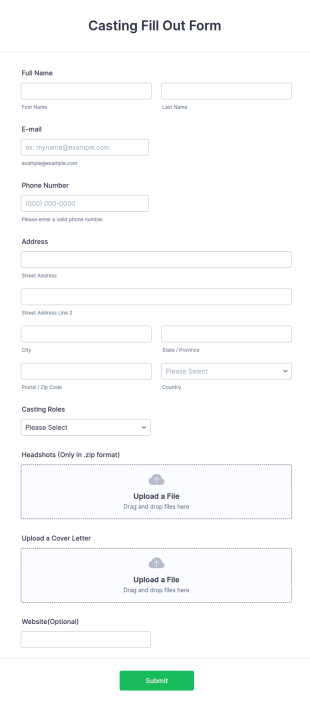
A casting fill-out form is used by casting directors and talent agents to cast actors for specific roles in movie, television, and theater productions.
Go to Category:Application FormsActor Application Form
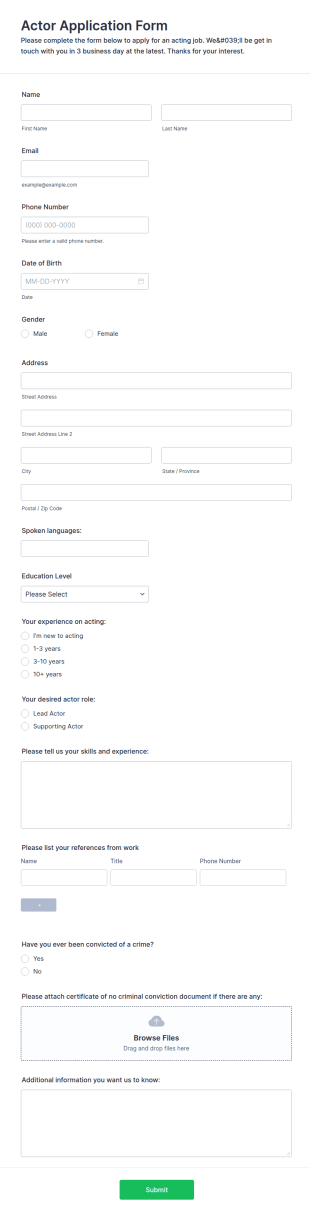
An actor application form is a form that actors fill out to audition for a role in a movie or television series. No coding!
Go to Category:Entertainment Forms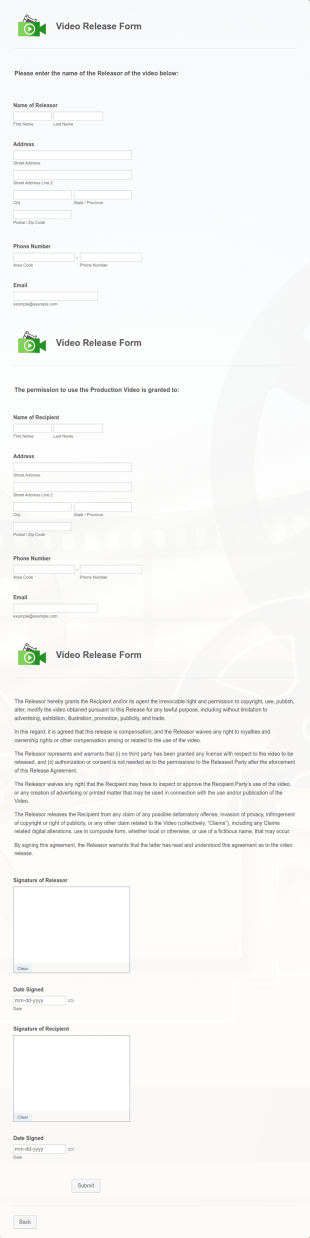
Video Release Form
Video Release Form is a form template that helps facilitate the process of obtaining necessary permissions for using video content, designed with the sleek and user-friendly interface of Jotform.
Go to Category:Consent FormsActor Release Form
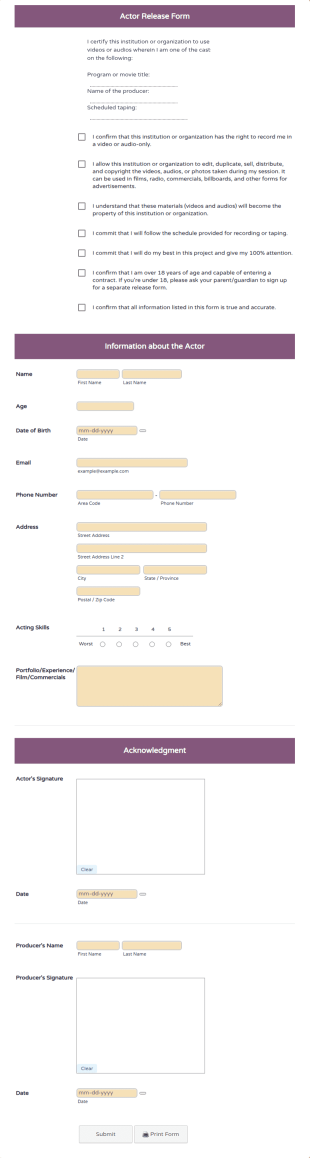
Protect the production company from any copyright issues related to the talents by using this Actor Release Form template. This form template is complete, customizable, and easy-to-use.
Go to Category:Photography Forms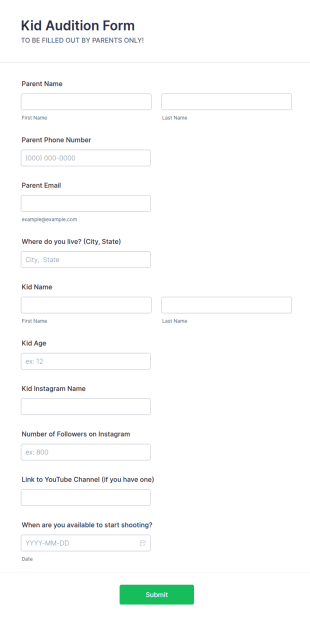
Kid Audition Form
A Kid Audition Form is a form template designed to streamline the audition process for children's performances. Effortlessly gather vital information from candidate's parents, schedule auditions, and track progress. Perfect for casting directors seeking a hassle-free solution.
Go to Category:Entertainment FormsTalent Release Form
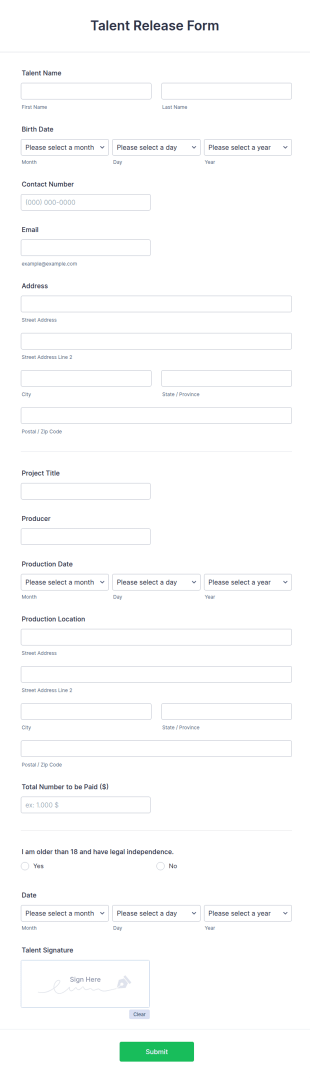
Talent Release Form is the official document that provides permission to distribute and sell the material of a talent given to producers and provides the talents’ contact details, project information with the consent declaration.
Go to Category:Consent Forms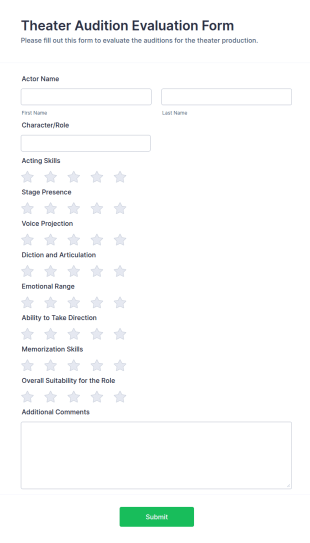
Theater Audition Evaluation Form
The Theater Audition Evaluation Form is a comprehensive tool designed specifically for casting directors, producers, and theater artistic directors to assess the acting abilities and suitability of auditioning actors.
Go to Category:Evaluation Forms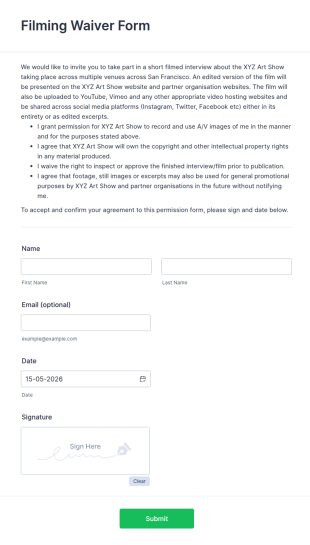
Filming Waiver Form
A filming waiver form is used by production companies and their employees to protect themselves in the event of an accident while a film is being made. Get the information you need, wherever you are!
Go to Category:Consent Forms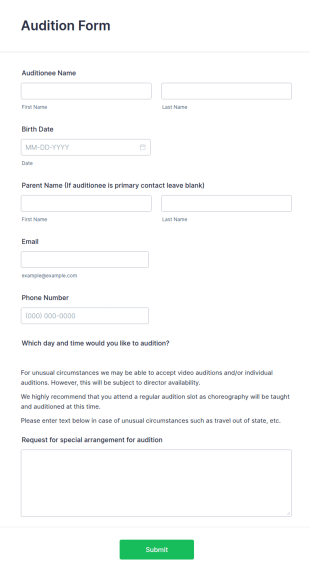
Audition Form
An audition form is a template that is used by casting directors, movie producers and the like to solicit information such as name, contact information, and appearance from members of the general public.
Go to Category:Application Forms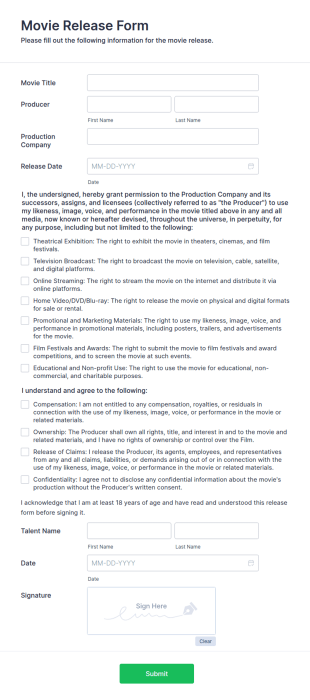
Movie Release Form
A Movie Release Form is a legal document used by film production companies to obtain permission from individuals to use their image, voice, and performance in a movie or video production.
Go to Category:Consent FormsTitle Release Form
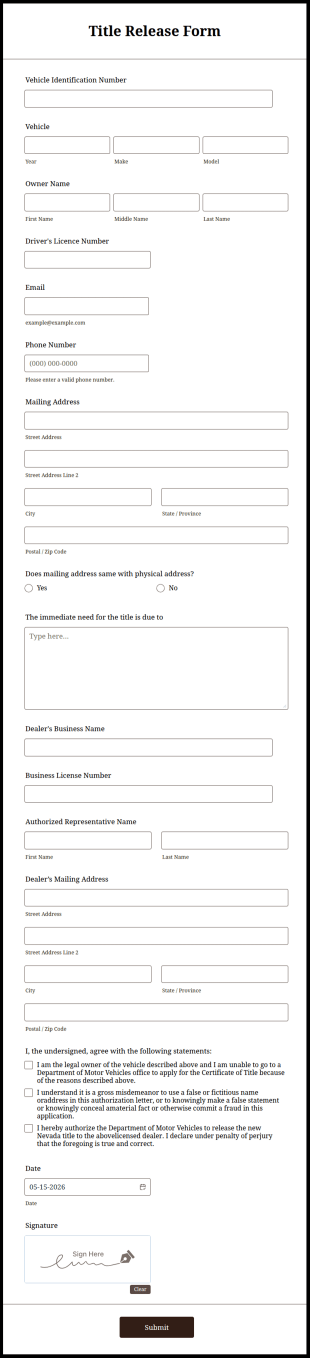
A title release form is a contract between two individuals that releases the title of a vehicle from one individual to another.
Go to Category:Business Forms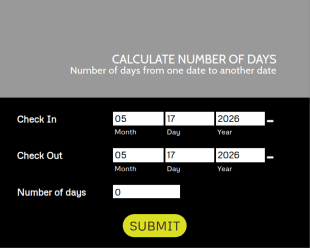
Day Out Of Days
A form that calculates the number of days between two dates. Very useful for any booking services to calculate the number of days a person requests.
Go to Category:Booking Forms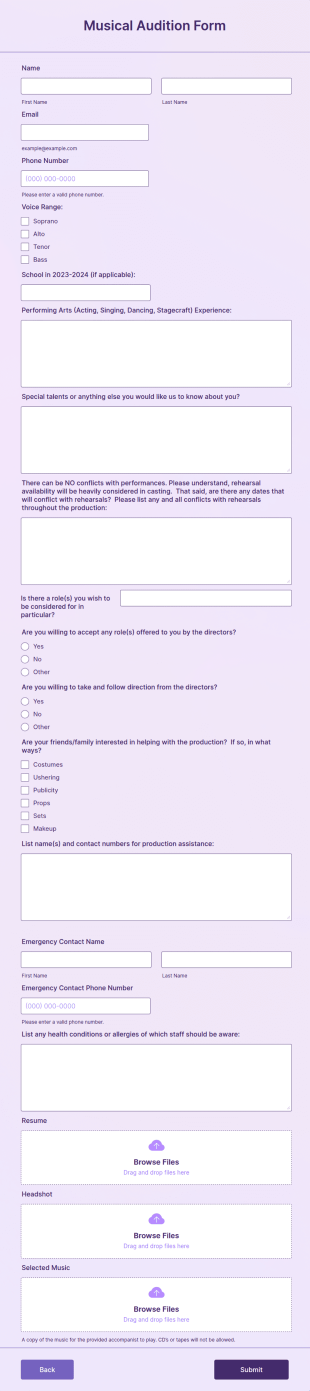
Musical Audition Form
A Musical Audition Form is a document designed specifically for educational institutions to collect information and details from students participating in musical auditions.
Go to Category:Entertainment Forms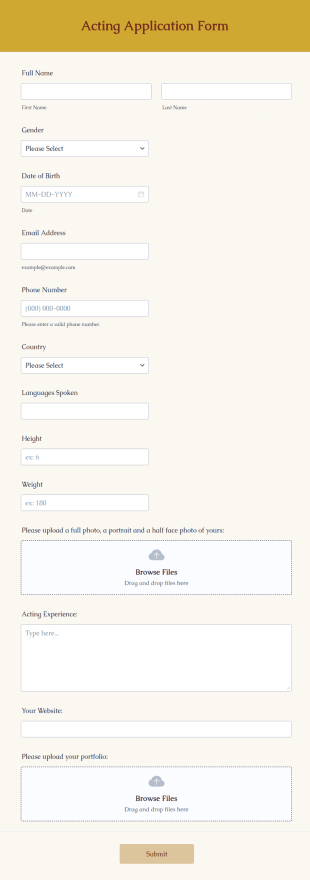
Acting Application Form
An acting application form is used to collect information about those interested in acting as extras or appearing in commercials, TV shows, or movies. Customize this template without coding!
Go to Category:Application Forms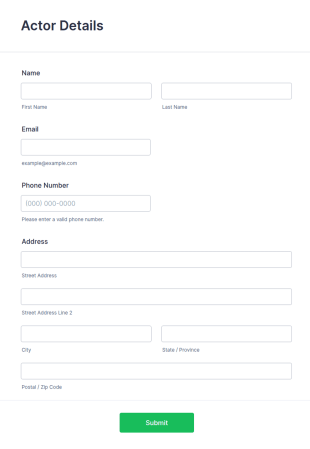
Actor Information Form
An Actor Information Form is used to collect information about a person for an acting role. No coding is required!
Go to Category:Information Request FormsCasting Call Release Form
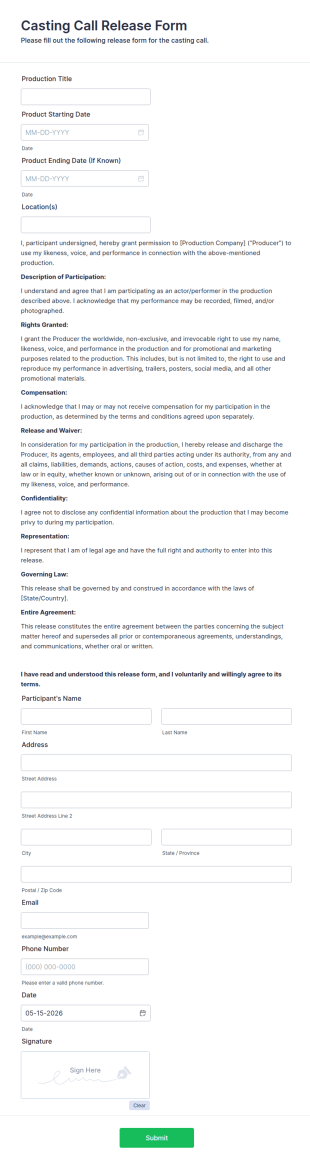
A Casting Call Release Form is a legal document that grants the filmmaker or production company the right to use an individual's likeness, voice, and performance in a film or other media production.
Go to Category:Consent FormsTheater Performance Consent Form
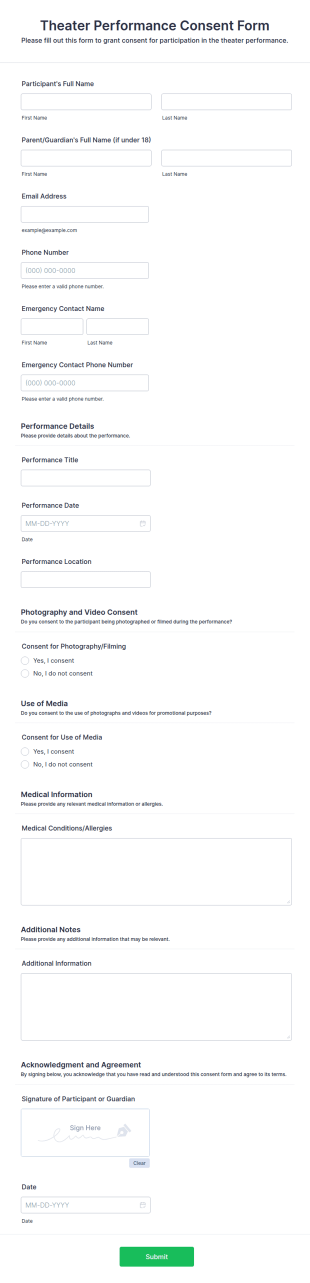
A Theater Performance Consent Form is a form template designed to ensure that participants and their guardians (if applicable) are fully informed and provide explicit consent for involvement in the theater performance.
Go to Category:Consent Forms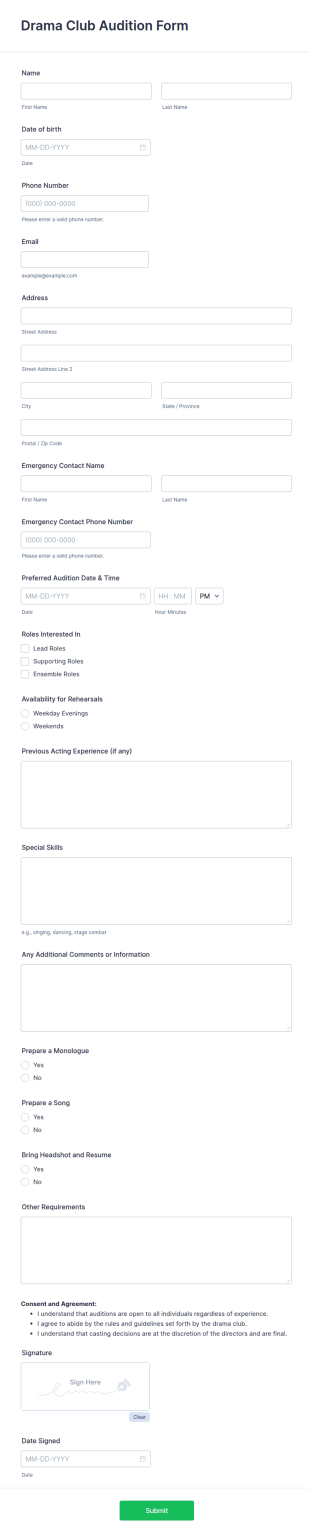
Drama Club Audition Form
A Drama Club Audition Form is a form template designed to streamline the audition process for drama club organizers.
Go to Category:Registration Forms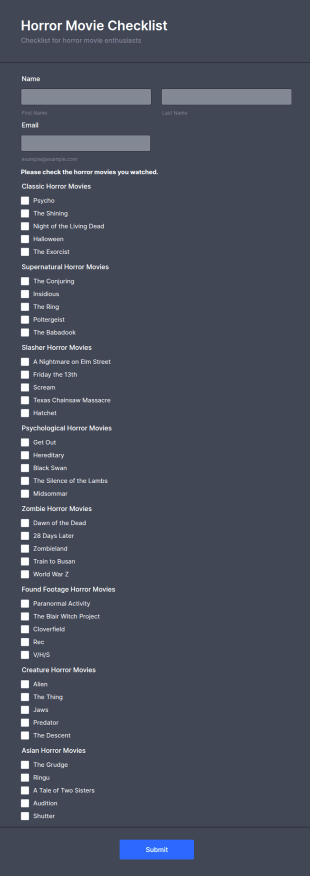
Horror Movie Checklist
A horror movie checklist is a pre-viewing checklist used by viewers to track what they have watched and what they have left to watch.
Go to Category:Checklist Forms
Film Confirmation Form
Film Confirmation Form Template helps filmmakers and festivals collect film or screenplay submissions online and keep entries organized in one place.
Go to Category:Entertainment Forms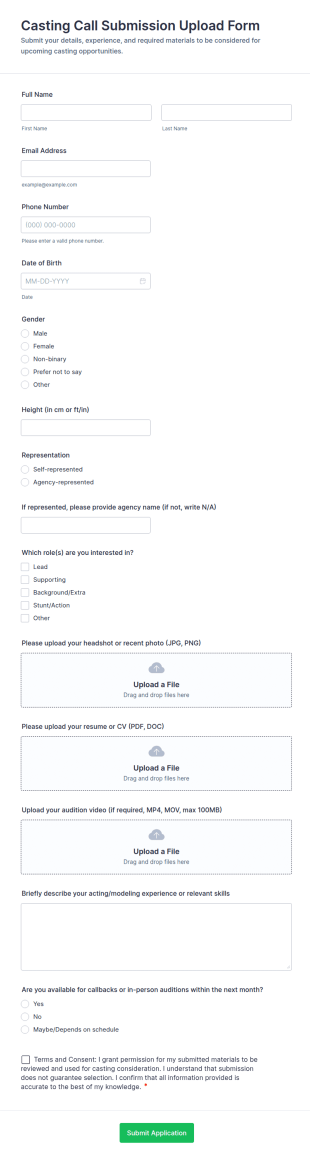
Casting Call Submission Upload Form
Collect casting applications online with the Casting Call Submission Upload Form, built in Jotform for fast data collection, file uploads, and organized form submission management for productions, agencies, and casting teams.
Go to Category:Actor Forms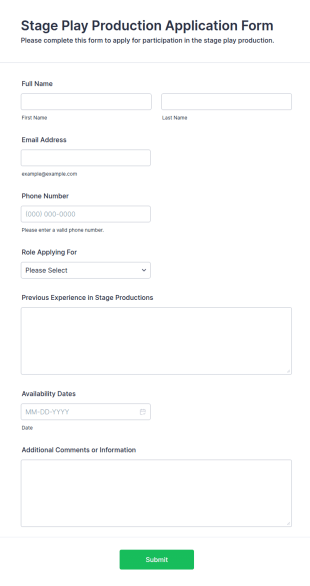
Stage Play Production Application Form
The Stage Play Production Application Form helps theater companies collect applications from actors and crew members, streamlining the selection process for upcoming productions.
Go to Category:Application Forms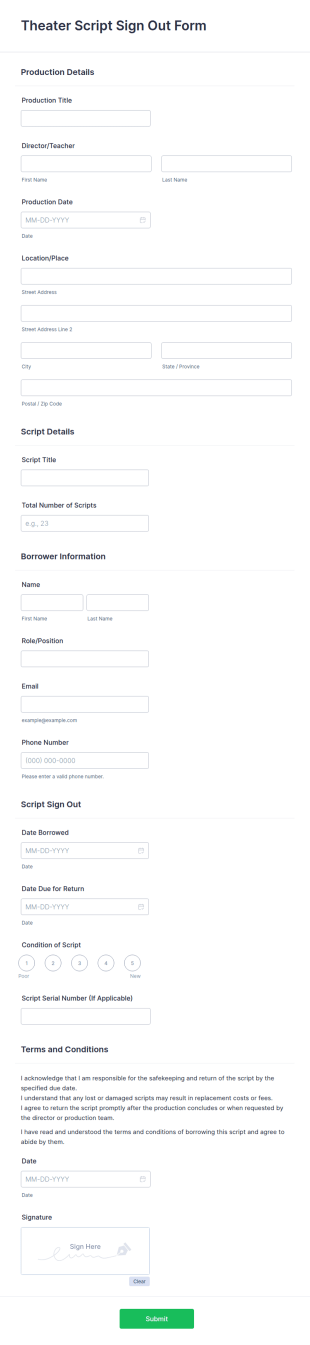
Theater Script Sign Out Form
The Theater Script Sign Out Form is a valuable tool for theatrical productions and educational institutions alike.
Go to Category:Consent Forms
Celebrity Agency Transfer Form
A Celebrity Agency Transfer Form is a form template designed to facilitate the transfer of representation from one agency to another.
Go to Category:Business FormsAbout Actor Forms
Actor Forms are specialized online forms designed to streamline and enhance the data collection processes for professionals in the acting and performing arts industry. These forms are instrumental in managing a variety of workflows, from casting calls and audition applications to actor contracts and performance feedback. By using digital forms, agencies, production companies, and individual actors can efficiently handle large volumes of information, ensuring that all critical data is captured accurately and securely. The flexibility of these forms allows for customization to fit specific operational needs, making them an invaluable asset for the fast-paced environment of the entertainment industry.
Jotform stands out as the premier online form builder for creating and managing Actor Forms, offering a robust platform that simplifies the customization and automation of data collection. With Jotform, users can easily create forms tailored to their specific requirements using a user-friendly drag-and-drop interface. Additionally, Jotform Tables provides a centralized data management solution, enabling users to organize and analyze their data efficiently. The seamless integration of features such as conditional logic and electronic signatures further enhances the capability to handle complex workflows, ensuring that all aspects of form management are covered comprehensively.
Why Use Actor Forms?
- Actor Forms provide a streamlined method for collecting and organizing data related to auditions, casting calls, and contract agreements. This ensures that all necessary information is captured accurately without the risk of manual errors, enhancing the overall efficiency of operations within the entertainment industry.
- The speed at which data can be collected and processed using Actor Forms is significantly higher compared to traditional methods. This is crucial in an industry where quick decisions are often necessary, allowing casting directors and talent managers to review submissions promptly and make informed choices.
- Professional data handling is a critical aspect of Actor Forms, as it ensures that sensitive information, such as personal details and contractual terms, is protected. Jotform's secure data management features safeguard this information, providing peace of mind to both form creators and respondents.
- By using Actor Forms, professionals can easily automate repetitive tasks such as sending confirmation emails or scheduling auditions. This automation reduces the workload on administrative staff and allows them to focus on more strategic tasks that require human intervention.
- The use of digital forms eliminates the need for physical paperwork, which can be cumbersome and prone to being misplaced. This transition to a paperless environment not only saves time and resources but also supports environmentally friendly practices.
Common Problems Solved by Actor Forms
- One of the key challenges in the acting industry is the reliance on paper-based processes, which can lead to inefficiencies and errors in data handling. Actor Forms address this by digitizing the entire process, ensuring that all information is captured accurately and stored securely.
- Manual data entry is another common pain point, often resulting in mistakes and lost data. With Actor Forms, data is collected electronically, reducing the likelihood of errors and enabling easy access to information whenever needed.
- Lost or misplaced paperwork is a frequent issue that can disrupt operations and lead to significant delays. By storing data electronically, Actor Forms eliminate this risk, ensuring that information is always available and up to date.
- Time-consuming processes such as scheduling auditions and sending follow-up emails can be automated with Actor Forms. This automation frees up valuable time for staff, allowing them to focus on more critical tasks and improving overall productivity.
Matching Use Cases to Features
- For casting calls, the Drag-and-Drop Form Builder allows users to customize forms that collect detailed information about actors, such as headshots and resumes, ensuring a comprehensive assessment of candidates.
- Conditional Logic can be utilized to tailor forms based on responses, such as automatically displaying additional fields if an actor indicates specific skills or experience, thereby gathering more relevant information efficiently.
- The integration of 30+ Payment Gateways, including Stripe and PayPal, enables production companies to collect fees for auditions or workshops directly through the forms, simplifying the payment process for both parties.
- Electronic Signatures (Jotform Sign) facilitate the execution of actor contracts and agreements, allowing for swift and secure signing processes without the need for physical meetings.
- The PDF Editor is instrumental in generating automated, professional-looking PDF documents from form submissions, which can be used for official records or shared with stakeholders.
- With the Approval Workflows feature, team members can collaboratively review and approve submissions, such as applications or scripts, ensuring that all decisions are made transparently and efficiently.
- Jotform's integration with third-party applications like Google Sheets and Slack allows for seamless data syncing and communication, enabling teams to work collaboratively and stay informed throughout the project lifecycle.
How to Create a Actor Form
- Browse the Template List for an Actors template or start from a blank form to find the best starting point for your specific needs.
- Customize the design and fields using the Drag-and-Drop Form Builder, allowing for the addition of necessary fields and personalization of the form's appearance to match your brand or project requirements.
- Publish and share your form via Direct Link, Email, or Website Embed, making it easily accessible to your target audience and ensuring that it reaches the intended recipients efficiently.
Top Use Cases for Actor Forms
- For Managers: Managers in the acting industry can use Actor Forms to streamline the recruitment and selection process. By digitizing audition applications and actor profiles, managers can quickly access and review candidate information, leading to faster decision-making. The ability to automate follow-up communications and schedule interviews directly through the forms further enhances operational efficiency, allowing managers to focus on strategic talent management tasks.
- For Teams: Teams involved in production or casting can benefit from the collaborative features of Actor Forms. By using approval workflows and integrating with team communication platforms, teams can ensure that all members are on the same page and that decisions are made collectively. This coordination is essential in maintaining a cohesive workflow, particularly during the busy pre-production phases where multiple tasks need to be managed simultaneously.
- For Customers: For actors and aspiring performers, Actor Forms provide a user-friendly platform to submit their applications, portfolios, and other necessary information. The ease of use and accessibility means that actors can apply for roles from anywhere, at any time, using their preferred device. This convenience is crucial in attracting a diverse pool of talent and ensuring that no opportunities are missed due to technical barriers.
Summarizing Actor Forms
Actor Forms offer a comprehensive solution for managing the various data collection needs within the acting and performing arts industry. By leveraging the capabilities of Jotform's online form builder, users can create custom forms that streamline workflows, automate repetitive tasks, and ensure that all information is handled professionally and securely. The integration of advanced features such as electronic signatures, payment gateways, and approval workflows further enhances the functionality of these forms, making them an indispensable asset for casting directors, talent agencies, and production teams. By adopting Actor Forms, industry professionals can improve efficiency, reduce errors, and focus on delivering exceptional performances.
Frequently Asked Questions
1) Is it free to create Actor Form on Jotform?
Yes, Jotform offers a free plan that allows users to create Actor Form with access to basic features. However, for more advanced features and higher submission limits, users may need to upgrade to a paid plan.
2) Are the forms and submitted data secure?
Absolutely, Jotform prioritizes data security by implementing measures such as SSL encryption, GDPR compliance, and HIPAA compliance for sensitive information.
3) Do I need coding knowledge to build a Actor Form?
No, Jotform's drag-and-drop interface allows users to create and customize forms without any coding knowledge, making it accessible for users of all technical skill levels.
4) Can I collect payments directly through my forms?
Yes, with Jotform's integration of over 30 payment gateways, users can securely collect payments directly through their forms, facilitating transactions for auditions, workshops, or other services.
5) Can these forms be used on mobile devices?
Yes, Jotform forms are fully responsive and can be accessed and completed on any mobile device, ensuring convenience for both form creators and respondents.
6) Can I turn form submissions into professional PDF documents?
Yes, Jotform's PDF Editor allows users to automatically convert form submissions into polished PDF documents, ideal for record-keeping or sharing with stakeholders.
7) Can I integrate Actor Form with my existing CRM system?
Yes, Jotform offers over 100 third-party integrations, including popular CRM systems like Salesforce, enabling seamless data syncing and management.
8) How can I ensure that only qualified applicants submit forms for auditions?
By using Conditional Logic, you can set criteria that applicants must meet before they can submit their forms, ensuring that only qualified candidates are considered for auditions.