

Salesman Forms
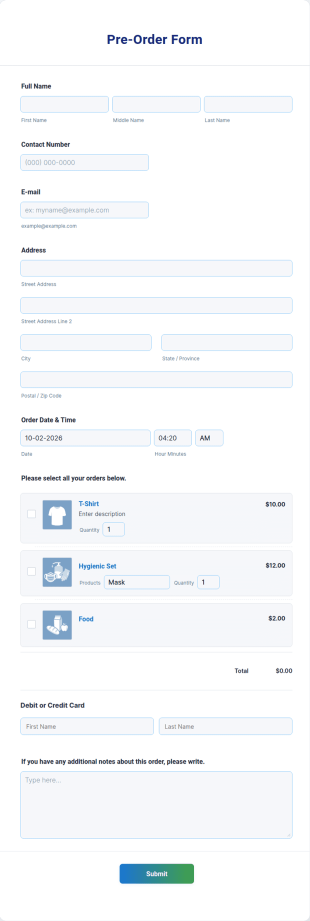
Pre Order Form
Embed a free Pre-Order Form Template in your store’s website to instantly process product pre-orders online. Free to use, easy to customize!
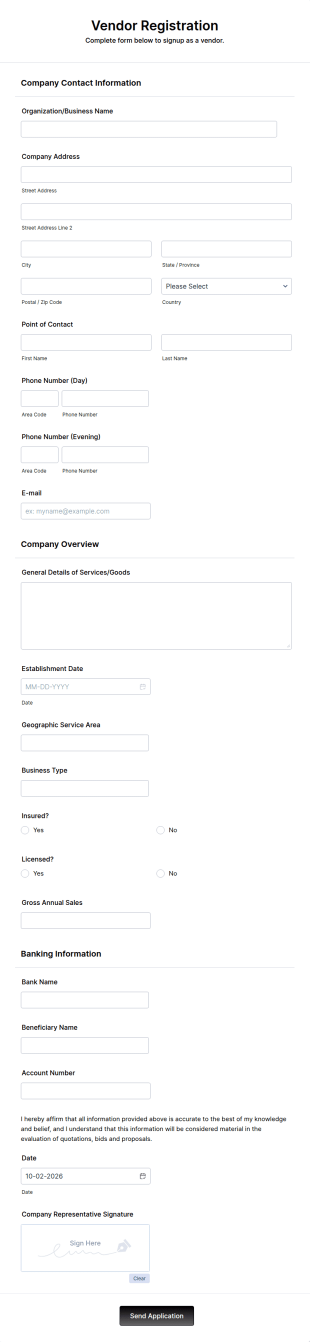
Go to Category:E-commerce FormsVendor Registration Form
A vendor registration form is used by event planners to collect the contact details of vendors, suppliers, and other service providers. You’ll track an impressive list of contacts with Jotform!
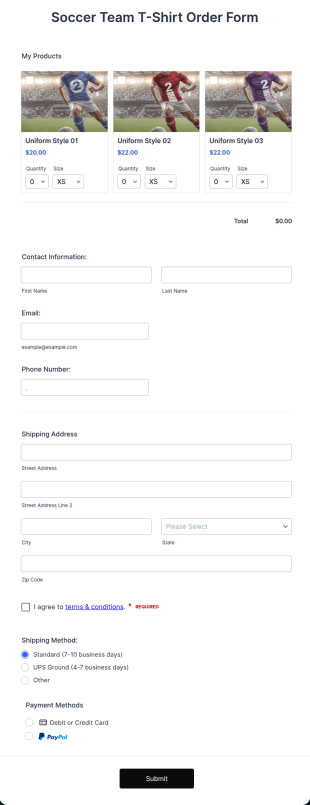
Go to Category:Shopify FormsSoccer Team T Shirt Order Form
Streamline your jersey sales with this free Soccer Team T-Shirt Order Form. Process orders and collect payments online. Easy drag-and-drop customization.
Go to Category:E-commerce Forms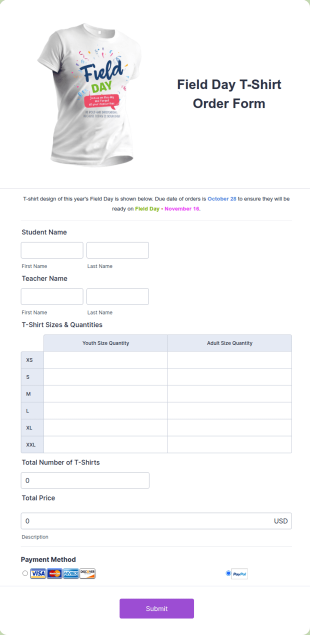
Field Day T Shirt Order Form
Sell T-shirts for your school’s field day. Customize and publish this free T-shirt order form without coding. Safely process payments with 30+ payment gateways.
Go to Category:E-commerce Forms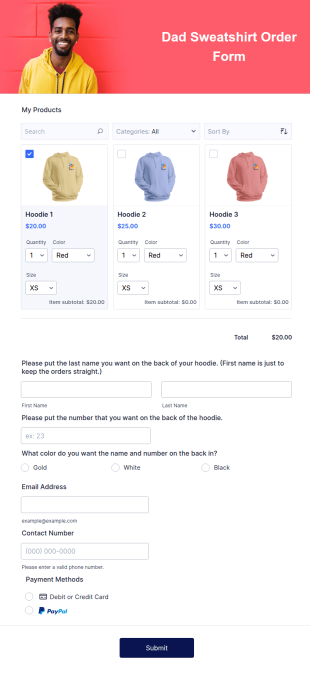
Dad Sweatshirt Order Form
The Sweatshirt Order Form is used by individuals and businesses to streamline the purchase process of custom-made sweatshirts.
Go to Category:E-commerce Forms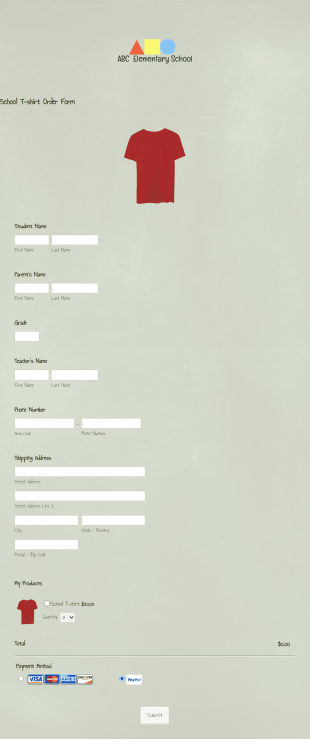
School T Shirt Order Form
Process T-shirt orders for your school or club with a free School T-Shirt Order Form. Collect orders and payments online. Sync responses to other accounts.
Go to Category:E-commerce Forms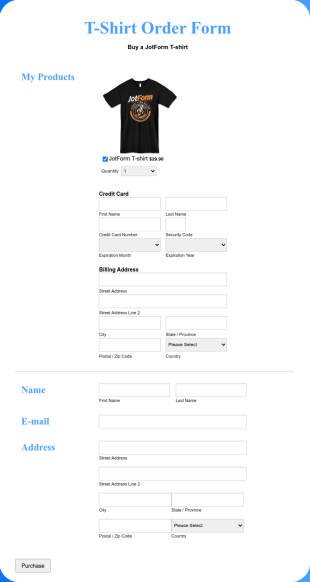
PayJunction T Shirt Order Form
A PayJunction T-Shirt Order Form is used by businesses, organizations, and individuals to sell custom t-shirts using PayJunction payment processor.
Go to Category:E-commerce Forms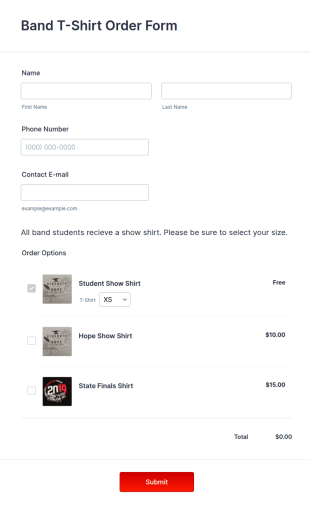
Band T Shirt Order Form
A band t-shirt order form is a document that collects information and orders about t-shirt sizes, styles, and other customization options.
Go to Category:E-commerce Forms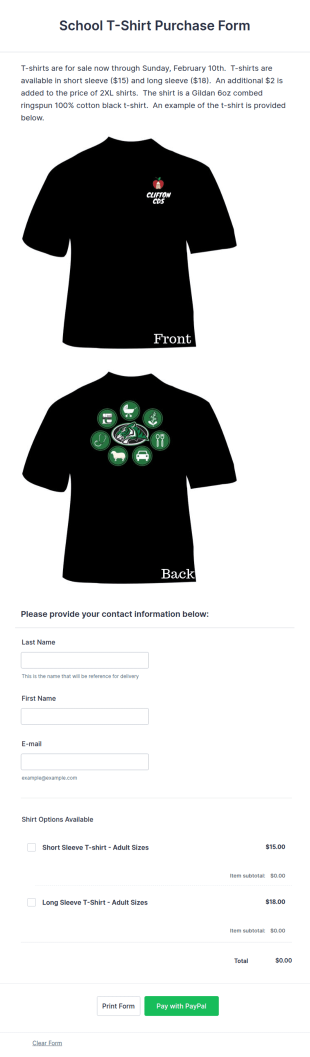
School T Shirt Purchase Form
A school t-shirt purchase form helps schools collect student sizes and fees for t-shirts, classes, or other school activities.
Go to Category:Education Forms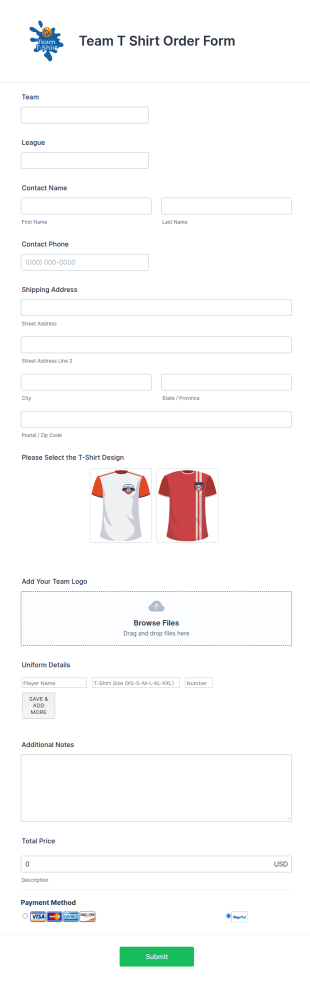
Team T Shirt Order Form
Seamlessly sell T-shirts for sports teams with an online Team T-Shirt Order Form. Customize, integrate with powerful apps, and embed in seconds — for free!
Go to Category:E-commerce Forms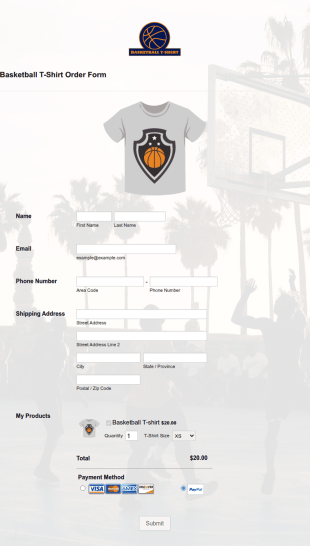
Basketball T Shirt Order Form
Sell T-shirts for your basketball team online. Customize and publish this free Basketball T-shirt Order Form without coding. Safely accept online card payments.
Go to Category:E-commerce Forms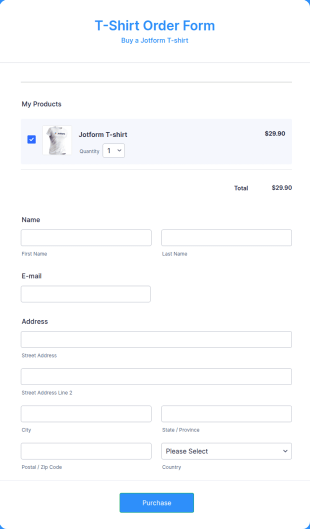
Bluepay T Shirt Order Form
A Bluepay t-shirt order form is used by clothing companies to order clothing items from suppliers using the Bluepay payment processor.
Go to Category:E-commerce Forms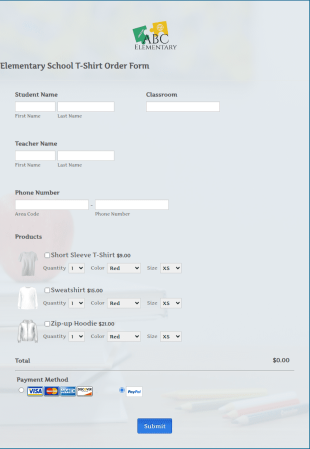
Elementary School T Shirt Order Form
Sell T-shirts for your elementary school and process card payments online. Easy to customize, integrate, and embed on any web page — no coding required!
Go to Category:E-commerce Forms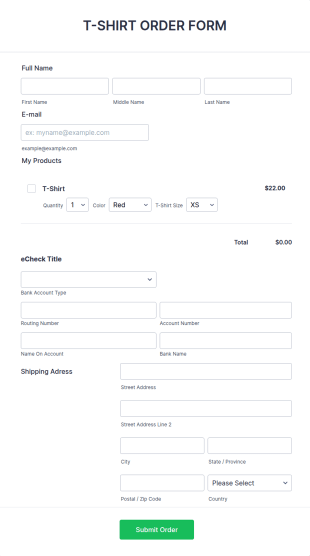
ECheck.Net T Shirt Order Form
A quick and easy form that can be used as an order form. This form has an eCheck.Net section for payment option.
Go to Category:E-commerce Forms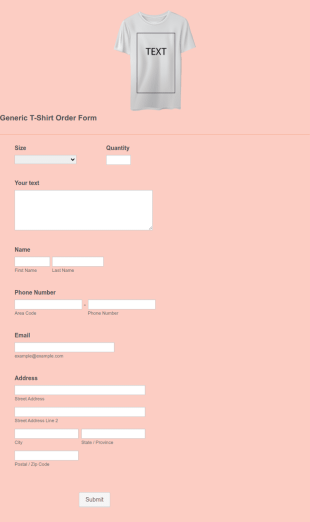
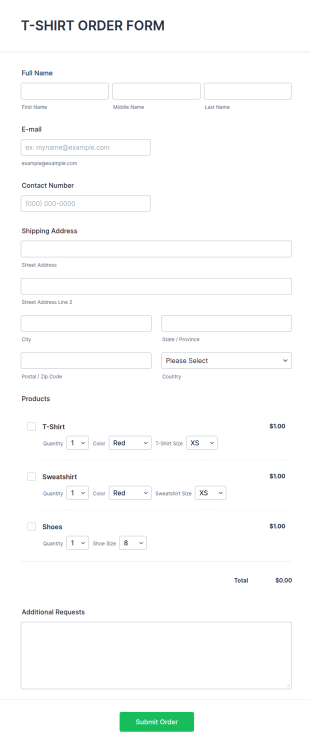
Generic T Shirt Order Form
Customize and embed this Generic T-Shirt Order Form in your website — for free! Accept payments online and boost productivity with 130+ app integrations.
Go to Category:E-commerce FormsT Shirt Product Order Form
A T-Shirt Product Order Form is a template designed to streamline your t-shirt sales process. Ideal for online retailers or event organizers, this template enables seamless order intake and aids in efficient order processing. Streamline your business operations with Jotform's template.
Go to Category:Business Forms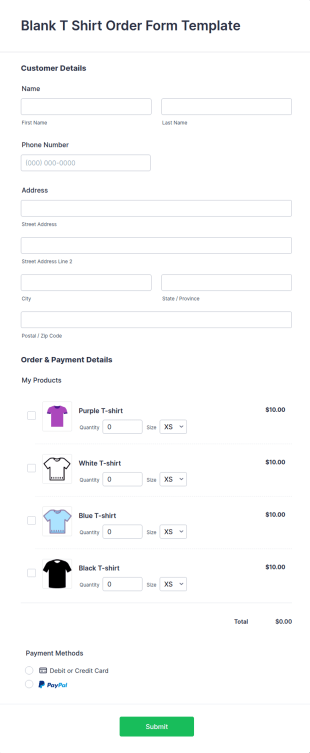
Blank T Shirt Order Form Template
Gather t-shirt orders online with a free Blank T-Shirt Order Form. Customize the template, embed the form in your website, and collect money online.
Go to Category:E-commerce Forms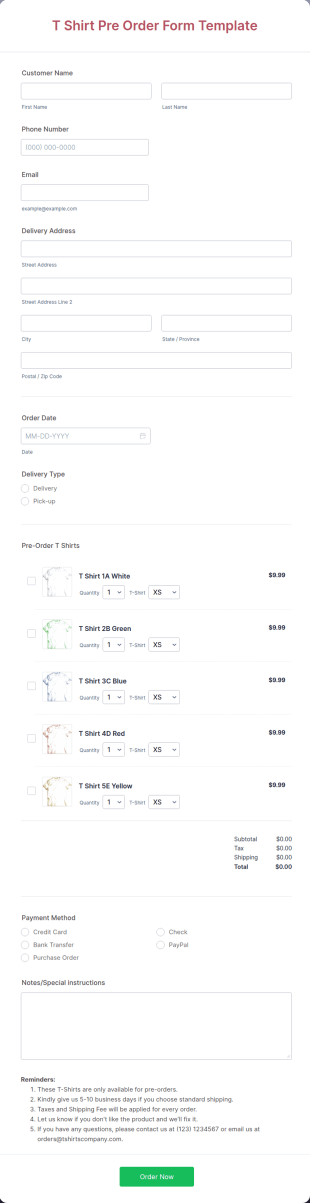
T Shirt Pre Order Form Template
Boost your sales by using this T Shirt Pre Order Form Template for your limited releases. This template will definitely help you in selling t-shirts because it is easily operated and neat.
Go to Category:E-commerce Forms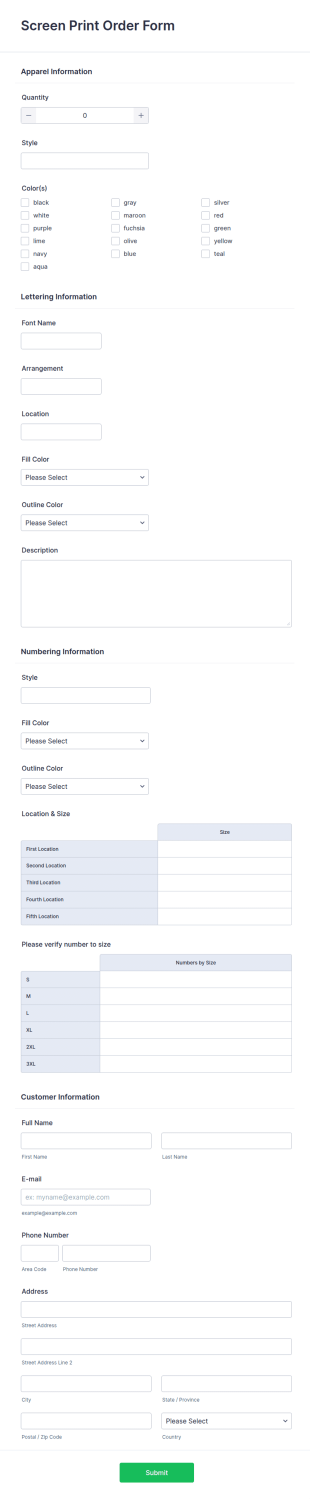
Screen Printing Order Form
Sell T-shirts online with a free Screen Printing Order Form. Quickly customize and embed in your website. Accept card payments. Sync to 130+ apps.
Go to Category:E-commerce Forms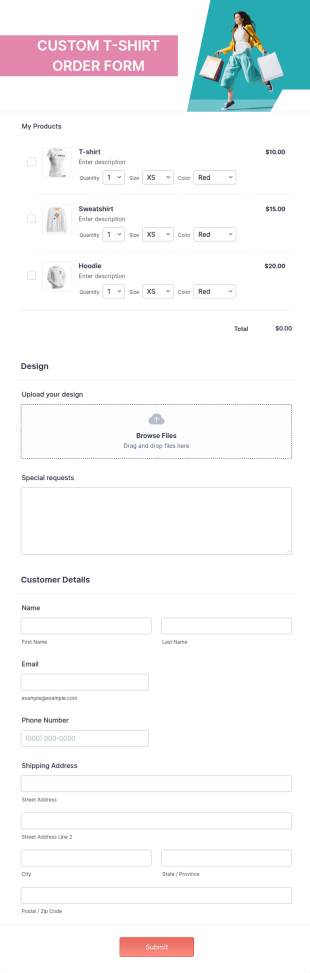
Custom T Shirt Order Form Template
Sell custom T-shirts online with a free Custom T-Shirt Order Form! Process T-shirt orders and payments simultaneously. Easy to embed in your store’s website.
Go to Category:E-commerce Forms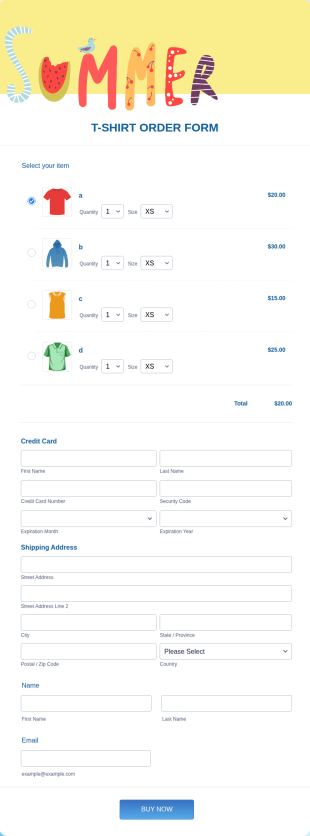
Summer T Shirt Order Form
Process your orders online with a T-shirt order form that provides your customers with the tshirt visuals for them to select, asks for their quantity and size preference, shipping address and credit card information.
Go to Category:E-commerce Forms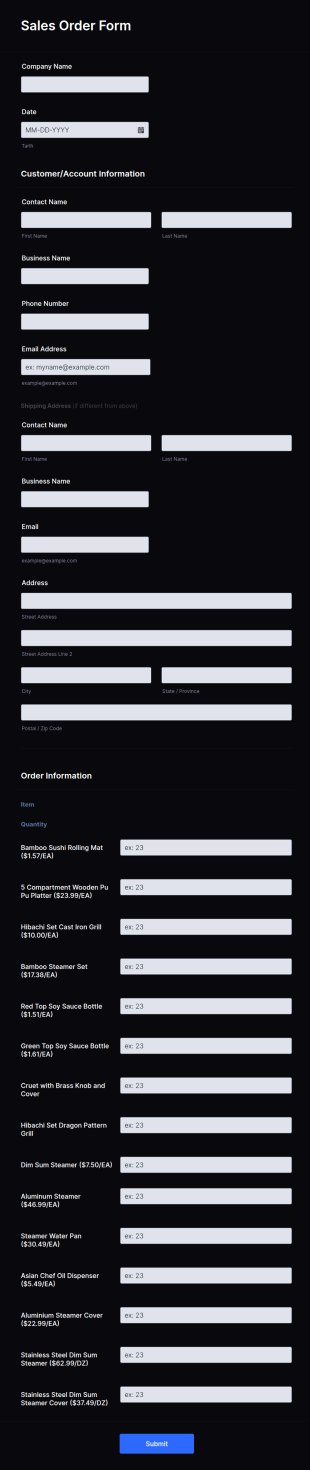
Sales Order Form
A Sales Order Form is a form template designed to streamline the process of listing purchased products, managing company orders, and processing orders
Go to Category:Sales Order Forms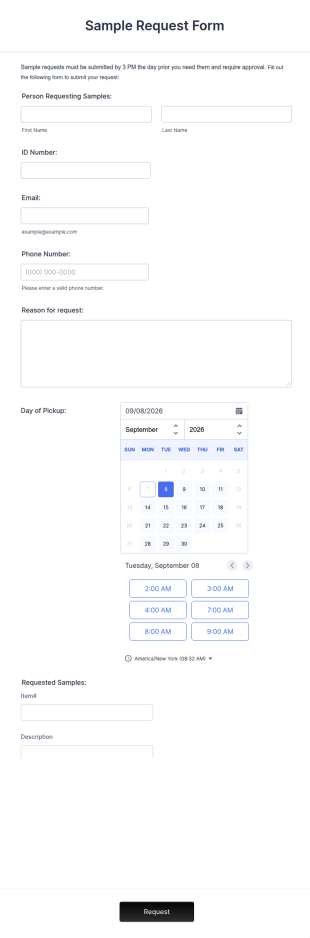
Sample Request Form
A sample request form is a quick and easy way to ask for examples of a product or service from a business.
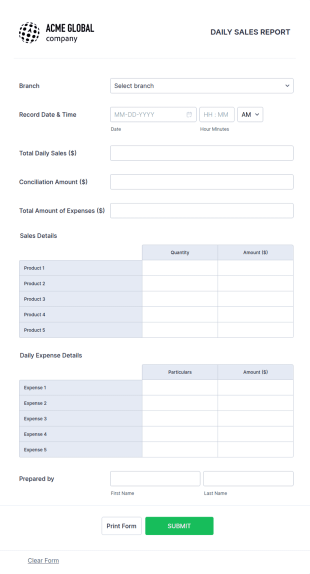
Go to Category:E-commerce FormsDaily Sales Report
This daily sales report form template might be so useful for your business and daily sales reporting.
Go to Category:Business FormsAbout Salesman Forms
Salesman Forms are specialized digital forms designed to streamline and enhance sales operations within various industries. These forms serve a vital role in managing and executing sales processes by facilitating tasks such as lead generation, order processing, customer feedback collection, and sales performance tracking. In real-world workflows, Salesman Forms are used to capture and organize customer information efficiently, ensuring that sales teams can quickly access vital data to close deals and maintain customer relationships. By utilizing these forms, businesses can optimize their sales operations, reduce administrative burdens, and improve overall productivity.
Jotform stands out as the premier online form builder for creating and managing Salesman Forms, offering a user-friendly platform that simplifies the customization and automation of data collection. With Jotform, organizations can easily tailor forms to meet specific sales needs, ensuring that they capture all necessary data accurately and efficiently. Additionally, Jotform Tables provides centralized data management, allowing sales teams to access, analyze, and share data seamlessly. This integration of form creation and data management enables businesses to focus on strategic sales activities rather than being bogged down by administrative tasks.
Why Use Salesman Forms?
- Salesman Forms offer unparalleled accuracy in data collection, ensuring that sales teams have access to precise and up-to-date information. This reduces the potential for errors that can arise from manual data entry, enabling teams to make informed decisions quickly and confidently.
- Speed is a critical factor in sales, and these forms allow for rapid data collection and processing. With the ability to automate repetitive tasks, sales professionals can focus more on engaging with clients and closing deals, rather than being tied up with paperwork.
- Professional data handling is a hallmark of Salesman Forms, providing a structured and organized way to manage customer information. This not only enhances the professionalism of sales teams but also boosts customer confidence as they see their data being managed responsibly.
- The use of Salesman Forms helps streamline workflows, making it easier to track sales activities and progress. By having a centralized platform, sales managers can easily monitor performance metrics and make strategic adjustments as needed.
- The integration capabilities of Jotform ensure seamless connectivity with existing sales systems, such as CRM platforms. This enhances the efficiency of data flow between systems, eliminating the need for manual data transfers and minimizing the risk of data loss.
Common Problems Solved by Salesman Forms
- One of the most significant challenges in sales is the overwhelming amount of paperwork, which can slow down processes and lead to inefficiencies. Salesman Forms digitize these processes, reducing the need for physical documents and streamlining operations.
- Manual data entry is prone to errors and can consume valuable time that sales teams could use more productively. By automating data collection through these forms, businesses can minimize human errors and free up time for more critical tasks.
- Lost or misplaced data is a common issue that can hinder sales efforts and damage customer relationships. Salesman Forms ensure that all data is securely stored and easily retrievable, reducing the risk of data loss and improving customer service.
- Managing follow-ups and client communications manually can lead to missed opportunities and delays. With Salesman Forms, sales teams can set up automated workflows to ensure timely and consistent follow-ups, enhancing client engagement and satisfaction.
Matching Use Cases to Features
- Sales tracking can be significantly enhanced with Jotform's Drag-and-Drop Form Builder, allowing sales managers to customize forms that capture essential sales metrics. This feature provides a clear and concise view of sales performance, aiding in strategic decision-making.
- The Conditional Logic feature is perfect for tailoring the form experience based on user input, ensuring that only relevant questions are presented. This not only enhances user experience but also increases the quality of the data collected.
- For businesses that require payment processing, Jotform offers integration with 30+ Payment Gateways, such as Stripe and PayPal. This feature enables sales teams to collect payments directly through the forms, streamlining the sales process and improving cash flow.
- Electronic Signatures, powered by Jotform Sign, facilitate the quick and secure signing of contracts and agreements. This feature speeds up the sales cycle by eliminating the need for physical signatures and ensuring legal compliance.
- The Automated PDF Generation capability of Jotform's PDF Editor allows for the creation of professional documents from form submissions. This is ideal for generating invoices, contracts, and reports, enhancing the professionalism and efficiency of sales operations.
- Jotform's Report Builder provides insightful analytics from form submissions, helping sales teams to identify trends and opportunities. By leveraging this feature, businesses can make data-driven decisions that boost sales performance.
- Approval Workflows can be configured to streamline internal processes by automating the review and approval of sales documents. This ensures that sales activities are executed efficiently and with the necessary oversight.
How to Create a Salesman Form
- Start by browsing the Template List for a Salesmans template or begin from scratch with a blank form to suit your specific needs.
- Customize the design and fields using the Drag-and-Drop Form Builder, which allows you to easily add, remove, or modify form elements to capture the necessary sales data.
- Once your form is ready, publish and share it via Direct Link, Email, or Website Embed to start collecting responses from your team or clients.
Top Use Cases for Salesman Forms
- For Managers: Salesman Forms provide managers with a powerful tool to monitor and evaluate team performance. By using customized forms for sales tracking, managers can easily access real-time data on sales activities, helping them to identify areas for improvement and allocate resources effectively. This data-driven approach enables managers to make informed decisions that drive sales growth and enhance team productivity.
- For Teams: Salesman Forms streamline communication and collaboration within sales teams. By centralizing and automating data collection, these forms reduce the administrative burden on sales professionals, allowing them to focus on client interactions and closing deals. The ease of data sharing and integration with CRM systems ensures that all team members are on the same page, fostering a collaborative and efficient work environment.
- For Customers: From the customer's perspective, Salesman Forms offer a seamless and professional experience. Whether it's submitting a service request, placing an order, or providing feedback, customers benefit from a user-friendly interface that simplifies interactions with the sales team. The secure handling of personal information builds trust and confidence in the brand, encouraging long-term customer relationships.
Summarizing Salesman Forms
Salesman Forms are a vital component of modern sales operations, addressing key challenges such as data accuracy, process efficiency, and customer engagement. By leveraging Jotform's powerful online form builder, businesses can create customized solutions that enhance sales performance and streamline workflows. The integration of advanced features such as Payment Gateways, Conditional Logic, and Automated PDF Generation ensures that Salesman Forms are not only versatile but also highly effective in meeting the diverse needs of sales teams. Ultimately, these forms empower businesses to focus on growth and customer satisfaction, driving success in a competitive marketplace.
Frequently Asked Questions
1) Is it free to create Salesman Forms on Jotform?
Yes, Jotform offers a free plan that allows users to create and publish Salesman Forms, with some limitations on submissions and features. For more advanced needs, paid plans are available.
2) Are the forms and submitted data secure?
Absolutely. Jotform prioritizes data security with features such as SSL encryption, GDPR compliance, and secure data storage, ensuring that all forms and submissions are protected.
3) Do I need coding knowledge to build a Salesman Form?
No, you do not need any coding knowledge. Jotform's Drag-and-Drop Form Builder makes it easy for anyone to create professional forms without technical expertise.
4) Can I collect payments directly through my forms?
Yes, Jotform integrates with over 30 Payment Gateways, allowing you to collect payments directly through your forms securely and efficiently.
5) Can these forms be used on mobile devices?
Yes, Jotform's forms are fully responsive and can be accessed and submitted on any mobile device, ensuring flexibility for both users and respondents.
6) Can I turn form submissions into professional PDF documents?
Yes, with Jotform's PDF Editor, you can automatically generate professional PDF documents from form submissions, perfect for creating invoices, contracts, and reports.
7) How do Salesman Forms help in tracking sales performance?
Salesman Forms can be customized to capture essential sales metrics, providing real-time data that helps in tracking and analyzing sales performance, aiding strategic decision-making.
8) Can Salesman Forms integrate with my existing CRM system?
Yes, Jotform supports integration with over 100 third-party applications, including popular CRM systems, ensuring seamless data flow and enhanced productivity.