


Gamer Forms
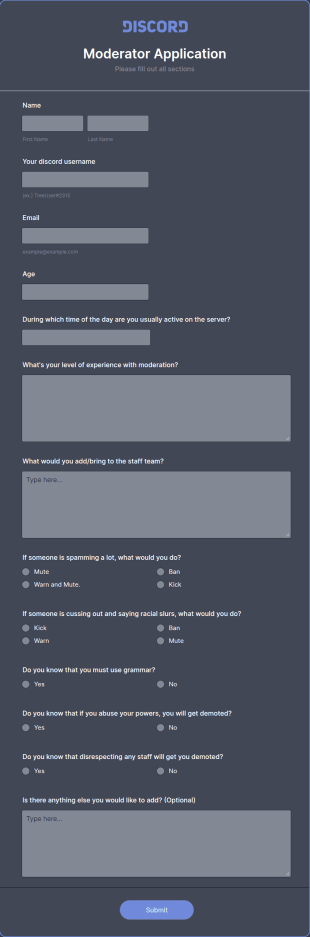
Discord Mod Application Form
Discord Mod Application Form is a form template that can be tailored for recruiting moderators for your Discord server, simplifying the process with Jotform's easy form customization options.
Go to Category:Entertainment FormsDiscord Staff Application Form
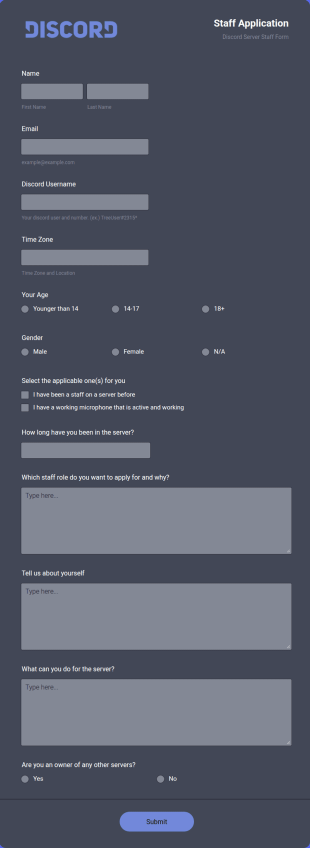
Discord Staff Application Form is a form template that streamlines the recruitment process for Discord server moderators, making it seamless to collect and compile potential candidates' data with Jotform's intuitive interface.
Go to Category:Entertainment FormsIlluminati Join Application Form
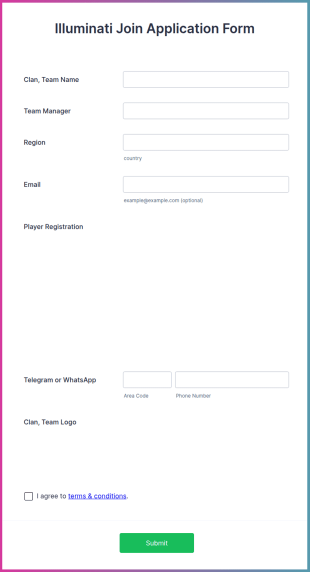
The Illuminati Join Application Form is a streamlined solution designed to simplify the process of joining the exclusive Discord channel "Illuminati" for gamers, streamers, and Discord moderators.
Go to Category:Gaming Forms
Game Contact Form
A game contact form is a survey used by gaming companies to get customer opinions and information
Go to Category:Contact Forms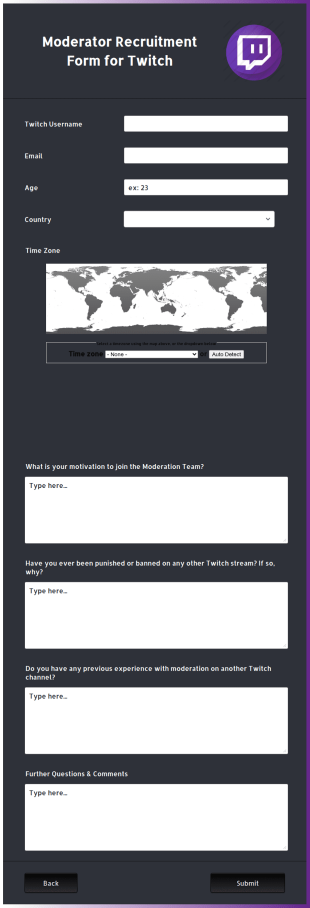
Twitch Mod Application
A Twitch Moderator Application Form is used by those who want to become moderators for the popular social media platform, Twitch.
Go to Category:Gaming FormsDigital Escape Room Template
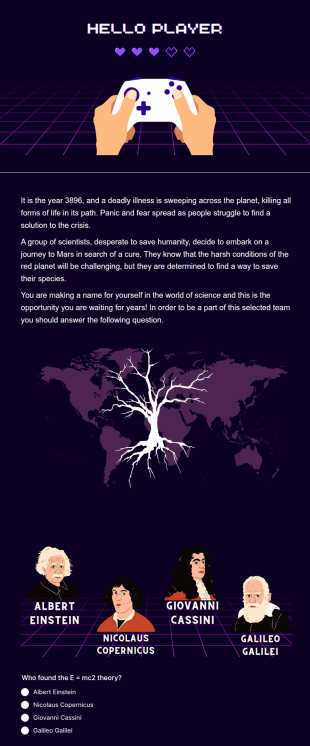
A digital escape room is a puzzle game that players solve in a virtual environment. It is a live-action puzzle event where the participants complete puzzles to obtain a code or key that will allow them to escape the room.
Go to Category:Entertainment Forms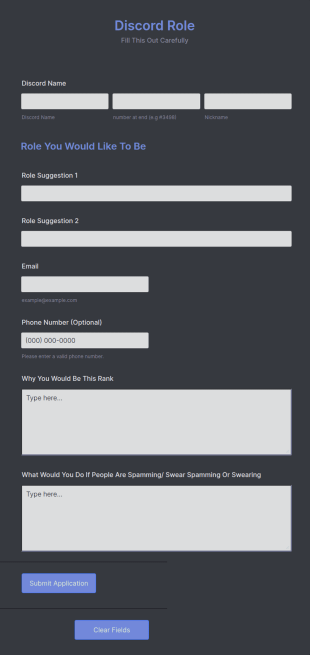
Discord Role Application Form
A Discord role form is a questionnaire used to screen candidates for a role on a Discord server. Collect information with Jotform!
Go to Category:Entertainment Forms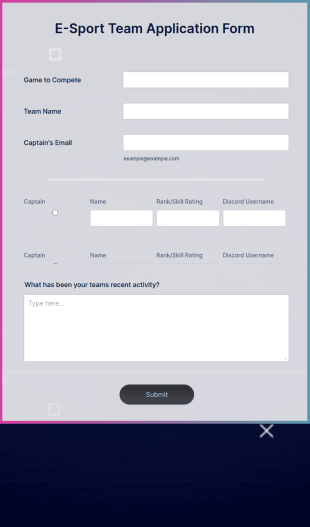
E Sport Team Application Form
Register teams online for your next gaming tournament. Free application form. Easy to customize and share. Integrates with Twitch and Discord. No coding.
Go to Category:Gaming Forms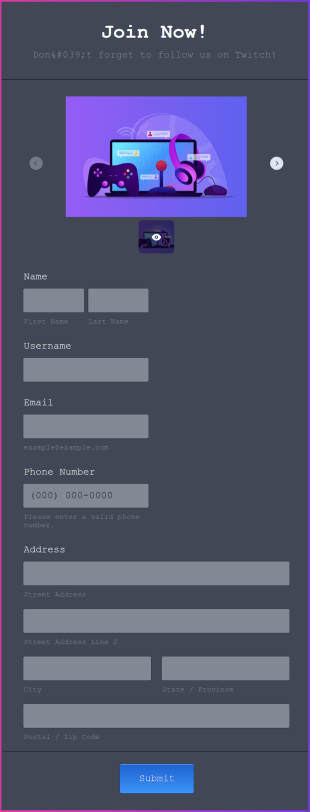
Draw Form For Gamers
Manage gaming giveaways with a free entry form template. Easy to customize, embed, and share. Integrates with Twitch and Discord. Works on any device. No coding.
Go to Category:Gaming FormsVideo Game Survey
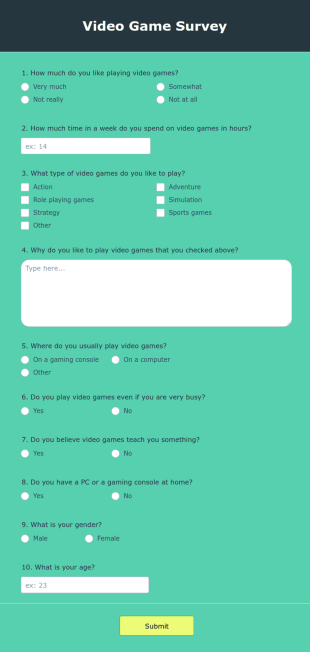
Gather feedback and understand gamer preferences with Video Game Survey. Fully customizable with no coding required.
Go to Category:Gaming Forms
ML Tournament Registration Form
An ML Tournament Registration Form is a form template designed to streamline the process of gathering information from teams or individuals who wish to participate in a ML tournament.
Go to Category:Gaming Forms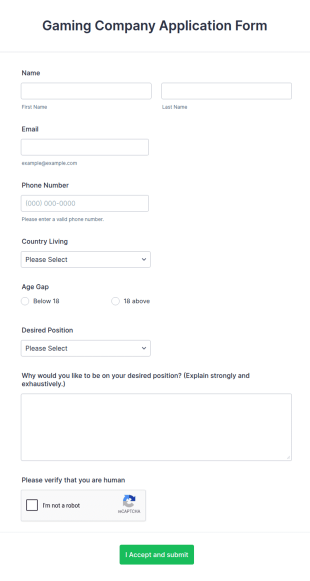
Gaming Company Application Form
A Gaming Company Application Form is a form template designed to collect information from individuals who are interested in applying for job positions within a gaming company.
Go to Category:Gaming FormsFiveM Staff Application Form
FiveM Staff Application Form is a form template that simplifies the process of receiving and organizing applications for staff positions in the FiveM community, designed with the intuitive and user-friendly interface of Jotform.
Go to Category:Gaming Forms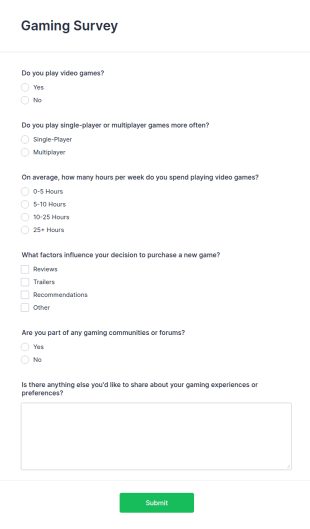
Gaming Survey
The Gaming Survey form template is a tool designed to collect data, feedback, and insights from gamers.
Go to Category:Survey Templates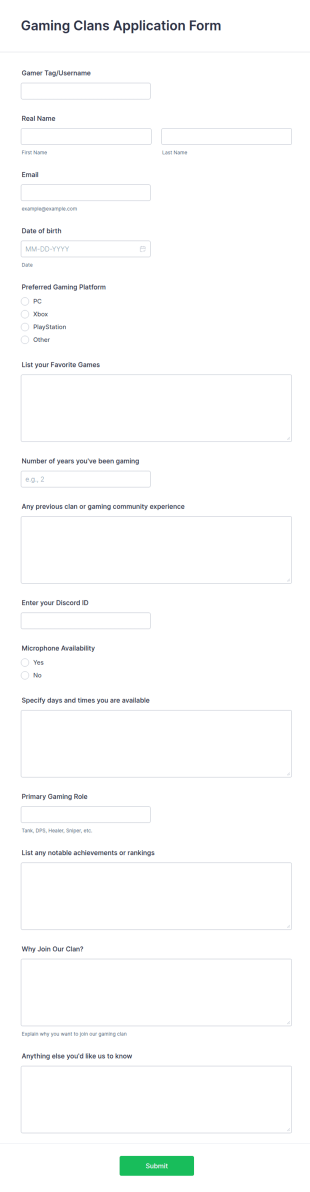
Gaming Clans Application Form
A Gaming Clans Application Form is a versatile tool designed to support the recruitment, assessment, and onboarding process for gaming clans or communities.
Go to Category:Gaming Forms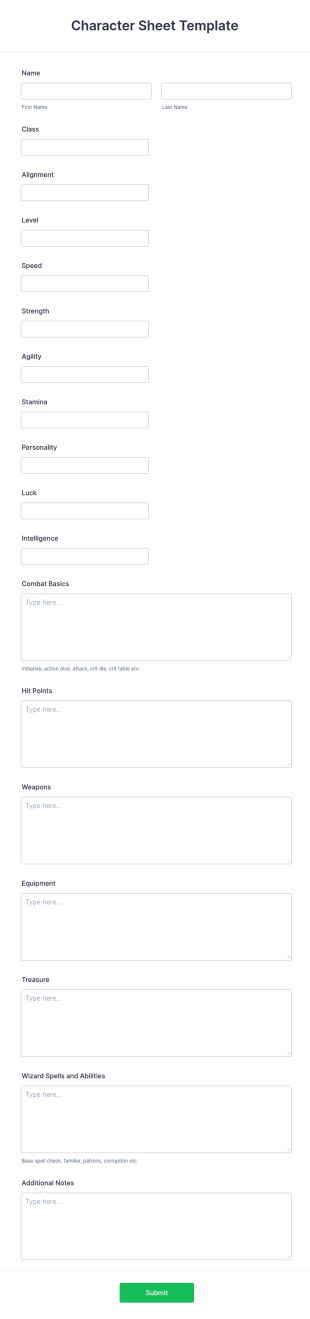
Character Sheet Template
A character sheet template is a document used by roleplaying games to keep track of characters during gameplay. No coding. Easy to use.
Go to Category:Entertainment FormsGame Early Access Registration Form
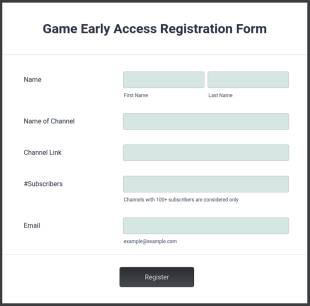
Allow early access for your upcoming game release. Free registration form for early access. Easy to customize and share. Connect to Twitch, Discord, and more.
Go to Category:Gaming Forms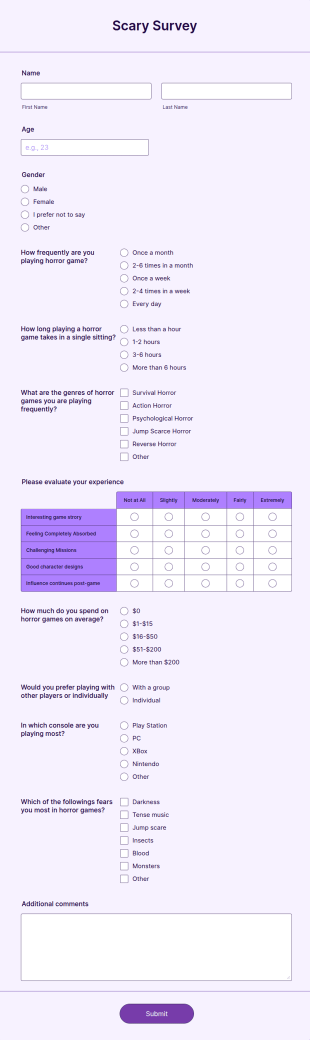
Scary Game Experience Survey
A Scary Survey is a list of questions in which you ask players about their experience with a scary game.
Go to Category:Gaming Forms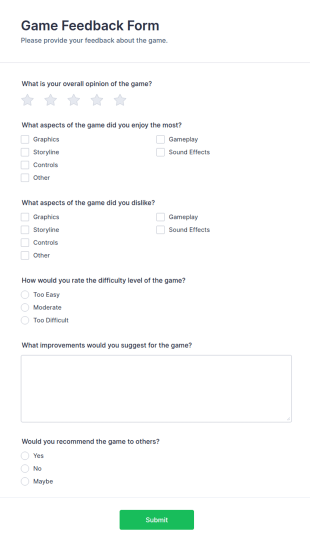
Game Feedback Form
A Game Feedback Form is a form template designed to collect feedback from players and participants about a specific video game or tabletop game.
Go to Category:Gaming Forms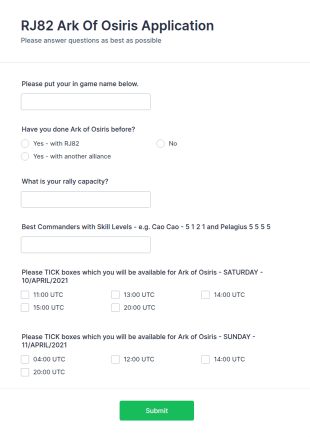
Ark Of Osiris Application Form
An Ark of Osiris Application Form is a form template designed for online gamers and gaming communities to streamline the process of recruiting and managing their team members.
Go to Category:Gaming Forms
Gamer Survey
A gamer survey is an online questionnaire used by game developers to learn about the habits of gamers.
Go to Category:Entertainment Forms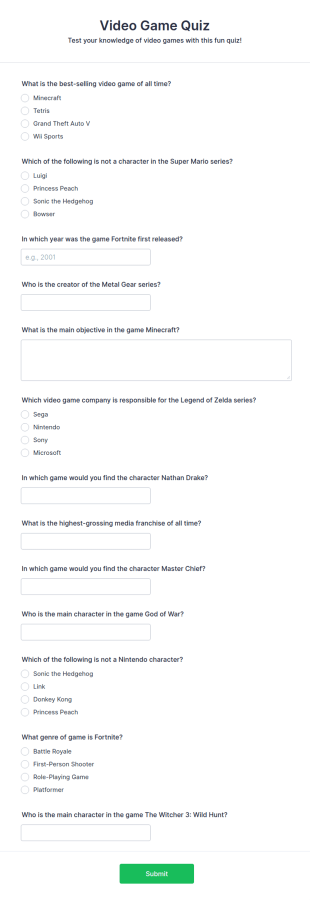
Video Game Quiz
A Video Game Quiz is a form template designed to entertain, educate, engage, and connect players while also serving broader objectives such as promotion, community building, and marketing research.
Go to Category:Entertainment Forms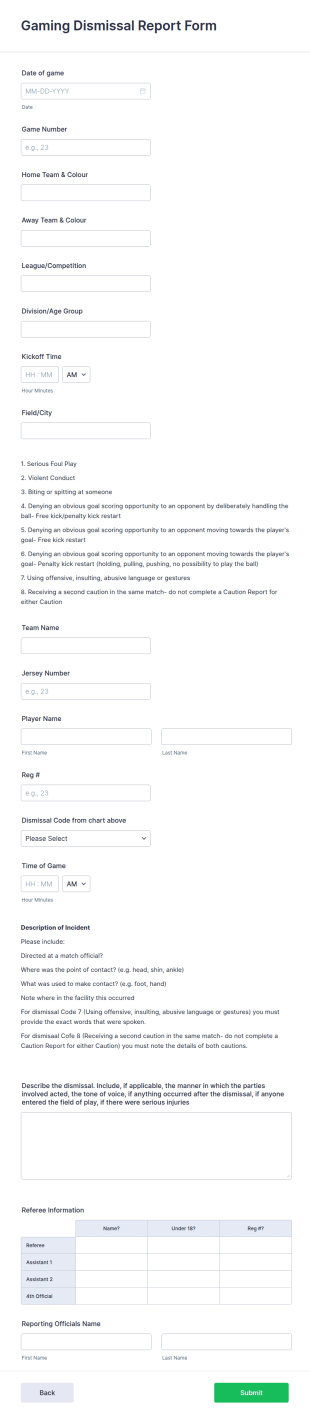
Gaming Dismissal Report Form
Keep track of player dismissals for your sports league. Fill out on any device. Integrate with 100+ third-party platforms. Customize without coding.
Go to Category:Gaming Forms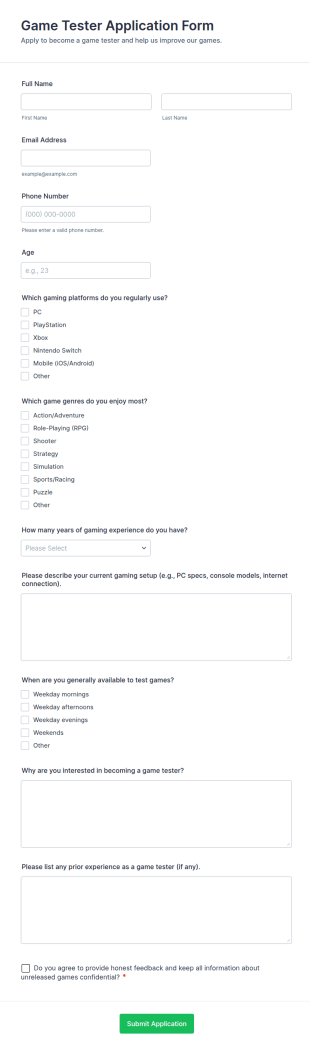
Game Tester Application Form
Game Tester Application Form Templates from Jotform help studios and indie developers collect playtester applications for alphas and betas, organize data collection, and review each form submission to build a reliable testing roster.
Go to Category:Application FormsAbout Gamer Forms
Gamer Forms are specialized online forms tailored to meet the unique needs of the gaming industry. They are designed to streamline various operational workflows such as tournament registrations, feedback collection, and event planning within the gaming community. These forms enable organizations, from small gaming clubs to large esports organizations, to manage their administrative processes efficiently. Whether it’s for collecting gamer data, organizing events, or managing community feedback, Gamer Forms serve as a vital component in ensuring smooth and effective operations within the gaming world.
Jotform stands out as the premier online form builder for creating Gamer Forms, offering a user-friendly platform that simplifies the customization and deployment of these forms. With Jotform, users can easily tailor forms to their specific needs, automating data collection to save time and reduce errors. Centralized data management through Jotform Tables ensures that all collected data remains organized and accessible, enhancing productivity and decision-making. By leveraging Jotform’s capabilities, gaming organizations can focus more on their core activities and less on the intricacies of data management.
Why Use Gamer Forms?
- Gamer Forms offer a high level of accuracy in data collection, significantly reducing the likelihood of errors that can occur with manual entries. This precision is crucial in maintaining the integrity of gaming events and ensuring fair play.
- Speed is another advantage, as these forms facilitate rapid data entry and processing, allowing gaming organizations to respond quickly to registrations, feedback, and other inputs. This efficiency is vital in the fast-paced gaming industry.
- Professional data handling is ensured through secure data management features, protecting sensitive information from unauthorized access and ensuring compliance with data protection regulations.
- The customizable nature of Gamer Forms allows organizations to align the forms with their branding and specific operational needs, providing a cohesive user experience that resonates with the gaming community.
- Automation of repetitive tasks like data entry and report generation frees up valuable time for gaming professionals, enabling them to focus more on strategic activities and community engagement.
Common Problems Solved by Gamer Forms
- The gaming industry often struggles with the inefficiency of paper-based processes. Gamer Forms eliminate the need for physical documents, streamlining workflows and reducing clutter.
- Manual data entry is prone to errors and time-consuming. By using digital forms, organizations can automate data capture, leading to more reliable and faster data processing.
- Data loss is a significant concern when handling large volumes of information. Gamer Forms safeguard against this by ensuring all submissions are securely stored and easily retrievable.
- Tracking participant information and event logistics can be daunting. With Gamer Forms, organizations can efficiently manage these details in a centralized, organized manner, enhancing operational oversight.
Matching Use Cases to Features
- For tournament registrations, the Drag-and-Drop Form Builder allows for quick customization of registration forms to capture necessary participant details, leading to a streamlined sign-up process.
- Managing payments for entry fees is simplified with 30+ Payment Gateways, such as Stripe and PayPal, enabling secure and convenient financial transactions directly through the forms.
- Gathering post-event feedback is crucial for improvement. Conditional Logic can be employed to tailor questions based on participant responses, increasing the relevance and value of the data collected.
- Secure Data Management ensures that sensitive player information is protected, maintaining trust and compliance with privacy standards.
- Utilizing the Report Builder, organizations can generate insightful analytics from collected data, aiding in strategic decision-making and event evaluation.
- Offline Data Collection via Jotform Mobile Forms ensures that data can be gathered even in areas with limited internet connectivity, ensuring no disruptions in data collection efforts.
- The Approval Workflows feature simplifies the process of vetting event participants or submissions, ensuring only qualified entries are processed and reducing administrative burdens.
How to Create a Gamer Form
- Begin by browsing the Template List for a Gamers template or start from a blank form to suit your specific needs.
- Customize the design and fields using the Drag-and-Drop Form Builder, ensuring the form aligns with your branding and data requirements.
- Publish and share the form via Direct Link, Email, or Website Embed to reach your intended audience effectively.
Top Use Cases for Gamer Forms
- For Managers: Gamer Forms provide managers with a powerful solution for overseeing event logistics, participant data, and financial transactions. The ability to automate data workflows and generate real-time reports enhances strategic planning and operational efficiency. Managers can focus on improving event quality and participant experience, knowing that administrative tasks are handled seamlessly.
- For Teams: Teams within gaming organizations can utilize Gamer Forms to coordinate activities, communicate efficiently, and manage internal processes. By centralizing data and streamlining communication, teams can collaborate more effectively, ensuring that all members are aligned and informed. This fosters a more cohesive working environment and enhances team productivity.
- For Customers: Gamer Forms enhance the customer experience by simplifying interactions, such as registration, feedback submission, and information requests. By providing a user-friendly interface and secure data handling, these forms build trust and satisfaction among participants. Customers appreciate the streamlined process and quick response times, which contribute to a positive overall experience.
Summarizing Gamer Forms
Gamer Forms are an essential component for any organization within the gaming industry seeking to enhance their operational efficiency and data management. By leveraging Jotform’s comprehensive form builder capabilities, gaming entities can automate workflows, ensure data accuracy, and improve participant interactions. The versatility and customization of these forms allow for seamless integration into various gaming scenarios, driving both operational success and participant satisfaction.
Frequently Asked Questions
1) Is it free to create Gamer Forms on Jotform?
Yes, Jotform offers a free plan that allows users to create and deploy Gamer Forms, although certain advanced features and higher submission limits may require a paid plan.
2) Are the forms and submitted data secure?
Absolutely, Jotform ensures that all forms and submitted data are protected with high-level security measures, including SSL encryption and compliance with data protection standards.
3) Do I need coding knowledge to build a Gamer Form?
No, Jotform’s Drag-and-Drop Form Builder requires no coding knowledge, making it accessible for anyone to create professional forms easily.
4) Can I collect payments directly through my forms?
Yes, you can collect payments directly through your forms using Jotform’s integration with over 30 payment gateways, including Stripe, PayPal, and Square.
5) Can these forms be used on mobile devices?
Yes, Jotform forms are fully responsive and can be used on mobile devices, ensuring accessibility and convenience for all users.
6) Can I turn form submissions into professional PDF documents?
Indeed, Jotform’s PDF Editor allows you to automatically generate PDF documents from form submissions, which can be customized to meet your branding and presentation needs.
7) How do Gamer Forms support event management?
Gamer Forms streamline event management by automating registration, payment processing, and feedback collection, thus reducing administrative overhead and enhancing participant experience.
8) Can Jotform integrate with other platforms I use?
Yes, Jotform offers over 100 third-party integrations, allowing you to connect your forms with platforms like Google Sheets, Salesforce, and Slack for seamless data flow and enhanced workflow automation.